
Introduction
Popups can help businesses capture leads, promote products, announce offers, grow newsletter subscriptions, and guide website visitors toward relevant actions.
When designed carefully, a popup can provide useful information at the right moment. When implemented poorly, however, it can interrupt browsing, frustrate visitors, and make a website more difficult to use.
The challenge is not simply creating a popup. Website owners need control over its appearance, timing, audience, frequency, content, and behavior after a visitor interacts with it.
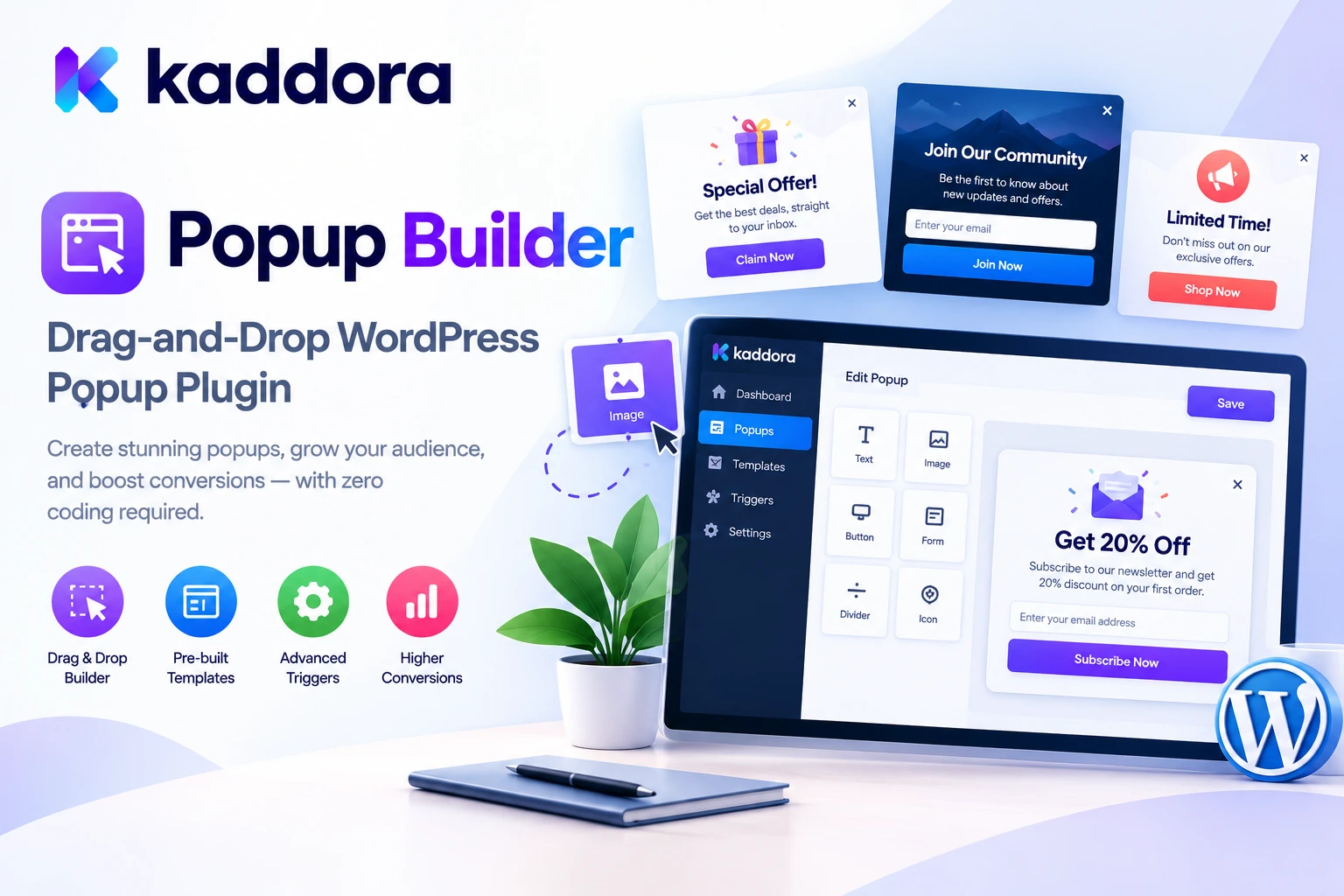
Popup Builder by Kaddora is a WordPress popup and lead generation plugin designed to help businesses create, customize, target, and manage marketing popups through a visual drag-and-drop interface.
The plugin offers 330 ready-made templates across 27 categories, multiple popup formats, flexible display triggers, audience targeting, lead-generation forms, submission management, webhook integration, and campaign analytics.
Whether you operate a WooCommerce store, business website, blog, portfolio, agency website, or landing page, Kaddora Popup Builder provides tools for creating popup experiences without manually coding every layout.
In this guide, we'll explore its features, practical use cases, setup process, and best practices for designing effective popups while maintaining a positive user experience.
What Is Popup Builder by Kaddora?
Popup Builder by Kaddora is a WordPress plugin designed for creating and managing website popups for marketing, lead capture, announcements, promotions, and visitor engagement.
Rather than building popup layouts from scratch, users can choose a template, customize the content visually, configure display conditions, and publish the campaign from WordPress.
According to the official Kaddora Popup Builder product listing, its advertised features include:
330 editable popup templates across 27 categories
Visual drag-and-drop popup builder
Modal, slide-in, top-bar, bottom-bar, sidebar, fullscreen, and inline popups
Text, image, button, form, video, icon, countdown, and HTML elements
Responsive desktop, tablet, and mobile previews
Page and device targeting
Time-delay, scroll-depth, exit-intent, and click-based triggers
Display-frequency controls
Lead capture and newsletter forms
Form submission management and CSV export
Email notifications and visitor auto-replies
Redirects and downloadable resources after submission
Webhook integration
Popup analytics and Google Analytics event support
Multi-step popup campaigns
Animation and appearance controls
Draft and publish workflows
Import and export of popup configurations
Shortcode support and WordPress Media Library integration
These features provide a flexible framework for managing popup campaigns from the WordPress dashboard.
Why Use a Popup Builder in WordPress?
A website visitor may browse an article, compare products, or explore a service page without completing the next intended action.
A well-designed popup can present a relevant opportunity without requiring the visitor to search for it independently.
For example, a popup might invite a reader to subscribe to a newsletter, introduce a newly launched service, or offer a useful downloadable resource.
Common marketing challenges include:
Limited lead capture: Visitors leave a website without subscribing or submitting an inquiry.
Poor campaign visibility: Promotions and announcements may be difficult to notice within a busy page.
Inconsistent popup designs: Different campaigns may use unrelated layouts and styling.
Limited targeting: A generic popup may appear even when its message is irrelevant to the current page.
Excessive interruptions: Repeated popups can damage the browsing experience.
Unclear performance: Without campaign analytics, it can be difficult to determine whether visitors engage with popup content.
A dedicated popup builder helps address these challenges by providing design tools, display conditions, and campaign management in one interface.
Key Features of Popup Builder by Kaddora
1. Drag-and-Drop Popup Builder
Creating a popup should not require manually writing HTML, CSS, and JavaScript for every campaign.
Kaddora Popup Builder includes a visual editor that allows users to arrange supported content elements and customize their appearance through a drag-and-drop workflow.
Its element library includes:
Headings and text
Images
Buttons
Forms
Videos
Shapes and dividers
Icons
Countdown timers
Lists
Custom HTML
Spacers
For example, a business promoting a new service could create a popup containing a headline, a short explanation, an image, and a call-to-action button.
The visual editor makes it easier to modify the layout and adjust the design without manually rebuilding the entire popup.
2. 330 Ready-Made Popup Templates
Designing a campaign from a blank canvas can take time, especially when a business needs several popups for different purposes.
Kaddora Popup Builder includes 330 editable templates organized across 27 categories, according to its product listing.
These templates provide starting points for campaigns such as:
Newsletter subscriptions
Lead generation
Product promotions
Discount announcements
Seasonal offers
Event promotions
Product launches
Content downloads
Customer feedback
Call-to-action campaigns
Special announcements
Marketing offers
A store owner can adapt a promotional template for a new collection, while a blogger might choose a newsletter design to grow a subscriber list.
Templates can reduce design effort, but each campaign should still be customized with accurate content, appropriate imagery, and a clear objective.
3. Multiple Popup Types
Different marketing situations call for different popup formats.
Kaddora Popup Builder lists several popup types, including:
Popup Type
Typical Use
Modal popup
Display a focused message or form
Slide-in popup
Introduce an offer while keeping much of the page visible
Top bar
Display a concise announcement or promotion
Bottom bar
Show a message near the bottom of the viewport
Sidebar popup
Present supporting information in a side panel
Fullscreen popup
Create a prominent, immersive campaign experience
Inline popup
Place popup content within a page's content flow
Choosing the appropriate format depends on the message and the visitor's context.
A small announcement may work well as a top bar, while a consultation form may be better suited to a focused modal.
Avoid using a fullscreen popup for a message that could be communicated more clearly through a smaller, less disruptive element.
4. Advanced Design and Styling Controls
Popups should complement the website rather than appear disconnected from its branding.
Kaddora Popup Builder advertises styling controls for:
Width and height
Position and placement
Typography
Colors and backgrounds
Background images
Borders and border radius
Shadows and opacity
Spacing and alignment
Element layering
Overlay settings
Close-button appearance
Scrolling behavior
Automatic closing
Rotation and visual effects
These options provide flexibility when designing campaigns for different website styles.
For example, a corporate website might use simple typography and subtle borders, while a creative agency could prefer bolder colors and more expressive layouts.
Keep the design consistent with the website's existing visual identity. Important content should remain readable, and the close button should be easy to locate and use.
5. Flexible Display Triggers
A popup's timing can significantly affect the visitor experience.
Kaddora Popup Builder includes multiple display triggers that allow a campaign to appear according to selected conditions.
The advertised triggers include:
Immediate display
Time delay
Exit intent
Scroll depth
Visitor inactivity
CSS selector click
For example, a newsletter invitation might appear after a visitor has spent some time reading an article. A lead-generation popup could be triggered when a visitor clicks a specific button.
A typical trigger workflow looks like this:
Visitor Opens Page ↓ Configured Trigger Is Evaluated ↓ Display Conditions Are Checked ↓ Popup Appears When Eligible ↓ Visitor Interacts or Closes It
Choose triggers that fit the purpose of the campaign. Showing a popup immediately on every page can disrupt browsing, while a contextual trigger may better match the visitor's needs.
6. Advanced Targeting Rules
A relevant popup is generally more useful than one shown indiscriminately to every visitor.
Kaddora Popup Builder supports targeting options based on:
Page URLs
URL inclusion rules
URL exclusion rules
Logged-in or logged-out status
WordPress user roles
Device type
Referrer information
URL query strings
These conditions can help businesses display campaigns on selected pages or under specific circumstances.
For example, a service provider could display a consultation popup on service pages while excluding its privacy policy and other informational pages.
An ecommerce store could use a promotion on relevant product pages instead of displaying it throughout the entire website.
Targeting should improve relevance without relying on unnecessary collection or inference of sensitive visitor information.
7. Display Frequency Controls
Repeated popups can frustrate visitors, especially when the same message appears on every page or every visit.
Kaddora Popup Builder includes display-frequency controls that allow administrators to configure when a popup can appear again.
The advertised options include displaying popups on every visit, once per session, once per visitor, or again after a selected number of days.
For example, a newsletter popup may be configured to appear only once per visitor rather than interrupting every browsing session.
Appropriate frequency settings can make campaigns feel less intrusive.
Choose the recurrence rule according to the campaign's purpose and verify that it behaves as expected across devices and browsing sessions.
8. Lead Generation Forms
Popups can help turn website interest into a measurable lead-generation opportunity.
Kaddora Popup Builder includes form elements designed for collecting information through supported popup workflows.
Potential uses include:
Newsletter subscriptions
Contact requests
Service inquiries
Lead capture
Registrations
Download requests
Campaign submissions
A lead capture workflow may look like this:
Visitor Sees Relevant Offer ↓ Opens Popup Form ↓ Submits Required Information ↓ Submission Is Recorded ↓ Notification or Follow-Up
Keep forms concise and collect only the information needed for the intended purpose.
Where marketing consent is required, communicate it clearly and avoid treating every form submission as automatic permission for unrelated promotional messages.
9. Submission Management and CSV Export
Collecting a form submission is only the beginning of a lead-generation process.
Administrators may need to review inquiries, identify interested visitors, respond to requests, and organize submitted information.
Kaddora Popup Builder includes submission management functionality, allowing administrators to review captured form information within WordPress.
Its advertised capabilities also include CSV export, which can help authorized staff review or transfer supported submission data.
Protect this information carefully because lead forms may contain personal and business contact details.
Restrict access to authorized users, avoid exporting more information than necessary, and follow appropriate data-retention practices.
10. Email Notifications and Visitor Auto-Replies
A popup form is more useful when the appropriate people receive its submissions promptly.
Kaddora Popup Builder lists email notifications for administrators and automatic confirmation messages for visitors after successful form submission.
For example, when a visitor requests a consultation, an administrator may receive an email notification while the visitor receives a confirmation message explaining that the request has been received.
These notifications can help maintain communication without requiring staff to send every initial acknowledgment manually.
Configure the sender details and email delivery method appropriately. Test both notifications and confirmation messages before publishing a campaign.
An automatic confirmation should not promise that a request has been approved or completed unless the underlying system has actually confirmed that result.
11. Redirects and Downloads After Submission
Some campaigns offer visitors a resource or direct them to a relevant next step after completing a form.
Kaddora Popup Builder lists functionality for redirecting visitors and providing downloads after successful submission.
Possible use cases include:
Sending visitors to a thank-you page
Directing leads to a service page
Opening a relevant product page
Providing a downloadable guide
Sharing a campaign resource
Confirming a completed signup
These workflows can connect a popup form with a more complete customer journey.
Before launching, verify that redirect URLs are correct and that protected resources are delivered according to the intended access rules.
Avoid exposing private files through unrestricted public links when the resource is intended for eligible recipients only.
12. Multi-Step Popup Campaigns
Some campaigns need more than a single question or call to action.
Kaddora Popup Builder supports multi-step popup campaigns designed to organize interactions across multiple stages.
For example, a lead-generation workflow may begin by asking the visitor to select a service category and then display a relevant form.
A general structure could be:
Step 1: Present a Clear Offer ↓ Step 2: Collect Relevant Information ↓ Step 3: Confirm Submission ↓ Step 4: Provide the Next Step
Multi-step experiences can be useful when information needs to be organized into manageable stages.
However, additional steps should have a clear purpose. Unnecessary questions or complicated navigation can discourage visitors from completing the process.
13. Popup Analytics and Conversion Tracking
Marketing campaigns should be evaluated using measurable results rather than appearance alone.
Kaddora Popup Builder includes analytics for popup impressions, opens, clicks, form submissions, and conversions.
It also lists support for sending supported popup events to Google Analytics.
These metrics can help website owners investigate questions such as:
How often is the popup displayed?
Do visitors interact with the campaign?
Are call-to-action buttons receiving clicks?
How many form submissions occur?
Which campaigns appear to perform better?
For example, a popup may receive many impressions but relatively few submissions. This could justify reviewing the offer, form length, display timing, targeting rules, or clarity of the message.
Define conversion metrics consistently and remember that an observed increase does not automatically prove that the popup caused the improvement.
Use controlled tests where practical to evaluate meaningful changes.
14. Animation and Responsive Preview
Visual effects can make a popup more noticeable, but the presentation must remain usable.
Kaddora Popup Builder lists animation effects such as fade, rise, zoom, and pulse, with configurable timing.
The plugin also provides responsive previews for desktop, tablet, and mobile devices, along with device-specific display controls.
These settings can help users create campaigns that fit different screen sizes.
For example, a large desktop popup may need a simpler layout on mobile to keep text readable and buttons easy to tap.
Preview each design at different sizes and avoid excessive movement that distracts visitors or interferes with accessibility.
15. Webhook Integration and Import/Export
Some marketing workflows need popup submissions to connect with external systems.
Kaddora Popup Builder includes webhook integration designed to transfer supported form submission data to configured services.
Webhooks may be useful when a business needs to connect lead capture with another application or workflow.
The plugin also supports importing and exporting popup configurations using JSON files.
These capabilities can help organize repeatable campaigns, transfer supported designs, and integrate popup workflows with other business processes.
Before deploying a webhook, verify the destination URL, authentication requirements, transmitted fields, and intended data recipient.
Protect sensitive webhook credentials and avoid sending personal information to unapproved destinations.
How to Install and Configure Kaddora Popup Builder
Step 1: Check System Requirements
Confirm that your WordPress installation meets the current requirements for the downloaded plugin version.
The official product listing specifies WordPress 6.2 or later and PHP 7.4 or later. Check the latest documentation before installing it on a production website.
Step 2: Install the Plugin
From your WordPress dashboard:
Navigate to Plugins → Add New Plugin → Upload Plugin.
Select the downloaded Kaddora Popup Builder ZIP file.
Click Install Now.
Activate the plugin.
Open Popup Builder from the WordPress dashboard.
Follow the installation instructions supplied with your version.
Step 3: Choose a Template or Create a Popup
Select an appropriate template from the available library or start with a blank layout.
Define the campaign's objective before selecting the design.
For example, a newsletter signup, product promotion, and customer feedback request may require different content and layouts.
Step 4: Customize the Popup Design
Use the drag-and-drop builder to add the necessary text, images, buttons, forms, and other supported components.
Apply your brand colors, typography, spacing, backgrounds, and other styling options.
Keep the main message focused and the next action clear.
Step 5: Configure Triggers and Targeting
Choose when and where the popup should appear.
Review display triggers, page targeting, device rules, audience conditions, and frequency controls.
Avoid displaying the same campaign repeatedly when a visitor has already dismissed or completed it, unless there is a clear reason to do so.
Step 6: Configure Forms and Actions
If the popup collects information, configure the relevant form fields and submission behavior.
Review administrator notifications, visitor auto-replies, redirects, downloads, or webhooks that are available for your intended workflow.
Step 7: Preview and Test
Check the popup on desktop, tablet, and mobile.
Test the close button, display triggers, form submission, confirmation messages, and any redirect or download actions.
Step 8: Publish and Monitor
Save the campaign as a draft while reviewing its behavior. Publish it when the design and configuration are ready.
Monitor impressions, clicks, submissions, and other available metrics after launch. Adjust the campaign based on actual results.
Practical Use Cases
WooCommerce Stores
Online stores can use popups for newsletter subscriptions, product announcements, seasonal offers, discount campaigns, and relevant promotions.
For example, a store may display a newsletter signup popup on a suitable page while excluding checkout-related pages.
Ensure that promotions are accurate and that the popup does not obstruct essential shopping actions.
Blogs and Content Websites
Publishers can use newsletter popups to invite visitors to subscribe to new articles, weekly digests, or educational content.
Targeting can help display the subscription offer on relevant article pages rather than on every website page.
Service Businesses
Consultants, agencies, and service providers can use lead-generation popups for quote requests, consultation inquiries, and service announcements.
Keep the form short and explain what happens after submission.
SaaS and Startup Websites
Software businesses can use popups to present product demonstrations, feature announcements, webinar registrations, and relevant product updates.
The offer should be clear and targeted to the visitors most likely to benefit from it.
Event and Campaign Websites
Popups can highlight event announcements, campaign deadlines, registration opportunities, and downloadable resources.
Use clear dates and accurate details, and remove or update campaigns when the event or promotion ends.
Educational Websites
Education providers can use popups to collect inquiries, promote courses, offer downloadable learning resources, or invite visitors to relevant newsletters.
Explain the purpose of the form and protect submitted information appropriately.
Best Practices for High-Quality Popup Campaigns
Give every popup a clear purpose. Each campaign should communicate one primary message or ask the visitor to complete one main action.
Use relevant targeting. Match the message to the page, audience, or context wherever appropriate.
Choose a suitable trigger. Avoid showing every popup immediately on every page.
Limit display frequency. Prevent the same message from repeatedly interrupting returning visitors.
Keep forms short. Request only the information needed for the campaign.
Design for mobile. Test text readability, button placement, and close controls on smaller screens.
Respect visitor choices. Make it easy to dismiss the popup and respect applicable consent and privacy requirements.
Use accurate offers. Do not use fake countdowns, misleading discounts, or unsupported claims.
Test before publishing. Verify targeting, triggers, forms, redirects, notifications, and tracking.
Measure actual outcomes. Review clicks and submissions, then test changes that may improve the customer experience.
Common Popup Design Mistakes to Avoid
1. Showing Popups Too Early
A popup that appears immediately can interrupt visitors before they understand the page.
Better approach: Choose a trigger that fits the campaign and gives visitors an appropriate opportunity to engage with the content.
2. Using the Same Popup Everywhere
A generic campaign may not match every page or audience.
Better approach: Use relevant targeting and exclude pages where the popup would be disruptive.
3. Collecting Too Much Information
Lengthy forms can create unnecessary friction.
Better approach: Ask only for the details needed to fulfill the visitor's request.
4. Ignoring Mobile Usability
A large popup can cover essential content or create difficult interactions on a phone.
Better approach: Preview and test the layout at different screen sizes.
5. Treating Impressions as Conversions
A popup receiving many impressions does not automatically mean that it is effective.
Better approach: Review clicks, submissions, and meaningful business outcomes in addition to exposure.
6. Ignoring Privacy and Consent
Collecting email addresses or other personal information creates responsibilities for the website owner.
Better approach: Explain how information will be used, collect only what is necessary, and handle consent and retention appropriately.
Who Can Benefit From Kaddora Popup Builder?
Kaddora Popup Builder may be useful for:
WooCommerce store owners
Business website administrators
Digital marketing agencies
Freelance web designers
Bloggers and publishers
SaaS companies
Lead-generation teams
Consultants and service providers
Ecommerce marketers
WordPress developers
Startups and small businesses
The right fit depends on your campaign requirements, targeting needs, integrations, and the features supported by the installed plugin version.
Why Choose Kaddora?
Kaddora focuses on practical WordPress products designed to help businesses organize their websites and marketing workflows.
Kaddora Popup Builder brings drag-and-drop design, 330 templates, multiple popup formats, advanced targeting, display triggers, form submission management, analytics, and webhook integration into one WordPress plugin.
For marketing teams, this can help organize lead capture and promotional campaigns. For website owners and developers, the template library and visual editing tools provide a starting point for creating popup experiences without manually coding every design.
The objective is not to display more popups indiscriminately. It is to create relevant, well-timed, accessible campaigns that help visitors take useful next steps while preserving a positive browsing experience.
Conclusion
Popups can support lead generation, newsletter growth, promotions, announcements, and customer engagement when their design and behavior match the visitor's needs.
Popup Builder by Kaddora is designed to simplify these activities through a drag-and-drop editor, 330 templates across 27 categories, multiple popup formats, display triggers, targeting rules, frequency controls, lead-generation forms, submission management, webhooks, and popup analytics.
Whether you manage a business website, blog, WooCommerce store, or agency project, the plugin provides a centralized way to build and manage supported popup campaigns in WordPress.
Start by defining a clear campaign goal, choosing a suitable template, configuring relevant triggers and targeting, and testing the popup across devices. Review the results after publishing and make adjustments based on actual visitor behavior.
A successful popup strategy is not about interrupting every visitor. It is about presenting the right information at an appropriate moment, making the next step clear, and giving visitors control over their experience.
Frequently Asked Questions
What is Popup Builder by Kaddora?
Popup Builder by Kaddora is a WordPress popup and lead generation plugin designed to create, customize, target, and manage marketing popups through a visual drag-and-drop editor.
How many popup templates are included?
The product listing advertises 330 editable templates across 27 categories.
What types of popups can I create?
The advertised popup types include modal, slide-in, top bar, bottom bar, sidebar, fullscreen, and inline popups.
Can I configure when a popup appears?
Yes. The plugin lists triggers including immediate display, time delay, exit intent, scroll depth, visitor inactivity, and CSS selector click.
Can I target popups to specific pages or devices?
Yes. The advertised targeting options include URL rules, login status, WordPress roles, referrer information, query strings, and device type.
Does Kaddora Popup Builder include lead-generation forms?
Yes. Its form features include newsletter signup, contact requests, email collection, registrations, downloads, and supported marketing campaign forms.
Can the plugin send email notifications after a form submission?
Yes. Email notifications and visitor auto-replies are listed features. Configure and test the relevant email delivery workflow before launching a campaign.
Can I redirect visitors after submitting a form?
The plugin lists redirect-after-submission functionality, allowing supported forms to direct visitors to a relevant thank-you page, landing page, product page, or other configured URL.
Does Kaddora Popup Builder provide analytics?
Yes. Its advertised analytics include impressions, popup opens, clicks, form submissions, conversions, and supported Google Analytics events.
Will popups guarantee higher conversion rates?
No. Results depend on the offer, message, timing, audience, website experience, and campaign implementation. Use analytics and controlled testing to evaluate performance.
Why choose ThemeKaddora?
ThemeKaddora provides a marketplace for WordPress plugins, themes, and website templates. Website owners, marketers, agencies, and developers can explore its catalog to find tools that match their project requirements and technical needs.
Comments (0)