
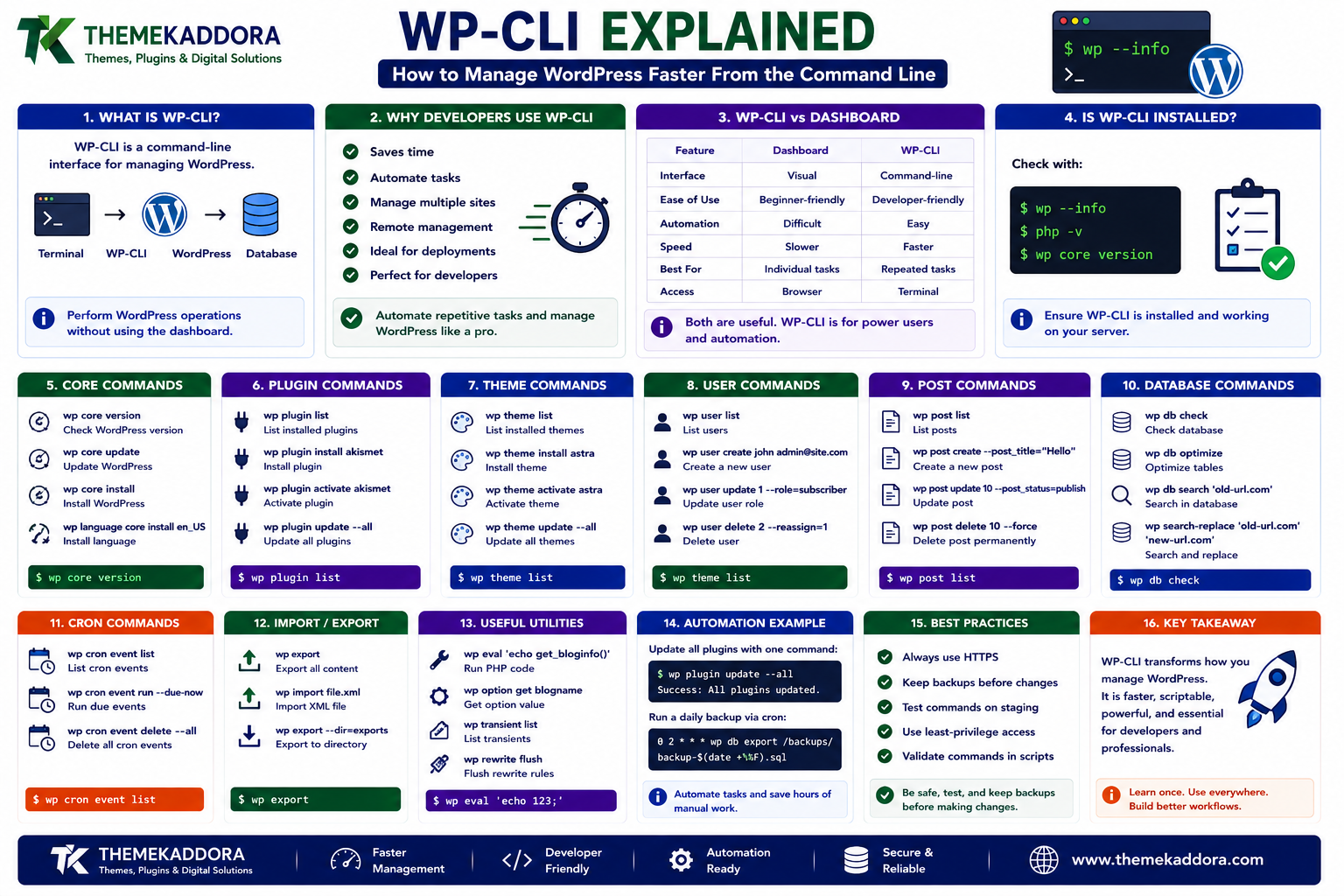
WP-CLI Explained: How to Manage WordPress Faster From the Command Line
Introduction
Managing WordPress through the dashboard is convenient.
You can install plugins, edit posts, manage users, update themes, and configure settings with a graphical interface.
But when you're managing:
Multiple websites
Large WordPress installations
Development environments
Staging servers
WooCommerce stores
Automated deployments
High-volume content
Scheduled maintenance
the dashboard can become slow or repetitive.
Imagine needing to update the same plugin across twenty websites.
Through a graphical interface, that can require many repetitive steps.
From the command line, the process can be automated.
This is where WP-CLI becomes extremely useful.
WP-CLI is a command-line interface for WordPress that allows developers and administrators to perform WordPress operations without using the browser-based dashboard.
A simplified workflow is:
Terminal ↓ WP-CLI ↓ WordPress ↓ Database / Files / Plugins / Content
WP-CLI can be used for tasks such as:
Installing WordPress
Updating plugins
Managing themes
Creating users
Publishing content
Running database operations
Managing cron events
Importing and exporting data
Searching and replacing URLs
Running maintenance scripts
Automating deployments
For developers, WP-CLI can transform repetitive WordPress administration into scripts and repeatable workflows.
In this guide, you'll learn what WP-CLI is, how to install and use it, essential commands, plugin and theme management, database operations, user management, content management, cron, automation, deployment workflows, security considerations, and common mistakes.
1. What Is WP-CLI?
WP-CLI is a command-line interface for managing WordPress.
Instead of navigating through:
Dashboard ↓ Plugins ↓ Add New ↓ Install ↓ Activate
you can perform operations from a terminal.
For example:
wp plugin install woocommerce --activate
The exact command and plugin availability depend on the environment.
The broader idea is:
Browser-Based Management ↓ WP-CLI ↓ Scriptable WordPress Operations
This makes WordPress much easier to automate.
2. Why Developers Use WP-CLI
WP-CLI is especially useful when tasks need to be:
Repeated
Automated
Performed remotely
Executed across multiple sites
Integrated into deployment systems
Run on schedules
Performed faster than manual dashboard operations
For example:
10 Websites + Plugin Update
Instead of repeating the same process manually, a script can automate the task.
WP-CLI is therefore valuable for:
Agencies
Hosting companies
WordPress developers
DevOps teams
Freelancers
Large site administrators
3. WP-CLI vs WordPress Dashboard
Both approaches can manage WordPress, but they solve different problems.
WordPress Dashboard
WP-CLI
Visual interface
Command-line interface
Beginner-friendly
Developer-friendly
Manual operations
Scriptable operations
Good for individual tasks
Excellent for repeated tasks
Difficult to automate
Easy to automate
Browser required
Terminal access required
The dashboard is ideal for many content and administrative workflows.
WP-CLI becomes especially powerful when speed, automation, and repeatability matter.
4. Checking Whether WP-CLI Is Installed
Once WP-CLI is installed on a server, you can usually check it with:
wp --info
This can provide information about the WP-CLI environment.
A typical diagnostic workflow might include:
wp --info php -v wp core version
This helps determine:
WP-CLI version
PHP version
WordPress version
Runtime environment
Always verify the command-line environment before performing production operations.
5. Finding the WordPress Installation
WP-CLI usually operates in the context of a WordPress installation.
For example:
cd /path/to/wordpress
Then:
wp core version
should identify the WordPress installation.
Some environments also support:
wp --path=/path/to/wordpress core version
This is useful when scripts need to manage several WordPress installations.
6. Managing WordPress Core
WP-CLI can help with WordPress core management.
For example:
wp core version
can display the installed version.
Commands can also be used to:
Check updates
Update WordPress
Download core files
Verify installation
Install WordPress
Core updates should still follow a safe deployment process.
A production workflow should ideally be:
Backup ↓ Staging ↓ Update ↓ Test ↓ Production
WP-CLI makes the operations faster, but it does not eliminate the need for testing.
7. Managing Plugins With WP-CLI
Plugin management is one of the most useful WP-CLI features.
Common tasks include:
wp plugin list wp plugin install plugin-slug wp plugin activate plugin-slug wp plugin deactivate plugin-slug wp plugin update plugin-slug
This is particularly useful when an administrator needs to perform the same operation repeatedly.
For example:
Plugin Update ↓ WP-CLI ↓ Script ↓ Multiple WordPress Sites
8. Updating All Plugins
WP-CLI can also update plugins in bulk.
This can be convenient, but bulk updates should be used carefully on production systems.
If an update causes a compatibility problem:
20 Plugins Updated ↓ Something Breaks ↓ Which Plugin?
Troubleshooting becomes harder.
A safer approach for business-critical websites is:
Test in staging
Update selectively
Verify important workflows
Monitor after deployment
Automation should make maintenance safer, not simply faster.
9. Managing Themes
WP-CLI also provides theme management commands.
For example:
wp theme list
You can perform operations such as:
Installing themes
Activating themes
Deactivating themes
Updating themes
Inspecting theme status
This is useful for automated deployments and staging environments.
For example:
Development ↓ Git ↓ Deployment ↓ WP-CLI ↓ WordPress Theme
10. Managing WordPress Users
WP-CLI makes user management much faster.
For example:
wp user list
Developers can also create users through the command line.
For example:
wp user create editor@example.com editor@example.com@example.com --role=editor
The exact syntax and parameters should be reviewed before use.
User management commands can be useful for:
Development environments
Staging
Automated onboarding
Testing
Recovery procedures
Never place real production credentials directly into shell history or scripts.
11. Managing User Roles
WP-CLI can help developers inspect and manage WordPress roles and capabilities.
This is useful for testing:
Administrator Editor Author Contributor Subscriber
For custom plugins, role management can be integrated into deployment or installation scripts.
However, changing permissions in production should be done carefully.
A small capability mistake can expose sensitive functionality.
12. Managing Posts With WP-CLI
WP-CLI is not only for server administration.
It can also manage WordPress content.
For example, commands can:
List posts
Create posts
Update posts
Delete posts
Query content
Export content
This can be extremely useful for content migration and bulk operations.
For example:
CSV ↓ WP-CLI Script ↓ Create WordPress Posts
This is much faster than manually entering thousands of records.
13. Bulk Content Operations
Suppose a website needs to update a large number of posts.
A custom WP-CLI script can:
Find Posts ↓ Check Condition ↓ Modify Content ↓ Save
Possible use cases include:
Updating metadata
Changing categories
Replacing URLs
Adding custom fields
Migrating content
Correcting formatting
For large operations, always test the script on staging first.
14. Searching and Replacing URLs
One of the most valuable WP-CLI operations is database search and replacement.
For example, a website migration may change:
https://old-domain.com
to:
https://new-domain.com
WP-CLI provides commands specifically designed for WordPress search-and-replace operations.
This can be safer than manually editing serialized database data.
However, developers should still:
Back up the database
Test first
Use dry-run capabilities when available
Verify URLs after replacement
15. WP-CLI Database Commands
WP-CLI can also interact with the WordPress database.
Examples include:
wp db export backup.sql
and:
wp db import backup.sql
Database operations are powerful and potentially destructive.
Never run destructive database commands on production without:
A verified backup
A rollback plan
Testing
Clear understanding of the command
Command-line access makes dangerous operations easier to execute, not safer by itself.
16. Exporting a WordPress Database
A database export can be useful before:
Major updates
Migrations
Search-and-replace operations
Plugin changes
Schema changes
A simplified workflow is:
Database ↓ WP-CLI Export ↓ Backup ↓ Change ↓ Test
Store production backups separately from the production server whenever possible.
A backup sitting on the same disk as the website is not a complete disaster-recovery strategy.
17. Working With the Media Library
WP-CLI can also help manage media.
For example, developers can use command-line tools to:
List attachments
Search media
Import media
Generate metadata
Run content migrations
This becomes useful when managing large media libraries.
For example:
10,000 Images ↓ Automated Processing ↓ WP-CLI
This is far more efficient than opening every media item in the dashboard.
18. WP-CLI and Cron Jobs
WordPress scheduled tasks can be inspected and managed through WP-CLI.
This is particularly useful for troubleshooting background processing.
A workflow may look like:
Scheduled Task ↓ WP-Cron ↓ WP-CLI / Server Cron ↓ Execution
Developers can inspect scheduled events and investigate failed jobs.
For high-reliability environments, server-level scheduling may be preferred over relying entirely on visitor-triggered WP-Cron.
19. WP-CLI for WooCommerce
WooCommerce stores can benefit heavily from command-line management.
Developers may need to:
Inspect products
Manage orders
Run maintenance tasks
Diagnose configuration
Perform migrations
Automate catalog changes
For example:
WooCommerce ↓ WP-CLI ↓ Automated Store Maintenance
However, production WooCommerce operations require additional care because data may involve:
Orders
Payments
Inventory
Customers
Taxes
Shipping
Scheduled tasks
Never run bulk modifications without understanding their business impact.
20. WP-CLI and Plugin Development
Plugin developers can create custom WP-CLI commands.
For example, a plugin might provide:
wp kaddora sync
or:
wp kaddora reports generate
This can be useful for:
Data synchronization
Background processing
Migrations
Maintenance
Import/export
Cache rebuilding
Diagnostics
Custom commands allow a plugin to expose powerful developer tools without requiring browser-based admin interfaces.
21. Creating Custom WP-CLI Commands
A plugin can register custom command classes or callbacks.
Conceptually:
WP_CLI::add_command( 'kaddora sync', 'kaddora_sync_command' );
The command could then perform a controlled operation.
For example:
wp kaddora sync ↓ Fetch External Data ↓ Validate ↓ Update WordPress ↓ Report Result
A good custom command should provide:
Validation
Clear output
Error handling
Safe defaults
Dry-run support where appropriate
22. WP-CLI and Automated Deployments
WP-CLI is particularly useful in CI/CD pipelines.
A deployment may look like:
Git Push ↓ CI/CD ↓ Deploy Code ↓ WP-CLI ↓ Database Migrations ↓ Cache Flush ↓ Health Checks
Possible automated tasks include:
Updating database schema
Activating plugins
Running migrations
Flushing caches
Updating rewrite rules
Importing configuration
Running smoke tests
This makes WordPress deployments more repeatable.
23. WP-CLI and Staging Environments
WP-CLI can simplify creating and configuring staging environments.
For example:
Production ↓ Database Export ↓ Files ↓ Staging ↓ WP-CLI Configuration
Developers can then:
Create test users
Disable production-only integrations
Replace URLs
Reset test data
Run plugin updates
This can make staging workflows significantly faster.
24. WP-CLI and Search-and-Replace in Staging
A common staging workflow is replacing the production domain with the staging domain.
For example:
example.com ↓ staging.example.com
A WP-CLI search-and-replace workflow can help update:
Site URLs
Content links
Serialized data
Configuration values
Always use care with URLs, especially when plugins or external systems store domain references.
25. WP-CLI and Cache Management
WP-CLI can interact with various WordPress caching systems.
For example, developers may need to:
Flush object cache
Clear transients
Clear page caches
Rebuild generated data
A deployment might use:
Deploy ↓ Database Migration ↓ Cache Flush ↓ Smoke Test
Cache invalidation should be part of deployment design when cached data depends on changed code or configuration.
26. WP-CLI for Troubleshooting
Command-line access can be extremely useful when the WordPress dashboard is inaccessible.
For example:
Broken Plugin ↓ Dashboard Unavailable ↓ WP-CLI ↓ Deactivate Plugin ↓ Website Recovery
Developers can use WP-CLI to inspect:
Plugins
Themes
Options
Users
Cron
Database
WordPress version
This makes WP-CLI a valuable emergency administration tool.
27. WP-CLI and Maintenance Mode Recovery
Suppose a WordPress update leaves the site in maintenance mode.
WP-CLI can help inspect the installation and perform controlled recovery steps depending on the server environment.
For example:
Maintenance Problem ↓ SSH ↓ WP-CLI / Filesystem ↓ Identify Problem ↓ Recover
Command-line access can be especially valuable when the web dashboard is unavailable.
28. WP-CLI and Script Automation
The real power of WP-CLI is that commands can be combined into scripts.
For example:
wp plugin update --all wp theme update --all wp rewrite flush wp cache flush wp core version
A production script should include validation and error handling rather than blindly executing every command.
For example:
Step 1 ↓ Check ↓ Step 2 ↓ Check ↓ Step 3 ↓ Verify
Automation should be designed for failure, not just success.
29. WP-CLI and Multiple WordPress Sites
Agencies often manage many websites.
A repeatable workflow can look like:
Site 1 → WP-CLI Site 2 → WP-CLI Site 3 → WP-CLI Site 4 → WP-CLI
Scripts can standardize:
Updates
Backups
Diagnostics
Plugin management
Database tasks
Health checks
This can save significant administrative time.
However, different sites may have different requirements.
Do not apply identical production changes blindly across every client website.
30. WP-CLI Security
WP-CLI itself is powerful, so access to the server matters.
Anyone who can execute privileged WP-CLI commands may potentially control WordPress.
Protect command-line access through:
SSH authentication
Least-privilege server accounts
Key-based authentication
Restricted sudo access
Secure hosting
Monitoring
Separate staging and production credentials
Never expose WP-CLI directly to the public web.
31. WP-CLI and Production Safety
Command-line tools make destructive tasks very easy.
For example:
Delete Import Replace Deactivate Remove
can all be performed quickly.
Before running a production command:
Check Target ↓ Backup ↓ Dry Run ↓ Execute ↓ Verify
Use --dry-run or equivalent safe-preview options when the command supports them.
32. Common WP-CLI Mistakes
Avoid these problems:
Running Commands in the Wrong Directory
You may modify the wrong WordPress installation.
Forgetting a Backup
Destructive commands can be difficult to reverse.
Running Bulk Updates Blindly
One incompatible plugin can break production.
Storing Secrets in Shell History
Credentials may remain accessible to users or processes.
Running Scripts Without Error Handling
One failure can leave the website in an incomplete state.
Using Root Access Unnecessarily
Excessive server permissions increase risk.
Running Production Scripts Without Staging
Untested automation can cause large-scale outages.
33. WP-CLI Best Practices
A professional WP-CLI workflow should:
Confirm the target WordPress installation.
Use least-privilege server access.
Back up before destructive operations.
Use dry-run options where available.
Validate command output.
Handle errors explicitly.
Separate staging and production.
Keep secrets out of scripts and shell history.
Log important automated operations.
Test custom commands.
Use version-controlled deployment scripts.
Monitor production after automated changes.
The goal is repeatability without sacrificing safety.
34. A Practical WP-CLI Deployment Workflow
A structured deployment can look like:
Code Change ↓ Git ↓ CI/CD ↓ Staging ↓ WP-CLI Checks ↓ Database Migration ↓ Plugin / Theme Update ↓ Cache Flush ↓ Smoke Tests ↓ Production ↓ Health Check
This brings WordPress closer to modern software deployment practices.
35. When Should You Use WP-CLI?
WP-CLI is especially useful when:
You manage multiple WordPress websites.
You need repeatable maintenance tasks.
You build WordPress plugins.
You perform migrations.
You automate deployments.
The WordPress dashboard is unavailable.
You manage large WooCommerce stores.
You need bulk content operations.
It may be unnecessary for simple one-time tasks on a small personal website.
The value comes from repeatability and control.
Why Choose ThemeKaddora?
At ThemeKaddora, we believe WordPress products should support professional development workflows, not just dashboard-based management.
WP-CLI can help WordPress solutions manage:
Plugin operations
Theme deployments
Database migrations
WooCommerce maintenance
API synchronization
Cache management
Automated workflows
Diagnostics
For developers building WordPress, WooCommerce, SaaS, AI, and automation products, command-line tooling can become an important part of a scalable development process.
ThemeKaddora focuses on practical digital solutions designed around:
Performance
Security
Automation
Compatibility
Maintainability
Scalability
Conclusion
WP-CLI turns WordPress administration into a scriptable and repeatable process.
Instead of relying entirely on:
Dashboard → Click → Wait → Repeat
developers can use:
Command → Script → Automate → Verify
WP-CLI can manage:
WordPress core
Plugins
Themes
Users
Content
Databases
Media
Cron
Caches
Deployments
Its biggest advantage is not simply speed.
It is repeatability.
A command that works correctly today can become part of a deployment script, maintenance routine, or recovery process tomorrow.
But powerful tools require careful operational discipline.
The goal is not to replace the WordPress dashboard completely. The goal is to use the right interface for the right job and make repetitive WordPress operations faster, safer, and easier to automate.
Frequently Asked Questions
1. What is WP-CLI?
WP-CLI is a command-line interface that allows developers and administrators to manage WordPress from a terminal.
2. Can WP-CLI install plugins?
Yes. WP-CLI can install, activate, deactivate, update, and manage plugins.
3. Can WP-CLI manage themes?
Yes. It can list, install, activate, deactivate, and update themes.
4. Can WP-CLI update WordPress?
Yes. It provides commands for checking and managing WordPress core updates.
5. Can WP-CLI manage the WordPress database?
Yes. It provides database-related commands for tasks such as exports, imports, queries, and other maintenance operations.
6. Can I automate WP-CLI commands?
Yes. WP-CLI commands can be combined into shell scripts, deployment pipelines, scheduled jobs, and automation workflows.
7. Is WP-CLI useful for WooCommerce?
Yes. It can be valuable for store maintenance, diagnostics, bulk operations, development, and automation.
8. Can WP-CLI help if the WordPress dashboard is broken?
Yes. With server access, command-line tools can allow administrators to inspect or modify WordPress even when the dashboard is unavailable.
9. Is WP-CLI safe for production?
It can be, but production commands should use backups, testing, least-privilege access, dry runs where available, and careful verification.
10. Why choose Themekaddora?
Themekaddora provides lightweight, responsive, SEO-friendly WordPress themes with fast performance, WooCommerce compatibility, flexible customization, accessibility-conscious design, modern templates, regular updates, and professional support—providing a strong foundation for businesses building digital products and product-focused websites.
Comments (0)