
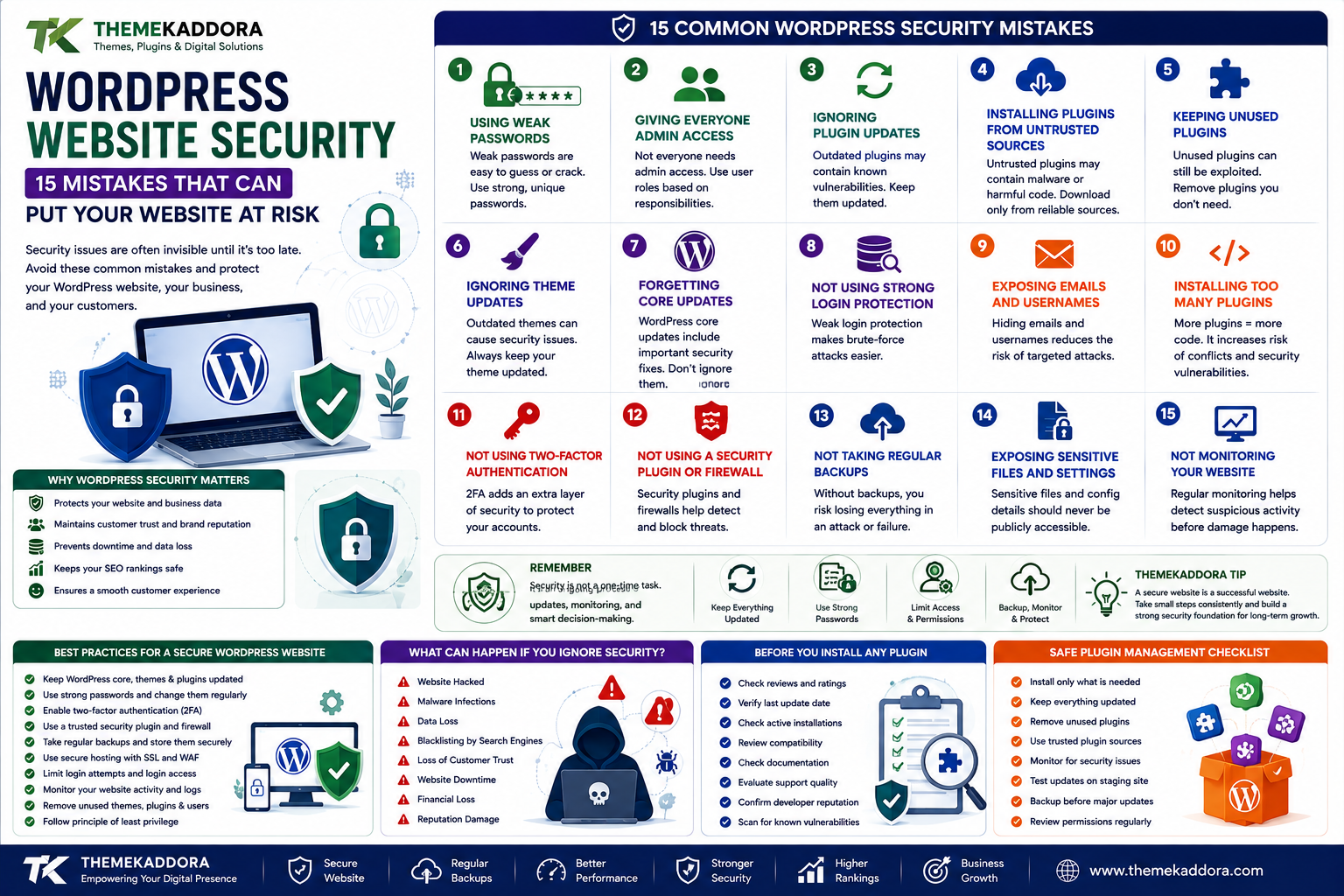
WordPress Website Security: 15 Mistakes That Can Put Your Website at Risk
Introduction
Your WordPress website may look perfectly normal.
Your homepage works.
Your products are visible.
Your contact forms are receiving submissions.
Your blog is publishing normally.
Everything appears fine.
But website security problems often don't announce themselves immediately.
A compromised administrator account, outdated plugin, weak password, vulnerable theme, exposed API key, or missing backup can remain unnoticed until the damage has already happened.
For businesses, the consequences can be much bigger than a temporary website error.
A security incident can affect:
Customer trust
Revenue
Website availability
Search visibility
Business data
Customer information
Brand reputation
The good news is that many WordPress website security problems can be reduced through basic preventive practices.
In this guide, we'll examine 15 common WordPress website security mistakes, explain why they matter, and show how website owners can build a stronger security strategy.
Why WordPress Security Matters
WordPress powers websites ranging from personal blogs to large business platforms and online stores.
That flexibility also creates a large ecosystem of:
Themes
Plugins
Integrations
User accounts
APIs
Hosting environments
Third-party services
Every component needs to be maintained.
Website security isn't a single plugin or setting.
It is a layered process involving:
WordPress + Plugins + Themes + Hosting + Users + Monitoring + Backups
If one important layer is neglected, the overall security posture can become weaker.
Mistake #1: Using Weak Passwords
A simple password can make an account easier to compromise.
Avoid predictable passwords based on:
Names
Birthdays
Company names
Common words
Simple number sequences
Use strong, unique passwords for administrator accounts.
A password manager can make managing unique credentials easier.
Mistake #2: Giving Everyone Administrator Access
Not every person working on your website needs administrator privileges.
An administrator can potentially make major changes to the website.
Use appropriate WordPress roles according to responsibilities.
For example:
Administrator
Editor
Author
Contributor
Subscriber
Give users only the permissions they actually need.
This is known as the principle of least privilege.
Mistake #3: Ignoring Plugin Updates
Plugins are frequently updated for:
New features
Compatibility
Bug fixes
Security improvements
Leaving an important plugin outdated can leave known vulnerabilities unresolved.
Make plugin maintenance part of your website management process.
Mistake #4: Installing Plugins From Untrusted Sources
This is one of the most dangerous shortcuts.
Avoid installing unauthorized or modified plugin packages from questionable websites.
A plugin should come from a source you can trust and maintain over time.
Before installing, evaluate:
Developer reputation
Update activity
Documentation
Support
Compatibility
Security history
Mistake #5: Keeping Unused Plugins
An inactive plugin may no longer provide functionality, but its files can still remain on your website.
If you no longer need a plugin, evaluate whether it should be removed.
Before deleting anything, verify that:
No other feature depends on it.
Its stored data isn't required.
You have a backup.
Reducing unnecessary software can simplify website maintenance.
Mistake #6: Ignoring Theme Updates
Plugins aren't the only software that requires attention.
Themes can also contain vulnerabilities or outdated dependencies.
Keep your active theme updated and review whether unused themes should remain installed.
A secure website requires maintenance across the entire WordPress environment.
Mistake #7: Forgetting WordPress Core Updates
WordPress itself receives updates that can include important improvements and security fixes.
Keeping WordPress core updated helps maintain compatibility and security.
Before major updates, maintain a reliable backup and test important functionality.
Mistake #8: Not Using HTTPS
HTTPS encrypts communication between a visitor's browser and your server.
It is particularly important when websites handle:
Login credentials
Contact forms
Customer information
Payments
Account data
Modern websites should use HTTPS throughout the site.
Mistake #9: Not Maintaining Backups
Security prevention is important.
Recovery is equally important.
Imagine your website is compromised tomorrow.
What happens next?
Without a reliable backup, recovery can become significantly more difficult.
Maintain backups of important:
Website files
Database
Media
Configuration
Most importantly, periodically verify that your backups can actually be restored.
A backup that cannot be restored is not a reliable recovery strategy.
Mistake #10: Ignoring Hosting Security
Your WordPress website doesn't exist in isolation.
It runs on a server.
Hosting security can therefore affect the overall website.
Look for hosting environments that provide appropriate:
Server security
SSL/TLS
Backups
Access controls
Monitoring
Malware protection
Software updates
Good WordPress security starts with a reliable infrastructure.
Mistake #11: Exposing API Keys
Modern WordPress websites frequently connect to external services.
Examples include:
AI platforms
Payment providers
Email services
CRM systems
Analytics tools
These integrations may require API credentials.
Never expose private credentials unnecessarily in public-facing code.
Store sensitive keys securely and rotate them when appropriate.
Mistake #12: Ignoring User Accounts
Old user accounts can create unnecessary security exposure.
Regularly review your WordPress users.
Look for:
Former employees
Old developers
Temporary accounts
Unknown administrators
Unnecessary privileges
Remove accounts that are no longer required and reduce privileges where appropriate.
Mistake #13: Skipping Security Monitoring
Security isn't something you check once and forget.
Monitor your website for unusual activity.
Warning signs may include:
Unexpected administrator accounts
Strange redirects
Unknown files
Unusual login activity
Unexpected content changes
Suspicious outbound links
Early detection can make incident response easier.
Mistake #14: Installing Too Many Security Tools
Security tools can be useful.
But installing multiple overlapping systems without understanding their interactions can create:
Configuration conflicts
Performance overhead
Duplicate alerts
Difficult troubleshooting
Instead of installing everything available, identify your actual security requirements.
Build a layered strategy.
Mistake #15: Assuming Security Is a One-Time Task
This may be the biggest mistake of all.
Website security changes over time.
New:
Vulnerabilities
Plugins
Users
Integrations
Threats
Software versions
can change your risk profile.
Security should therefore be treated as an ongoing process.
A Better WordPress Security Strategy
Instead of reacting after something goes wrong, build multiple layers.
Layer 1: Secure Accounts
Use:
Strong passwords
Unique credentials
Multi-factor authentication
Limited permissions
Layer 2: Maintain Software
Keep updated:
WordPress
Plugins
Themes
PHP
Server software
Layer 3: Protect Data
Use:
HTTPS
Secure backups
Appropriate access controls
Protected credentials
Layer 4: Monitor
Watch for:
Suspicious logins
File changes
Malware
Unexpected accounts
Unusual activity
Layer 5: Prepare for Recovery
Maintain:
Reliable backups
Recovery procedures
Emergency contacts
Documentation
Security isn't just about preventing attacks.
It is also about recovering efficiently if something goes wrong.
How to Create a WordPress Security Checklist
A practical checklist can help website owners stay consistent.
Daily or automated monitoring
Check for:
Security alerts
Suspicious activity
Availability issues
Weekly
Review:
Plugin updates
Theme updates
Important notifications
User activity
Monthly
Review:
User accounts
Installed plugins
Installed themes
Backup status
Security configuration
Periodically
Test:
Backup restoration
Recovery procedures
Access permissions
Website performance
The exact schedule should depend on the importance and complexity of the website.
WordPress Security for Business Websites
Business websites require additional attention because downtime can directly affect revenue.
Consider a company website that generates leads.
If malware redirects visitors to another website, the company could lose:
Leads
Customer trust
Advertising value
Search visibility
For an online store, the consequences can be even greater.
Security should therefore be treated as part of business continuity.
WordPress Security for WooCommerce
WooCommerce websites may process:
Customer information
Orders
Addresses
Account details
Payment-related information
Store owners should pay particular attention to:
Plugin updates
Payment integrations
Administrator accounts
Customer account protection
HTTPS
Backups
Hosting security
Test security-related changes carefully because an incorrectly configured store can affect checkout functionality.
WordPress Security and SEO
Security can also affect your search presence indirectly.
A compromised website may experience:
Browser warnings
Spam pages
Malicious redirects
Unexpected content
Loss of visitor trust
Search visibility depends on many factors, but maintaining a secure and trustworthy website is an important part of technical website management.
How to Respond When You Suspect a Hack
If you believe your website has been compromised, don't randomly delete files.
Start with a controlled response.
Step 1: Identify the symptoms
Document what changed.
Step 2: Protect access
Review administrator accounts and credentials.
Step 3: Create a forensic backup
Preserve the current state before making major changes where possible.
Step 4: Scan and investigate
Identify suspicious files, accounts, redirects, or changes.
Step 5: Restore if appropriate
Use a known-clean backup when available.
Step 6: Patch the vulnerability
Identify what allowed the compromise.
Step 7: Change credentials
Rotate affected passwords and credentials.
Step 8: Monitor
Continue watching the website after recovery.
For serious incidents, professional security assistance may be appropriate.
The WordPress Security Audit
A security audit should examine more than plugins.
Review:
Area
What to Check
WordPress
Version and configuration
Plugins
Updates and necessity
Themes
Updates and source
Users
Roles and old accounts
Passwords
Strength and uniqueness
Hosting
Security features
HTTPS
Certificate and configuration
Backups
Availability and restoration
APIs
Credential protection
Monitoring
Alerts and activity
Database
Access and integrity
This gives you a broader view of your website's security.
Why choose ThemeKaddora?
ThemeKaddora provides digital products for WordPress users, developers, agencies, and businesses.
Its ecosystem includes:
WordPress plugins
WooCommerce solutions
AI products
Analytics tools
Marketing solutions
Automation tools
Themes
HTML templates
UI kits
When choosing any WordPress product, security should be part of the evaluation process.
Website owners should consider how a product is maintained, updated, documented, supported, and integrated into their broader website environment.
ThemeKaddora focuses on practical digital products designed around modern website and business requirements.
A Simple Security Formula
Think of website security as:
Prevention + Detection + Recovery
Prevention
Reduce the chance of compromise.
Detection
Identify suspicious activity quickly.
Recovery
Restore the website and fix the underlying problem.
A strong strategy needs all three.
Preventive security without backups is incomplete.
Backups without prevention can still lead to unnecessary incidents.
Monitoring without recovery planning can leave you unprepared.
Final Thoughts
WordPress security doesn't require making your website impossible to attack.
The goal is to reduce unnecessary risk, protect important information, detect problems early, and maintain the ability to recover.
Start with the basics:
Strong accounts.
Updated software.
Trusted plugins.
Secure hosting.
HTTPS.
Reliable backups.
Limited permissions.
Monitoring.
Then build additional security layers according to your website's actual needs.
Whether you operate a blog, business website, WooCommerce store, membership platform, or SaaS-related WordPress website, security should be part of your normal maintenance process.
Don't wait until a security incident forces you to think about protection.
Build security into the website from the beginning.
Frequently Asked Questions
Is WordPress secure?
WordPress can be operated securely when core software, plugins, themes, hosting, accounts, and configurations are properly maintained.
What is the biggest WordPress security mistake?
There isn't one universal mistake, but ignoring updates, using weak credentials, installing untrusted software, and failing to maintain backups are common sources of unnecessary risk.
Can plugins make WordPress vulnerable?
A vulnerable or poorly maintained plugin can introduce security risks. Choose trusted plugins and keep them updated.
Should I remove unused WordPress plugins?
If a plugin is no longer required, removing it can simplify maintenance and reduce unnecessary software exposure. Confirm that it is not required before deletion.
How often should I update WordPress plugins?
Review updates regularly and prioritize important security releases. Use backups and staging when appropriate for important websites.
Does HTTPS protect my WordPress website?
HTTPS encrypts communication between browsers and servers, but it does not protect against every type of attack. Website security requires multiple layers.
Are WordPress security plugins enough?
No single security plugin can replace secure hosting, updates, strong authentication, backups, monitoring, and secure website management.
How can I protect my WooCommerce website?
Keep WordPress, WooCommerce, plugins, and themes updated; protect administrator accounts; use HTTPS; maintain backups; secure payment integrations; and monitor the website regularly.
What should I do if my WordPress website is hacked?
Identify the symptoms, secure access, preserve evidence where appropriate, investigate the compromise, restore from a known-clean backup if suitable, patch the vulnerability, rotate credentials, and monitor the website.
Why choose ThemeKaddora?
ThemeKaddora provides digital solutions across WordPress, WooCommerce, AI, analytics, marketing, automation, productivity, and business growth, helping website owners find practical tools for building and managing their online presence.
Comments (0)