
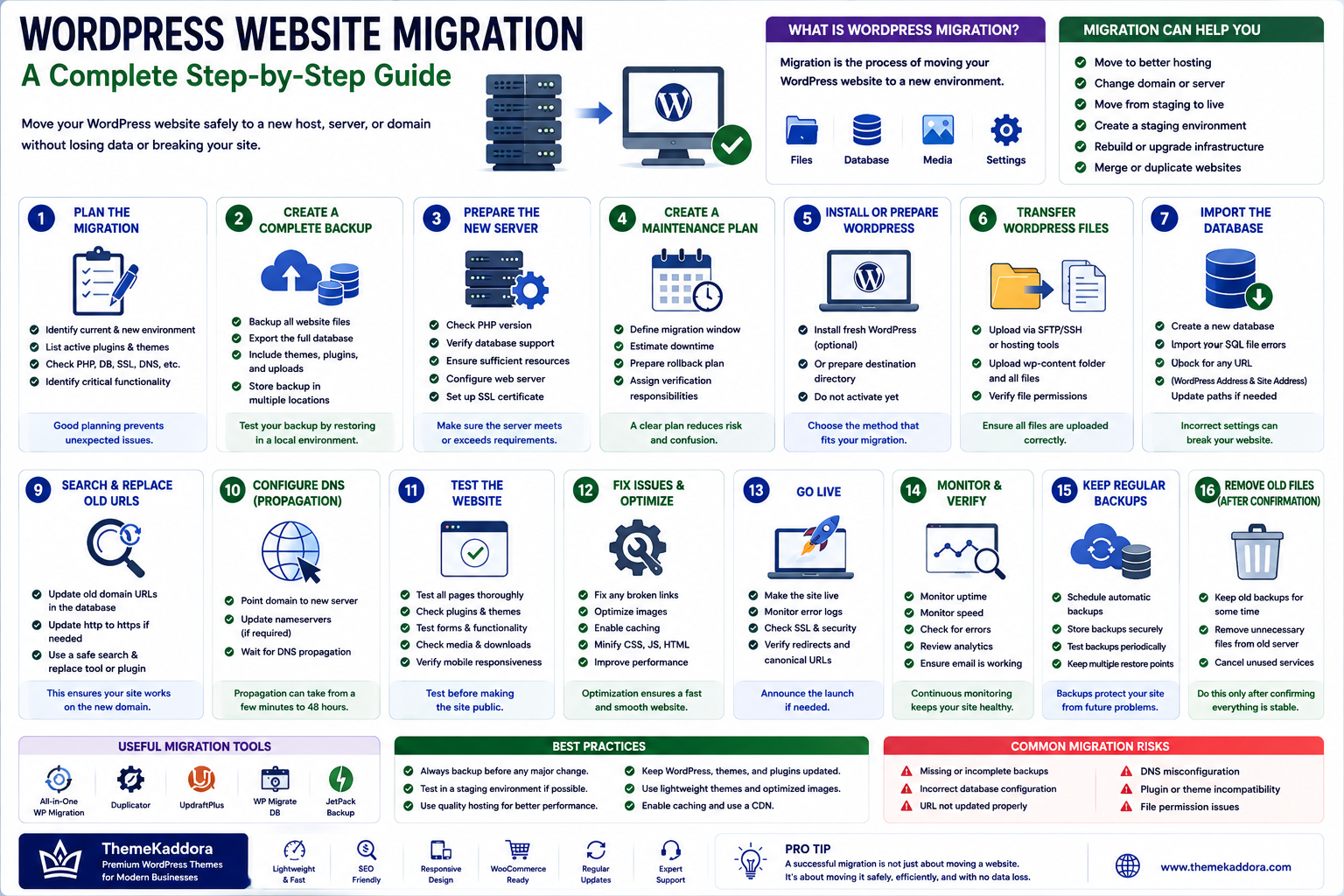
WordPress Website Migration: A Complete Step-by-Step Guide
Introduction
Moving a WordPress website from one server to another can seem complicated.
A website migration may involve transferring:
WordPress files
Database
Media files
Themes
Configuration
User accounts
Website settings
Domain information
A migration can also happen for different reasons.
You might want to:
Move to better hosting
Change your domain name
Move from a development server to production
Change hosting providers
Move a website to a new server
Create a staging environment
Merge websites
Rebuild the infrastructure
The migration itself is not necessarily difficult.
The challenge is making sure nothing important is lost or broken during the process.
A poorly planned migration can result in:
Broken links
Missing images
Database errors
Plugin problems
Downtime
Email issues
HTTPS problems
SEO indexing problems
The safest approach is to plan the migration, create backups, test the new environment, transfer the website carefully, and verify everything before considering the migration complete.
This guide explains how to migrate a WordPress website step by step.
1. What Is WordPress Website Migration?
WordPress migration is the process of moving a WordPress website from one environment to another.
The destination could be:
A new hosting provider
A different server
A new domain
A staging server
A local development environment
A new infrastructure platform
A complete WordPress website generally consists of two major components:
Website Files
These include:
WordPress core files
Plugins
Themes
Media uploads
Configuration files
Database
The database contains information such as:
Posts
Pages
Users
Settings
Comments
WooCommerce data
Plugin data
A successful migration needs to preserve both.
2. Plan the Migration Before Starting
Do not begin moving files before understanding the current environment.
Record important information such as:
Current hosting provider
Destination hosting provider
Domain name
PHP version
Database system
WordPress version
Active plugins
Active theme
SSL configuration
Email configuration
CDN configuration
DNS settings
Also identify whether the website contains critical services such as:
Online payments
Customer accounts
WooCommerce
Memberships
Booking systems
External APIs
This information can prevent unexpected problems during migration.
3. Create a Complete Backup
A backup should be created before making major changes.
A complete WordPress backup should normally include:
WordPress files
Database
Media uploads
Themes
Plugins
Configuration files
Keep the backup separate from the current website.
Ideally, maintain more than one backup location.
Before continuing, verify that the backup exists and can be accessed.
For important business websites, testing restoration is even better than simply confirming that a backup file was created.
4. Create a Maintenance Plan
Consider whether the website can remain online during migration.
For simple migrations, downtime may be minimal.
For complex websites, you may need a maintenance window.
The plan should define:
Migration start time
Expected downtime
Testing period
DNS change timing
Rollback procedure
Person responsible for verification
Having a rollback plan is particularly important for business-critical websites.
5. Prepare the New Server
Before transferring the website, prepare the destination environment.
Make sure it supports the requirements of your WordPress installation.
Check:
PHP version
Database support
Web server
SSL
Storage
Memory
CPU resources
Domain configuration
The new environment should have sufficient resources for the website's traffic and workload.
6. Install or Prepare WordPress
There are several ways to prepare the destination.
You can:
Install a fresh WordPress installation
Transfer the existing WordPress files
Use a migration tool
Restore a complete backup
The correct method depends on the migration scenario.
For a manual migration, transferring the existing files and database gives you more direct control.
7. Transfer WordPress Files
WordPress files can be transferred using methods such as:
SFTP
SSH
Hosting control panels
Backup restoration tools
Important directories include:
wp-content
This contains:
Plugins
Themes
Uploaded media
The WordPress configuration file also needs to be handled correctly.
Avoid randomly changing files during the transfer.
The objective is to preserve the original website structure.
8. Export the WordPress Database
The database can be exported using tools provided by the hosting environment or database management software.
A database export typically contains:
WordPress posts
Pages
Users
Settings
Plugin information
WooCommerce records
The export should be checked before proceeding.
For large databases, appropriate export settings may be required to avoid timeouts or incomplete transfers.
9. Create the Database on the New Server
The destination server needs a database that WordPress can access.
Create:
Database
Database user
Strong database password
Appropriate permissions
Record these credentials securely.
They will be required when configuring WordPress.
10. Import the Database
Import the database backup into the new database.
After importing, verify that:
Tables exist
Data is present
Table prefixes are correct
No major import errors occurred
Large databases may require alternative import methods depending on server limits.
11. Update WordPress Database Configuration
WordPress needs the correct database connection information.
The configuration includes information such as:
Database name
Database username
Database password
Database host
If these values are incorrect, WordPress may display database connection errors.
Always verify the credentials carefully.
12. Update the Site URL When Necessary
If the domain is changing, WordPress may still contain references to the old domain.
For example:
Old domain:
https://oldexample.com
New domain:
https://newexample.com
Changing the site URL requires careful handling.
Simply replacing text throughout the database can be dangerous because WordPress and plugins may store serialized data.
Use migration tools or WordPress-aware methods that correctly handle URL replacement.
13. Handle Serialized Data Carefully
Some WordPress data is stored in serialized structures.
A simple database search-and-replace can corrupt serialized data if string lengths are not updated correctly.
This is one reason domain migrations should use tools capable of handling serialized WordPress data properly.
Always create a backup before performing database-wide replacements.
14. Test the Website Before Changing DNS
One of the most useful migration practices is testing the new website before directing visitors to it.
Test:
Homepage
Posts
Pages
Navigation
Images
Forms
Login
Search
Plugins
Theme functionality
Contact forms
For e-commerce websites, also test:
Product pages
Cart
Checkout
Payment integration
Customer accounts
Order processing
Emails
Do not assume that a successful file transfer means the website works correctly.
15. Check Images and Media
Missing images are common migration problems.
Check:
Featured images
Media library
Content images
Background images
Product images
Image galleries
If images are missing, verify that the uploads directory was transferred correctly.
Also check whether image URLs still reference the old domain.
16. Check Plugins and Themes
A new server can expose compatibility issues.
Test all important plugins and the active theme.
Pay particular attention to:
PHP compatibility
Plugin dependencies
External API connections
License activation
Cron jobs
Caching
Security systems
If a plugin stops working after migration, check its logs and configuration rather than immediately reinstalling it.
17. Test Forms and Email
Website migration can affect email delivery.
Test:
Contact forms
Registration emails
Password reset emails
Order notifications
Admin notifications
Transactional emails
The new hosting environment may require different SMTP or mail configuration.
Do not assume email will continue working automatically after a server change.
18. Configure SSL and HTTPS
The destination website should have a valid SSL/TLS certificate before switching production traffic.
Check:
HTTPS
Certificate validity
HTTP-to-HTTPS redirects
Mixed-content issues
Make sure pages and resources load securely.
19. Change DNS Records
Once the new website has been fully tested, DNS can be updated to point the domain toward the new server.
Depending on the setup, this may involve changing:
A records
AAAA records
CNAME records
Other DNS records
DNS changes may take time to propagate.
Do not immediately shut down the old server.
Keep the old environment available until the new website has been verified across the relevant systems.
20. Monitor DNS Propagation
After changing DNS, different users may temporarily reach different servers depending on DNS caching and propagation.
Monitor:
Website availability
HTTPS
DNS resolution
Server logs
Traffic
Do not assume that everything has switched immediately.
21. Test WordPress Cron Jobs
WordPress and plugins may rely on scheduled tasks.
Examples include:
Scheduled posts
Subscription processing
WooCommerce tasks
Automated emails
Backups
Reports
Data synchronization
After migration, verify that scheduled tasks are running correctly.
Some hosting environments use system-level cron jobs instead of WordPress's default scheduling mechanism.
22. Check SEO After Migration
SEO should be treated as an important part of website migration.
Check:
URLs
Metadata
Canonical tags
XML sitemap
Robots.txt
Internal links
Redirects
Indexability
If the domain changes, appropriate permanent redirects should be implemented from old URLs to corresponding new URLs.
Avoid redirecting every old page to the homepage when a more relevant destination exists.
23. Monitor Search Engine Indexing
After migration, monitor search performance and indexing.
Look for:
Unexpected indexing errors
Crawl problems
Missing pages
Incorrect canonical URLs
Redirect issues
A sudden change in organic traffic can be a signal that something needs investigation.
24. Check Website Performance
A new server may perform differently from the old environment.
Test:
Server response time
Page loading
Core Web Vitals
Database performance
Image delivery
CDN behavior
A migration can be an opportunity to improve infrastructure, but performance should be measured rather than assumed.
25. Migrate a WooCommerce Website Carefully
WooCommerce migration requires additional planning because an online store contains more than simple pages and posts.
A WooCommerce website may contain:
Products
Product variations
Categories
Customers
Orders
Coupons
Payment settings
Shipping settings
Tax configuration
Inventory data
Subscription information
Before migration, create a complete backup of the website and database.
If the store is actively receiving orders, avoid making changes that could cause new orders to be lost during the migration.
For busy stores, plan a short maintenance window or use a migration strategy that minimizes the period during which data can change.
26. Perform a Final Database Synchronization
For websites that continue receiving new data during migration, the original database may change after the initial backup.
This is particularly important for:
WooCommerce stores
Membership websites
Forums
Booking websites
Websites with frequent registrations
A final database synchronization can ensure that recent changes are transferred to the new environment.
The exact method depends on the migration architecture.
The key principle is simple:
Do not let important new data remain only on the old server.
27. Test WooCommerce Checkout After Migration
Never consider a WooCommerce migration complete until checkout has been tested.
Verify:
Product selection
Product variations
Cart
Coupons
Shipping
Taxes
Customer registration
Guest checkout
Payment processing
Order creation
Confirmation emails
If possible, use the payment provider's test environment before processing a real customer transaction.
Also verify that order statuses are updated correctly after payment.
28. Check WooCommerce Customer Accounts
Customer login and account functionality should be tested after migration.
Check:
Login
Logout
Password reset
Account dashboard
Saved addresses
Previous orders
Downloads
Subscription information
If customers cannot access their existing accounts after migration, investigate the database, URLs, authentication configuration, and relevant plugin settings.
29. Verify Scheduled WooCommerce Tasks
WooCommerce uses scheduled processes for many operations.
These can include:
Subscription-related tasks
Order processing
Emails
Cleanup
Stock management
Scheduled actions
After migration, verify that scheduled actions are running correctly.
A website may appear functional while background processes are silently failing.
30. WordPress Domain Migration
A domain migration is different from a simple hosting migration.
In a hosting migration, the domain may remain unchanged.
In a domain migration, the website address itself changes.
For example:
Old domain:
https://oldsite.com
New domain:
https://newsite.com
Domain migrations require careful URL replacement, redirects, DNS configuration, and SEO monitoring.
31. Create a URL Mapping Before Changing Domains
Before migrating to a new domain, create a list of important old URLs and their corresponding new URLs.
For example:
Old URL
New URL
/about-us/
/about/
/services/
/services/
/blog/article-one/
/blog/article-one/
/contact/
/contact/
This mapping helps ensure that visitors and search engines can reach the correct destinations.
For large websites, automated crawling and URL mapping tools can make this process easier.
32. Implement Permanent Redirects
When a URL changes permanently, use an appropriate permanent redirect from the old URL to the new one.
For example:
oldsite.com/old-page/
should redirect to:
newsite.com/new-page/
Redirect users to the most relevant equivalent page whenever possible.
Avoid sending every old URL to the homepage.
Poor redirect strategies can create a frustrating user experience and make it harder for search engines to understand the relationship between old and new URLs.
33. Update Internal Links
After changing domains, internal links may still reference the old domain.
Check:
Navigation
Blog posts
Pages
Images
Buttons
Footer links
Menus
Product links
Update internal references so the new website consistently uses the correct domain.
Also check for unnecessary redirect chains caused by old internal URLs.
34. Update Media URLs
Images and other media can continue referencing the old domain after a migration.
Check:
Featured images
Content images
CSS background images
Product images
Download links
Video URLs
Make sure important media loads correctly from the new domain.
35. Update Canonical URLs
Canonical URLs are particularly important during domain migration.
Verify that canonical tags point to the new domain.
For example:
Old:
https://oldsite.com/example-page/
New:
https://newsite.com/example-page/
The migrated website should consistently identify the new URL as the preferred version.
36. Update XML Sitemaps
After migration, generate or update the XML sitemap so that it contains the new URLs.
The sitemap should not continue listing the old domain after a domain migration.
Submit the updated sitemap through the relevant search engine webmaster tools.
37. Review Robots.txt
Check the destination website's robots.txt file.
Make sure you have not accidentally carried over a development or staging configuration that blocks search engines.
A common migration mistake is leaving a setting enabled that prevents crawling.
For example, a website that was intentionally blocked during development may remain blocked after going live.
38. Remove Staging Restrictions
If the migrated website was developed on staging, check whether the staging environment had restrictions such as:
Password protection
IP restrictions
Search engine blocking
Maintenance mode
Temporary authentication
Development-only redirects
Remove these restrictions before launching the production website.
39. Protect SEO During Migration
SEO protection should begin before the migration.
Create a list of:
Important landing pages
High-traffic URLs
Ranking pages
Backlinked pages
Product pages
Blog posts
Conversion pages
After migration, compare their status.
Look for:
Traffic drops
Indexing problems
Missing redirects
Incorrect canonical tags
Broken links
Crawl errors
A migration should be treated as an SEO project as well as a technical project.
40. Monitor Search Performance After Migration
Do not stop monitoring immediately after the website becomes available.
Continue checking:
Organic traffic
Indexed pages
Search impressions
Clicks
Ranking changes
Crawl errors
Redirect errors
Some migration problems may only become visible after search engines recrawl the website.
Early monitoring makes it easier to identify and fix problems.
41. Test Analytics and Tracking
Migration can accidentally remove tracking code.
Check whether your website's analytics system continues receiving data.
Test:
Page views
Conversion tracking
Event tracking
E-commerce tracking
Form conversions
Campaign parameters
Also check whether tracking IDs or configuration values changed during the migration.
42. Test Third-Party APIs
WordPress websites frequently depend on external services.
Examples include:
Payment APIs
Email APIs
CRM systems
Shipping services
Maps
Social networks
AI services
Marketing platforms
A server migration can change:
IP addresses
API permissions
Environment variables
SSL configuration
Firewall rules
Verify every business-critical integration.
43. Check DNS Records Beyond the Website
Changing the website server does not necessarily mean every DNS record should be changed.
Review records related to:
Website
Subdomains
Verification services
CDN
APIs
Be particularly careful with email-related records.
Changing DNS incorrectly can cause website migration to succeed while email suddenly stops working.
44. Test Business Email
If your domain also handles email, verify:
Sending
Receiving
Webmail
SMTP
SPF
DKIM
DMARC
Do not assume that moving website hosting automatically moves email hosting.
Website and email services may be hosted separately.
45. Check Subdomains
Some WordPress installations use multiple subdomains.
Examples include:
www.example.com
shop.example.com
blog.example.com
app.example.com
Make sure required subdomains continue pointing to the correct services.
Do not redirect every subdomain to the new WordPress installation unless that is actually required.
46. Check SSL Certificates for Subdomains
If the website uses multiple domains or subdomains, verify SSL coverage for each relevant hostname.
Test:
Main domain
WWW version
Important subdomains
Redirects
SSL problems can prevent users from accessing the website even when the migration itself is technically complete.
47. Common WordPress Migration Mistakes
Several mistakes occur frequently during website migration.
Forgetting the Database
Transferring only WordPress files does not transfer posts, pages, users, settings, and other database information.
Forgetting the Uploads Directory
Missing uploads can result in broken images and missing media.
Changing URLs Incorrectly
A poorly executed database search-and-replace can break serialized data.
Changing DNS Too Early
Do not point visitors to the new server before the destination website has been tested.
Deleting the Old Website Immediately
Keep the old website available until the migration has been verified.
Forgetting Email
Website hosting and email hosting may use different infrastructure.
Forgetting Cron Jobs
Automated tasks may stop working after a server change.
Forgetting Third-Party Integrations
API credentials and IP restrictions can change during migration.
48. Post-Migration Testing Checklist
After the migration, perform a complete functional test.
Website
Homepage loads
Navigation works
Pages load
Posts load
Search works
Images display correctly
Users
Login works
Registration works
Password reset works
Account pages work
Forms
Contact forms work
Emails are delivered
Spam protection works
E-commerce
Products load
Cart works
Checkout works
Payment works
Orders are created
Customer emails work
Technical
HTTPS works
DNS is correct
Cron jobs run
Error logs are clean
Server resources are adequate
SEO
Sitemap works
Robots.txt is correct
Canonical URLs are correct
Redirects work
Internal links work
49. Monitor the Old Server
Do not immediately shut down the old server.
Keep monitoring it for:
Remaining traffic
Unexpected requests
Missing redirects
API calls
Email dependencies
Forgotten subdomains
Once the migration has been confirmed and the old environment is no longer required, it can be safely decommissioned.
Maintain a final backup before removing the old environment.
50. Create a Rollback Strategy
Every important migration should have a rollback plan.
A rollback strategy should answer:
What will we do if the new website fails?
Possible recovery actions include:
Restore the old server
Revert DNS
Restore the previous database
Restore files from backup
Disable a problematic plugin
Restore a known-good configuration
Do not wait until an emergency to decide how rollback will work.
51. Secure the New WordPress Environment
After migration, review the security configuration.
Check:
File permissions
Database credentials
Administrator accounts
SSL
Firewall
Security plugins
Server software
PHP version
Backups
Remove temporary migration files and tools that are no longer required.
Never leave migration scripts or temporary database exports publicly accessible.
52. Remove Temporary Migration Files
Migration work may leave behind:
Database dumps
Temporary archives
Migration scripts
Debug files
Installation files
Temporary configuration files
These should be removed when they are no longer needed.
Publicly accessible database backups can expose sensitive information.
53. Disable Debugging on Production
During migration, developers may enable debugging to identify problems.
Once the website is stable, review production debugging settings.
Do not expose detailed PHP errors, database errors, or stack traces to public visitors.
Production environments should use appropriate error logging without unnecessarily revealing sensitive technical information.
54. Review Performance After Migration
The migration is also an opportunity to compare the new infrastructure with the old environment.
Compare:
Server response time
Page loading speed
Database response
Image delivery
CDN performance
Core Web Vitals
Resource usage
If the new environment is slower, investigate the reason.
A new hosting provider does not automatically guarantee better performance.
55. Document the New Environment
After migration, update your technical documentation.
Record:
New hosting provider
Server details
DNS provider
Domain registrar
Database environment
PHP version
Important integrations
Backup location
Cron configuration
CDN configuration
Good documentation makes future maintenance and migrations easier.
56. When Should You Migrate a WordPress Website?
Migration may be appropriate when:
Hosting is consistently slow
Resources are insufficient
Support is poor
Costs are increasing
The server lacks required features
You need better scalability
You are changing domains
You are consolidating infrastructure
However, migration should not be performed without a clear reason.
A website should move because the new environment provides a meaningful benefit.
57. How to Make Future Migrations Easier
Good website architecture can make future migrations simpler.
Maintain:
Regular backups
Clean plugin architecture
Reliable documentation
Staging environments
Version control where appropriate
Clear DNS management
Tested recovery procedures
Avoid unnecessary dependencies on a single provider when practical.
The easier your infrastructure is to understand, the easier it is to move.
58. Why Choose ThemeKaddora?
At ThemeKaddora, we understand that a WordPress website is more than a collection of files.
It is often an important part of a business's:
Brand
Marketing strategy
Customer experience
Lead generation
E-commerce operations
Content strategy
A successful migration should preserve these functions while providing a stable foundation for future growth.
ThemeKaddora focuses on WordPress themes and solutions designed around:
Performance
Responsive design
SEO-friendly architecture
WooCommerce compatibility
Customization
Maintainability
Modern website requirements
Whether you are launching a new WordPress website, moving to better hosting, or rebuilding an existing website, careful planning can make the transition safer and more predictable.
Conclusion
WordPress website migration does not need to be a stressful process.
The key is preparation.
Before migrating, create complete backups, document the current environment, prepare the new server, and identify critical integrations.
During the migration, transfer both files and database data carefully.
After the migration, test every important function.
Check:
Website pages
Images
Forms
Users
WooCommerce
Payments
DNS
SSL
Cron jobs
APIs
SEO
Performance
If the domain is changing, implement appropriate redirects and monitor search performance carefully.
Most importantly, maintain a rollback plan and do not immediately delete the old environment.
A successful WordPress migration is not simply about moving files from one server to another.
It is about moving the entire website experience while preserving functionality, data, security, performance, and search visibility.
With proper planning and testing, you can move a WordPress website to a new environment with significantly less risk and create a stronger foundation for future growth.
Frequently Asked Questions
1. What is WordPress website migration?
WordPress migration is the process of moving a WordPress website from one hosting environment, server, domain, or development environment to another.
2. Do I need to migrate both files and the database?
Yes. A complete WordPress website generally requires both its files and database. The files contain themes, plugins, media, and WordPress components, while the database contains content, settings, users, and other information.
3. Can I migrate WordPress without downtime?
Yes, depending on the website and migration method. Careful preparation, staging, DNS planning, and final data synchronization can minimize downtime.
4. Can I migrate WooCommerce to another server?
Yes. WooCommerce can be migrated, but products, customers, orders, payment settings, scheduled tasks, and other dynamic data need additional attention.
5. Will WordPress migration affect SEO?
It can if URLs, redirects, indexing settings, canonical tags, or other technical SEO elements are handled incorrectly. A carefully planned migration can minimize SEO problems.
6. Should I keep my old hosting account after migration?
Keep the old environment available until the new website has been fully tested and verified. Once you are confident the migration is successful, you can decommission the old environment.
7. How do I migrate WordPress to a new domain?
A domain migration generally involves transferring the website, updating URLs safely, configuring DNS, implementing permanent redirects, updating canonical URLs and sitemaps, and monitoring indexing.
8. Why are images missing after WordPress migration?
Common causes include an incomplete uploads directory transfer, incorrect file permissions, incorrect URLs, or missing media files.
9. Why does WordPress show a database connection error after migration?
The database name, username, password, database host, or database server configuration may be incorrect. Verify the database credentials and confirm that the database server is accessible.
10. What should I do if the migrated website is broken?
Check recent migration changes, review PHP and server error logs, verify database configuration, check plugin and theme compatibility, and restore from a known-good backup if necessary.
Comments (0)