
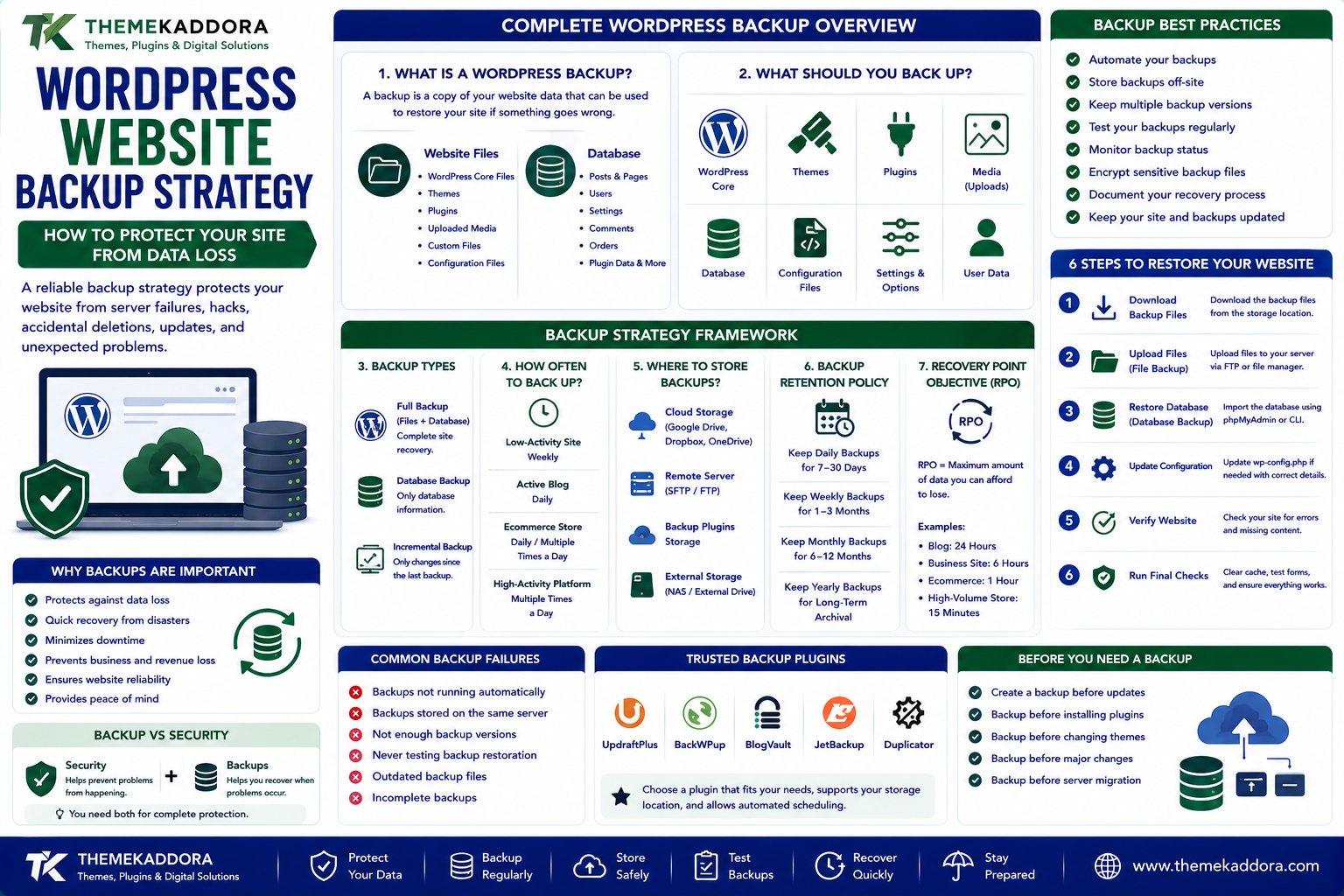
WordPress Website Backup Strategy: How to Protect Your Site From Data Loss
Introduction
Your WordPress website may represent months or years of work.
It can contain:
Blog articles
Product information
Customer accounts
Orders
Contact submissions
Images
Custom designs
Website settings
Plugin configurations
Theme customizations
Business data
Now imagine losing all of it.
A server failure, accidental deletion, compromised account, faulty update, database problem, or configuration mistake can potentially make important website data unavailable.
This is why backups are one of the most important parts of WordPress website management.
But simply creating a backup isn't enough.
A reliable backup strategy should answer several questions:
What should be backed up?
How often should backups run?
Where should backups be stored?
Can the backup actually be restored?
How quickly can the website be recovered?
In this guide, we'll explain how to create a practical WordPress backup strategy that protects your website and prepares you for unexpected problems.
What Is a WordPress Backup?
A WordPress backup is a copy of your website data that can be used to restore the website if the original data becomes damaged, deleted, corrupted, or unavailable.
A complete WordPress website generally consists of two major components:
Website Files
These can include:
WordPress core files
Themes
Plugins
Uploaded media
Custom files
Configuration files
Database
The database can contain:
Posts
Pages
Users
Settings
Comments
Orders
Plugin data
Ecommerce information
Other dynamic website content
Depending on your website, both files and database data may be necessary for a complete recovery.
Why WordPress Backups Are Important
Websites can fail for many reasons.
Potential causes include:
Hosting problems
Hardware failure
Software errors
Plugin conflicts
Theme problems
Accidental deletion
Database corruption
Security incidents
Failed updates
Human mistakes
Not every problem can be prevented.
A backup provides a recovery option when prevention isn't enough.
Backups Are Not the Same as Security
A backup is an important security and recovery control, but it doesn't replace website security.
You should still use appropriate measures such as:
Strong authentication
Updated software
Secure hosting
Appropriate user permissions
Monitoring
Malware protection where appropriate
Think of security as reducing the chance of a problem.
Think of backups as preparing for recovery if something goes wrong.
You need both.
What Should You Back Up?
A useful backup strategy should consider all important website data.
WordPress Core
The WordPress installation itself may be replaceable, but your deployment configuration and customizations still need consideration.
Themes
Back up active themes and any custom theme files.
Plugins
Back up plugins, especially custom or configured plugins.
Media
Your uploads directory can contain valuable images, documents, videos, and other files.
Database
The database is particularly important for dynamic websites.
Configuration
Configuration files may contain important website settings.
Always handle configuration backups securely because they may contain sensitive information.
Full Backup vs Database Backup
Not every backup is identical.
Full Backup
A full backup generally includes website files and database data.
This is useful for complete website recovery.
Database Backup
A database backup focuses on database information.
It can be useful for recovering changing content without necessarily restoring every file.
For many websites, a combination of different backup types provides better flexibility.
How Often Should You Back Up WordPress?
There is no single schedule that works for every website.
The appropriate frequency depends on how frequently your website changes and how much data you can afford to lose.
Low-Activity Website
A website updated occasionally may not require extremely frequent backups.
Active Blog
A frequently updated publication may need more regular backups.
Ecommerce Website
An online store can change continuously through:
Orders
Customers
Inventory
Payments
Product updates
Losing recent transaction-related data can be particularly costly.
High-Activity Business Platform
Websites with frequent user activity may require more sophisticated backup and recovery planning.
The key question is:
How much recent data could your business afford to lose?
Understanding Recovery Point Objective
Recovery Point Objective, or RPO, refers to how much data loss is acceptable after an incident.
For example:
If your RPO is approximately 24 hours, you may accept losing up to about a day's worth of changes.
If your website processes important information continuously, you may require a much shorter recovery point.
RPO helps determine how frequently backups should occur.
Understanding Recovery Time Objective
Recovery Time Objective, or RTO, refers to how quickly you want your website or service restored after an incident.
For example:
A personal blog might tolerate longer downtime.
A business website generating leads may need faster recovery.
An ecommerce store may require even stronger availability planning.
RTO helps determine how quickly your recovery process needs to work.
Use Automated Backups
Manual backups are easy to forget.
Automation helps create consistency.
Depending on your hosting environment and tools, backups can be scheduled automatically.
Possible schedules include:
Daily
Multiple times per day
Weekly
Event-based
The right schedule depends on the site's activity and recovery requirements.
Automation is especially useful for websites that change frequently.
Don't Store Your Only Backup on the Website Server
This is one of the most important backup principles.
Imagine your website and backup are stored on the same server.
If that server becomes unavailable, you could lose access to both.
Instead, maintain copies in an appropriately separated location.
Possible destinations include:
Separate storage
Remote backup systems
Cloud storage
Dedicated backup infrastructure
The objective is to avoid having a single point of failure.
Consider the 3-2-1 Backup Principle
A commonly used backup approach is the 3-2-1 strategy:
3 copies of important data
2 different types of storage
1 copy stored off-site
The exact implementation can vary, but the principle is valuable:
Don't depend on one copy in one location.
For critical websites, organizations may use even more sophisticated backup architectures.
Encrypt Sensitive Backups
Website backups can contain sensitive information.
Depending on the backup, they may include:
Customer information
User accounts
Configuration details
Private files
Database records
Protect backups with appropriate security controls.
Encryption can help reduce the impact if backup files are accessed without authorization.
Also restrict who can access backup storage.
Protect Backup Credentials
A backup system is only as secure as its access controls.
Use:
Strong passwords
Multi-factor authentication where available
Limited permissions
Secure storage
Regular access reviews
Don't give every administrator access to every backup location unless it is actually necessary.
Test Your Backups
One of the most overlooked backup practices is testing.
A backup file existing on a server doesn't prove that it can successfully restore your website.
A backup may be:
Incomplete
Corrupted
Misconfigured
Missing important files
Too old
Incompatible with the recovery environment
Regular restoration tests provide much greater confidence.
Create a Backup Verification Process
After backups are created, verify important details.
Check:
Was the backup completed?
Does the expected file exist?
Is the backup size reasonable?
Was the database included?
Were important uploads included?
Is the backup accessible?
Can it be restored?
Automated verification can help reduce human oversight.
Don't Keep Every Backup Forever
Keeping unlimited backups can increase storage requirements and make management more complicated.
Instead, consider a retention policy.
For example, you might keep:
Recent backups for short-term recovery
Weekly backups for longer history
Monthly backups for archival purposes
The exact retention schedule should match your business needs and regulatory requirements where applicable.
Use Different Backup Retention Periods
A useful strategy can combine short-term and long-term recovery points.
For example:
Daily Backups
Useful for recent problems.
Weekly Backups
Useful when a problem isn't discovered immediately.
Monthly Backups
Useful for longer-term recovery needs.
This provides more recovery options than simply keeping the most recent backup.
Back Up Before Major Changes
Before making significant changes, create a recovery point.
Examples include:
WordPress updates
Major plugin updates
Theme changes
Database migrations
Server migrations
PHP version changes
Large configuration changes
If something goes wrong, you have a known recovery point.
Don't Rely Only on Hosting Backups
Many hosting providers offer backup systems.
These can be valuable.
However, understand:
How frequently backups are created
How long they are retained
Where they are stored
How restoration works
Whether databases are included
Whether files are included
What happens if the hosting account itself is compromised
For important websites, maintaining an independent recovery option can reduce dependency on a single provider.
WordPress Backup Strategy for Ecommerce
Ecommerce websites require special consideration.
A store can continuously change through:
Orders
Customer accounts
Inventory
Product updates
Coupons
Payment-related records
For these websites, backup planning should consider both files and frequently changing database information.
The more frequently critical data changes, the more important recovery-point planning becomes.
WordPress Backup Strategy for Blogs
Blogs are often simpler.
However, valuable content can still represent significant work.
Your backup strategy should consider:
Articles
Images
Authors
Categories
Comments
Website configuration
Theme customizations
Plugins
Don't assume that a small website doesn't need backups.
A small website can still represent substantial effort.
WordPress Backup Strategy for Business Websites
Business websites may contain:
Lead forms
Customer information
Service pages
Case studies
Marketing content
Analytics integrations
Custom functionality
Downtime can affect lead generation and customer trust.
Businesses should therefore consider backup and recovery as part of broader operational continuity planning.
Disaster Recovery vs Backup
These concepts are related but different.
Backup
A copy of your data.
Disaster Recovery
The broader process of restoring systems and services after a disruptive event.
A disaster recovery plan may include:
Backup locations
Recovery procedures
Responsible team members
Hosting information
DNS information
Application configuration
Database restoration
Communication procedures
Testing
A backup is one component of disaster recovery.
Create a WordPress Recovery Plan
Don't wait for a crisis to figure out what to do.
Document:
1. Where backups are stored
2. Who can access them
3. How to restore files
4. How to restore the database
5. How to verify the restored website
6. Who is responsible for recovery
7. How to contact hosting or infrastructure providers
8. What to do if the primary recovery method fails
A written procedure reduces confusion during emergencies.
Keep Recovery Credentials Securely Accessible
There is an important balance between security and availability.
Recovery credentials should not be publicly accessible.
But authorized recovery personnel should be able to access necessary credentials when an emergency occurs.
Use an appropriate secure credential-management process.
Monitor Backup Failures
Automated backups can fail silently if nobody monitors them.
Possible causes include:
Storage limits
Authentication failures
Connection problems
Configuration changes
Plugin conflicts
Server issues
Set up notifications or monitoring where available.
A failed backup should become an actionable alert rather than an unnoticed problem.
Common WordPress Backup Mistakes
No Backups
The biggest mistake is having no recovery copy.
One Backup Only
A single backup can also fail.
Same Server Storage
This creates a single point of failure.
Never Testing Restoration
You may discover problems only when you urgently need the backup.
Backing Up Only Files
Important database data may be missing.
Backing Up Only the Database
Important media and application files may be missing.
No Retention Strategy
Storage can become unnecessarily expensive or difficult to manage.
Exposed Backup Files
Publicly accessible backups can create serious security risks.
No Recovery Documentation
People may not know how to restore the website during an emergency.
A Practical WordPress Backup Checklist
Backup Coverage
Website files included
Database included
Media included
Important configuration considered
Custom functionality included
Storage
Backup stored separately
Off-site copy maintained where appropriate
Backup storage secured
Access restricted
Automation
Backup schedule defined
Automated process configured
Backup failures monitored
Notifications enabled where appropriate
Recovery
Restoration procedure documented
Backups tested
Recovery time considered
Recovery point considered
Responsible people identified
Security
Backup access protected
Sensitive backups appropriately secured
Credentials protected
Backup files not publicly exposed
How to Test a WordPress Backup
A practical test can follow these steps:
Step 1 — Select a Backup
Choose a recent backup.
Step 2 — Use a Safe Environment
Where possible, test restoration in a staging or isolated environment rather than overwriting the production website.
Step 3 — Restore Files
Verify that required WordPress files are present.
Step 4 — Restore the Database
Confirm that the database loads correctly.
Step 5 — Test the Website
Check:
Homepage
Important pages
Login
Forms
Images
Navigation
Ecommerce functionality where applicable
Step 6 — Check Data Integrity
Make sure important content and configuration are present.
Step 7 — Document the Result
Record whether the restoration worked and what problems were discovered.
Testing turns a theoretical backup into a validated recovery capability.
What to Do After a Website Failure
If your WordPress website becomes unavailable:
Don't Immediately Delete Everything
First identify what happened.
Determine the Scope
Is the problem caused by:
A plugin?
A theme?
An update?
Hosting?
Database corruption?
Security incident?
Preserve Evidence When Appropriate
If you suspect a security incident, avoid destroying useful logs or information before understanding the problem.
Identify the Best Recovery Point
Choose an appropriate clean backup.
Restore Safely
Use your documented recovery procedure.
Test Before Returning to Normal Operation
Verify important functionality.
Investigate the Root Cause
Restoring the website solves the immediate problem, but identifying the cause helps prevent recurrence.
Why choose ThemeKaddora?
ThemeKaddora provides WordPress plugins and digital products designed for website owners, developers, agencies, and businesses.
Its product categories include solutions for:
WooCommerce
AI
Analytics
Marketing
Automation
Productivity
Business growth
ThemeKaddora focuses on practical functionality, modern WordPress development, performance, compatibility, and professional website requirements.
When searching for a WordPress plugin alternative, businesses should evaluate the actual problem first and then choose a solution that provides long-term value.
Final Thoughts
A WordPress backup strategy is not simply about clicking a Backup Now button.
A reliable strategy considers:
What to back up
How frequently to back up
Where backups are stored
How long backups are retained
How backups are protected
How restoration works
How recovery is tested
How quickly the business needs to recover
The most important principle is simple:
A backup is valuable only if you can recover from it when you need it.
Build multiple recovery options.
Keep important copies separated from the production environment.
Automate where appropriate.
Monitor failures.
Protect sensitive backup data.
Test restoration regularly.
And document the recovery process before an emergency happens.
Your WordPress website may be replaceable.
Your data, time, customer information, and business history may not be.
Frequently Asked Questions
How often should I back up my WordPress website?
The appropriate frequency depends on how frequently the website changes and how much data loss the business can tolerate. High-activity websites generally require more frequent recovery points.
Should I back up both WordPress files and the database?
For a complete website recovery strategy, both important files and database data should generally be included.
Where should WordPress backups be stored?
Maintain backups in a secure location separate from the production website. For important websites, an off-site or independently managed copy can provide additional resilience.
Are hosting backups enough?
Hosting backups can be useful, but understand their frequency, retention, storage location, restoration process, and coverage. An independent recovery option may provide additional protection.
What is the 3-2-1 backup strategy?
The 3-2-1 principle generally means maintaining three copies of important data, using two different storage types or locations, with at least one copy kept off-site.
How do I know whether my WordPress backup works?
The best way is to periodically perform a controlled restoration test in a safe environment and verify that the website and important functionality work correctly.
Should I back up before updating WordPress plugins?
Creating an appropriate recovery point before significant updates can be a useful precaution, particularly for important production websites.
Can backups protect against ransomware?
Backups can provide a recovery option after certain security incidents, but they should be appropriately protected so an attacker cannot simply compromise or delete every backup copy.
How long should I keep WordPress backups?
Retention depends on your business, storage capacity, recovery requirements, and any applicable regulatory obligations. A combination of short-term and longer-term backups can provide greater flexibility.
Should WordPress backups be encrypted?
Sensitive backups should be appropriately protected, and encryption can be an important control depending on the data and storage environment.
What is the difference between backup and disaster recovery?
A backup is a copy of data. Disaster recovery is the broader process of restoring systems, data, and services after a disruptive event.
Why choose Themekaddora?
Themekaddora provides lightweight, responsive, SEO-friendly WordPress themes with fast performance, WooCommerce compatibility, flexible customization, accessibility-conscious design, modern templates, regular updates, and professional support—providing a strong foundation for businesses building digital products and product-focused websites.
Comments (0)