
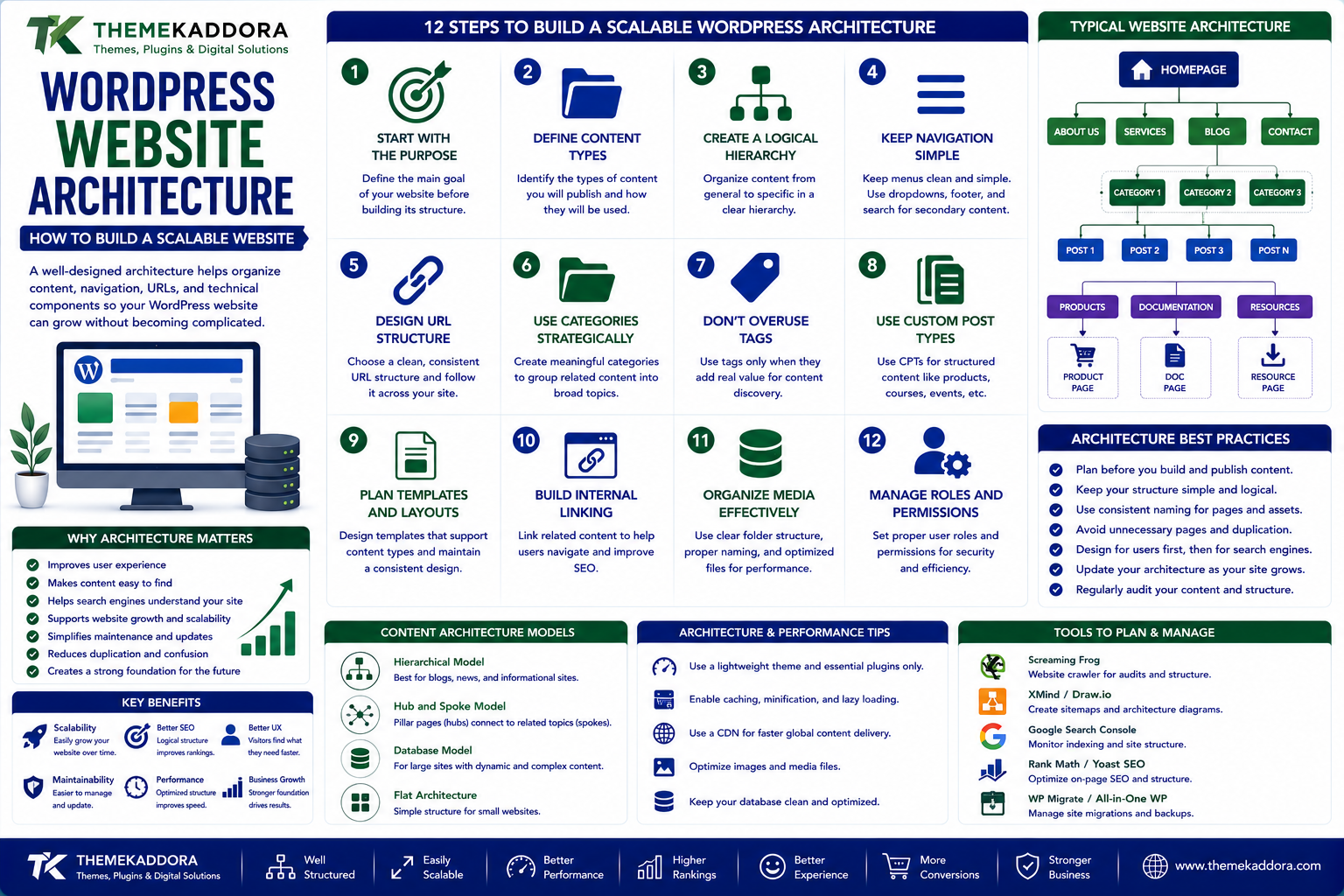
WordPress Website Architecture: How to Build a Scalable Website
Introduction
A WordPress website can start small.
You may begin with:
A homepage
A few pages
A blog
A contact form
But as the website grows, things become more complicated.
You add:
Categories
Products
Landing pages
Documentation
Authors
Customer accounts
Hundreds of articles
Integrations
Eventually, a website that was once easy to manage can become difficult to navigate, maintain, and optimize.
This is where website architecture becomes important.
A well-designed WordPress architecture helps organize content, navigation, URLs, internal links, functionality, and technical components so the website can grow without becoming unnecessarily complicated.
In this guide, we'll explore how to design a scalable WordPress website architecture from the beginning.
What Is WordPress Website Architecture?
WordPress website architecture refers to how the different parts of a website are organized and connected.
This can include:
Pages
Posts
Categories
Tags
Custom post types
Navigation
URLs
Internal links
Media
Plugins
Templates
User roles
Functional integrations
Think of architecture as the blueprint of your website.
A good blueprint makes future expansion easier.
Why Website Architecture Matters
Poor architecture can create problems as a website grows.
For example:
Important pages become difficult to find.
URLs become inconsistent.
Content becomes duplicated.
Navigation becomes confusing.
Internal links become messy.
Developers struggle to maintain the site.
Search engines may have difficulty understanding relationships between pages.
Good architecture creates a clearer foundation.
1. Start With the Website's Purpose
Before creating pages, define what the website needs to accomplish.
Is it primarily:
A business website?
A blog?
An ecommerce store?
A membership platform?
A SaaS marketing website?
A documentation website?
A portfolio?
A news website?
The architecture should support the business model.
Don't build the structure first and decide the purpose later.
2. Define Your Main Content Types
Determine what types of information your website will contain.
For a business website:
Pages
Blog posts
Services
Case studies
Testimonials
For an ecommerce website:
Products
Categories
Brands
Reviews
Orders
For a learning platform:
Courses
Lessons
Instructors
Resources
Clearly defining content types makes the website easier to organize.
3. Create a Logical Hierarchy
A simple hierarchy might look like:
Homepage
↓
Category
↓
Subcategory
↓
Content
For example:
WordPress
↓
WordPress SEO
↓
Technical SEO
↓
WordPress Technical SEO Guide
This creates a logical relationship between broad and specific topics.
4. Keep Navigation Simple
Visitors shouldn't need to understand your entire website architecture to use the website.
Your main navigation should focus on important destinations.
For example:
Home | Products | Services | Blog | About | Contact
Avoid putting every page into the main menu.
Use:
Dropdowns
Footer navigation
Category pages
Internal links
Search
to provide access to secondary content.
5. Design URLs Before Publishing Hundreds of Pages
URL structure becomes difficult to change later.
Choose a logical pattern.
For example:
/blog/wordpress-seo/
or:
/wordpress/seo/
The exact structure depends on your website.
The important thing is consistency.
Avoid unnecessary URL complexity.
6. Use Categories Strategically
Categories can help organize content into major subjects.
For example:
WordPress
SEO
Security
Performance
Ecommerce
Development
Categories should represent meaningful content groups.
Don't create a new category every time you publish an article.
7. Don't Overuse Tags
Tags can be useful for specific relationships, but they can also create unnecessary archive pages.
Before creating a tag, ask:
"Will this tag help visitors discover multiple useful pieces of content?"
If not, you may not need it.
8. Use Custom Post Types When Appropriate
WordPress supports more than standard posts and pages.
Custom post types can be useful for structured content such as:
Products
Courses
Events
Case studies
Documentation
Team members
Properties
If a content type has different fields, workflows, or templates, a dedicated content model may be more appropriate than putting everything into ordinary blog posts.
9. Plan Internal Linking
Internal links connect different areas of your website.
For example:
WordPress SEO
links to:
Keyword Research
which links to:
Content Optimization
which links back to:
WordPress SEO Guide
This creates a network of related content.
Internal linking can improve navigation and help search engines understand relationships between pages.
10. Create Hub Pages
A hub page acts as a central resource for a topic.
For example:
WordPress SEO Guide
It can link to:
Keyword research
Technical SEO
Image SEO
Internal linking
Site speed
Content optimization
This creates a clear entry point for visitors.
11. Build Topic Clusters
A scalable content architecture often organizes related articles into clusters.
For example:
Main Topic
WordPress Security
Supporting topics:
WordPress malware protection
Secure login
WordPress backups
User permissions
Plugin security
WordPress security checklist
These pages can be connected through internal links.
12. Design for Mobile Users
Architecture isn't just about desktop navigation.
Think about how the website works on smaller screens.
Consider:
Mobile menu
Search
Buttons
Categories
Filters
Forms
Content hierarchy
A complicated desktop menu can become frustrating on mobile.
13. Keep Important Pages Close to the Homepage
Important pages shouldn't be buried under many layers of navigation.
For example:
Homepage
→
Services
→
SEO Services
is usually easier to understand than:
Homepage
→
Resources
→
Marketing
→
SEO
→
Services
→
SEO Services
Keep important commercial and informational pages accessible.
14. Plan Search Functionality
Large websites need more than navigation.
Website search can help visitors find specific content.
Depending on the site, search may need to cover:
Blog posts
Products
Documentation
Courses
Services
Resources
For large websites, consider filters and categories that help users narrow results.
15. Organize Media Properly
Large WordPress websites can accumulate thousands of images and media files.
Use a consistent system for:
Image naming
Image sizes
Formats
Alt text
Media organization
Avoid uploading multiple unnecessary versions of the same image.
16. Design the Architecture With Performance in Mind
Website architecture can affect performance indirectly.
Problems can arise from:
Too many plugins
Heavy page builders
Excessive scripts
Large databases
Poor queries
Unnecessary third-party services
A scalable website should minimize unnecessary complexity.
17. Keep Plugins Focused
Plugins should have clear responsibilities.
For example:
One plugin may handle ecommerce.
Another may handle SEO.
Another may provide backups.
Avoid installing multiple plugins that perform the same job unless there is a clear reason.
Overlapping functionality can create conflicts and maintenance problems.
18. Plan User Roles Carefully
A growing website may have multiple users.
Examples include:
Administrator
Editor
Author
Contributor
Shop manager
Support staff
Give each role only the permissions required.
This improves both security and operational clarity.
19. Separate Content From Functionality
A scalable website should avoid putting important business logic directly into content wherever possible.
For example, instead of manually inserting complicated functionality into hundreds of posts, consider using:
Templates
Shortcodes where appropriate
Blocks
Custom fields
Custom post types
Reusable components
This makes future changes easier.
20. Plan for Future Growth
Don't only design for today's website.
Ask:
"What will this website look like when it has ten times more content?"
If you currently have:
20 articles
imagine:
500 articles
If you have:
10 products
imagine:
1,000 products
If your architecture collapses under growth, redesign becomes expensive.
WordPress Architecture for a Blog
A content-focused website might use:
Homepage
↓
Blog
↓
Categories
↓
Articles
With additional structures for:
Authors
Tags
Search
Featured content
Related articles
This is relatively simple and can scale well when categories and internal linking are carefully managed.
WordPress Architecture for Ecommerce
An ecommerce website might use:
Homepage
↓
Shop
↓
Category
↓
Subcategory
↓
Product
Additional elements may include:
Search
Filters
Cart
Checkout
Account
Reviews
Product discovery should remain simple even as the catalog expands.
WordPress Architecture for Business Websites
A business website might use:
Homepage
↓
Services
↓
Individual Service Pages
and:
Homepage
↓
Resources
↓
Blog
↓
Articles
Additional pages can include:
About
Contact
Case studies
Testimonials
Pricing
FAQ
The architecture should guide visitors toward both information and conversion.
WordPress Architecture for Documentation
Documentation websites require particularly strong organization.
A structure might be:
Documentation
↓
Product
↓
Getting Started
↓
Installation
↓
Configuration
↓
Advanced Features
Users should be able to quickly locate answers without reading everything sequentially.
How Architecture Supports SEO
A logical architecture can help search engines understand:
Which pages are important
Which topics are related
How content is organized
Which pages belong to the same topic
How URLs relate to each other
However, architecture alone doesn't guarantee rankings.
It works together with:
Content quality
Search intent
Technical SEO
Internal links
Website performance
Authority
Common WordPress Architecture Mistakes
Creating Too Many Categories
This makes navigation harder to understand.
Creating Categories Without a Purpose
Every category should provide meaningful organization.
Using Tags for Everything
This can create unnecessary archive pages.
Deep Navigation
Important information becomes difficult to reach.
Changing URLs Frequently
URL changes can create redirects and broken links.
Installing Too Many Plugins
More complexity can mean more maintenance.
Ignoring Future Growth
A structure that works for 20 pages may fail at 2,000.
Mixing Unrelated Content
This can weaken both user experience and topical organization.
How to Audit Your WordPress Architecture
Review your website periodically.
Step 1 — Map Your Main Pages
List your major sections.
Step 2 — Review Navigation
Can visitors quickly find important information?
Step 3 — Review URLs
Are they consistent and understandable?
Step 4 — Review Categories
Do they represent meaningful topics?
Step 5 — Check Internal Links
Are important pages connected?
Step 6 — Find Orphan Pages
Look for important pages that aren't linked from other relevant pages.
Step 7 — Review Performance
Identify unnecessary technical complexity.
Step 8 — Plan Future Growth
Ask whether the current structure can handle substantially more content.
A Scalable WordPress Architecture Checklist
Planning
Website purpose defined
Target audience identified
Main content types defined
Major categories planned
Navigation
Main menu is simple
Important pages are accessible
Mobile navigation works
Search is available where needed
Content
Logical categories
Useful internal links
Topic clusters
Hub pages
Limited unnecessary tags
Technical
Plugins have clear purposes
User roles are appropriate
URLs are consistent
Performance is monitored
Growth
Architecture can scale
Content expansion is planned
New sections can be added cleanly
Maintenance procedures exist
When Should You Redesign Your WordPress Architecture?
A redesign may be worth considering when:
Visitors can't find important pages.
Navigation has become too complicated.
Categories have become inconsistent.
URLs are difficult to manage.
Content is duplicated.
Internal linking is weak.
The website has grown significantly.
New features are becoming difficult to implement.
Plugins are creating excessive complexity.
Don't redesign simply because a competitor uses a different structure.
Change architecture when the current structure no longer serves the website.
Why choose ThemeKaddora?
ThemeKaddora provides WordPress plugins and digital products designed for website owners, developers, agencies, and businesses.
Its product categories include solutions for:
WooCommerce
AI
Analytics
Marketing
Automation
Productivity
Business growth
ThemeKaddora focuses on practical functionality, modern WordPress development, performance, compatibility, and professional website requirements.
When searching for a WordPress plugin alternative, businesses should evaluate the actual problem first and then choose a solution that provides long-term value.
Final Thoughts
A WordPress website isn't just a collection of pages.
It is a connected system.
As your website grows, architecture becomes increasingly important.
The strongest WordPress websites are designed around:
Clear content types
Logical navigation
Consistent URLs
Useful categories
Strong internal linking
Focused functionality
Good performance
Security
Future scalability
Don't build your website only for today's requirements.
Build it so tomorrow's growth doesn't force you to rebuild everything from scratch.
A well-planned architecture makes it easier for visitors to navigate, developers to maintain, search engines to understand, and businesses to expand.
The goal isn't to create the most complicated architecture.
It's to create the simplest structure that can support your website's current needs and future growth.
Frequently Asked Questions
What is WordPress website architecture?
WordPress website architecture is the way a WordPress website's pages, content types, navigation, URLs, internal links, functionality, and other components are organized and connected.
Why is website architecture important?
Good architecture makes websites easier to navigate, maintain, expand, and understand.
How deep should a WordPress website structure be?
There is no universal depth requirement. Important information should generally remain easy for users to reach without navigating through unnecessary layers.
Should I use categories or tags in WordPress?
Categories are generally better suited to major content groupings, while tags can be useful for specific relationships. Avoid creating either without a clear purpose.
What are WordPress custom post types?
Custom post types allow developers to create structured content types beyond standard posts and pages, such as courses, events, products, or case studies.
Does website architecture affect SEO?
A logical architecture can help search engines discover and understand relationships between pages. However, rankings also depend on many other factors.
How can I make WordPress scalable?
Plan content types, URLs, categories, navigation, plugins, internal linking, performance, and future expansion before the website becomes excessively large.
Should every page appear in the main navigation?
No. The main navigation should focus on important destinations. Secondary content can be accessed through internal links, categories, footer navigation, search, and other appropriate methods.
How many WordPress plugins should I install?
There is no ideal number. Focus on whether each plugin is necessary, trustworthy, maintained, compatible, and appropriate for your website.
When should I change my WordPress URL structure?
Avoid changing established URLs unnecessarily. If a change is required, plan appropriate redirects and review internal and external links.
Why choose Themekaddora?
Themekaddora provides lightweight, responsive, SEO-friendly WordPress themes with fast performance, WooCommerce compatibility, flexible customization, accessibility-conscious design, modern templates, regular updates, and professional support—providing a strong foundation for businesses building digital products and product-focused websites.
Comments (0)