
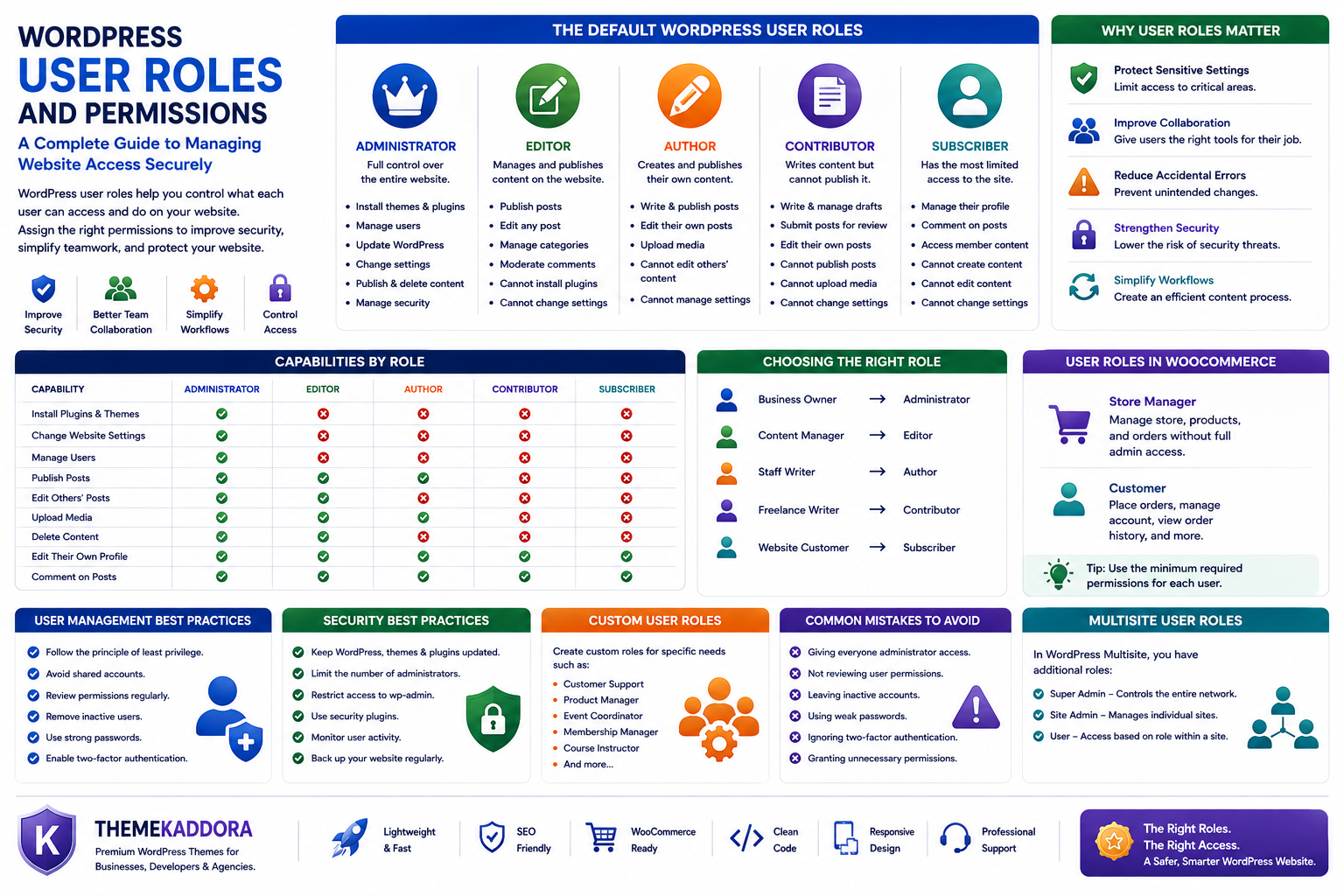
WordPress User Roles and Permissions: A Complete Guide to Managing Website Access Securely
Introduction
As your WordPress website grows, it's common for multiple people to contribute to its success. Content writers publish articles, editors review content, designers update layouts, developers add features, and administrators oversee the entire website.
Giving every user full administrative access may seem convenient, but it creates unnecessary security risks and increases the chance of accidental changes.
This is where WordPress User Roles become essential.
WordPress includes a built-in role and permission system that controls what each user can view, edit, publish, or manage. Assigning the right permissions improves security, simplifies collaboration, and ensures everyone has access only to the tools they need.
In this guide, you'll learn how WordPress user roles work, the responsibilities of each role, common business use cases, and best practices for managing user access.
What Are WordPress User Roles?
A WordPress user role is a predefined set of permissions assigned to a user account.
Instead of giving every user complete control over the website, WordPress allows administrators to assign specific capabilities based on responsibilities.
This role-based approach helps maintain security while supporting efficient teamwork.
Why User Roles Matter
Proper user management provides several benefits.
It helps you:
Protect sensitive website settings
Reduce accidental errors
Improve team collaboration
Simplify content workflows
Strengthen website security
Control administrative access
The principle is simple: users should only receive the permissions necessary to perform their work.
The Default WordPress User Roles
WordPress includes several built-in roles, each designed for a different level of responsibility.
Administrator
The Administrator has complete control over the website.
Typical responsibilities include:
Installing themes
Installing plugins
Managing users
Updating WordPress
Changing settings
Publishing and deleting content
Managing security
Administrator accounts should only be assigned to trusted individuals.
Editor
Editors primarily manage website content.
They can:
Publish posts
Edit any post
Review content
Manage categories
Moderate comments
Editors cannot install plugins or modify website settings.
Author
Authors manage only their own content.
They can:
Write posts
Publish posts
Edit their own articles
Upload media
They cannot edit other users' content.
Contributor
Contributors can create content but cannot publish it.
Their workflow typically involves:
Writing drafts
Submitting articles for review
Waiting for an editor or administrator to publish
This role is useful for guest writers and freelance contributors.
Subscriber
Subscribers have the most limited access.
Depending on the website, they may:
Manage their profile
View member-only content
Comment on articles
Access protected resources
Subscribers cannot create or edit website content.
Choosing the Right Role
Selecting the correct role depends on the user's responsibilities.
For example:
Business owner → Administrator
Content manager → Editor
Staff writer → Author
Freelance writer → Contributor
Customer → Subscriber
Giving users the minimum required permissions improves security without reducing productivity.
User Roles and Website Security
Poor permission management is one of the most common causes of WordPress security problems.
Examples include:
Too many administrators
Shared login accounts
Weak passwords
Forgotten inactive accounts
Proper user role management significantly reduces these risks.
Managing User Accounts
Good user management includes regular reviews.
Administrators should:
Remove inactive users
Update permissions when responsibilities change
Disable accounts that are no longer needed
Encourage strong passwords
Enable two-factor authentication when possible
Regular audits help keep your website secure.
Custom User Roles
Some businesses require permissions beyond the default roles.
Developers can create custom roles for specialized responsibilities such as:
Customer support
Product manager
Event coordinator
Membership manager
Store manager
Course instructor
Custom roles allow organizations to match permissions to their workflow.
User Roles in WooCommerce
WooCommerce introduces additional user roles to support online stores.
Examples include:
Store Manager
Customer
These roles help divide responsibilities between store operations and website administration.
Best Practices for User Permissions
To manage users effectively:
Follow the Principle of Least Privilege
Only grant the permissions users truly need.
Avoid Shared Accounts
Each team member should have an individual login.
This improves accountability and security.
Review Permissions Regularly
As employees change roles or leave the organization, update or remove their accounts promptly.
Protect Administrator Accounts
Use strong passwords, multi-factor authentication, and secure login practices for administrator accounts.
Train Your Team
Users should understand how their permissions work and avoid making unnecessary changes.
Education reduces accidental mistakes.
Common Mistakes to Avoid
Avoid these common errors:
Giving everyone Administrator access
Forgetting to remove former employees
Using weak passwords
Sharing login credentials
Ignoring permission reviews
Creating unnecessary custom roles
Not monitoring user activity
Simple user management practices can prevent significant security issues.
User Roles and Collaboration
A structured permission system allows teams to work together efficiently.
For example:
Contributors write content.
Editors review and improve it.
Administrators oversee the website.
This workflow improves content quality while protecting website settings.
Why a Good Theme Supports Team Workflows
Although user roles are managed by WordPress, a well-developed theme contributes to a smoother experience by offering:
Clean editing interfaces
Compatible templates
Responsive dashboards
Accessibility support
Reliable updates
Consistent design options
Choosing a quality theme reduces compatibility issues during content creation.
Why Choose Themekaddora?
Themekaddora WordPress themes are designed for businesses, agencies, and organizations that require secure, scalable websites.
Our themes provide:
Lightweight architecture
Responsive layouts
SEO-friendly code
WooCommerce compatibility
Flexible customization
Accessibility-ready designs
Fast loading performance
Cross-browser compatibility
Regular updates
Professional support
Whether your website is managed by one person or an entire content team, Themekaddora provides a dependable foundation for long-term growth.
WordPress User Role Checklist
Before adding new users, review this checklist:
✅ Assign the correct role
✅ Use strong passwords
✅ Enable two-factor authentication
✅ Avoid shared accounts
✅ Remove inactive users
✅ Review permissions regularly
✅ Limit administrator accounts
✅ Train team members
✅ Monitor login activity
✅ Keep WordPress updated
Conclusion
WordPress user roles are a fundamental part of website security and efficient content management.
By assigning appropriate permissions, reviewing user access regularly, and following security best practices, you can protect your website while enabling your team to work productively.
As your organization grows, a thoughtful user management strategy becomes increasingly important.
Combined with reliable WordPress themes from Themekaddora, proper user role management helps create a secure, scalable, and professional website that supports long-term business success.
Frequently Asked Questions
What are WordPress user roles?
WordPress user roles are predefined permission levels that control what each user can access and manage on a website.
Which WordPress role has the highest level of access?
The Administrator role has full control over the website, including settings, themes, plugins, users, and content.
Can I create custom user roles?
Yes. Developers can create custom roles with specific permissions to match unique business workflows.
Why shouldn't everyone be an Administrator?
Giving every user full administrative access increases security risks and makes accidental changes more likely. It's best to assign only the permissions each user needs.
Why choose Themekaddora?
Themekaddora themes combine clean code, responsive layouts, SEO-friendly architecture, WooCommerce compatibility, regular updates, and flexible customization, making them an excellent choice for businesses managing multiple users and growing teams.
Comments (0)