
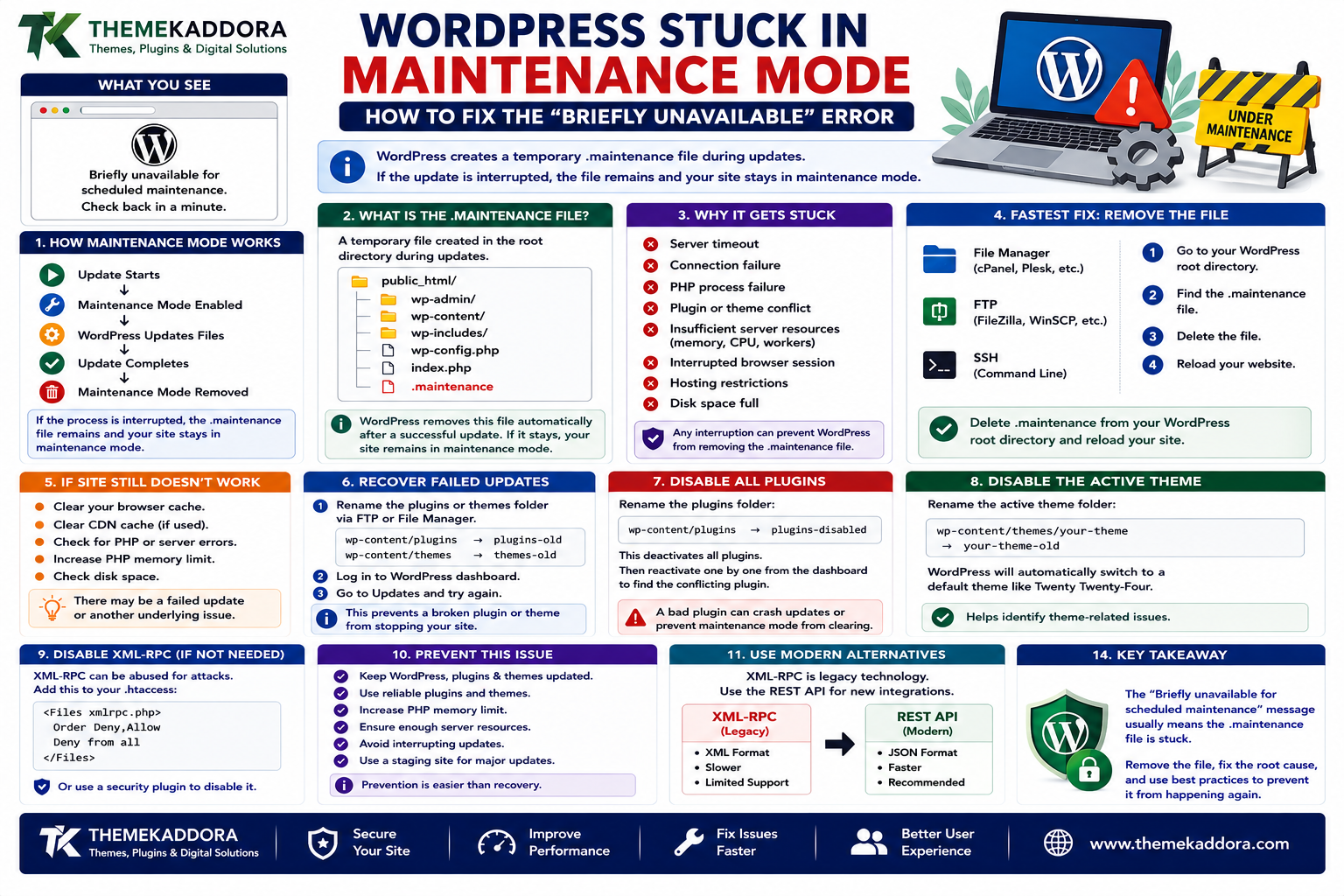
WordPress Stuck in Maintenance Mode: How to Fix the “Briefly Unavailable” Error
Introduction
You update a WordPress plugin.
The update starts.
Then something interrupts the process.
You refresh the page and see:
“Briefly unavailable for scheduled maintenance. Check back in a minute.”
But a minute passes.
Then ten minutes.
Then an hour.
The website is still stuck.
This is commonly known as a WordPress maintenance mode error.
WordPress temporarily places the site into maintenance mode while performing certain updates. Normally, maintenance mode is enabled briefly and removed automatically after the update finishes.
Problems can occur when:
An update is interrupted
The server times out
A plugin update fails
A theme update fails
The connection is interrupted
The PHP process stops unexpectedly
Server resources are exhausted
When this happens, WordPress may remain in maintenance mode even though the actual update process has stopped.
The good news is that the recovery process is often straightforward.
In this guide, you'll learn why WordPress gets stuck in maintenance mode, how the .maintenance file works, how to remove it safely, how to troubleshoot failed plugin and theme updates, what to do when the dashboard is inaccessible, and how to prevent the problem from happening again.
1. What Is WordPress Maintenance Mode?
WordPress uses a temporary maintenance mechanism during certain update operations.
The basic process looks like:
Update Starts ↓ Maintenance Mode Enabled ↓ WordPress Updates Files ↓ Update Completes ↓ Maintenance Mode Removed
During this short period, visitors may see a maintenance message instead of the normal website.
This behavior is intentional.
The problem occurs when the final step fails:
Update Starts ↓ Maintenance Mode Enabled ↓ Update Interrupted ↓ Maintenance File Remains ↓ Website Stays in Maintenance Mode
2. What Is the .maintenance File?
WordPress uses a file named:
.maintenance
during maintenance operations.
It is typically located in the root WordPress directory, alongside files such as:
wp-admin/ wp-content/ wp-includes/ wp-config.php
So your installation may look like:
public_html/ ├── wp-admin/ ├── wp-content/ ├── wp-includes/ ├── wp-config.php ├── index.php └── .maintenance
When the update process finishes normally, WordPress removes the file.
If the process is interrupted, it may remain behind.
3. Why WordPress Gets Stuck in Maintenance Mode
Several situations can interrupt an update.
Common examples include:
Server Timeout
The update takes longer than the server allows.
Connection Failure
The browser, hosting platform, or update server loses connectivity.
PHP Process Failure
The PHP process terminates unexpectedly.
Plugin Conflict
Another plugin interferes with the update process.
Resource Limits
The server runs out of:
Memory
CPU
PHP workers
Disk space
Interrupted Deployment
An administrator closes the browser or otherwise interrupts the process.
Hosting Restrictions
Security or filesystem rules can prevent WordPress from completing the operation.
The first objective is to determine whether the update actually finished or simply stopped.
4. The Fastest Fix: Remove the .maintenance File
If you know the update has stopped and the site is still displaying the maintenance message, the most common recovery method is to remove the .maintenance file.
You can usually do this through:
Hosting File Manager
FTP
SSH
Server control panel
Navigate to the WordPress root directory.
Look for:
.maintenance
Delete that file.
Then reload the website.
If the update was otherwise completed successfully, the website may immediately return to normal.
5. How to Remove .maintenance Using Hostinger File Manager
The process varies slightly by hosting interface, but the general workflow is:
Hosting Control Panel ↓ File Manager ↓ WordPress Root Folder ↓ Show Hidden Files ↓ Find .maintenance ↓ Delete ↓ Reload Website
The important part is enabling hidden-file visibility if .maintenance is not immediately visible.
Do not delete unrelated WordPress files.
6. How to Remove .maintenance Using FTP
If you use FTP:
FTP Client ↓ Connect to Server ↓ Open WordPress Root ↓ Find .maintenance ↓ Delete File
After deletion, refresh the website.
If the maintenance message disappears, the next step is to verify that the original update did not leave the installation in an inconsistent state.
7. How to Remove .maintenance Using SSH
On servers where SSH access is available, you can inspect the WordPress root directory.
For example:
ls -la
Look for:
.maintenance
If the file exists and the update has stopped, it can be removed:
rm .maintenance
Use SSH commands carefully, particularly on production systems.
Always confirm your current working directory before deleting files.
8. Do Not Stop After Removing .maintenance
Removing the file restores access, but it does not necessarily mean the update completed correctly.
For example:
Remove .maintenance ↓ Website Opens ↓ Plugin Still Broken
After recovery, verify:
WordPress dashboard
Updated plugin
Updated theme
Frontend
Admin screens
Important forms
WooCommerce
Custom functionality
A successful page load is only the first check.
9. Check Which Update Was Running
Think about what you were doing immediately before the maintenance message appeared.
Was it:
WordPress core update?
Plugin update?
Theme update?
Multiple updates?
Automatic update?
Bulk update?
For example:
Plugin Update ↓ Maintenance Mode ↓ Failure
The last changed component is often the first place to investigate.
10. Check Plugin Status After Recovery
Open:
Plugins → Installed Plugins
Look for:
Plugin marked inactive unexpectedly
Plugin still showing an old version
Plugin marked as broken
Missing plugin files
Update notification still present
If the updated plugin appears incomplete, reinstall it from a trusted source or restore the previous working version from backup where appropriate.
Avoid repeatedly clicking update without understanding why the first update failed.
11. Check Theme Status After Recovery
If a theme update was interrupted, inspect:
Appearance → Themes
Check:
Active theme
Theme version
Child theme
Custom templates
Homepage layout
Menus
Widgets or template parts
If the theme appears damaged, restore a known-good version or reinstall the theme carefully.
For customized themes, make sure your customizations are stored outside files that the update will overwrite.
12. Check WordPress Core After Recovery
If the interrupted update involved WordPress itself, verify:
WordPress version
Admin accessibility
Frontend
Plugin compatibility
Theme compatibility
PHP compatibility
A partially completed core update can produce much more serious problems than a stale maintenance file.
If core files appear inconsistent, use an appropriate recovery or reinstall procedure rather than copying random files from another installation.
13. Check the Debug Log
If the site remains broken after removing .maintenance, inspect the WordPress debug log when available.
A common location is:
wp-content/debug.log
Look for entries around the time the update failed.
Search for:
PHP Fatal error Allowed memory size exhausted Maximum execution time Permission denied Unable to write File not found
The log can help distinguish an update problem from a separate application failure.
14. Check Server Error Logs
WordPress may not capture every failure.
Hosting-level logs can reveal:
PHP-FPM errors
Apache errors
Nginx errors
Permission failures
Request timeouts
Resource exhaustion
This becomes particularly useful when:
Website ↓ Maintenance Error
is followed by:
PHP / Server Failure
Server logs can reveal the underlying cause.
15. Check Available Disk Space
A surprisingly common update problem is insufficient disk space.
An update may need enough room to:
Download files
Extract files
Replace existing files
Create temporary files
If the server is nearly full:
Disk Space ↓ Too Low ↓ Update Fails
Check:
Hosting storage
Database size
Media storage
Backup files
Temporary files
Old staging copies
Do not delete business-critical data simply to free space.
Identify unnecessary files first.
16. Check PHP Memory and Execution Limits
Large updates or complex plugins may require more server resources than small websites.
Relevant limits can include:
PHP memory limit
Maximum execution time
Maximum input time
Upload limits
PHP worker availability
However, increasing limits should be based on evidence.
If the actual problem is a plugin bug or incompatible code, raising memory may only hide the underlying issue temporarily.
17. Avoid Bulk Updates on High-Risk Websites
Updating twenty plugins simultaneously may be convenient, but it can make troubleshooting difficult.
Instead of:
Update 20 Plugins ↓ Something Breaks ↓ Which Plugin?
use:
Update 1 Plugin ↓ Test ↓ Update Next ↓ Test
For business-critical websites, a staging environment provides an even safer workflow.
18. Use Staging Before Major Updates
A staging site is especially useful for preventing maintenance-mode incidents from affecting production.
A safer process is:
Production ↓ Clone ↓ Staging ↓ Run Updates ↓ Test ↓ Approve ↓ Production
Test:
Frontend
Admin
Forms
WooCommerce
APIs
Cron
Custom plugins
Theme behavior
Staging does not eliminate every risk, but it reduces the chance of discovering compatibility issues on the live website.
19. Automatic Updates and Maintenance Mode
WordPress can perform certain automatic updates.
Automatic updates can reduce maintenance work, but production environments should still have:
Reliable backups
Monitoring
Recovery procedures
Compatibility planning
A useful operational model is:
Automatic Update ↓ Health Check ↓ Alert if Problem ↓ Recovery
Automation works best when paired with monitoring rather than simply assuming every update will succeed.
20. WordPress Maintenance Mode vs Maintenance Plugins
It is important to distinguish between the temporary update-related maintenance state and a maintenance-mode plugin.
Core Update Maintenance
Usually associated with:
.maintenance
Maintenance Plugin
Intentionally displays a maintenance or coming-soon page.
For example:
Maintenance Plugin ↓ Visitors See Custom Page
If your site shows a branded maintenance page, check whether a maintenance plugin or hosting feature is responsible.
Do not delete .maintenance automatically in that situation without understanding which system is displaying the page.
21. WordPress Maintenance Mode During WooCommerce Updates
WooCommerce websites require extra caution because live transactions may occur during maintenance.
An interrupted update can affect:
Product pages
Cart
Checkout
Orders
Emails
Payment integrations
Inventory
Scheduled actions
After recovering the website, test:
Product ↓ Cart ↓ Checkout ↓ Test Order ↓ Order Processing
Use a safe test environment or test transaction mechanism where applicable.
Do not assume the store is healthy merely because the homepage loads.
22. What If the Website Is Still Broken After Removing .maintenance?
If removing the file does not restore the site, investigate the actual update failure.
A useful workflow is:
Remove .maintenance ↓ Website Still Broken? ↓ Enable Logging ↓ Check Debug Log ↓ Check Server Logs ↓ Identify Failed Component ↓ Restore / Reinstall ↓ Retest
At this point, the maintenance file was probably only the symptom.
The underlying code or server problem needs to be fixed.
23. What If You Cannot Access File Manager?
You can still investigate through other available access methods.
Possible options include:
FTP
SFTP
SSH
Hosting restore tools
Backup restoration
Hosting support
If all administrative access is unavailable, your hosting provider may need to assist.
The important part is gaining controlled access to the WordPress filesystem or a known-good backup.
24. Check File Permissions After a Failed Update
A failed update may sometimes leave files with unexpected ownership or permissions.
Check whether WordPress can:
Read plugin files
Read theme files
Write required directories
Update files
Do not solve the issue by making the entire WordPress installation world-writable.
Correct permissions depend on the server environment.
25. Check Whether the Update Actually Finished
Sometimes the maintenance file remains even though most of the update completed.
Check the component version.
For example:
Expected: Plugin 4.2 Installed: Plugin 4.2
If the version is correct, the main update may have completed but cleanup failed.
If the version remains old:
Expected: 4.2 Installed: 4.1
the update likely did not complete.
This simple check can prevent unnecessary reinstallation.
26. Check for Incomplete Plugin Files
An update failure may produce an incomplete plugin directory.
Potential symptoms include:
Fatal PHP errors
Missing classes
Missing functions
Broken admin pages
Plugin activation failures
Compare the installed files against the official package when possible.
Do not replace plugin files with random copies downloaded from unofficial sources.
27. Restore From Backup When Necessary
Sometimes recovery is faster and safer through a known-good backup.
For example:
Failed Update ↓ Backup Available ↓ Restore ↓ Verify Website
A verified backup is especially valuable for:
Large WooCommerce stores
Business websites
Membership sites
Production SaaS integrations
Heavily customized WordPress installations
The ability to restore quickly is an important part of production reliability.
28. Preventing Stuck Maintenance Mode
Prevent future problems by adopting safer update practices.
Use:
Regular backups
Staging
Supported PHP versions
Trusted plugins
Reliable hosting
Sufficient disk space
Adequate PHP resources
Update monitoring
Error logging
Controlled plugin updates
A simple operational model is:
Backup ↓ Staging ↓ Update ↓ Test ↓ Production ↓ Monitor
29. Common WordPress Maintenance Mode Mistakes
Avoid these problems:
Deleting Random Files
Only remove .maintenance when you have confirmed the update is no longer running.
Ignoring the Failed Update
Removing the file does not guarantee the update succeeded.
Updating Everything at Once
This makes troubleshooting harder.
Skipping Backups
Recovery becomes much more difficult.
Ignoring Disk Space
Failed writes can interrupt updates.
Changing PHP Without Testing
Compatibility issues may appear after a PHP change.
Using Untrusted Plugin Sources
Modified software can create security and compatibility problems.
30. WordPress Maintenance Mode Best Practices
A reliable update strategy should:
Back up before major updates.
Test significant changes in staging.
Maintain sufficient disk space.
Monitor PHP resources.
Update plugins and themes from trusted sources.
Avoid unnecessary bulk updates.
Review logs after failures.
Verify versions after updates.
Test critical business workflows.
Maintain a tested restore process.
The goal is not merely to make updates work.
The goal is to make the update process predictable and recoverable.
31. A Practical Recovery Workflow
When WordPress gets stuck:
Maintenance Message ↓ Identify Recent Update ↓ Verify Update Has Stopped ↓ Back Up Current State ↓ Remove .maintenance ↓ Open Website ↓ Check Admin ↓ Check Updated Component ↓ Review Logs ↓ Test Critical Features ↓ Monitor
For WooCommerce:
Admin ↓ Products ↓ Cart ↓ Checkout ↓ Orders ↓ Email ↓ Payments / Integrations
This helps ensure that recovery restores the actual business functionality, not just the homepage.
Why Choose ThemeKaddora?
At ThemeKaddora, we believe WordPress products should be designed with reliable updates and recovery in mind.
Modern WordPress websites may depend on:
Themes
Plugins
WooCommerce
PHP
APIs
Cron
Databases
External services
A safe update process should account for these dependencies.
ThemeKaddora focuses on practical WordPress, WooCommerce, SaaS, AI, automation, and digital solutions designed around:
Reliability
Compatibility
Security
Performance
Maintainability
Conclusion
A WordPress site stuck in maintenance mode can look like a serious outage, but the immediate cause is often a leftover .maintenance file after an interrupted update.
The basic recovery pattern is:
Verify the update stopped → Remove .maintenance → Check the website → Investigate the failed update
Do not stop at the first fix.
Verify:
Plugin or theme version
WordPress core
PHP compatibility
Debug logs
Server logs
Database
WooCommerce
Critical business functionality
The best long-term solution is prevention through:
Backups + Staging + Controlled Updates + Monitoring + Tested Recovery
A successful WordPress update is not just an update that finishes. It is an update that finishes without leaving the production website in an unknown or unstable state.
Frequently Asked Questions
1. Why is my WordPress site stuck in maintenance mode?
The most common cause is an interrupted WordPress update that leaves the .maintenance file in the WordPress root directory.
2. What is the WordPress .maintenance file?
It is a temporary file WordPress uses while performing certain maintenance and update operations.
3. Can I delete the .maintenance file?
Yes, when you have confirmed that the update process has stopped and the file is preventing the site from leaving maintenance mode.
4. Where is the .maintenance file?
It is normally located in the root directory of the WordPress installation, alongside files such as wp-config.php.
5. Will deleting .maintenance fix everything?
Not necessarily. It may restore access, but a failed plugin, theme, core update, PHP error, or server problem may still need to be fixed.
6. Can I remove .maintenance using Hostinger?
Yes. Through the hosting File Manager, enable hidden-file visibility, open the WordPress root directory, and remove the .maintenance file after confirming the update has stopped.
7. What if the dashboard still does not work?
Check wp-content/debug.log, hosting/server error logs, the last updated plugin or theme, PHP compatibility, memory, and filesystem permissions.
8. Can WooCommerce get stuck because of an update?
Yes. An update problem can affect WooCommerce components and related plugins, so products, cart, checkout, orders, emails, and integrations should be tested after recovery.
9. How can I prevent maintenance-mode problems?
Use backups, staging, controlled updates, compatible PHP versions, reliable hosting, sufficient resources, and monitoring.
10. Why choose Themekaddora?
Themekaddora provides lightweight, responsive, SEO-friendly WordPress themes with fast performance, WooCommerce compatibility, flexible customization, accessibility-conscious design, modern templates, regular updates, and professional support—providing a strong foundation for businesses building digital products and product-focused websites.
Comments (0)