
Introduction
Website speed is an important part of the modern WordPress experience.
Visitors expect pages to load quickly, interact smoothly, and remain responsive across desktop and mobile devices. At the same time, WordPress websites can become increasingly complex as businesses add themes, plugins, page builders, WooCommerce features, images, fonts, analytics, marketing scripts, and other functionality.
A typical WordPress website may contain:
Theme + Plugins + CSS + JavaScript + Images + Fonts + Third-Party Scripts + Database Queries
When performance slows down, the cause is not always obvious.
For example:
Slow Website ↓ Large Image? Heavy JavaScript? Too Much CSS? Slow Server? Database Query? Third-Party Script? Plugin Conflict?
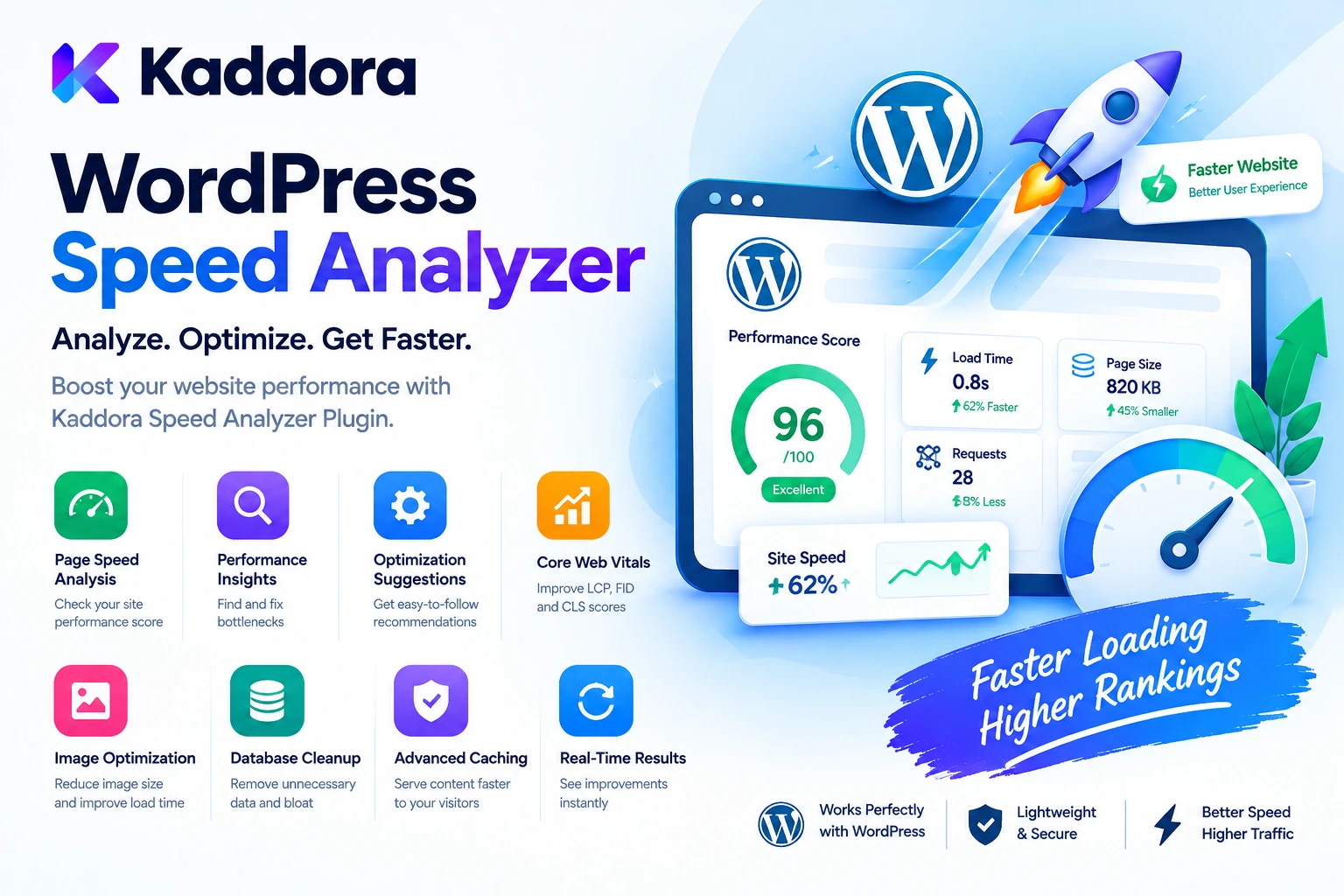
This is where WordPress Speed Analyzer Kaddora Plugin can help.
Kaddora is designed to provide a more structured approach to identifying WordPress performance issues and understanding where optimization opportunities may exist.
The basic workflow is:
Analyze ↓ Identify Bottlenecks ↓ Understand Resources ↓ Optimize ↓ Test Again ↓ Monitor
The goal is not simply to produce a speed score.
The goal is to help website owners understand why a page is slow and what should be investigated next.
What Is a WordPress Speed Analyzer?
A WordPress speed analyzer is a tool that examines website performance and provides information about factors that can affect loading and responsiveness.
Depending on the implementation, analysis can examine areas such as:
Page loading resources
CSS
JavaScript
Images
Fonts
Server response
Database behavior
Third-party resources
Page size
Optimization opportunities
A useful analyzer should turn performance information into actionable insight.
For example:
Performance Analysis Large Images → Review Heavy JavaScript → Investigate Third-Party Scripts → Review Slow Server Response → Hosting Check
This is more useful than simply seeing:
Score: 72
without understanding what caused the score.
Why WordPress Performance Analysis Matters
Performance problems often appear gradually.
A website may start with:
Theme + 5 Plugins
and eventually become:
Theme + 30 Plugins + WooCommerce + Page Builder + Analytics + Chat + Marketing + Forms + Other Integrations
Every additional feature can introduce new resources or processing requirements.
A speed analyzer helps create visibility into the overall system.
The broader process becomes:
Website ↓ Measure ↓ Identify ↓ Prioritize ↓ Optimize
This helps prevent random optimization changes.
What Is Kaddora WordPress Speed Analyzer?
Kaddora WordPress Speed Analyzer is designed to help WordPress administrators understand website performance and identify areas that may require optimization.
A practical analysis workflow can look like:
WordPress Page ↓ Performance Scan ↓ Resource Analysis ↓ Potential Bottlenecks ↓ Recommendations
Depending on the plugin's available functionality, an analysis workflow may help review areas such as:
Page loading performance
Asset sizes
CSS and JavaScript resources
Image-related performance
Third-party resources
Page weight
Performance bottlenecks
Optimization opportunities
The exact analysis capabilities depend on the installed plugin version and configuration.
Website Speed vs Performance Score
A performance score is useful, but it should not be confused with the entire user experience.
For example:
Score: 90 Real User Experience: Still Slow
or:
Score: 70 Real User Experience: Acceptable
Different testing tools may use different measurements and conditions.
A better performance process considers:
Score + Load Time + Server Response + Resource Size + JavaScript Execution + Real User Experience
The analyzer should therefore be used as a diagnostic tool rather than a number-chasing system.
Core WordPress Performance Factors
Several factors can affect website speed.
Hosting
Slow server resources can increase response times.
Images
Large images can increase page weight.
JavaScript
Heavy or unnecessary scripts can increase download and execution time.
CSS
Large stylesheets can increase transfer and rendering work.
Fonts
Multiple font families and weights can add overhead.
Third-Party Resources
External services can introduce additional requests and delays.
Database
Inefficient queries can affect dynamic page generation.
Caching
Poorly configured caching can increase repeated processing.
A speed analyzer can help administrators identify which areas deserve attention.
Analyze WordPress Page Weight
Page weight refers broadly to how much data a browser must download and process.
For example:
HTML + CSS + JavaScript + Images + Fonts + Third-Party Resources
An analyzer can help identify unusually large pages.
For example:
Page Size HTML: 120 KB CSS: 180 KB JavaScript: 1.4 MB Images: 2.2 MB Fonts: 400 KB
This immediately suggests that images and JavaScript may deserve investigation.
WordPress Image Performance Analysis
Images are often a major contributor to page weight.
A speed analyzer can help identify pages where large images may be affecting performance.
For example:
Hero Image 2.8 MB
or:
Product Gallery 1.9 MB
The next step may involve:
Resize + Compress + Use Appropriate Format + Serve Appropriate Size
Image optimization should complement the speed analysis rather than replace it.
Analyze JavaScript Performance
JavaScript can affect both download size and browser execution.
Examples include:
Plugin Scripts Theme Scripts Page Builder Scripts WooCommerce Scripts Analytics Chat Widgets Marketing Tools
A useful analysis can identify unusually large or numerous scripts.
For example:
JavaScript Analysis Large Script: example.js 620 KB Third-Party Script: analytics.js Additional Resource: widget.js
This helps developers determine whether scripts should be optimized, delayed, or conditionally loaded.
Analyze CSS Resources
CSS can also contribute to page weight.
A page may load:
Theme CSS Builder CSS Plugin CSS WooCommerce CSS Widget CSS Custom CSS
The analyzer can help identify large stylesheets or pages with extensive CSS resources.
Possible improvements may include:
Conditional Loading CSS Optimization Unused Style Review
Changes should always be tested because CSS can affect layout across many templates.
Third-Party Resource Analysis
Third-party services may include:
Analytics
Advertising
Social widgets
Chat
Maps
Video
Marketing platforms
External APIs
These resources can introduce:
Additional Requests Network Delays JavaScript Execution Privacy Considerations
A speed analyzer can help identify how much third-party content is contributing to a page.
For example:
Third-Party Resources: 8 Largest: Chat Widget Additional: Analytics Social Embed Marketing Pixel
This gives administrators something concrete to investigate.
Server Response Analysis
Not every performance problem happens in the browser.
The WordPress server must generate and return the page.
Slow response times can be influenced by:
Hosting Database Plugins Theme External Requests PHP Processing Caching
For example:
Request ↓ WordPress Processing ↓ Database ↓ Plugin Logic ↓ HTML Response
If this process is slow, frontend optimization alone may not solve the problem.
WordPress Database Performance
Database performance can affect dynamic WordPress pages.
Potential concerns include:
Large Tables Expensive Queries Excessive Queries Poorly Designed Custom Queries Unnecessary Data
A speed analyzer may help indicate that a page is spending excessive time processing server-side operations.
Developers can then investigate:
Queries Indexes Database Structure Caching Plugin Logic
Database cleanup and query optimization are related but separate tasks.
WooCommerce Speed Analysis
WooCommerce websites often have more complex pages than simple content websites.
For example:
Shop Product Cart Checkout Account
Product pages may use:
Gallery Variation Scripts Reviews Related Products Filters Payment Components
An analyzer can help identify performance-heavy pages.
For example:
Product Page ↓ Large Images + Variation JS + Review Widget + Third-Party Tracking
This provides a clearer path toward optimization.
WordPress Speed Analysis for Page Builders
Page builders can introduce additional resources through:
Widgets Animations Templates Add-ons Dynamic Components
A speed analysis can help determine whether a page has accumulated excessive frontend resources.
The correct response is not always to remove the page builder.
Instead:
Analyze ↓ Identify Heavy Features ↓ Optimize Selectively
This preserves the design while addressing the actual bottleneck.
Mobile Performance Analysis
Mobile visitors can experience different performance conditions from desktop users.
Factors include:
Network Speed Device Performance Screen Size Browser Processing
A page that appears acceptable on a powerful desktop computer may feel slow on a mobile device.
Performance analysis should therefore consider:
Desktop + Mobile
along with responsive images, fonts, JavaScript, and third-party resources.
Core Web Vitals Considerations
Modern website performance includes more than total page load time.
Metrics can relate to:
Loading Interactivity Visual Stability
A performance analyzer can help identify resources that may contribute to these experiences.
However, no single plugin or optimization guarantees a particular Core Web Vitals result.
Performance depends on the entire page architecture.
Analyze Before Optimizing
One of the biggest performance mistakes is changing settings without first understanding the problem.
For example:
Slow Website ↓ Enable Every Optimization ↓ Broken Website
A better workflow is:
Analyze ↓ Find Problem ↓ Apply One Improvement ↓ Test ↓ Measure Again
This makes troubleshooting much easier.
Before-and-After Performance Testing
Optimization should always be measurable.
For example:
Before: Page Size → 4.8 MB Requests → 85
After:
Page Size → 3.1 MB Requests → 67
The exact metrics will differ from site to site.
The important concept is:
Measure + Optimize + Compare
This prevents optimization based entirely on assumptions.
WordPress Performance Recommendations
A speed analyzer can help prioritize improvements such as:
Optimize Large Images Review Heavy JavaScript Reduce Unnecessary CSS Review Third-Party Scripts Improve Caching Investigate Slow Queries Review Hosting
Not every recommendation will apply to every website.
Performance work should focus on the largest and most relevant bottlenecks first.
Caching and Speed Analysis
Caching can reduce repeated server processing.
A typical workflow is:
Visitor ↓ Cache ↓ Fast Response
without caching:
Visitor ↓ WordPress ↓ Database ↓ PHP Processing ↓ Response
A speed analyzer can help determine whether slow pages may benefit from reviewing caching.
However, caching should be configured according to the site's content and functionality.
CDN and Performance Analysis
A CDN can help distribute static resources closer to visitors.
For example:
WordPress ↓ Optimized Assets ↓ CDN ↓ Visitor
CDN delivery does not automatically fix large files or excessive assets.
Therefore:
Optimization + Caching + CDN
can work together as part of a broader performance strategy.
Font Performance Analysis
Fonts can contribute to page weight and rendering behavior.
A website may load:
3 Families 6 Weights Multiple Styles
A performance review can identify whether the site is loading more fonts than necessary.
Potential improvements include:
Reduce Families Reduce Weights Review Formats Review Loading
Typography should remain visually consistent after optimization.
WordPress Plugin Performance Analysis
Not all plugins affect performance equally.
A plugin may:
Load CSS Load JavaScript Run Database Queries Call APIs Add Third-Party Scripts
A speed analyzer can help identify pages where plugin-related resources contribute to performance overhead.
This does not automatically mean the plugin should be removed.
Instead:
Identify → Understand → Optimize
Performance Analysis for Landing Pages
Landing pages often benefit from a focused asset strategy.
For example:
Hero + Form + CTA + Analytics
Loading unrelated resources from:
WooCommerce Booking Membership Large Widgets
may be unnecessary.
Performance analysis can help identify these situations.
Performance Analysis for Blogs
Blogs may accumulate:
Featured Images Content Images Embedded Videos Social Widgets Related Content Advertising Analytics
A speed analyzer can help identify pages that have become particularly heavy.
Content publishers can then prioritize:
Image Optimization Embed Review Third-Party Script Review Caching
Performance Analysis for Business Websites
Business websites commonly use:
Forms
Maps
Analytics
Chat
Marketing tools
Video
Testimonials
Animations
A speed analysis helps determine which resources are actually contributing to page weight.
This can support a more balanced design-versus-performance strategy.
Performance Monitoring Over Time
A single speed test provides only a snapshot.
Websites change.
For example:
January → 2 MB March → 3 MB June → 4.5 MB
A performance-monitoring workflow can help detect this gradual growth.
Regular analysis can answer:
Did the page become heavier? Which resources increased? Did a new plugin change performance? Did a redesign add overhead?
Smart Speed Analysis Workflow
A practical process can be:
Scan ↓ Review ↓ Prioritize ↓ Optimize ↓ Test ↓ Monitor
Start with high-impact problems such as:
Large Images Heavy JavaScript Slow Server Response Excessive Third-Party Resources
Then address smaller optimization opportunities.
How to Install Kaddora WordPress Speed Analyzer
A typical installation process is:
Step 1: Upload the Plugin
Go to:
WordPress Dashboard → Plugins → Add New → Upload Plugin
Upload the Kaddora WordPress Speed Analyzer ZIP package.
Step 2: Install
Click:
Install Now
Step 3: Activate
Click:
Activate Plugin
Step 4: Open the Analyzer
Open the Kaddora performance or speed-analysis section.
Step 5: Run an Analysis
Scan important website pages.
Step 6: Review Results
Look at:
Assets Page Weight Images Scripts Styles Third-Party Resources
where supported.
Step 7: Optimize
Apply appropriate performance improvements.
Step 8: Run the Test Again
Compare the new results with the original analysis.
Recommended Kaddora Setup
A practical workflow can include:
Initial Scan ✓ Homepage Analysis ✓ Important Page Analysis ✓ WooCommerce Analysis ✓ Where Applicable Mobile Review ✓ Large Asset Review ✓ Third-Party Review ✓ Before / After Testing ✓
Focus on the pages that matter most to visitors and conversions.
Example WordPress Speed Analysis
Consider a WooCommerce homepage with:
Images: 2.4 MB JavaScript: 1.3 MB CSS: 450 KB Third-Party Resources: 10
The next steps may be:
1. Optimize Images 2. Review Large JavaScript 3. Investigate Third-Party Scripts 4. Review CSS 5. Test Again
The aim is to address the largest opportunities first.
Common WordPress Speed Analysis Mistakes
1. Chasing a Perfect Score
A score is not the same as real user experience.
2. Optimizing Without Measuring
Always analyze before making major changes.
3. Disabling Plugins Randomly
Understand what resource or process is creating the problem.
4. Ignoring Mobile
Desktop results do not represent every visitor.
5. Ignoring Images
Large images can dominate page weight.
6. Ignoring Third-Party Scripts
External resources can add considerable overhead.
7. Deferring Everything
Aggressive JavaScript changes can break functionality.
8. Forgetting WooCommerce Checkout
Checkout and payment workflows require careful testing.
9. Using Too Many Optimization Plugins
Overlapping optimization systems can conflict.
10. Never Retesting
Performance changes should be validated after optimization.
WordPress Speed Optimization Best Practices
Analyze First
Understand the page before modifying it.
Fix Large Problems First
Start with the largest contributors to page weight or processing time.
Optimize Images
Use appropriate dimensions and efficient compression.
Review JavaScript
Identify unnecessary or expensive scripts.
Review CSS
Check whether feature-specific styles can be handled more efficiently.
Control Third-Party Resources
Load external services only when they are genuinely needed.
Use Caching
Reduce repeated server-side processing where appropriate.
Test Mobile
Check real responsive pages, not only desktop.
Protect Critical Functions
Never optimize checkout, forms, authentication, or dynamic features blindly.
Monitor Continuously
Websites evolve, so performance should be reviewed periodically.
WordPress Speed Analyzer Checklist
Before completing a performance optimization project, verify:
Analysis
Important pages have been analyzed.
Large resources are identified.
Images have been reviewed.
JavaScript has been reviewed.
CSS has been reviewed.
Third-party resources have been reviewed.
WordPress
Theme performance has been considered.
Plugin impact has been reviewed.
Caching is configured appropriately.
Database performance has been considered.
Hosting performance has been checked.
WooCommerce
Product pages work.
Variations work.
Cart works.
Checkout works.
Payment functionality works.
Account pages work.
Mobile
Mobile pages have been tested.
Images are responsive.
Fonts load correctly.
Navigation works.
Interactive features remain functional.
Validation
Before-and-after results were compared.
Important functionality was retested.
Optimization changes are documented.
Performance is monitored after deployment.
Why Choose Kaddora?
Kaddora focuses on practical WordPress, WooCommerce, performance, AI, automation, and business solutions designed around real-world website requirements.
Website performance can become difficult to manage when a site contains:
Theme + Plugins + WooCommerce + Page Builders + Images + Third-Party Services
The WordPress Speed Analyzer Kaddora Plugin approach focuses on making performance analysis easier to understand and more actionable.
A useful speed-analysis workflow can help administrators identify:
Large page resources
Heavy JavaScript
Large CSS files
Image-related opportunities
Third-party resources
Potential performance bottlenecks
Pages that need deeper investigation
The objective is not to chase an arbitrary performance score.
It is to help businesses and developers understand what is slowing the website and prioritize the changes that can make a practical difference.
Kaddora's broader ecosystem provides WordPress and WooCommerce solutions for developers, agencies, businesses, and ecommerce owners who need practical tools for modern website management.
Conclusion
WordPress Speed Analyzer Kaddora Plugin provides a practical approach to understanding WordPress website performance.
When a site becomes slow, the first step should not always be changing random optimization settings.
A better workflow is:
Analyze ↓ Identify ↓ Prioritize ↓ Optimize ↓ Test ↓ Monitor
The biggest performance opportunities may come from:
Large Images + Heavy JavaScript + Excessive CSS + Third-Party Resources + Slow Server Processing + Database Queries
WooCommerce websites may require additional attention because products, variations, cart, checkout, payment integrations, and account pages can depend on complex assets and dynamic processing.
The strongest optimization strategy is therefore measured rather than aggressive.
It should be:
Data-Driven + Selective + Tested + Reversible
Kaddora can help bring performance analysis into a practical WordPress workflow so administrators and developers can better understand website speed before making optimization decisions.
The core principle is simple:
Measure first, find the real bottleneck, optimize carefully, and verify the result.
A speed analyzer should not simply tell you that a website is slow.
It should help you understand where the problem is and what deserves attention next.
Frequently Asked Questions
What is a WordPress Speed Analyzer?
A WordPress Speed Analyzer is a tool that examines website performance and helps identify resources or technical areas that may be contributing to slower loading.
What is the WordPress Speed Analyzer Kaddora Plugin?
It is a WordPress-focused performance analysis solution designed to help administrators review website speed, frontend resources, page weight, and potential optimization opportunities where supported.
Why should I analyze WordPress website speed?
Performance analysis helps identify the actual causes of slow pages instead of relying on assumptions or changing optimization settings blindly.
Can speed analysis help WooCommerce product pages?
Yes. Product pages can contain images, variations, reviews, scripts, and third-party resources, making performance analysis particularly useful.
Should I optimize WooCommerce checkout aggressively?
No. Checkout and payment functionality should be treated as critical and thoroughly tested before making asset or loading changes.
Can a speed analyzer improve my website automatically?
Analysis and optimization are separate activities. A good analyzer identifies problems, while the administrator or developer decides which changes are appropriate.
Does a high PageSpeed score guarantee a fast website?
No. Performance scores are useful indicators, but real user experience depends on many factors including network conditions, device performance, server response, page architecture, and actual interaction behavior.
Does a low score always mean the website is unusable?
No. A score is a diagnostic signal, not a complete description of the user experience.
What should I analyze first?
Start with your most important pages, such as the homepage, primary landing pages, product pages, shop pages, and other high-traffic or conversion-focused URLs.
Can Kaddora analyze mobile performance?
Mobile-focused performance review can be part of the workflow where supported. Mobile testing should also be performed using real devices or representative browser conditions.
Can database performance affect WordPress speed?
Yes. Slow or inefficient database queries can increase server-side processing time, especially on dynamic WordPress websites.
Can database cleanup make WordPress faster?
It can remove unnecessary data and improve maintainability, but database cleanup alone does not guarantee faster page loads.
Does caching improve WordPress speed?
Caching can reduce repeated server-side processing and resource generation, although configuration should match the site's content and functionality.
Can a CDN improve WordPress performance?
A CDN can improve the distribution of static assets, but it does not automatically solve oversized resources or inefficient application behavior.
Can Kaddora replace a CDN?
No. A speed analyzer and a CDN solve different problems and can be used together.
Can speed analysis improve Core Web Vitals?
Performance analysis can help identify resources that may affect loading, interactivity, or visual stability, but no single tool guarantees a particular Core Web Vitals result.
Should I disable unnecessary WordPress plugins?
Only after understanding their role and the performance impact. Plugin removal should be based on actual requirements rather than assumptions.
Can page builders affect website performance?
Yes. Page builders and addons can introduce additional CSS, JavaScript, widgets, animations, and dynamic components.
Can Kaddora analyze page-builder websites?
Performance analysis can be applied to page-builder websites where the plugin supports the relevant pages and resources.
Should I defer every JavaScript file?
No. Some scripts depend on specific execution order or immediate availability. Aggressive deferral can break website functionality.
Can speed optimization break WordPress?
Yes. Incorrect changes to CSS, JavaScript, dependencies, or third-party integrations can cause layout or functionality problems.
How should I optimize WordPress safely?
Use a cycle of:
Analyze ↓ Change One Area ↓ Test ↓ Measure ↓ Keep or Revert
Can agencies use Kaddora WordPress Speed Analyzer?
Yes. Agencies can use performance analysis as part of WordPress maintenance, optimization, troubleshooting, and client performance projects.
Can small businesses use a WordPress speed analyzer?
Yes. Even relatively small websites can benefit from identifying oversized images, unnecessary scripts, and other performance bottlenecks.
Is a speed analyzer useful for large WordPress websites?
Yes. Larger websites often have more plugins, templates, assets, and integrations, making performance analysis increasingly valuable.
Why choose ThemeKaddora?
ThemeKaddora provides practical WordPress themes, plugins, templates, WooCommerce solutions, AI tools, automation products, security solutions, and performance-focused website products for developers, agencies, businesses, and ecommerce owners.
Comments (0)