
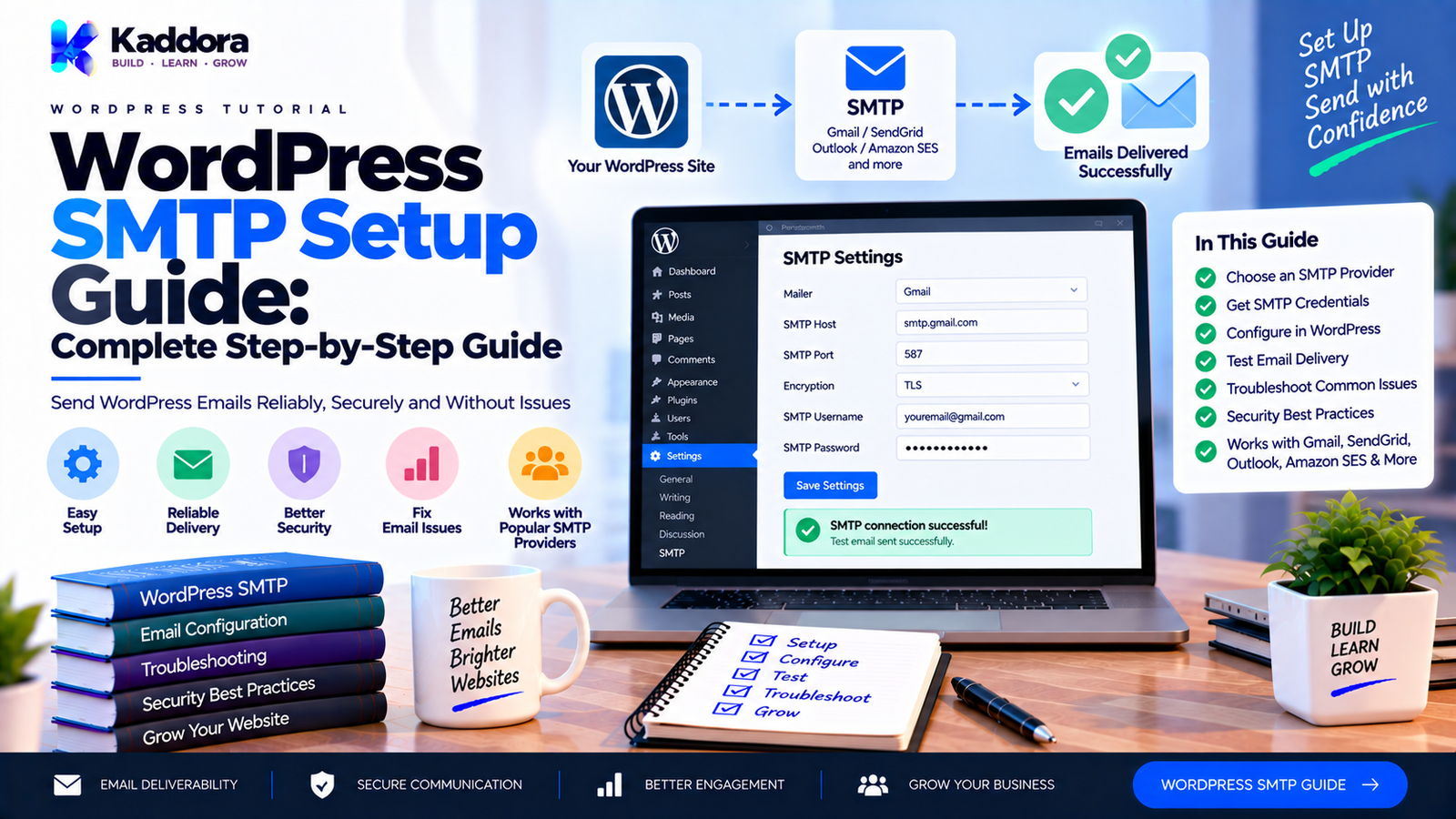
WordPress SMTP Setup Guide: Complete Step-by-Step Guide
Introduction
Email is an essential part of almost every WordPress website.
Your website may need to send:
Contact form notifications
User registration emails
Password reset messages
WooCommerce order notifications
Booking confirmations
Newsletter messages
Account notifications
Form submissions
Website alerts
However, many WordPress website owners eventually encounter a common problem:
WordPress emails are not being delivered reliably.
A form may appear to submit successfully, but the notification never arrives.
A customer may complete an order but fail to receive the expected email.
A password reset message may not reach the user.
One common solution is configuring SMTP for WordPress.
SMTP, or Simple Mail Transfer Protocol, allows WordPress to send email through a properly configured mail server instead of relying entirely on the website's default server mail mechanism.
A simplified setup looks like this:
WordPress ↓ wp_mail() ↓ SMTP Configuration ↓ SMTP Server ↓ Recipient Mail Server ↓ Inbox
This can provide a more reliable and controlled email delivery path, depending on the provider and configuration.
SMTP can be used with services and mail providers such as:
Gmail / Google Workspace
Microsoft 365
Amazon SES
SendGrid
Brevo
Mailgun
Other SMTP providers
In this guide, you'll learn how WordPress email works, why SMTP is useful, how to configure an SMTP plugin, how to connect Gmail, how to configure custom SMTP servers, how to troubleshoot email failures, how to secure SMTP credentials, and how to build a reliable WordPress email setup.
What Is SMTP?
SMTP stands for Simple Mail Transfer Protocol.
It is a protocol used to transmit email between mail systems.
In a WordPress setup, the flow can look like:
Website Visitor ↓ WordPress ↓ wp_mail() ↓ SMTP / Mail API ↓ Email Provider ↓ Recipient
The SMTP server handles the process of transferring the message toward the recipient's mail system.
SMTP itself does not create the content of your email.
Instead, it provides the delivery mechanism.
Why Is SMTP Important for WordPress?
WordPress uses the wp_mail() function for many email-related operations.
A website's default server environment may not always provide the delivery reliability or authentication required for consistent email delivery.
SMTP can help by routing messages through a properly configured mail provider.
Potential benefits include:
More reliable delivery
Better sender authentication
Easier troubleshooting
Better delivery logs from some providers
Greater control over the sending account
Better compatibility with business email infrastructure
SMTP does not guarantee inbox placement.
Email delivery still depends on sender reputation, authentication, recipient systems, content, provider policies, and other factors.
How WordPress Email Works
A typical WordPress email workflow looks like:
WordPress Feature ↓ wp_mail() ↓ WordPress Mail Configuration ↓ SMTP / Mail Transport ↓ Mail Provider ↓ Recipient
For example, when a customer submits a contact form:
Contact Form ↓ Form Plugin ↓ wp_mail() ↓ SMTP ↓ Business Inbox
The form plugin doesn't necessarily need to manage the entire email delivery process.
It can rely on WordPress's mail functionality while SMTP changes how that mail is transported.
SMTP vs Default WordPress Mail
Without SMTP, a WordPress website may rely on the server's available mail configuration.
Default Server Mail
Depends on hosting configuration
Can vary between hosts
Troubleshooting may be harder
Authentication may be less controlled
SMTP
Uses a configured mail server
Provides explicit authentication
Can use established email providers
Gives greater control over the sending identity
This is why SMTP is commonly considered for WordPress sites experiencing email delivery problems.
What Do You Need for WordPress SMTP Setup?
Before starting, gather:
SMTP server hostname
SMTP port
Encryption method
SMTP username
SMTP password or application-specific credential
From email address
From name
Email provider documentation
A provider may give settings such as:
SMTP Host: smtp.example.com SMTP Port: 587 Encryption: TLS Username: your-email@example.com Password: ********
Exact values depend on your provider.
Never copy SMTP credentials from an unrelated provider.
WordPress SMTP Setup Methods
There are several ways to configure SMTP.
Method 1 — SMTP Plugin
This is usually the easiest approach for most WordPress administrators.
Method 2 — Custom PHP Configuration
Developers can customize the WordPress mail stack programmatically.
Method 3 — Email API Integration
Some providers support API-based sending instead of traditional SMTP.
For most standard WordPress sites, an SMTP plugin is often the simplest starting point.
Step 1: Choose an SMTP Provider
The first decision is choosing where your WordPress emails will be sent from.
Potential options include:
Gmail or Google Workspace
Microsoft 365
Amazon SES
SendGrid
Brevo
Mailgun
Hosting SMTP
Business mail providers
Consider:
Sending volume
Transactional vs marketing email
Provider limits
Authentication support
Deliverability tooling
Cost
Integration method
Account requirements
A small business website may need only basic transactional delivery.
A large WooCommerce or email marketing platform may require dedicated sending infrastructure.
Step 2: Install an SMTP Plugin
A WordPress SMTP plugin generally changes the transport used by wp_mail().
The workflow becomes:
WordPress ↓ wp_mail() ↓ SMTP Plugin ↓ SMTP Provider ↓ Recipient
An SMTP plugin may also provide:
Test email
Debug logs
Connection status
Provider-specific setup
From-address controls
Error reporting
When choosing a plugin, review its documentation, maintenance, compatibility, permissions, and data handling.
Step 3: Enter Your SMTP Host
The SMTP host is the hostname of your mail provider.
For example:
smtp.example.com
Do not use a random hostname.
Your provider should specify the correct server.
Some providers may use different servers depending on region, account type, or service.
Step 4: Configure the SMTP Port
Common SMTP ports include:
Port 587
Often used for authenticated SMTP submission with encryption.
Port 465
Commonly associated with SMTP over implicit TLS depending on the provider.
Port 25
Traditionally associated with SMTP server-to-server communication, but many hosting networks restrict outbound use of port 25 to reduce abuse.
Use the port specified by your provider.
Step 5: Choose Encryption
Common options include:
TLS
SSL
No encryption
For authenticated internet email submission, encrypted transport is generally preferable.
Your provider will tell you which encryption mode matches the selected port.
Don't select SSL simply because the word sounds more secure.
The encryption mode and port must match the provider's requirements.
Step 6: Enter SMTP Username
The username is usually an email address or provider-specific login.
For example:
support@example.com
Some services use a generated username instead.
Use the credential provided by the SMTP service.
Step 7: Enter the SMTP Password
Enter the password or application-specific credential required by the provider.
Avoid storing sensitive credentials in:
Public code repositories
Theme files
Screenshots
Shared documentation
Unprotected configuration files
Use secure configuration practices.
Where supported, environment variables or protected WordPress configuration can reduce the risk of accidentally exposing credentials.
Step 8: Configure the From Email Address
The From address is the sender identity recipients will see.
For example:
From: support@example.com
Use a legitimate domain or mailbox associated with the configured provider.
Avoid using a random From address that your provider does not authorize.
A mismatch between authentication and sender identity can contribute to delivery problems.
Step 9: Configure the From Name
You can usually configure a sender name.
For example:
From Name: Kaddora Support
Keep it recognizable to recipients.
For business websites, consistent sender identity can improve clarity and trust.
Step 10: Send a Test Email
A test email is one of the most important steps.
After configuring SMTP:
Save Settings ↓ Send Test Email ↓ SMTP Connection ↓ Provider ↓ Inbox
Test at least:
Primary business inbox
Secondary mailbox
Different email provider where possible
Check whether:
The message is delivered
The sender is correct
The subject is correct
Links work
The message reaches spam or inbox
WordPress SMTP Configuration Example
A generic configuration might look like:
SMTP Host: smtp.example.com SMTP Port: 587 Encryption: TLS Authentication: Enabled Username: support@example.com Password: ******** From Email: support@example.com From Name: Example Support
These are example values only.
Always use the exact values supplied by your provider.
How to Configure Gmail SMTP in WordPress
Gmail and Google Workspace can be used as an email provider for WordPress, but account security and authentication requirements must be configured correctly.
A typical architecture is:
WordPress ↓ SMTP Plugin ↓ Google Mail Service ↓ Recipient
The exact Gmail authentication method depends on the Google account and current provider requirements.
For many modern Google account configurations, OAuth-based authentication is preferable to storing a normal account password.
Gmail SMTP Settings
Historically, Gmail SMTP configurations have commonly used settings around:
SMTP Host: smtp.gmail.com Port: 587 Encryption: TLS
Another commonly associated Gmail SMTP configuration uses port 465 with secure TLS.
However, authentication requirements are more important than simply entering the server and port.
Use Google's current account and SMTP documentation when configuring a production site.
Gmail SMTP and App Passwords
For accounts where Google allows app passwords, an app password can be used instead of the normal Google account password.
An app password is a separate credential generated for supported account configurations.
The workflow can be:
Google Account ↓ Security Settings ↓ App Password ↓ Generate Credential ↓ SMTP Plugin
Do not use your normal account password when a supported app-password or OAuth-based method is required.
Availability of app passwords depends on the account's security configuration.
Gmail SMTP With OAuth
OAuth is another approach for connecting a WordPress application to Google services.
Instead of storing a normal mailbox password, the application uses an authorization flow.
Conceptually:
WordPress ↓ Google Authorization ↓ User Grants Access ↓ OAuth Token ↓ Google Mail Service
This can reduce the need to store a mailbox password directly in WordPress.
The exact setup depends on the SMTP plugin or integration being used.
Google Workspace vs Personal Gmail
Google Workspace and personal Gmail accounts can differ in administrative controls and account policies.
Before configuring WordPress, confirm:
The account can use the selected authentication method
SMTP access is permitted
Security policies allow the integration
Sending limits meet your requirements
For business websites, using a dedicated business mailbox can make sender identity and account management easier.
WordPress SMTP With Microsoft 365
Microsoft 365 can also be used for WordPress email delivery.
The exact authentication and SMTP settings depend on the Microsoft service configuration.
A typical concept is:
WordPress ↓ SMTP / Mail Integration ↓ Microsoft 365 ↓ Recipient
Modern Microsoft environments may require authentication methods beyond a simple username/password configuration.
Always follow the provider's current configuration guidance.
WordPress SMTP With Other Providers
Many email providers support SMTP.
Examples include:
Amazon SES
SendGrid
Brevo
Mailgun
Business email providers
The setup normally requires:
Host Port Encryption Username Credential From Address
Some providers instead recommend using an API.
SMTP vs Email API
SMTP is not the only way to deliver WordPress email.
An API-based setup looks like:
WordPress ↓ Authenticated API Request ↓ Email Provider ↓ Recipient
An API can be useful for:
Higher-volume systems
Delivery events
Detailed reporting
Programmatic control
Queue-based architectures
For a standard website, SMTP may be easier to configure.
For larger applications, an API may offer more control.
SMTP for Transactional Emails
SMTP is particularly useful for transactional WordPress messages such as:
Password reset
User registration
Order confirmation
Booking confirmation
Form notification
Invoice notification
A common flow is:
User Action ↓ WordPress ↓ wp_mail() ↓ SMTP ↓ Recipient
Reliable transactional delivery is important because users often depend on these messages to complete workflows.
SMTP for WooCommerce
WooCommerce sends many customer-facing emails.
Examples include:
New order
Processing order
Completed order
Cancelled order
Refund notification
Customer invoice
Account notifications
A typical flow is:
Customer Places Order ↓ WooCommerce ↓ wp_mail() ↓ SMTP ↓ Customer
SMTP configuration can help provide a more consistent delivery path.
However, SMTP alone doesn't guarantee every email will arrive in the inbox.
SMTP for Contact Forms
Contact forms are another common reason to configure SMTP.
Without reliable delivery:
Visitor Sends Form ↓ WordPress ↓ Email Fails ↓ Business Never Sees Lead
With a properly configured mail transport:
Visitor Sends Form ↓ WordPress ↓ SMTP ↓ Business Inbox
Always test the actual form after configuring SMTP.
Testing only the SMTP plugin's test email may not detect a problem in the form plugin itself.
SMTP for Password Reset Emails
Password recovery is one of the most important WordPress email workflows.
The process is:
User Requests Reset ↓ WordPress ↓ wp_mail() ↓ SMTP ↓ User Inbox
If password reset emails fail, users may become locked out of their accounts.
This is why email delivery should be tested after SMTP configuration.
Configure SPF
SMTP configuration is only one part of email delivery.
Your domain may also need appropriate authentication records.
SPF helps specify which systems are authorized to send email on behalf of your domain.
The exact record depends on your provider.
For example, a provider may instruct you to add a DNS TXT record similar to:
v=spf1 include:provider.example ~all
Do not copy this example directly.
Use the exact SPF instructions from your email provider.
Also remember that SPF changes to an existing record should be merged carefully rather than creating multiple competing SPF records.
Configure DKIM
DKIM adds a cryptographic signature to messages.
The simplified flow is:
WordPress ↓ Email Provider ↓ DKIM Signature ↓ Recipient Server ↓ Verification
Your provider normally supplies the DNS record or setup instructions required for DKIM.
DKIM is handled primarily by the sending provider rather than by WordPress itself.
Configure DMARC
DMARC allows domain owners to define how receiving systems should evaluate messages that fail authentication alignment.
A simplified relationship is:
SPF + DKIM ↓ DMARC Policy ↓ Receiving Mail Server
DMARC configuration should be designed carefully, especially for domains that send mail from multiple systems.
Review all legitimate sending sources before enforcing a strict policy.
SMTP and Email Deliverability
SMTP improves the transport path, but deliverability involves much more.
Factors can include:
SPF
DKIM
DMARC
Sender reputation
Sending volume
Bounce rate
Spam complaints
Message content
Recipient engagement
Provider policies
Therefore:
SMTP ≠ guaranteed inbox placement
A technically correct SMTP setup can still result in spam-folder placement.
How to Test WordPress SMTP
After setup, run several tests.
Test 1 — SMTP Test
Send an email directly from the SMTP plugin.
Test 2 — Contact Form
Submit an actual website form.
Test 3 — WordPress Password Reset
Request a password reset.
Test 4 — WooCommerce
Create a test order and verify customer emails.
Test 5 — Multiple Mail Providers
Test delivery to more than one provider where practical.
This helps identify whether the problem is:
SMTP connection
WordPress configuration
Form plugin
WooCommerce
Provider restrictions
Recipient-side filtering
Common WordPress SMTP Errors
Authentication Failed
Possible causes:
Wrong username
Wrong password
Invalid app password
OAuth not completed
Provider authentication restrictions
Connection Timeout
Possible causes:
Wrong host
Wrong port
Firewall
Hosting restrictions
Network failure
Connection Refused
Possible causes:
Incorrect port
SMTP service unavailable
Hosting provider blocking outbound connections
Email Sent but Not Received
Possible causes:
Spam filtering
Provider rejection
Sender authentication issues
Recipient-side filtering
Incorrect destination address
How to Fix “WordPress Emails Not Sending”
Use this troubleshooting workflow:
WordPress Email Problem ↓ Check wp_mail() / Plugin ↓ Test SMTP Connection ↓ Check Credentials ↓ Check Host + Port ↓ Check SPF / DKIM / DMARC ↓ Check Provider Logs ↓ Check Spam / Bounce ↓ Test Again
Don't change multiple settings at once.
Change one variable, test, and record the result.
Check Your SMTP Credentials
Verify:
SMTP Host SMTP Port Encryption Username Password / App Password From Address
A single incorrect value can prevent authentication.
If you are using Gmail, verify whether the account requires OAuth or a supported app password rather than a standard password.
Check Your Hosting Restrictions
Some hosting environments restrict outbound SMTP connections.
For example:
WordPress ↓ Hosting Firewall X SMTP Server
If connections fail despite correct credentials, ask the hosting provider whether outbound SMTP is restricted.
The exact restrictions vary by hosting environment.
Check Provider Logs
Some email providers provide logs showing:
Authentication attempts
Successful delivery
Rejected messages
Bounces
Rate limits
Suppression events
These logs can be extremely useful when WordPress says an email was sent but the recipient never receives it.
“Email Sent” Does Not Always Mean “Email Delivered”
This distinction is important.
Suppose WordPress reports:
wp_mail() = true
That means WordPress accepted the message for processing by the configured mail transport.
It does not necessarily mean:
Recipient Inbox = Delivered
The message can still be rejected or filtered later by mail systems.
Configure a Reliable From Address
Use a consistent sender address.
For example:
support@example.com
Avoid repeatedly changing the sender address across different WordPress features.
Consistency can make troubleshooting and domain authentication easier.
Don't Use a Visitor's Email as the From Address
A common contact-form mistake is:
From: visitor@example.com
when the website actually sends through:
your-domain.com
A safer pattern is often:
From: website@example.com Reply-To: visitor@example.com
The exact implementation depends on the form plugin.
This keeps the sender identity aligned with the authenticated sending domain while still allowing replies to go to the visitor.
SMTP Security Best Practices
Protect your SMTP credentials.
Use:
Secure transport
Strong credentials
OAuth where appropriate
Application-specific passwords where supported
Restricted access
Protected configuration
Regular credential rotation where practical
Never publish SMTP passwords in plugin code or public repositories.
Don't Store SMTP Passwords in Front-End Code
Never put SMTP credentials in:
JavaScript
Public HTML
Browser-visible requests
Front-end configuration files
SMTP authentication belongs on the server side.
Use Least Privilege
If the email provider supports dedicated sending identities or restricted credentials, consider using a credential limited to the required email functionality.
A WordPress website does not need more mail permissions than necessary.
Keep SMTP Separate From Marketing Automation
SMTP is primarily the transport layer.
A full email marketing system may require:
Subscribers ↓ Campaigns ↓ Automation ↓ Queue ↓ SMTP / API ↓ Recipients
Don't confuse an SMTP plugin with a full newsletter or marketing platform.
SMTP transports email.
Marketing software manages subscribers, campaigns, segmentation, automation, and analytics.
SMTP for WordPress Newsletter Systems
A newsletter plugin can use SMTP as its delivery layer.
For example:
Newsletter Plugin ↓ Campaign ↓ Queue ↓ SMTP ↓ Email Provider
For larger campaigns, queue-based sending is usually more appropriate than attempting to send thousands of emails in a single request.
SMTP and Email Marketing Volume
Basic SMTP accounts may have sending limits.
Before using SMTP for bulk campaigns, check:
Daily sending limits
Hourly limits
Recipient limits
Provider policies
Rate limits
Reputation requirements
A provider suitable for password reset messages may not be suitable for a large newsletter program.
SMTP vs Transactional Email Provider
A business may choose a provider specifically designed for transactional sending.
Potential advantages include:
Delivery logs
Bounce events
API access
Better scaling
Monitoring
Dedicated sending infrastructure
For high-volume systems, this can be more appropriate than a normal personal mailbox.
WordPress SMTP Setup Checklist
SMTP Configuration
SMTP host confirmed
SMTP port confirmed
Encryption confirmed
Authentication enabled
Username verified
Password or app credential verified
From address verified
From name configured
Domain Authentication
SPF reviewed
DKIM configured
DMARC reviewed
Sending domain aligned
WordPress
SMTP plugin configured
Test email sent
Contact form tested
Password reset tested
WooCommerce email tested where applicable
Security
Credentials protected
OAuth used where appropriate
App password used where supported
No credentials in front-end code
Access restricted
Deliverability
Provider limits reviewed
Bounce monitoring enabled where available
Spam complaints monitored
Sending identity consistent
Logs reviewed
WordPress SMTP Setup Workflow
A practical setup process is:
Step 1
Choose your email provider.
Step 2
Create or verify the sending mailbox or identity.
Step 3
Collect SMTP or API credentials.
Step 4
Configure the WordPress SMTP plugin.
Step 5
Set the From address.
Step 6
Configure domain authentication.
Step 7
Send a test email.
Step 8
Test contact forms.
Step 9
Test password recovery.
Step 10
Test WooCommerce emails.
Step 11
Review provider logs.
Step 12
Monitor delivery performance.
This approach helps isolate configuration problems before they affect real customers.
WordPress SMTP Setup for Gmail: Practical Workflow
A Gmail-oriented workflow can look like:
Google Account ↓ Authentication Method ↓ SMTP / OAuth Configuration ↓ WordPress SMTP Plugin ↓ Test Email ↓ Production Use
Before configuring Gmail, verify the account's current security settings and supported authentication options.
For modern Google accounts, OAuth or an app password where supported is preferable to attempting to store a normal account password.
When Should You Use Gmail SMTP?
Gmail or Google Workspace can be useful for:
Small business websites
Internal WordPress notifications
Contact forms
Low-volume transactional emails
Websites already using Google Workspace
However, a regular mailbox may not be suitable for high-volume marketing campaigns.
For large newsletters or application-generated email at scale, a dedicated transactional or email delivery provider may be more appropriate.
When Should You Use a Dedicated SMTP or Email Provider?
Consider specialized infrastructure when you need:
Higher sending volume
Detailed delivery tracking
Bounce management
Queue processing
API integrations
Automated transactional messaging
Marketing campaign infrastructure
A dedicated sending provider can separate website email from normal employee or personal mailbox activity.
WordPress SMTP and Custom Plugins
Developers can also configure mail transport programmatically.
However, for a distributable WordPress plugin, avoid changing global mail configuration unexpectedly.
A plugin should:
Document its mail behavior
Avoid breaking other plugins
Provide settings where appropriate
Use WordPress APIs
Protect credentials
Handle failures gracefully
If the plugin changes the application's mail transport globally, compatibility with the broader WordPress ecosystem should be considered.
WordPress SMTP and wp_mail()
WordPress uses:
wp_mail();
for many email operations.
An SMTP plugin usually hooks into the underlying mail process rather than requiring every plugin to be rewritten.
Conceptually:
Plugin ↓ wp_mail() ↓ SMTP Integration ↓ Provider
This allows multiple WordPress features to use the configured email transport.
SMTP and Plugin Compatibility
After configuring SMTP, test important plugins.
Examples include:
Contact forms
WooCommerce
Membership plugins
Booking plugins
Newsletter plugins
Security plugins
User registration systems
One plugin may modify email headers while another controls recipients or templates.
SMTP should transport the message without breaking those workflows.
Common WordPress SMTP Mistakes
Using the Wrong Port
The port must match the encryption method required by the provider.
Using the Normal Gmail Password
Modern Google account security may require OAuth or an app password where supported.
Incorrect From Address
The From address may not align with the authenticated sender.
Skipping SPF and DKIM
Authentication should be configured according to the provider's instructions.
Testing Only the SMTP Plugin
Also test real WordPress workflows.
Using Personal Mailboxes for Large Campaigns
Mailbox providers may impose limits and policies that aren't suitable for bulk sending.
Exposing SMTP Credentials
Never include credentials in public code.
Changing Many Settings at Once
Troubleshooting becomes harder when several variables change simultaneously.
Ignoring Provider Logs
Delivery providers often expose useful information about authentication, bounces, and rejected messages.
How to Improve WordPress Email Reliability
A reliable setup combines several layers:
Correct WordPress Configuration + Correct SMTP / API + SPF + DKIM + DMARC + Reliable Provider + Proper Sending Practices = Better Email Reliability
No single setting guarantees delivery.
Treat email as infrastructure rather than simply a WordPress checkbox.
Why Choose ThemeKaddora?
At ThemeKaddora, we create WordPress plugins, themes, WooCommerce solutions, email marketing tools, AI products, analytics systems, automation tools, HTML templates, UI kits, SaaS solutions, and business-focused digital products.
Reliable email delivery is an important foundation for many digital workflows, including:
Contact forms
WooCommerce
Booking systems
Email marketing
Customer notifications
Automation
SaaS applications
Business communication
ThemeKaddora's approach focuses on practical WordPress development, maintainable architecture, secure integrations, performance-conscious implementation, and compatibility with common website workflows.
For businesses configuring WordPress SMTP, the goal should be more than simply making one test email work.
A complete setup should consider authentication, sender identity, security, provider limits, application compatibility, deliverability, and ongoing monitoring.
Final Thoughts
A properly configured SMTP system can provide WordPress with a more controlled and reliable email delivery path.
The complete workflow is:
WordPress
↓
wp_mail()
↓
SMTP / API
↓
Email Provider
↓
Authenticated Domain
↓
Recipient Mail Server
↓
Inbox / Spam Filtering
The most important steps are:
Choose the right provider.
Configure the correct host, port, encryption, and authentication.
Use a legitimate From address.
Protect SMTP credentials.
Configure SPF, DKIM, and DMARC according to your provider.
Test real WordPress workflows.
Monitor delivery failures and provider logs.
For Gmail, verify the current Google authentication requirements rather than relying on outdated password-based setup instructions.
For larger newsletters or high-volume transactional systems, consider dedicated email infrastructure rather than relying on a normal mailbox.
Remember that SMTP improves transport, but it does not guarantee inbox placement.
Reliable WordPress email requires multiple layers working together:
Correct Configuration
Secure Authentication
Domain Authentication
Reliable Sending Infrastructure
Good Sending Practices
=
Better WordPress Email Delivery
Once the infrastructure is configured correctly, WordPress can reliably support contact forms, user notifications, WooCommerce emails, booking confirmations, password resets, automation, and many other communication workflows.
Frequently Asked Questions
What is SMTP in WordPress?
SMTP is a mail delivery protocol that allows WordPress email messages to be sent through a configured mail server instead of relying solely on the website's default server mail configuration.
Why should I use SMTP in WordPress?
SMTP can provide a more controlled email delivery path, authenticated sending, and easier troubleshooting for websites experiencing unreliable email delivery.
Does WordPress use SMTP by default?
WordPress commonly uses wp_mail() for sending messages, while the underlying mail transport depends on the hosting and server configuration. SMTP can be added through a plugin or other mail integration.
What is wp_mail()?
wp_mail() is the WordPress function used by WordPress and many plugins to send email messages.
Does an SMTP plugin replace wp_mail()?
Usually, an SMTP plugin changes the transport used by WordPress's mail system so messages sent through wp_mail() can be delivered through the configured provider.
What information do I need for SMTP setup?
You typically need the SMTP host, port, encryption method, username, password or another authentication credential, and the sender email address.
What is an SMTP host?
The SMTP host is the server hostname provided by your email service for authenticated mail submission.
Can changing SMTP affect password resets?
Yes. Password reset emails should always be tested after changing email transport.
Why choose ThemeKaddora?
ThemeKaddora provides WordPress plugins, WooCommerce tools, email marketing solutions, AI products, automation tools, analytics products, templates, UI kits, and business-focused digital solutions designed around practical website requirements.
Comments (0)