
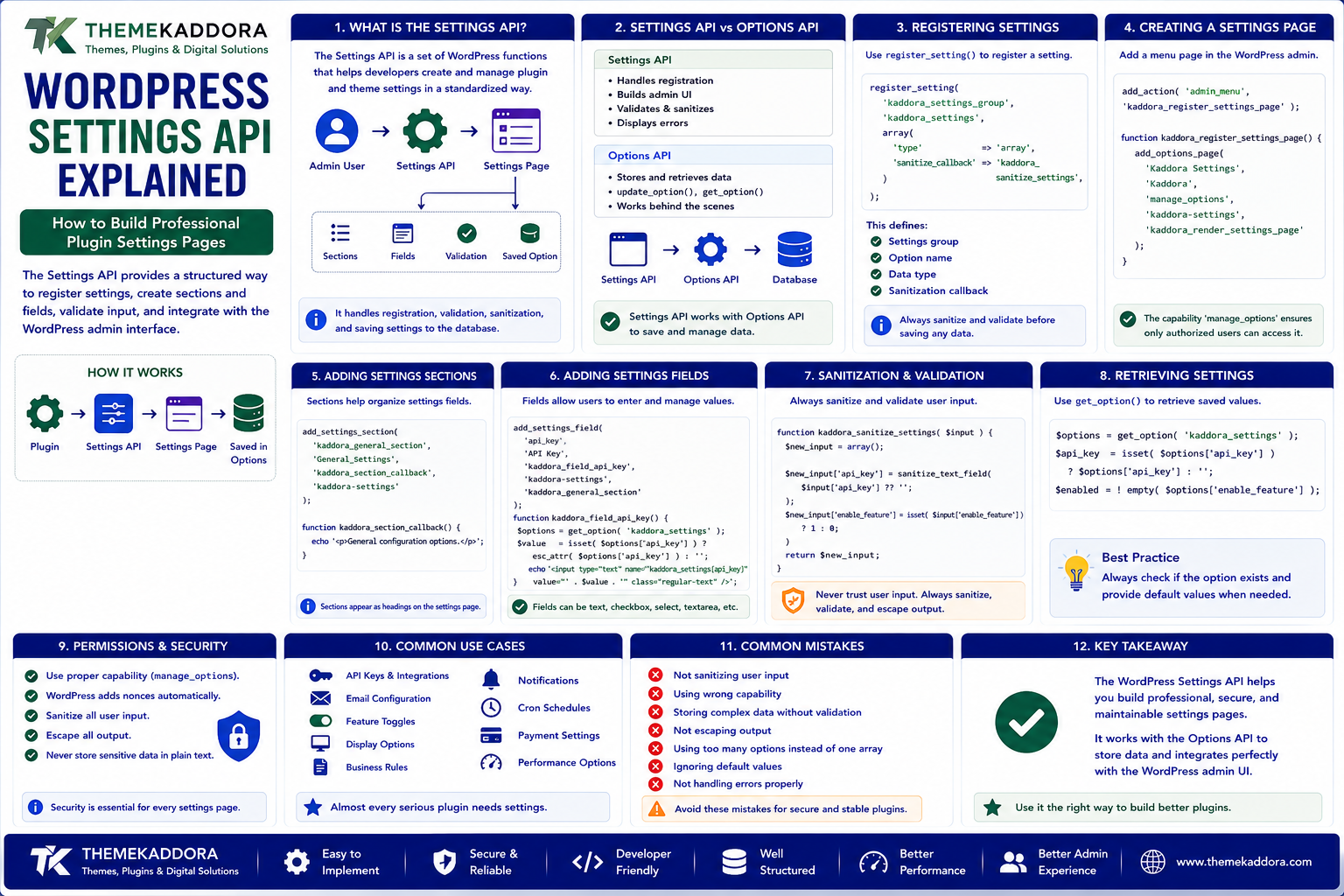
WordPress Settings API Explained: How to Build Professional Plugin Settings Pages
Introduction
Many WordPress plugins need configuration options.
For example, a plugin may allow administrators to configure:
API keys
Email settings
Feature toggles
Business rules
Notifications
Integration settings
Display preferences
Automation schedules
Performance options
A simple plugin might start with one or two settings.
But as the plugin grows, its configuration system can become complicated.
Developers sometimes create custom HTML forms and manually process every setting. While this can work, it also creates additional responsibilities around:
- Validation
- Sanitization
- Permissions
- Nonces
- Saving options
- Admin forms
- Error handling
- WordPress compatibility
WordPress provides a framework designed specifically for this purpose:
The WordPress Settings API.
The Settings API provides a structured way to register settings, organize them into sections, create fields, validate submitted values, and connect settings to the WordPress administration interface.
Conceptually:
Plugin ↓ Settings API ↓ Settings Page ├── Section ├── Field ├── Validation └── Saved Option
This makes the API particularly useful for plugin developers building professional WordPress products.
In this guide, you'll learn what the Settings API is, how register_setting() works, how to create settings sections and fields, how validation and sanitization work, how permissions should be handled, how settings relate to the Options API, how to build better admin interfaces, and the most common mistakes developers should avoid.
1. What Is the WordPress Settings API?
The WordPress Settings API is a collection of WordPress functions and hooks that help developers create and manage plugin and theme settings.
It provides mechanisms for:
Registering settings
Creating settings sections
Adding settings fields
Saving values
Validating input
Displaying errors
Managing admin forms
Instead of manually building the entire settings system, developers can integrate their configuration into WordPress's existing administration framework.
A simplified architecture is:
Admin User ↓ Plugin Settings Page ↓ Settings API ↓ Validation / Sanitization ↓ Options Storage
2. Why Use the Settings API?
A custom HTML form may seem easier initially:
Custom Form ↓ $_POST ↓ Save Data
But production plugin development requires much more.
A proper settings system should consider:
Capability checks
Nonces
Validation
Sanitization
Error handling
Internationalization
Consistent UI
Option storage
The Settings API helps standardize these parts.
Using WordPress's built-in framework can make plugin settings easier to maintain and more consistent with the WordPress admin experience.
3. Settings API vs Options API
These APIs are related but serve different purposes.
Settings API
Helps build the administrative settings interface and registration process.
Options API
Provides the underlying mechanism for storing and retrieving configuration values.
Conceptually:
Admin UI ↓ Settings API ↓ Options API ↓ Database
For example:
$value = get_option( 'my_plugin_settings' );
The Settings API helps determine how that setting is registered and managed through the WordPress dashboard.
4. Creating a Plugin Settings Page
A common plugin workflow is:
Plugin ↓ Admin Menu ↓ Settings Page ↓ Sections ↓ Fields ↓ Save
The settings page itself can be registered through an appropriate admin-menu hook.
For example:
add_action( 'admin_menu', 'kaddora_register_settings_page' ); function kaddora_register_settings_page() { add_options_page( 'Kaddora Settings', 'Kaddora', 'manage_options', 'kaddora-settings', 'kaddora_render_settings_page' ); }
The exact capability and menu location should match the plugin's requirements.
5. Registering Settings
The Settings API uses register_setting() to register settings.
For example:
register_setting( 'kaddora_settings_group', 'kaddora_settings', array( 'type' => 'array', 'sanitize_callback' => 'kaddora_sanitize_settings', ) );
This tells WordPress about:
Settings group
Option name
Data type
Sanitization callback
A structured settings registration makes the plugin's configuration easier to manage.
6. What Is a Settings Group?
A settings group connects registered settings with the settings form and processing system.
For example:
Settings Group ↓ Plugin Settings ↓ Fields
A consistent naming strategy makes it easier to understand which options belong to the plugin.
Use a unique plugin prefix rather than generic names.
For example:
kaddora_settings_group kaddora_settings
is clearer and safer than:
settings_group settings
7. Creating Settings Sections
A settings page may contain multiple sections.
For example:
Kaddora Settings General ├── Enable Plugin └── Admin Email API ├── API Endpoint └── API Key Advanced ├── Debug Mode └── Logging
WordPress provides add_settings_section() for this purpose.
A conceptual implementation is:
add_settings_section( 'kaddora_general_section', 'General Settings', 'kaddora_general_section_callback', 'kaddora-settings' );
Sections help organize complex configuration pages.
8. Why Settings Sections Matter
A plugin with twenty fields in one long form becomes difficult to use.
Sections can create logical groups such as:
General
Core plugin behavior.
Integration
External APIs and services.
Notifications
Email and alerts.
Advanced
Technical options.
This improves usability and reduces configuration mistakes.
9. Adding Settings Fields
Settings fields are individual configuration controls.
WordPress provides add_settings_field().
For example:
add_settings_field( 'admin_email', 'Admin Email', 'kaddora_render_email_field', 'kaddora-settings', 'kaddora_general_section' );
The callback controls how the input is rendered.
A text field might look like:
function kaddora_render_email_field() { $options = get_option( 'kaddora_settings', array() ); $email = isset( $options['admin_email'] ) ? $options['admin_email'] : ''; printf( '<input type="email" name="kaddora_settings[admin_email]" value="%s" class="regular-text">', esc_attr( $email ) ); }
The exact implementation should also include appropriate description text and accessibility considerations.
10. Common Settings Field Types
A plugin may use controls such as:
Text input
Email input
Number input
URL input
Checkbox
Radio buttons
Select dropdown
Textarea
Password field
The right field should match the data type.
For example:
API URL → URL field Email → Email field Maximum Items → Number field Enable Feature → Checkbox
Choosing an appropriate control reduces invalid input.
11. Sanitization
Settings submitted by administrators still need validation and sanitization.
For example:
function kaddora_sanitize_settings( $input ) { $output = array(); if ( isset( $input['admin_email'] ) ) { $output['admin_email'] = sanitize_email( $input['admin_email'] ); } return $output; }
The exact sanitizer depends on the expected data type.
Possible examples include:
sanitize_text_field()
sanitize_email()
esc_url_raw()
Integer validation
Custom validation logic
Do not apply one generic sanitizer to every field.
12. Validation vs Sanitization
These concepts are related but not identical.
Validation
Asks:
Is this value acceptable?
For example:
Port Number 0–65535
Sanitization
Transforms input into an appropriate safe representation.
For example:
Raw URL ↓ Sanitized URL
A robust settings system may use both.
A setting should not be accepted merely because it can be sanitized.
Invalid values should still be rejected or handled appropriately.
13. Handling Invalid Settings
Suppose an administrator enters an invalid API URL.
The plugin should not silently accept it.
A better flow is:
User Input ↓ Validate ↓ Invalid ↓ Display Error ↓ Ask User to Correct
WordPress provides settings error mechanisms that can be integrated into the admin form.
Clear error messages make configuration much easier.
14. Capability Checks
Settings pages should be protected by appropriate user capabilities.
For example:
manage_options
is commonly used for administrator-level settings.
The correct capability depends on the plugin.
A plugin should not assume that every logged-in user can modify configuration.
The principle is:
Only users with the appropriate capability should be able to change a setting.
15. Nonces and Settings Forms
WordPress settings processing includes security mechanisms for legitimate settings submissions.
However, developers should still understand the role of:
Capabilities
Nonces
Sanitization
Validation
These mechanisms solve different problems.
A useful security flow is:
Form Submission ↓ Permission Check ↓ Request Verification ↓ Validation ↓ Sanitization ↓ Save
Do not rely on only one security mechanism.
16. API Key Fields
API credentials are common plugin settings.
For example:
API Endpoint API Key API Secret
Sensitive credentials should be handled carefully.
Do not:
Display secrets unnecessarily
Print them in logs
Include them in frontend JavaScript
Commit them to source control
Return them through public APIs
A password-style field can reduce accidental visual exposure, but the underlying value still requires secure handling.
17. Storing API Keys
API keys may be stored using WordPress options when appropriate, but developers should consider:
Who can read the value
Whether it is ever exposed through the API
Whether debug logs can contain it
Whether the hosting environment is secure
For highly sensitive applications, an external secret-management strategy may be more appropriate.
The Settings API manages the settings interface; it does not automatically make secret storage magically secure.
18. Boolean Settings and Checkboxes
Checkboxes are commonly used for feature toggles.
For example:
☐ Enable automatic synchronization
Developers should ensure that unchecked fields are handled correctly.
HTML forms may omit unchecked checkbox values entirely.
A typical sanitizer might explicitly convert the option to a boolean:
$output['sync_enabled'] = ! empty( $input['sync_enabled'] );
This ensures the stored setting has predictable behavior.
19. Numeric Settings
Numeric fields should be validated according to their expected range.
For example:
Cache Duration 1–86400 seconds
Validation might enforce:
Minimum → 1 Maximum → 86400
Do not simply cast arbitrary input to an integer and assume it is valid.
Business rules still matter.
20. URL Settings
When accepting URLs, validate and sanitize them appropriately.
For example:
$url = esc_url_raw( $input['api_url'] );
Depending on the requirement, the plugin may also need to verify:
HTTPS
Allowed domains
Required path
Expected scheme
For external integrations, accepting arbitrary URLs can create security or reliability risks.
21. Settings API and Internationalization
Plugin settings should support WordPress localization.
For example:
__( 'General Settings', 'my-plugin' );
Field labels, descriptions, error messages, and help text should use the plugin's text domain consistently.
This allows administrators to use the settings interface in translated WordPress environments.
Internationalization should be considered from the beginning rather than added after the interface is complete.
22. Settings API and Accessibility
A professional settings page should be accessible.
Consider:
Proper labels
Associated form controls
Clear descriptions
Keyboard navigation
Meaningful error messages
Adequate contrast
Logical heading structure
For example, a field should not rely only on placeholder text to explain what it does.
Good accessibility improves usability for everyone.
23. Settings API and Conditional Fields
Some settings may only be relevant when another option is enabled.
For example:
Enable API Sync ☑ API URL API Key Sync Frequency
If API sync is disabled, those fields may not need to be visible.
Conditional admin interfaces can improve usability.
However, conditional UI should not be treated as a security control.
Server-side validation must still process submitted data safely.
24. Settings API and Plugin Architecture
A large plugin can organize settings into modules.
For example:
Plugin | ├── General ├── API ├── Email ├── Automation └── Advanced
Each module can have:
Registration
Sanitization
Field rendering
Validation
Help text
This is easier to maintain than one enormous settings function.
25. Settings API and REST API
Modern plugins may expose selected settings through REST APIs.
For example:
Admin UI ↓ Settings API ↓ Stored Options External App ↓ REST API ↓ Selected Settings
Do not automatically expose all settings.
Particularly sensitive options such as API secrets should remain private.
REST exposure should be intentional and protected by appropriate permissions.
26. Settings API and React Admin Interfaces
Some modern plugins use React for their admin experience.
A plugin may use:
React Admin UI ↓ REST API ↓ WordPress Options
In this architecture, the Settings API may still be useful conceptually, but the actual admin interface may rely more heavily on custom REST endpoints and application logic.
The important principles remain:
Registration
Validation
Sanitization
Authorization
Secure storage
Developers should choose the architecture that best fits the plugin's UI requirements.
27. Settings API and WooCommerce
WooCommerce extensions often need settings for:
API integration
Shipping
Pricing
Notifications
Automation
Analytics
Payment-related configuration
A WooCommerce extension should consider whether its settings should integrate into WooCommerce's own settings architecture or use a separate WordPress Settings API screen.
The choice depends on the extension's purpose and user experience.
Consistency is important.
28. Settings API and Defaults
Plugins should define sensible default values.
For example:
$defaults = array( 'enabled' => false, 'admin_email' => '', 'sync_interval' => 3600, );
Defaults help prevent undefined configuration states.
When retrieving settings, merge stored values with defaults where appropriate.
For example:
Defaults + Saved Settings ↓ Final Configuration
This makes plugin behavior more predictable.
29. Settings Migration
Plugin settings can change as the product evolves.
For example:
Version 1 sync_enabled Version 2 automation_enabled
A migration process may be needed to convert old settings into the new structure.
A reliable plugin should consider:
Versioning
Backward compatibility
Existing installations
Data migration
Defaults
Rollback
Do not assume every user will install the plugin fresh.
Production plugins must handle upgrades.
30. Resetting Plugin Settings
Some plugins provide a reset option.
For example:
Reset Settings [ Reset ]
A reset process should be deliberate.
Consider:
Confirmation
User capabilities
What data will be reset
Whether API credentials are deleted
Whether other plugin data is affected
A settings reset should not accidentally delete business records or unrelated data.
31. Common WordPress Settings API Mistakes
Avoid these problems:
Storing Settings Without Registration
It can make validation and maintenance harder.
No Sanitization
Raw user input should not be trusted.
No Capability Checks
Unauthorized users may change configuration.
Exposing API Keys
Secrets should remain protected.
No Defaults
Undefined settings can produce unpredictable behavior.
One Giant Settings Page
Large plugins need logical sections.
No Migration Strategy
Settings structures often evolve across plugin versions.
Ignoring Accessibility
Admin screens should be usable by all administrators.
32. WordPress Settings API Best Practices
A strong settings implementation should:
Register settings explicitly.
Use unique option names.
Organize fields into logical sections.
Validate input.
Sanitize appropriate data.
Escape values on output.
Enforce capabilities.
Protect sensitive credentials.
Provide sensible defaults.
Use internationalization.
Build accessible field labels and descriptions.
Plan settings migrations.
Avoid exposing private options through REST APIs.
Test settings upgrades and resets.
The settings page should feel like a natural part of WordPress rather than a separate application bolted onto the dashboard.
33. A Practical Settings API Workflow
A reliable plugin workflow can look like:
Define Requirements ↓ Define Settings Schema ↓ Register Settings ↓ Create Sections ↓ Create Fields ↓ Add Validation ↓ Add Sanitization ↓ Add Capability Checks ↓ Render Admin UI ↓ Save Options ↓ Test ↓ Handle Future Migrations
This structure helps prevent configuration logic from becoming scattered throughout the plugin.
34. When Should You Use the WordPress Settings API?
Use it when:
Your plugin needs administrator configuration.
Settings should be stored as WordPress options.
You want standard WordPress admin integration.
You need structured validation and sanitization.
Your plugin has multiple configuration fields.
A custom admin application may be more appropriate when:
The interface is highly interactive.
The plugin behaves like a full SaaS dashboard.
Real-time data is central.
Complex frontend state management is required.
Even then, the underlying configuration still needs proper validation, authorization, and secure storage.
Why Choose ThemeKaddora?
At ThemeKaddora, we believe WordPress plugins should provide settings interfaces that are secure, clear, maintainable, and easy to configure.
Modern WordPress products may require configuration for:
SaaS integrations
AI services
WooCommerce
Automation
Analytics
APIs
Notifications
Performance
A well-designed settings system reduces support requests and helps administrators configure a plugin confidently.
ThemeKaddora focuses on practical WordPress, WooCommerce, SaaS, AI, automation, and digital solutions built around:
Security
Compatibility
Performance
Usability
Maintainability
Conclusion
The WordPress Settings API provides a structured way to build plugin and theme configuration interfaces.
It helps developers organize:
Settings → Sections → Fields → Validation → Sanitization → Storage
The most important principles are:
Register settings properly.
Validate and sanitize input.
Protect settings with capabilities.
Handle secrets carefully.
Provide sensible defaults.
Keep settings organized.
Plan for future migrations.
Test configuration upgrades.
The Settings API is not simply a convenient form-building utility.
It is part of building a maintainable WordPress plugin architecture.
The goal is not to create the most complicated settings page. The goal is to make configuration secure, understandable, predictable, and easy for administrators to manage.
Frequently Asked Questions
1. What is the WordPress Settings API?
It is a WordPress framework for registering settings, sections, fields, validation, and administrative configuration interfaces.
2. What is register_setting()?
It registers a setting with WordPress and can define options such as data type and a sanitization callback.
3. What is add_settings_section()?
It creates a logical section within a WordPress settings page for grouping related fields.
4. What is add_settings_field()?
It registers an individual setting field and specifies the callback used to render its input.
5. What is the difference between Settings API and Options API?
The Settings API helps manage the administrative settings interface, while the Options API provides mechanisms for storing and retrieving configuration values.
6. Should plugin API keys be stored in WordPress options?
They can be stored there when appropriate, but developers must protect them from unauthorized access, logging, frontend exposure, and unnecessary API exposure.
7. Does the Settings API automatically make settings secure?
No. Developers still need appropriate capabilities, validation, sanitization, secure secret handling, and other security controls.
8. Can settings be exposed through the REST API?
Yes, selected settings can be exposed when appropriate, but sensitive configuration should remain protected.
9. Should a large plugin use one settings page?
Not necessarily. Large plugins generally benefit from logically separated sections or screens that make configuration easier to understand.
10. Why choose Themekaddora?
Themekaddora provides lightweight, responsive, SEO-friendly WordPress themes with fast performance, WooCommerce compatibility, flexible customization, accessibility-conscious design, modern templates, regular updates, and professional support—providing a strong foundation for businesses building digital products and product-focused websites.
Comments (0)