
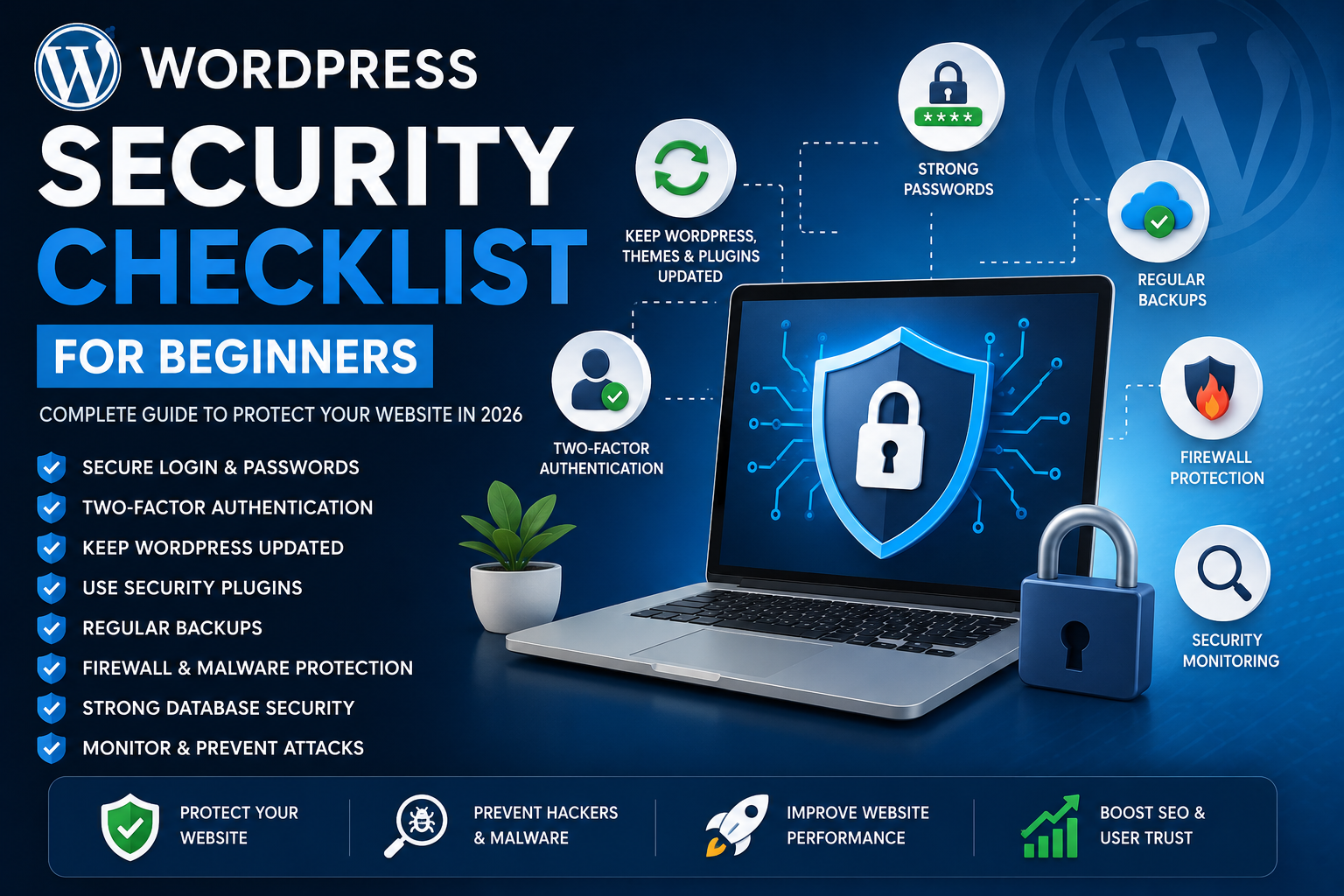
WordPress Security Checklist for Beginners: Complete Guide to Protect Your Website in 2026
WordPress powers millions of websites worldwide, making it one of the most popular content management systems available today. However, its popularity also makes it a common target for hackers, malware infections, brute force attacks, and security vulnerabilities.
Many website owners assume security is only necessary for large businesses, but small websites, blogs, startups, and ecommerce stores are often targeted because they have weaker defenses.
The good news is that securing a WordPress website is easier than many people think. By following a structured security checklist, you can significantly reduce the risk of attacks and keep your website safe.
This guide covers everything beginners need to know about WordPress security in 2026.
Why WordPress Security Matters
A hacked website can result in:
Loss of customer trust
Data breaches
Search engine penalties
Website downtime
Malware infections
Revenue loss
Legal issues
Cyber threats continue to evolve, making proactive security more important than ever.
1. Keep WordPress Updated
The simplest way to improve security is to keep WordPress updated.
Always update:
WordPress Core
Plugins
PHP Version
Updates often contain important security patches that fix vulnerabilities discovered by developers.
Best Practice
Enable automatic updates for minor WordPress releases and regularly check for plugin updates.
2. Use Strong Login Credentials
Weak passwords are one of the biggest causes of website breaches.
Secure Password Guidelines
Use:
Uppercase letters
Lowercase letters
Numbers
Special characters
Avoid:
admin123
password
company names
birthdays
3. Change the Default Admin Username
Many attackers attempt to log in using the default username "admin."
Instead use unique usernames such as:
website_manager
wp_secure_admin
Removing predictable usernames reduces brute force risks.
4. Enable Two-Factor Authentication (2FA)
Two-factor authentication adds an additional layer of security.
After entering a password, users must verify their identity using:
Authentication apps
SMS codes
Email verification
Benefits include:
Stronger account protection
Reduced unauthorized access
Improved login security
5. Limit Login Attempts
Hackers frequently use automated bots to guess passwords.
A login security plugin can:
Limit failed login attempts
Temporarily block attackers
Record suspicious activity
This prevents brute force attacks before they succeed.
6. Install a WordPress Security Plugin
Security plugins provide comprehensive protection.
Features to Look For
Firewall protection
Malware scanning
Login security
IP blocking
Security monitoring
Activity logs
Popular Security Categories
Website firewall
Login protection
Malware detection
Security monitoring
7. Use a Web Application Firewall (WAF)
A firewall filters malicious traffic before it reaches your website.
Benefits:
Blocks suspicious requests
Prevents common attacks
Protects login pages
Reduces server load
Firewalls act as the first line of defense.
8. Install an SSL Certificate
SSL encryption secures communication between visitors and your website.
Benefits include:
HTTPS security
Better SEO rankings
Customer trust
Data protection
Modern websites should always use HTTPS.
9. Secure the Login Page
The login page is often the most targeted area of a WordPress website.
Login Protection Strategies
Change login URL
Enable CAPTCHA
Limit login attempts
Use 2FA
Monitor login activity
These measures greatly reduce attack risks.
10. Regularly Back Up Your Website
Backups are your recovery plan if something goes wrong.
Backup Recommendations
Create backups:
Daily for ecommerce sites
Weekly for blogs
Before updates
Before major changes
Store backups in multiple locations.
11. Remove Unused Plugins and Themes
Inactive software can still contain vulnerabilities.
Delete:
Unused themes
Unused plugins
Abandoned software
Only keep software you actively use.
12. Scan for Malware Regularly
Malware can:
Redirect visitors
Steal information
Damage SEO rankings
Display unwanted content
Regular malware scans help detect issues early.
13. Protect wp-config.php
The wp-config.php file contains sensitive information.
Security measures include:
Restrict access
Secure file permissions
Move it above the root directory when possible
Protecting this file is critical.
14. Use Secure File Permissions
Incorrect permissions can allow attackers to modify files.
Recommended Permissions
Files:
644
Directories:
755
Avoid:
777 permissions
These permissions can expose your website to risk.
15. Disable File Editing
WordPress allows administrators to edit theme and plugin files directly.
Disable this feature to prevent attackers from modifying code after gaining access.
Benefits:
Improved security
Reduced malware injection risks
16. Monitor User Activity
If multiple users access your website, activity monitoring becomes essential.
Track:
Logins
Content changes
Plugin installations
User role modifications
Monitoring helps detect suspicious behavior.
17. Protect Against Spam
Spam comments can:
Damage user experience
Affect SEO
Consume resources
Use:
CAPTCHA
Comment moderation
Anti-spam plugins
18. Secure Your Database
The database stores critical website information.
Database Security Tips
Use strong passwords
Change database prefixes
Limit access
Back up regularly
Database protection is often overlooked.
19. Hide WordPress Version Information
Displaying your WordPress version can help attackers identify vulnerabilities.
Removing version information reduces exposure.
20. Monitor Security Logs
Security logs provide insights into:
Failed logins
Suspicious activity
Malware attempts
Firewall blocks
Review logs regularly.
Common WordPress Security Mistakes
Using Weak Passwords
Simple passwords remain one of the biggest security threats.
Ignoring Updates
Outdated plugins and themes are common attack vectors.
No Backups
Without backups, recovery becomes difficult after an attack.
Too Many Plugins
Every plugin introduces additional security risk.
No Firewall
A firewall helps stop attacks before they reach your website.
Security Checklist Summary
Daily Tasks
Monitor activity logs
Check failed logins
Review security alerts
Weekly Tasks
Update plugins
Update themes
Run malware scans
Monthly Tasks
Audit user accounts
Verify backups
Review firewall logs
Future of WordPress Security
In 2026 and beyond, security trends include:
AI-powered threat detection
Advanced firewall protection
Behavioral login monitoring
Automated vulnerability patching
Enhanced bot protection
Businesses adopting modern security practices will better protect their websites and customers.
Conclusion
WordPress security is not a one-time task. It requires continuous monitoring, updates, and proactive protection. By following this checklist, beginners can significantly reduce the risk of hacks, malware infections, and unauthorized access.
A secure website protects your reputation, customers, search rankings, and business growth. Investing time in security today can save countless hours and expenses in the future.
Frequently Asked Questions
Is WordPress secure in 2026?
Yes. WordPress is secure when properly maintained, updated, and protected with security best practices.
What is the best way to secure a WordPress website?
Use strong passwords, enable two-factor authentication, install a security plugin, and keep WordPress updated.
Do I need a security plugin for WordPress?
Yes. Security plugins provide firewall protection, malware scanning, login security, and monitoring.
How often should I back up my WordPress site?
Ecommerce sites should back up daily, while blogs and business websites should back up at least weekly.
Can hackers break into WordPress websites?
Yes. Websites with weak passwords, outdated plugins, or poor security practices are common targets.
Comments (0)