
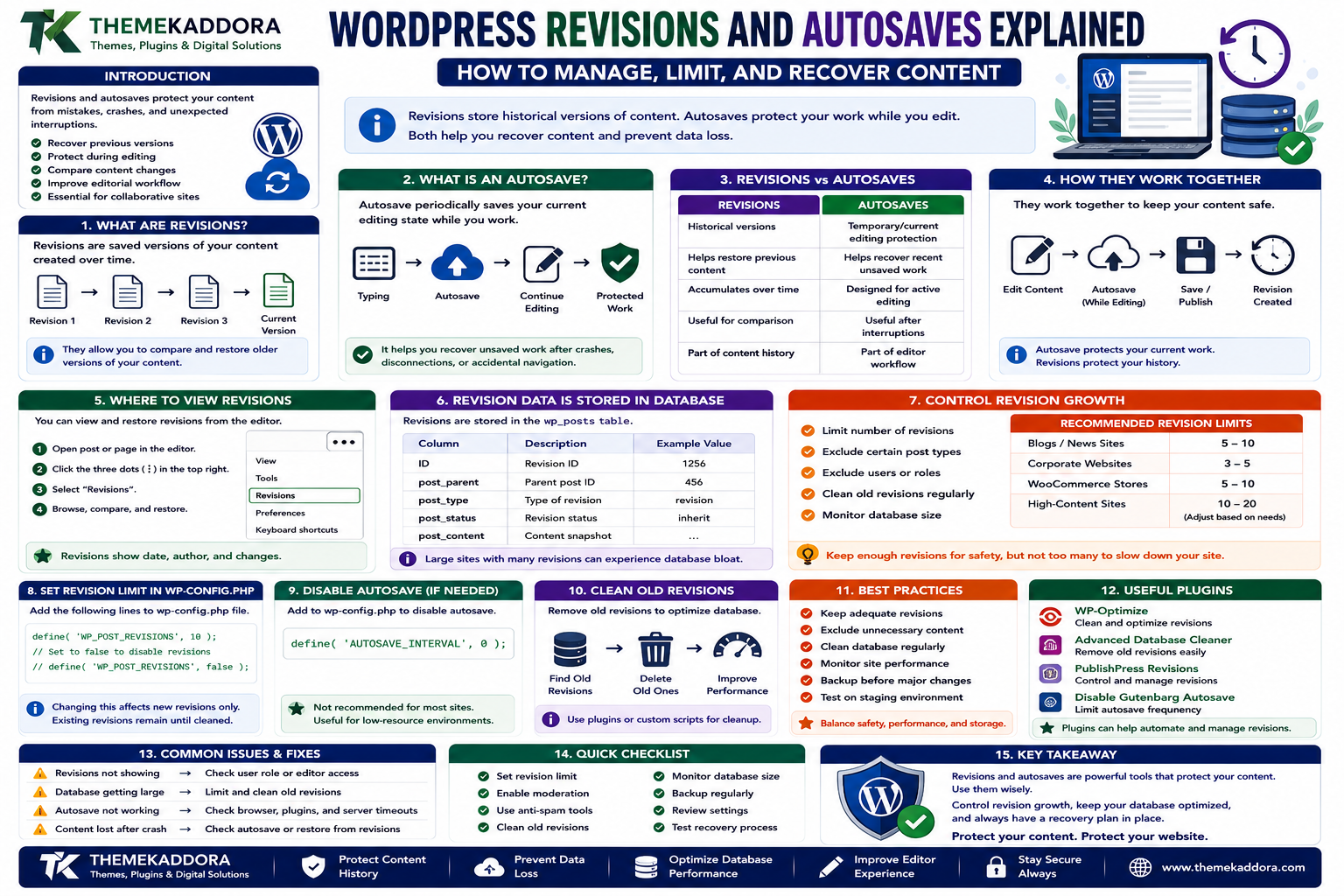
WordPress Revisions and Autosaves Explained: How to Manage, Limit, and Recover Content
Introduction
One of the most useful features in WordPress is also one that many website owners rarely think about:
content recovery.
You can spend an hour editing an article and accidentally delete a paragraph.
You can change a page layout and later realize the previous version was better.
A browser can crash while you're writing.
An internet connection can disappear halfway through editing.
WordPress provides mechanisms designed to protect against these situations.
Two important features are:
Revisions
Autosaves
They serve different purposes.
Revisions allow WordPress to preserve previous versions of content so editors can compare and restore older versions.
Autosaves periodically save the current editing state while you work.
A simplified workflow looks like:
Edit Content ↓ Autosave ↓ Continue Editing ↓ Save / Publish ↓ Revision History
These features can be extremely useful for:
Blogs
News websites
Documentation
Editorial teams
WooCommerce stores
Large publishing platforms
Collaborative WordPress websites
However, revisions and autosaves also have database and performance implications on large websites.
A site with thousands of posts and frequent editing activity can accumulate a large amount of historical data.
In this guide, you'll learn how WordPress revisions and autosaves work, how to restore previous versions, how revision data is stored, how to control revision growth, what wp-config.php settings are involved, how autosave works in the modern editor, and how to balance content recovery with database efficiency.
1. What Are WordPress Revisions?
WordPress revisions are saved versions of content created over time.
For example:
Article ├── Revision 1 ├── Revision 2 ├── Revision 3 └── Current Version
When an editor makes significant changes and saves the content, WordPress can maintain earlier versions.
This allows the editor to compare previous states and restore an older version when necessary.
2. Why WordPress Revisions Matter
Revisions provide a safety net.
Imagine:
Original Article ↓ Major Rewrite ↓ Incorrect Changes ↓ Restore Previous Revision
Without revisions, recovering the previous content might require:
Manual reconstruction
Backup restoration
Copying from another source
Revisions can make content recovery much easier.
They are particularly valuable for:
Long articles
Documentation
Collaborative editing
Content approvals
Frequently updated pages
3. What Is a WordPress Autosave?
Autosave is different from normal revision history.
While you are editing content, WordPress can periodically save your current work automatically.
The purpose is to protect against problems such as:
Browser crashes
Accidental navigation
Connection problems
Unexpected interruptions
Conceptually:
Typing ↓ Autosave ↓ More Editing ↓ Autosave ↓ Continue
Autosave is primarily about preserving the editor's current working state.
4. Revisions vs Autosaves
These features are often confused.
Revisions
Autosave
Historical versions
Temporary/current editing protection
Helps restore previous content
Helps recover recent unsaved work
Can accumulate over time
Designed to protect active editing
Useful for comparison
Useful after interruptions
Part of content history
Part of editor workflow
A simple mental model is:
Autosave protects what you're working on now.
Revisions protect what you changed previously.
5. How to View WordPress Revisions
When revisions are available, WordPress provides revision-history controls within the editor.
A typical workflow is:
Edit Post ↓ Revisions ↓ Compare Versions ↓ Select Previous Version ↓ Restore
The interface may vary depending on the WordPress editor and theme environment.
Editors can compare different versions to determine what changed.
6. Comparing Revisions
Revision comparison can help identify:
Added paragraphs
Removed text
Changed headings
Modified formatting
Updated links
Other content changes
A useful process is:
Current Version ↕ Previous Version ↓ Compare ↓ Restore If Needed
Do not restore a revision blindly.
First confirm that it actually contains the content you want.
7. Restoring a Previous Revision
If a previous version is correct, WordPress can allow you to restore it.
Conceptually:
Revision 14 ↓ Compare ↓ Restore ↓ New Current State
Restoring a revision does not necessarily mean the entire history disappears.
The exact revision behavior depends on the WordPress version and editing workflow.
After restoring important content, verify:
Formatting
Links
Images
Shortcodes
Blocks
Custom fields
Related functionality
8. Where Are Revisions Stored?
WordPress stores revisions using its post data system.
A revision is represented as a post record with a revision post type.
Conceptually:
wp_posts | ├── Published Post ├── Revision ├── Revision └── Revision
This means revisions contribute to database size.
On a website with:
Thousands of posts
Frequent editing
Multiple revisions per article
the number of database records can become significant.
9. Why Too Many Revisions Can Increase Database Size
Suppose a website has:
10,000 Posts × 20 Revisions = Potentially Large Revision Dataset
The exact storage impact varies, but frequent revisions can increase database volume over time.
This matters particularly for:
Large publishing websites
News websites
Documentation platforms
WooCommerce stores
Sites with frequent content edits
However, a large revision count does not automatically mean the website is slow.
Performance depends on how the database is queried and maintained.
10. Should You Disable Revisions Completely?
Usually, there is no need to disable revisions simply because they create database records.
Revisions provide genuine editorial value.
Consider disabling or heavily limiting them only when:
The website does not need content history.
Content is generated automatically.
Database storage is extremely constrained.
Another version-control system handles content history.
The site's workflow specifically requires fewer historical records.
For most editorial websites, keeping at least some revision history is useful.
11. Limit the Number of Revisions
WordPress can be configured to keep a limited number of revisions.
A common configuration in wp-config.php is:
define( 'WP_POST_REVISIONS', 10 );
This tells WordPress to retain a limited number of revisions per post.
The appropriate number depends on the website.
For example:
5 revisions → Lower database growth 20 revisions → More recovery history
There is no universal number that is correct for every site.
Choose according to editorial needs.
12. Disable Revisions for a Specific Post Type
Some applications may have content types where extensive revision history is unnecessary.
Developers can control revision support at the post-type level.
For example, a custom post type may intentionally omit revision support.
This can be appropriate for certain technical or transactional content types.
However, do not disable revisions simply because a Custom Post Type exists.
Ask whether editors genuinely need historical versions.
13. Use Post-Type-Specific Revision Policies
Different content types can have different requirements.
For example:
Blog Articles → Keep 20 revisions Documentation → Keep 10 revisions Internal Logs → Revisions Not Required
This can create a more efficient architecture than applying one universal rule to every content type.
The revision policy should match the content lifecycle.
14. What Happens to Autosave Data?
Autosave operates differently from long-term revision history.
WordPress can use autosave mechanisms to preserve the editor's current work.
When an editor resumes a session, WordPress may offer recovery of unsaved changes where applicable.
The exact behavior depends on the editor and content type.
The key principle is:
Autosave exists to protect active editing, not to create an unlimited historical archive.
15. Autosave Interval
WordPress has an autosave interval that controls how frequently the editor performs autosave operations in supported workflows.
Developers can configure autosave behavior carefully when there is a genuine reason.
However, increasing the frequency can create more requests.
A very aggressive interval may produce:
Editor ↓ Autosave ↓ Autosave ↓ Autosave ↓ Autosave
This can increase background activity.
The default behavior is usually adequate for many websites.
16. Why Autosave Can Matter on High-Traffic Sites
Autosave is primarily associated with editors, not public visitors.
However, on websites with:
Large editorial teams
Many concurrent editors
Heavy admin workloads
Database bottlenecks
background editor activity can become part of the overall server workload.
If administrators report a slow editor experience, investigate:
Autosaves
Heartbeat requests
Admin AJAX
REST API requests
Plugin queries
rather than assuming revisions alone are responsible.
17. Revisions and the Block Editor
The modern WordPress block editor works with revisions and autosaving to protect content.
Blocks can contain structured information beyond plain text.
For example:
Page ├── Heading Block ├── Image Block ├── Columns ├── Gallery └── CTA
A revision therefore represents a version of the page content structure, not simply a paragraph of text.
This makes revision recovery particularly useful for complex layouts.
18. Revisions and WooCommerce
WooCommerce stores contain more than ordinary pages and blog posts.
Products can include:
Product descriptions
Short descriptions
Prices
Inventory
Attributes
Variations
Images
Not every piece of WooCommerce data should be treated as ordinary post revision data.
When optimizing WooCommerce, understand which data is controlled by:
WordPress revisions
WooCommerce data stores
Product metadata
Orders
Scheduled actions
Do not delete revision data assuming it represents all historical product information.
19. Revisions and Custom Post Types
Custom Post Types can support revisions when configured to do so.
For example:
'supports' => array( 'title', 'editor', 'revisions', ),
This lets editors maintain historical versions of that content type.
Good use cases include:
Articles
Documentation
Case studies
Projects
Landing pages
For transactional entities, revision history may be less useful than a dedicated audit-log architecture.
20. Revisions vs Audit Logs
These are not the same thing.
Revisions
Primarily preserve versions of editable content.
Audit Logs
Track events such as:
Who changed a setting
Who deleted a product
Who changed a user role
Who modified an order
When an action occurred
For example:
Revision: "Article changed from A → B" Audit Log: "Admin K changed Article at 14:32"
A business application may need both.
Do not use revisions as a substitute for a proper security audit log.
21. Revisions and Database Cleanup
When performing database cleanup, revisions can be a legitimate cleanup target.
However, cleanup should be controlled.
A safe process is:
Backup ↓ Analyze Revision Volume ↓ Set Retention Policy ↓ Remove Excess Revisions ↓ Test ↓ Monitor
Do not run aggressive cleanup tools without understanding what they remove.
22. Avoid Deleting Revisions Directly in the Database
Developers may be tempted to run raw SQL such as:
DELETE FROM wp_posts WHERE post_type = 'revision';
Direct database deletion can be dangerous in a production environment.
Before performing destructive database operations, consider:
Backups
Referential relationships
Plugin dependencies
Multisite
Custom metadata
Recovery
Whenever possible, use WordPress-aware tooling and carefully tested maintenance procedures.
23. Revisions and Database Optimization
Revision cleanup can reduce database size, but it may not solve the primary performance problem.
For example:
100,000 Revisions + Poor Database Query
Removing revisions may reduce storage, but the slow query still needs optimization.
A complete performance strategy may involve:
Query optimization
Indexing
Object caching
Transients
Plugin optimization
Database maintenance
Revision cleanup should be one part of a broader database strategy.
24. Revisions and Storage Planning
Large content websites should estimate how much revision data they generate.
Factors include:
Number of posts
Number of editors
Editing frequency
Number of revisions retained
Content complexity
For example:
10,000 Articles + Frequent Editing + High Revision Limit = Large Historical Dataset
A sensible retention policy can reduce unnecessary growth without eliminating useful recovery capabilities.
25. Revisions and Collaborative Editing
Teams can benefit significantly from revision history.
Suppose:
Writer ↓ Editor ↓ SEO Manager ↓ Final Version
If someone accidentally removes important content, the team can inspect earlier versions.
This makes revisions especially useful for editorial environments.
26. Recovering From Accidental Content Changes
A common recovery scenario is:
Article Correct ↓ Editor Makes Changes ↓ Wrong Content ↓ Open Revisions ↓ Compare ↓ Restore
Before restoring, confirm which version is correct.
If the content contains dynamic blocks, forms, shortcodes, or custom fields, test the restored version carefully.
27. Common WordPress Revision Mistakes
Avoid these problems:
Disabling All Revisions Without a Reason
You lose a valuable recovery mechanism.
Keeping Unlimited Revisions Forever
Large sites can accumulate unnecessary records.
Assuming Revisions Are an Audit Log
They are not a complete security history.
Deleting Revisions With Raw SQL
This can create unexpected problems.
Ignoring Autosave
Admin performance problems may involve autosave and related requests.
Treating WooCommerce Orders Like Blog Posts
Transactional data has its own architecture.
Cleaning Without a Backup
Destructive maintenance should be reversible.
28. WordPress Revision Best Practices
A practical revision strategy should:
Keep revisions when editorial recovery is valuable.
Set sensible retention limits.
Avoid unnecessary unlimited history.
Understand autosave separately.
Use staging for configuration changes.
Back up before cleanup.
Monitor database growth.
Use WordPress-aware maintenance methods.
Treat audit logging separately.
Review Custom Post Type requirements.
The goal is to balance recovery capability with database efficiency.
29. A Practical Revision Management Workflow
For an editorial website:
Create Content ↓ Autosave ↓ Edit ↓ Revision ↓ Review ↓ Publish ↓ Future Revision
For maintenance:
Monitor Database ↓ Review Revision Volume ↓ Define Retention ↓ Backup ↓ Clean Excess Data ↓ Verify
This provides both content protection and controlled database growth.
30. When Should You Change Revision Settings?
Consider adjusting revision retention when:
The database is growing rapidly.
Editors rarely need old versions.
The website has thousands of posts.
Content is generated automatically.
Storage is constrained.
Database maintenance has identified revision growth as relevant.
Keep more revisions when:
Multiple editors collaborate.
Articles undergo extensive review.
Content recovery is important.
The website publishes sensitive or frequently updated material.
The correct setting is a business decision as much as a technical one.
Why Choose ThemeKaddora?
At ThemeKaddora, we believe WordPress products should balance content-management flexibility with long-term maintainability.
Professional WordPress websites may contain:
Large editorial libraries
WooCommerce products
Custom Post Types
Business content
Documentation
Multiple editors
Automated workflows
Revisions and autosaves can protect important editing work, while sensible retention policies can prevent unnecessary database growth.
ThemeKaddora focuses on practical WordPress, WooCommerce, SaaS, AI, automation, and digital solutions designed around:
Reliability
Performance
Security
Maintainability
User experience
Conclusion
WordPress Revisions and Autosaves are valuable parts of the content-editing experience.
They protect editors from:
Accidental changes
Browser failures
Interrupted sessions
Unwanted edits
Content mistakes
But large websites also need to manage the database impact of historical content.
The right strategy is:
Protect important content → Retain useful history → Limit unnecessary growth → Monitor database performance
Do not disable revisions simply because they consume database space.
Do not keep unlimited history without considering your site's scale.
And do not confuse revisions with security audit logs.
The goal is not to store every version forever. The goal is to keep enough history to protect your content while maintaining a database that remains manageable as your WordPress website grows.
Frequently Asked Questions
1. What are WordPress revisions?
Revisions are historical versions of WordPress content that can be used to compare and restore earlier versions.
2. What is WordPress autosave?
Autosave periodically preserves the current editing state to help recover work interrupted during editing.
3. Where are WordPress revisions stored?
Revisions are stored through WordPress's post data system and use the revision post type.
4. Can I limit the number of revisions?
Yes. WordPress provides configuration options that can limit revision retention.
5. Should I disable revisions?
Usually not unless your workflow has a specific reason to do so. Revisions provide useful recovery protection.
6. Can revisions slow down WordPress?
A very large revision dataset can increase database size, but revisions alone do not automatically make a website slow. Query workload and database architecture also matter.
7. Are revisions the same as audit logs?
No. Revisions preserve content versions, while audit logs record actions and user activity.
8. Can I delete old revisions?
Yes, but use a controlled, backed-up cleanup process and verify that the revisions are genuinely no longer needed.
9. Do WooCommerce products use revisions?
Product content can participate in WordPress revision behavior where supported, but WooCommerce has additional data structures that should not be confused with ordinary post revisions.
10. Why choose Themekaddora?
Themekaddora provides lightweight, responsive, SEO-friendly WordPress themes with fast performance, WooCommerce compatibility, flexible customization, accessibility-conscious design, modern templates, regular updates, and professional support—providing a strong foundation for businesses building digital products and product-focused websites.
Comments (0)