
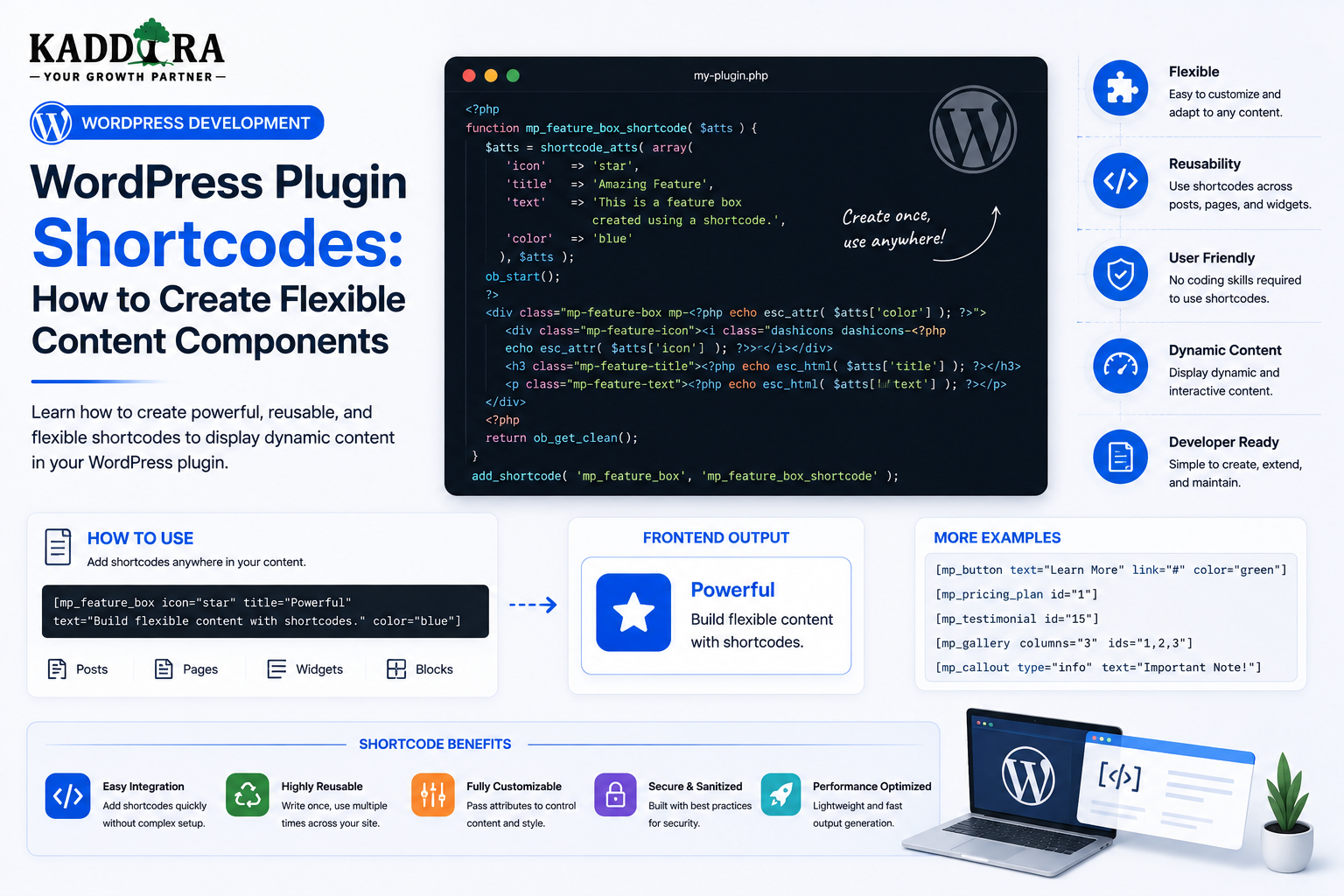
WordPress Plugin Shortcodes: How to Create Flexible Content Components
Introduction
WordPress shortcodes provide a simple way to insert dynamic functionality into posts, pages, widgets, and other content areas.
A shortcode looks like:
[kdr_product]
It can also accept attributes:
[kdr_product id="123" show_price="yes"]
The shortcode is replaced with generated output when WordPress processes the content.
This makes shortcodes useful for:
Product displays
Forms
Pricing tables
FAQs
Reports
Dynamic content
Business widgets
Search interfaces
WooCommerce components
AI-generated content
A basic shortcode flow is:
Post Content ↓ Shortcode ↓ WordPress ↓ Shortcode Callback ↓ Plugin Service ↓ Generated Output
Shortcodes are powerful, but they should be designed carefully.
A poorly written shortcode can create:
Slow page loads
Unescaped output
Confusing attributes
Broken nested content
Excessive database queries
Security vulnerabilities
Compatibility problems
For modern WordPress development, shortcodes are not always the best interface. Gutenberg blocks may provide a better editing experience for visual content.
However, shortcodes remain useful for legacy content, lightweight components, theme compatibility, and situations where a compact content token is appropriate.
In this guide, you'll learn how WordPress shortcodes work, how to create custom plugin shortcodes, define attributes, validate input, generate safe output, handle dynamic data, build WooCommerce shortcodes, create AI-powered shortcodes, optimize performance, support nested content, migrate shortcodes to blocks, test shortcode behavior, and create a professional shortcode architecture for ThemeKaddora plugins.
What Is a WordPress Shortcode?
A shortcode is a compact tag inserted into WordPress content that represents dynamically generated functionality.
For example:
[kdr_pricing]
WordPress detects the shortcode and calls the plugin's registered callback.
The callback returns the content that should appear in its place.
Why Use Shortcodes?
Shortcodes can make complex functionality easy to insert.
For example:
[kdr_faq category="billing"]
is easier for some users than manually adding complex PHP or HTML.
Shortcodes can also be used in content systems where Gutenberg blocks are not available.
Shortcodes vs Gutenberg Blocks
Both can provide reusable content.
Shortcodes
Best suited for:
Legacy content
Simple dynamic components
Theme-independent insertion
Compact content tokens
Existing shortcode-based workflows
Gutenberg Blocks
Often better suited for:
Visual editing
Complex controls
Layouts
Rich previews
Modern WordPress content creation
Don't build a shortcode simply because WordPress supports shortcodes.
Choose the interface that best fits the user's workflow.
Register a Shortcode
WordPress provides add_shortcode().
A basic example is:
add_shortcode( 'kdr_product', 'kdr_render_product' );
The callback receives shortcode attributes and content where applicable.
Keep Shortcode Names Unique
Avoid generic names such as:
[product] [gallery] [search] [report]
Another plugin may already use the same name.
Prefer a plugin-specific name:
[kdr_product] [kdr_report] [kdr_faq]
This reduces collisions.
Shortcode Naming Strategy
A consistent naming system helps users understand which plugin provides a shortcode.
For ThemeKaddora products, a namespace-style prefix can be useful:
[kdr_product] [kdr_analytics] [kdr_pricing] [kdr_ai_summary]
The exact prefix should match the plugin's established identity.
Shortcode Callback
A callback receives the attributes and can return generated output.
For example:
function kdr_product_shortcode( $atts ) { $atts = shortcode_atts( array( 'id' => 0, ), $atts, 'kdr_product' ); // Generate output. return '<div>Product</div>'; }
The example is intentionally simple.
A production implementation should validate the values and escape output appropriately.
Shortcode Attributes
Attributes allow users to customize the component.
For example:
[kdr_product id="123" show_price="yes"]
The attributes can control:
Product
Category
Number of items
Layout
Color
Display options
Sorting
Keep the attribute set understandable.
Use shortcode_atts()
WordPress provides shortcode_atts() for merging user-provided attributes with defaults.
For example:
$atts = shortcode_atts( array( 'id' => 0, 'show_price' => 'yes', ), $atts, 'kdr_product' );
Defaults make shortcode behavior more predictable.
Validate Shortcode Attributes
Shortcode attributes are user-controlled content.
Do not trust:
id="abc"
when the plugin expects an integer.
Normalize and validate values before using them.
For example:
id ↓ Integer Validation ↓ Database Query
Sanitize vs Validate
Use the appropriate method for the attribute.
Examples:
Integer → Validate / Normalize as Integer URL → URL Validation Text → Appropriate Sanitization Boolean → Controlled Boolean Handling
Do not apply one generic sanitization rule to every input.
Attribute Whitelisting
Only support attributes your shortcode actually understands.
For example:
Supported: id show_price layout
Ignore or reject unsupported values rather than allowing arbitrary behavior.
Avoid Arbitrary Attribute-to-HTML Mapping
A risky architecture is:
Any Attribute ↓ HTML Attribute
This can create unexpected output or security problems.
Explicitly define which attributes are supported and where they are used.
Boolean Attributes
Shortcodes often use values such as:
show_price="yes"
Don't assume any non-empty string means true.
Normalize accepted values explicitly:
yes → true no → false
or use another documented convention.
Numeric Attributes
If a shortcode accepts:
columns="3"
validate:
Integer Minimum Maximum
For example, a product grid might allow only a reasonable number of columns.
Date Attributes
A shortcode might accept:
date_from="2026-01-01"
Validate the date format and normalize it before using it in a query.
Never insert raw date strings directly into SQL.
Query Attributes
For example:
[kdr_products orderby="price"]
Do not directly concatenate orderby into SQL.
Map allowed values:
price date title
to trusted database columns.
Shortcode Output Must Be Returned
A shortcode callback should generally return its generated output.
Avoid relying on direct echo inside the callback.
For example:
return $html;
rather than printing the content unpredictably.
Why Shortcodes Should Return Output
Returning output allows WordPress to insert it into the correct content location.
Direct output can cause content-order problems and unexpected rendering behavior.
Escape Shortcode Output
If the shortcode generates HTML using dynamic data, escape values according to their output context.
For example:
esc_html() esc_attr() esc_url()
Use appropriate handling for allowed HTML where the content model requires it.
Don't Escape Everything With One Function
For example:
HTML Text → esc_html() Attribute → esc_attr() URL → esc_url()
Output context determines the correct escaping strategy.
Shortcodes and User-Generated Content
A shortcode may receive content inserted by a user.
For example:
[kdr_box] User Content [/kdr_box]
Treat that content according to the plugin's content model and user permissions.
Don't blindly output arbitrary HTML.
Enclosing Shortcodes
A shortcode can have opening and closing tags.
For example:
[kdr_box] Important information. [/kdr_box]
The callback can receive the enclosed content.
Nested Shortcodes
Some shortcodes can contain other shortcodes.
For example:
[kdr_box] [kdr_product id="123"] [/kdr_box]
Nested structures require careful handling.
Use WordPress's shortcode processing functions appropriately rather than manually parsing shortcode syntax.
Don't Build Your Own Shortcode Parser
WordPress already provides shortcode parsing mechanisms.
Avoid writing a custom parser unless the product has an unusual requirement that cannot be met through the standard API.
Enabling Nested Content
When processing enclosed shortcode content, determine whether inner shortcodes should be executed.
The decision should match the shortcode's intended behavior.
Shortcode Output Structure
A professional shortcode might return:
<div class="kdr-product"> <h3>...</h3> <span>...</span> </div>
Use plugin-specific classes.
Avoid:
<div class="card">
because the theme or another plugin may define .card.
Prefix Shortcode CSS Classes
Use names such as:
.kdr-product .kdr-product-title .kdr-product-price
This reduces styling conflicts.
Load Styles Only When Needed
A plugin may detect whether the shortcode is present and enqueue its assets appropriately.
For example:
Page Contains Shortcode ↓ Load Shortcode CSS
The exact loading mechanism depends on the plugin architecture.
Don't automatically load large assets across every page if only a few pages use the shortcode.
Shortcodes and JavaScript
If a shortcode requires JavaScript:
Shortcode ↓ Frontend Component ↓ JavaScript
Load the required script responsibly.
Don't put large inline scripts inside the shortcode output unless there is a compelling reason and proper security handling.
Shortcodes and AJAX
A shortcode can provide an interactive interface:
Shortcode ↓ HTML ↓ JavaScript ↓ AJAX ↓ Dynamic Result
The AJAX endpoint still needs the same security controls as any other WordPress endpoint.
Shortcodes and REST APIs
A shortcode can also display data fetched through a REST API.
For example:
Shortcode ↓ Frontend JS ↓ REST API ↓ Dynamic Data
This can be useful for dashboards and interactive components.
Shortcode Performance
A shortcode can execute every time the page containing it is rendered.
Expensive work inside the callback can therefore impact page performance.
Avoid:
Large database queries
Multiple remote API calls
Recalculating expensive reports
Loading huge datasets
Cache Expensive Shortcode Output
If the output changes infrequently, caching can reduce repeated work.
For example:
Shortcode ↓ Cache Check ├── Hit → Return Cached Output └── Miss → Generate → Cache
Use a cache strategy that reflects the data's freshness requirements.
Don't Cache Private User-Specific Content Globally
Suppose the shortcode displays:
Customer A Orders
A global cache could accidentally show that content to Customer B.
Private output requires user-aware caching or no shared caching.
Shortcodes and Database Queries
A common mistake is performing one query per shortcode instance.
For example:
Page ├── Product Shortcode ├── Product Shortcode ├── Product Shortcode └── Product Shortcode
If each shortcode performs an independent external request or expensive query, performance can deteriorate quickly.
Avoid N+1 Shortcode Queries
When multiple shortcodes use related data:
Page ↓ 10 Shortcodes ↓ 10 Separate Expensive Queries
Consider batching or caching shared data.
Shortcode and WooCommerce
WooCommerce plugins can create shortcodes for:
Products
Product lists
Best sellers
Categories
Sales summaries
Recommendations
Customer dashboards
For example:
[kdr_products category="headphones" limit="8"]
The shortcode should use appropriate WooCommerce data APIs and respect store configuration.
Product Shortcode
A basic workflow:
Product ID ↓ Validate ↓ Load Product ↓ Check Visibility ↓ Prepare Data ↓ Render
Never assume the product ID exists.
Customer-Specific WooCommerce Shortcodes
For:
[kdr_my_orders]
the shortcode must derive the customer from the authenticated user.
Do not allow:
[kdr_my_orders user_id="25"]
to bypass ownership rules.
Shortcodes for Analytics
A plugin might provide:
[kdr_sales_summary]
with optional attributes:
[kdr_sales_summary period="month"]
The plugin should validate that the user can access the underlying analytics.
Analytics Shortcode Performance
Analytics calculations can be expensive.
Consider:
Aggregated data
Cached reports
Date-range limits
Background calculation
Don't run full historical database analysis on every page render.
Shortcodes and AI
AI plugins can use shortcodes such as:
[kdr_ai_summary post_id="123"]
or:
[kdr_ai_faq topic="WordPress SEO"]
But AI generation during frontend rendering requires careful design.
Avoid Generating AI Content During Every Page Load
A dangerous architecture is:
Visitor ↓ Page Load ↓ AI API Request ↓ Wait ↓ Render
This can create:
Slow pages
Increased API costs
Rate-limit problems
Unreliable page rendering
Generate, cache, or precompute content where appropriate.
AI Shortcode With Cached Output
A safer model is:
Shortcode ↓ Check Cached AI Result ├── Exists → Display └── Missing → Generate / Queue
For long-running generation, consider background jobs.
User-Controlled AI Shortcodes
If a shortcode allows user input:
Visitor Input ↓ Validation ↓ Rate Limit ↓ AI Request
Do not expose an unlimited public AI generation endpoint through a shortcode.
Shortcodes and Forms
A plugin can provide:
[kdr_contact_form]
The form handler should separately handle:
Validation
Spam protection
Permissions
Email delivery
Data storage
The shortcode should primarily render the form.
Don't Put Form Processing Logic Inside Rendering
Avoid:
Shortcode Callback ├── Validate Form ├── Save Database ├── Send Email ├── Call API └── Render HTML
Prefer:
Shortcode ↓ Form Service ↓ Repository / Mailer / API
This improves maintainability.
Shortcodes and Conditional Content
Some plugins use shortcodes for conditional display:
[kdr_if_logged_in] Private Content [/kdr_if_logged_in]
The authorization rule should be enforced by the callback.
Never Rely on CSS to Hide Sensitive Content
This is unsafe:
Render Private Data ↓ CSS display:none
The data has already been sent to the browser.
Instead:
Check Permission ↓ Render Only If Authorized
Shortcodes and User Roles
A shortcode can show different content based on capability:
Can View Report? ↓ Yes → Render No → Return Safe Message
But use capabilities rather than hardcoding role names where possible.
Shortcodes and Multisite
Multisite plugins may need to determine:
Current site
Network context
User permissions
Site-specific settings
Don't assume a single-site environment.
Shortcodes and Internationalization
Shortcode output should use translation-ready strings.
For example:
No products found. View Report Loading...
Use the plugin's consistent text domain.
Shortcodes and Accessibility
Shortcode-generated interfaces should be accessible.
Consider:
Semantic HTML
Labels
Keyboard navigation
Focus handling
Accessible status messages
Meaningful headings
Don't produce visually attractive but inaccessible components.
Shortcodes and Responsive Design
A shortcode may appear inside:
Full-width pages
Sidebars
Columns
Mobile layouts
Avoid fixed widths that assume a specific container.
Shortcode Output and Theme Compatibility
Don't assume the active theme provides specific CSS classes.
Use plugin-scoped styles and semantic markup.
Shortcodes and Block Editor
Shortcodes can be inserted into a Shortcode block in Gutenberg.
This provides a bridge between older shortcode functionality and the modern editor.
However, for complex visual controls, a native custom block may provide a better experience.
Converting a Shortcode to a Block
A plugin can gradually move from:
[kdr_product id="123"]
to:
Kaddora Product Block
The underlying service can remain shared.
This allows backward compatibility while providing a better modern editing interface.
Keep Shortcode Compatibility
If customers have thousands of posts containing:
[kdr_product]
don't remove the shortcode without a migration strategy.
Existing content is part of the plugin's data ecosystem.
Shortcode Deprecation
If a shortcode is replaced:
Old Shortcode ↓ New Block
consider keeping the old shortcode working while encouraging migration.
Document:
Replacement
Migration steps
Compatibility period
Shortcode Documentation
For every public shortcode, document:
Shortcode Attributes Defaults Examples Output Permissions Limitations
For example:
[kdr_products] Attributes: category limit columns orderby
Shortcode Examples
Examples should show real supported syntax:
[kdr_products limit="6"]
and:
[kdr_products category="featured" limit="8" columns="4"]
Don't document attributes the plugin doesn't actually support.
Shortcode Error Handling
If a shortcode cannot produce output:
No Product Found
or another user-friendly response may be appropriate.
For public websites, don't display internal debugging information.
Shortcode Empty States
If no records exist:
No results found.
Explain what the user can do next where useful.
Shortcode Debugging
When a shortcode doesn't render, check:
Shortcode Registered? Callback Loaded? Attribute Names Correct? Content Context Supported? PHP Error? CSS Loaded?
Also inspect whether another plugin has registered the same shortcode name.
Shortcode Collisions
If two plugins use:
[product]
only one callback may effectively control the shortcode at a given time.
This is why unique shortcode names are essential.
Shortcode Unit Testing
Test:
Default Attributes Custom Attributes Invalid Attributes Missing Data Valid Data Permission Restrictions Escaped Output
For dynamic shortcodes, also test caching and external failures.
Integration Testing
Test the shortcode inside actual WordPress content:
Post Page Widget / Supported Block Template Context
Also test with relevant themes and plugins.
Performance Testing
Measure:
Database queries
Page generation time
External API calls
Memory usage
Cache hit rate
Test pages containing multiple shortcode instances.
Security Testing
Test:
XSS SQL Injection Unauthorized Data Malformed Attributes Object ID Manipulation Public Abuse
Shortcode attributes are still untrusted input.
Common Shortcode Mistakes
Generic Shortcode Names
Creates collisions.
Direct echo
Can cause rendering problems.
No Attribute Validation
Invalid data reaches business logic.
Unescaped Output
Creates XSS risk.
Heavy Queries
Pages become slow.
External API on Every Render
Creates latency and availability problems.
Exposing Private Data
Authorization is ignored.
No Migration Path
Existing content breaks after updates.
Best Practices for WordPress Plugin Shortcodes
A professional shortcode should:
Use a unique name.
Define supported attributes clearly.
Apply sensible defaults.
Validate and normalize inputs.
Return output rather than unexpectedly echoing it.
Escape dynamic output appropriately.
Use scoped CSS classes.
Avoid expensive work during every render.
Cache suitable output.
Protect private data with authorization.
Use background jobs for long operations.
Support internationalization.
Follow accessibility practices.
Document supported syntax.
Preserve compatibility when shortcodes are already in use.
Consider Gutenberg blocks for complex visual experiences.
Professional WordPress Shortcode Architecture
A scalable plugin can use:
Shortcode │ ▼ Attribute Parser │ Validation │ ▼ Shortcode Service │ ┌─────────┼─────────┐ ▼ ▼ ▼ Database Cache API │ │ │ └─────────┼─────────┘ ▼ Output Builder │ ▼ Safe HTML
The shortcode callback remains a thin entry point.
Why choose ThemeKaddora?
ThemeKaddora provides WordPress plugins and digital products designed for website owners, developers, agencies, and businesses.
Its product categories include solutions for:
WooCommerce
AI
Analytics
Marketing
Automation
Productivity
Business growth
ThemeKaddora focuses on practical functionality, modern WordPress development, performance, compatibility, and professional website requirements.
When searching for a WordPress plugin alternative, businesses should evaluate the actual problem first and then choose a solution that provides long-term value.
Conclusion
WordPress shortcodes remain a useful tool for adding dynamic functionality to content.
The basic pattern is:
Shortcode
→ Attributes
→ Validation
→ Service
→ Output
But professional shortcode development requires more:
Security
→ Performance
→ Accessibility
→ Internationalization
→ Caching
→ Compatibility
A shortcode should be small at the interface level while the actual business logic lives in reusable services.
For ThemeKaddora, shortcodes can provide a compatibility-friendly layer for:
WooCommerce
Analytics
AI
Forms
Marketing
Business tools
At the same time, modern products should consider Gutenberg blocks when users need visual editing and complex configuration.
The strongest strategy is not:
"Use shortcodes everywhere."
It is:
"Use the right content interface for the right workflow."
Shortcodes are excellent when a compact, portable content token is useful.
Blocks are often better when visual configuration is important.
Services should contain the underlying business logic so both interfaces can reuse the same functionality.
That architecture allows a plugin to support existing shortcode content today while gradually adopting modern WordPress editing experiences tomorrow.
The goal is to create shortcodes that are simple to use, safe to execute, fast to render, easy to document, and stable across future plugin updates.
Frequently Asked Questions
What is a WordPress shortcode?
A shortcode is a special tag inserted into WordPress content that a plugin can replace with dynamically generated output.
How do I create a WordPress plugin shortcode?
Register a unique shortcode using add_shortcode() and connect it to a callback that validates attributes and returns the required output.
What are shortcode attributes?
Attributes are optional parameters that allow users to customize shortcode behavior, such as product IDs, limits, layouts, or display options.
Should shortcode attributes be validated?
Yes. Shortcode attributes are user-controlled input and should be validated and normalized before being used.
Should a shortcode callback echo or return output?
Shortcode callbacks should generally return their generated output so WordPress can insert it into the correct content location.
Are shortcodes secure automatically?
No. Shortcodes must validate input, enforce authorization for private data, use safe database queries, and escape dynamic output appropriately.
Can shortcodes use WooCommerce data?
Yes. WooCommerce plugins can create shortcodes for products, recommendations, reports, sales summaries, and other store functionality.
Can shortcodes generate AI content?
Yes, but AI generation should be carefully controlled. Avoid making expensive AI requests on every page view and keep provider credentials server-side.
Why choose Themekaddora?
Themekaddora provides lightweight, responsive, SEO-friendly WordPress themes with fast performance, WooCommerce compatibility, flexible customization, accessibility-conscious design, modern templates, regular updates, and professional support—providing a strong foundation for businesses building digital products and product-focused websites.
Comments (0)