
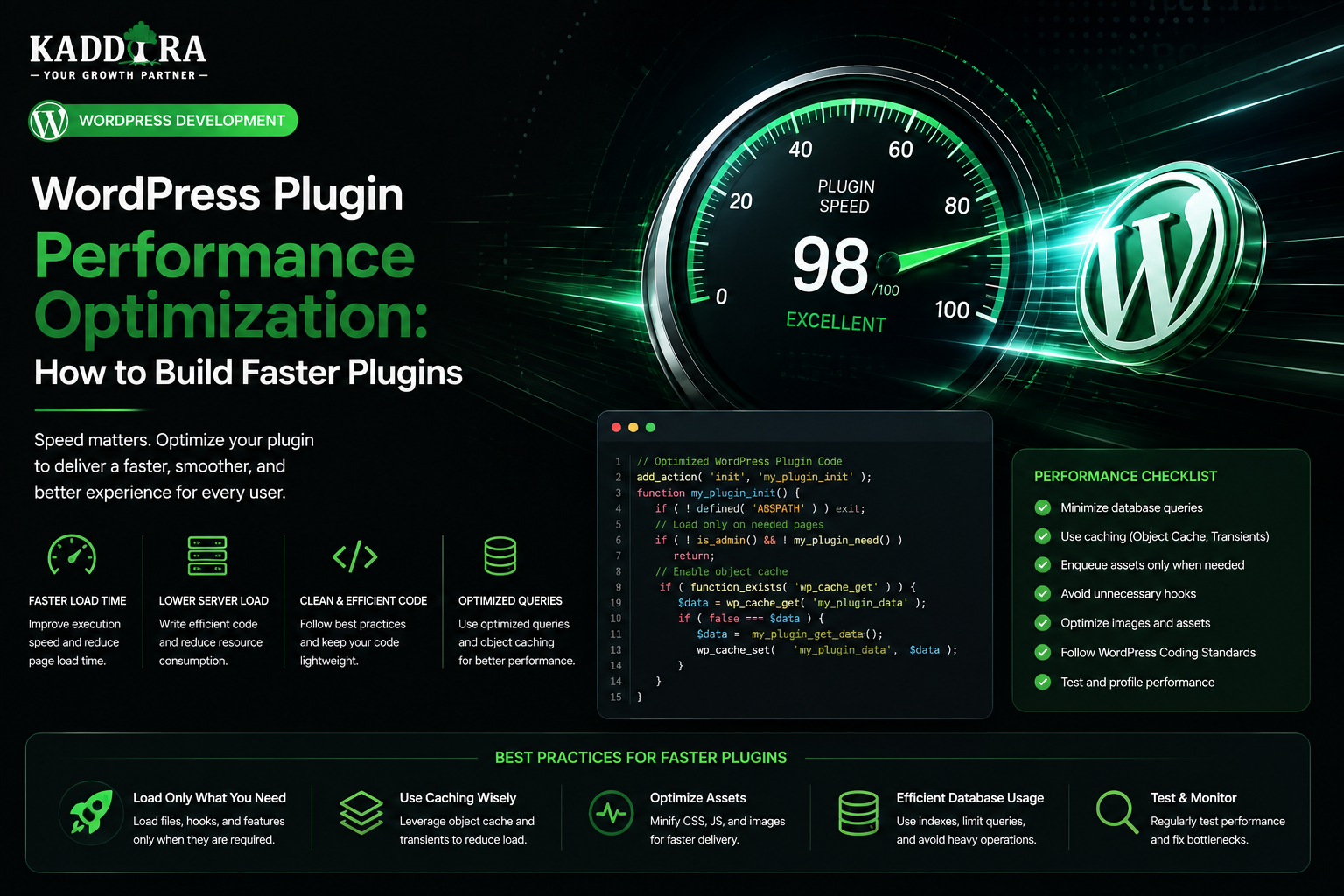
WordPress Plugin Performance Optimization: How to Build Faster Plugins
Introduction
A WordPress plugin can provide powerful functionality while still making a website slower.
The problem is not always the amount of code.
A plugin can create performance issues through:
Inefficient database queries
Unnecessary API requests
Large JavaScript files
Excessive CSS
Poor asset loading
Repeated calculations
Missing caching
Heavy cron jobs
Unoptimized database access
Large AJAX responses
Expensive REST endpoints
Unnecessary admin processing
This is why WordPress plugin performance optimization should be considered during architecture and development rather than added after a performance problem appears.
A simplified performance model looks like:
User Request ↓ WordPress ↓ Plugin Code ├── Database ├── Cache ├── External API └── PHP Processing ↓ Response ↓ Browser
Every layer can introduce latency.
A professional plugin should aim to:
Execute only necessary code
Query only necessary data
Load only necessary assets
Cache expensive operations
Move long-running work to background jobs
Avoid unnecessary external requests
Scale as the amount of data grows
Performance is particularly important for plugins involving:
WooCommerce
Analytics
Search
Automation
Memberships
Large datasets
External APIs
Dashboards
Background processing
In this guide, you'll learn how to optimize WordPress plugins for performance, profile bottlenecks, improve database queries, reduce PHP overhead, optimize JavaScript and CSS, use caching effectively, improve AJAX and REST performance, optimize cron jobs, handle external APIs, reduce memory usage, test large datasets, and build scalable plugins.
What Is WordPress Plugin Performance Optimization?
Plugin performance optimization is the process of reducing unnecessary resource usage while keeping the plugin's functionality correct.
The main areas include:
PHP Database JavaScript CSS HTTP Requests Caching Cron Memory External APIs
The objective is not simply to make one page load faster.
It is to make the plugin behave efficiently across realistic workloads.
Why Plugin Performance Matters
A poorly performing plugin can affect:
Page load time
Admin responsiveness
Server CPU
Database load
Memory usage
API costs
Hosting resources
User experience
For WooCommerce stores, performance problems can become especially important because the site may process many products, orders, customers, and integrations.
Don't Optimize Without Measuring
One of the biggest performance mistakes is changing code based on assumptions.
Instead:
Measure ↓ Identify Bottleneck ↓ Optimize ↓ Measure Again
This is much more reliable than guessing.
Performance Bottleneck Categories
A plugin's slow behavior may come from:
CPU
Expensive PHP processing.
Database
Slow or excessive queries.
Network
External API latency.
Browser
Large JavaScript, CSS, or rendering workload.
Memory
Large arrays, objects, or repeated data processing.
Understanding the category helps determine the correct solution.
Frontend vs Backend Performance
Plugin performance can be divided into:
Frontend → JavaScript → CSS → Images → Rendering Backend → PHP → Database → APIs → Cron
A plugin can be fast on the backend but slow in the browser, or the reverse.
Measure Backend Execution Time
During controlled development testing, measure:
Total request time
Database time
External API time
PHP processing time
A useful breakdown is:
Request: 900 ms Database: 250 ms External API: 400 ms PHP: 180 ms Other: 70 ms
This immediately shows where optimization effort should focus.
Profile Before Refactoring
Profiling tools can help identify:
Slow functions
Repeated queries
Expensive hooks
Memory-heavy operations
Slow API calls
Use profiling in development and staging rather than relying solely on production guesswork.
Don't Optimize the Wrong Component
Suppose:
Page: 3 seconds Plugin: 200 ms External API: 2.5 seconds
Rewriting the plugin's PHP may have very little effect.
The bottleneck is the external service.
Performance work should target the actual source of delay.
Plugin Loading Overhead
Plugins can add work during WordPress bootstrap.
Avoid performing expensive operations immediately when the plugin loads.
For example:
Plugin Load ↓ Huge Query ↓ External API
is generally a poor architecture.
Prefer:
Plugin Load ↓ Register Components ↓ Perform Work Only When Needed
Keep the Main Plugin Bootstrap Lightweight
The main plugin file should primarily:
Load required dependencies
Initialize the application
Register services
Avoid large computations in the entry point.
Conditional Initialization
Not every plugin component needs to load in every context.
For example:
Admin Request → Load Admin Components Frontend Request → Load Frontend Components REST Request → Load API Components
This can reduce unnecessary processing.
Conditional Asset Loading
One of the easiest performance wins is avoiding unnecessary frontend assets.
A plugin that uses:
report.js report.css chart.js
only on its report page should not automatically load them on every website page.
Don't Load Plugin Assets Everywhere
Avoid:
Every Page ↓ Entire Plugin JavaScript ↓ Entire Plugin CSS
Prefer:
Feature Page ↓ Required Assets Only
Admin Asset Loading
The same principle applies to WordPress admin.
Don't load a large React application, chart library, or CSS framework on every admin screen if it is only needed for one plugin page.
Use Modern Asset Builds
For JavaScript-heavy plugins, a production build should typically:
Minify code
Remove development-only code
Bundle appropriate dependencies
Reduce unnecessary modules
The exact build strategy depends on the plugin stack.
Avoid Shipping Development Dependencies
Don't ship:
node_modules Development Source Maps Build Tools Test Libraries
unless there is a specific reason.
The production ZIP should contain the runtime files required by the supported installation method.
JavaScript Bundle Size
Large JavaScript files can slow:
Admin pages
Frontend pages
Initial rendering
Mobile devices
Measure bundle size and reduce unnecessary dependencies.
Code Splitting
Large applications may benefit from loading only the code required for the current screen or feature.
For example:
Analytics Page → Analytics Bundle Settings Page → Settings Bundle
This is particularly useful for React-based plugin dashboards.
Avoid Duplicate Libraries
If WordPress already provides a compatible library, understand the supported dependency approach before bundling another copy.
Duplicate libraries can increase:
Bundle size
Memory usage
Compatibility risks
CSS Performance
Plugin CSS can create performance problems through:
Large stylesheets
Unused selectors
Duplicate rules
Global selectors
Expensive layouts
Keep styles focused and scoped.
Scope Plugin CSS
Prefer:
.kdr-dashboard .kdr-card {}
over broad selectors such as:
.card {}
Scoped CSS reduces conflicts and makes styles easier to maintain.
Avoid Global CSS Resets
A plugin should generally avoid rewriting the styling of the entire website or WordPress admin.
A global reset can unexpectedly affect other themes and plugins.
Browser Rendering
Plugin output can also affect rendering performance through:
Huge DOM trees
Too many nested elements
Expensive JavaScript operations
Repeated layout changes
Keep generated markup reasonably simple.
Database Performance
Database access is one of the most important performance areas for WordPress plugins.
A slow plugin may be caused by:
Too Many Queries Slow Queries Missing Indexes Large Data Processing Repeated Queries
Count Queries Before Optimizing Them
Suppose a request performs:
5 queries
That may be completely reasonable.
Another request might perform:
500 queries
Reducing repeated queries can provide a large performance improvement.
But query count alone isn't enough.
One poorly designed query can be slower than many simple ones.
Avoid N+1 Queries
A classic problem:
Get 100 Products ↓ Query Sales for Product 1 Query Sales for Product 2 ... Query Sales for Product 100
This can create hundreds of database queries.
Prefer:
Get Products + Get Aggregated Sales ↓ Combine Results
where practical.
Select Only Required Fields
Avoid loading entire records when only a few values are needed.
Instead of:
SELECT *
retrieve the necessary fields.
Smaller result sets generally reduce memory and data-transfer overhead.
Use Pagination
Never assume the database contains only a small amount of data.
For:
Products
Orders
Users
Logs
Reports
use pagination or batching.
For example:
Page 1 25 records Page 2 25 records
Add Appropriate Database Indexes
Indexes can improve queries that frequently filter or sort by specific columns.
But indexes also have costs.
Too many indexes can increase:
Storage
Insert overhead
Update overhead
Index based on actual query patterns.
Inspect Slow Queries
For a slow database operation, identify:
Query Duration Tables Filters Sort Indexes Rows Examined
Then determine why it is expensive.
Don't Optimize Based on Table Size Alone
A large table is not necessarily slow.
Performance depends on:
Query design
Indexes
Data distribution
Server resources
Storage engine
Workload
Measure actual query performance.
WordPress Options Performance
Plugins that store large configuration data in the options table should review how that data is loaded.
Unnecessarily large autoloaded options can increase overhead during WordPress requests.
Don't delete options blindly.
Identify which plugin owns them and whether they are actually needed.
Avoid Large Autoloaded Data
Instead of storing an enormous analytics dataset in an automatically loaded option:
Analytics Data → Options Table → Loaded Repeatedly
use a more appropriate storage model.
For example:
Analytics Data → Dedicated Table / Appropriate Storage
The correct architecture depends on the product.
Plugin Database Design
For larger plugins, consider:
Custom Tables Repositories Indexes Schema Versions Migrations
Use custom tables when the workload genuinely requires them.
Don't create custom tables simply because they look more professional.
Caching
Caching is one of the most powerful performance tools.
Instead of:
Request ↓ Expensive Calculation
use:
Request ↓ Cache ├── Hit → Return └── Miss → Calculate → Cache
What Can Be Cached?
Depending on the plugin:
API responses
Report summaries
Product recommendations
Expensive calculations
Configuration data
External service metadata
Object Caching
WordPress supports object-cache mechanisms that can reduce repeated database work.
Persistent object caching can be useful for larger sites when configured appropriately.
Transients
WordPress transients can store temporary values.
They are useful for data that:
Can expire
Can be regenerated
Doesn't require permanent storage
Don't use transients as a replacement for a proper primary data store.
Cache Invalidation
Caching is easy.
Correct cache invalidation is harder.
When underlying data changes:
Data Updated ↓ Invalidate / Refresh Cache
Otherwise users may see stale results.
Avoid Over-Caching
Do not cache data globally when it depends on:
Current user
Tenant
Permissions
Session
Private content
A shared cache can become a security problem.
Cache Keys
A private cache key may need to account for:
User Tenant Query Date Range Plugin Version
The exact key design depends on the data.
External API Performance
External APIs can become the slowest part of a plugin.
For example:
PHP ↓ External API ↓ Wait 2 Seconds
Repeated calls can make pages or dashboards slow.
Cache External API Responses
If the data doesn't need to be real-time:
API ↓ Cache ↓ Reuse
This reduces:
Latency
API calls
Provider costs
Don't Call External APIs on Every Page View
Avoid:
Every Visitor ↓ API Request
Instead use:
Scheduled Sync ↓ Local Data ↓ Frontend
where the use case allows it.
API Timeouts
Always use appropriate timeouts.
A plugin shouldn't allow an external service to block a WordPress request indefinitely.
Retry Carefully
Retries can improve reliability for temporary failures.
But repeated retries can also increase latency and traffic.
For frontend requests, consider whether the operation should instead be asynchronous.
Background Processing
Long-running operations should be moved away from the normal page request when possible.
For example:
User ↓ Start Export ↓ Background Job ↓ Download When Ready
This is better than waiting inside one browser request.
WordPress Cron Performance
Cron jobs can become expensive if:
They run too frequently
They process too much data
They overlap
They query inefficiently
Use:
Batches
Locks
Progress tracking
Reasonable schedules
Don't Process Everything Every Hour
For example, instead of:
Every Hour ↓ Recalculate 2 Million Records
consider:
Process Newly Changed Records
or aggregate progressively.
AJAX Performance
AJAX can improve user experience, but excessive requests can create server load.
For example:
Typing ↓ Request ↓ Typing ↓ Request ↓ Typing ↓ Request
Use debouncing for search and similar interactions.
REST API Performance
Optimize REST endpoints with:
Pagination
Field selection
Efficient queries
Caching
Batch operations
Background jobs
Avoid returning huge payloads.
Limit Response Size
Don't return:
10,000 records
when the user needs:
20 records
Large JSON responses consume:
Network bandwidth
PHP memory
Browser memory
Parsing time
Dashboard Performance
A dashboard containing:
20 Cards 8 Charts 5 Tables
should not necessarily load everything simultaneously.
Use:
Lazy loading
Pagination
Aggregation
Caching
Progressive rendering
where appropriate.
Optimize Admin Separately
A plugin may be fast on the frontend while making wp-admin slow.
Measure both.
Important admin pages include:
Dashboard
Settings
Reports
Tables
Editors
Conditional Admin Assets
Only load the plugin's large scripts on plugin pages where they are needed.
This prevents your admin JavaScript from affecting unrelated screens.
Memory Usage
A plugin can be CPU-efficient but memory-heavy.
Common causes include:
Large arrays
Loading entire datasets
Large API responses
Image processing
Bulk operations
Process Data in Chunks
Instead of:
Load 100,000 Records ↓ Process Everything
use:
Load 500 ↓ Process ↓ Release Memory ↓ Next Batch
This improves reliability at scale.
Avoid Loading Entire Files Into Memory
Large exports or imports should be streamed or processed incrementally where possible.
This reduces peak memory usage.
PHP Object Reuse
Repeatedly constructing expensive service objects can add overhead.
Use dependency injection and sensible object lifecycles rather than creating unnecessary duplicate clients.
Avoid Premature Micro-Optimization
Changing:
$variable
to:
$short
is unlikely to provide meaningful performance gains.
Focus on:
Queries
Network
Data volume
Caching
Algorithms
Asset size
These typically matter much more.
Optimize Algorithms
If a plugin repeatedly scans:
10,000 items
for every:
1 item
the algorithm may need redesigning.
Performance is not always about SQL.
Avoid Repeated Expensive Calculations
If a calculation produces the same result repeatedly:
Calculate Calculate Calculate Calculate
consider caching or precomputation.
Use Appropriate Data Structures
Large nested arrays can become expensive.
Choose data structures that match the problem.
This matters especially in:
Analytics
Search
Recommendation engines
Imports
Plugin Hooks and Performance
Some WordPress hooks run extremely frequently.
Avoid attaching expensive logic to common hooks without conditions.
For example:
Every Frontend Request ↓ Heavy Database Query
can affect the entire website.
Conditional Hook Execution
Use:
Relevant Context? ↓ Yes → Run Logic No → Return
This keeps common execution paths lightweight.
Don't Perform API Calls Inside Common Hooks
Avoid:
init ↓ External API
unless the architecture specifically requires it.
For most integrations, schedule or trigger remote communication only when necessary.
Performance and Shortcodes
Shortcodes can execute during page rendering.
If a page contains:
10 Analytics Shortcodes
and each performs expensive calculations, performance can degrade quickly.
Cache shared results where possible.
Performance and Gutenberg Blocks
Dynamic blocks can run their rendering logic on frontend requests.
If a block appears 20 times on a page, the rendering cost can multiply.
Use shared caching and efficient data retrieval.
Performance and Widgets
Widgets can appear on many pages.
Avoid expensive operations in every widget render.
Use cached or precomputed data for heavy workloads.
Performance and Database Cleanup
Database cleanup can help maintainability, but cleanup is not a universal performance solution.
Before deleting data, identify the actual bottleneck.
An inefficient query won't necessarily become efficient merely because old data was removed.
Performance Testing With Realistic Data
A plugin should be tested with realistic:
Products
Orders
Users
Logs
Analytics events
API responses
Testing with an almost-empty database can create a false sense of performance.
Load Testing
For larger products, simulate multiple users or requests.
Measure:
Latency Throughput CPU Memory Database Errors
The right testing strategy depends on the hosting architecture.
Test With Slow APIs
External integrations should be tested under:
Normal Slow Timeout Error Rate Limited
A plugin should remain usable when a provider is slow.
Test With Large Admin Tables
Load realistic data into:
Orders Reports Logs Products
Check:
Search
Pagination
Sorting
Filters
Bulk actions
Performance Budgets
A plugin team can establish practical targets such as:
Frontend Asset Size Admin Bundle Size Maximum Query Count API Timeout Background Job Duration
Budgets should be realistic for the product's complexity and environment.
Performance Regression Testing
A new feature can accidentally slow an existing page.
Measure important workflows before and after significant releases.
For example:
Dashboard: 820 ms ↓ New Release ↓ 1.9 sec
This is a signal to investigate before release.
Performance and Dependencies
Third-party libraries can add:
Bundle size
Initialization time
Memory
Compatibility overhead
Review whether every dependency is necessary.
Performance and Database Indexes
For large plugin tables, indexes can be critical.
But don't add indexes blindly.
Use real query patterns to determine:
Which fields are filtered
Which fields are sorted
Which combinations are frequently queried
Performance and Multi-Tenancy
A SaaS plugin must avoid:
Query All Tenants ↓ Filter in PHP
Prefer:
Query Current Tenant ↓ Process Only Authorized Data
This improves both security and performance.
Performance and Multisite
For multisite systems, avoid querying every site unless the operation genuinely requires network-wide data.
Use site-specific operations where practical.
Performance and Caching Layers
A mature plugin may use several layers:
Browser Cache ↓ Page Cache ↓ Object Cache ↓ Database ↓ External API
Each layer should serve a clear purpose.
Don't Add Caching Everywhere
Caching increases complexity.
If a value is cheap to calculate, caching may provide little benefit and create invalidation problems.
Cache expensive or frequently reused data where it provides measurable value.
Performance and Observability
Performance monitoring should show:
Slow Endpoint Slow Query Slow API Memory Spike Job Duration
This allows developers to prioritize actual bottlenecks.
Plugin Performance Checklist
Before release:
☑ Frontend load measured ☑ Admin load measured ☑ Database queries profiled ☑ N+1 queries reviewed ☑ Indexes reviewed ☑ Large datasets tested ☑ Asset sizes measured ☑ Conditional assets implemented ☑ API timeouts configured ☑ External responses cached where appropriate ☑ Cron jobs reviewed ☑ Background jobs batched ☑ Memory usage tested ☑ REST responses paginated ☑ AJAX requests debounced where necessary ☑ Dashboard loading reviewed ☑ Caching tested ☑ Cache invalidation tested ☑ Dependency weight reviewed ☑ Performance regression test completed
Professional WordPress Plugin Performance Architecture
A scalable design can look like:
User Request │ ▼ Plugin Router │ ┌──────────┼──────────┐ ▼ ▼ ▼ Cache Service Asset │ │ │ │ ┌───┴───┐ │ │ ▼ ▼ │ │ Database API │ │ │ │ │ └──────┼───────┘ │ ▼ │ Response ◄────────┘
For background work:
Cron ↓ Queue ↓ Batch ↓ Service ↓ Database / API
Why choose ThemeKaddora?
ThemeKaddora provides WordPress plugins and digital products designed for website owners, developers, agencies, and businesses.
Its product categories include solutions for:
WooCommerce
AI
Analytics
Marketing
Automation
Productivity
Business growth
ThemeKaddora focuses on practical functionality, modern WordPress development, performance, compatibility, and professional website requirements.
When searching for a WordPress plugin alternative, businesses should evaluate the actual problem first and then choose a solution that provides long-term value.
Conclusion
WordPress plugin performance optimization is not about making every function execute faster.
It is about reducing unnecessary work.
The most important principles are:
Measure
→ Identify the Bottleneck
→ Optimize the Right Layer
→ Measure Again
A fast plugin usually follows several architectural principles:
Efficient Queries
→ Conditional Loading
→ Caching
→ Background Processing
→ Reasonable API Usage
→ Batch Processing
→ Minimal Assets
→ Scalable Data Access
For ThemeKaddora, performance becomes especially important across:
WooCommerce
Analytics
AI
SaaS
Automation
Reporting
Search
Support
A plugin can work perfectly with 100 products and become unusable with 100,000.
A dashboard can load quickly with a few orders and become extremely slow when it recalculates years of data.
An AI integration can appear inexpensive during development and become costly if every visitor triggers an external request.
This is why performance should be designed around real workloads, not empty test websites.
The biggest performance mistake is also one of the simplest:
Don't optimize what you haven't measured.
Use profiling, logs, query analysis, API timing, memory measurements, and realistic datasets.
Then focus engineering effort on the bottlenecks that actually affect users.
The goal is not the smallest codebase.
The goal is a plugin that can remain fast, stable, efficient, and predictable as usage and data grow.
A professional WordPress plugin should not merely work.
It should continue to work well when the website becomes successful.
Frequently Asked Questions
What is WordPress plugin performance optimization?
It is the process of reducing unnecessary CPU, database, memory, network, and browser work while preserving correct plugin functionality.
How do I know whether my plugin is slow?
Measure request time, database queries, external API latency, memory usage, asset size, and background-job duration. Profiling tools can help identify specific bottlenecks.
Should I optimize database queries first?
Only after measuring. Database queries are common bottlenecks, but external APIs, JavaScript, PHP processing, or large payloads can also be responsible.
What is an N+1 query problem?
It occurs when a plugin performs one query to load a collection and then additional queries for each item in that collection, creating excessive database work.
Can caching make a WordPress plugin faster?
Yes. Caching can reduce repeated expensive calculations, database queries, and external API calls when the data can safely be reused.
Can caching create security problems?
Yes. A shared cache can accidentally expose private user or tenant-specific data. Cache keys and permissions must be designed carefully.
Should a plugin load all its CSS and JavaScript on every page?
Usually not. Load assets conditionally where practical so unrelated pages do not pay the cost of unused resources.
How can I optimize large WordPress plugin datasets?
Use pagination, efficient queries, appropriate indexes, batch processing, aggregation, background jobs, and caching where appropriate.
How can I optimize WooCommerce plugins?
Avoid loading entire order or product datasets during normal requests. Use efficient WooCommerce data access, aggregation, caching, pagination, and background processing for heavy operations.
How can I optimize AI plugin performance?
Reduce unnecessary requests, control prompt size, cache reusable results, batch appropriate jobs, use background processing, and choose models according to actual requirements.
Should external API calls happen during page rendering?
Only when necessary. For non-real-time data, caching or scheduled synchronization is usually preferable to making a remote request on every page view.
Why choose Themekaddora?
Themekaddora provides lightweight, responsive, SEO-friendly WordPress themes with fast performance, WooCommerce compatibility, flexible customization, accessibility-conscious design, modern templates, regular updates, and professional support—providing a strong foundation for businesses building digital products and product-focused websites.
Comments (0)