
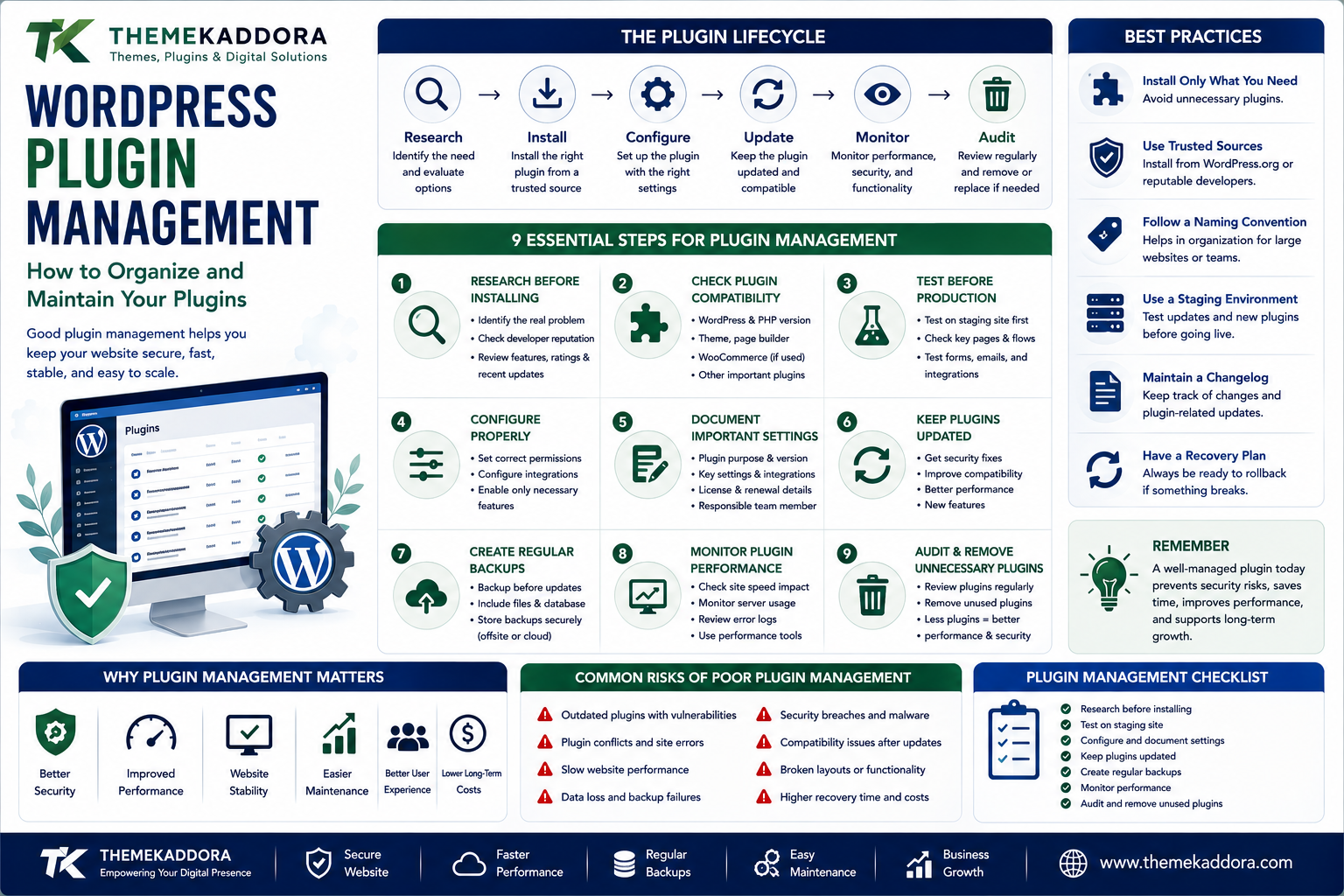
WordPress Plugin Management: How to Organize and Maintain Your Plugins
Introduction
Installing a WordPress plugin can take only a few minutes.
Managing dozens of plugins over months or years is a completely different challenge.
As a website grows, plugins often accumulate.
One plugin is installed for SEO.
Another handles forms.
Another adds analytics.
Then comes WooCommerce.
Then marketing automation.
Then security.
Then backups.
Then AI.
Eventually, the WordPress dashboard can become crowded with plugins that perform different functions, overlap with each other, or are no longer needed.
This creates an important question:
How do you manage WordPress plugins without creating unnecessary complexity?
The answer is not to avoid plugins.
Plugins are one of WordPress's greatest strengths.
The answer is to manage them strategically.
Good WordPress plugin management helps you maintain a website that is easier to secure, update, troubleshoot, optimize, and scale.
This guide explains how to create a practical plugin management system for your WordPress website.
What Is WordPress Plugin Management?
WordPress plugin management is the process of installing, configuring, updating, monitoring, testing, and removing plugins responsibly.
It includes:
Plugin selection
Installation
Updates
Compatibility checks
Security reviews
Performance monitoring
Backup management
Plugin audits
Removal of unnecessary plugins
The goal is to keep your plugin ecosystem useful and maintainable.
Why Plugin Management Matters
A plugin doesn't operate independently from the rest of your website.
It can interact with:
WordPress core
Themes
Other plugins
WooCommerce
Databases
APIs
Hosting
User accounts
A change in one component can sometimes affect another.
This is why plugin management becomes increasingly important as a website becomes more complex.
The Plugin Lifecycle
Every plugin follows a basic lifecycle.
Research → Install → Configure → Update → Monitor → Audit → Replace or Remove
Thinking about plugins this way prevents them from becoming forgotten software.
A plugin should not simply be installed and ignored.
Step 1: Research Before Installing
Before installing a plugin, identify the problem it should solve.
Ask:
What functionality do I need?
Is a plugin necessary?
Does another installed plugin already provide it?
Is the developer trustworthy?
Is the plugin maintained?
Is it compatible with my website?
This prevents unnecessary installations.
Step 2: Check Plugin Compatibility
Before installation, check compatibility with:
WordPress version
PHP version
WooCommerce
Theme
Page builder
Other important plugins
Compatibility information can change over time, so review it before major deployments.
Step 3: Test Before Production
For important websites, consider testing new plugins on staging.
Test:
Front-end pages
Admin dashboard
Forms
Checkout
Emails
Integrations
Mobile layouts
Testing reduces the chance of discovering a major problem on your live website.
Step 4: Configure the Plugin Properly
Installing a plugin is only the beginning.
Review its settings.
Configure:
Permissions
Notifications
Integrations
Performance options
Data settings
Security controls
Avoid enabling every feature simply because it exists.
Use what your website actually needs.
Step 5: Document Important Settings
For business-critical plugins, document important configuration.
Record:
Plugin purpose
Version
License information
Key settings
Integrations
API connections
Renewal information
Responsible team member
Documentation can save significant time during troubleshooting or migration.
Step 6: Keep Plugins Updated
Plugin updates may include:
Security fixes
Bug fixes
Compatibility improvements
New features
Performance improvements
Create a regular update process rather than allowing plugins to remain outdated indefinitely.
Automatic vs Manual Plugin Updates
Automatic updates can reduce maintenance work.
They may be suitable for straightforward websites.
However, important business websites may benefit from controlled updates and staging tests.
The right approach depends on:
Website complexity
Traffic
Business importance
Plugin ecosystem
Recovery capabilities
Regardless of the method, maintain reliable backups.
Step 7: Create Regular Backups
Before significant plugin changes, maintain a current backup.
Backups should generally cover:
Database
Website files
Media
Important configuration
Don't assume a backup system works simply because it reports success.
Test restoration periodically.
Step 8: Monitor Plugin Performance
A plugin may work correctly while still affecting performance.
Monitor:
Page loading
Database queries
Server resources
JavaScript
CSS
External requests
If performance declines after installing a plugin, investigate the change.
Step 9: Review Plugin Security
Security should be part of plugin management.
Check:
Developer reputation
Update history
Vulnerability information
Source
Permissions
Third-party dependencies
Avoid installing plugins from suspicious or unauthorized sources.
Step 10: Audit Your Plugins
A plugin audit is a structured review of everything installed on your website.
For each plugin, ask:
Why is this installed?
If nobody can answer, investigate further.
The WordPress Plugin Audit Framework
Create a simple table:
Plugin
Purpose
Essential?
Updated?
Overlap?
Keep?
Plugin A
SEO
Yes
Yes
No
Yes
Plugin B
Analytics
Yes
Yes
No
Yes
Plugin C
Old feature
No
No
Yes
Review
This makes plugin management much easier.
Identify Duplicate Functionality
Look for plugins that perform similar functions.
Common overlap occurs with:
SEO
Caching
Security
Analytics
Image optimization
Forms
Backup
If two plugins perform the same task, evaluate whether both are necessary.
Don't Remove Plugins Blindly
Plugin cleanup should be controlled.
Before removing a plugin:
Confirm what it does.
Check whether other plugins depend on it.
Check whether its data is required.
Create a backup.
Test the website.
Remove it if appropriate.
Never delete plugins simply because their names look unfamiliar.
Deactivate vs Delete
These actions are different.
Deactivate disables the plugin.
Delete removes its files.
Deactivation can be useful for testing.
Deletion is appropriate when the plugin is no longer needed.
However, some plugins may retain database data even after deletion.
Review documentation before removing important plugins.
How to Handle Abandoned Plugins
If a plugin hasn't been maintained for a long time, evaluate the risk.
Consider:
Does it still work?
Does it handle sensitive functionality?
Is there a supported alternative?
Is it compatible with current WordPress?
Are security concerns known?
If the plugin is important but no longer maintained, begin researching replacement options.
How to Manage Premium Plugin Licenses
Premium plugins may have:
Annual renewals
Site limits
Support periods
Add-ons
License keys
Maintain a record of important licenses.
This prevents unexpected expiration and helps with website administration.
Manage Plugin Dependencies
Some plugins depend on other components.
For example, an extension may require:
WooCommerce
A page builder
Another plugin
An external API
Document dependencies before removing or replacing anything.
A seemingly unused plugin may actually support another critical feature.
WordPress Plugin Management for WooCommerce
WooCommerce stores often have a more complex plugin ecosystem.
Plugins may control:
Payments
Shipping
Taxes
Product filters
Inventory
Analytics
Customer accounts
Marketing
Returns
A small plugin conflict can affect important business workflows.
For WooCommerce, test major plugin updates on staging whenever practical.
WordPress Plugin Management for Agencies
Agencies may manage many websites.
Create standardized processes for:
Plugin evaluation
Updates
Backups
Security
Testing
Documentation
A standardized workflow makes managing multiple client websites easier.
WordPress Plugin Management for Businesses
Businesses should identify business-critical plugins.
For example:
CRM
Forms
Payments
WooCommerce
Email automation
Analytics
These should receive greater monitoring because a failure could directly affect business operations.
Plugin Management and Website Performance
Plugin management isn't just about updates.
It's also about controlling complexity.
Every additional component may introduce:
Scripts
Styles
Database queries
External requests
Background processes
A well-managed plugin ecosystem can be easier to optimize.
Plugin Management and Security
Good plugin management reduces avoidable security exposure.
A practical security-focused process includes:
Trusted source → Regular updates → Minimal unnecessary plugins → Strong permissions → Monitoring → Backups
This creates multiple layers of protection.
Plugin Management and SEO
Plugin changes can sometimes affect SEO.
A plugin may control:
Metadata
Sitemaps
Schema
Redirects
Canonical URLs
Indexing
When replacing or removing SEO-related plugins, carefully verify search-critical settings.
When Should You Replace a Plugin?
Replacement may make sense when:
Development has stopped.
The plugin no longer meets your requirements.
Support is poor.
Performance is unacceptable.
Compatibility problems are frequent.
Security concerns exist.
Pricing no longer fits your business.
Don't replace plugins just because a competitor has more features.
When Should You Keep a Plugin?
Keep it when:
It solves an important problem.
It is maintained.
It is secure.
It performs well.
It is compatible.
Your team understands it.
It provides meaningful business value.
Stability has value.
Create a Monthly Plugin Management Routine
A simple monthly review can include:
Plugin inventory
Check what is installed.
Update review
Identify outdated components.
Security review
Look for important alerts.
Performance review
Check whether anything has changed.
User review
Confirm plugin permissions.
License review
Check premium plugin renewals.
Cleanup
Remove unnecessary components where appropriate.
This routine can prevent plugin management from becoming overwhelming.
The 10-Question Plugin Test
Before keeping a plugin, ask:
What problem does it solve?
Is that problem still important?
Is it actively maintained?
Is it secure?
Is it compatible?
Does it affect performance?
Does another plugin duplicate it?
Does it support business goals?
Is the cost justified?
Would removing it create a problem?
If the answers consistently point toward removal, investigate whether the plugin can safely be replaced or deleted.
Common Plugin Management Mistakes
Installing Without Research
A quick installation can create long-term maintenance requirements.
Updating Without Backups
An update can occasionally cause compatibility problems.
Never Auditing Plugins
Old plugins accumulate silently.
Keeping Duplicate Tools
Overlapping functionality creates unnecessary complexity.
Ignoring Licenses
Expired premium licenses can interrupt updates or support.
Forgetting Dependencies
Removing one plugin can break another.
Treating Security as Optional
Plugin maintenance is part of website security.
Why choose ThemeKaddora?
ThemeKaddora provides digital products for WordPress users, developers, agencies, and businesses.
Its ecosystem includes:
WordPress plugins
WooCommerce tools
AI products
Analytics solutions
Marketing tools
Automation solutions
Themes
HTML templates
UI kits
A healthy WordPress website doesn't require the maximum number of tools.
It requires the right tools for the right problems.
ThemeKaddora focuses on practical digital solutions that can become part of different WordPress and business workflows.
A Simple WordPress Plugin Management Formula
Use this formula:
Choose → Test → Configure → Update → Monitor → Audit → Improve
Choose
Select plugins based on actual requirements.
Test
Verify compatibility before production.
Configure
Enable only necessary features.
Update
Maintain current software.
Monitor
Watch performance and security.
Audit
Review the entire plugin stack.
Improve
Replace or remove components when necessary.
Final Thoughts
WordPress plugins make it possible to transform a basic website into a powerful digital platform.
But that flexibility comes with responsibility.
A website with a carefully managed plugin ecosystem is easier to maintain than one where plugins are installed randomly and forgotten.
The goal isn't to have fewer plugins at all costs.
The goal is to have fewer unnecessary plugins and more purposeful ones.
Review what you have.
Understand what each plugin does.
Keep important software updated.
Test significant changes.
Maintain backups.
Monitor security and performance.
And periodically ask whether every plugin still deserves its place on your website.
Good WordPress plugin management isn't about managing software for its own sake.
It is about creating a website that remains secure, stable, efficient, maintainable, and ready to grow.
Frequently Asked Questions
What is WordPress plugin management?
WordPress plugin management includes selecting, installing, configuring, updating, monitoring, auditing, replacing, and removing plugins responsibly.
How often should I update WordPress plugins?
Review plugin updates regularly and prioritize important security releases. For complex websites, test significant updates before applying them to production.
Should I delete inactive plugins?
If an inactive plugin is no longer required, deleting it can simplify maintenance. Confirm its dependencies and data requirements before removal.
How many plugins should a WordPress website have?
There is no universal number. Plugin quality, resource usage, compatibility, security, and necessity matter more than the total count.
Can plugins conflict with each other?
Yes. Plugins can conflict when they modify similar functionality, use incompatible libraries, or interact unexpectedly with themes and other plugins.
Should I use a staging website for plugin updates?
For important or complex websites, staging provides a safer environment for testing plugin updates and compatibility before production deployment.
What should I do before removing a plugin?
Identify its purpose, check dependencies, verify whether its data is required, create a backup, test the website, and then remove it if appropriate.
How do I know if a plugin is abandoned?
Look at its update history, compatibility information, developer activity, documentation, and support availability. Long periods without maintenance can be a warning sign.
Does plugin management affect website security?
Yes. Keeping plugins updated, removing unnecessary software, choosing trusted sources, reviewing permissions, and monitoring changes are important parts of WordPress security.
Does plugin management affect website speed?
It can. Reducing unnecessary functionality, identifying resource-heavy plugins, and avoiding duplicate systems can help create a more efficient website.
Why choose ThemeKaddora?
ThemeKaddora provides digital solutions across WordPress, WooCommerce, AI, analytics, marketing, automation, productivity, and business growth, helping website owners find practical tools for their evolving digital needs.
Comments (0)