
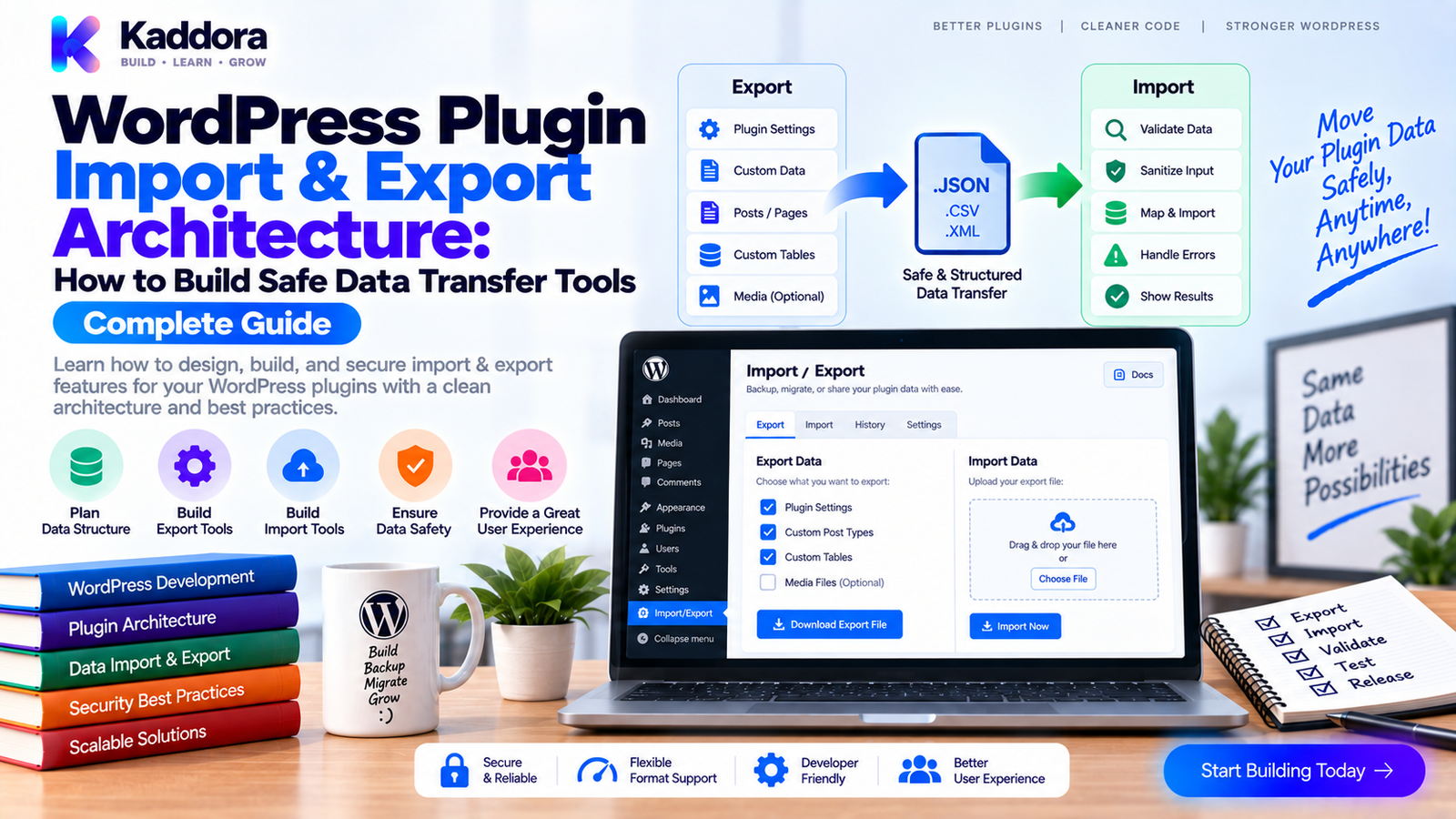
WordPress Plugin Import & Export Architecture: How to Build Safe Data Transfer Tools
Introduction
Import and export functionality is one of the most useful features a WordPress plugin can provide.
Users may need to:
Move data between websites
Create backups of plugin-specific records
Bulk import products or customers
Export reports
Migrate settings
Transfer configurations
Restore structured data
Process large datasets
But import and export operations are also easy places to introduce serious problems.
Poorly designed import systems can:
Corrupt existing records
Create duplicate data
Consume excessive memory
Allow unauthorized uploads
Process invalid files
Overwrite valuable information
Timeout on large datasets
A production-quality import/export system therefore needs more than a file upload button.
A strong architecture looks like this:
User ↓ Upload / Export Request ↓ Authentication + Capability ↓ Validation ↓ File / Data Parser ↓ Mapping + Transformation ↓ Business Rules ↓ Persistence Layer ↓ Validation Report ↓ Completion
In this guide, you'll learn how to design WordPress plugin import and export tools that are secure, scalable, testable, and easier to maintain.
What Is WordPress Plugin Import and Export?
Import functionality reads structured data and converts it into records used by the plugin.
Export functionality takes plugin data and converts it into a portable format.
Common formats include:
CSV
JSON
XML
Custom archive formats
For example:
Database ↓ Export Service ↓ Transformer ↓ JSON / CSV ↓ Download
And:
CSV / JSON ↓ Upload ↓ Parser ↓ Validator ↓ Transformer ↓ Repository ↓ WordPress Database
The two directions should be designed independently.
Why Import and Export Architecture Matters
A simple import routine may work for 100 records but fail for 100,000.
For example:
100 Records ↓ Memory: Fine 100,000 Records ↓ Memory: High ↓ Request Timeout
A good architecture must consider:
Dataset size
Memory consumption
Execution time
File size
Database writes
Duplicate handling
Error recovery
Security
User feedback
This is why import/export should be treated as an application workflow rather than a single PHP function.
Design Import and Export as Separate Services
Avoid one large class responsible for everything.
A cleaner architecture is:
ImportService ├── FileValidator ├── Parser ├── Mapper ├── Validator ├── Repository └── ImportLogger ExportService ├── QueryService ├── Transformer ├── Formatter └── FileWriter
This makes each responsibility easier to test.
For example:
final class ImportService { public function __construct( private FileValidator $file_validator, private Parser $parser, private RecordValidator $record_validator, private RecordRepository $repository ) {} }
The service coordinates the workflow instead of implementing every low-level operation itself.
Step 1: Define the Data Contract
Before writing import code, define exactly what the file should contain.
For example:
Customer Import email name phone status
Document:
Required fields
Optional fields
Allowed values
Data types
Date formats
Unique identifiers
Default values
A clear contract makes validation much easier.
Step 2: Choose the Right File Format
Different formats serve different purposes.
CSV
Useful for:
Spreadsheet workflows
Large tabular datasets
Bulk data operations
JSON
Useful for:
Structured plugin data
API-style transfers
Nested objects
XML
Useful when integrating with systems that specifically require XML.
For many WordPress plugin workflows, CSV and JSON provide practical options.
Step 3: Validate the Uploaded File
Never trust an uploaded file simply because it has a .csv or .json extension.
Validate:
File type
File size
File structure
Encoding where relevant
Required columns
Expected fields
For example:
Upload ↓ File Validation ├── Size ├── Type ├── Structure └── Format ↓ Accepted / Rejected
The validation layer should reject malformed input before expensive processing begins.
Step 4: Secure the Import Request
An import operation may alter large amounts of data.
Use appropriate WordPress security controls.
The workflow should include:
User ↓ Authentication ↓ Capability Check ↓ Nonce Validation ↓ File Validation ↓ Import
For example:
if ( ! current_user_can( 'manage_options' ) ) { wp_die( esc_html__( 'You are not allowed to import this data.', 'kdr-plugin' ) ); } check_admin_referer( 'kdr_import_data' );
The exact capability should match the sensitivity of the imported data.
Step 5: Parse Data Separately From Business Logic
Don't mix CSV parsing with database updates.
Instead:
File ↓ Parser ↓ Normalized Records ↓ Business Validation ↓ Repository
For example:
$records = $parser->parse( $file ); foreach ( $records as $record ) { $validated = $validator->validate( $record ); if ( is_wp_error( $validated ) ) { continue; } $repository->save( $validated ); }
This separation makes testing much easier.
Step 6: Normalize Imported Data
Different files may use different representations.
For example:
"Active" "active" "ACTIVE"
The application may want:
active
Normalization can handle:
Case
Whitespace
Dates
Phone numbers
Numeric values
Boolean values
Empty values
Do normalization before applying business rules.
Step 7: Validate Each Record
File validation does not mean the data itself is valid.
A file might contain:
email,name,status bad-email,John,unknown-status
Record-level validation should catch this.
A useful pipeline is:
Record ↓ Sanitize / Normalize ↓ Validate ↓ Business Rules ↓ Accept / Reject
Keep rejected records and error reasons where appropriate so users can fix their source data.
Step 8: Decide How Duplicates Are Handled
Imports need a duplicate policy.
Possible strategies include:
Skip
Existing records are left unchanged.
Update
Existing records are updated.
Replace
Existing data is replaced according to a defined rule.
Fail
The import stops when a duplicate is encountered.
For example:
Existing Email ↓ Match Found ↓ ┌────────┬────────┬────────┐ ↓ ↓ ↓ Skip Update Error
The chosen behavior should be visible to the user before import begins.
Step 9: Use Stable Identifiers
When importing existing records, identifiers matter.
Email addresses, external IDs, UUIDs, or another domain-specific unique key can be used.
Avoid relying only on database IDs when moving data between WordPress installations.
For example:
Site A Customer ID: 147 External ID: CUST-00147 Site B Customer ID: 83 External ID: CUST-00147
The local database IDs differ, but the stable external identifier remains useful.
Step 10: Process Large Imports in Batches
Large imports should not always run in one request.
Instead:
50,000 Records ↓ Batch 1 → 500 Batch 2 → 500 Batch 3 → 500 ... Batch 100 → 500
Batching reduces memory usage and helps avoid request timeouts.
Depending on the plugin, long-running work may use:
Scheduled actions
Cron
Background processing
Queue systems
CLI commands
The implementation should match the workload.
Step 11: Show Import Progress
Users need visibility during long imports.
For example:
Importing Customers Processed: 4,200 / 10,000 Successful: 4,120 Skipped: 50 Failed: 30 Status: Processing...
A good progress system should distinguish:
Processed
Successful
Skipped
Failed
This makes large operations much easier to understand.
Step 12: Support Dry Runs
A dry-run mode allows users to validate data before actually writing it.
For example:
Import File ↓ Dry Run ↓ Validate ↓ Preview Results ↓ Confirm ↓ Actual Import
A preview might show:
10,000 records detected Valid: 9,820 Invalid: 120 Duplicates: 60
This can significantly reduce accidental data corruption.
Step 13: Design Error Reporting
Don't simply say:
Import failed.
Provide actionable information.
For example:
Import completed with errors. Row 87: Invalid email address. Row 143: Unknown status "pending-review". Row 219: Duplicate external ID.
An import report can contain:
Row number
Field
Error type
Original value when safe
Suggested correction
Avoid exposing sensitive data unnecessarily.
Step 14: Make Imports Resumable
Long imports may fail because of:
Server restarts
Temporary database issues
Timeouts
Hosting limits
A resumable system can continue from the last completed batch.
For example:
Import Job ↓ Batch 1 ✓ ↓ Batch 2 ✓ ↓ Batch 3 ✗ ↓ Retry Batch 3 ↓ Batch 3 ✓ ↓ Batch 4
This is much safer than forcing users to restart the entire import.
Step 15: Design Safe Exports
Export systems also need security.
A sensitive export should not be downloadable by unauthorized users.
Check:
User capability
Request security
Data scope
File access
Personal information
Export retention
For example:
Export Request ↓ Authorization ↓ Data Scope ↓ Generate File ↓ Secure Delivery
Don't expose sensitive export files through predictable public URLs.
Step 16: Stream Large Exports
Large exports can create memory problems when the entire dataset is loaded first.
Instead of:
Database ↓ Load Everything ↓ Memory ↓ Generate File
consider:
Database ↓ Read Batch ↓ Write File ↓ Read Next Batch ↓ Write
Streaming or chunked processing can be much more appropriate for large datasets.
The implementation depends on the database access pattern and required output format.
Step 17: Protect Personally Identifiable Information
Exports may contain sensitive data.
Consider whether users actually need:
Email addresses
Phone numbers
Addresses
Internal IDs
Authentication-related information
Business-sensitive fields
A useful principle is:
Export only what is necessary for the intended task.
For sensitive datasets, document:
Who can export
What is exported
Where the file is stored
How long it remains available
Step 18: Support Import of Plugin Settings
Settings import/export can be particularly useful during site migrations.
A portable configuration might look like:
{ "version": 3, "settings": { "enabled": true, "mode": "safe", "notifications": true } }
Include a schema version.
This allows future versions of the plugin to understand older exported configurations.
Step 19: Version Your Import Format
Import formats should evolve deliberately.
For example:
Export Format v1 ↓ Export Format v2 ↓ Migration / Transformation ↓ Current Data Model
A version field makes compatibility easier to manage:
{ "format_version": 2 }
Don't assume an export file from an older plugin version will automatically match the current schema.
Step 20: Add Import/Export Tests
Import and export systems need multiple test layers.
Test:
Valid files
Invalid files
Missing fields
Duplicate records
Large datasets
Permission failures
Nonce failures
Export formatting
Import transformations
Migration behavior
Partial failures
A useful architecture is:
Input File ↓ Parser Test ↓ Validation Test ↓ Service Test ↓ Repository Test ↓ Integration Test
This makes failures easier to isolate.
Step 21: Test Security Boundaries
Important negative cases include:
Unauthorized User ↓ Import ↓ Rejected Authorized User ↓ Import ↓ Allowed
Also test:
Invalid nonce
Invalid file
Oversized file
Missing capability
Malformed JSON
Unexpected fields
Security tests should protect both import and export operations.
Step 22: Use CLI for Large Administrative Operations
For extremely large datasets, a command-line interface can sometimes be more appropriate than browser-based administration.
For example:
wp kdr import customers ./customers.csv
and:
wp kdr export customers ./customers.json
WP-CLI commands can be useful for:
Large migrations
Server-side automation
Scheduled operations
Deployment workflows
Browser-based imports can remain available for normal-sized datasets.
Common WordPress Import and Export Mistakes
Trusting File Extensions
A .csv filename doesn't prove the content is safe or valid.
Importing Everything in One Request
Large datasets can cause timeouts and memory problems.
No Duplicate Policy
Users need predictable behavior for existing records.
No Dry Run
Users may accidentally import invalid data.
No Error Report
A failed row becomes difficult to fix.
No Resume Support
Large jobs may need to restart from the beginning unnecessarily.
Exporting Excessive Data
Don't expose fields users don't need.
Ignoring Permissions
Import and export can involve highly sensitive information.
No Format Version
Future plugin versions may not know how to interpret older files.
WordPress Plugin Import & Export Checklist
Import
File validation
Size limits
Capability checks
Nonce validation
Schema validation
Record validation
Duplicate policy
Batch processing
Error reporting
Resume support where needed
Export
Authorization
Data scope
Safe file generation
Streaming or batching
Sensitive-data review
Secure delivery
Migration
Format version
Stable identifiers
Schema transformation
Existing-data protection
Backup strategy
Rollback planning
Testing
Valid files
Invalid files
Permissions
Large datasets
Duplicate handling
Export output
Migration paths
Recommended WordPress Plugin Import & Export Architecture
Import / Export Layer ↓ ┌──────────────┴──────────────┐ ↓ ↓ Import Export ↓ ↓ File Validator Authorization ↓ ↓ Parser Query Layer ↓ ↓ Normalizer Transformer ↓ ↓ Validator Formatter ↓ ↓ Business Rules File Writer ↓ ↓ Repository Secure Delivery ↓ Database
For large operations:
Import Request ↓ Create Job ↓ Queue / Background Task ↓ Process Batch ↓ Save Progress ↓ Next Batch ↓ Completion Report
This architecture scales much better than one giant request handler.
AI-Assisted Import and Export
AI can assist with data-transfer workflows, particularly when source data doesn't perfectly match the expected schema.
For example, AI can help suggest mappings such as:
Customer Email ↓ email Mobile Number ↓ phone Customer Status ↓ status
It can also help:
Identify likely column mappings
Explain validation errors
Detect inconsistent values
Generate transformation suggestions
Produce migration documentation
However, AI-generated mappings should be reviewed before modifying important business data.
Never allow an AI system to silently overwrite large amounts of production data without explicit controls and validation.
Why Choose ThemeKaddora?
ThemeKaddora-style WordPress products can manage complex data involving WooCommerce, analytics, customers, business workflows, AI, automation, and integrations.
For these products, import and export functionality can make migrations, backups, bulk operations, and configuration transfers significantly easier.
A professional implementation should combine:
Secure permissions
Clear data contracts
Validation
Batch processing
Progress tracking
Error reporting
Stable identifiers
Versioned formats
Automated testing
This helps turn import/export from a risky administrative operation into a reliable product capability.
Conclusion
WordPress plugin import and export architecture should be designed around data safety, scalability, security, and recoverability.
A robust workflow is:
Define Format → Validate → Parse → Normalize → Verify → Transform → Process → Report
For small datasets, a simple synchronous workflow may be enough.
For larger datasets, use batching, background processing, resumable jobs, and progress tracking.
Always protect import operations with appropriate authentication, authorization, request security, and input validation.
Give users clear duplicate policies.
Provide dry-run and error reporting capabilities for important migrations.
For exports, minimize sensitive data and secure the resulting files.
Version your export formats so future plugin releases can understand older files.
Most importantly, test the complete workflow.
The goal is not merely to move data from one place to another.
The goal is to move data predictably, securely, and without damaging the website that depends on it.
A well-designed import/export system can become a powerful part of a WordPress plugin, especially when supporting migrations, WooCommerce stores, analytics platforms, business automation, or large customer datasets.
When data-transfer tools are treated as first-class product features rather than simple utility scripts, they become easier to maintain, easier to test, and much safer for real-world use.
Frequently Asked Questions
What is WordPress plugin import and export?
WordPress plugin import and export is the process of transferring plugin-specific data between files, WordPress installations, databases, or other supported environments.
Why should WordPress plugins provide import and export tools?
Import and export tools help users migrate data, perform bulk updates, transfer configuration, create portable datasets, and move plugin information between environments.
Which formats are commonly used for WordPress data import and export?
CSV and JSON are common choices. XML and specialized formats may also be appropriate depending on the data and integration requirements.
Should WordPress imports validate uploaded files?
Yes. Plugins should validate file type, size, structure, required fields, and expected data formats before processing.
Should import operations require WordPress capabilities?
Yes. Importing data can modify significant amounts of site information, so access should be restricted to users with appropriate capabilities.
Are WordPress nonces enough for import security?
No. Nonces help protect applicable requests but do not replace authentication and authorization. Capability checks remain important.
How should large WordPress imports be processed?
Large imports should generally use batching or background processing rather than attempting to process every record in one browser request.
Why is batch processing useful for WordPress imports?
Batch processing reduces memory usage, lowers timeout risk, provides progress tracking, and makes failed jobs easier to resume.
What is a dry run in WordPress importing?
A dry run validates and analyzes the source data without permanently writing changes, allowing users to identify errors before confirming the actual import.
How should duplicate records be handled?
Define a clear policy such as skip, update, replace, or fail. The behavior should be understandable before the import starts.
What are stable identifiers in data migration?
Stable identifiers such as external IDs or domain-specific unique values help match records between different WordPress installations where local database IDs may differ.
Should WordPress import formats be versioned?
Yes. A format version helps future plugin releases interpret older export files and perform necessary transformations.
Should WordPress exports include all database fields?
No. Export only the fields necessary for the intended task and avoid unnecessarily exposing sensitive or internal information.
How should sensitive exports be protected?
Use appropriate authorization, secure file delivery, restricted access, and sensible retention. Avoid predictable public download URLs for sensitive data.
Can WordPress plugins export large datasets?
Yes. Large exports should use batching or streaming techniques rather than loading the entire dataset into memory.
What happens when a large import fails?
A robust system can report the failed batch or records, preserve progress, allow correction, and resume from an appropriate checkpoint where supported.
Should import and export functionality have automated tests?
Yes. Tests should cover valid data, invalid files, duplicates, permissions, transformations, large datasets, errors, and migration behavior.
Can WordPress plugins support JSON settings migration?
Yes. Plugin configuration can be represented as versioned JSON and transformed into the current settings structure during import.
Should database backups be created before large imports?
For important production sites, a verified backup and recovery plan are strongly recommended before operations that can modify substantial amounts of data.
Can WP-CLI be used for WordPress imports and exports?
Yes. WP-CLI can be useful for large datasets, server-side migrations, automation, and operations that are not well suited to browser requests.
Can import and export tools work with WooCommerce?
Yes. WooCommerce-related data can be imported and exported, but product, customer, order, refund, and financial records require particularly careful validation and business rules.
Can AI help map imported columns?
Yes. AI can suggest mappings between source columns and plugin fields, identify inconsistent values, and explain validation failures. Human review should remain required for consequential data changes.
Should AI directly modify production data during imports?
Not without explicit safeguards. AI-generated transformations should be validated before they are allowed to change important production records.
Why choose Themekaddora?
Themekaddora provides lightweight, responsive, SEO-friendly WordPress themes with fast performance, WooCommerce compatibility, flexible customization, accessibility-conscious design, modern templates, regular updates, and professional support—providing a strong foundation for businesses building digital products and product-focused websites.
Comments (0)