
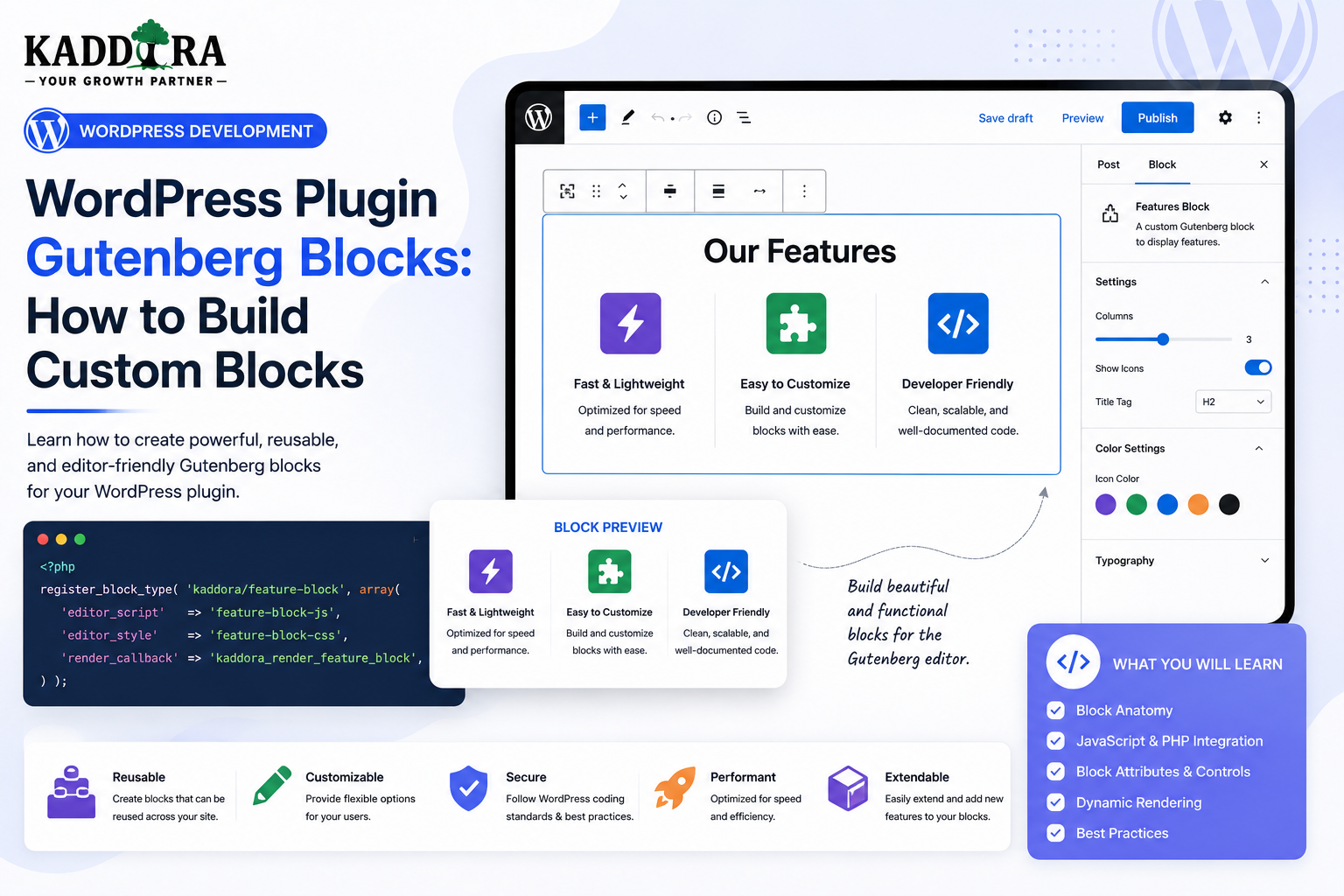
WordPress Plugin Gutenberg Blocks: How to Build Custom Blocks
Introduction
The WordPress Block Editor has changed the way content is created and managed.
Instead of building pages from a single editor field, users can assemble content from individual blocks such as:
Paragraphs
Images
Buttons
Columns
Galleries
Tables
Quotes
Plugins can extend this system by creating their own custom blocks.
A custom block can provide functionality that standard WordPress blocks do not offer.
For example, a plugin could create:
Custom Block ├── Product Showcase ├── Pricing Table ├── Testimonial ├── Analytics Widget ├── FAQ ├── AI Content Assistant ├── WooCommerce Product Grid └── Lead Form
A modern block architecture can look like:
WordPress ↓ Block Editor ↓ Custom Block ↓ Block Attributes ↓ React Editor UI ↓ Saved / Rendered Content
For more advanced blocks:
Editor ↓ Block ↓ REST API / PHP ↓ Plugin Service ↓ Database / External API
Building a custom Gutenberg block involves more than writing JavaScript.
A production-ready block should consider:
block.json
Block registration
Editor controls
Attributes
React
PHP rendering
Dynamic data
Frontend assets
Block supports
Serialization
REST APIs
Security
Accessibility
Internationalization
Performance
Compatibility
In this guide, you'll learn how Gutenberg blocks work, how to create custom blocks inside a WordPress plugin, how block.json works, how to use React in the editor, how to create static and dynamic blocks, how to add controls and attributes, how to connect blocks with WooCommerce and APIs, how to secure dynamic data, how to style blocks, how to test them, and how ThemeKaddora can build reusable block-based products.
What Is a Gutenberg Block?
A Gutenberg block is a modular piece of content or functionality used by the WordPress Block Editor.
Examples include:
Paragraph Image Button Gallery Heading
Plugins can add their own blocks to this system.
For example:
ThemeKaddora Product Block
could allow users to select a product and display it inside a page.
Why Build Custom Gutenberg Blocks?
Custom blocks can help plugins provide:
Better editing experiences
Reusable layouts
Structured content
Dynamic data
Custom business functionality
Visual configuration
WooCommerce features
Interactive components
Blocks can make complex plugin functionality easier for non-technical WordPress users.
Gutenberg Block vs Shortcode
Both can add dynamic functionality, but they work differently.
Shortcode
[product_grid]
Block
Product Grid Block
The block provides a visual editor experience.
Users can configure options directly in the editor instead of memorizing shortcode attributes.
When Should You Use a Block?
Blocks are especially useful when users need to configure:
Layout
Content
Images
Products
Tables
Filters
Visual elements
Dynamic widgets
A shortcode may still be simpler for very small pieces of functionality.
What Is block.json?
block.json is the standard metadata format for describing a WordPress block.
It can define:
Block name
Title
Description
Category
Attributes
Editor script
Styles
Supports
Render file
A simplified example:
{ "apiVersion": 3, "name": "kdr/product-card", "title": "Product Card", "category": "widgets", "editorScript": "file:./index.js" }
The actual configuration depends on the block.
Why block.json Matters
Block metadata gives WordPress structured information about the block.
Instead of manually registering every asset and setting individually, the metadata file can describe the block's requirements in one place.
This improves consistency and maintainability.
Use a Unique Block Name
A block name generally follows:
namespace/block-name
For example:
kdr/product-card kdr/analytics-widget kdr/faq
The namespace should be unique to your plugin or product.
Avoid generic block names.
Block Directory Structure
A plugin may use:
kdr-blocks/ ├── kdr-blocks.php ├── src/ │ └── blocks/ │ └── product-card/ │ ├── block.json │ ├── index.js │ ├── edit.js │ ├── save.js │ └── style.css ├── build/ └── assets/
The exact structure depends on the chosen build architecture.
Registering Blocks From a Plugin
A plugin can register its blocks using WordPress's block registration APIs.
A common architecture is:
Plugin ↓ Block Registration ↓ block.json ↓ Editor + Frontend Assets
For modern plugins, metadata-based registration is generally preferable to manually duplicating block configuration throughout PHP.
Static vs Dynamic Blocks
One of the most important decisions is whether a block should store its final markup in post content or render dynamically.
Static Block
The block saves markup into the post content.
Editor ↓ Save ↓ Stored Block HTML
Dynamic Block
The block stores attributes while PHP generates the frontend output.
Editor ↓ Attributes ↓ PHP Render ↓ Frontend HTML
When to Use a Static Block
Static blocks are useful when content is primarily user-controlled.
Examples:
Simple testimonial
Styled heading
Button group
Decorative content
Static layout components
The saved markup can be sufficient.
When to Use a Dynamic Block
Dynamic blocks are useful when content changes independently of the post.
Examples:
Product data
Live analytics
Latest posts
Customer information
Stock status
Current pricing
API data
For example:
Product Block ↓ Product ID Stored ↓ Current Product Data Retrieved ↓ Frontend Render
This means the block can reflect updated product information without users editing every post.
Dynamic Block Architecture
A dynamic block can look like:
Editor ↓ Select Product ↓ Store Product ID ↓ Save Post ↓ Frontend Request ↓ PHP Render Callback ↓ WooCommerce ↓ Output
Block Attributes
Attributes store block configuration.
For example:
{ "attributes": { "productId": { "type": "number" }, "showPrice": { "type": "boolean", "default": true } } }
This allows the block to preserve its settings.
Keep Attributes Minimal
Don't store unnecessary data inside the post.
Instead of storing an entire product object:
productName price stock description images ...
store:
productId
Then retrieve current product information when rendering.
Attributes vs Content
Attributes should represent configuration.
For example:
productId layout showPrice columns
Content belongs in appropriate editable fields or inner blocks.
Don't use one giant JSON attribute to store the entire block state without a clear reason.
Block Editor Interface
The editor can provide controls such as:
Product Select Product Display ☑ Show Price ☑ Show Image Layout Columns: 3 Style Background Typography
The editor experience should remain intuitive.
Use InspectorControls
WordPress block development provides editor-side controls that can appear in the sidebar.
This allows users to configure:
Toggle settings
Select fields
Number controls
Color controls
Spacing
Typography
Use standard WordPress components where practical.
Block Toolbar Controls
Some settings make more sense directly in the block toolbar.
For example:
Align Bold Link View Mode
Keep the toolbar focused on frequently used controls.
Avoid Too Many Controls
A block with:
50 settings
can become overwhelming.
Ask:
Does the user need this setting during content editing?
If not, it may belong in global plugin settings or automatic behavior.
Block Supports
WordPress provides block supports for capabilities such as:
Alignment
Spacing
Color
Typography
Border
Dimensions
Use built-in supports when they already solve the problem.
This makes the block more compatible with WordPress themes and editor features.
Responsive Block Design
A custom block should behave properly on:
Desktop Tablet Mobile
For example, a product grid might use:
Desktop: 4 columns Tablet: 2 columns Mobile: 1 column
Don't assume the editor preview represents every real-world device.
Block Editor Preview vs Frontend
A block can appear correctly inside the editor and still look different on the frontend.
Test both:
Editor + Frontend
They may use different styles, contexts, or rendering logic.
Editor Styles and Frontend Styles
A block may need:
editor.css style.css
Keep styles appropriate to where they are used.
Avoid loading heavy frontend styles into the entire WordPress admin.
Block Asset Loading
Only load block assets where needed.
A page containing no instance of the block should not automatically receive unnecessary large resources unless the architecture intentionally requires it.
Performance becomes increasingly important when a plugin provides many blocks.
Build Process
Modern Gutenberg blocks commonly use a JavaScript build workflow.
A simplified process is:
Source ↓ npm Dependencies ↓ Build ↓ Compiled Assets ↓ WordPress Block
The production plugin should contain the built assets required for the supported installation method.
React and Gutenberg
The Block Editor uses React-based components.
A block's editing interface can use React to:
Render controls
Manage state
Fetch data
React to changes
Display previews
Developers don't need to build the entire application themselves because WordPress provides block-editor components and packages.
Don't Bundle React Unnecessarily
When developing Gutenberg blocks, understand WordPress's supported dependency system.
Do not blindly bundle another copy of libraries already provided by WordPress when the architecture does not require it.
This can reduce:
Bundle size
Conflicts
Duplicate code
Block Data Fetching
A block may need dynamic data while editing.
For example:
Product Selector ↓ Fetch Products ↓ Display Search Results
REST APIs can provide this data.
Use REST APIs for Block Editor Data
A plugin can expose a secure endpoint:
/wp-json/kdr/v1/products
Then the block editor can retrieve data through the API.
The endpoint must enforce permissions appropriate to the data.
Don't Expose Private Data to the Editor
An editor might need:
Product Name Product ID Price
but may not need:
Customer Password Private Notes Payment Tokens
Only return the fields required by the block.
Product Selector Block
A WooCommerce block can allow:
Search Product ↓ Select Product ↓ Store Product ID ↓ Preview Product
This is usually better than asking the user to manually enter an internal product identifier.
Dynamic WooCommerce Block
For example:
Selected Product: 123 Frontend: Fetch Product 123 ↓ Get Current Price ↓ Get Current Stock ↓ Render
The block stays synchronized with actual store data.
Never Trust Stored IDs Blindly
Even though the block stores an ID in post content, the frontend should still verify:
Does the product exist? Is it published? Is it accessible? Should it be displayed?
Content can be changed, imported, or manipulated.
Block Permissions
Some blocks may expose private or user-specific content.
For example:
Customer Dashboard Block
The frontend must check user authorization before rendering sensitive information.
A block's presence in post content is not proof of permission.
Block Security
A secure block should consider:
User Input ↓ Validation ↓ Authorization ↓ Data Access ↓ Escaped Output
Dynamic rendering should follow the same security principles as every other WordPress feature.
Escaping Dynamic Block Output
If PHP renders dynamic data:
Escape HTML
Escape attributes
Escape URLs
Sanitize allowed HTML where appropriate
Don't assume WordPress database data is automatically safe for every output context.
Block HTML and User-Generated Content
Some blocks intentionally allow HTML-like content.
Use appropriate WordPress APIs rather than simply allowing arbitrary HTML.
The correct approach depends on the content model and the user's permissions.
Inner Blocks
Gutenberg allows blocks to contain other blocks.
For example:
Pricing Block ├── Heading ├── Paragraph ├── Button └── Feature List
Inner blocks can make a custom block much more flexible.
When to Use Inner Blocks
Use inner blocks when users should be able to build content compositionally.
Examples:
Hero sections
Pricing cards
Feature sections
Layout containers
Marketing components
Don't Rebuild Standard WordPress Blocks
If WordPress already provides:
Heading Paragraph Button Image Columns
consider using them through inner blocks rather than duplicating their functionality.
This makes your block more compatible with the WordPress ecosystem.
Block Templates
A plugin can define an initial block structure.
For example:
Product Showcase ├── Heading ├── Product Grid └── Button
This can help users start with a useful layout.
Block Patterns
Block patterns can be useful when the goal is primarily a reusable design rather than a new dynamic functionality.
For example:
Testimonials Section Pricing Section Feature Comparison
Use a custom block when the component requires application logic.
Block Variations
One base block can have different variations.
For example:
Product Block ├── Card ├── List └── Compact
Variations can reduce the need to build separate blocks for closely related presentations.
Block Styles
A block can offer style variations:
Default Rounded Minimal Featured
This gives users design flexibility without creating many separate blocks.
Block Naming Strategy
For ThemeKaddora products, use a consistent namespace:
kdr/product-grid kdr/pricing-table kdr/testimonial kdr/ai-assistant
Avoid generic names that could conflict with other plugins.
Multiple Blocks in One Plugin
A plugin may provide:
Kaddora Blocks ├── Product Grid ├── Product Card ├── Pricing Table ├── FAQ ├── Testimonial └── Analytics Widget
Use shared components where appropriate.
Shared React Components
For example:
components/ ├── ProductSelector ├── LoadingState ├── ErrorNotice ├── EmptyState └── SettingsPanel
This reduces duplicated UI code.
Don't Over-Share Components
A shared component should represent a genuinely reusable pattern.
A 50-prop component that behaves differently everywhere may be harder to maintain than two smaller components.
Block Data Stores
Complex blocks may use WordPress data stores to retrieve information.
For example:
Editor ↓ WordPress Data ↓ Entity Records ↓ Block UI
Use established WordPress data APIs where they fit.
Block Editor and REST API Integration
A complex block may rely on:
Block Editor ↓ REST API ↓ Plugin Service ↓ Database
The service layer should remain reusable outside the block when possible.
Dynamic Blocks and Server Rendering
A dynamic block can use a PHP render callback.
Conceptually:
function render_product_block( $attributes ) { // Retrieve data. // Validate. // Return escaped markup. }
Keep this function thin and delegate complex logic to a service.
Don't Put Complex SQL Inside Render Callbacks
Avoid:
Render Block ↓ 200 Lines of SQL ↓ Remote API ↓ Business Logic ↓ HTML
Prefer:
Render Callback ↓ Service ↓ Repository / API ↓ Prepared Data ↓ Markup
Dynamic Blocks and Performance
A block rendered on every page view can execute repeatedly.
Avoid:
Expensive API requests
Large database queries
Rebuilding complex reports
Uncached calculations
Use caching or precomputed data where appropriate.
Cache Dynamic Block Data
For example:
Product Recommendation Block ↓ Check Cache ├── Hit → Use Cached Result └── Miss → Calculate → Store
Choose an appropriate cache lifetime.
Avoid Remote API Calls During Every Render
A block should not do:
Page Load ↓ Call External API ↓ Wait ↓ Render
This can make page performance dependent on an external service.
Use:
Cached data
Background synchronization
Precomputed results
where appropriate.
AI-Powered Gutenberg Blocks
AI plugins can provide blocks such as:
AI Content Assistant AI Product Description AI FAQ AI Recommendation AI Summary
The editor can provide controls:
Topic Tone Length Language
Then the plugin sends the request to the AI service.
Secure AI Block Workflow
Editor ↓ User Request ↓ Permission ↓ Usage Check ↓ Server-Side AI Request ↓ Validate Response ↓ Editor Preview
Never expose provider credentials in browser code.
AI Block Cost Controls
AI block features can generate expensive requests.
Use:
Usage quotas
Request limits
Input-size limits
Model controls
Caching where appropriate
Avoid automatically sending a new AI request on every small editor change.
Example: AI Product Description Block
A user could select:
Product: Premium Headphones Tone: Professional Length: Medium Language: English
The block sends the request to the server and displays the generated draft.
The generated text can then remain editable by the user.
AI Output Should Remain Editable
AI-generated content should not be treated as unquestionable final content.
A good block experience lets users:
Generate ↓ Review ↓ Edit ↓ Save
This is particularly important for product descriptions and marketing content.
Gutenberg Block Accessibility
A custom block should support:
Keyboard navigation
Clear labels
Focus states
Accessible controls
Screen-reader-friendly content
Meaningful error messages
Don't rely only on visual icons.
Block Editor Accessibility
The editor itself provides many accessibility patterns, but custom controls can still introduce problems.
Use WordPress-provided UI components when practical.
Gutenberg Block Internationalization
Every user-facing block string should be translation-ready.
Examples:
Select Product Loading... No Products Found Generate Content
Both PHP and JavaScript should follow WordPress localization practices.
Block Translation and Dynamic Content
Differentiate:
Plugin UI Text
from:
Product Name Customer Content AI-Generated Content
Only interface strings should automatically use the plugin's text domain.
Block Styling
Use plugin-specific classes.
For example:
.kdr-product-card {} .kdr-product-grid {}
Avoid global selectors such as:
.card {} .button {} .container {}
which can conflict with themes and other plugins.
Block Theme Compatibility
The block should work with a reasonable range of WordPress themes.
Avoid assuming:
Specific font families
Fixed container widths
One global color palette
One theme's spacing system
Use WordPress block supports and theme-aware styling where practical.
Editor vs Frontend CSS
The editor may require styles that differ from the frontend.
For example:
Editor: Show Selection Outline Frontend: Hide Editor Controls
Keep these concerns separate.
Block Data Validation
Before rendering:
Attribute ↓ Validate ↓ Normalize ↓ Use
For example:
columns → integer → minimum 1 → maximum allowed
Don't trust serialized block attributes blindly.
Deprecated Block Attributes
As a block evolves, its attribute structure may change.
For example:
Version 1 product Version 2 productId
Use block deprecations and migration strategies where needed.
Block Deprecation
If an older version of a block stored markup differently, WordPress may need a migration path.
A safe process is:
Old Block ↓ Recognize Old Structure ↓ Transform ↓ New Structure
Test existing content after block updates.
Don't Break Existing Posts
One of the biggest Gutenberg mistakes is updating a block in a way that makes existing posts invalid.
Before release, test:
Old Post Content ↓ New Plugin ↓ Block Still Works
Existing content is part of your compatibility contract.
Block Serialization
Static blocks store serialized markup in post content.
Changing:
HTML structure
Attribute names
Wrapper elements
Required markup
can cause validation issues.
Test changes carefully.
Dynamic Blocks and Existing Content
Dynamic blocks generally store attributes rather than complete rendered output.
This can make presentation changes easier because the frontend output can evolve without rewriting every post.
But attribute compatibility still matters.
Gutenberg Block Testing
Test:
Insert Edit Save Reload Duplicate Copy/Paste Update Delete Undo Redo
Also test the frontend.
Test Block Compatibility
Test with:
Different themes
Different screen sizes
WooCommerce
Other blocks
Different WordPress versions
Supported PHP environments
The exact matrix should match the plugin's support policy.
Test Large Block Pages
A page may contain:
1 Block 20 Blocks 100 Blocks
A block that is fast once can become expensive when repeated dozens of times.
Measure editor and frontend performance.
Test Dynamic Block Caching
Verify that repeated blocks don't produce unnecessary duplicate queries or API requests.
For example:
20 Product Blocks
should not necessarily produce:
20 identical external API calls
if the same data can be reused safely.
Test Block Permissions
For blocks displaying private information, test:
Administrator Editor Subscriber Logged-Out Visitor
The rendered result should match the user's authorization.
Test AI Blocks
For AI-powered blocks, test:
Valid Prompt Empty Prompt Large Prompt API Failure Rate Limit Expired Key Unauthorized User Invalid Response
Also verify that provider credentials never reach the browser.
Gutenberg Block Build Testing
Verify the production build contains:
block.json Compiled JavaScript CSS Required Dependencies Translations PHP Render Files
A block that works through the development server may fail after packaging if the build process is incomplete.
Common Gutenberg Block Mistakes
Building Everything as a Custom Block
Use standard blocks, patterns, and variations when they already solve the problem.
Too Many Controls
The editing interface becomes overwhelming.
Storing Entire Objects
Store stable identifiers instead of duplicating constantly changing data.
Expensive Dynamic Rendering
Page performance suffers.
No Attribute Migration
Existing posts become invalid.
Global CSS
Themes and other plugins break.
Unsecured API Calls
Private data becomes exposed.
AI Requests on Every Change
Usage costs and performance increase.
Ignoring Accessibility
The block becomes difficult to use.
Best Practices for Gutenberg Block Development
A professional block should:
Use a unique block namespace.
Define metadata with block.json.
Keep attributes minimal.
Use static blocks for primarily static content.
Use dynamic blocks for data that changes independently.
Use WordPress-provided editor components where practical.
Reuse standard blocks through inner blocks where appropriate.
Validate dynamic data.
Protect API endpoints.
Keep external API credentials server-side.
Cache expensive dynamic data.
Make all UI strings translation-ready.
Support accessibility.
Use scoped CSS.
Test existing block content after updates.
Maintain attribute migrations and deprecations.
Test production builds.
Professional Gutenberg Plugin Architecture
A scalable block plugin can use:
kdr-blocks/ ├── kdr-blocks.php ├── src/ │ ├── blocks/ │ │ ├── product-card/ │ │ │ ├── block.json │ │ │ ├── edit.js │ │ │ ├── save.js │ │ │ └── style.css │ │ ├── pricing-table/ │ │ └── ai-assistant/ │ │ │ ├── components/ │ ├── services/ │ ├── api/ │ └── database/ │ ├── build/ ├── languages/ └── tests/
Each block can remain focused while shared services handle common functionality.
Gutenberg Block Release Checklist
Before publishing a custom block:
☑ Unique block name ☑ block.json verified ☑ Editor tested ☑ Frontend tested ☑ Static/dynamic decision verified ☑ Attributes documented ☑ Attribute migration tested ☑ API permissions tested ☑ Dynamic data validated ☑ Output escaped ☑ CSS scoped ☑ Accessibility checked ☑ JavaScript localized ☑ Responsive layout tested ☑ Theme compatibility tested ☑ Performance tested ☑ Existing posts tested ☑ Production build tested ☑ AI usage controls tested where applicable ☑ WooCommerce compatibility tested where applicable
Conclusion
Gutenberg blocks provide a powerful way for WordPress plugins to create modern, visual, and reusable experiences inside the Block Editor.
The basic concept is simple:
Block Metadata
→ Editor Interface
→ Attributes
→ Save / Render
But professional block development requires more:
Security
→ Performance
→ Accessibility
→ Internationalization
→ Compatibility
→ Migration
→ Testing
For ThemeKaddora, Gutenberg can become an important product layer across:
WooCommerce
AI
Analytics
SaaS
Marketing
Business tools
Content components
Instead of creating isolated blocks without a common strategy, ThemeKaddora can build a reusable block system with shared components, API services, styling conventions, accessibility patterns, and testing standards.
The strongest custom blocks don't simply add more options to the editor.
They make difficult functionality feel simple.
A good block answers three questions quickly:
What can I configure?
What will this look like?
What will happen when I publish it?
When block development is designed around those questions, plugins can deliver powerful functionality without making WordPress editing unnecessarily complicated.
The goal is not merely to create a custom Gutenberg block.
The goal is to create a reliable, accessible, performant, and intuitive building component that fits naturally into the WordPress editor.
Frequently Asked Questions
What is Gutenberg?
Gutenberg is the project and technology behind the WordPress Block Editor, which allows content to be composed from individual blocks.
Can WordPress plugins create custom Gutenberg blocks?
Yes. Plugins can register custom blocks that provide their own editor controls, frontend rendering, and functionality.
What is block.json?
block.json is a metadata file that describes a WordPress block, including its name, title, scripts, styles, attributes, supports, and other configuration.
Should I build a static or dynamic block?
Use a static block when the content is primarily stored in the post. Use a dynamic block when the output depends on information that can change independently, such as products, analytics, or live external data.
Can Gutenberg blocks use React?
Yes. The WordPress Block Editor uses React-based technology, and custom blocks can use WordPress-provided React components and packages.
Can Gutenberg blocks use REST APIs?
Yes. Blocks can use REST APIs to retrieve dynamic information such as products, analytics, settings, or other plugin data.
How do I secure a custom block?
Secure any API or dynamic functionality using authentication, authorization, capability checks, validation, object ownership controls, safe database queries, and escaped output.
Should block attributes store complete database objects?
Usually not. Store the minimum configuration required, such as an object ID, and retrieve current data when necessary.
Can Gutenberg blocks work with WooCommerce?
Yes. WooCommerce-related plugins can create blocks for products, reports, recommendations, comparisons, and other store functionality.
Can Gutenberg blocks use AI?
Yes. AI-powered blocks can generate content, summaries, recommendations, FAQs, and other outputs. AI credentials should remain server-side and requests should be protected by permissions and usage limits.
Why choose Themekaddora?
Themekaddora provides lightweight, responsive, SEO-friendly WordPress themes with fast performance, WooCommerce compatibility, flexible customization, accessibility-conscious design, modern templates, regular updates, and professional support—providing a strong foundation for businesses building digital products and product-focused websites.
Comments (0)