
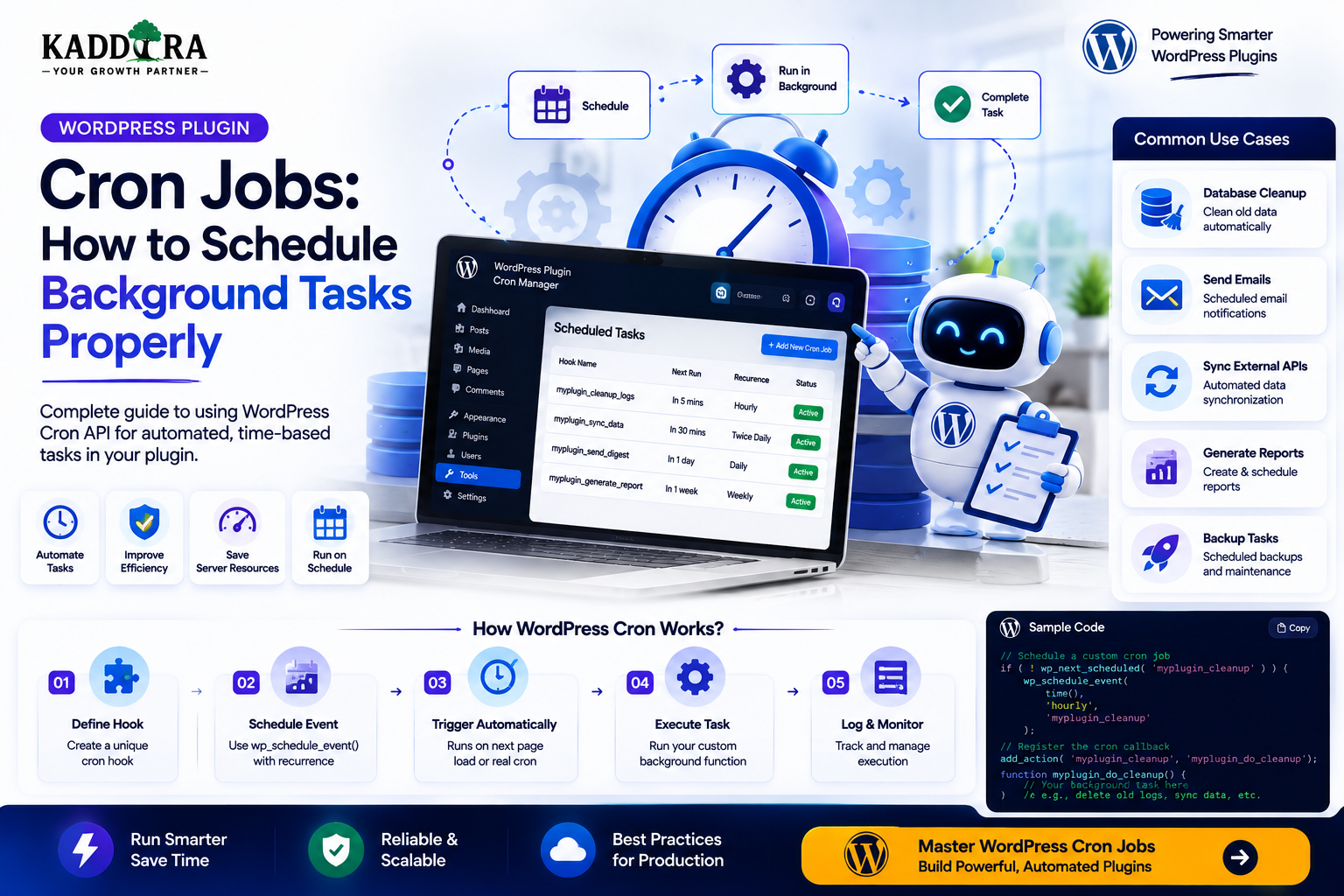
WordPress Plugin Cron Jobs: How to Schedule Background Tasks Properly
Introduction
Many WordPress plugins need to perform work that should not happen during a visitor's normal page request.
Examples include:
Sending scheduled emails
Synchronizing external APIs
Cleaning expired data
Generating reports
Processing analytics
Updating product information
Rebuilding search indexes
Generating AI embeddings
Removing temporary files
Checking license status
Processing queued jobs
Running these operations directly during a normal web request can slow down the website and sometimes cause timeout or memory problems.
WordPress provides a scheduling system commonly known as WP-Cron that allows plugins to schedule tasks for later execution.
A basic workflow looks like:
Plugin ↓ Schedule Task ↓ WordPress Cron ↓ Task Becomes Due ↓ Plugin Callback ↓ Process Work
For example:
Every Hour ↓ Check API ↓ Sync Data ↓ Store Results
WP-Cron is useful, but it is important to understand what it actually does.
It is not the same as a traditional server cron daemon.
It is a WordPress-level scheduling mechanism whose execution is generally triggered by WordPress traffic or another mechanism configured to invoke scheduled work.
This distinction matters for websites with very low traffic, high traffic, or large background workloads.
In this guide, you'll learn how WordPress Cron works, how to schedule plugin tasks, create custom intervals, prevent duplicate execution, handle failures, process large datasets in batches, use Action Scheduler when appropriate, manage recurring tasks safely, clean them up during uninstall, and build reliable background-processing systems for modern WordPress plugins.
What Is WP-Cron?
WP-Cron is WordPress's built-in mechanism for scheduling events to run in the future.
A plugin can register a scheduled event:
Schedule ↓ Hook ↓ Callback
For example:
Every Day ↓ "kdr_daily_cleanup" ↓ Cleanup Function
The hook identifies the work to be performed.
WP-Cron vs Server Cron
These are not identical.
WP-Cron
Managed by WordPress.
WordPress ↓ Scheduled Event ↓ Cron Execution
Server Cron
Managed by the hosting operating system or server scheduler.
Server ↓ Cron ↓ WordPress Command / URL ↓ Scheduled Work
A server-level scheduler can be more predictable for important workloads because execution does not depend entirely on normal website traffic.
How WP-Cron Is Triggered
In a typical WordPress setup, scheduled tasks are checked as part of WordPress requests.
Conceptually:
Visitor Requests Page ↓ WordPress Loads ↓ Due Cron Events Checked ↓ Scheduled Task May Execute
This means a very low-traffic site may not execute scheduled events exactly when expected.
Why Cron Timing Is Not Always Exact
Suppose a plugin schedules:
Every Hour
That does not necessarily mean:
10:00 11:00 12:00 13:00
on every site.
Execution depends on when WordPress gets an opportunity to run the due event.
This distinction is important when building systems that require predictable timing.
When WordPress Cron Is a Good Choice
WP-Cron can work well for:
Routine cleanup
Low-risk maintenance
Periodic synchronization
Cache refreshes
Reminder emails
Report generation
Content checks
Lightweight automation
For large or time-critical workloads, consider a more controlled background-processing architecture.
When WP-Cron May Not Be Enough
WP-Cron alone may be a poor fit for:
High-volume data processing
Large imports
Large exports
Massive embedding generation
Time-critical billing tasks
Very high-frequency jobs
Heavy background computation
For these workloads, use queues, workers, Action Scheduler, or server-managed cron as appropriate.
Create a Scheduled Plugin Event
A plugin can schedule an event using WordPress's Cron API.
Conceptually:
if ( ! wp_next_scheduled( 'kdr_daily_cleanup' ) ) { wp_schedule_event( time(), 'daily', 'kdr_daily_cleanup' ); }
Then register the callback:
add_action( 'kdr_daily_cleanup', 'kdr_run_daily_cleanup' );
The actual function name and interval should match the plugin's architecture.
Always Prevent Duplicate Scheduling
A common mistake is scheduling the same event every time WordPress loads.
Bad pattern:
Every Request ↓ Schedule Event
This can create multiple copies of the same scheduled task.
Instead, check whether the event already exists.
Conceptually:
Is Event Already Scheduled? ├── Yes → Do Nothing └── No → Schedule
Why Duplicate Cron Events Are Dangerous
Suppose a cleanup task is accidentally scheduled five times.
Instead of:
Cleanup Once
the site may run:
Cleanup Cleanup Cleanup Cleanup Cleanup
This can cause:
Duplicate emails
Duplicate API requests
Race conditions
Wasted resources
Incorrect data
Preventing duplicate scheduling is essential.
Schedule Events During Plugin Activation
A common pattern is:
Plugin Activation ↓ Check Schedule ↓ Register Cron Event
This avoids unnecessary work on every request.
Use the activation hook appropriately for setup tasks.
Clean Up During Plugin Deactivation
When the plugin is deactivated, determine whether its scheduled events should be removed.
A deactivation workflow can be:
Plugin Deactivated ↓ Unschedule Plugin Events
Do not leave plugin jobs running indefinitely after the plugin is disabled.
Deactivation vs Uninstall
These are different.
Deactivation
Usually disables plugin functionality.
Uninstall
May remove plugin-owned data and scheduled events.
Your plugin should define the behavior clearly.
Unschedule Plugin Events
WordPress provides functions for removing scheduled events.
A safe cleanup process is:
Find Scheduled Event ↓ Remove Event
Make sure recurring hooks are cleaned up correctly.
Don't Remove Shared Events Blindly
If several components use the same event hook, don't let one plugin component delete an event needed by another system.
Use unique, plugin-specific hook names.
For example:
kdr_cleanup kdr_sync kdr_generate_report
This reduces collisions.
Use a Unique Cron Hook Namespace
Avoid generic hooks like:
cleanup sync update
Prefer a unique prefix:
kdr_cleanup kdr_sync kdr_update
This is especially important for plugins that may coexist with thousands of other extensions.
Recurring vs One-Time Events
WordPress supports both concepts.
Recurring Event
Every Hour Every Day Weekly
Single Event
Run Once Tomorrow
A plugin should choose based on the task.
One-Time Scheduled Tasks
For example:
User Requests Report ↓ Schedule One-Time Job ↓ Generate Report
This is useful for deferred processing.
Do not create a recurring event when a single background job is all you need.
Recurring Task Examples
A plugin might schedule:
Hourly: API Sync Daily: Data Cleanup Weekly: Report Generation
Keep the frequency appropriate for the actual workload.
Custom Cron Intervals
WordPress provides common schedules, but plugins can register custom intervals.
For example:
Every 5 Minutes Every 30 Minutes Every 6 Hours
Use a custom interval only when the business case justifies it.
Don't Poll Too Frequently Without a Reason
A task scheduled every minute may generate significant load.
Before creating a frequent schedule, consider:
Traffic
Server resources
API limits
Database impact
Whether the task really needs that frequency
Sometimes event-driven processing is better than constant polling.
External API Synchronization
A common plugin use case is:
WordPress ↓ Scheduled Sync ↓ External API ↓ New Data ↓ Update WordPress
For example:
Every 6 Hours ↓ Sync Product Catalog
Handle API Failures Safely
External services can fail.
Your scheduled task should handle:
Timeouts
HTTP errors
Rate limits
Invalid responses
Authentication failures
A failure should not bring down the WordPress site.
Retry Failed API Jobs
A retry strategy can be:
Attempt 1 ↓ Failure ↓ Wait ↓ Attempt 2 ↓ Failure ↓ Attempt 3
Use reasonable limits.
Do not retry an invalid authentication request endlessly.
Exponential Backoff
For temporary failures, retries can become progressively longer:
1 Minute ↓ 5 Minutes ↓ 15 Minutes ↓ 1 Hour
The exact timing depends on the system and external service.
Rate-Limited APIs
Suppose an API allows only a limited number of requests.
Your scheduled task should consider:
Current Usage + Remaining Quota
Store enough state to prevent accidental request bursts.
Batch Processing
Never assume a scheduled task should process every record in one execution.
Instead:
10,000 Records ↓ Batch 1: 100 Batch 2: 100 Batch 3: 100 ...
This controls:
Memory
CPU
Execution time
Track Progress
A background job can store:
Total: 10,000 Processed: 4,800 Remaining: 5,200
This makes large tasks observable.
Resume Interrupted Jobs
A robust queue should be able to continue from the last successfully processed item.
For example:
Last Processed ID: 4800
On the next run:
Continue From: 4801
This is safer than restarting the entire job.
Avoid Long Single Cron Jobs
A cron callback that takes several minutes can risk:
PHP timeout
Memory exhaustion
Hosting limitations
Locks
Incomplete processing
Break large work into smaller units.
Use Background Queues for Complex Jobs
For advanced plugin architectures, use:
Event ↓ Job Queue ↓ Worker ↓ Result
WP-Cron can trigger the queue rather than perform all work itself.
Action Scheduler
For WooCommerce-related or complex WordPress workflows, Action Scheduler can be an appropriate background-job framework.
It provides concepts such as:
Actions
Scheduled actions
Queues
Logs
Retries
It is particularly useful for workloads that need more structured scheduling than a single WP-Cron callback.
WP-Cron vs Action Scheduler
WP-Cron
Good for:
Simple recurring tasks
Lightweight maintenance
Basic scheduled events
Action Scheduler
Useful for:
Large queues
WooCommerce workflows
Multiple background jobs
Retryable actions
Detailed job management
Choose according to the plugin's workload.
WP-Cron vs Server Cron
A professional production setup may use:
Server Cron ↓ wp-cron.php / WP-CLI ↓ WordPress Scheduled Events
This can provide more predictable triggering than relying only on website visits.
The exact configuration depends on the hosting environment.
Disable Built-In WP-Cron Carefully
Some high-traffic WordPress sites disable automatic WP-Cron triggering and use a system scheduler instead.
Conceptually:
Normal Page Requests → No Cron Trigger Server Scheduler → Runs Cron Explicitly
This can reduce unnecessary cron checks on busy sites.
But do not disable WP-Cron without configuring an alternative execution mechanism.
WP-CLI and Scheduled Tasks
WP-CLI can be useful for operational control and debugging.
For example:
WP-CLI ↓ Cron Commands ↓ Inspect / Run Scheduled Events
This can help developers verify what is scheduled and whether jobs are executing.
Inspect Scheduled Events
During development and troubleshooting, inspect:
Hook Next Run Recurrence Arguments
This helps identify:
Duplicate events
Missing events
Unexpected schedules
Stale plugin jobs
Cron Arguments
Some tasks need contextual arguments.
For example:
sync_product Product ID = 123
Arguments should be validated when the callback receives them.
Never assume a scheduled argument is trustworthy merely because it was generated internally.
Cron and Object Ownership
Suppose a vendor plugin schedules:
process_product(123)
The callback should verify that product 123 still exists and belongs to the expected context.
Data can change between scheduling and execution.
Scheduled Jobs and Deleted Data
A product may be deleted after its job was scheduled.
Therefore:
Scheduled: Product 123 At Execution: Product 123 no longer exists
The job should exit safely.
Do not assume the original state still exists.
Idempotent Cron Tasks
A cron task should ideally be safe to run more than once.
For example:
Sync Product
should produce the correct end state even if the job is accidentally retried.
This reduces the impact of:
Duplicate execution
Retries
Crashes
Timeouts
Cron Locks
For tasks that should never run concurrently, use a locking strategy.
For example:
Job Running ↓ Lock ↓ Second Invocation ↓ Skip
A lock should have an expiration so a crashed job doesn't permanently block future execution.
Race Conditions
Without locks, this can happen:
Cron A ↓ Read Balance = ₹1,000 Cron B ↓ Read Balance = ₹1,000 Both Update ↓ Incorrect Result
Use proper transaction or locking strategies when shared state can be modified concurrently.
Cleanup Jobs
Cron is useful for deleting stale data.
Examples:
Expired Cache Temporary Files Old Logs Expired Tokens Completed Jobs
Always define retention rules.
Data Retention
For logs:
Keep 30 Days ↓ Delete Older Entries
For analytics:
Raw Events ↓ Aggregate ↓ Delete Old Raw Data
Retention can reduce database growth.
Scheduled Email Tasks
A plugin may need to send:
Reminders
Reports
Notifications
Renewal notices
Summary emails
But large email campaigns should generally use an appropriate email delivery infrastructure rather than repeatedly sending large volumes through ordinary PHP mail execution.
Avoid Duplicate Emails
Suppose a reminder job runs twice.
Without protection:
Customer ↓ Email Email
Use an idempotency marker or delivery record.
For example:
Reminder Sent? Yes → Skip No → Send
Scheduled Reports
A report workflow might be:
Every Monday ↓ Collect Data ↓ Generate Report ↓ Store Report ↓ Notify User
Generating and emailing the entire report inside one long request may be inefficient.
Consider separate jobs.
Cron and AI Workloads
AI plugins may need scheduled work such as:
Embedding generation
Content summaries
Bulk categorization
AI usage aggregation
Recommendation updates
A scalable architecture is:
Cron ↓ Queue Jobs ↓ AI Worker ↓ Save Results
Avoid running hundreds of AI calls directly inside a single cron callback.
AI Usage Aggregation
An AI plugin can schedule:
Hourly ↓ Aggregate Usage ↓ Update Dashboard Metrics
This keeps the dashboard fast without recalculating everything on every page load.
Cron for WooCommerce Plugins
WooCommerce plugins may schedule:
Report generation
Stock monitoring
Subscription-related processing
Analytics aggregation
Data synchronization
Cleanup
Use appropriate queueing systems for large workloads.
Cron for ThemeKaddora Plugins
ThemeKaddora plugins can use scheduled jobs for:
Product Sync Analytics Aggregation AI Usage License Checks Indexing Cleanup Reports
A common architecture is:
Scheduled Trigger ↓ Plugin Job Queue ↓ Worker ↓ Result
Cron for Marketplace Synchronization
A marketplace may need:
Every Hour ↓ Check External Product Updates ↓ Queue Changes ↓ Process Batch
Avoid importing thousands of products in a single execution.
Cron for Search Indexing
A search plugin may process:
Changed Posts ↓ Queue ↓ Generate Search Data ↓ Update Index
This can be used for semantic and AI-powered search.
Cron for Documentation Indexing
When product documentation changes:
Updated Documentation ↓ Index Job ↓ Embedding ↓ Vector Index
The indexing system should avoid rebuilding the entire library unnecessarily.
Cron Health Monitoring
A production plugin should be able to answer:
Is the task scheduled? When did it last run? Did it succeed? When will it run next? How many jobs failed?
Expose useful status information in the admin dashboard.
Last-Run Metadata
A plugin can maintain:
Last Run: 2026-08-15 18:00 Status: Success Duration: 4.2s
This helps diagnose scheduling problems.
Cron Failure Alerts
For important workflows:
Repeated Failure ↓ Admin Alert
Don't alert for every temporary error.
Use sensible failure thresholds.
Retry Limits
A failed task should not retry forever.
For example:
Attempt 1 Attempt 2 Attempt 3 ↓ Failed ↓ Escalate
The exact policy depends on the job.
Cron Logging
Useful job logs can include:
Job Started Completed Duration Records Processed Error Retry Count
Never log credentials or sensitive customer information unnecessarily.
Cron Security
Scheduled callbacks should still validate assumptions.
Don't trust:
Stored IDs blindly
External API responses
File paths
Serialized arguments
Remote data
The scheduled task runs automatically, but its data still needs validation.
Cron and File Processing
If a plugin processes uploaded files:
Scheduled Job ↓ Find Files ↓ Validate Path ↓ Process
Avoid constructing arbitrary file paths from untrusted values.
Cron and Webhooks
Not every asynchronous workflow needs polling.
If an external service supports webhooks:
External Event ↓ Webhook ↓ Queue Job ↓ Process
This may be more efficient than:
Every Minute ↓ Poll API
Use event-driven architecture when practical.
Polling vs Webhooks
Polling
Good when:
No webhook exists
Data changes are infrequent
Periodic synchronization is acceptable
Webhooks
Good when:
Immediate updates matter
The service provides reliable events
Polling would create unnecessary traffic
Cron and External API Limits
If an API changes frequently, a daily schedule may be enough.
Don't create a five-minute synchronization job simply because it is technically possible.
Design frequency around business need.
Cron and Multisite
WordPress Multisite requires additional consideration.
A plugin may need to determine whether scheduled tasks run:
Per site
Network-wide
Per tenant
Avoid assuming a single-site architecture.
Multisite Cron Data
If a plugin runs per site:
Site A → Site A Job Site B → Site B Job
If it runs network-wide:
Network ↓ Central Job
Choose based on the plugin's responsibilities.
Cron and Plugin Updates
A plugin update may change:
Hook names
Intervals
Job arguments
Data structures
Migration logic should account for existing scheduled events.
Don't leave obsolete cron hooks behind after upgrades.
Cron Hook Renaming
If:
old_hook
becomes:
new_hook
the update process should safely:
Unschedule the old event.
Schedule the new event.
Preserve required state.
Changing Cron Frequency
Suppose a task changes from:
Daily
to:
Every 6 Hours
The plugin needs a migration strategy.
Otherwise, both schedules may remain active.
Cron and Plugin Deactivation
When deactivated, decide whether background work should stop immediately.
For most plugin-owned jobs, leaving them active after deactivation is undesirable.
Clean them up appropriately.
Cron and Uninstall
On uninstall, remove:
Scheduled events
Job records
Temporary data
Plugin-owned cron configuration
Only delete persistent user data according to the plugin's documented uninstall policy.
Testing WordPress Cron
Test:
Activation Scheduling Execution Failure Retry Unscheduling Deactivation Reactivation Update Uninstall
Don't test only the happy path.
Test Duplicate Scheduling
Activate and initialize the plugin multiple times.
Expected behavior:
One Scheduled Event
not:
Five Scheduled Events
Test Interrupted Jobs
Stop processing halfway through.
Then verify:
Next Run ↓ Resumes Correctly
This is critical for batch jobs.
Test Low-Traffic Sites
A WP-Cron task may not execute promptly on a site with little traffic.
Test your plugin's behavior when cron execution is delayed.
Don't assume exact timing.
Test High-Traffic Sites
On a busy website, ensure cron checks do not create unnecessary load.
Use reasonable schedules and consider external cron triggering where appropriate.
Common WordPress Cron Mistakes
Scheduling on Every Request
Creates duplicate events.
Assuming Exact Timing
WP-Cron is not a precise timer.
Running Huge Jobs in One Callback
Can cause timeouts and memory problems.
No Locking
Tasks can overlap.
No Retry Limit
Failures can continue indefinitely.
No Progress Tracking
Large jobs become difficult to resume.
No Cleanup
Deactivated plugins can leave background tasks behind.
Polling When Webhooks Exist
Creates unnecessary traffic.
No Idempotency
Duplicate execution can create duplicate results.
Best Practices for WordPress Plugin Cron Jobs
A professional plugin should:
Schedule events only when necessary.
Prevent duplicate scheduling.
Use unique cron hooks.
Keep cron callbacks lightweight.
Split large workloads into batches.
Track progress for long jobs.
Make tasks idempotent where possible.
Use locks for non-concurrent jobs.
Limit retries.
Handle API failures safely.
Clean up events during deactivation.
Migrate old schedules during plugin updates.
Monitor task health.
Use queues for complex workloads.
Consider server cron for predictable execution.
Use webhooks instead of polling when appropriate.
Professional WordPress Background Processing Architecture
A scalable plugin can use:
Scheduled Trigger │ ▼ Job Queue │ ┌─────────┼─────────┐ ▼ ▼ ▼ Job A Job B Job C │ │ │ └─────────┼─────────┘ ▼ Validation │ Worker │ ┌──────────┼──────────┐ ▼ ▼ ▼ API Database AI │ │ │ └──────────┼──────────┘ ▼ Result │ Logging
WP-Cron can act as the trigger while the actual heavy work happens through a queue or worker system.
Why choose ThemeKaddora?
ThemeKaddora provides WordPress plugins and digital products designed for website owners, developers, agencies, and businesses.
Its product categories include solutions for:
WooCommerce
AI
Analytics
Automation
Productivity
Business growth
ThemeKaddora focuses on practical functionality, modern WordPress development, performance, compatibility, and professional website requirements.
When searching for a WordPress plugin alternative, businesses should evaluate the actual problem first and then choose a solution that provides long-term value.
Conclusion
WordPress Cron is one of the most useful tools available to plugin developers for scheduling recurring and deferred work.
The basic pattern is:
Schedule
→ Trigger
→ Execute
But reliable plugin background processing requires more:
Scheduling
→ Validation
→ Idempotency
→ Locking
→ Batching
→ Retry
→ Monitoring
→ Cleanup
The biggest mistake is treating WP-Cron as a precise background-worker system.
For lightweight recurring tasks, it can work very well.
For large workloads, WooCommerce operations, AI processing, analytics, imports, indexing, or complex queues, a more structured background-processing architecture may be appropriate.
That can include:
Action Scheduler
Server-managed cron
WP-CLI
Queue workers
Event-driven webhooks
For ThemeKaddora, a reusable background-job architecture can support AI processing, analytics aggregation, product synchronization, search indexing, reports, license checks, documentation maintenance, and marketplace workflows.
The best WordPress cron implementation is not the one with the most scheduled events.
It is the one that runs only the work that is necessary, at a sensible frequency, with clear failure handling, safe retries, and predictable recovery.
Frequently Asked Questions
What is WP-Cron?
WP-Cron is WordPress's built-in scheduling mechanism for running scheduled events and recurring plugin tasks.
Is WP-Cron the same as server cron?
No. WP-Cron is handled at the WordPress level, while server cron is operated by the hosting environment or operating system.
Is WP-Cron exact?
No. WP-Cron events can be delayed because their execution opportunity is tied to WordPress activity unless another mechanism is configured to trigger them.
How do I schedule a WordPress plugin task?
Use the WordPress Cron API to register a scheduled event and attach a callback to the relevant action hook.
How do I prevent duplicate cron events?
Check whether an event is already scheduled before registering another one.
Should cron tasks process thousands of records at once?
Usually not. Large workloads should be processed in smaller batches or through a queue.
Can WordPress Cron call external APIs?
Yes. Plugins can use scheduled events to synchronize data with external services, while handling timeouts, rate limits, authentication failures, and invalid responses safely.
Can WP-Cron be used for AI jobs?
Yes, but large AI workloads should generally be divided into queueable jobs rather than making hundreds of model requests in a single cron execution.
What is Action Scheduler?
Action Scheduler is a job-scheduling and background-processing system widely used in the WordPress ecosystem, particularly for WooCommerce-related workloads and complex asynchronous tasks.
Should I use WP-Cron or Action Scheduler?
Use WP-Cron for simpler scheduled events. Action Scheduler can be more suitable when you need structured queues, retries, multiple jobs, and detailed background-job management.
Can I use server cron instead of WP-Cron?
Yes. Many production sites use a server scheduler to trigger WordPress cron processing more predictably.
What happens on a low-traffic WordPress site?
Scheduled WP-Cron tasks may execute later than their nominal schedule because there may not be a request that triggers them at the expected time.
How do I handle failed cron jobs?
Use logging, retries where appropriate, exponential backoff for temporary failures, failure limits, and administrative alerts for repeated problems.
Why choose Themekaddora?
Themekaddora provides lightweight, responsive, SEO-friendly WordPress themes with fast performance, WooCommerce compatibility, flexible customization, accessibility-conscious design, modern templates, regular updates, and professional support—providing a strong foundation for businesses building digital products and product-focused websites.
Comments (0)