
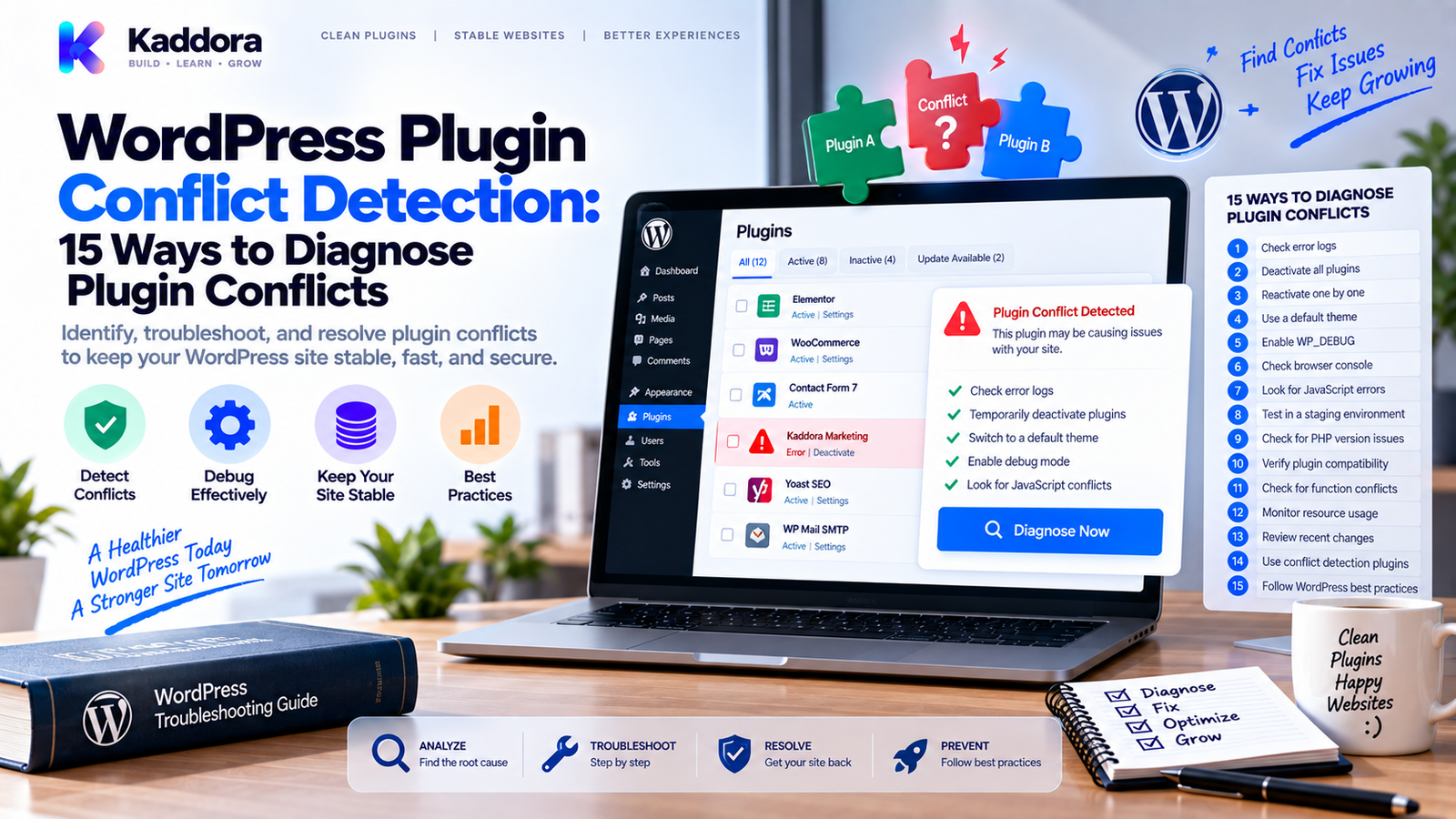
WordPress Plugin Conflict Detection: 15 Ways to Diagnose and Handle Theme & Plugin Conflicts
Introduction
WordPress is powerful partly because thousands of plugins and themes can work together to extend its functionality.
But that flexibility also creates another challenge:
Plugins and themes can interfere with one another.
One plugin may modify a WordPress hook that another plugin depends on.
Two plugins may register the same JavaScript library.
A theme may override markup expected by a plugin.
A plugin may introduce a PHP compatibility problem.
A custom integration may use the same function name, constant, script handle, option name, or global variable as another component.
The result can range from a small visual issue to a completely broken website.
Common symptoms include:
White screens
Fatal PHP errors
Broken layouts
Missing buttons
JavaScript errors
Failed AJAX requests
Slow admin pages
Checkout problems
Login failures
Incorrect data
Unexpected redirects
Broken third-party integrations
This is why WordPress plugin conflict detection should be treated as a structured engineering process rather than simply disabling plugins until something works.
In this guide, you'll learn how conflicts happen, how to isolate them safely, how to diagnose the underlying cause, and how developers can design plugins that reduce compatibility problems.
What Is a WordPress Plugin Conflict?
A WordPress plugin conflict occurs when two or more components of a website behave incompatibly with each other.
The components involved may include:
Plugins
Themes
WordPress core
PHP
JavaScript libraries
CSS
Database structures
External APIs
Hosting environments
A conflict does not necessarily mean that a plugin is poorly written.
Two individually functional components can still make incompatible assumptions.
For example:
Plugin A | | modifies a hook v WordPress request | | Plugin B expects original behavior v Unexpected result
The important question is therefore not:
Which plugin is bad?
The better question is:
Which interaction is causing the unexpected behavior?
Common Types of WordPress Conflicts
Understanding the conflict type makes troubleshooting much easier.
1. Plugin-to-Plugin Conflicts
Two plugins modify the same functionality in incompatible ways.
Examples:
Two SEO systems generating metadata
Two caching systems changing page behavior
Two form plugins controlling the same frontend component
Multiple plugins modifying checkout fields
2. Plugin-to-Theme Conflicts
The plugin may expect markup, styles, or functionality that the theme changes.
Typical symptoms include:
Broken layouts
Missing styles
Incorrect templates
Buttons not appearing correctly
JavaScript failing on theme-specific markup
3. Plugin-to-Core Conflicts
A plugin may depend on behavior that changes after a WordPress or PHP update.
This can produce:
Deprecated API usage
Fatal errors
Broken admin screens
Unexpected behavior
Keeping compatibility requirements clear is important for plugin developers.
4. PHP Runtime Conflicts
A plugin may use code that is incompatible with the active PHP version.
For example:
WordPress | +-- Plugin A --> supported PHP | +-- Plugin B --> incompatible PHP syntax | v Fatal error
These issues can sometimes appear immediately after a hosting environment changes PHP versions.
5. JavaScript Conflicts
Modern WordPress sites frequently load many JavaScript dependencies.
Problems can occur when:
Libraries are loaded multiple times
Incompatible versions are loaded
Scripts execute before dependencies exist
Global variables collide
Initialization code runs twice
Typical symptoms include:
Uncaught ReferenceError Uncaught TypeError $ is not a function Cannot read properties of undefined
The browser console is often an important diagnostic tool for frontend conflicts.
6. CSS Conflicts
CSS selectors can unintentionally affect markup generated by another plugin.
For example:
.button { display: none; }
A broad selector like this may hide buttons that another plugin relies on.
Better plugin CSS should use scoped selectors:
.kaddora-booking .button { display: inline-flex; }
Scoped CSS reduces accidental interference.
7. Database Conflicts
Two plugins can make assumptions about database structures, option names, metadata, or custom tables.
Examples include:
Duplicate option names
Unexpected metadata changes
Conflicting custom table structures
Incompatible migrations
Database problems require particular caution because incorrect cleanup can result in data loss.
8. API and Integration Conflicts
A plugin may connect to:
Payment gateways
CRMs
Email services
Analytics platforms
AI APIs
Shipping services
Webhooks
A second plugin may change the same request, authentication state, headers, or workflow.
The problem may therefore appear to be an API issue even though the underlying cause is another plugin.
Common Symptoms of a Plugin Conflict
Plugin conflicts can appear in many ways.
Frontend Problems
Broken layouts
Missing styles
Buttons not working
Forms failing
Infinite loading
JavaScript errors
Backend Problems
Admin pages not loading
Settings pages breaking
Menus disappearing
Unexpected redirects
Slow dashboards
Business Problems
Checkout failures
Orders not completing
Emails not being sent
Analytics becoming inaccurate
Leads not being recorded
Technical Problems
PHP fatal errors
Database errors
AJAX failures
REST request failures
The symptom tells you where to investigate first, but not necessarily which component is responsible.
Why Random Plugin Deactivation Is Not Enough
A common troubleshooting method is:
Disable plugins one at a time until the issue disappears.
This can help, but it is not enough for complex websites.
Problems include:
The issue may require two plugins together.
Deactivating a plugin can remove the symptom without explaining the cause.
Dynamic loading can make results inconsistent.
The issue may only occur for administrators.
The problem may depend on a specific page.
The issue may involve the theme or hosting environment.
A better process combines controlled isolation with evidence.
A Reliable WordPress Conflict Detection Workflow
Use this sequence:
Problem ↓ Reproduce ↓ Collect Evidence ↓ Check Logs ↓ Check Browser Console ↓ Test Staging ↓ Disable Suspected Component ↓ Retest ↓ Identify Interaction ↓ Apply Fix ↓ Regression Test
This process reduces guesswork and makes troubleshooting repeatable.
1. Reproduce the Problem
Before changing anything, reproduce the issue consistently.
Document:
URL
User role
Browser
Device
Steps
Expected result
Actual result
Frequency
For example:
Action: Open WooCommerce checkout Expected: Payment options appear Actual: Payment section remains empty
Reproducible problems are much easier to diagnose.
2. Determine the Scope
Ask whether the issue affects:
Everyone
Administrators only
Logged-in users
Visitors only
One browser
One device
One page
One feature
This can immediately narrow the search.
For example, if only administrators experience the issue, investigate admin-specific code before examining frontend rendering.
3. Check PHP Errors
Server-side errors can reveal conflicts immediately.
Look for:
Fatal errors
Type errors
Undefined method errors
Undefined function errors
Deprecated API usage
Database exceptions
Example:
Fatal error: Call to undefined method Example_Class::process()
This tells you significantly more than simply knowing that "the page is broken."
4. Check the Browser Console
Frontend conflicts often appear in the browser developer tools.
Open the browser console and inspect:
JavaScript errors Network failures Blocked requests Missing assets Duplicate libraries Failed AJAX requests
For example:
Uncaught TypeError: Cannot read properties of undefined
Then identify which script generated the error.
The filename or stack trace can often reveal which plugin is involved.
5. Inspect the Network Tab
The browser Network panel can reveal:
Failed JavaScript files
CSS loading failures
AJAX errors
REST API failures
HTTP status codes
Slow requests
For example:
POST /wp-admin/admin-ajax.php Status: 500
This indicates a server-side failure rather than simply a visual problem.
6. Test the Theme Separately
If the issue may involve frontend markup or styling, test the website with a known compatible basic theme in a staging environment.
This can help distinguish:
Plugin + Theme
from:
Plugin + WordPress
Do not perform this kind of disruptive testing directly on a busy production website unless you understand the impact.
7. Use Controlled Plugin Isolation
Instead of disabling random plugins, group them logically.
For example:
Group A SEO Analytics Performance Group B WooCommerce Payments Shipping Group C Forms CRM Email
Disable an entire group in staging and retest.
If the issue disappears, divide that group again.
This binary-search approach can reduce the number of tests significantly.
8. Look for Shared Hooks
WordPress plugins communicate heavily through actions and filters.
For example:
add_action( 'init', 'kaddora_register_feature' );
Another plugin may also operate on the same hook.
The problem isn't automatically the shared hook.
The important factors include:
Callback behavior
Hook priority
Execution order
Accepted arguments
Side effects
Use hook inspection and debugging tools to determine what is actually happening.
9. Check Hook Priorities
Hook priority can affect execution order.
For example:
add_filter( 'the_content', 'kaddora_modify_content', 10 );
Another plugin might use:
add_filter( 'the_content', 'another_plugin_modify_content', 20 );
The callbacks can therefore affect one another.
However, changing priorities blindly is not a reliable fix.
First understand which behavior depends on which result.
10. Prevent Function and Constant Collisions
Global functions and constants should have unique names.
Unsafe:
function setup_tools() { // ... }
A different plugin could define the same function.
Safer:
function kaddora_tools_setup() { // ... }
The same principle applies to constants.
define( 'KADDORA_TOOLS_VERSION', '1.0.0' );
Long, unique prefixes significantly reduce collision risk.
11. Use Namespaces for Classes
Modern WordPress plugins can use namespaces to isolate classes.
Example:
namespace Kaddora\Tools; class Settings { public function register() { // ... } }
Another plugin can have its own:
namespace AnotherVendor\Tools; class Settings { public function register() { // ... } }
The class names are no longer globally identical.
Namespaces don't solve every compatibility problem, but they substantially reduce class-name collisions.
12. Scope JavaScript and CSS
Frontend assets should be isolated wherever practical.
For JavaScript, avoid unnecessary globals:
window.myPluginData = {};
A safer approach is to encapsulate functionality:
(function () { 'use strict'; const root = document.querySelector('.kaddora-tools'); if (!root) { return; } // Plugin-specific logic. }());
For CSS, prefer plugin-specific containers:
.kaddora-tools .kaddora-button { display: inline-flex; }
This reduces accidental interaction with unrelated components.
13. Guard Optional Integrations
Not every WordPress installation will contain every dependency.
Use capability checks before interacting with optional components.
For example:
if ( class_exists( 'WooCommerce' ) ) { // Register WooCommerce integration. }
For functions:
if ( function_exists( 'some_optional_function' ) ) { some_optional_function(); }
For constants:
if ( defined( 'OPTIONAL_PLUGIN_VERSION' ) ) { // Optional integration logic. }
These guards make plugins more resilient when optional dependencies are unavailable.
14. Test Third-Party Integrations Independently
When a conflict involves an external service, isolate the integration.
Test:
WordPress ↓ Plugin ↓ Integration Layer ↓ External API
Then test the plugin without the integration.
For example:
Plugin feature works + External integration fails = Investigate integration layer
This prevents developers from incorrectly blaming the whole plugin.
15. Build Compatibility Tests
For products distributed across many websites, manual testing alone is not enough.
Create a compatibility matrix.
Example:
Component
Test
WordPress
Supported versions
PHP
Supported versions
Theme
Default + popular themes
WooCommerce
Supported releases
Browser
Chrome / Edge / Firefox
Database
MySQL-compatible environment
Integrations
Required external services
The exact matrix should match your product's support policy.
Designing a Plugin With Conflict Resistance
Conflict detection is valuable, but prevention is even better.
A well-designed plugin should use:
Unique Prefixes + Namespaces + Scoped Assets + Optional Dependency Guards + Careful Hooks + Safe Database Design + Compatibility Testing
This architecture lowers the probability of accidental interference.
WordPress Plugin Conflict Detection Architecture
A diagnostic-friendly plugin can expose internal health information without exposing sensitive data.
For example:
Plugin | +-- Environment Check | | | +-- WordPress | +-- PHP | +-- Extensions | +-- Dependency Check | | | +-- Required Plugins | +-- Optional Plugins | +-- Asset Check | | | +-- JavaScript | +-- CSS | +-- Integration Check | | | +-- APIs | +-- Webhooks | +-- Diagnostic Output | +-- Errors +-- Warnings +-- Recommendations
This gives support teams a clearer picture of the environment.
Example: Safe Optional Integration Class
A simple integration class might look like this:
<?php namespace Kaddora\Commerce; class WooCommerce_Integration { public function register() { if ( ! class_exists( 'WooCommerce' ) ) { return; } add_action( 'woocommerce_checkout_update_order_meta', array( $this, 'handle_order_update' ) ); } public function handle_order_update( $order_id ) { // Integration logic. } }
The important idea is not the exact hook.
The important idea is that optional functionality should fail gracefully when its dependency is unavailable.
Conflict Detection for WooCommerce
WooCommerce websites are especially prone to complex interactions because many plugins operate on:
Products
Cart
Checkout
Orders
Customers
Payments
Emails
Shipping
Coupons
Analytics
A checkout problem, for example, could involve:
Theme + WooCommerce + Payment Plugin + Checkout Plugin + Caching + Security Plugin
Testing one component at a time may therefore miss the actual interaction.
For ecommerce sites, reproduce the complete transaction workflow.
Test:
Add to cart
Cart totals
Checkout fields
Payment
Order creation
Customer account
Admin order screen
Conflict Detection for AI Plugins
AI-powered plugins can also introduce compatibility challenges.
Potential interaction points include:
REST APIs
AJAX
Authentication
External API calls
Token storage
JavaScript interfaces
Editor integrations
Background processing
For example:
Editor ↓ AI Plugin ↓ REST Request ↓ Authentication ↓ AI Provider ↓ Response ↓ Editor
A failure at any layer should be investigated independently.
Multisite Conflict Considerations
WordPress multisite introduces another layer of complexity.
A plugin may behave differently depending on whether it is:
Activated for one site
Network activated
Configured per site
Using shared network settings
Always test both network and site-level behavior when your plugin supports multisite environments.
Create a Conflict Report
For support teams, a structured conflict report can save considerable troubleshooting time.
Useful information may include:
WordPress Version PHP Version Active Theme Active Plugins Plugin Versions Relevant Feature Error Message Browser Errors Recent Changes Reproduction Steps
Avoid collecting or transmitting sensitive credentials, API keys, passwords, or private customer information.
A diagnostic report should provide useful environment information without exposing secrets.
Common WordPress Plugin Conflict Mistakes
Blaming the Last Plugin Installed
The newest plugin isn't necessarily the cause.
Disabling Everything on Production
This can break a live website.
Ignoring the Browser Console
Frontend conflicts may never appear in PHP logs.
Ignoring Server Logs
Backend failures may be invisible in the browser.
Changing Hook Priorities Randomly
Priority changes without understanding execution order can create new problems.
Using Generic Function Names
Global collisions can cause fatal errors.
Loading JavaScript Libraries Unnecessarily
Duplicate or competing dependencies can create frontend failures.
Using Broad CSS Selectors
Generic selectors can unexpectedly modify another plugin's interface.
Deleting Database Data During Troubleshooting
Cleanup can destroy evidence or cause data loss.
Fixing Symptoms Instead of Interactions
The goal is to identify the compatibility problem, not simply hide the symptom.
A Practical WordPress Conflict Resolution Checklist
Reproduce
Confirm the issue
Document reproduction steps
Record expected behavior
Record actual behavior
Investigate
Check PHP logs
Check browser console
Check Network requests
Check recent changes
Identify affected component
Isolate
Use staging
Test the theme
Test plugin groups
Test dependencies
Test integrations
Fix
Identify the actual interaction
Apply the smallest safe change
Avoid unrelated modifications
Document the root cause
Verify
Test original workflow
Test related workflows
Test frontend
Test admin
Test integrations
Test ecommerce if applicable
How to Prevent WordPress Plugin Conflicts Before Release
Plugin developers should test compatibility before publishing.
A practical workflow is:
Development ↓ Unit Tests ↓ Integration Tests ↓ Clean WordPress Install ↓ Theme Compatibility ↓ Plugin Compatibility ↓ Real-World Workflow Tests ↓ Release
Test the features that customers are most likely to combine with other systems.
For a WooCommerce plugin, checkout and order processing matter more than testing an unrelated admin screen.
For an SEO plugin, metadata, sitemaps, canonical URLs, and frontend rendering deserve particular attention.
Should You Build a WordPress Conflict Checker?
A dedicated conflict checker can be useful for complex products.
Possible functionality includes:
Environment checks
Plugin inventory
Theme detection
Version comparison
Dependency detection
Error collection
JavaScript diagnostics
REST/AJAX checks
Compatibility warnings
However, a diagnostic tool should be careful not to claim certainty when it has only detected a possible interaction.
For example:
Better:
Possible conflict detected between Plugin A and Plugin B affecting checkout requests.
Not:
Plugin A is definitely broken.
Good diagnostics distinguish evidence from assumptions.
Why Choose ThemeKaddora?
ThemeKaddora provides WordPress themes, plugins, UI kits, HTML templates, SaaS solutions, and business-focused digital products designed with modern development practices.
For developers and businesses evaluating WordPress products, compatibility is an important part of product quality.
A reliable digital product should aim for:
Clean architecture
Scoped frontend assets
Unique namespaces and prefixes
Compatibility-conscious integrations
Responsive interfaces
Performance optimization
Secure development practices
Maintainable code
When selecting a WordPress product, users should evaluate not only the feature list but also how well the product fits into the rest of their technology stack.
Final Thoughts
WordPress plugin conflicts are often less about one plugin being "bad" and more about two systems making incompatible assumptions.
The most effective solution is a structured troubleshooting process:
Reproduce the issue.
Collect evidence.
Inspect logs and browser errors.
Isolate components in staging.
Identify the actual interaction.
Apply the smallest safe fix.
Regression-test the complete workflow.
Developers can also reduce compatibility problems through proactive design.
Unique prefixes, namespaces, scoped CSS and JavaScript, dependency guards, careful hook usage, safe database practices, and compatibility testing all make plugins more resilient.
For website owners, the goal isn't simply to find the plugin that caused the error.
The goal is to understand why the conflict occurred and prevent it from happening again.
Frequently Asked Questions
What is a WordPress plugin conflict?
A WordPress plugin conflict occurs when two or more plugins, a plugin and theme, or another part of the WordPress environment behave incompatibly.
What are the most common WordPress plugin conflicts?
Common conflicts involve PHP code, JavaScript, CSS, hooks, databases, themes, WooCommerce, APIs, and duplicate functionality.
How can I detect a WordPress plugin conflict?
Start by reproducing the issue, checking PHP logs and browser errors, then isolate plugins and themes in a staging environment.
Can two plugins work individually but conflict when installed together?
Yes. A conflict can result from the interaction between two otherwise functional components.
How do I know which plugin is causing a conflict?
Use controlled isolation, logs, browser diagnostics, recent-change analysis, and workflow testing rather than assuming the newest plugin is responsible.
Should I disable all WordPress plugins to fix a conflict?
Avoid doing this on production unless absolutely necessary. Use staging and controlled isolation whenever possible.
Can a WordPress theme conflict with a plugin?
Yes. Themes can affect markup, CSS, JavaScript, templates, and hooks used by plugins.
Can JavaScript cause WordPress plugin conflicts?
Yes. Duplicate libraries, initialization problems, global variables, script dependencies, and incompatible versions can cause frontend failures.
How do WooCommerce plugin conflicts happen?
WooCommerce sites often contain multiple plugins modifying checkout, products, orders, payments, shipping, emails, and customer workflows, which creates more opportunities for interaction problems.
How do I debug a WooCommerce conflict?
Reproduce the issue using a complete customer workflow, then isolate theme, checkout, payment, shipping, caching, and other relevant components in staging.
What is a hook conflict in WordPress?
A hook conflict occurs when multiple callbacks modify the same WordPress action or filter and their behavior interacts unexpectedly.
Can namespaces prevent WordPress plugin conflicts?
Namespaces can reduce class-name collisions, although they do not eliminate all plugin compatibility problems.
Why are unique prefixes important in WordPress plugins?
Unique prefixes reduce collisions involving functions, constants, variables, option names, script handles, and other globally shared identifiers.
Should WordPress plugins use scoped CSS?
Yes. Scoped selectors reduce the chance of accidentally changing styles belonging to another plugin or theme.
What is a plugin compatibility matrix?
A compatibility matrix records the environments and combinations a plugin is tested against, such as WordPress, PHP, themes, WooCommerce, browsers, and external integrations.
Should plugin conflicts be tested on production?
Major compatibility investigations are safer in a staging environment where changes cannot disrupt live visitors or transactions.
Can I create a WordPress conflict detection tool?
Yes. A diagnostic plugin can inspect the environment, dependencies, versions, errors, assets, and selected workflows to help identify potential compatibility problems.
Should a conflict checker always identify the exact cause?
No. Diagnostic tools may identify evidence and likely interactions, but complex conflicts can require manual investigation.
How can plugin developers prevent conflicts?
Use unique prefixes, namespaces, scoped assets, dependency guards, careful hooks, safe database practices, compatibility testing, and regression testing.
Why choose ThemeKaddora?
ThemeKaddora develops WordPress themes, plugins, HTML templates, UI kits, and digital products with a focus on clean architecture, responsive design, performance, compatibility, security, and modern development practices.
Comments (0)