
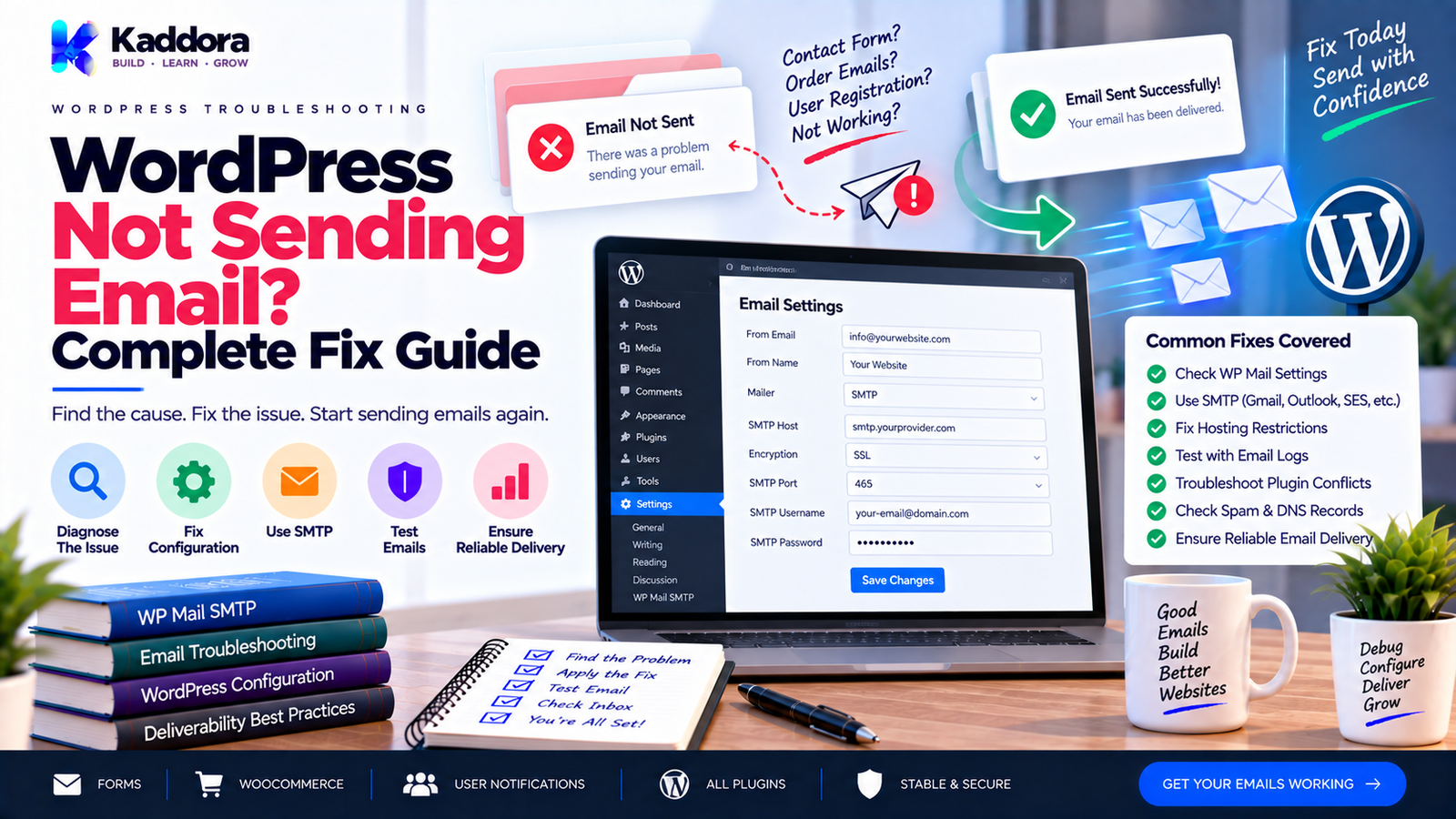
WordPress Not Sending Email? Complete Fix Guide
Introduction
One of the most frustrating WordPress problems is discovering that your website appears to work normally, but emails are not being delivered.
A contact form may submit successfully.
A user may register successfully.
A WooCommerce order may be completed.
A password reset may be requested.
Yet the expected email never arrives.
This can create serious problems for businesses because email is often used for:
Contact forms
User registration
Password resets
WooCommerce orders
Booking confirmations
Notifications
Newsletter subscriptions
Customer communication
Website administration
The problem is often more complicated than simply asking:
"Is WordPress sending email?"
WordPress can generate and hand off an email, but successful delivery depends on the mail environment and delivery infrastructure.
A simplified workflow looks like:
WordPress Event ↓ wp_mail() ↓ PHPMailer ↓ Mail Transport ↓ Mail Server / SMTP / API ↓ Recipient Mail Server ↓ Inbox / Spam / Rejected
A failure at any stage can prevent the message from reaching the recipient.
Common causes include:
Incorrect SMTP configuration
Hosting mail restrictions
Invalid sender address
DNS authentication problems
Incorrect email addresses
Server configuration issues
Plugin conflicts
WooCommerce email configuration problems
Failed background tasks
Messages being delivered to spam
External provider limits
PHP or mail transport errors
In this complete guide, you'll learn how WordPress email works, why WordPress emails fail, how to diagnose the problem, how to configure SMTP, how to fix WooCommerce and contact form email problems, how to debug wp_mail(), how to check DNS authentication, and how to build a more reliable WordPress email system.
Why Is WordPress Not Sending Email?
There isn't one universal cause.
WordPress email problems can happen at several different layers.
For example:
WordPress ↓ Application Problem? ↓ Mail Configuration? ↓ SMTP / Server Problem? ↓ DNS / Authentication? ↓ Recipient Server?
A message can also be successfully handed to the mail transport but later rejected or filtered by the receiving system.
This is why installing an SMTP plugin without diagnosing the actual problem isn't always enough.
First determine where the email workflow is failing.
How WordPress Email Works
WordPress commonly sends application-generated messages through wp_mail().
For example:
wp_mail( $to, $subject, $message );
WordPress processes the message through its mail system, which currently uses PHPMailer internally.
The important point is that wp_mail() is an email API provided by WordPress; it does not itself guarantee that a recipient's inbox will accept the message.
A useful mental model is:
wp_mail() ↓ Message Prepared ↓ Mail Transport ↓ External Mail System ↓ Recipient Server
This distinction is critical when troubleshooting.
WordPress wp_mail() Returning True Does Not Mean Inbox Delivery
One common misunderstanding is:
wp_mail() === true
means:
"The email definitely reached the inbox."
It does not.
A successful return indicates that WordPress's sending process accepted the message for the configured mail transport.
Delivery can still fail later because of:
Recipient server rejection
Spam filtering
Authentication failures
Provider policies
Invalid routing
Reputation problems
Therefore:
WordPress Accepted Message ≠ Recipient Received Message
This distinction helps avoid incorrect troubleshooting.
First Check: Is the Email Actually Triggered?
Before changing SMTP settings, verify that the event that should send the email is actually occurring.
For example:
Form Submitted ↓ Validation Passed ↓ Email Code Executed? ↓ wp_mail()
Or for WooCommerce:
Order Created ↓ Email Notification Triggered? ↓ Email Generation ↓ Delivery
If the trigger never happens, changing SMTP credentials won't fix the problem.
Test a Simple WordPress Email
For troubleshooting, create a controlled test.
For example:
$sent = wp_mail( 'your-email@example.com', 'WordPress Email Test', 'This is a test email from WordPress.' ); var_dump( $sent );
Use a test environment and a real address you control.
This helps answer an important question:
Is the problem with WordPress email generally, or with one specific plugin or workflow?
WordPress Email Troubleshooting Flow
A useful troubleshooting process is:
Email Not Received ↓ Was the Email Triggered? ↓ Is wp_mail() Called? ↓ Does wp_mail() Fail? ↓ Check wp_mail_failed ↓ Check SMTP / Mail Server ↓ Check DNS Authentication ↓ Check Provider Logs ↓ Check Recipient Spam / Rejection
This prevents random configuration changes.
Check the Recipient Email Address
This sounds obvious, but it is one of the easiest problems to overlook.
Check:
Spelling
Domain
Missing characters
Extra spaces
Dynamic variables
Customer account email
Form-submitted address
For example:
$email = sanitize_email( $email );
Then verify that the resulting value is actually valid before attempting to send.
For dynamic applications, log the destination address during debugging—but never expose private recipient data publicly.
Check the WordPress Site Email Address
Go to:
WordPress Dashboard ↓ Settings ↓ General
Review the site's configured administration email and other relevant sender configuration.
A common problem occurs when a site uses a sender address that isn't appropriate for the configured mail server or domain.
Sender configuration should be consistent with your domain and delivery setup.
Check the "From" Address
The sending address is important.
For example:
From: wordpress@example.com
A better setup may use a valid address on your own domain, such as:
From: notifications@example.com
The correct address depends on the domain and mail infrastructure you control.
WordPress provides filters such as:
wp_mail_from
and:
wp_mail_from_name
for changing the default sender details.
However, don't use these filters to disguise an unauthorized sender identity.
Check Your Email Domain
Suppose your website is:
example.com
but your email infrastructure expects messages from:
different-domain.com
This can create authentication and delivery issues.
A good setup usually aligns:
Website Domain ↓ Sending Domain ↓ SMTP / Email Provider ↓ DNS Authentication
The exact architecture depends on the organization.
SMTP Is One of the Most Common Fixes
Many WordPress websites rely on SMTP or an email API instead of the server's default mail environment.
A typical setup is:
WordPress ↓ SMTP Plugin / Mail Integration ↓ SMTP Server ↓ Recipient
SMTP can provide a more controlled transport layer than relying entirely on the hosting environment's default mail configuration.
For larger or business-critical systems, a dedicated email provider can also provide logs, delivery events, and other infrastructure controls.
What Is SMTP?
SMTP stands for Simple Mail Transfer Protocol.
It is a protocol used to transfer email messages between mail systems.
In a WordPress configuration, the general flow may be:
WordPress ↓ SMTP Connection ↓ SMTP Provider ↓ Recipient Mail Server
Your provider will generally supply configuration such as:
SMTP host
Port
Encryption
Username
Password or authentication method
Use the exact values supplied by your provider.
SMTP Ports
Common SMTP configurations may use ports such as:
587 → Typically used with STARTTLS 465 → Commonly used with implicit TLS 25 → Often restricted or used for server-to-server scenarios
The correct port depends on your provider and encryption method.
Don't select a port simply because it appears common.
Use the provider's documented settings.
SMTP Encryption
Common configurations include:
TLS
STARTTLS
SSL/implicit TLS
For example:
SMTP Host + SMTP Port + Encryption + Authentication = SMTP Configuration
Using the wrong combination can prevent the connection from being established.
SMTP Username and Password
Check:
Username is correct
Password is correct
Authentication is enabled if required
Account is active
Provider hasn't blocked SMTP access
Never hard-code SMTP passwords directly into publicly distributed plugin source code.
Use secure configuration mechanisms appropriate for the application.
Use an SMTP Test Email
After configuring SMTP, send a test email.
A useful test should confirm:
Connection ↓ Authentication ↓ Message Submission ↓ Provider Acceptance
If the SMTP test fails, examine the exact error before changing multiple settings.
Check wp_mail_failed
WordPress provides the wp_mail_failed action for diagnosing failures reported by its mail layer.
A debugging example is:
add_action( 'wp_mail_failed', function ( $error ) { error_log( wp_json_encode( $error->get_error_messages() ) ); } );
This should be used carefully.
Do not display sensitive mail information publicly.
Use server or WordPress debug logs instead.
Log Mail Failures Safely
A safer debugging approach is to record useful diagnostic information in a protected log.
For example:
add_action( 'wp_mail_failed', 'kaddora_example_log_mail_failure' ); function kaddora_example_log_mail_failure( $error ) { if ( ! is_wp_error( $error ) ) { return; } error_log( 'WordPress mail failure: ' . implode( '; ', $error->get_error_messages() ) ); }
Use a unique function prefix in real plugin code.
Remove temporary debugging code after troubleshooting or protect it behind an appropriate debug condition.
Enable WordPress Debug Logging
For development or controlled troubleshooting, WordPress can log PHP errors.
A typical configuration includes:
define( 'WP_DEBUG', true ); define( 'WP_DEBUG_LOG', true ); define( 'WP_DEBUG_DISPLAY', false );
This allows errors to be written to:
wp-content/debug.log
Don't enable verbose debugging on a public production site without considering privacy and security implications.
Debug logs can contain sensitive information.
Check debug.log
After triggering an email:
Trigger Email ↓ Open wp-content/debug.log ↓ Search: wp_mail PHPMailer SMTP mail failure
Look for:
Authentication errors
Connection failures
Invalid addresses
TLS problems
PHPMailer errors
Plugin exceptions
Check PHPMailer Errors
WordPress uses PHPMailer as part of its mail handling.
A typical SMTP problem may produce an error indicating:
Could not connect to SMTP host
or:
SMTP authentication failed
These messages can significantly narrow down the problem.
Don't hide the underlying error during development.
Check Hosting Restrictions
Some hosting providers restrict outgoing email or impose limits.
Possible restrictions include:
Disabled PHP mail
SMTP port restrictions
Sending quotas
Rate limits
Anti-spam controls
Required authenticated SMTP
Contact your hosting provider's documentation or support resources when server-side restrictions are suspected.
Shared Hosting Email Problems
Shared hosting can be convenient, but email infrastructure varies significantly.
A shared server may:
Limit outgoing messages
Restrict SMTP ports
Require domain-based sender addresses
Apply rate limits
Use server-level spam controls
If website-generated email is unreliable, using an appropriate external delivery provider can simplify the architecture.
Check Email Provider Logs
If you're using an SMTP or email API provider, inspect its dashboard or logs.
A provider may show statuses such as:
Accepted Delivered Deferred Bounced Rejected Failed
This can tell you whether the problem occurred:
Before the provider
or:
After the provider accepted the message.
Accepted vs Delivered
This distinction is important.
For example:
WordPress ↓ Provider Accepted ↓ Recipient Server Rejected
In this case, WordPress may appear to work correctly.
The delivery problem happened later.
Always investigate the complete delivery path.
Check the Spam Folder
A message may be successfully delivered but placed in spam or another filtered folder.
Check:
Spam
Junk
Promotions
Quarantine
Corporate mail gateway
For testing, use multiple recipient providers when possible.
This helps distinguish a general sending failure from recipient-specific filtering.
Check SPF
SPF is a DNS-based mechanism that identifies authorized sending sources for a domain.
A simplified model is:
Your Domain ↓ SPF Record ↓ Authorized Sender ↓ Receiving Mail Server
Your email provider normally provides the SPF value you need.
Do not blindly copy SPF records from unrelated services.
Also avoid creating multiple conflicting SPF TXT records for the same domain.
Check DKIM
DKIM adds a cryptographic signature to outgoing messages.
The general workflow is:
Email Provider ↓ DKIM Signature ↓ Recipient Server ↓ DNS Public Key ↓ Signature Verification
Your provider will generally give you the DNS records required for DKIM.
Make sure the selector and DNS record are configured exactly as documented.
Check DMARC
DMARC provides domain-level policy and reporting around email authentication.
A simplified flow is:
SPF + DKIM ↓ DMARC Evaluation ↓ Receiving Server ↓ Policy Applied
A poorly configured DMARC policy can create delivery problems when legitimate messages are not aligned correctly.
Review your provider's documentation before changing DMARC policies.
Email Authentication Troubleshooting
A useful checklist is:
SPF → Correct? DKIM → Valid? DMARC → Valid? From Domain → Aligned? SMTP Provider → Authorized? DNS → Propagated?
Authentication problems can occur even when WordPress itself is functioning correctly.
Check DNS Propagation
DNS changes are not always visible immediately everywhere.
After changing:
SPF
DKIM
DMARC
MX records
allow time for the change to propagate according to DNS behavior and your TTL configuration.
Use appropriate DNS lookup tools to verify what external resolvers are seeing.
Check the Reply-To Address
Sometimes the message sends but replies go somewhere unexpected.
For example:
From: notifications@example.com Reply-To: support@example.com
This can be useful for forms and notification systems.
Make sure Reply-To addresses are intentional and valid.
Check Contact Form Emails
If a contact form is not sending email, troubleshoot in this order:
Form Submission ↓ Validation ↓ Form Handler ↓ wp_mail() ↓ SMTP ↓ Provider
Check whether the form handler actually reaches wp_mail().
A form plugin may have its own:
Email settings
Recipient settings
Sender settings
Reply-To configuration
Spam protection
Conditional logic
Changing WordPress-wide mail settings won't fix an incorrectly configured form.
Contact Form From Address Best Practice
Suppose a visitor submits:
visitor@gmail.com
Don't necessarily use that address as your From: address.
Instead:
From: website@example.com Reply-To: visitor@gmail.com
This keeps the sender identity aligned with your domain while allowing you to reply to the person who submitted the form.
The exact configuration depends on the form system.
Fix WooCommerce Emails Not Sending
WooCommerce emails have additional configuration layers.
Check:
WooCommerce ↓ Settings ↓ Emails ↓ Email Enabled? ↓ Recipient Correct? ↓ Trigger Occurred? ↓ WordPress Mail
Check:
Email enabled
Recipient addresses
Sender options
Email templates
Order status
Trigger conditions
SMTP configuration
Check WooCommerce Email Status
A completed order doesn't necessarily mean every expected email should be sent immediately.
Some messages depend on:
Order status
Customer type
Payment state
WooCommerce settings
Specific notification configuration
Verify that the expected WooCommerce email is actually enabled and triggered by the relevant event.
Check WordPress Password Reset Emails
Password-reset emails are especially important.
If they are not arriving:
Password Reset Requested ↓ WordPress Generates Email ↓ wp_mail() ↓ Mail Transport ↓ Recipient
Test a basic WordPress email separately.
If ordinary mail fails too, the problem is likely infrastructure-related rather than password-reset-specific.
WordPress User Registration Email Problems
New user emails can fail for the same reasons.
Check:
User registration event
Email address
Email generation
SMTP
Sender address
Provider logs
Don't assume that because the registration succeeds, email delivery must also be working.
Check Plugin Conflicts
Another plugin may modify WordPress mail behavior.
Potential causes include:
SMTP configuration plugins
Security plugins
Email logging plugins
Custom mail filters
Performance plugins
Custom snippets
A particularly important WordPress filter is:
pre_wp_mail
It can short-circuit wp_mail() if a callback returns a non-null value.
This means custom code or another plugin could potentially prevent mail from being sent before the normal mail process runs.
Check pre_wp_mail
If WordPress email appears to stop unexpectedly, inspect whether code is hooking:
add_filter( 'pre_wp_mail', 'some_callback' );
This is an advanced troubleshooting step.
Don't remove an existing callback blindly.
First identify which component registered it and why.
Search Your Codebase for Mail Filters
If you're developing or maintaining a custom plugin, search for:
wp_mail pre_wp_mail wp_mail_from wp_mail_from_name wp_mail_content_type phpmailer_init wp_mail_failed
These hooks can reveal custom mail modifications.
A project may be changing mail behavior without the issue being obvious from the WordPress dashboard.
HTML Email Problems
Sometimes email is technically sent but the content looks broken.
WordPress wp_mail() uses plain text by default unless an HTML content type is specified.
A simple HTML email can use headers such as:
$headers = array( 'Content-Type: text/html; charset=UTF-8', ); wp_mail( $to, $subject, $message, $headers );
HTML emails should be designed for email-client compatibility.
Don't assume website HTML and CSS behave identically inside email clients.
Check Email Subject and Headers
Invalid or malformed headers can cause problems.
Review:
From
Reply-To
Content-Type
CC
BCC
Attachments
Avoid injecting untrusted user input directly into email headers.
Header values should be validated and sanitized appropriately.
Check Attachments
An email may fail because an attachment path is invalid.
For example:
$attachments = array( '/path/to/file.pdf', );
Check:
File exists
Path is correct
Permissions allow access
File isn't excessively large
Provider limits are respected
Test the email without the attachment to isolate the problem.
Check Large Attachments
Some providers impose message or attachment-size limits.
If:
Simple Email → Works Attachment Email → Fails
the attachment may be contributing to the problem.
For large files, consider sending a secure download link rather than attaching the entire file.
Check External API Integrations
Your WordPress site may not send mail directly.
A plugin could instead send data to:
WordPress ↓ External Email API ↓ Email Provider
In this situation, troubleshoot:
API credentials
Endpoint URL
Authentication
API limits
Response codes
Provider logs
Network errors
The problem may have nothing to do with wp_mail().
Check API Credentials
If an email API stopped working after previously functioning, check whether:
API credentials expired
Credentials were rotated
The account was disabled
Permissions changed
The provider changed configuration
The endpoint changed
Don't expose API credentials in logs.
Check Server Time
Incorrect server time can create problems with:
TLS certificates
Authentication
Scheduled emails
API signatures
Cron jobs
If you encounter strange authentication or certificate errors, check the server's clock and timezone configuration.
WordPress Cron and Scheduled Emails
Scheduled emails introduce another layer.
For example:
Campaign Created ↓ Cron Scheduled ↓ WP-Cron Triggered ↓ Queue Processor ↓ wp_mail() ↓ SMTP
If the scheduled event never runs, SMTP configuration won't solve the problem.
WordPress's WP-Cron system is triggered by page loads rather than running continuously like a traditional server cron service.
Check WP-Cron
For scheduled email problems, verify:
Event is scheduled
Event has not failed
Callback exists
Site traffic triggers WP-Cron
Server cron configuration is appropriate where used
Queue processor is running
For high-volume systems, consider a more reliable background processing architecture.
Email Queues
If your WordPress plugin sends many emails, use queue-based processing.
For example:
Campaign ↓ Recipients ↓ Queue ↓ Batch ↓ Email Provider ↓ Result
This is generally more reliable than sending thousands of messages during one HTTP request.
Check Rate Limits
Email providers can impose:
Requests per second
Messages per minute
Daily limits
Monthly limits
Account-level quotas
If smaller campaigns work but larger campaigns fail, investigate provider limits.
For example:
100 Emails → Works 10,000 Emails → Fails
This may indicate:
Rate limits
Queue problems
Server resources
Provider restrictions
rather than a basic WordPress mail problem.
WordPress Not Sending Emails After Migration
Email problems often appear after moving a website.
A migration can change:
Hosting
IP address
DNS
PHP
SMTP settings
Environment variables
Sender domain
Firewall rules
A post-migration checklist is:
New Hosting ↓ Check SMTP ↓ Check DNS ↓ Check Sender ↓ Test wp_mail() ↓ Check Provider Logs ↓ Test Forms ↓ Test WooCommerce
Never assume the mail configuration moved correctly just because the website itself did.
WordPress Not Sending Email After Changing Domain
Changing domains can affect:
From address
SPF
DKIM
DMARC
SMTP credentials
Provider configuration
Reply-To addresses
Review every sender-related configuration after a domain change.
WordPress Email Stopped After HTTPS Migration
Switching from HTTP to HTTPS doesn't automatically break email.
However, the migration may expose other configuration changes.
Check:
SMTP connection
API callbacks
Webhooks
Environment configuration
Mixed plugin settings
Domain authentication
The HTTPS change may be coincidental rather than the direct cause.
WordPress Email Not Working on Localhost
Local development environments frequently do not have production-like mail infrastructure.
For example:
Local WordPress ↓ No Mail Server ↓ wp_mail() ↓ No Real Delivery
This is normal in many development setups.
Use a local mail-capture/testing service or configure a development SMTP environment rather than expecting local PHP mail to behave like production.
WordPress Email Works on Staging but Not Production
This usually suggests an environment difference.
Compare:
SMTP credentials
PHP configuration
DNS
Firewall
Hosting provider
Sender domain
Environment variables
WordPress configuration
Plugin versions
Server networking
Use:
Staging VS Production
and compare the actual mail path.
WordPress Email Works for Admin but Not Customers
This can indicate a workflow-specific issue.
For example:
Admin Test → Works Customer Email → Fails
Possible causes include:
Different recipient addresses
Invalid customer email
Conditional logic
WooCommerce trigger
User-specific personalization
Subscriber status
Customer-specific filters
Test the failing workflow independently.
WordPress Email Goes to Spam
Spam placement is different from total delivery failure.
If the email appears in spam, the sending system may be functioning.
Investigate:
SPF
DKIM
DMARC
Sender reputation
From-domain alignment
Message content
Links
Recipient engagement
Provider policies
Authentication improves trust signals but does not guarantee inbox placement.
WordPress Email Deliverability Best Practices
Use a consistent sender domain.
Configure appropriate SPF.
Configure DKIM.
Review DMARC.
Use authenticated SMTP or a suitable email delivery service.
Keep subscriber lists clean.
Avoid sending to invalid addresses repeatedly.
Monitor bounces.
Provide appropriate unsubscribe mechanisms for marketing mail.
Separate transactional and marketing workflows where appropriate.
Monitor provider logs.
Maintain accurate sender identity.
Transactional vs Marketing Email
This distinction is important.
Transactional Email
Examples:
Password reset
Order confirmation
Account notification
Booking confirmation
Marketing Email
Examples:
Newsletter
Promotion
Product announcement
Campaign
These can have different infrastructure, consent, and deliverability requirements.
Keeping them logically separated can make troubleshooting easier.
Security When Debugging WordPress Email
Never display full mail errors containing private data to public visitors.
Don't expose:
API keys
SMTP passwords
Access tokens
Subscriber lists
Customer addresses
Private message content
Use protected logs during debugging.
After troubleshooting:
Debugging Enabled ↓ Find Problem ↓ Fix ↓ Remove Temporary Logs
This reduces the risk of sensitive information remaining exposed.
WordPress Email Troubleshooting Checklist
Basic Testing
Confirm email trigger occurs
Verify recipient address
Test a simple wp_mail() message
Check WordPress debug log
Check wp_mail_failed
SMTP
SMTP host correct
Port correct
Encryption correct
Username correct
Password correct
SMTP authentication enabled if required
Test email succeeds
Sender
From address is valid
From domain is authorized
Reply-To is valid
Sender name is correct
DNS
SPF configured
DKIM configured
DMARC reviewed
DNS values verified
Domain alignment checked
WordPress
No conflicting SMTP plugins
No unexpected pre_wp_mail callback
wp_mail() is actually called
No plugin conflict
WordPress debug logs reviewed
Forms
Form submits successfully
Recipient configured
Sender configured
Reply-To configured
Form email hook executes
WooCommerce
Email notification enabled
Recipient correct
Trigger status verified
SMTP works
WooCommerce logs reviewed
Scheduled Emails
WP-Cron event exists
Callback is registered
Queue processing works
Provider limits checked
Deliverability
Provider accepts message
Delivery status checked
Bounce status checked
Spam folders checked
Provider reputation issues investigated
Step-by-Step: How to Fix WordPress Email
Step 1 — Confirm the Trigger
Make sure the action that should send an email actually happens.
Step 2 — Test wp_mail()
Send a simple controlled email.
Step 3 — Check wp_mail_failed
Review WordPress mail errors.
Step 4 — Check Debug Logs
Inspect:
wp-content/debug.log
Step 5 — Configure SMTP
Use the correct host, port, encryption, authentication, and credentials.
Step 6 — Test SMTP
Send a controlled test message.
Step 7 — Verify Sender
Confirm the From and Reply-To addresses are valid.
Step 8 — Check DNS
Review SPF, DKIM, and DMARC.
Step 9 — Check Provider Logs
Determine whether the provider accepted, rejected, bounced, or delivered the message.
Step 10 — Check Spam
Verify whether the recipient system filtered the message.
Step 11 — Test the Original Workflow
Retest:
Forms
WooCommerce
Registration
Password reset
Booking
Campaign
Step 12 — Remove Temporary Debugging
Disable verbose logging and remove temporary diagnostic code when troubleshooting is complete.
A Reliable WordPress Email Architecture
A robust setup can look like:
WordPress ↓ Plugin / WooCommerce / Form ↓ wp_mail() ↓ SMTP / Email API ↓ Email Provider ↓ SPF / DKIM / DMARC ↓ Recipient Mail Server ↓ Inbox / Filtering
For larger applications:
Application ↓ Queue ↓ Batch Processor ↓ Email API ↓ Provider ↓ Delivery Events ↓ Analytics / Logs
This architecture makes each layer easier to monitor.
How Developers Should Design WordPress Email Functionality
When creating a WordPress plugin that sends email:
Use wp_mail() or an appropriate provider integration.
Validate recipients.
Use safe sender addresses.
Avoid injecting untrusted data into headers.
Provide filters carefully.
Log failures without exposing secrets.
Avoid sending large batches inside one web request.
Support SMTP or appropriate external delivery infrastructure.
Separate transactional and marketing workflows where useful.
Provide test tools.
Document email configuration.
Handle retries carefully.
Avoid duplicate sends.
A reliable email feature is more than a single wp_mail() call.
Example of a Basic WordPress Email Function
A simple implementation can look like:
function kaddora_example_send_email( $recipient ) { $recipient = sanitize_email( $recipient ); if ( ! is_email( $recipient ) ) { return false; } $subject = 'WordPress Email Test'; $message = 'This is a test email.'; $headers = array( 'Content-Type: text/plain; charset=UTF-8', ); return wp_mail( $recipient, $subject, $message, $headers ); }
In a real plugin, use an appropriate unique prefix or namespace consistent with the plugin architecture.
Don't accept unsanitized recipient addresses or header values.
Example of Logging Mail Failures
A plugin developer can use the WordPress failure hook:
add_action( 'wp_mail_failed', 'kaddora_example_handle_mail_failure' ); function kaddora_example_handle_mail_failure( $error ) { if ( ! is_wp_error( $error ) ) { return; } error_log( 'Email failure: ' . implode( '; ', $error->get_error_messages() ) ); }
Use this for controlled debugging.
Avoid logging complete message bodies, passwords, API credentials, or unnecessary personal information.
How to Prevent WordPress Email Problems
Prevention is easier than emergency troubleshooting.
Use a reliable delivery method.
Configure sender authentication.
Monitor provider logs.
Test new integrations before production.
Use valid From addresses.
Keep plugins updated.
Check scheduled tasks.
Use queues for larger volumes.
Monitor bounce rates.
Maintain backups and recovery procedures.
Document mail configuration.
Don't allow multiple plugins to compete over the same SMTP configuration without understanding the resulting behavior.
When Should You Use a Dedicated Email Delivery Provider?
Consider dedicated infrastructure when:
Email is business-critical
The website sends many messages
You need delivery logs
You need bounce tracking
You need API-based sending
Hosting mail is unreliable
You need queue-based delivery
Transactional email must be monitored carefully
For newsletters and large campaigns, specialized marketing or email infrastructure may be more appropriate than basic website mail.
When Should You Contact Hosting Support?
Contact your hosting provider when:
SMTP ports appear blocked
PHP mail is disabled
Server mail configuration is unclear
Outgoing mail is restricted
Delivery quotas are being exceeded
Server networking prevents SMTP connections
Ask specific questions.
For example:
Is outbound SMTP allowed? Are ports 25, 465, or 587 restricted? Is PHP mail enabled? Are there account-level sending limits? Are outgoing messages being blocked?
Specific questions usually produce more useful troubleshooting information than simply saying:
"WordPress email isn't working."
When Should You Contact Your Email Provider?
Contact the provider when:
SMTP credentials fail
API requests are rejected
Account limits are reached
Messages are being bounced
Domain verification fails
DKIM cannot validate
Provider logs show rejection
Sending has been suspended
Provider logs usually contain valuable information about what happened after WordPress submitted the message.
Why Choose ThemeKaddora?
At ThemeKaddora, we develop WordPress plugins, WooCommerce solutions, email marketing tools, AI products, analytics systems, automation tools, HTML templates, UI kits, SaaS solutions, and business-focused digital products.
Reliable email functionality is important across many of these systems.
ThemeKaddora's WordPress-focused approach emphasizes:
Native WordPress APIs
Secure email handling
SMTP and API integrations
WooCommerce compatibility
Automation workflows
Marketing functionality
Analytics
Performance-conscious architecture
Whether you're building a contact form, WooCommerce extension, booking system, newsletter platform, automation plugin, or SaaS-connected WordPress product, email delivery should be treated as an infrastructure component rather than a single PHP function.
A good email architecture should provide reliable sending, appropriate authentication, useful diagnostics, secure data handling, and a clear recovery path when delivery fails.
Final Thoughts
When WordPress is not sending email, don't immediately assume that WordPress itself is broken.
Email delivery is a chain:
WordPress Event
↓
wp_mail()
↓
PHPMailer / Mail Transport
↓
SMTP / Email API
↓
Email Provider
↓
SPF / DKIM / DMARC
↓
Recipient Mail Server
↓
Inbox or Filtering
A failure anywhere in that chain can produce an email problem.
Start by determining whether the email event actually occurs.
Then test wp_mail().
Check wp_mail_failed.
Review debug.log.
Verify SMTP configuration.
Check the sender address.
Review DNS authentication.
Inspect provider logs.
Check spam folders.
Then test the original workflow again.
For scheduled messages, investigate WP-Cron and queues.
For WooCommerce, check notification configuration and triggers.
For contact forms, verify that the form handler is actually calling the mail function.
For large campaigns, use appropriate queue and delivery infrastructure.
Most importantly, distinguish:
Email generated
from:
Email accepted
from:
Email delivered
from:
Email reaching the inbox
These are different stages.
Once you understand the complete delivery path, WordPress email problems become much easier to diagnose.
The goal isn't simply to make wp_mail() return true.
The goal is to build a reliable, secure, observable, and maintainable email delivery system.
Frequently Asked Questions
Why is WordPress not sending email?
Common causes include incorrect SMTP configuration, hosting restrictions, invalid sender addresses, DNS authentication problems, plugin conflicts, failed mail transport, and recipient-side filtering.
Does WordPress send email automatically?
WordPress can generate and send application emails through its mail system, but successful delivery depends on the configured mail transport and external email infrastructure.
What is wp_mail()?
wp_mail() is the WordPress function used by WordPress and plugins to send email messages.
Does wp_mail() guarantee delivery?
No. A successful mail submission does not guarantee that the recipient's mail server will accept the message or that it will reach the inbox.
Why is wp_mail() returning false?
Possible causes include invalid addresses, mail transport problems, PHPMailer errors, connection failures, or other configuration problems.
How do I debug wp_mail()?
Check the wp_mail_failed action, WordPress debug logs, SMTP configuration, mail-provider logs, and the complete email workflow.
Can a plugin stop WordPress email?
Yes. A plugin or custom code can alter mail configuration, intercept mail processing, modify headers, or otherwise affect the email workflow.
How do I test whether wp_mail() itself works?
Use a controlled test message to an address you own, then check the return value, wp_mail_failed, debug logs, SMTP/provider logs, and the recipient mailbox.
Why choose ThemeKaddora?
ThemeKaddora develops WordPress plugins, WooCommerce solutions, email marketing tools, AI products, automation systems, analytics products, templates, UI kits, SaaS solutions, and business-focused digital products using practical WordPress development patterns.
Comments (0)