
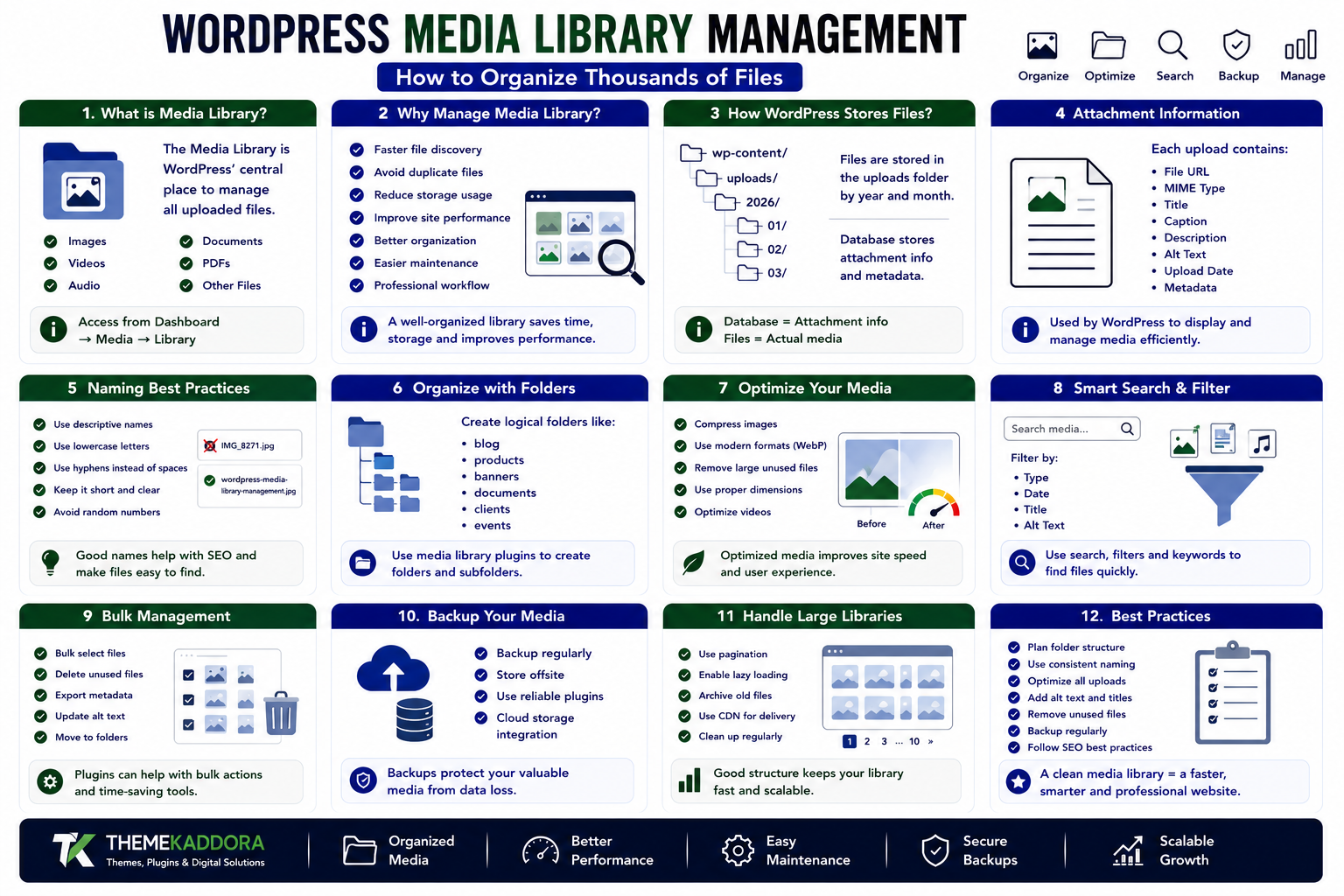
WordPress Media Library Management: How to Organize Thousands of Files
Introduction
Images, videos, PDFs, documents, audio files, graphics, and other uploads are essential parts of modern WordPress websites.
A small website may have only a few hundred media files. But large blogs, eCommerce stores, agencies, publishers, membership websites, and business platforms can accumulate thousands of files over time.
Without a clear organization system, the WordPress Media Library can quickly become difficult to manage.
Finding the correct image may take several minutes. Duplicate files can consume storage. Poorly named uploads can make searching difficult. Large images can slow down websites, while outdated files can make backups unnecessarily large.
Effective WordPress Media Library management solves these problems by creating a consistent system for uploading, naming, organizing, optimizing, searching, and maintaining media.
In this guide, you'll learn how the WordPress Media Library works, how to organize large collections, how to name files correctly, how to optimize images, how to manage documents and videos, and how to create a scalable media workflow.
What Is the WordPress Media Library?
The WordPress Media Library is the central area where uploaded files are managed.
It can contain:
Images
Videos
Audio
PDFs
Documents
Graphics
Other supported media files
You can access it from:
WordPress Dashboard ↓ Media ↓ Library
The Media Library provides both grid and list views, allowing administrators to browse and manage uploaded files.
Why Media Library Management Matters
A poorly organized media library can create several problems.
Difficult File Discovery
Finding an old image becomes time-consuming when hundreds or thousands of files have similar names.
Duplicate Files
Multiple versions of the same image can consume unnecessary storage.
Large File Sizes
Unoptimized images and videos can increase page weight.
Poor Naming
Names such as:
IMG_4827.jpg final-new-image2.png banner-final-final.jpg
provide little useful information.
Maintenance Problems
Old or unused files become difficult to identify and remove safely.
A structured system prevents these problems.
Understanding WordPress Media Attachments
When a file is uploaded, WordPress creates an attachment record associated with the media item.
The attachment contains information such as:
File URL
MIME type
Title
Caption
Description
Alternative text
Upload date
Metadata
WordPress can also generate different image sizes depending on the site's configuration.
Understanding this attachment model is useful when developing media-management plugins.
How WordPress Stores Uploaded Files
WordPress commonly stores uploads under a structure similar to:
wp-content/ └── uploads/ ├── 2026/ │ ├── 01/ │ ├── 02/ │ └── 03/ └── ...
The exact structure depends on the site's configuration.
The database stores attachment information while the actual files are stored in the uploads directory or an external media storage system.
This distinction is important:
Database ↓ Attachment information File Storage ↓ Actual media files
Deleting one does not necessarily mean the other is handled automatically in every custom workflow.
Create a Consistent File Naming System
One of the simplest improvements is adopting descriptive file names.
Instead of:
IMG_8271.jpg
use:
wordpress-media-library-management.jpg
For products:
woocommerce-black-running-shoes.jpg
For blog graphics:
wordpress-plugin-security-guide.jpg
Good filenames should be:
Descriptive
Short
Consistent
Easy to understand
Written using predictable separators
Avoid unnecessary words and random numbers when they don't add value.
Use Lowercase File Names
A consistent naming convention makes files easier to manage across operating systems and tools.
Prefer:
wordpress-media-management.jpg
instead of:
WordPress Media Management FINAL.jpg
Lowercase names combined with hyphens are generally easier to read and maintain.
Don't Use File Names as a Replacement for Alt Text
A descriptive filename can help organization, but it does not replace alternative text.
For example:
wordpress-dashboard-media-library.jpg
does not automatically provide an appropriate accessibility description.
Alt text should describe the meaningful purpose or content of an image.
Organizing Media by Content Type
A large media collection can be organized conceptually into categories such as:
Images Documents Videos Audio Product Media Blog Graphics Marketing Assets Brand Assets
WordPress does not provide a native physical folder hierarchy inside the standard Media Library interface.
Developers can implement additional organizational layers using metadata, taxonomies, custom interfaces, or specialized media-management solutions.
Organizing Media by Project
Agencies and businesses can benefit from project-based organization.
For example:
Projects ├── Website Redesign ├── Marketing Campaign ├── Product Launch ├── Documentation └── Social Media
This makes it easier to locate assets belonging to specific campaigns or clients.
Organizing Media by Department
Large organizations may benefit from department-based organization.
Example:
Business ├── Marketing ├── Sales ├── HR ├── Support └── Finance
However, access permissions should also be considered.
Simply organizing files by category does not automatically restrict who can access them.
Use WordPress Media Metadata
WordPress media items can contain useful metadata.
Important fields include:
Title
A human-readable name for the attachment.
Caption
Text displayed alongside an image where supported.
Description
Additional information about the media.
Alternative Text
Useful for accessibility and appropriate image contexts.
Good metadata makes media easier to manage and use.
Image Alt Text and Accessibility
Alternative text is particularly important for meaningful images.
For example, instead of:
image
use something meaningful such as:
WordPress Media Library showing image management options
However, decorative images may require different handling.
The purpose of alt text is not simply to insert keywords. It should help users who cannot see the image understand its relevant meaning.
Optimize Images Before Uploading
Large images can significantly increase page size.
Before uploading, consider:
Correct dimensions
Appropriate format
Compression
Removal of unnecessary metadata
Responsive image requirements
Don't upload a 6000-pixel image when a much smaller version is sufficient for the intended display.
Choose Appropriate Image Formats
Different image formats serve different purposes.
JPEG
Useful for many photographs.
PNG
Useful when transparency or lossless quality is important.
WebP
Provides efficient compression and broad modern browser support.
AVIF
Can provide very efficient compression and image quality on supported workflows.
The best format depends on the image and browser requirements.
WordPress Responsive Images
Modern WordPress installations can generate multiple image sizes.
For example:
Original ↓ Large Medium Medium Large Thumbnail
The browser can select an appropriate source based on the available image sizes and display conditions.
This can reduce unnecessary downloads on smaller screens.
Don't Upload Massive Original Images
A common mistake is uploading extremely large originals directly from cameras or design software.
For example:
8000 × 5000 pixels
may be unnecessary for a standard website image.
Resize images to a practical maximum before uploading when the original resolution is not required.
Managing PDFs and Documents
The Media Library is not limited to images.
You can also manage:
PDFs
DOC files
Spreadsheets
Presentations
Text files
Other supported documents
Use meaningful names such as:
product-documentation-guide.pdf
instead of:
document-final-v8.pdf
For public documents, also consider whether sensitive information should be accessible through a publicly reachable URL.
Managing Videos
Videos can consume significantly more storage than images.
Before uploading videos directly to WordPress, consider:
File size
Encoding
Resolution
Streaming requirements
Bandwidth
Hosting resources
For large video libraries, dedicated video platforms or object storage may be more appropriate depending on the project.
Managing Audio Files
Podcasts, music, tutorials, and other audio files can also accumulate quickly.
Use descriptive naming:
wordpress-plugin-development-episode-01.mp3
Maintain consistent metadata where your publishing workflow requires it.
Avoid Unnecessary Duplicates
Duplicate media is one of the most common problems on large websites.
You might have:
logo.png logo-1.png logo-2.png logo-final.png logo-final-new.png
Before uploading a new asset, check whether the existing file can be reused.
For large sites, automated duplicate detection can be useful.
Be Careful When Deleting Media
Deleting an attachment can affect content that references it.
Before removing an image or document, determine:
Where it is used
Whether it appears in posts
Whether it appears on pages
Whether plugins reference it
Whether custom fields reference it
Whether external systems use its URL
Never assume an apparently unused media item is safe to delete without checking.
Media Library Search
Large websites need efficient search.
Useful search filters include:
Filename
Title
MIME type
Upload date
Author
Attachment type
Project
Custom taxonomy
Usage status
A media-management plugin can provide more advanced filtering than the default interface.
Media Library List View
The WordPress Media Library provides a list-style interface that can be useful for reviewing:
File names
Authors
Upload dates
Attachment types
For large libraries, structured tables and filters can make bulk management easier.
Bulk Media Management
Large websites may need to process many files at once.
Possible bulk operations include:
Changing metadata
Categorizing assets
Replacing files
Optimizing images
Exporting media information
Identifying duplicates
Bulk actions should be designed carefully because mistakes can affect many files simultaneously.
Media Management and SEO
Media organization can indirectly support SEO.
Useful practices include:
Descriptive filenames
Appropriate alt text
Optimized image sizes
Efficient formats
Responsive images
Fast delivery
However, simply adding keywords to image filenames or alt text does not guarantee better rankings.
Focus on relevance, accessibility, performance, and user experience.
Media Management and Website Performance
Media is one of the largest contributors to page weight on many websites.
Performance can be improved by:
Large Image ↓ Resize ↓ Compress ↓ Modern Format ↓ Responsive Delivery ↓ Faster Page
Additional techniques such as lazy loading, caching, and CDN delivery can further improve media performance.
Using a CDN for Media
A Content Delivery Network can serve static assets from locations closer to visitors.
This can help reduce latency for geographically distributed audiences.
A common architecture is:
Visitor ↓ CDN ↓ Media Storage
For large websites, separating application infrastructure from media delivery can improve scalability.
External Media Storage
High-volume websites may use object storage for media.
For example:
WordPress ↓ Object Storage ↓ CDN ↓ Visitor
This can reduce pressure on the primary web server.
The appropriate architecture depends on traffic volume, hosting infrastructure, cost, and operational requirements.
Media Backups
Media files should be included in your backup strategy.
A useful backup system can include:
Database Backup + WordPress Files + Uploads + Configuration
Don't assume that backing up the database automatically backs up uploaded images and documents.
The actual media files are typically stored separately from the database.
Staging and Production Media
Development workflows can create confusion when staging and production environments have different media libraries.
Before synchronizing environments, consider:
Which media files are new
Whether URLs change
Database references
Upload directories
CDN configuration
Storage synchronization
Avoid blindly replacing production uploads with an older staging directory.
Media Management for WooCommerce
eCommerce websites can contain thousands of product images.
A product may include:
Product ├── Main Image ├── Gallery Image 1 ├── Gallery Image 2 ├── Gallery Image 3 └── Variation Images
A consistent product-media naming strategy makes maintenance easier.
For example:
product-name-front.jpg product-name-side.jpg product-name-detail.jpg
Media Management for Blogs
A content-heavy blog may use:
Article ├── Featured Image ├── Inline Images ├── Infographics ├── Downloadable PDF └── Social Preview
Create a consistent workflow so writers and editors know how assets should be named, optimized, and uploaded.
Media Management for Agencies
Agencies often manage assets for multiple clients.
A structured workflow can use:
Client ↓ Project ↓ Asset Type ↓ Media
This makes asset discovery easier and reduces accidental reuse of assets between clients.
Building a Custom Media Management Plugin
Developers can extend WordPress media functionality through its APIs.
A custom solution could provide:
Media folders
Custom categories
Advanced search
Duplicate detection
Usage tracking
Bulk metadata editing
Media replacement
Storage reporting
Team-based access
Media dashboards
For large implementations, separate the interface, data layer, and media-processing logic.
Media Usage Tracking
One useful feature for large websites is determining where a media item is used.
For example:
Image ↓ Post A Page B Product C Landing Page D
This helps administrators understand the consequences of deleting or replacing a file.
Tracking becomes more complicated when URLs are inserted directly into custom HTML, CSS, JavaScript, page builders, or external systems.
Therefore, usage detection should be treated as an approximation unless the entire content ecosystem is controlled.
Replacing Media Files Safely
Replacing an image can be useful when updating:
Logos
Product photos
Documentation
Marketing graphics
However, the replacement workflow should preserve references where possible.
Before implementing automated replacement, consider:
File type
Dimensions
Existing references
Image metadata
Generated image sizes
Cache invalidation
Media Security
Not every uploaded file should automatically be considered safe.
Important practices include:
Restricting upload permissions
Validating file types
Limiting file sizes
Keeping WordPress updated
Using secure hosting
Monitoring suspicious uploads
Protecting sensitive documents
Never trust a filename or client-provided MIME type as the sole security control.
Common Media Library Mistakes
Uploading Huge Images
Large originals increase storage and page weight.
Using Random File Names
Unclear names make asset discovery harder.
Keeping Unlimited Duplicates
Duplicate files increase storage requirements.
Deleting Files Without Checking Usage
Existing content may depend on them.
Ignoring Alt Text
Meaningful images should receive appropriate accessibility descriptions.
Uploading Sensitive Documents Publicly
Media URLs may be accessible depending on site configuration.
Loading Full-Resolution Images Everywhere
Use appropriate image sizes for the context.
Ignoring Backups
Media files are part of the website and need backup protection.
WordPress Media Library Best Practices
For a scalable media workflow:
Use descriptive filenames.
Establish naming conventions.
Optimize images before or during upload.
Use modern formats where appropriate.
Provide meaningful alt text.
Avoid unnecessary duplicates.
Review unused media carefully.
Use structured metadata.
Use CDN delivery when appropriate.
Include uploads in backups.
Monitor storage usage.
Restrict media management permissions.
Test bulk operations.
Avoid deleting files without usage checks.
Keep media workflows consistent across teams.
A Professional Media Workflow
A scalable workflow can look like:
Create Asset ↓ Use Descriptive Filename ↓ Resize / Optimize ↓ Upload ↓ Add Relevant Metadata ↓ Verify Accessibility ↓ Publish ↓ Monitor Usage ↓ Backup ↓ Review Periodically
This process helps prevent the Media Library from becoming an unmanaged collection of files.
Why choose ThemeKaddora?
ThemeKaddora products can include WordPress themes, plugins, UI kits, templates, eCommerce tools, and business applications that rely heavily on media assets.
A professional media workflow can help users manage:
Theme Assets Plugin Assets Product Images Documentation Marketing Graphics User Uploads Business Documents
For advanced ThemeKaddora plugins, media-management features can become part of a broader administration system that includes search, categorization, permissions, optimization, and usage tracking.
The goal is not simply to store more files.
The goal is to make every asset easy to find, efficient to deliver, safe to manage, and simple to maintain.
Conclusion
The WordPress Media Library can become difficult to manage as a website grows, but a structured system makes thousands of files much easier to control.
Descriptive filenames, optimized images, useful metadata, organized workflows, careful deletion, efficient search, reliable backups, and appropriate storage architecture all contribute to better media management.
For developers and businesses managing large WordPress websites, media should be treated as an important part of the site's architecture rather than simply a collection of uploads.
A well-managed Media Library saves time, reduces storage waste, improves performance, supports accessibility, and creates a more efficient publishing workflow.
Frequently Asked Questions
What is WordPress Media Library management?
WordPress Media Library management is the process of organizing, naming, optimizing, searching, maintaining, and safely managing files uploaded to a WordPress website.
How do I organize thousands of WordPress images?
Use consistent filenames, metadata, optimized image sizes, logical project or content classifications, advanced search, and a documented media workflow.
Does WordPress have media folders by default?
WordPress stores uploaded files in an organized filesystem structure, but the standard Media Library does not provide a traditional folder-management interface for manually organizing attachments into custom folders.
Should I rename images before uploading them?
Yes. Descriptive filenames can make media easier to identify and manage. Use a consistent naming convention.
Does alt text improve SEO?
Appropriate alt text primarily improves accessibility and helps search engines understand relevant image content. It should describe the image's purpose rather than be filled with keywords.
Should I delete unused WordPress media?
Potentially, but verify that the file is not referenced by posts, pages, products, custom fields, page builders, themes, plugins, or external systems before deleting it.
Can WordPress Media Library handle PDFs and documents?
Yes. WordPress can manage many document formats through the Media Library, although the exact supported file types depend on WordPress and server configuration.
Can I use a CDN for WordPress media?
Yes. A CDN can distribute static media closer to visitors and reduce latency, especially for websites with geographically distributed audiences.
Can developers create custom media-management plugins?
Yes. Developers can extend WordPress media functionality with features such as advanced search, folders or taxonomies, bulk operations, usage tracking, optimization, and media dashboards.
How should WordPress media be backed up?
Back up both the WordPress database and uploaded files. The database contains attachment information, while the actual media files are stored separately.
Why choose Themekaddora?
Themekaddora provides lightweight, responsive, SEO-friendly WordPress themes with fast performance, WooCommerce compatibility, flexible customization, accessibility-conscious design, modern templates, regular updates, and professional support—providing a strong foundation for businesses building digital products and product-focused websites.
Comments (0)