
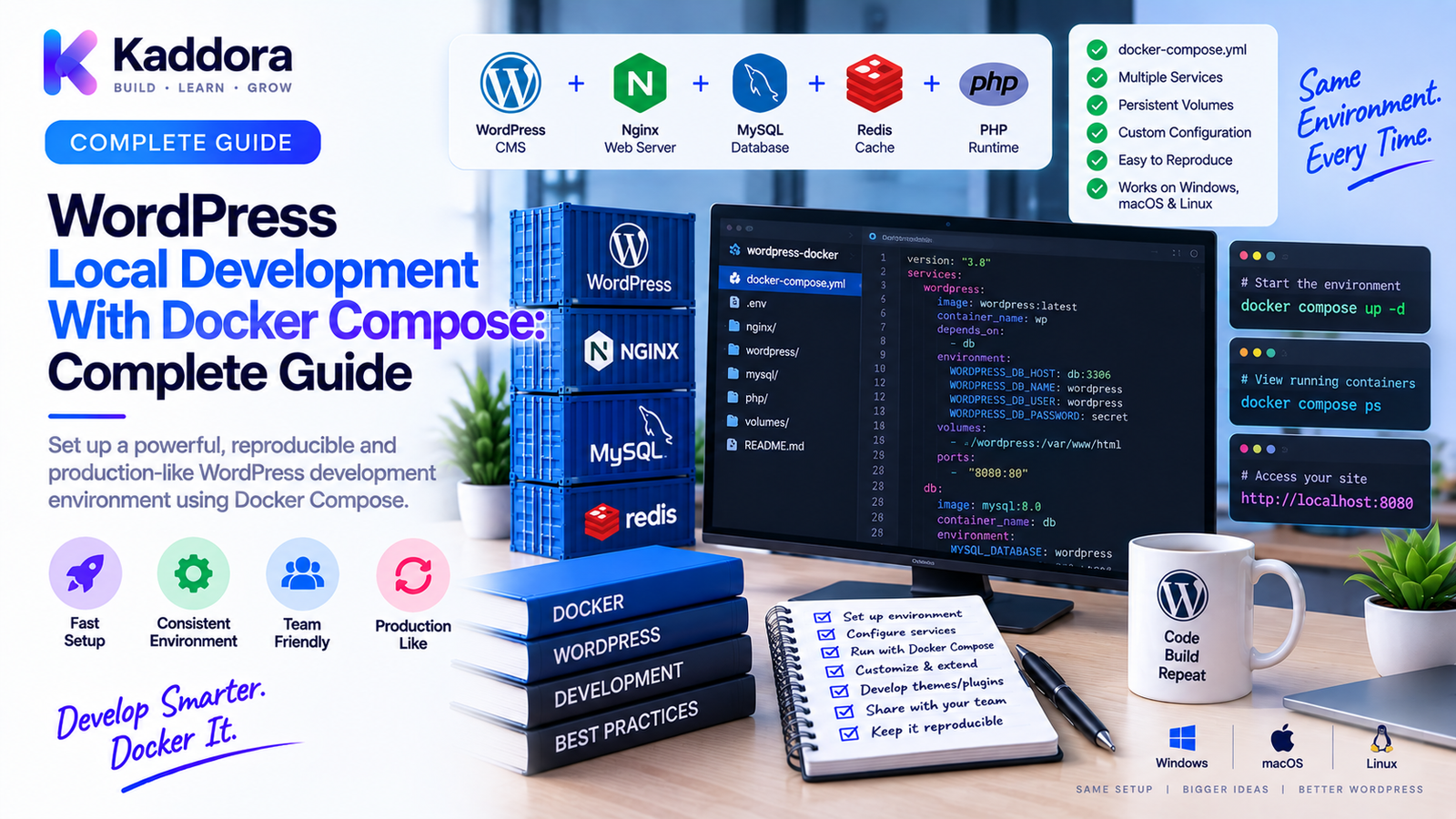
WordPress Local Development With Docker Compose: Complete Guide
Introduction
Local WordPress development is much easier when developers can create the same environment repeatedly.
Without a standardized setup, developers may need to install and configure:
PHP
MySQL or MariaDB
Web servers
WordPress
Composer
Node.js
WP-CLI
Development extensions
Email testing tools
These dependencies can behave differently across machines.
One developer may use one PHP version while another uses a different version. A database may be configured differently. A required PHP extension may be missing. A plugin may work locally but fail in another environment.
Docker Compose provides a practical way to define multiple development services in one configuration.
A typical WordPress Compose environment can look like:
Docker Compose │ ┌────┴─────┐ ▼ ▼ WordPress Database │ │ └────┬─────┘ ▼ Persistent Data
Additional services can be added when required:
WordPress ├── MySQL ├── Redis ├── Composer ├── WP-CLI ├── Mail Testing └── Node.js
This guide explains how to build a WordPress local development environment with Docker Compose, how the services communicate, how to persist data, how to mount source code, how to customize the environment, and how to create a professional development workflow.
What Is Docker Compose?
Docker Compose is a tool for defining and managing multi-container applications using a configuration file.
Instead of starting individual containers manually, you can define services such as:
wordpress database redis mail
and manage them together.
For WordPress development, this makes it easier to reproduce the entire local stack.
Why Use Docker Compose for WordPress?
Docker Compose offers several advantages.
Consistent Environment
Developers can use the same container configuration.
Easy Setup
The environment can be started with one command.
Service Isolation
Different projects can use different PHP or database versions.
Reproducibility
Configuration can be version-controlled.
Easier Onboarding
New team members can recreate the environment quickly.
Better Testing
Different environments can be created for compatibility and debugging.
WordPress Docker Compose Architecture
A basic setup contains two core services:
Docker Compose │ ┌─────────┴─────────┐ ▼ ▼ WordPress Database │ │ └─────────┬─────────┘ ▼ Docker Network
The WordPress container communicates with the database using the Docker service name rather than a hard-coded IP address.
For example:
WORDPRESS_DB_HOST=db
Here, db is the database service name.
Project Directory Structure
A simple project can start with:
wordpress-local/ ├── docker-compose.yml ├── .env ├── .env.example ├── wp-content/ │ ├── plugins/ │ ├── themes/ │ └── mu-plugins/ └── README.md
For plugin development, this can later be expanded with:
plugins/ tests/ composer.json phpunit.xml phpstan.neon phpcs.xml Dockerfile scripts/
The exact structure should reflect the project.
Create the Docker Compose File
A basic Compose configuration can define WordPress and MySQL.
Conceptually:
services: wordpress: image: wordpress:<version> ports: - "8080:80" environment: WORDPRESS_DB_HOST: db WORDPRESS_DB_NAME: wordpress WORDPRESS_DB_USER: wordpress WORDPRESS_DB_PASSWORD: development-password db: image: mysql:<version> environment: MYSQL_DATABASE: wordpress MYSQL_USER: wordpress MYSQL_PASSWORD: development-password MYSQL_ROOT_PASSWORD: root-password
Use intentionally selected image versions for reproducible development rather than relying on moving tags for important environments.
Step 1: Install Docker
Install Docker Desktop on Windows or macOS, or Docker Engine and Compose support on Linux.
Verify the installation:
docker --version
Then:
docker compose version
If both commands work, the core environment is ready.
Step 2: Start the Environment
From the project directory:
docker compose up -d
Docker Compose will create the required containers and network.
Check the services:
docker compose ps
You should see the WordPress and database services running.
Step 3: Open WordPress
If port 8080 is mapped to container port 80, open:
http://localhost:8080
The WordPress setup screen should appear once the database is available and WordPress can establish its connection.
Understand Docker Compose Service Names
The database service can be named:
db:
WordPress can then connect using:
WORDPRESS_DB_HOST=db
Do not use:
localhost
for the database connection inside the WordPress container.
Inside a container, localhost refers to that same container.
Step 4: Persist the Database
Containers can be recreated.
Database data should therefore be stored in a persistent volume.
Conceptually:
volumes: db_data:
Then attach it to the database service.
This creates:
Database Container │ ▼ Persistent Volume
The exact volume configuration depends on the environment.
Step 5: Mount WordPress Source Files
For active development, developers usually want to edit source code from the host machine.
For example:
./wp-content ↓ WordPress /wp-content
This makes local plugin and theme changes immediately available inside the container.
It is especially useful for:
Plugin development
Theme development
Custom WordPress applications
Why Mount wp-content?
The WordPress core doesn't normally need to be edited during everyday plugin development.
Most custom work occurs in:
wp-content/ ├── plugins/ ├── themes/ └── mu-plugins/
Mounting this directory keeps project source code outside the container filesystem.
It also makes version control easier.
Step 6: Configure Environment Variables
Use an .env file for environment-specific configuration.
Example:
WORDPRESS_PORT=8080 DB_NAME=wordpress DB_USER=wordpress DB_PASSWORD=development-password DB_ROOT_PASSWORD=root-password
Then reference these values from the Compose file.
Create:
.env.example
for project documentation.
Don't commit real production credentials to Git.
Step 7: Pin PHP Compatibility
The WordPress image determines the PHP runtime used by the container.
For plugin development, PHP version selection should reflect the project's support matrix.
For example:
PHP 8.1 PHP 8.2 PHP 8.3
You may use separate Compose configurations for different compatibility targets.
Step 8: Add a Custom Dockerfile
The standard WordPress image may not contain everything a development project needs.
A custom Dockerfile can add:
PHP extensions
Composer
WP-CLI
Xdebug
Development utilities
Architecture:
WordPress Image ↓ Dockerfile ↓ Custom Development Image
This is useful when your project has specific development requirements.
Step 9: Install Composer
For modern WordPress plugin development, Composer can manage PHP dependencies and development tools.
A typical project can contain:
composer.json composer.lock
The lock file helps keep dependency versions consistent.
A Compose-based environment can provide Composer inside the development container or use a dedicated tooling container.
Step 10: Add WP-CLI
WP-CLI is useful for automating WordPress tasks.
Typical operations include:
Installing WordPress
Installing plugins
Activating plugins
Creating users
Importing data
Managing options
Running database commands
A workflow can become:
Developer ↓ WP-CLI ↓ WordPress Container ↓ Database
This is much easier to automate than manually performing the same dashboard actions.
Step 11: Add Node.js for Frontend Development
Modern WordPress plugins and themes may use Node.js.
Examples include:
React
Gutenberg blocks
JavaScript builds
Sass or CSS tooling
Vite
Webpack
A development stack might therefore include:
WordPress PHP MySQL Node.js Composer
Keep Node.js tooling versioned when build reproducibility matters.
Step 12: Add Redis When Required
If your application uses persistent object caching, add Redis to the development environment.
Architecture:
WordPress ├── Database └── Redis
This can be helpful when testing:
Object caching
Session-related behavior
Cache-aware plugins
Performance-sensitive code
Don't add Redis merely because it is available. Use it when the project actually depends on or tests it.
Step 13: Add Mail Testing
WordPress development frequently involves email workflows.
Use a local mail-capture service rather than sending development messages to real inboxes.
For example:
WordPress ↓ Mail Testing Service ↓ Local Inbox
This can be used for:
Password resets
Form notifications
WooCommerce emails
Plugin alerts
Step 14: Add phpMyAdmin Carefully
phpMyAdmin can provide a graphical database interface.
Architecture:
Browser ├── WordPress └── phpMyAdmin │ ▼ MySQL
This is useful during local development for inspecting:
Tables
Options
Metadata
Test data
Do not expose database administration tools publicly without appropriate security controls.
Step 15: Configure Docker Networks
Compose automatically provides a network for services in the same project.
This allows:
wordpress → db wordpress → redis wordpress → mail
without exposing every service to your host machine.
Only publish the ports that developers actually need.
Step 16: Add Health Checks
A container being "running" does not always mean the application inside it is ready.
A database may need additional time before accepting connections.
Health checks can provide:
Container Starts ↓ Health Check ↓ Ready ↓ WordPress Connects
This reduces race conditions during startup.
Step 17: Configure WordPress Debugging
Development environments should make debugging easy.
Common WordPress development configuration includes:
WP_DEBUG=true WP_DEBUG_LOG=true WP_DEBUG_DISPLAY=false
Error logs can then be reviewed without displaying sensitive debugging information directly to browser visitors.
In Docker, also inspect service logs:
docker compose logs wordpress
Step 18: Inspect Container Logs
Logs are one of the first troubleshooting tools.
Use:
docker compose logs
For a specific service:
docker compose logs wordpress
Follow logs continuously:
docker compose logs -f wordpress
Database logs can similarly reveal startup and connection problems.
Step 19: Access the WordPress Container
Sometimes you need to inspect the container directly.
Use:
docker compose exec wordpress bash
If the image doesn't include Bash, use an available shell such as sh.
Inside the container, inspect:
php -v php -m
and review WordPress files and configuration.
Step 20: Manage Database Initialization
A new development environment should be able to create its database from scratch.
Typical workflow:
Create Database ↓ Install WordPress ↓ Activate Plugins ↓ Configure Site ↓ Seed Test Data
The exact automation can be handled through WP-CLI and project scripts.
Seed Predictable Development Data
A fresh WordPress environment is more useful when every developer has similar data.
Seed:
Pages
Posts
Categories
Users
Products
Custom post types
For example:
Fresh Database ↓ Seed Script ↓ Known Test Dataset
Don't use real customer data for shared development environments.
Create an Easy Reset Workflow
Developers should be able to destroy and rebuild local state.
For example:
Reset ↓ Remove Containers ↓ Reset Database Volume ↓ Start Services ↓ Install WordPress ↓ Seed Data
This is useful when testing database migrations or reproducing issues from a clean state.
Use Docker Compose Profiles
Not every project needs every service all the time.
You might define:
Default: WordPress + Database Development: + Redis + Mail Testing: + Test Database + Test Services
Compose profiles can keep the default environment simpler while allowing optional services when needed.
Separate Development and Test Environments
A developer's current database should not determine automated test behavior.
For example:
Development Database ≠ Test Database
Automated tests should start from predictable state.
This is especially important for plugin development.
WordPress Docker Compose for Plugin Development
A professional plugin project might look like:
plugin/ ├── src/ ├── tests/ ├── assets/ ├── composer.json ├── composer.lock ├── phpunit.xml ├── phpstan.neon ├── phpcs.xml ├── Dockerfile └── docker-compose.yml
Docker Compose provides:
WordPress + Database + Testing Tools
This allows developers to work against a known runtime.
WordPress Docker Compose for Theme Development
Theme development can use a similar structure:
theme/ ├── assets/ ├── inc/ ├── templates/ ├── package.json ├── package-lock.json ├── Dockerfile └── docker-compose.yml
The theme files can be mounted into WordPress.
WooCommerce Local Development With Docker Compose
WooCommerce projects benefit from predictable data.
A development environment may include:
Products Orders Customers Coupons Categories Payment Test Data
Use seed scripts to recreate these records consistently.
This helps reproduce issues related to:
Checkout
Cart
Orders
Product variations
Customer accounts
Emails
HTTPS in Local Docker Development
Some projects need HTTPS locally.
It can be useful for testing:
Secure cookies
OAuth
Webhooks
External API callbacks
Authentication
Browser security behavior
A reverse proxy or local certificate layer can provide HTTPS.
Don't add local TLS complexity unless the application requires it.
File Performance Considerations
Docker file mounting performance can differ by operating system.
Large WordPress projects may contain many files inside:
wp-content/ vendor/ node_modules/
Avoid unnecessary file synchronization.
Keep dependency directories managed efficiently and configure local mounts carefully.
Database Backup and Restore
Local environments should still have a recovery strategy when development data matters.
Useful workflows include:
Export ↓ SQL Backup ↓ Fresh Environment ↓ Import
For test environments, deterministic seed scripts are often preferable to relying on one large local database snapshot.
Environment Variables and Secrets
Never use production credentials in local Compose files.
Avoid committing:
REAL_API_KEY REAL_DATABASE_PASSWORD REAL_OAUTH_SECRET
Use development-only values and environment-specific secret handling.
Common Docker Compose WordPress Problems
Database Connection Failed
Check:
Service name
Credentials
Network
Database startup state
Port Already in Use
Another application may already be using the host port.
Change the host-side port.
WordPress Keeps Reinstalling
Check persistent database storage.
Plugin Changes Aren't Visible
Check the volume mount.
Permission Errors
Check file ownership and permissions.
Database Starts Too Slowly
Use health checks and appropriate dependency behavior.
Container Is Running But Site Fails
Inspect the actual service logs rather than relying only on container status.
Troubleshooting Workflow
When something fails, use a systematic process:
Check Containers ↓ Check Logs ↓ Check Environment Variables ↓ Check Network ↓ Check Volumes ↓ Check WordPress ↓ Check Database
This is faster than changing several configuration options at once.
Automate the Local Setup
A professional project should ideally provide a simple command such as:
make setup
or:
./scripts/setup.sh
The setup process can:
Check Docker ↓ Start Containers ↓ Wait for Database ↓ Install WordPress ↓ Install Dependencies ↓ Activate Plugins ↓ Seed Data ↓ Run Health Checks
Document the Commands
The README should explain:
Start
docker compose up -d
Stop
docker compose down
Logs
docker compose logs -f
Shell
docker compose exec wordpress bash
Reset
Document the project-specific reset command clearly.
Version-Control Docker Compose
Keep important environment files in Git:
docker-compose.yml Dockerfile .env.example scripts/ README.md
Don't commit:
.env with secrets
Local database volumes
Generated dependencies unless required
Private credentials
Use a Reproducibility Check
A useful project test is:
Remove Environment ↓ Clone Repository ↓ Run Setup ↓ Fresh WordPress Works
If the environment cannot be rebuilt from the repository and documented inputs, it isn't fully reproducible.
Docker Compose and CI
The same Compose architecture can support automated testing.
For example:
CI ↓ Build Containers ↓ Start WordPress ↓ Start Database ↓ Install Dependencies ↓ Run Tests ↓ Destroy Environment
This reduces differences between local development and automated validation.
Use AI to Improve Docker Compose Workflows
AI can assist with:
Explaining Compose errors
Reviewing configuration
Generating documentation
Diagnosing dependency conflicts
Suggesting health checks
Identifying environment differences
A useful workflow is:
Error / Configuration ↓ AI Analysis ↓ Suggested Fix ↓ Developer Review ↓ Test
Do not blindly apply generated infrastructure configuration.
Review ports, volumes, permissions, networking, and security before committing changes.
Security Considerations
Local infrastructure still needs sensible security.
Avoid:
Public database ports
Real production credentials
Real customer data
Public phpMyAdmin
Unrestricted development APIs
Hard-coded secrets
Development services should remain appropriately scoped to the local environment.
WordPress Docker Compose Checklist
Core
Docker installed
Docker Compose available
WordPress service
Database service
Internal network
Persistence
Database volume
Source-code mounts
Backup strategy
Development
Composer
WP-CLI
Node.js where required
Debug logging
Mail testing
Reliability
Health checks
Startup handling
Reset workflow
Seed data
Logs
Testing
Test environment
Automated tests
PHP compatibility
WordPress compatibility
Security
Development-only credentials
No real customer data
Database not publicly exposed
Development tools restricted
Recommended WordPress Docker Compose Architecture
A scalable local environment can look like:
Docker Compose │ ┌────────────────┼────────────────┐ ▼ ▼ ▼ WordPress Database Tools │ │ │ │ │ ┌──────┼──────┐ │ │ ▼ ▼ ▼ │ │ WP-CLI Composer Node │ ┌───┴────────┐ ▼ ▼ Redis Mail
For simpler projects:
WordPress + Database
Start simple and introduce additional services when the project requires them.
Best Practices for WordPress Local Development With Docker Compose
Define the environment as code.
Keep Compose files and development configuration in version control.
Pin important versions.
Use predictable WordPress, PHP, and database versions.
Use persistent storage intentionally.
Database data should survive ordinary container recreation when needed.
Mount source code for active development.
Keep plugins and themes accessible from the host environment.
Automate setup and reset.
Developers should be able to create a clean environment repeatedly.
Use predictable test data.
Seed data rather than relying on undocumented local database state.
Keep services private.
Only publish the ports developers actually need.
Use health checks.
Service availability should be based on readiness, not merely process startup.
Document everything.
A reproducible environment requires clear instructions.
Match important production characteristics.
PHP versions, extensions, database behavior, caching, and integrations should be representative when compatibility matters.
Why Choose ThemeKaddora?
At ThemeKaddora, WordPress themes, plugins, WooCommerce solutions, HTML templates, UI kits, and SaaS-oriented digital products can benefit from a standardized local development workflow.
Docker Compose can help product teams establish consistent environments for:
Plugin development
Theme development
WooCommerce testing
API integrations
Database testing
Performance testing
Release validation
For developers and agencies, a reusable Compose foundation can also reduce the time spent rebuilding local environments for every new WordPress project.
A professional workflow should allow a developer to move from:
Clone ↓ Start ↓ Develop ↓ Test ↓ Reset
without depending on undocumented machine-specific configuration.
Conclusion
WordPress local development with Docker Compose provides a practical way to define WordPress and its supporting services as a repeatable development environment.
Instead of manually installing PHP, databases, WordPress, caching tools, mail services, and development utilities on each machine, developers can define the stack as project configuration.
The core workflow is:
Define → Compose → Start → Develop → Test → Reset
A strong environment should:
Standardize key versions
Separate services
Persist important development data
Mount active source code
Provide Composer and WP-CLI when required
Support frontend tooling when needed
Make debugging easy
Provide predictable test data
Support clean resets
Protect development credentials
Remain easy to reproduce
For a simple blog, Docker Compose may be unnecessary.
For WordPress plugin developers, theme developers, WooCommerce teams, agencies, SaaS projects, and professional product teams, it can become a valuable engineering foundation.
The biggest benefit is not merely containerization.
The real benefit is repeatability.
When the local environment can be recreated from the repository, developers spend less time configuring machines and more time building, testing, debugging, and improving WordPress products.
A well-designed Docker Compose environment also creates a natural bridge toward automated testing and CI, making it an important building block for a professional WordPress engineering workflow.
Frequently Asked Questions
What is WordPress Docker Compose?
WordPress Docker Compose is a local development setup that uses Docker Compose to define WordPress and supporting services such as a database, cache, or mail-testing system.
Why use Docker Compose for WordPress?
Docker Compose makes it easier to define, start, reproduce, and manage multiple services required for WordPress development.
Can I run WordPress and MySQL with Docker Compose?
Yes. A common setup uses a WordPress service and a MySQL or MariaDB service connected through the Compose network.
Where should WordPress plugins be stored?
For active development, custom plugins can be stored in the project's wp-content/plugins/ directory and mounted into the WordPress container.
Can I develop themes with Docker Compose?
Yes. Theme source files can be mounted into the WordPress container, allowing developers to edit and test themes locally.
How do I connect WordPress to MySQL in Docker Compose?
Use the database service name as the database host, such as:
WORDPRESS_DB_HOST=db
The exact value depends on the service name defined in the Compose file.
Why should I use a database volume?
A database volume provides persistent storage so development data can survive normal container recreation.
Can I add Redis to WordPress Docker Compose?
Yes. Redis can be added when the project needs to test persistent object caching or related application behavior.
Can I use Composer with WordPress Docker Compose?
Yes. Composer can be included in the development container or provided through a dedicated tooling service.
Can I use WP-CLI with Docker Compose?
Yes. WP-CLI can automate WordPress installation, plugin activation, database operations, configuration, and test-data setup.
Can I run WooCommerce locally with Docker Compose?
Yes. WooCommerce can run inside the WordPress service, while the database and optional supporting services run in separate containers.
Can Docker Compose test multiple PHP versions?
Yes. Separate Compose configurations or CI jobs can be used to test different PHP and WordPress combinations.
Why are health checks useful?
A running database container may not immediately be ready for connections. Health checks can help the application wait until the service is actually ready.
Can I use HTTPS locally with Docker Compose?
Yes. A reverse proxy or local certificate setup can provide HTTPS when your application needs to test secure cookies, OAuth, webhooks, or other HTTPS-dependent behavior.
How do I reset a WordPress Docker Compose environment?
Create a documented reset workflow that stops services, removes development state when appropriate, recreates containers, initializes WordPress, and restores seed data.
Is Docker Compose suitable for WordPress production?
Docker Compose can be part of a production architecture in some environments, but a local development configuration should not automatically be considered production-ready. Production requires appropriate persistence, security, networking, backups, monitoring, and deployment controls.
Should I expose MySQL publicly?
Generally, no. WordPress can communicate with the database over the internal Docker network, avoiding the need to publish the database port to the host unless a specific development tool requires it.
Can AI help with Docker Compose configuration?
AI can help explain configuration errors, review Compose files, and suggest improvements, but infrastructure changes should be reviewed and tested by developers before use.
Why choose ThemeKaddora?
ThemeKaddora develops WordPress themes, plugins, WooCommerce solutions, HTML templates, UI kits, SaaS solutions, and business-focused digital products with an emphasis on modern development practices, performance, compatibility, maintainability, and professional engineering workflows.
Comments (0)