
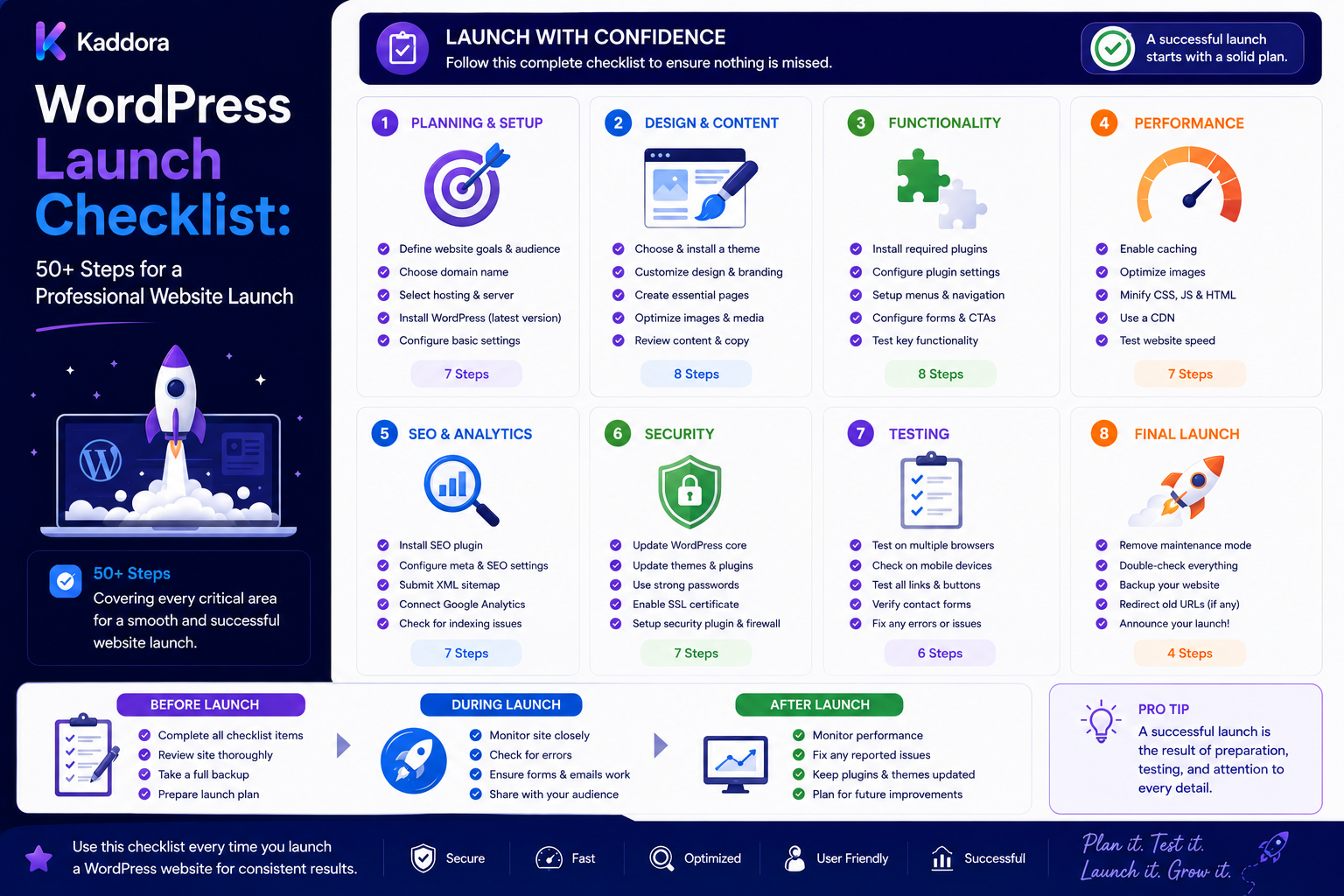
WordPress Launch Checklist: 50+ Steps for a Professional Website Launch
Introduction
Launching a WordPress website is more than uploading files and pointing a domain to a server.
A professional launch requires coordinated checks across:
Content Design Functionality Security Performance SEO Accessibility DNS SSL Analytics Backups Email Integrations
A website can look perfect in staging and still fail after launch because:
A Form Sends to the Wrong Email A DNS Record Is Missing SSL Is Misconfigured Analytics Is Not Tracking A Plugin Conflicts in Production A Staging URL Appears in Content Search Engines Cannot Crawl the Site Production Credentials Are Missing
This is why agencies need a standardized WordPress launch checklist.
Instead of relying on memory:
Build ↓ Hope ↓ Launch ↓ Fix Problems
use:
Build ↓ QA ↓ Pre-Launch Checklist ↓ Backup ↓ Deploy ↓ Smoke Test ↓ Monitor
A good launch checklist turns a complex deployment into a repeatable process.
What Is a WordPress Launch Checklist?
A WordPress launch checklist is a documented set of checks performed before, during, and after a website goes live.
It should cover three phases:
Pre-Launch
Verify the website is ready.
Launch
Deploy the approved release safely.
Post-Launch
Confirm the production website works correctly.
Why a Launch Checklist Matters
A structured checklist helps agencies:
Reduce launch errors
Protect production data
Improve QA consistency
Avoid missed configuration
Confirm client approval
Make launches repeatable
Reduce post-launch support
Improve team coordination
The checklist should be standardized while still allowing project-specific requirements.
1. Confirm Client Approval
Before launching:
Design Approved Content Approved Functionality Approved Final Scope Confirmed
Don't deploy unfinished work simply because a launch date has arrived.
2. Confirm the Production Domain
Verify:
Primary Domain WWW Version HTTPS Version Redirect Rules
Make sure the correct production domain is being used.
3. Verify DNS
Check important DNS records:
A AAAA CNAME MX TXT
depending on the project.
Do not change DNS without understanding which services depend on existing records.
4. Verify SSL
Confirm:
HTTPS Works Certificate Is Valid No Mixed Content HTTP Redirects Properly
Test important pages and assets.
5. Confirm Hosting
Verify production hosting:
Server PHP Version Database Storage Caching CDN
matches the approved production environment.
6. Confirm PHP Compatibility
Check that the production PHP version is supported by:
WordPress Theme Plugins Custom Code
Do not assume a staging PHP version matches production.
7. Confirm WordPress Version
Record the production WordPress version and verify that it is compatible with the project.
8. Review Themes and Plugins
Check:
Active Theme Child Theme Required Plugins Plugin Versions Unused Plugins
Remove unnecessary development components before launch.
9. Check Plugin Licensing
Confirm that premium products have:
Valid License Correct Site Correct Owner Required Renewal
Document licensing responsibility.
10. Remove Development Data
Before launch, remove:
Test Posts Test Users Demo Products Placeholder Content Temporary Files
Be careful not to remove legitimate content.
11. Remove Development Accounts
Review:
Developers Test Users Temporary Admins
Remove unnecessary access.
Keep authorized maintenance accounts only when contractually required.
12. Review Admin Permissions
Verify that users have appropriate roles.
Avoid giving administrator access when a lower-privilege role is sufficient.
13. Change Temporary Credentials
If development credentials were temporary:
Replace ↓ Verify ↓ Revoke Old
Do not leave shared development passwords in production.
14. Disable Debugging
Production settings should be reviewed carefully.
Avoid exposing debugging information to visitors.
If logging is required, configure it securely and avoid storing sensitive data.
15. Check Error Logging
Ensure production logs:
Errors Warnings Application Failures
can be monitored without exposing internal information publicly.
16. Create a Production Backup
Before final deployment:
Database Backup + Files Backup
For critical websites, verify that the backup is usable.
17. Document Recovery
Know:
Where Backup Exists Who Can Restore How Restoration Works
A backup without a recovery plan is incomplete.
18. Verify Database Configuration
Confirm that production uses the correct:
Database Username Host Prefix Environment
Secrets should remain protected.
19. Run Database Migrations Carefully
If the release includes schema changes:
Backup ↓ Migration ↓ Verify
Test migrations in staging before production.
20. Check Production URLs
Search the website for staging or development references such as:
staging.example.com localhost 127.0.0.1 development URLs
Replace them using WordPress-aware tools where necessary.
Avoid unsafe raw search-and-replace operations on serialized data.
21. Review Permalinks
Confirm:
Permalink Structure URLs 404 Handling Redirects
Test representative pages.
22. Test Navigation
Check:
Header Footer Menus Dropdowns Mobile Navigation Breadcrumbs
23. Test Forms
Every important form should be tested in production after launch.
Check:
Submission Validation Email Success Message CRM Spam Protection
24. Test Email Delivery
Verify:
Contact Emails Transactional Emails Admin Notifications Password Emails
Use production-safe sender configuration.
25. Test User Authentication
Check:
Login Logout Password Reset Registration Account Pages
where relevant.
26. Test WooCommerce
For stores, test:
Product Cart Checkout Payment Shipping Tax Coupon Order Email
Use an appropriate production test transaction or verification method without unnecessarily creating real financial transactions.
27. Test Search
Verify:
Search Filters Sorting No Results Relevant Results
28. Test 404 Pages
Open an invalid URL and verify:
404 Status 404 Design Navigation
29. Test Responsive Design
Check:
Mobile Tablet Desktop Large Screens
Focus on real content rather than only design mockups.
30. Test Browser Compatibility
Verify important workflows in the browsers supported by the project.
31. Check Accessibility
Review applicable areas:
Keyboard Navigation Focus Labels Headings Contrast Alt Text Interactive Controls
Do not claim formal compliance unless the project was actually evaluated against the relevant standard.
32. Check Images
Verify:
Correct Images Responsive Images Alt Text Compression Broken Images
33. Check Fonts
Confirm:
Fonts Load Correct Weights No Broken Requests
Avoid unnecessary third-party font requests.
34. Check Performance
Review:
Page Load Server Response Caching Images CSS JavaScript Database Queries
Measure critical pages rather than assuming the whole site performs identically.
35. Verify Caching
Confirm the production caching strategy works correctly.
Test after cache clearing:
Homepage Key Landing Pages Dynamic Pages Logged-In Areas
36. Verify CDN
If a CDN is used, confirm:
Assets Load HTTPS Cache Behavior Invalidation
37. Check SEO Titles and Descriptions
Verify important pages have appropriate:
Title Meta Description Canonical Indexability
38. Check Robots Configuration
Confirm the production website is not accidentally blocking important pages from crawling.
Also ensure staging-specific restrictions do not remain incorrectly configured in production.
39. Check XML Sitemap
Verify:
Sitemap Exists Valid URLs Correct Domain No Staging URLs
40. Verify Search Console
Confirm the correct production property is configured and ownership is established through an appropriate method.
41. Verify Analytics
Test:
Page Views Events Conversions Commerce Tracking
where applicable.
Do not rely solely on browser source-code inspection; verify actual received data when practical.
42. Verify Consent and Privacy Controls
If the project uses consent management:
Banner Preferences Tracking Behavior Cookie Controls
should be tested according to applicable requirements and the site's policy.
43. Check Structured Data
Verify relevant structured data such as:
Organization Article Product Breadcrumb FAQ
where implemented.
The markup should accurately reflect the page content.
44. Check Internal Links
Test:
Navigation Content Links CTA Links Images Downloads
for broken destinations.
45. Run Broken-Link Checks
Look for:
404 Links Redirect Chains Broken Assets External Failures
Prioritize important user journeys.
46. Verify External Integrations
Check:
CRM Email Payments Analytics Search Maps Automation AI Services
Production credentials and endpoints must be correct.
47. Verify Webhooks
Check that webhook endpoints:
Exist Authenticate Receive Correct Events Handle Retries
and do not accidentally point to staging.
48. Check Cron Jobs
Verify scheduled tasks run in production.
Ensure staging jobs are not accidentally processing production data.
49. Check Background Queues
For queue-based systems, verify:
Workers Jobs Retries Failures
are operating correctly.
50. Check Security Headers
Review appropriate headers and security configuration for the project.
Also confirm that staging-specific security settings have not created unintended production behavior.
51. Check File Permissions
Verify sensitive files are not unnecessarily writable or publicly accessible.
52. Check Public Exposure
Look for:
Debug Files Backups Temporary Files Test Pages Development Archives
Do not leave deployment artifacts publicly accessible.
53. Check Admin URL and Access
The WordPress login should be accessible through the intended workflow and protected by appropriate controls.
Avoid relying on obscurity alone as a security mechanism.
54. Confirm Monitoring
Set up monitoring for:
Uptime SSL Errors Performance Security Backups
according to the project's service level.
55. Launch Smoke Test
Immediately after deployment, test the most critical paths:
Homepage Navigation Login Forms Search Checkout Major APIs
56. Check Production Logs
Review recent logs for:
PHP Errors JavaScript Errors Database Errors API Failures 404 Spikes
57. Clear Appropriate Caches
After deployment:
Application Cache Object Cache Page Cache CDN Cache
should be refreshed where necessary.
Do not blindly clear every cache without understanding the site's caching architecture.
58. Check Search Engine Access
Use appropriate tools to verify that the production site is accessible to crawlers and important pages are not accidentally blocked.
59. Record Deployment Details
Document:
Launch Date Release Version Commit Deployer Migration
This helps future troubleshooting.
60. Begin Post-Launch Monitoring
Monitor the website closely after launch for:
Errors Forms Orders Traffic Performance Uptime Security Alerts
The required monitoring period depends on the project.
Professional WordPress Launch Workflow
A standardized agency launch can follow:
Client Approval ↓ Final Content Review ↓ Production Backup ↓ Pre-Launch QA ↓ Deployment ↓ Database Migration ↓ DNS / SSL Verification ↓ Cache Refresh ↓ Smoke Testing ↓ Analytics Verification ↓ Monitoring ↓ Client Confirmation
This workflow creates clear ownership at every stage.
Launch Checklist Ownership
Assign responsibilities:
Developer → Deployment QA → Testing SEO → Search Configuration Project Manager → Client Approval Operations → Hosting / Monitoring
One person should still coordinate the overall launch.
Launch Freeze
A short content or code freeze can reduce last-minute changes immediately before deployment.
The freeze duration should match project complexity.
Launch Rollback Plan
Before launch, define:
What Can Be Reverted? Who Decides? How Is Recovery Performed? Where Is Backup?
Don't assume every database migration can be rolled back safely.
Communication Plan
Define:
Launch Time Expected Impact Responsible Team Emergency Contact Client Contact
Avoid ambiguous communication during production deployment.
Post-Launch Support
Define the support period and distinguish:
Launch Bug vs New Feature
This prevents post-launch scope confusion.
Why Choose ThemeKaddora?
ThemeKaddora provides WordPress themes, plugins, HTML templates, UI kits, WooCommerce solutions, AI tools, and digital products that agencies can use in client projects.
When launching websites using ThemeKaddora products, agencies should verify:
Product Version License Compatibility Customization Dependencies Update Responsibility
Third-party products should be tested as part of the actual production environment rather than assumed to behave exactly like staging.
Common WordPress Launch Mistakes
Avoid:
Launching without explicit client approval.
Skipping the final production backup.
Using staging credentials in production.
Leaving test users active.
Leaving staging URLs in content.
Forgetting DNS or SSL verification.
Not testing forms after launch.
Assuming email delivery works because forms submit successfully.
Forgetting analytics verification.
Leaving staging noindex or production blocking settings incorrectly configured.
Failing to test WooCommerce checkout.
Running production migrations without staging validation.
Copying the staging database over live transactional data.
Forgetting cache and CDN behavior.
Leaving debug output publicly visible.
Leaving temporary backup files accessible.
Ignoring broken links.
Launching without a rollback or recovery plan.
Making undocumented emergency changes.
Giving AI or automation unrestricted production deployment permissions.
Closing the project without documenting the final production state.
Best Practices for a Professional WordPress Launch
A professional agency should:
Treat launch as a controlled deployment rather than a single upload operation.
Confirm client approval and final scope before production changes.
Maintain a documented pre-launch, launch, and post-launch checklist.
Verify production DNS, SSL, hosting, PHP, WordPress, theme, plugin, and dependency versions.
Review plugin and theme licenses and clarify ownership and renewal responsibility.
Remove test content, temporary users, development files, and unnecessary production artifacts.
Review administrator accounts and apply least-privilege access.
Rotate temporary credentials before or immediately after production deployment where appropriate.
Keep secrets out of ordinary launch documents and source control.
Review debugging and error-display settings before launch.
Create a verified production database and file backup before significant deployment changes.
Maintain a realistic recovery procedure and understand which changes can and cannot be rolled back.
Test all database migrations in staging before production.
Never overwrite live transactional or customer data with an entire staging database without a carefully designed migration process.
Check for staging, localhost, development, and temporary URLs before and after launch.
Use WordPress-aware migration tools for serialized and structured data.
Verify permalinks, redirects, navigation, breadcrumbs, search, forms, authentication, and other critical user journeys.
Test production email delivery rather than assuming successful form submission means delivery is functioning.
For WooCommerce, test critical product, cart, checkout, payment, order, shipping, tax, coupon, and email flows using safe production verification methods.
Test responsive layouts and supported browsers using realistic content.
Review accessibility requirements including keyboard navigation, focus states, labels, headings, contrast, and interactive controls.
Verify images, fonts, assets, responsive loading, and broken resources.
Measure important performance characteristics on critical pages after deployment.
Verify page caching, object caching, CDN behavior, and cache invalidation.
Check SEO titles, descriptions, canonical URLs, indexability, robots configuration, sitemap, internal links, and relevant structured data.
Verify production analytics and important events or conversions using actual received data where practical.
Verify search tools and property ownership.
Test consent and privacy controls according to project requirements.
Verify external integrations, APIs, CRM connections, email services, payments, webhooks, automation, and AI services.
Confirm production webhook endpoints do not accidentally point to staging.
Verify cron schedules and background workers operate in the correct environment.
Review file permissions and ensure backups, debug files, archives, temporary files, and sensitive resources are not publicly exposed.
Configure uptime, SSL, performance, error, security, and backup monitoring appropriate to the service level.
Run a concise production smoke test immediately after deployment.
Review production logs for new PHP, JavaScript, database, API, and 404 errors.
Refresh appropriate caches after deployment without indiscriminately clearing systems.
Record deployment version, commit, migration information, deployer, launch time, and major changes.
Maintain a short launch freeze when project complexity makes last-minute changes risky.
Define who owns deployment, QA, SEO, infrastructure, client approval, and incident response.
Establish a rollback or recovery decision process before launch.
Maintain a communication plan containing launch timing, responsible staff, client contacts, and escalation paths.
Distinguish launch-related defects from new feature requests during the post-launch support period.
Monitor the production website closely after launch for errors, traffic anomalies, forms, orders, performance, uptime, and security issues.
Verify third-party products in the actual production environment rather than assuming staging behavior is identical.
Document ThemeKaddora or other third-party products used in the website, including versions, licensing, dependencies, customization, and update responsibility.
Keep custom agency code distinguishable from third-party functionality for maintenance and handoff.
Avoid giving AI tools unrestricted production deployment, database, user-management, or infrastructure permissions.
Automate repeatable launch checks only after the manual process has been documented and validated.
Use launch metrics and post-launch incidents to improve the agency's checklist over time.
Conclusion
A professional WordPress launch should never depend on memory.
The safer approach is:
Build ↓ Test ↓ Approve ↓ Back Up ↓ Deploy ↓ Verify ↓ Monitor
The first principle is get explicit approval.
Launching unfinished or unapproved work creates unnecessary client and technical risk.
The second principle is protect production.
Backups, access controls, credentials, and recovery procedures should be ready before deployment.
The third principle is test the real environment.
Staging is valuable, but production can differ in DNS, PHP, integrations, caching, credentials, and infrastructure.
The fourth principle is test the user journey.
Users do not care whether an individual plugin works in isolation. They care whether the website, forms, search, checkout, login, and other important workflows work together.
The fifth principle is verify data and integrations.
Forms, CRM connections, webhooks, email, analytics, payments, and APIs can fail even when the visual website looks correct.
The sixth principle is protect SEO.
Production indexing, canonical URLs, sitemaps, redirects, metadata, and internal links should be checked before and after launch.
The seventh principle is check performance after deployment.
Caching and CDN behavior can be different in production, so critical pages should be measured after launch.
The eighth principle is monitor immediately.
A website can appear healthy while logs reveal errors or users encounter problems.
The ninth principle is document everything important.
Deployment versions, migrations, ownership, licenses, and production configuration make future troubleshooting much easier.
The tenth principle is improve the checklist continuously.
Every launch problem is an opportunity to add a better quality gate.
For ThemeKaddora-based agency projects, the launch process can combine:
ThemeKaddora Product + Agency Code + Client Configuration + QA + Backup + Controlled Deployment + Monitoring
A mature WordPress launch process should be:
Approved
→ Backed Up
→ Secure
→ Tested
→ SEO-Ready
→ Performance-Checked
→ Monitored
→ Documented
→ Recoverable
→ Repeatable
The most important principle is:
A professional WordPress launch is a controlled transition from an approved staging release to production, followed by verification and monitoring—not simply making a website publicly accessible.
When agencies use a structured launch checklist, they can reduce avoidable deployment failures, improve client confidence, protect production data, catch configuration problems earlier, and create a consistent launch process that scales across many WordPress projects.
Frequently Asked Questions
What is a WordPress launch checklist?
It is a documented set of pre-launch, deployment, and post-launch checks used to verify that a WordPress website is ready for production.
Why is a WordPress launch checklist important?
It reduces missed tasks, deployment errors, security problems, broken integrations, SEO issues, and post-launch support problems.
When should the checklist be started?
It should be prepared before launch and used during development and final staging review, not created for the first time on launch day.
What are the three main launch phases?
Pre-launch preparation, production deployment, and post-launch verification.
Should the client approve the website before launch?
Yes, where required by the project agreement. Final scope and content should be confirmed before production.
Should I back up the website before launch?
Yes. A verified database and appropriate file backup provide a recovery path if deployment introduces a problem.
Is a backup enough?
No. The team should also understand how the backup would be restored.
Can every WordPress deployment be rolled back?
No. Code can often be reverted, but some database migrations or production data changes may be difficult to reverse.
Why should staging be used?
Staging provides a safer environment for final testing before production.
Should staging exactly match production?
It should match important production characteristics as closely as practical, while expected differences such as credentials and domains remain intentional.
Why choose Themekaddora?
Themekaddora provides lightweight, responsive, SEO-friendly WordPress themes with fast performance, WooCommerce compatibility, flexible customization, accessibility-conscious design, modern templates, regular updates, and professional support—providing a strong foundation for businesses building digital products and product-focused websites.
Comments (0)