
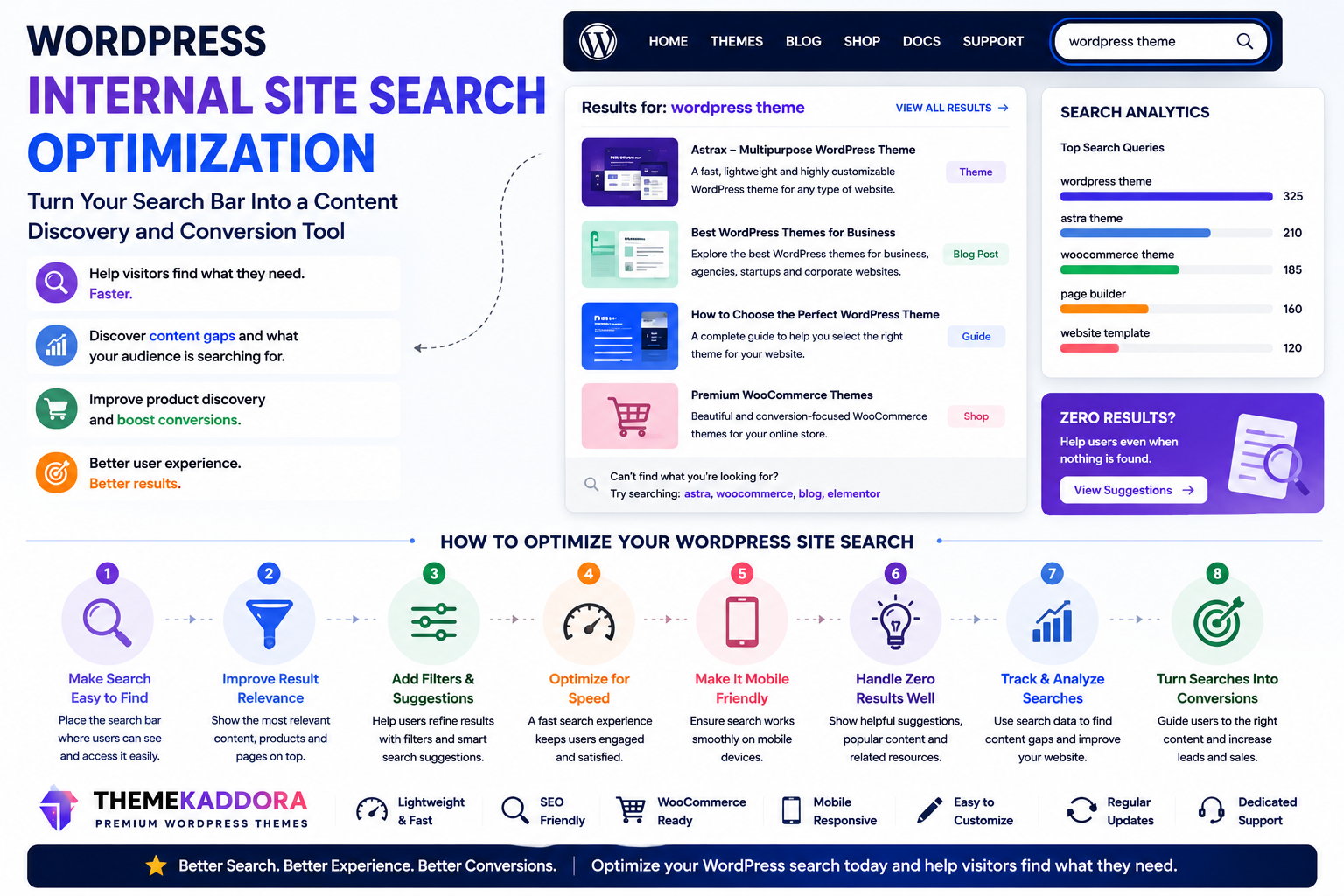
WordPress Internal Site Search Optimization: Turn Your Search Bar Into a Content Discovery and Conversion Tool
Introduction
Many website owners focus heavily on bringing visitors to their WordPress website through SEO, social media, ads, and email marketing.
But once visitors arrive, can they actually find what they need?
That is where internal site search becomes important.
A search bar may look like a small feature, but it can reveal powerful insights about your visitors. It shows what people want, what they cannot easily find, and where your content or navigation may be failing.
For blogs, business websites, documentation portals, and WooCommerce stores, optimized internal search can improve user experience, product discovery, engagement, and conversions.
What Is Internal Site Search?
Internal site search allows visitors to search content within your own website.
It can help users find:
Blog posts
Products
Services
Documentation
FAQs
Categories
Support articles
Downloads
A good search experience helps visitors move from confusion to action faster.
Why Internal Search Matters
Visitors who use search often have clear intent.
They may already know what they want, but need help finding it.
Internal search can help you:
Improve content discovery
Reduce navigation friction
Find content gaps
Improve product visibility
Increase engagement
Support conversions
Understand visitor needs
A search bar is not just a utility. It is a source of business intelligence.
Common Internal Search Problems
Many WordPress websites struggle with:
Irrelevant search results
No results for common searches
Poor mobile search design
Missing product filters
Slow search performance
Weak result page layouts
No search analytics
Unhelpful zero-result pages
These issues can frustrate visitors and cause them to leave.
1. Make the Search Bar Easy to Find
Visitors should not need to hunt for search.
Common placements include:
Header
Navigation menu
Sidebar
Blog archive
Product category pages
Documentation pages
For larger websites, search should be especially visible.
2. Use Clear Placeholder Text
Placeholder text can guide visitors.
Examples:
Search articles
Search products
Search documentation
Search themes
Search help center
Clear wording helps users understand what they can search for.
3. Improve Search Results Relevance
Search results should prioritize useful matches.
For example, a WooCommerce store should show relevant products, not unrelated blog posts, unless that is intentional.
Better relevance improves user satisfaction.
4. Create Helpful Search Result Pages
A search results page should include:
Clear search term display
Relevant results
Titles
Short descriptions
Categories
Featured images where useful
Pagination or load more options
Avoid empty or confusing layouts.
5. Handle Zero-Result Searches Properly
A zero-result page should not feel like a dead end.
Instead, offer:
Suggested searches
Popular pages
Product categories
Contact options
Helpful resources
Zero-result searches often reveal missing content or product demand.
6. Track What Visitors Search For
Internal search analytics can reveal:
Popular topics
Missing products
Confusing navigation
Content gaps
Common customer questions
High-intent search terms
Use these insights to improve your website.
7. Use Search Data to Create Content
If visitors repeatedly search for a topic you do not cover, consider creating:
Blog posts
FAQs
Product pages
Documentation
Comparison guides
Internal search data can guide your content strategy.
8. Improve WooCommerce Product Search
For online stores, search can directly affect sales.
Improve product search with:
Product names
Categories
Tags
Attributes
SKUs
Synonyms
Filters
A customer searching for “blue shoes” should reach relevant products quickly.
9. Add Filters for Large Websites
Filters help users narrow results by:
Category
Price
Date
Product type
Brand
Rating
Topic
Format
Filtering is especially useful for eCommerce, blogs, and resource libraries.
10. Support Synonyms and Similar Terms
Visitors may search using different words.
Examples:
Template vs theme
Cart vs basket
Pricing vs plans
Login vs sign in
Supporting common synonyms improves result quality.
11. Optimize Search for Mobile
Mobile search should be:
Easy to open
Easy to type into
Easy to clear
Fast loading
Touch-friendly
A poor mobile search experience can reduce engagement.
12. Improve Search Speed
Slow search results can frustrate visitors.
Performance matters especially for:
Large blogs
WooCommerce stores
Documentation websites
Membership platforms
A faster search experience helps users stay engaged.
13. Highlight Popular Results
For common searches, you may want to guide visitors toward:
Best-selling products
Important service pages
Popular guides
Frequently asked questions
Useful prioritization can improve discovery.
14. Add Search Suggestions
Search suggestions can help users find content faster.
Suggestions may include:
Popular searches
Matching products
Categories
Recent posts
Help articles
This improves usability and reduces typing effort.
15. Review Search Queries Regularly
Search behavior changes over time.
Review your search data monthly or quarterly to identify:
New content opportunities
Broken expectations
Product demand
Navigation issues
Seasonal trends
Regular review turns search into a continuous improvement tool.
Internal Search Optimization Checklist
Before improving your WordPress search, check:
✅ Search bar is visible
✅ Placeholder text is clear
✅ Results are relevant
✅ Zero-result pages are helpful
✅ Search works well on mobile
✅ Search speed is acceptable
✅ Search queries are tracked
✅ WooCommerce products are searchable
✅ Filters are available where needed
✅ Content gaps are reviewed
Why Your WordPress Theme Matters
Your theme affects how search appears and functions.
A good theme supports:
Clean search layouts
Responsive design
Fast loading pages
Clear result pages
WooCommerce compatibility
Flexible customization
A poorly designed search experience can make useful content harder to find.
Why Choose Themekaddora?
Themekaddora WordPress themes are designed to support professional websites with strong usability and performance.
Benefits include:
Responsive layouts
Lightweight architecture
SEO-friendly code
WooCommerce compatibility
Fast loading performance
Flexible customization
Clean HTML5 and CSS3 standards
Cross-browser compatibility
Regular updates
Professional support
These features help businesses create websites where visitors can find content, products, and services more easily.
Conclusion
Internal site search is often overlooked, but it can become one of the most valuable features on a WordPress website.
It helps visitors find what they need, reveals content gaps, improves product discovery, and supports better conversions.
By making search visible, improving relevance, handling zero-result searches, tracking queries, and optimizing mobile usability, you can turn your search bar into a powerful content discovery tool.
Themekaddora themes provide responsive design, fast performance, WooCommerce compatibility, and flexible customization to help businesses build better WordPress search experiences.
Frequently Asked Questions (FAQs)
What is WordPress internal site search?
WordPress internal site search allows visitors to search content, products, posts, pages, and resources within your website.
Why is internal search important?
It helps visitors quickly find relevant information and gives website owners insight into user needs and content gaps.
How can I improve WordPress search results?
Improve result relevance, add filters, optimize product data, support synonyms, create helpful zero-result pages, and track search queries.
Is internal search useful for WooCommerce?
Yes. Strong product search can improve product discovery and help customers find items faster.
Why choose Themekaddora WordPress themes?
Themekaddora themes offer responsive layouts, SEO-friendly architecture, WooCommerce compatibility, fast performance, and flexible customization for professional WordPress websites.
Comments (0)