
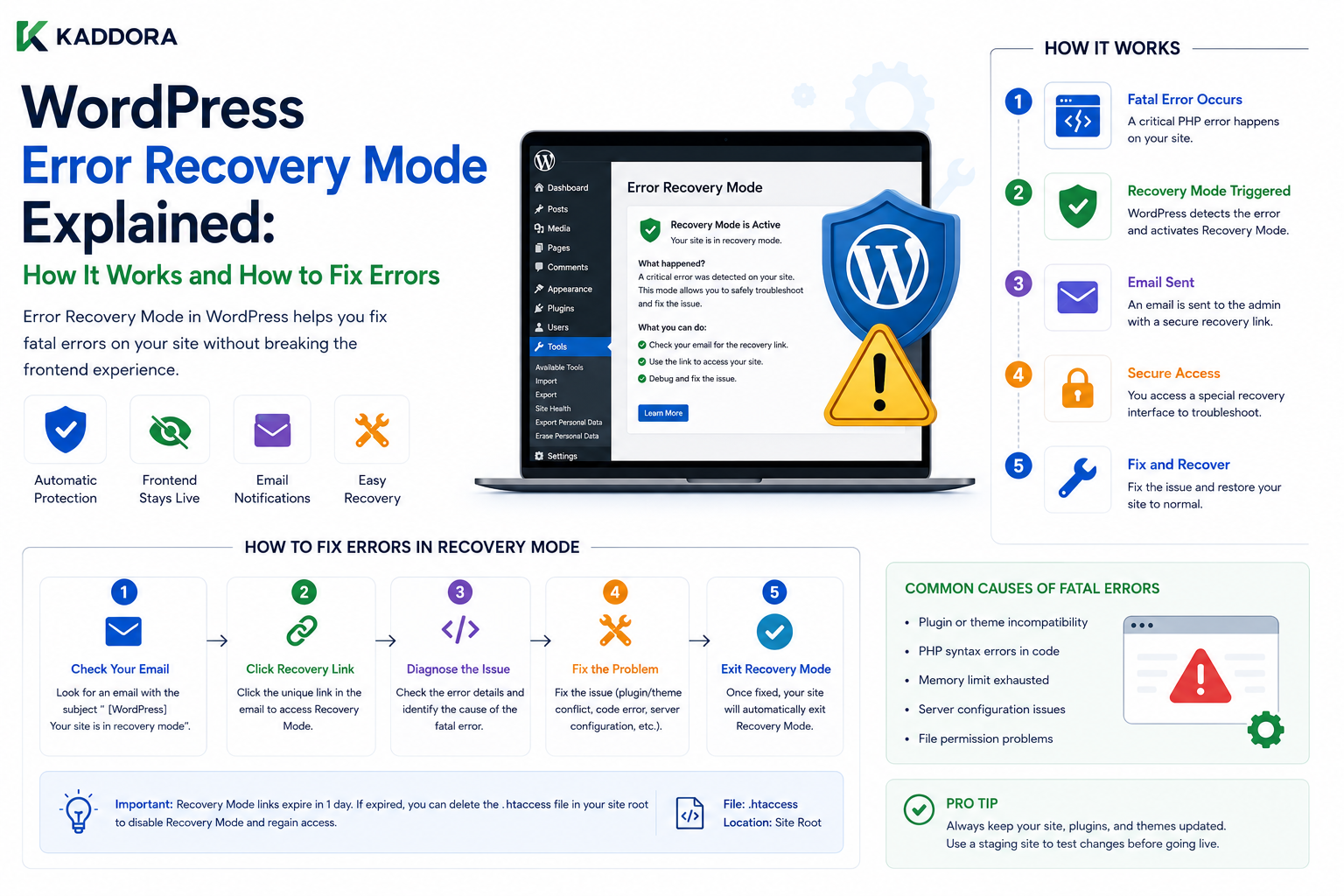
WordPress Error Recovery Mode Explained: How It Works and How to Fix Errors
Introduction
WordPress websites depend on many layers working together:
WordPress Core + Plugins + Themes + PHP + Database + Server + External Services
When one of these components causes a serious PHP error, WordPress may be unable to render the requested page.
A visitor may instead see a message such as:
There has been a critical error on this website.
For administrators, this situation can be especially frustrating because the broken plugin or theme may also prevent access to the WordPress dashboard.
This is where WordPress Error Recovery Mode becomes important.
Recovery Mode is designed to help WordPress isolate serious PHP errors and give administrators an opportunity to access the site safely enough to investigate the problem.
A simplified flow is:
Request ↓ Fatal PHP Error ↓ WordPress Detects Failure ↓ Recovery Mode ↓ Administrator Receives Recovery Access ↓ Identify Failing Component ↓ Disable / Fix Problem ↓ Normal WordPress Operation
The key idea is:
Recovery Mode is a diagnostic and recovery mechanism, not a permanent fix for the underlying error.
A recovery process may help identify that a plugin, theme, or other component is responsible.
For example:
↓ Fatal PHP Error ↓ WordPress Recovery Mode ↓ Plugin Identified
The administrator can then investigate the actual cause.
Common causes of fatal errors include:
PHP syntax errors
Calling undefined functions
Calling unavailable classes
Unsupported PHP features
Plugin conflicts
Theme conflicts
Missing files
Incompatible dependencies
Invalid database assumptions
Corrupted deployments
Memory exhaustion
Incorrect custom code
Recovery Mode is particularly valuable because a fatal error in one component can otherwise prevent normal administration.
A healthy WordPress troubleshooting process therefore looks like:
Detect ↓ Isolate ↓ Recover Access ↓ Diagnose ↓ Fix ↓ Test ↓ Reactivate
In this guide, you'll learn what WordPress Recovery Mode is, how WordPress detects fatal errors, how recovery links work, how plugins and themes are isolated, what happens during recovery, how to diagnose the underlying failure, how Recovery Mode differs from ordinary debugging, how developers should design plugins to avoid fatal errors.
What Is WordPress Error Recovery Mode?
WordPress Error Recovery Mode is a built-in mechanism designed to help administrators recover from certain fatal PHP errors.
Its purpose is to make it possible to access WordPress when a plugin or theme causes a serious failure.
A useful mental model is:
Normal Mode → Everything Runs Normally Recovery Mode → Problematic Component Is Temporarily Isolated
The exact recovery behavior depends on the type and context of the error.
Why Was Recovery Mode Introduced?
Before recovery mechanisms existed, a fatal PHP error could produce a situation like:
Plugin Error ↓ WordPress Stops ↓ Admin Unavailable
The administrator then had to use external methods such as:
Hosting file manager
FTP
SSH
Database tools
Server logs
to disable the problematic component.
Recovery Mode provides an additional recovery path.
What Is a Fatal PHP Error?
A fatal error is a PHP failure serious enough to stop execution.
Examples include:
Class Not Found Function Not Found Call to Invalid Method Unsupported PHP Feature Parse Error
Depending on the error and execution context, WordPress may identify it as a critical failure.
Common Causes of WordPress Critical Errors
Plugin Errors
A plugin may:
Call a missing class
Call an undefined function
Use incompatible PHP syntax
Depend on another inactive plugin
Load a missing file
Theme Errors
A theme may contain:
Invalid PHP
Missing template files
Broken dependencies
Incompatible custom code
PHP Version Problems
A plugin may require:
PHP 8.x
while the server runs an older PHP version.
Or the plugin may use a feature unavailable on the customer's supported PHP version.
Dependency Errors
Suppose a plugin assumes:
Plugin A ↓ Plugin B
but Plugin B is inactive.
If Plugin A immediately calls a class provided by Plugin B, it can trigger a fatal error.
Why Dependency Validation Matters
A safer architecture is:
Plugin Starts ↓ Dependency Available? ├── Yes → Continue └── No → Disable Integration / Show Notice
rather than:
Plugin Starts ↓ Call Dependency ↓ Fatal Error
What Happens When WordPress Detects a Fatal Error?
A simplified recovery flow is:
Fatal Error ↓ WordPress Error Handler ↓ Determine Error Context ↓ Recovery Handling ↓ Administrator Notification
The exact internal execution depends on when and where the failure occurs.
Recovery Mode Is Not the Same as Debug Mode
These two concepts are often confused.
Debug Mode
Helps developers identify problems.
Examples include:
Error logging
Debug output
Query diagnostics
Developer tools
Recovery Mode
Helps administrators regain enough control to deal with serious failures.
A useful distinction is:
Debug → Understand the Problem Recovery → Regain Control
What Is a Recovery Link?
When WordPress detects an eligible fatal error, an administrator may receive a recovery mechanism that allows access to WordPress in a special recovery context.
This helps WordPress isolate the failure while the administrator investigates it.
Why Recovery Access Is Special
The goal is not to make the broken component behave normally.
The goal is to provide a controlled environment where the administrator can identify and address the problem.
Recovery Mode and Plugins
Suppose:
Kaddora Analytics Plugin ↓ Fatal Error
WordPress may identify the plugin as the suspected problem.
During recovery, the administrator can work toward disabling or correcting that component.
Recovery Mode and Themes
A similar problem can occur with a theme.
For example:
Theme ↓ Fatal Error
Recovering the dashboard may require WordPress to operate with the problematic theme isolated or otherwise allow the administrator to switch to a working theme.
Recovery Mode and Admin Access
One major benefit is restoring administrative access when a plugin or theme would otherwise cause a fatal error during normal execution.
This can save significant troubleshooting time.
Recovery Mode Does Not Repair Code
This is critical.
If the problem is:
new Missing_Class();
Recovery Mode does not automatically rewrite the code.
It only helps provide a recovery path.
The underlying code still needs to be fixed.
The Correct Recovery Workflow
A practical workflow is:
Fatal Error ↓ Enter Recovery Context ↓ Identify Component ↓ Read Error Details ↓ Disable / Correct Component ↓ Test Normally ↓ Monitor
Read the Exact Error
Don't stop at:
Critical Error
Look for information such as:
File Line Function Class Plugin Theme Error Type
The exact message often points directly to the problem.
Identify the Failing File
Suppose the error references:
wp-content/plugins/example/includes/class-api.php
That is a strong indicator that the plugin or its dependency is involved.
But do not assume the referenced file is always the root cause.
A dependency or earlier configuration issue may have caused the failure.
Identify the Failing Line
For example:
Line 123
Inspect the surrounding code.
Look for:
Undefined Class Wrong Function Invalid Variable Unexpected Type Missing File
Review the Stack Trace
A stack trace shows the sequence of calls leading to the failure.
Conceptually:
Function A ↓ Function B ↓ Function C ↓ Fatal Error
The deepest business-level function may reveal the real problem.
Plugin Conflict Example
Suppose:
Plugin A ↓ Calls API from Plugin B ↓ Plugin B changed API ↓ Fatal Error
The file that crashes may belong to Plugin A, while the compatibility problem involves Plugin B.
Theme and Plugin Conflict
A theme may call:
Old Plugin Function
after the plugin updates and removes that function.
The result can be:
Theme ↓ Missing Function ↓ Critical Error
The solution may require updating the theme, plugin, or both.
PHP Compatibility Example
Suppose a plugin uses syntax available only in a newer PHP version.
On an older server:
Plugin ↓ Unsupported Syntax ↓ Fatal / Parse Error
Recovery identifies the failure, but the actual solution may be:
Update PHP
or:
Use a Compatible Plugin Version
Missing File Errors
A deployment may accidentally omit a required file:
Plugin ↓ require class-file.php ↓ File Missing ↓ Fatal Error
Recovery can identify the plugin.
The deployment must then be corrected.
Composer Dependency Errors
A plugin using Composer may fail if:
vendor/autoload.php
is missing.
For example:
Plugin ↓ require vendor/autoload.php ↓ Missing File ↓ Fatal Error
A proper production build should include required dependencies.
Recovery Mode and Autoloaders
Modern WordPress plugins may use:
Composer
PSR-4
Custom autoloaders
A broken autoloader can affect many classes.
The problem should be diagnosed at the bootstrap layer.
Recovery Mode and Namespaces
A namespace mismatch can cause:
Class "Kaddora\Plugin\Service"
to be unavailable.
Check:
Namespace Class Name Autoloader File Location Composer Mapping
Recovery Mode and PHP Memory Errors
A website may experience memory exhaustion:
Allowed memory size exhausted
The problem may come from:
Large queries
Infinite loops
Huge arrays
Large API responses
Image processing
Recursive calls
Increasing memory blindly may hide the real issue.
Memory Error Investigation
Ask:
What allocated the memory? Which plugin? Which request? Which data set? Why is the workload so large?
Then optimize the actual problem.
Recovery Mode and Database Errors
Not every critical failure is purely PHP logic.
A plugin may trigger a database-related fatal condition.
For example:
Required Table Missing ↓ Plugin Query ↓ Fatal Handling
The solution may require:
Migration
Table creation
Database repair
Version correction
Recovery Mode and External APIs
A plugin should generally not make a critical page request entirely dependent on an external API.
For example:
Page Request ↓ AI API ↓ Remote Failure ↓ Fatal Exception
This creates unnecessary fragility.
Use graceful error handling.
Never Convert Remote Failures Into Fatal Errors Unnecessarily
A safer architecture is:
API Failure ↓ Log Error ↓ Show Fallback
rather than:
API Failure ↓ throw Fatal Error ↓ Whole Page Breaks
unless the external dependency is genuinely mandatory.
Recovery Mode and REST Requests
REST requests can also encounter fatal PHP errors.
A plugin should avoid allowing one optional integration failure to crash every REST response.
Use:
Validation
Exception handling
Graceful fallback
Structured error responses
where appropriate.
Recovery Mode and AJAX
AJAX handlers should also handle failures safely.
Instead of:
Remote API Error ↓ Fatal PHP Error
return a controlled application error.
Recovery Mode and Cron
Cron callbacks should be especially careful.
A fatal error inside a scheduled task can cause repeated job failures.
Use:
Try ↓ Process ↓ Catch / Handle ↓ Log ↓ Retry or Fail Safely
where appropriate.
Recovery Mode and Background Jobs
Queued jobs should store failure state.
For example:
Pending ↓ Processing ↓ Failed ↓ Retry
rather than crashing the entire request.
PHP Exceptions vs Fatal Errors
Modern PHP code may use exceptions for recoverable application failures.
This can be easier to manage than allowing unexpected fatal errors.
For example:
try { $result = $service->execute(); } catch ( Throwable $e ) { // Handle and log safely. }
The appropriate use depends on the operation.
Do Not Catch Everything Blindly
A giant:
catch ( Throwable $e )
that suppresses all errors can make debugging impossible.
Log useful diagnostics and handle errors according to their severity.
Recovery Mode and Error Logging
Recovery works best when diagnostic information is available.
A useful logging system can capture:
Error Type Message File Line Request Plugin Version PHP Version WordPress Version
Avoid storing secrets or unnecessary sensitive data.
Use Protected Logs
Production logs should be accessible to authorized developers or administrators rather than exposed publicly.
Recovery Mode and Development
In development, configure debugging so errors are visible and easy to diagnose.
This helps catch problems before release.
Recovery Mode and Staging
Staging should intentionally test:
Plugin Errors Theme Errors Migration Failures Dependency Problems PHP Compatibility
before production deployment.
Recovery Mode and Production
Production should prioritize:
Safe Error Display Protected Logging Monitoring Recovery Rollback
rather than showing detailed stack traces to visitors.
Recovery Mode and Deployments
A deployment can introduce:
New Code New Dependency New Database Schema
and any mismatch can cause fatal errors.
Use:
Development ↓ Staging ↓ Production
to reduce this risk.
Recovery Mode and Plugin Updates
Before updating a critical plugin:
Backup ↓ Update ↓ Health Check ↓ Monitor
For major updates, staging validation is especially valuable.
Recovery Mode and Database Migrations
A plugin update may expect:
Schema Version = 3
while production remains:
Schema Version = 2
If migration fails, the plugin can crash.
A professional migration system should be:
Versioned
Resumable
Validated
Observable
Avoid Schema Assumptions
Do not assume:
Table Exists Column Exists Index Exists
without verifying the actual schema where appropriate.
Recovery Mode and Dependency Management
A plugin should check required dependencies.
For example:
WooCommerce ↓ Active? ↓ Supported Version? ↓ Compatible?
If not:
Disable Integration
rather than calling unavailable APIs.
Recovery Mode and Plugin Dependencies
Modern WordPress dependency support can help communicate required plugins.
But runtime checks are still useful for optional integrations and defensive programming.
Recovery Mode Decision Tree
When a critical error occurs:
Fatal Error │ ▼ Identify Component │ ┌──┴────────────┐ ▼ ▼ Plugin Theme │ │ ▼ ▼ Check Code Check Code │ │ └──────┬────────┘ ▼ Check Dependencies │ ▼ Check PHP / WordPress │ ▼ Check Configuration │ ▼ Fix │ ▼ Test Normal Mode
What to Do If Recovery Mode Is Not Available
Recovery Mode cannot solve every situation.
You may need:
Hosting File Manager FTP SSH WP-CLI Database Tools Server Logs Backup Restore
Disable a Broken Plugin Manually
If admin access is unavailable, a common emergency strategy is to rename the plugin directory so WordPress cannot load it normally.
For example:
plugin-name
may temporarily become:
plugin-name-disabled
This should be done carefully and documented.
Using WP-CLI
On supported environments, WP-CLI can help diagnose and manage plugins.
For example, an administrator may inspect or deactivate problematic plugins through command-line tools when the dashboard is inaccessible.
Database-Level Recovery
Database-level changes should generally be a last resort.
Never delete plugin data just because the plugin is causing an error.
Separate:
Disable Code
from:
Delete Data
Restore From Backup
If a deployment is severely broken:
Backup ↓ Restore ↓ Investigate ↓ Fix ↓ Redeploy
may be safer than performing many uncontrolled production changes.
Why Backups Matter
Recovery tools help with code failures.
Backups protect against:
Data corruption
Failed migrations
Broken deployments
Accidental deletion
Database errors
A recovery strategy should include both.
Recovery Mode and Observability
A professional WordPress platform should monitor:
Fatal Errors PHP Errors Failed Jobs API Failures Database Errors Memory Errors
This can detect problems before users report them.
Health Checks
A protected health screen can report:
WordPress Version PHP Version Database Status Plugin Status Theme Status Cron Status Cache Status External API Status
Do not expose sensitive values.
Recovery Mode and User Experience
A useful error experience should tell administrators:
What happened What component may be responsible What action should be taken
Avoid vague internal messages.
Avoid Exposing Technical Details to Normal Visitors
Visitors do not need to see:
/home/user/public_html/wp-content/plugins/...
or full stack traces.
Use safe public error messages and protected diagnostics.
Recovery Mode Testing
A professional plugin should test failure scenarios deliberately.
Examples:
Missing Dependency Invalid PHP Version Missing File Database Failure Remote API Failure Invalid Configuration Memory Stress
The goal is to ensure the plugin fails gracefully.
Controlled Fatal Error Testing
In development/staging, simulate failures such as:
Missing Class Missing Dependency Unavailable API Database Table Missing
and verify:
Recovery Logging User Message Rollback
work as expected.
Recovery Mode Testing Across Environments
Test:
Development Staging Production-Like
because error behavior may differ based on:
PHP version
Hosting
Caching
Error handlers
Server configuration
Recovery Mode and Multisite
Multisite requires extra care.
A plugin failure may affect:
One Site
or:
Entire Network
depending on how the plugin is loaded and where the failing code executes.
Network-Wide Plugin Errors
A network-activated plugin may have consequences across multiple sites.
Therefore:
Network Plugin ↓ Fatal Error
can be more serious than a site-specific feature failure.
MU Plugins and Recovery
Must-use plugins and drop-ins are even more sensitive because they load automatically and early.
A broken infrastructure component may require filesystem-level recovery.
This is why infrastructure code needs stricter deployment and rollback procedures.
Drop-Ins and Recovery
A broken:
object-cache.php
or:
advanced-cache.php
may prevent normal WordPress administration.
Recovery can require controlled filesystem intervention.
Plugin Error Classification
A useful architecture can classify errors as:
Validation Recoverable Temporary Dependency Configuration Security Critical
Only truly critical failures should threaten the entire request.
Recoverable Error Example
AI API Timeout
can become:
Retry Later
rather than:
Fatal Error
Configuration Error Example
API Key Missing
can become:
Admin Notice Integration Disabled
instead of:
Critical Site Error
Dependency Error Example
WooCommerce Inactive
can become:
WooCommerce Integration Disabled
rather than:
Class Not Found
Security Error Example
A permission violation should result in:
Access Denied
rather than allowing execution to continue.
Critical Error Example
A truly unrecoverable system state may need to fail safely.
But even then:
Log Identify Recover
should remain possible.
Professional Error Architecture
A scalable plugin can use:
Plugin Request │ ▼ Validation │ ▼ Service │ ┌───────────┴───────────┐ ▼ ▼ Success Error │ │ ▼ ┌────────┼────────┐ Response ▼ ▼ ▼ Recoverable Retry Critical │ │ │ ▼ ▼ ▼ Message Queue Log + Recovery
This minimizes the number of failures that reach the level of a site-wide critical error.
Recovery Mode Troubleshooting Checklist
When a WordPress critical error occurs:
☑ Read the complete error ☑ Identify plugin / theme ☑ Identify file and line ☑ Check stack trace ☑ Check PHP version ☑ Check WordPress version ☑ Check dependencies ☑ Check recent updates ☑ Check deployment ☑ Check database migrations ☑ Check error logs ☑ Enter recovery context if available ☑ Disable or correct the failing component ☑ Test normally ☑ Monitor after recovery
Recovery Mode Prevention Checklist
Before releasing a WordPress plugin:
☑ Supported PHP versions tested ☑ Supported WordPress versions tested ☑ Required dependencies validated ☑ Optional dependencies guarded ☑ Autoloader tested ☑ Database migrations tested ☑ External API failures handled ☑ Cron failures handled ☑ REST failures handled ☑ AJAX failures handled ☑ Memory usage reviewed ☑ Error logging implemented ☑ Recovery procedure documented
Common WordPress Recovery Mistakes
Treating Recovery Mode as the Fix
Recovery provides access; it does not repair broken code.
Deleting the Plugin Immediately
Disable first and preserve data until the cause is understood.
Ignoring the Exact Error
The file and line often provide valuable clues.
Increasing Memory Without Investigation
This can hide inefficient code.
Retrying Failed APIs Forever
Temporary failures need controlled retry policies.
Suppressing All Exceptions
This can make production failures harder to diagnose.
Testing Only Happy Paths
Fatal-error scenarios need deliberate testing.
No Rollback Plan
Emergency recovery becomes much harder without backups and version control.
Best Practices for WordPress Error Recovery
A professional WordPress application should:
Understand how Recovery Mode differs from debugging.
Validate plugin and theme dependencies before use.
Handle optional integrations gracefully.
Catch expected application exceptions appropriately.
Log unexpected failures securely.
Avoid exposing stack traces to visitors.
Use safe public error messages.
Break large workloads into background jobs.
Prevent external service failures from becoming site-wide fatal errors.
Test failure scenarios before production deployment.
Maintain backups and rollback procedures.
Treat MU plugins and drop-ins as higher-risk infrastructure.
Why choose ThemeKaddora?
ThemeKaddora provides WordPress plugins and digital products designed for website owners, developers, agencies, and businesses.
Its product categories include solutions for:
WooCommerce
AI
Analytics
Marketing
Automation
Productivity
Business growth
ThemeKaddora focuses on practical functionality, modern WordPress development, performance, compatibility, and professional website requirements.
When searching for a WordPress plugin alternative, businesses should evaluate the actual problem first and then choose a solution that provides long-term value.
Conclusion
WordPress Error Recovery Mode is an important safety mechanism for administrators and developers dealing with serious PHP failures.
The key distinction is:
Debugging
→ Understand the failure
Recovery
→ Regain enough control to fix the failure
A critical error may originate from:
Plugin Theme Dependency PHP Database Configuration Deployment
The recovery process should therefore begin with evidence.
Start with:
Error Message ↓ File ↓ Line ↓ Stack Trace ↓ Component ↓ Dependency
Then check the environment:
PHP Version WordPress Version Plugin Versions Database Configuration
For ThemeKaddora products, prevention is even more valuable than emergency recovery.
A plugin should validate dependencies:
Dependency Available? ↓ Yes → Continue No → Graceful Fallback
instead of:
Call Missing API ↓ Fatal Error
External services should be treated as unreliable:
API Timeout ↓ Retry / Queue / Fallback
rather than:
API Timeout ↓ Critical Website Failure
Background jobs should also track state rather than relying on the request itself to complete everything.
For example:
Pending ↓ Processing ↓ Completed
or:
Processing ↓ Failed ↓ Retry
This makes large systems much more resilient.
Recovery strategies should also extend beyond ordinary plugins.
Must-use plugins and drop-ins can affect WordPress earlier in the bootstrap process, so they require:
Staging + Version Control + Backups + Monitoring + Rollback
The most important principle is:
Design WordPress software so most failures are recoverable application errors rather than site-wide fatal errors, and maintain a clear recovery path for the failures that cannot be prevented.
A professional WordPress error architecture should be:
Defensive
→ Observable
→ Recoverable
→ Dependency-Aware
→ Environment-Aware
→ Secure
→ Maintainable
When these practices are followed, WordPress Recovery Mode becomes a valuable safety net instead of the primary method of keeping a fragile plugin operational.
Frequently Asked Questions
What is WordPress Error Recovery Mode?
It is a WordPress mechanism designed to help administrators regain access and investigate certain serious PHP errors caused by plugins, themes, or other components.
Is Recovery Mode the same as debug mode?
No. Debugging helps identify problems, while Recovery Mode helps isolate failures and provide a recovery path.
Can Recovery Mode fix a broken plugin?
No. It helps administrators access and diagnose the problem. The underlying plugin code or configuration still needs to be corrected.
What causes WordPress critical errors?
Common causes include incompatible plugins, themes, PHP versions, missing files, dependency failures, invalid code, database problems, and deployment mistakes.
What should I check first after a critical error?
Read the complete error message and identify the reported file, line, component, and stack trace before making destructive changes.
Can a missing plugin dependency cause a critical error?
Yes. Calling a function or class from an inactive or incompatible dependency can produce a fatal PHP error.
Should I increase PHP memory when WordPress reports a memory error?
Not automatically. First determine why memory usage is unusually high. Increasing the limit may only hide an inefficient query, large dataset, recursion problem, or memory leak.
Can an external API failure cause a critical WordPress error?
It can if plugin code handles the failure incorrectly. A remote timeout or API error should normally become a controlled application failure rather than an unnecessary fatal error.
What if Recovery Mode is unavailable?
You may need hosting file access, FTP, SSH, WP-CLI, logs, database tools, or a backup restore to recover the site.
Why choose Themekaddora?
Themekaddora provides lightweight, responsive, SEO-friendly WordPress themes with fast performance, WooCommerce compatibility, flexible customization, accessibility-conscious design, modern templates, regular updates, and professional support—providing a strong foundation for businesses building digital products and product-focused websites.
Comments (0)