
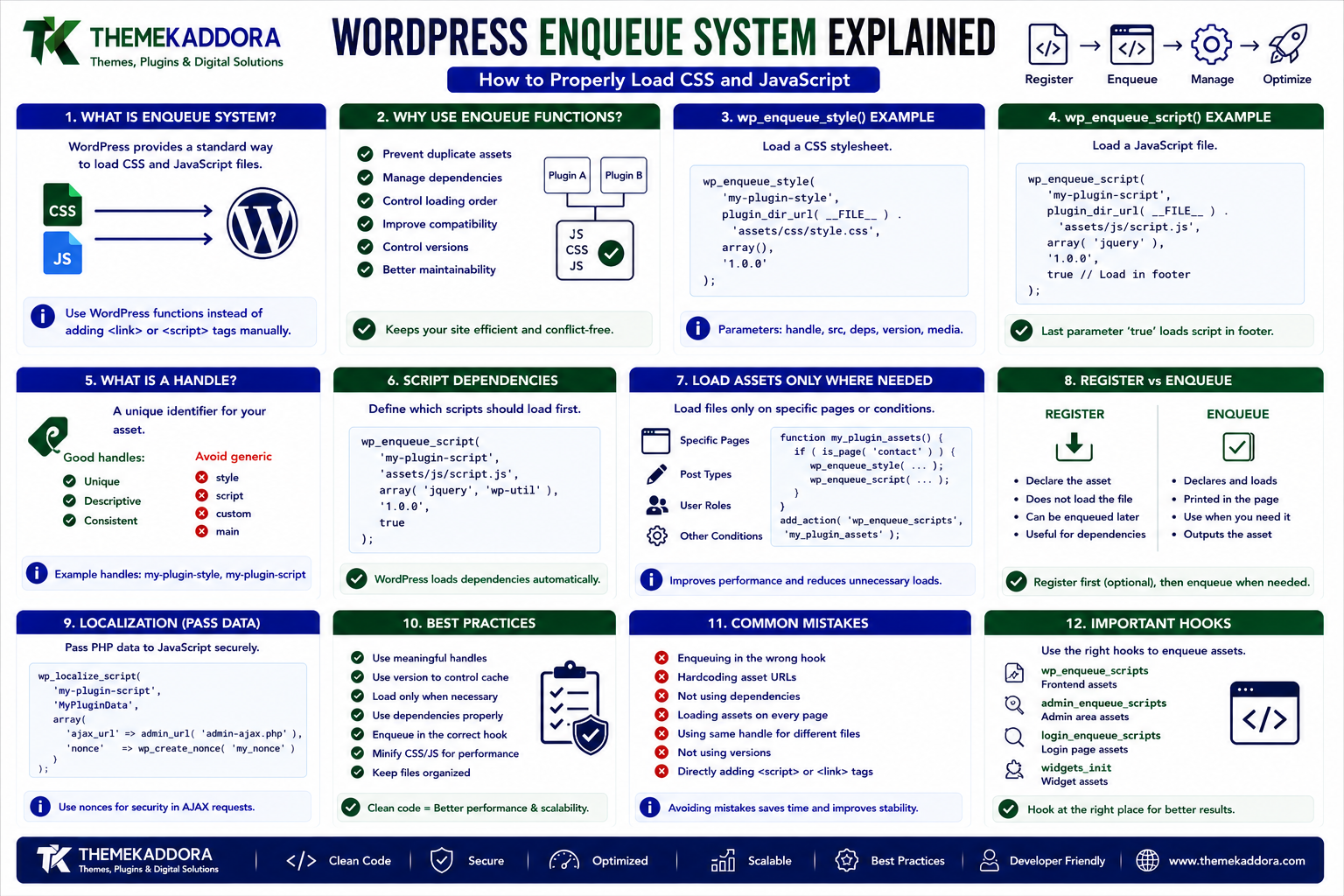
WordPress Enqueue System Explained: How to Properly Load CSS and JavaScript
Introduction
Modern WordPress websites rely heavily on CSS and JavaScript to provide interactive interfaces, responsive layouts, forms, dashboards, animations, AJAX functionality, and other advanced features.
However, simply adding <script> and <link> tags directly to WordPress pages is not the recommended approach.
WordPress provides a dedicated enqueue system for registering and loading stylesheets and scripts correctly.
The main functions are:
wp_enqueue_style()
wp_enqueue_script()
wp_register_style()
wp_register_script()
Using these functions helps WordPress manage dependencies, avoid duplicate assets, control loading order, support plugins and themes working together, and improve maintainability.
In this guide, you'll learn how the WordPress enqueue system works, how to load CSS and JavaScript correctly, how to define dependencies and versions, how to load assets only where needed, how to handle frontend and admin assets, and the common mistakes developers should avoid.
What Is the WordPress Enqueue System?
The WordPress enqueue system is the standard mechanism for registering and loading CSS and JavaScript files.
Instead of manually adding:
<link rel="stylesheet" href="style.css"> <script src="script.js"></script>
WordPress allows developers to declare assets through its built-in functions.
For example:
wp_enqueue_style( 'my-plugin-style', plugin_dir_url( __FILE__ ) . 'assets/css/style.css', array(), '1.0.0' );
And:
wp_enqueue_script( 'my-plugin-script', plugin_dir_url( __FILE__ ) . 'assets/js/script.js', array( 'jquery' ), '1.0.0', true );
WordPress then handles the appropriate output.
Why Should You Use WordPress Enqueue Functions?
Using the enqueue system provides several benefits.
Prevent Duplicate Assets
If multiple components request the same registered asset, WordPress can manage it without unnecessarily printing the same file repeatedly.
Manage Dependencies
A script can depend on another script.
For example:
My Plugin Script ↓ jQuery
WordPress can use the dependency information to determine the loading order.
Improve Compatibility
Themes and plugins can work together more predictably when they follow the standard asset-loading system.
Control Versions
Asset versions can help browsers determine when cached files should be refreshed.
Better Maintainability
Centralizing asset registration makes plugin and theme code easier to understand and maintain.
wp_enqueue_style() Explained
The wp_enqueue_style() function loads a CSS stylesheet.
Basic example:
wp_enqueue_style( 'my-plugin-style', plugin_dir_url( __FILE__ ) . 'assets/css/style.css', array(), '1.0.0' );
The common parameters are:
Handle Source Dependencies Version Media
The handle uniquely identifies the stylesheet.
What Is a Script or Style Handle?
A handle is the unique identifier WordPress uses to manage an asset.
For example:
'my-plugin-style'
and:
'my-plugin-script'
Good handles should be:
Unique
Consistent
Descriptive
Appropriate for the plugin or theme
Avoid generic names such as:
style script custom main
These can potentially conflict with assets from other plugins or themes.
wp_enqueue_script() Explained
The wp_enqueue_script() function loads JavaScript files.
Example:
wp_enqueue_script( 'my-plugin-script', plugin_dir_url( __FILE__ ) . 'assets/js/script.js', array(), '1.0.0', true );
The final argument controls whether the script is loaded in the footer when using the traditional boolean form.
Script Dependencies
Dependencies tell WordPress which scripts need to be loaded first.
For example:
wp_enqueue_script( 'my-plugin-script', plugin_dir_url( __FILE__ ) . 'assets/js/script.js', array( 'jquery' ), '1.0.0', true );
This indicates that your script depends on the WordPress-registered jquery handle.
WordPress can then ensure the dependency is available before your script runs.
Why Dependencies Matter
Suppose your plugin contains:
jQuery('.button').on('click', function() { // ... });
If jQuery isn't loaded before your script, the code may fail.
Declaring the dependency:
array( 'jquery' )
allows WordPress to manage the relationship.
Dependencies are especially important for:
jQuery
WordPress editor scripts
Block editor packages
Plugin-specific libraries
React-based interfaces
Utility scripts
Register vs Enqueue
WordPress provides both registration and enqueue functions.
Register
Registration tells WordPress that an asset exists.
wp_register_script( 'my-plugin-script', plugin_dir_url( __FILE__ ) . 'assets/js/script.js', array(), '1.0.0', true );
Enqueue
Enqueue tells WordPress that the asset should actually be loaded.
wp_enqueue_script( 'my-plugin-script' );
This separation can be useful when an asset should only be loaded under certain conditions.
Enqueue Assets on the Frontend
Frontend assets are commonly loaded using:
wp_enqueue_scripts
Example:
add_action( 'wp_enqueue_scripts', 'my_plugin_enqueue_assets' ); function my_plugin_enqueue_assets() { wp_enqueue_style( 'my-plugin-style', plugin_dir_url( __FILE__ ) . 'assets/css/style.css', array(), '1.0.0' ); wp_enqueue_script( 'my-plugin-script', plugin_dir_url( __FILE__ ) . 'assets/js/script.js', array(), '1.0.0', true ); }
This is the standard approach for frontend plugin assets.
Don't Load Plugin Assets Everywhere
A common mistake is loading every plugin stylesheet and script on every website page.
For example, if your plugin provides a booking form that only appears on one page, loading booking-related assets globally is unnecessary.
Instead, determine where the feature is actually used.
Possible approaches include:
Checking the current page
Checking for a shortcode
Checking post type
Checking plugin-specific blocks
Checking WooCommerce screens
Loading assets only when required
Conditional Asset Loading
For example:
if ( is_page( 'booking' ) ) { wp_enqueue_style( 'my-plugin-booking', plugin_dir_url( __FILE__ ) . 'assets/css/booking.css', array(), '1.0.0' ); }
This reduces unnecessary asset loading.
However, don't rely only on a page slug if your feature can be inserted through multiple methods.
Loading Assets for Shortcodes
Suppose your plugin provides:
[my_booking_form]
The related assets may only be needed on pages where the shortcode is rendered.
A plugin can detect the relevant content or use a controlled registration strategy to ensure assets are loaded when necessary.
The exact implementation should consider caching, block rendering, widgets, and dynamic content.
Enqueue Admin CSS and JavaScript
Admin assets should generally be loaded using:
admin_enqueue_scripts
Example:
add_action( 'admin_enqueue_scripts', 'my_plugin_admin_assets' ); function my_plugin_admin_assets( $hook_suffix ) { wp_enqueue_style( 'my-plugin-admin', plugin_dir_url( __FILE__ ) . 'assets/css/admin.css', array(), '1.0.0' ); }
This allows your plugin to provide a separate administration interface.
Load Admin Assets Only on Your Plugin Screen
Don't automatically load large admin stylesheets and scripts across every WordPress dashboard page.
You can inspect the current admin page.
For example:
function my_plugin_admin_assets( $hook_suffix ) { if ( 'settings_page_my-plugin' !== $hook_suffix ) { return; } wp_enqueue_style( 'my-plugin-admin', plugin_dir_url( __FILE__ ) . 'assets/css/admin.css', array(), '1.0.0' ); }
This keeps plugin assets scoped to the relevant screen.
Frontend vs Admin Enqueue Hooks
Use the appropriate hook for the environment.
Frontend
wp_enqueue_scripts
Administration
admin_enqueue_scripts
Login Screen
login_enqueue_scripts
Choosing the correct hook keeps asset loading predictable.
Enqueue Styles for the Login Page
If your plugin or theme needs to customize the WordPress login screen:
add_action( 'login_enqueue_scripts', 'my_plugin_login_assets' ); function my_plugin_login_assets() { wp_enqueue_style( 'my-plugin-login', plugin_dir_url( __FILE__ ) . 'assets/css/login.css', array(), '1.0.0' ); }
Only use this when the login page actually needs the asset.
Using Plugin URLs Correctly
A plugin should avoid assuming a fixed filesystem or website URL.
For example:
plugin_dir_url( __FILE__ )
can be used to construct URLs to plugin assets.
Another common option is:
plugins_url( 'assets/css/style.css', __FILE__ );
These functions help make plugin asset URLs portable.
Using Theme URLs
For themes, WordPress provides functions such as:
get_template_directory_uri()
and:
get_stylesheet_directory_uri()
For example:
wp_enqueue_style( 'my-theme-style', get_stylesheet_directory_uri() . '/assets/css/custom.css', array(), '1.0.0' );
The correct function depends on whether you're working with the parent theme or child theme.
Asset Versioning
Versions help browsers determine whether an asset has changed.
Example:
wp_enqueue_style( 'my-plugin-style', plugin_dir_url( __FILE__ ) . 'assets/css/style.css', array(), '1.2.0' );
When the version changes, the resulting asset URL can change accordingly, helping browsers retrieve the updated file instead of using an older cached copy.
Automatic Versioning With filemtime()
During development or frequent updates, you may use the file modification time.
Example:
$css_file = plugin_dir_path( __FILE__ ) . 'assets/css/style.css'; wp_enqueue_style( 'my-plugin-style', plugin_dir_url( __FILE__ ) . 'assets/css/style.css', array(), filemtime( $css_file ) );
This can automatically change the version when the file is modified.
However, for production environments, consider your deployment and caching strategy before relying on filesystem timestamps.
Loading JavaScript in the Footer
For scripts that don't need to execute in the document head, footer loading can reduce render-blocking behavior.
Example:
wp_enqueue_script( 'my-plugin-script', plugin_dir_url( __FILE__ ) . 'assets/js/script.js', array(), '1.0.0', true );
Modern WordPress versions also provide more explicit script loading strategies through script registration/enqueue arguments.
Using defer and async
JavaScript loading strategies can affect performance.
Defer
The browser can download the script while continuing to parse the document, then execute it after parsing.
Async
The browser can download and execute the script independently when it becomes available.
These strategies should only be used when compatible with the script's dependencies and execution requirements.
For dependency-heavy scripts, incorrect use can cause JavaScript errors.
WordPress Script Loading Strategies
Modern WordPress provides support for script loading strategies through the script API.
For example:
wp_enqueue_script( 'my-plugin-script', plugin_dir_url( __FILE__ ) . 'assets/js/script.js', array(), '1.0.0', array( 'strategy' => 'defer', ) );
Use the strategy appropriate for the script rather than applying async or defer blindly.
Passing Data to JavaScript
Plugins often need to pass configuration or dynamic information from PHP to JavaScript.
WordPress provides APIs such as:
wp_localize_script()
For example:
wp_localize_script( 'my-plugin-script', 'myPluginData', array( 'ajaxUrl' => admin_url( 'admin-ajax.php' ), 'nonce' => wp_create_nonce( 'my_plugin_nonce' ), ) );
JavaScript can then access the data through the localized object.
For arbitrary structured data, modern WordPress development may also use appropriate data APIs or inline data mechanisms depending on the use case.
Using wp_add_inline_script()
Sometimes a small amount of JavaScript needs to be attached to an existing registered script.
WordPress provides:
wp_add_inline_script()
Example:
wp_add_inline_script( 'my-plugin-script', 'window.MyPlugin = window.MyPlugin || {};', 'before' );
Use inline scripts carefully and avoid placing large application files directly into PHP output.
Don't Hardcode Script Tags
Avoid:
echo '<script src="..."></script>';
and:
echo '<link rel="stylesheet" href="...">';
inside plugin output when those assets should be managed by WordPress.
Using the enqueue system provides better dependency management and compatibility.
Avoid Loading External Libraries Unnecessarily
Before adding another JavaScript library, check whether WordPress already provides an appropriate dependency.
For example, WordPress includes registered libraries that plugins may be able to depend on.
However, always verify compatibility and current WordPress-supported handles rather than assuming a library is available.
Handling CSS Dependencies
Styles can also define dependencies.
For example:
wp_enqueue_style( 'my-plugin-style', plugin_dir_url( __FILE__ ) . 'assets/css/style.css', array( 'dashicons', ), '1.0.0' );
This allows WordPress to understand the relationship between stylesheets.
Preventing CSS Conflicts
Plugins should use carefully scoped CSS.
Avoid generic selectors such as:
.button { color: red; }
This can affect other plugins and themes.
Prefer scoped selectors:
.my-plugin-wrapper .my-plugin-button { color: red; }
Good asset architecture includes both correct loading and careful CSS isolation.
Avoid Global JavaScript Variables
Don't unnecessarily create generic globals such as:
var settings = {};
A different plugin could use the same variable name.
Prefer a namespace:
window.MyPlugin = window.MyPlugin || {};
Better still, use modern JavaScript modules or appropriately scoped code where your build environment supports them.
Asset Dependencies in Block Editor Development
Gutenberg and block-based plugins often depend on WordPress packages such as:
@wordpress/i18n @wordpress/data @wordpress/components @wordpress/element
When registering block editor scripts, dependencies should be correctly declared so the required WordPress packages are available.
Modern block development often uses WordPress's build tooling to generate dependency metadata.
Enqueueing Block Assets
Blocks may require:
Editor CSS
Frontend CSS
Editor JavaScript
Frontend JavaScript
WordPress provides block registration APIs that can help associate these assets with specific blocks.
This can be preferable to loading every block asset globally.
Enqueue System and Performance
Proper asset loading can improve website performance.
Instead of:
Every Page ↓ All Plugin CSS ↓ All Plugin JavaScript
aim for:
Relevant Page ↓ Required CSS ↓ Required JavaScript
Benefits can include:
Less network traffic
Smaller page payloads
Reduced JavaScript execution
Better caching
Faster page rendering
Fewer frontend conflicts
Common Enqueue Mistakes
Loading Everything Globally
Don't load plugin assets on pages that don't need them.
Using Generic Handles
Use unique, descriptive handles.
Ignoring Dependencies
Declare required dependencies instead of assuming they are already loaded.
Hardcoding URLs
Use WordPress URL helper functions.
Directly Printing Script Tags
Use the enqueue system.
Loading Multiple Copies of Libraries
Avoid unnecessarily bundling or loading duplicate dependencies.
Incorrect Script Strategies
Don't use async or defer without considering dependencies.
Global CSS Selectors
Scope plugin styles to prevent conflicts.
Unversioned Assets
Use sensible versioning for cache management.
Ignoring Admin Pages
Keep frontend and admin assets appropriately separated.
Professional Plugin Asset Architecture
A larger plugin might organize assets like:
my-plugin/ │ ├── assets/ │ ├── css/ │ │ ├── frontend.css │ │ ├── admin.css │ │ └── blocks.css │ │ │ ├── js/ │ │ ├── frontend.js │ │ ├── admin.js │ │ └── blocks.js │ │ │ └── images/ │ ├── includes/ │ ├── class-assets.php │ ├── class-admin.php │ └── class-frontend.php │ └── my-plugin.php
Centralizing asset management can make a large plugin easier to maintain.
Creating an Asset Manager
A plugin can centralize its enqueue logic:
My_Plugin_Assets::enqueue_frontend(); My_Plugin_Assets::enqueue_admin();
This approach helps prevent duplicate code and keeps asset dependencies in one place.
A centralized asset manager can control:
Handles
URLs
Versions
Dependencies
Loading conditions
Script strategies
Localization data
Testing WordPress Assets
Before releasing a plugin, test:
Frontend
Do styles and scripts load correctly?
Admin
Are dashboard assets loaded only where needed?
Dependencies
Do scripts execute in the correct order?
Mobile
Does the interface remain functional on smaller screens?
Caching
Do updated assets appear after deployment?
Conflicts
Does the plugin work with popular themes and plugins?
JavaScript Errors
Check the browser console for errors.
CSS Conflicts
Verify that plugin styles do not unexpectedly change unrelated elements.
Performance
Check whether unnecessary assets are loaded.
Blocks
If applicable, test both editor and frontend block assets.
WordPress Enqueue Best Practices
Professional developers should:
Use wp_enqueue_style() for CSS.
Use wp_enqueue_script() for JavaScript.
Register reusable assets when appropriate.
Use unique asset handles.
Declare dependencies.
Use WordPress URL helpers.
Load assets only where needed.
Separate frontend and admin assets.
Use sensible versioning.
Consider modern script loading strategies.
Scope plugin CSS.
Avoid unnecessary duplicate libraries.
Properly handle JavaScript dependencies.
Test with other themes and plugins.
Monitor frontend performance.
Why choose ThemeKaddora?
At ThemeKaddora, professional WordPress products should be designed to work reliably within the broader WordPress ecosystem.
Themes, plugins, UI kits, WooCommerce extensions, AI tools, analytics products, and SaaS integrations may all require CSS and JavaScript.
Using the WordPress enqueue system helps these products:
Reduce conflicts
Improve maintainability
Manage dependencies
Support caching
Improve performance
Work more reliably with other WordPress components
Proper asset architecture is an important part of building high-quality WordPress products.
Conclusion
The WordPress enqueue system is one of the most important foundations of professional theme and plugin development.
Instead of manually inserting CSS and JavaScript into pages, developers should use WordPress's built-in asset management APIs.
The basic workflow is:
Register
→ Declare Dependencies
→ Enqueue
→ Load Where Needed
→ Optimize
→ Test
By using unique handles, correct dependencies, appropriate loading conditions, versioning, script strategies, scoped CSS, and proper admin/frontend separation, developers can build WordPress products that are faster, more compatible, and easier to maintain.
Good asset management isn't simply about making CSS and JavaScript load.
It's about making them load correctly, efficiently, and only when they are needed.
Frequently Asked Questions
What is the WordPress enqueue system?
The WordPress enqueue system is the standard method for registering and loading CSS and JavaScript assets in WordPress themes and plugins.
What is wp_enqueue_style()?
wp_enqueue_style() is used to load CSS stylesheets through WordPress's asset management system.
What is wp_enqueue_script()?
wp_enqueue_script() is used to load JavaScript files while allowing WordPress to manage dependencies, versions, and loading behavior.
What is the difference between register and enqueue?
Registering an asset tells WordPress that it exists, while enqueueing it tells WordPress that it should be loaded.
Why are script dependencies important?
Dependencies ensure that required scripts are available before dependent scripts execute.
Should plugins load CSS and JavaScript on every page?
Usually not. Plugins should load assets only where their functionality is required whenever practical.
Which hook is used for frontend assets?
The wp_enqueue_scripts action is commonly used for frontend CSS and JavaScript.
Which hook is used for admin assets?
The admin_enqueue_scripts action is commonly used for WordPress dashboard assets.
Can WordPress manage JavaScript loading strategies?
Yes. Modern WordPress versions provide APIs for specifying loading strategies such as deferred loading.
How can I prevent plugin CSS conflicts?
Use unique class names and scope selectors under a plugin-specific wrapper instead of using broad global selectors.
Why choose Themekaddora?
Themekaddora provides lightweight, responsive, SEO-friendly WordPress themes with fast performance, WooCommerce compatibility, flexible customization, accessibility-conscious design, modern templates, regular updates, and professional support—providing a strong foundation for businesses building digital products and product-focused websites.
Comments (0)