
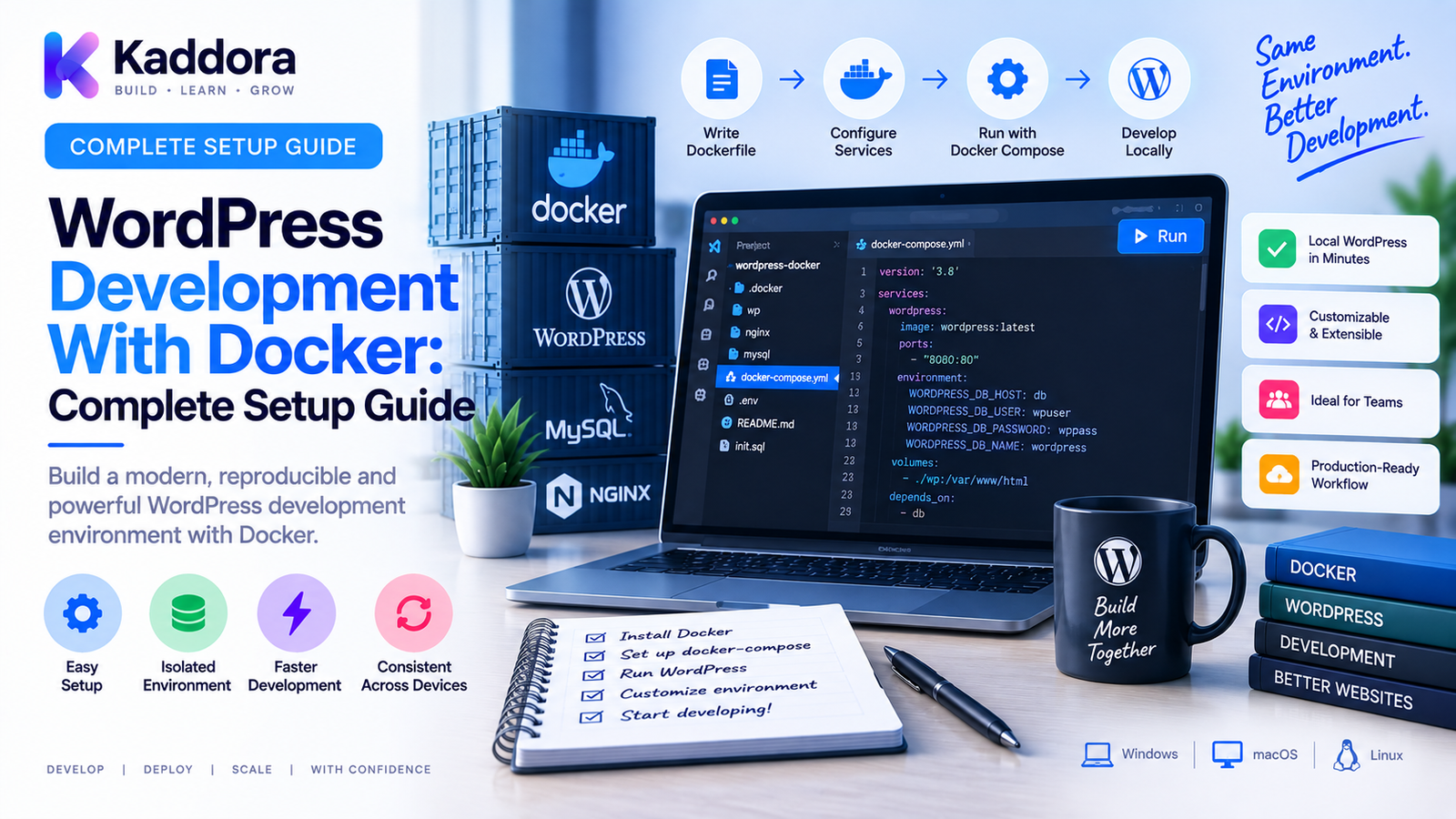
WordPress Development With Docker: Complete Setup Guide
Introduction
WordPress development often becomes difficult when developers work across different machines, PHP versions, database versions, extensions, and server configurations.
A project may work perfectly on one computer and fail on another because the development environments are not identical.
Docker helps solve this problem by packaging application services into isolated containers.
Instead of installing WordPress, PHP, MySQL, and supporting tools directly on your operating system, you can define the environment as configuration and start it consistently whenever needed.
A typical WordPress Docker environment may contain:
WordPress ↓ PHP / Web Server ↓ Database ↓ Persistent Storage
More advanced environments can also include:
WordPress + MySQL / MariaDB + phpMyAdmin + Redis + Mail Testing + Node.js + Composer
This makes Docker particularly useful for WordPress plugin developers, theme developers, agencies, teams, and projects that need reproducible environments.
In this guide, you'll learn how WordPress development with Docker works, what you need to install, how to build a Docker Compose environment, how to persist data, how to customize WordPress, troubleshoot common issues, and create a more professional development workflow.
What Is Docker?
Docker is a platform for packaging applications and their dependencies into containers.
A container provides an isolated runtime environment without requiring the application stack to be installed directly into the host operating system.
A simplified model looks like:
Host Computer │ ▼ Docker │ ┌────┼─────┐ ▼ ▼ ▼ Web DB Tools
Each container can have its own:
Filesystem
Processes
Network
Environment variables
Dependencies
Containers are designed to be reproducible and easy to recreate.
Why Use Docker for WordPress Development?
WordPress development with Docker provides several advantages.
Consistent Environments
Developers can use the same application versions and configuration.
Easy Setup
A new developer can start the project without manually installing every dependency.
Isolation
Different WordPress projects can use different PHP or database versions without conflicting with one another.
Reproducibility
The environment can be described in configuration files and recreated when required.
Team Collaboration
A shared Docker configuration can reduce environment differences between developers.
Testing
Specific combinations of WordPress, PHP, database, plugins, and themes can be tested in isolated environments.
What Does a WordPress Docker Environment Need?
A basic WordPress environment typically requires:
Docker
Docker Compose
WordPress
MySQL or MariaDB
Persistent database storage
WordPress files
Optional services may include:
phpMyAdmin
Redis
Mailpit or another mail-testing service
Node.js
Composer
Nginx
Reverse proxy
Debugging tools
A simple architecture can look like:
Docker Compose │ ┌───────────┴───────────┐ ▼ ▼ WordPress Database │ │ └───────────┬───────────┘ ▼ Persistent Data
Step 1: Install Docker
Install Docker Desktop on Windows or macOS, or Docker Engine on a compatible Linux environment.
After installation, verify that Docker is available:
docker --version
Also verify Docker Compose:
docker compose version
The exact installation process depends on the operating system.
Step 2: Create a WordPress Project Directory
Create a dedicated directory for the project.
For example:
wordpress-docker/ ├── docker-compose.yml ├── wp-content/ └── .env
Keeping the project's configuration in one directory makes it easier to version-control and share with other developers.
Step 3: Create the Docker Compose File
Docker Compose allows multiple services to be defined in one configuration.
A basic WordPress environment can be conceptually represented as:
services: wordpress: image: wordpress ports: - "8080:80" environment: WORDPRESS_DB_HOST: db WORDPRESS_DB_NAME: wordpress WORDPRESS_DB_USER: wordpress WORDPRESS_DB_PASSWORD: example db: image: mysql environment: MYSQL_DATABASE: wordpress MYSQL_USER: wordpress MYSQL_PASSWORD: example MYSQL_ROOT_PASSWORD: root
The exact versions and configuration should be pinned appropriately for the project.
Why Pin Image Versions?
Avoid relying on moving latest tags for serious projects.
For example:
wordpress:latest
can change over time.
Instead, define a version intentionally.
This improves reproducibility.
For development, you may choose the versions that match your production environment.
Step 4: Configure Environment Variables
Sensitive or environment-specific configuration should not be hard-coded unnecessarily.
A .env file can hold values such as:
WORDPRESS_PORT=8080 DB_NAME=wordpress DB_USER=wordpress DB_PASSWORD=example DB_ROOT_PASSWORD=root
Then reference those values from Docker Compose.
This makes it easier to create different development configurations without rewriting the Compose file.
Avoid committing real production passwords into source control.
Step 5: Start the Containers
From the project directory, run:
docker compose up -d
Docker will:
Download required images.
Create the network.
Create containers.
Mount configured volumes.
Start the services.
Check running containers:
docker compose ps
View logs with:
docker compose logs
Or inspect one service:
docker compose logs wordpress
Step 6: Open WordPress
If the project maps port 8080 to the container's port 80, open:
http://localhost:8080
The WordPress installation screen should appear once the database service is ready.
Complete the WordPress installation using the configured database connection.
Step 7: Persist WordPress Data
Containers are disposable.
If you remove a container without persistent storage, important data may disappear.
Use volumes for data that must survive container recreation.
A common model is:
Container │ ├── WordPress Files │ └── Database Volume
For development, you may also bind-mount:
./wp-content ↓ /var/www/html/wp-content
This allows changes to themes and plugins on the host machine to appear inside the container.
Step 8: Mount wp-content for Development
For WordPress developers, wp-content is often the most important directory to work with.
A development structure can look like:
wordpress-docker/ └── wp-content/ ├── plugins/ ├── themes/ └── mu-plugins/
This allows developers to edit source files locally while WordPress runs in Docker.
It is particularly useful for:
Plugin development
Theme development
Custom WordPress projects
Agency projects
Step 9: Add phpMyAdmin
Database administration can be simplified by adding phpMyAdmin.
Architecture:
Browser │ ├── WordPress → Port 8080 │ └── phpMyAdmin → Port 8081 │ ▼ MySQL
This can be useful for inspecting:
Tables
Options
Metadata
Queries
Test data
However, avoid exposing database administration tools unnecessarily in public environments.
Step 10: Use Docker Networks
WordPress should communicate with the database through the Docker network instead of exposing the database publicly without need.
For example:
wordpress │ │ internal Docker network ▼ database
The WordPress container can use the database service name as the database host.
For example:
WORDPRESS_DB_HOST=db
This avoids hard-coding container IP addresses.
Step 11: Add Composer
Modern WordPress plugin development often uses Composer for PHP dependencies.
A development environment can include Composer directly or provide it through a separate container.
For example:
Plugin ↓ composer.json ↓ Composer ↓ Vendor Dependencies
This is especially useful for:
Libraries
PSR packages
Development tools
Static analysis
Testing
Step 12: Add Node.js When Required
Modern WordPress projects may use Node.js for frontend assets.
Examples include:
JavaScript builds
CSS compilation
React tooling
Block development
Architecture:
WordPress + PHP / Composer + Node.js / npm
This keeps frontend tooling consistent with the project.
Step 13: Configure Debugging
WordPress developers should enable appropriate debugging in development.
Typical development settings can include:
WP_DEBUG = true WP_DEBUG_LOG = true WP_DEBUG_DISPLAY = false
Logging errors to a file is often more useful than showing them directly in the browser.
In containerized environments, application logs and Docker service logs can also be inspected.
Step 14: Inspect Container Logs
Logs are essential when something fails.
Check:
docker compose logs wordpress
or:
docker compose logs db
Follow logs in real time:
docker compose logs -f wordpress
This can help identify:
PHP errors
Database connection failures
Startup problems
Configuration errors
Step 15: Access a Container Shell
Sometimes you need to inspect the environment directly.
For example:
docker compose exec wordpress bash
Depending on the image, a shell such as sh may be available instead.
Inside the container, you can inspect:
PHP version
File permissions
WordPress files
Environment variables
Installed extensions
Check the PHP Version
A WordPress project should use a PHP version appropriate for its production compatibility target.
Inside the container:
php -v
This is particularly important when developing plugins that must support multiple PHP versions.
Check Installed PHP Extensions
WordPress plugins can depend on specific PHP extensions.
Inspect them with:
php -m
This can reveal whether extensions such as required database, string, JSON, or image-processing functionality are available.
A reproducible Docker environment should explicitly document required extensions.
WordPress Docker Development With Custom PHP
The official WordPress image can be extended when a project needs additional PHP configuration.
For example:
WordPress Base Image ↓ Custom Dockerfile ↓ PHP Extensions ↓ Development Tools ↓ Custom WordPress Image
A custom image may include:
PHP extensions
Composer
WP-CLI
Debugging extensions
Custom PHP configuration
This becomes especially valuable for advanced plugin development.
Add WP-CLI
WP-CLI can make WordPress administration much easier inside Docker.
Common operations include:
Installing plugins
Activating themes
Running database commands
Creating users
Running search-and-replace
Importing content
Managing cron tasks
A containerized workflow can look like:
Developer ↓ WP-CLI ↓ WordPress Container ↓ Database
This reduces dependence on manual dashboard operations.
Manage File Permissions
File permissions can become confusing when host systems and containers use different users.
Be careful with:
Plugin files
Theme files
Upload directories
Generated caches
Build artifacts
Avoid solving permission problems by making everything world-writable.
Use appropriate ownership and permissions for the development environment.
Configure Mail Testing
WordPress development frequently needs to test email behavior.
Instead of sending real emails, use a development mail catcher.
Architecture:
WordPress ↓ SMTP / Mail Service ↓ Local Mail Inbox
This allows developers to inspect:
Password-reset emails
Notifications
WooCommerce messages
Plugin-generated emails
without sending them to real customers.
WordPress Docker and HTTPS
Local HTTPS can be useful when developing:
Authentication
Secure cookies
API integrations
OAuth flows
Webhooks
Browser security features
A reverse proxy or local certificate setup can provide HTTPS for development.
However, don't complicate a simple environment unless the project actually requires it.
WordPress Docker and Redis
Redis can be added when testing persistent object caching.
Architecture:
WordPress │ ├── Database │ └── Redis
This can be useful for performance testing and applications that depend on object caching.
The development environment should still match production behavior where performance-sensitive testing matters.
Create Separate Development Profiles
Different projects may need different services.
For example:
Basic Profile WordPress + Database Advanced Profile WordPress + Database + Redis + Mail Testing Profile WordPress + Database + Test Services
Docker Compose profiles can help manage optional services.
Use Health Checks
A database container may start before it is actually ready to accept connections.
Health checks can improve startup reliability.
Conceptually:
Database Container ↓ Health Check ↓ Ready ↓ WordPress Connects
This reduces startup race conditions.
Use Named Volumes Carefully
Persistent volumes are useful for databases.
For example:
db_data ↓ MySQL
But developers should understand which data is persistent and which data is intentionally disposable.
A useful distinction is:
Source Code → Git Database → Docker Volume / Backup Environment → Docker Compose + .env
Version-Control Docker Configuration
A professional project should generally version-control:
docker-compose.yml
Dockerfiles
Configuration templates
Development scripts
Documentation
Do not commit:
Real production secrets
Private credentials
Unnecessary generated data
Local database volumes
Use .gitignore appropriately.
Create a One-Command Setup
A good developer experience aims to reduce setup complexity.
For example:
Clone Repository ↓ Copy .env ↓ docker compose up -d ↓ Run Setup Script ↓ Ready
Setup scripts can automate:
WordPress installation
Database setup
Plugin activation
Theme activation
Composer install
npm install
Test data import
Automate Test Data
Development environments often need realistic sample content.
You can automate:
Demo users
Posts
Products
Orders
Categories
Custom post types
For example:
Fresh Environment ↓ Seed Data ↓ Developer Ready
This makes testing much faster.
Avoid using real customer data in development environments.
Docker for Plugin Development
A plugin project can use:
plugin/ ├── src/ ├── tests/ ├── vendor/ ├── composer.json ├── phpunit.xml ├── Dockerfile └── docker-compose.yml
The container can provide:
Supported PHP
WordPress
Database
PHPUnit
PHPStan
PHPCS
Composer
This creates a repeatable development environment.
Docker for Theme Development
Themes can also benefit from containerized WordPress environments.
A typical workflow is:
Theme Source ↓ Bind Mount ↓ Docker WordPress ↓ Browser
Developers can edit theme files locally and immediately test them in WordPress.
Docker for Multi-Version Testing
One of Docker's strongest benefits is testing multiple environments.
For example:
PHP 8.1 + WordPress PHP 8.2 + WordPress PHP 8.3 + WordPress
Each environment can be isolated.
This is useful for compatibility testing before releasing a plugin or theme.
Common WordPress Docker Problems
Database Connection Errors
Possible causes:
Incorrect service name
Wrong credentials
Database not ready
Wrong network configuration
Port Already in Use
Another application may already be using the configured host port.
Change the host-side port rather than changing the container's internal service unexpectedly.
WordPress Reinstalling
Persistent storage may not be configured correctly.
Changes Not Appearing
Check bind mounts and file paths.
Permission Errors
Review container user and mounted directory permissions.
Slow File Performance
Bind-mounted filesystem performance can vary by operating system.
Use appropriate development settings and avoid unnecessary file operations.
Docker Development Security
Even development environments should follow good security practices.
Avoid:
Real production passwords
Real customer data
Publicly exposed databases
Unrestricted phpMyAdmin
Hard-coded API secrets
Unnecessary open ports
Use environment-specific credentials and restrict services to the local machine whenever possible.
WordPress Docker Development Checklist
Environment
Docker installed
Docker Compose available
WordPress version defined
PHP version defined
Database version defined
Configuration
.env configured
Secrets excluded from Git
Ports documented
Networks configured
Volumes configured
Development
wp-content mounted appropriately
Composer configured
Node.js configured where needed
WP-CLI available
Debug logging enabled
Testing
Database works
WordPress loads
Plugins activate
Themes load
Email testing works
Optional Redis works
Automated tests run
Security
No production secrets
No real customer data
Database not publicly exposed
Admin tools protected
Unnecessary ports closed
Recommended WordPress Docker Architecture
A scalable development environment can look like:
Developer Machine │ Docker │ ┌─────────────┼─────────────┐ ▼ ▼ ▼ WordPress Database Tools │ │ │ │ │ Composer │ │ WP-CLI │ │ Node.js │ │ └─────────────┼─────────────┘ ▼ Persistent Data
For advanced projects:
WordPress ├── MySQL / MariaDB ├── Redis ├── Mail Testing ├── phpMyAdmin ├── Composer └── Node.js
Only add services that the project actually requires.
Best Practices for WordPress Development With Docker
Pin important versions.
Keep PHP, database, WordPress, and supporting image versions intentional.
Treat Docker configuration as code.
Version-control the environment definition.
Persist important data.
Use volumes for databases and appropriate mounts for source code.
Separate source from environment state.
Git should contain source and configuration, not local runtime data.
Use development-only services carefully.
Mail catchers, database tools, and debugging services should remain appropriately restricted.
Match production where it matters.
Performance, PHP extensions, database behavior, caching, and server configuration should be representative when testing production-sensitive behavior.
Automate setup.
A reproducible project should minimize manual environment steps.
Document the environment.
Developers should know how to start, stop, reset, and troubleshoot the project.
Why Choose ThemeKaddora?
At ThemeKaddora, modern WordPress themes, plugins, WooCommerce solutions, HTML templates, UI kits, and business-focused digital products can benefit from reproducible development environments.
Docker can help development teams standardize:
PHP versions
WordPress versions
Database services
Composer dependencies
Node.js tooling
Testing environments
Debugging workflows
For plugin and theme development, a containerized environment also makes it easier to reproduce bugs and verify compatibility before releasing products.
A professional development workflow should make it possible for developers to move from:
Clone ↓ Start ↓ Develop ↓ Test ↓ Package
without requiring every developer to manually recreate the server stack.
Conclusion
WordPress development with Docker provides a practical way to create consistent, isolated, and reproducible development environments.
Instead of installing every dependency directly on the host computer, developers can define WordPress, PHP, databases, caching, mail testing, Composer, Node.js, and other services as part of a controlled containerized environment.
A solid workflow looks like:
Define → Configure → Containerize → Persist → Develop → Test → Recreate
The most important principles are:
Keep the environment reproducible
Pin important versions
Separate source code from runtime data
Persist the database appropriately
Use bind mounts for active development
Automate setup
Keep development secrets separate
Test realistic PHP and WordPress versions
Use logs and health checks for troubleshooting
For a simple WordPress site, Docker may be more infrastructure than necessary.
For plugin developers, theme developers, agencies, teams, SaaS projects, and products that need repeatable testing, Docker can provide a much stronger development foundation.
The real value isn't simply running WordPress inside a container.
The real value is making the entire WordPress development environment predictable, portable, and reproducible.
Once the environment itself becomes code, onboarding becomes easier, testing becomes more reliable, compatibility problems become easier to reproduce, and development teams can spend more time building WordPress products instead of configuring local servers.
Frequently Asked Questions
What is WordPress development with Docker?
WordPress development with Docker means running WordPress and its supporting services inside containers so that the development environment can be defined, isolated, and recreated consistently.
Why should I use Docker for WordPress development?
Docker can provide consistent PHP and database versions, isolated projects, reproducible environments, easier onboarding, and more controlled compatibility testing.
Can I run WordPress and MySQL with Docker?
Yes. A typical Docker Compose setup uses one WordPress service and one MySQL or MariaDB service connected through an internal Docker network.
Is Docker better than XAMPP for WordPress development?
It depends on the project. XAMPP can be convenient for simple local development, while Docker provides stronger isolation and reproducibility for teams and multi-project environments.
How do I persist WordPress data in Docker?
Use Docker volumes for persistent database and application data and appropriate bind mounts for source code that you need to edit from the host.
Can I develop WordPress plugins with Docker?
Yes. Docker is particularly useful for plugin development because you can define PHP, WordPress, database, Composer, testing, and static-analysis requirements in a reproducible environment.
Can Docker run WooCommerce?
Yes. WooCommerce can run within a standard WordPress Docker environment because it is a WordPress plugin, although ecommerce-specific testing may require additional services and realistic data.
Should I use phpMyAdmin with Docker WordPress?
phpMyAdmin can be useful for development database inspection, but it should be treated as a development tool and should not be unnecessarily exposed in public environments.
How do I troubleshoot WordPress Docker database errors?
Check the Compose service name, database credentials, Docker network, container health, and database logs. Also confirm that WordPress starts after the database is ready.
Why are my plugin files not updating inside Docker?
Check whether the correct host directory is bind-mounted into the expected WordPress path and verify file permissions and container mounts.
Can Docker replace a production server?
Docker can be used in production, but a local WordPress Docker development environment is not automatically a production architecture. Production requires appropriate security, networking, persistence, backups, monitoring, and deployment practices.
Is Docker useful for WordPress agencies?
Yes. Agencies can use standardized Docker environments to create repeatable client projects, simplify onboarding, test plugin and theme compatibility, and reduce differences between developer machines.
Can Docker help WordPress plugin CI testing?
Yes. Docker can provide controlled environments for automated tests across different PHP, WordPress, database, and dependency combinations.
How should I store secrets in a Docker WordPress project?
Use environment-specific secret handling and do not commit real production credentials to Git. Development credentials should remain separate from production credentials.
Why choose ThemeKaddora?
ThemeKaddora develops WordPress themes, plugins, WooCommerce solutions, HTML templates, UI kits, and business-focused digital products with an emphasis on modern development practices, compatibility, performance, maintainability, and scalable development workflows.
Comments (0)