
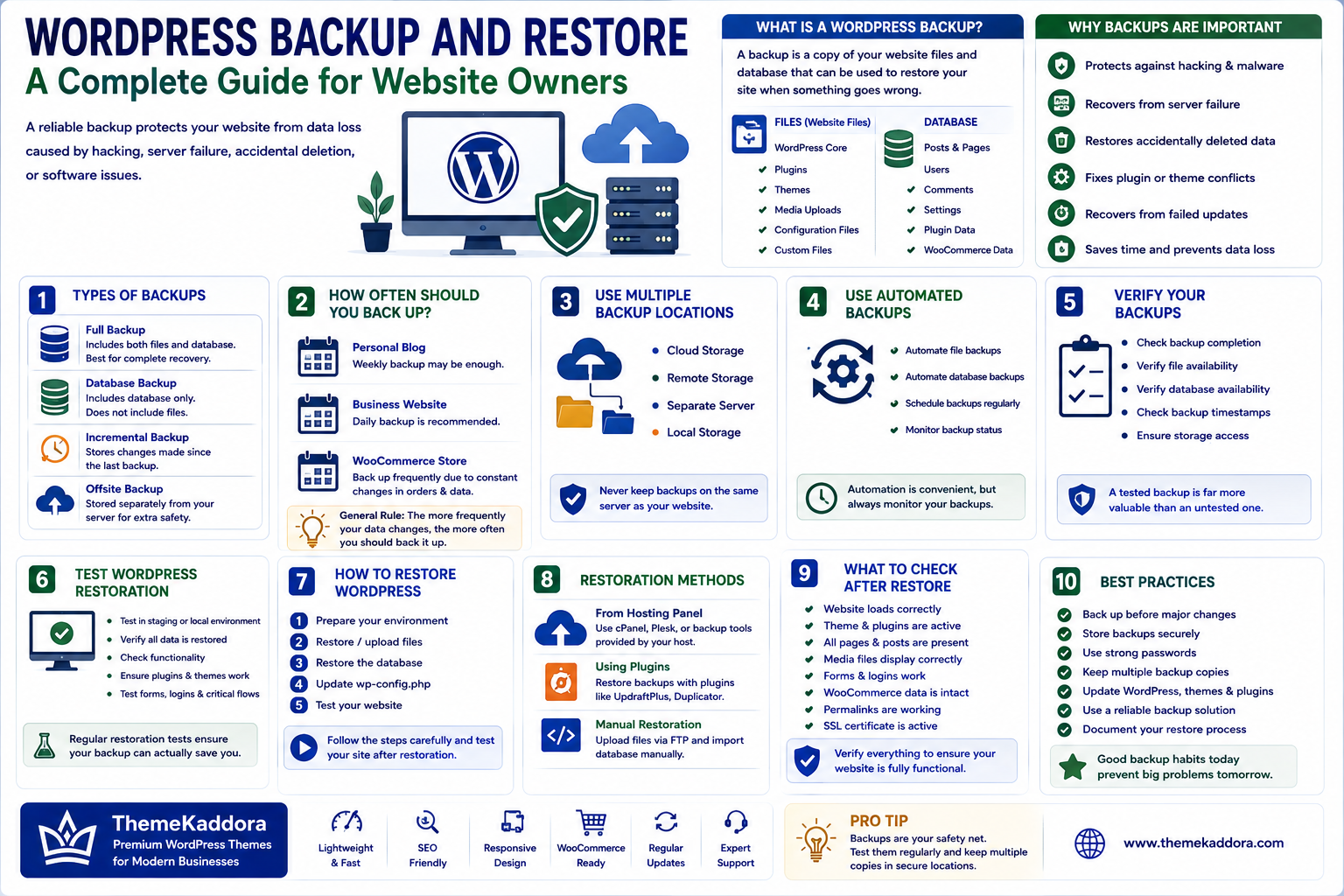
WordPress Backup and Restore: A Complete Guide for Website Owners
Introduction
A WordPress website can represent months or even years of work.
Your website may contain valuable:
Articles
Pages
Images
Customer information
Orders
Forms
Configurations
Customizations
Losing this information because of a server failure, hacking incident, accidental deletion, or software conflict can be extremely costly.
That is why a reliable WordPress backup and restore strategy is essential.
A backup provides a copy of your website that can be used to recover your data when something goes wrong.
However, simply creating one backup is not enough.
You need to know what to back up, where to store it, how frequently to create backups, and—most importantly—how to restore the website successfully.
This guide explains how to create a practical WordPress backup and recovery strategy.
1. What Is a WordPress Backup?
A WordPress backup is a copy of your website's important files and database information.
A complete backup generally contains two major components.
WordPress Files
These can include:
WordPress core files
Themes
Media uploads
Configuration files
Custom files
WordPress Database
The database stores information such as:
Posts
Pages
Users
Comments
Settings
Plugin data
WooCommerce information
A complete website backup should protect both files and database data.
2. Why WordPress Backups Are Important
Websites can fail for many reasons.
Common causes include:
Hacking
Malware
Server failure
Accidental deletion
Plugin conflicts
Theme errors
Database corruption
Failed updates
Human mistakes
Without a reliable backup, recovery may be difficult or impossible.
A backup allows you to restore a known working version of the website instead of rebuilding everything from scratch.
3. Types of WordPress Backups
Different backup methods serve different purposes.
Full Backup
A full backup contains both website files and the database.
This is generally the most useful type for complete website recovery.
Database Backup
A database-only backup protects content and settings stored in the database.
It does not replace a full website backup because files such as images, themes, and plugins may still be required.
Incremental Backup
An incremental backup stores changes made since a previous backup.
This can reduce storage requirements and backup processing time.
Offsite Backup
An offsite backup is stored separately from the website's primary server.
This is important because a server failure should not destroy both the website and its only backup.
4. How Often Should You Back Up WordPress?
The ideal backup frequency depends on how frequently your website changes.
Personal Blog
A weekly backup may be sufficient for a website that changes rarely.
Business Website
Daily backups may be more appropriate for an active business website.
WooCommerce Store
Frequently updated stores may require more frequent backups because orders and customer information change continuously.
The general principle is:
The more frequently your data changes, the more frequently you should back it up.
5. Use Multiple Backup Locations
Never rely on a single backup location.
For example, if your website and backup are stored on the same server and the server fails, both could become unavailable.
Consider keeping backups in separate locations such as:
Remote storage
Cloud storage
Separate servers
Local storage
Maintaining multiple copies reduces the risk of losing your recovery data.
6. Use Automated Backups
Manual backups are easy to forget.
Automated backups can run according to a defined schedule.
Depending on your setup, automated systems can back up:
Files
Database
Media
Configuration
Automation is particularly useful for websites that receive frequent updates.
However, automated backups should still be monitored.
A backup system that silently fails is not a reliable backup system.
7. Verify Your Backups
Creating a backup file does not necessarily mean you have a usable backup.
Periodically verify:
Backup completion
File availability
Database availability
Storage access
Backup timestamps
For important websites, perform actual restoration tests.
A tested backup is far more valuable than an untested backup.
8. Test WordPress Restoration
Restoration testing confirms whether your recovery process actually works.
A restoration test can be performed in a:
Staging environment
Local development environment
Temporary server
Test whether the restored website contains:
Pages
Posts
Images
Plugins
Themes
Users
Settings
For WooCommerce, also verify products, orders, customers, and checkout functionality.
9. Create a Backup Before Major Changes
Always create a fresh backup before making significant changes.
Examples include:
WordPress updates
Plugin updates
Theme updates
PHP upgrades
Database changes
Domain migration
Hosting migration
Major design changes
If something goes wrong, you have a recovery point from immediately before the change.
10. WordPress Backup Before Migration
Website migration is one of the most important situations where a complete backup is required.
Before moving your website:
Create a full backup.
Verify the backup.
Download or copy it to a separate location.
Transfer the website.
Test the new environment.
Keep the original website available until migration is confirmed.
This creates a reliable rollback option.
11. Secure Your Backup Files
Backups can contain sensitive information.
They may include:
Customer information
User accounts
Database credentials
Website configuration
Private content
Never leave backup archives publicly accessible.
Use secure storage and appropriate access controls.
If backups are stored remotely, protect the storage account with strong authentication.
12. Do Not Store Only Database Backups
A database backup alone cannot completely restore many WordPress websites.
You may still need:
Themes
Plugins
Images
Custom files
Configuration
For complete recovery, maintain full backups in addition to database backups.
13. WordPress Backup and WooCommerce
WooCommerce requires special attention because store data changes frequently.
A WooCommerce backup strategy should protect:
Products
Product variations
Customers
Orders
Coupons
Inventory
Store settings
For active stores, backup frequency should reflect how quickly new orders and customer information are generated.
Always test restoration carefully before relying on a backup during an emergency.
14. What to Do When WordPress Breaks
If your website suddenly stops working, don't immediately make random changes.
First identify what changed.
Possible causes include:
Plugin update
Theme update
WordPress update
PHP change
Server problem
Database issue
Check error logs and recent changes.
If the problem cannot be resolved safely, restoring a known-good backup may be the fastest recovery option.
15. Basic WordPress Recovery Process
A general recovery process can look like this:
Step 1: Identify the Problem
Determine whether the issue affects the entire website or only specific functionality.
Step 2: Protect Current Data
If necessary, create a backup of the current state before restoring an older version.
Step 3: Select a Known-Good Backup
Choose a backup from before the problem occurred.
Step 4: Restore Files and Database
Restore the required website components.
Step 5: Test the Website
Check pages, forms, login, plugins, and other important functionality.
Step 6: Identify the Root Cause
Determine why the problem occurred so it does not happen again.
16. Maintain a Disaster Recovery Plan
A disaster recovery plan explains what to do when a serious website failure occurs.
Document:
Backup locations
Hosting information
Domain registrar
DNS provider
Recovery procedures
Important plugins
External integrations
Responsible team members
The goal is to avoid trying to figure everything out during an emergency.
17. Common WordPress Backup Mistakes
Avoid these common mistakes.
Keeping Only One Backup
One backup can fail or become corrupted.
Storing Backups on the Same Server
A server failure can affect both the website and backup.
Never Testing Restoration
An untested backup may not work when needed.
Backing Up Too Infrequently
You may lose recent changes.
Ignoring WooCommerce Data
Active stores can lose orders or customer information.
Leaving Backup Files Public
This can expose sensitive information.
Forgetting Configuration
Important settings may be required for complete recovery.
18. Create a WordPress Backup Checklist
Use a simple checklist to maintain your recovery system.
Backup
Schedule automatic backups
Back up files
Back up database
Maintain offsite copies
Keep multiple recovery points
Security
Protect backup storage
Restrict access
Use strong authentication
Remove unnecessary public backup files
Testing
Verify backup completion
Test restoration periodically
Check restored content
Test important website functions
Recovery
Document recovery steps
Maintain rollback procedures
Keep emergency contacts available
19. Why Choose ThemeKaddora?
At ThemeKaddora, we believe website reliability is just as important as website design.
A successful WordPress website should be:
Fast
Secure
Reliable
Maintainable
Scalable
Proper backup and recovery planning is an important part of achieving that reliability.
ThemeKaddora focuses on WordPress themes and solutions designed around modern website requirements, including performance, responsive design, customization, SEO-friendly architecture, and WooCommerce compatibility.
Whether you operate a blog, business website, online store, or larger digital platform, a reliable recovery strategy can protect your investment and reduce unnecessary downtime.
Conclusion
WordPress backups are not an optional extra.
They are an essential part of responsible website management.
A reliable backup strategy should include:
Regular backups
Both files and database
Offsite storage
Multiple recovery points
Backup monitoring
Restoration testing
A documented recovery plan
The most important lesson is simple:
Do not wait for a website failure before thinking about backups.
Create the recovery system while everything is working.
With a well-planned WordPress backup and restore strategy, website owners can recover more confidently from technical failures, security incidents, accidental changes, and migration problems.
Frequently Asked Questions
1. What should a WordPress backup include?
A complete backup should generally include WordPress files, themes, plugins, media uploads, configuration files, and the database.
2. How often should I back up WordPress?
The frequency depends on how often the website changes. Active business and e-commerce websites generally require more frequent backups.
3. Are WordPress backup plugins necessary?
A backup plugin can simplify scheduling and management, but other backup methods can also be used depending on your hosting and infrastructure.
4. Where should WordPress backups be stored?
Maintain backups separately from the primary website server. Remote or offsite storage provides additional protection.
5. Can I restore WordPress without a database backup?
A database is required for restoring most WordPress content and settings. Files alone are generally not sufficient for complete recovery.
6. Should I test my WordPress backups?
Yes. Periodic restoration testing is one of the best ways to confirm that your backups are actually usable.
7. Should WooCommerce websites have more frequent backups?
Often yes, because products, orders, customers, and other store data can change frequently.
8. What should I do before updating WordPress?
Create a recent backup, especially before major WordPress, plugin, theme, PHP, or database changes.
9. Can backups protect my website from hackers?
Backups do not prevent hacking, but they can provide a recovery option after a security incident.
10. What is the best WordPress backup strategy?
A strong strategy combines automated backups, multiple storage locations, secure access, regular verification, restoration testing, and a documented disaster recovery plan.
Comments (0)