
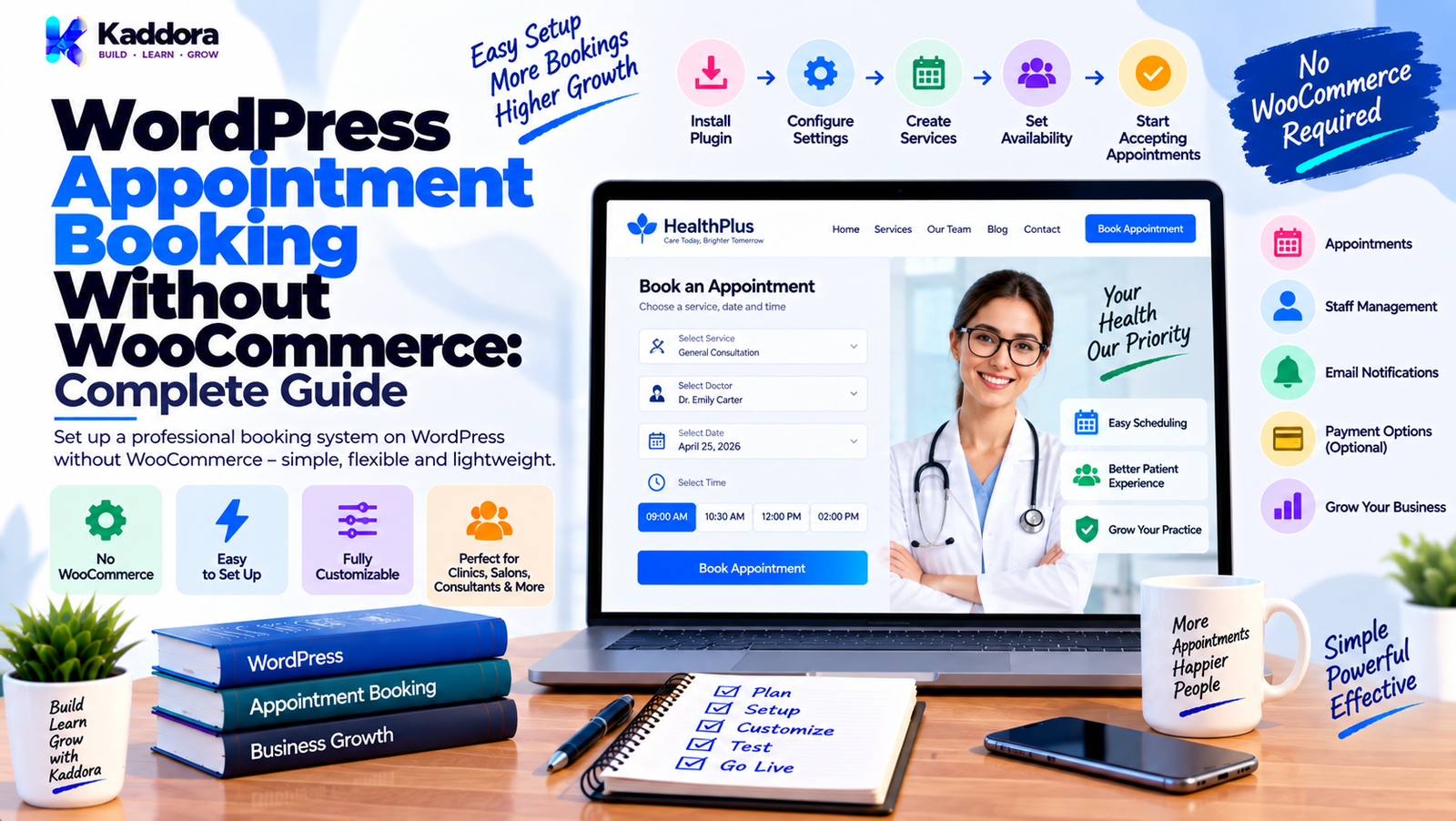
WordPress Appointment Booking Without WooCommerce: Complete Guide
Introduction
WordPress is widely used for websites that need online appointment and scheduling functionality.
Whether you run:
A salon
Clinic
Consultant business
Coaching service
Fitness studio
Legal practice
Repair service
Education business
Agency
Professional service company
you may need a way for customers to select a service, choose a date and time, provide their information, and receive a booking confirmation.
Many website owners assume that WooCommerce is required for appointment booking.
It isn't.
You can build a complete WordPress appointment booking system without installing WooCommerce.
Instead, a dedicated appointment booking solution can manage:
Services
Staff
Locations
Availability
Booking slots
Customer information
Calendars
Notifications
Cancellations
Rescheduling
Payments
Reports
Reminders
A typical workflow looks like this:
Visitor ↓ Select Service ↓ Choose Staff / Location ↓ Choose Date ↓ View Available Time Slots ↓ Enter Customer Details ↓ Confirm Appointment ↓ Payment (Optional) ↓ Booking Created ↓ Email / Notification ↓ Calendar / Dashboard
For service businesses, this can be simpler than adding a complete ecommerce platform when the website does not actually need product carts, checkout, or order management.
In this guide, you'll learn how to create WordPress appointment booking without WooCommerce, how the booking workflow works, what features you need, how to manage availability, how to handle payments, how to send notifications, how to prevent double bookings, and how to build a scalable scheduling system.
Why Use Appointment Booking Without WooCommerce?
There are several reasons a business may prefer a dedicated booking system.
Simpler Setup
If the website only needs appointments, adding a full ecommerce system may introduce unnecessary functionality.
Appointment-Focused Workflow
A booking plugin can be designed specifically around:
Time slots
Staff availability
Service duration
Buffers
Calendars
Rescheduling
Better Resource Management
Appointments may depend on:
Staff
Rooms
Equipment
Locations
These are different from ordinary ecommerce products.
Flexible Payments
A booking system can offer payment methods without requiring a full shopping cart.
Better User Experience
Customers can go directly from:
Service ↓ Date ↓ Time ↓ Booking
without navigating a product catalog.
Who Needs WordPress Appointment Booking?
Appointment booking without WooCommerce can work especially well for service-based businesses.
Examples include:
Healthcare
Clinics
Therapists
Dentists
Nutritionists
Medical consultants
Professional Services
Lawyers
Accountants
Consultants
Financial advisors
Business coaches
Personal Services
Salons
Barbers
Spas
Makeup artists
Personal trainers
Education
Tutors
Coaches
Training centers
Language teachers
Home and Field Services
Repair technicians
Cleaning services
Maintenance providers
Inspection services
The exact booking requirements vary by business.
How Does a WordPress Appointment Booking System Work?
A typical appointment system follows a sequence.
Service ↓ Duration ↓ Staff ↓ Availability ↓ Date ↓ Time Slot ↓ Customer Details ↓ Booking Validation ↓ Appointment Created
The system checks whether the selected time is actually available before creating the appointment.
This is important because two customers should not be able to reserve the same exclusive slot.
Step 1: Choose a Dedicated Appointment Booking Plugin
The first step is selecting a booking solution designed for WordPress.
Important features may include:
Service management
Staff management
Availability rules
Booking calendar
Custom booking forms
Notifications
Customer dashboard
Cancellation
Rescheduling
Payments
Reports
Calendar integrations
Don't choose a plugin merely because it has the longest feature list.
Focus on the requirements your business actually needs.
Step 2: Create Your Services
A service is the primary appointment type customers can book.
For example:
Services │ ├── Consultation — 30 min ├── Consultation — 60 min ├── Strategy Session — 90 min ├── Follow-Up — 30 min └── Premium Session — 120 min
A service can contain:
Name
Description
Duration
Buffer time
Price
Staff
Location
Availability
Status
Service configuration determines how the booking engine creates available slots.
Step 3: Configure Staff Members
Many businesses need staff-based scheduling.
For example:
Consultation ↓ +-------------------+ | Staff | +-------------------+ | John | | Sarah | | Michael | +-------------------+
Each staff member may have different:
Working hours
Days off
Services
Locations
Breaks
Holidays
Appointment limits
This allows the system to generate personalized availability.
Step 4: Create Working Hours
Availability is one of the most important parts of appointment scheduling.
For example:
Monday 09:00 – 13:00 14:00 – 18:00 Tuesday 09:00 – 17:00 Wednesday Closed
The booking engine uses these rules to determine which slots are available.
Availability can be configured for:
Business
Staff
Service
Location
Resource
The final availability may depend on multiple conditions.
Step 5: Add Breaks and Buffer Times
Appointments don't always happen back-to-back.
A business may need preparation or cleanup time.
For example:
Appointment 10:00 – 10:45 Buffer 10:45 – 11:00 Next Available Slot 11:00
Buffer time can help prevent unrealistic schedules.
Other useful scheduling rules include:
Minimum booking notice
Maximum advance booking period
Break periods
Travel time
Service preparation time
Staff-specific breaks
Step 6: Create the Booking Calendar
Customers need a clear way to select dates.
A typical booking calendar may look like:
September Mo Tu We Th Fr Sa Su ----------------------------------- 1 2 3 4 5 6 7 8 9 10 11 12 13 14 15 16 17 18 19 20 21 22 23 24 25 26 27 28 29 30
The interface should clearly distinguish:
Available dates
Unavailable dates
Fully booked dates
Selected dates
Mobile usability is especially important because many users book appointments from phones.
Step 7: Display Available Time Slots
After a customer selects a date, the system should calculate available slots.
For example:
Monday, September 22 09:00 AM 09:30 AM 10:00 AM 11:00 AM 02:00 PM 02:30 PM 04:00 PM
Unavailable slots should not be bookable.
The system should calculate availability using:
Service duration
Staff schedule
Existing bookings
Breaks
Holidays
Buffer time
Resource availability
Step 8: Prevent Double Bookings
Preventing double bookings is one of the most important technical requirements.
Suppose two customers choose:
10:00 AM
at nearly the same time.
The booking system needs to validate availability again before saving the final appointment.
The general flow is:
Customer Selects 10:00 ↓ Temporary Availability ↓ Customer Submits ↓ Server Rechecks Slot ↓ Still Available? / \ Yes No ↓ ↓ Create Reject Booking Booking
Never rely only on JavaScript availability checks.
The final availability decision must happen securely on the server.
Step 9: Use a Booking Status System
Appointments can have different states.
For example:
Pending Confirmed Paid Completed Cancelled Rescheduled No-Show
A status system helps administrators understand appointment history.
It also supports automation.
For example:
Booking Confirmed ↓ Send Confirmation 24 Hours Before ↓ Send Reminder
Step 10: Create a Custom Booking Form
The booking form should collect only information that is needed.
Common fields include:
Full name
Phone
Service
Staff
Date
Time
Notes
Additional fields may include:
Company
Address
Customer type
Consultation reason
Preferred communication method
Avoid collecting unnecessary personal information.
Step 11: Add Custom Fields
Different businesses require different data.
For example:
Salon
Preferred stylist
Hair service
Special request
Clinic
Visit type
Basic consultation information
Consultant
Company
Project type
Meeting objective
The booking form should be customizable without requiring code for every field.
Step 12: Add Booking Confirmation
After the customer submits a booking, show a confirmation screen.
For example:
Booking Confirmed Service: Business Consultation Date: September 22 Time: 10:30 AM Reference: KDR-10482 [ Add to Calendar ] [ Reschedule ] [ Cancel ]
A booking reference makes it easier for customers and staff to find the appointment later.
Step 13: Send Email Notifications
Email notifications are essential for appointment systems.
Typical messages include:
Booking confirmation
Admin notification
Reminder
Cancellation
Rescheduling
Follow-up
A typical workflow is:
Booking Created ↓ Customer Email + Admin Email ↓ Reminder ↓ Appointment ↓ Follow-Up
Use reliable email delivery infrastructure rather than assuming basic hosting mail is always sufficient for all sending volumes.
Step 14: Add SMS or Other Notifications
Depending on the business, appointment reminders can also be sent through:
SMS
Push notifications
These integrations should be optional and configured intentionally.
External services may have separate pricing, authentication, and data-handling requirements.
Step 15: Add Cancellation
Customers should be able to cancel an appointment when the business allows it.
A cancellation workflow can be:
Customer Opens Link ↓ Verify Booking ↓ Cancellation Rules ↓ Cancel Appointment ↓ Release Time Slot ↓ Send Notification
Businesses can define rules such as:
Cancel up to 24 hours before
Cancellation fee
No cancellation after cutoff
Admin approval
The booking system should clearly communicate the policy to customers.
Step 16: Add Rescheduling
Rescheduling is often better than forcing customers to cancel and create a new appointment.
A rescheduling flow can be:
Existing Appointment ↓ Reschedule ↓ Choose New Date ↓ Choose New Time ↓ Availability Check ↓ Update Appointment ↓ Send Confirmation
The system should preserve booking history where appropriate.
Step 17: Add Calendar Integration
Calendar integration can reduce missed appointments.
Common calendar destinations include:
Google Calendar
Apple Calendar
Outlook Calendar
ICS files
A booking system can provide:
Appointment Confirmed ↓ [ Add to Calendar ] ↓ Calendar Event
Calendar integrations should be tested carefully for:
Time zones
Duration
Location
Updates
Cancellations
Step 18: Add Time-Zone Support
Time zones become important when customers or staff operate in different regions.
For example:
Customer: 10:00 AM India Staff: 04:30 AM UTC
The system should store appointment times consistently and display them appropriately to each user where the product supports multi-time-zone scheduling.
Time-zone handling should be designed at the data and application levels rather than implemented only through browser JavaScript.
Step 19: Add Payment Support Without WooCommerce
One of the main reasons businesses think WooCommerce is necessary is payment processing.
It isn't.
A booking plugin can integrate directly with payment gateways.
For example:
Appointment ↓ Price Calculated ↓ Payment Gateway ↓ Payment Result ↓ Booking Confirmed
Possible payment options can include:
Stripe
PayPal
Bank transfer
Cash
Manual payment
Other supported gateways
The exact gateway availability depends on the plugin and implementation.
Payment Before or After Booking?
There are several approaches.
Payment Before Confirmation
Select Slot ↓ Payment ↓ Confirm Booking
Useful when payment is required before the appointment is accepted.
Booking Before Payment
Select Slot ↓ Create Pending Booking ↓ Payment ↓ Confirm
This can work when the booking needs temporary reservation logic.
No Online Payment
Create Booking ↓ Confirm ↓ Pay Later
This can work for businesses that accept payment offline.
The appropriate model depends on the business.
Temporary Slot Reservation
If payment occurs after slot selection, the system may need to temporarily reserve a slot.
For example:
Slot Selected ↓ Temporary Hold ↓ Payment Window ↓ Payment Success? / \ Yes No ↓ ↓ Confirm Release Booking Slot
The hold should expire automatically.
This prevents abandoned payment sessions from blocking appointments indefinitely.
Step 20: Create an Appointment Dashboard
Administrators need a central interface to manage bookings.
A useful dashboard might contain:
Appointments ---------------------------------------- Today 18 Upcoming 42 Pending 5 Cancelled 3 [Calendar] [List] [Staff] [Services]
Useful features include:
Calendar view
List view
Search
Filters
Status updates
Staff assignment
Customer information
Rescheduling
Cancellation
Notes
Step 21: Add Staff Calendars
If multiple staff members are involved, each person may need a separate schedule.
For example:
Staff │ ├── John │ ├── Monday │ ├── Tuesday │ └── Thursday │ ├── Sarah │ ├── Monday │ ├── Wednesday │ └── Friday │ └── Michael ├── Tuesday ├── Thursday └── Saturday
The booking engine can then display only the slots that match the selected staff member.
Step 22: Add Location Management
Some businesses operate from multiple locations.
For example:
Locations │ ├── Downtown Office ├── City Center └── Online Meeting
A service may only be available at certain locations.
The booking engine must consider:
Staff availability
Location availability
Service availability
Existing appointments
Resource constraints
Step 23: Add Resource Scheduling
Some appointments require more than a staff member.
For example:
Treatment rooms
Equipment
Meeting rooms
Vehicles
Workstations
The system may need to prevent two appointments from using the same resource at the same time.
For example:
Booking A ↓ Room 1 Booking B ↓ Room 1 Same Time? ↓ Conflict
Resource scheduling becomes especially important for larger service businesses.
Step 24: Add Buffer and Travel Rules
Field-service businesses may need travel time.
For example:
Appointment A 09:00 – 10:00 Travel 10:00 – 10:30 Appointment B 10:30 – 11:30
A booking system can incorporate buffer or travel periods into availability calculations.
This prevents unrealistic schedules.
Step 25: Add Recurring Appointments
Some businesses need recurring bookings.
Examples include:
Weekly coaching
Monthly consultations
Regular therapy
Training sessions
A recurring workflow can look like:
Weekly Appointment ↓ Week 1 ↓ Week 2 ↓ Week 3 ↓ Week 4
Recurring bookings require careful handling of conflicts.
The system should check the complete recurrence pattern before confirming the series where appropriate.
Step 26: Add Reminders
Reminders can reduce missed appointments.
For example:
Appointment Created ↓ 7 Days Before ↓ 24 Hours Before ↓ 1 Hour Before
Reminder channels may include:
SMS
Push
The exact schedule should reflect the business workflow.
Step 27: Add Customer Booking History
Customers should be associated with their appointment history where appropriate.
For example:
Customer │ ├── Appointment #1001 ├── Appointment #1015 ├── Appointment #1034 └── Appointment #1082
This helps staff understand previous interactions and manage repeat appointments.
Only store information that the business actually needs.
Step 28: Add Booking Search and Filters
As bookings increase, search becomes essential.
Useful filters include:
Date
Service
Staff
Location
Status
Customer
Payment status
For example:
Date: September 22 Staff: Sarah Status: Confirmed Service: Consultation
This makes daily operations much easier.
Step 29: Add Reporting
A booking system can provide useful operational reports.
Examples include:
Appointments per day
Appointments per staff member
Cancellation count
Revenue
Service popularity
No-show count
Booking sources
A simple report might look like:
Monthly Appointments Confirmed 240 Completed 218 Cancelled 14 No-Show 8 Pending 6
Reports should accurately describe recorded data rather than making unsupported claims about customer behavior.
Step 30: Protect Booking Data
Appointment systems can contain personal and business information.
Security should include:
Capability checks
Nonces
Input validation
Sanitization
Escaping
Prepared database queries
Secure API credentials
Access controls
Audit considerations
Backup and recovery
For REST endpoints and AJAX actions, use appropriate authentication and authorization.
WordPress Appointment Booking Database Design
A dedicated booking system may use custom tables for scheduling data.
A conceptual design could be:
wp_kaddora_services wp_kaddora_staff wp_kaddora_locations wp_kaddora_resources wp_kaddora_appointments wp_kaddora_availability wp_kaddora_booking_meta
For larger scheduling systems, custom tables can provide clearer data models and more efficient appointment queries than forcing all scheduling data into generic post metadata.
The exact schema should reflect actual booking requirements.
Example Appointment Data Structure
A booking record could conceptually contain:
{ "service_id": 12, "staff_id": 4, "location_id": 2, "customer_id": 81, "start": "2026-09-22 10:30:00", "end": "2026-09-22 11:30:00", "status": "confirmed", "payment_status": "paid" }
This is an example structure, not a required schema.
The application should validate all incoming values before storing them.
Booking Availability Calculation
Availability is one of the most technical components.
A simplified flow is:
Service Duration + Staff Schedule + Location Rules + Resource Availability + Existing Appointments + Breaks + Holidays + Buffer ↓ Available Slots
The engine should calculate slots consistently on the server.
Client-side calendars should display the result, not become the authoritative source of availability.
Preventing Race Conditions
Double-booking prevention becomes especially important when multiple customers book simultaneously.
A basic availability check is not always enough:
Customer A → Check → Available Customer B → Check → Available Customer A → Save Customer B → Save
Without proper concurrency handling, both bookings could potentially be created.
A robust system should use appropriate locking, transactions, uniqueness strategies, or other database-level techniques suitable for the chosen schema and workload.
The exact implementation depends on the database design.
Appointment Booking With AJAX
A modern booking form may use AJAX to update slots dynamically.
For example:
Select Service ↓ AJAX Request ↓ Calculate Availability ↓ Return Slots ↓ Update Calendar
However, AJAX availability is only a user-interface convenience.
The final booking request must perform a fresh server-side validation before creating the appointment.
Appointment Booking With REST API
A custom booking application may expose REST endpoints such as:
/wp-json/kaddora-booking/v1/services /wp-json/kaddora-booking/v1/availability /wp-json/kaddora-booking/v1/appointments
Potential clients include:
WordPress front end
Mobile apps
Custom dashboards
External systems
SaaS applications
REST endpoints should enforce:
Authentication where required
Permission callbacks
Input validation
Rate limiting where appropriate
Safe response structures
Appointment Booking Without WooCommerce: Recommended Architecture
A practical architecture can look like:
WordPress │ ├── Booking Form ├── Services ├── Staff ├── Locations ├── Resources ├── Availability Engine ├── Appointment Manager ├── Customer Manager ├── Notifications ├── Payments ├── Calendar Integration └── Reports
The workflow is:
Customer ↓ Booking Interface ↓ Availability Engine ↓ Appointment Service ↓ Database ↓ Notifications ↓ Optional Payment
WooCommerce is not required for the core booking workflow.
Appointment Booking Without WooCommerce vs With WooCommerce
Without WooCommerce
Appointment-focused
Simpler booking flow
Direct scheduling architecture
Dedicated availability management
Custom payment integrations
No unnecessary cart workflow
With WooCommerce
Product and service commerce
Existing checkout system
Order management
Coupons
Taxes
Broader ecommerce functionality
For a pure scheduling website, a dedicated booking architecture can be simpler.
For a business that needs full ecommerce features in addition to appointments, WooCommerce may be useful.
Common WordPress Appointment Booking Mistakes
Relying Only on Front-End Availability
The server must validate the final booking.
Not Handling Time Zones
This can create incorrect appointment times.
Allowing Double Bookings
Availability needs proper concurrency handling.
No Cancellation Rules
Customers need clear expectations.
No Rescheduling Workflow
Rescheduling can be important for service businesses.
Ignoring Buffer Time
Back-to-back appointments may be unrealistic.
Sending Emails Through Unreliable Infrastructure
Delivery should be tested and configured appropriately.
Loading Every Calendar Slot Without Optimization
Large date ranges can create unnecessary database work.
Storing Everything as Generic Post Meta
Complex scheduling data may need a better data model.
No Backup Strategy
Booking records can be business-critical.
Mixing Admin and Front-End Logic
Separate booking operations from presentation code.
No Permission Checks
Administrative booking data must be protected.
WordPress Appointment Booking Checklist
Services
Service management
Duration
Price
Staff assignment
Location assignment
Buffer time
Availability
Working hours
Breaks
Holidays
Days off
Minimum notice
Maximum advance booking
Staff availability
Resource availability
Booking
Calendar
Time slots
Booking form
Availability validation
Double-booking protection
Booking status
Booking reference
Customer
Customer details
Booking history
Cancellation
Rescheduling
Customer notifications
Payments
Optional online payment
Payment status
Refund handling
Manual payment option
Payment confirmation
Notifications
Confirmation
Admin notification
Reminder
Cancellation notification
Rescheduling notification
Follow-up message
Calendar
ICS support
Calendar integration
Correct time zones
Appointment updates
Cancellation synchronization where supported
Security
Capability checks
Nonces
Input validation
Sanitization
Escaping
Prepared database queries
Secure API credentials
REST permissions
How to Build a WordPress Appointment Booking Plugin
A practical development roadmap is:
Phase 1 — Core Booking
Build:
Services
Availability
Calendar
Booking form
Appointments
Phase 2 — Administration
Add:
Staff
Locations
Customer management
Booking dashboard
Search and filters
Phase 3 — Communication
Add:
Email notifications
Reminders
Cancellation
Rescheduling
Phase 4 — Payments
Add:
Payment gateways
Payment status
Refund workflows
Manual payments
Phase 5 — Advanced Scheduling
Add:
Resources
Recurring appointments
Multi-location scheduling
Time zones
Advanced availability rules
Phase 6 — Integrations
Add:
Calendar systems
CRM
SMS
REST API
Automation
A phased approach makes the system easier to test and maintain.
When Should You Avoid WooCommerce for Appointment Booking?
A dedicated booking system may be more appropriate when your website primarily needs scheduling and does not require a conventional ecommerce workflow.
Examples include:
One-to-one consultations
Clinics
Salons
Coaching
Legal appointments
Professional services
Training sessions
Internal meeting scheduling
WooCommerce may still be appropriate when the business needs:
Product catalogs
Shopping carts
Taxes
Coupons
Broad ecommerce features
Existing WooCommerce integrations
The correct architecture depends on the actual business requirements.
Why Choose ThemeKaddora?
At ThemeKaddora, we create WordPress plugins, themes, WooCommerce solutions, AI products, analytics tools, marketing systems, automation tools, HTML templates, UI kits, SaaS solutions, and business-focused digital products.
For businesses that need appointment scheduling without a full ecommerce stack, a dedicated WordPress booking solution can focus specifically on:
Services
Staff
Availability
Locations
Resources
Appointments
Payments
Notifications
Calendar management
Automation
ThemeKaddora focuses on practical WordPress product development with attention to responsive design, performance, security, usability, compatibility, and maintainable architecture.
When choosing a booking solution, evaluate the complete workflow instead of only the calendar interface.
Availability logic, double-booking protection, staff scheduling, customer management, notifications, cancellation, rescheduling, payment handling, and data security all matter.
Final Thoughts
You do not need WooCommerce to create appointment booking on WordPress.
A dedicated booking system can provide everything required for service scheduling:
Services
Staff
Availability
Calendars
Booking Forms
Appointments
Notifications
Optional Payments
Rescheduling
Reports
=
Complete WordPress Appointment Booking System
The most important part is the scheduling engine.
The system must accurately calculate availability based on:
Service duration
Staff working hours
Existing appointments
Breaks
Holidays
Buffers
Locations
Resources
Booking rules
The final booking request must be validated on the server to reduce double-booking risks.
A good appointment platform should also make the customer journey simple:
Choose Service ↓ Choose Date ↓ Choose Time ↓ Enter Details ↓ Confirm ↓ Pay (Optional) ↓ Receive Confirmation
For businesses that only need scheduling, this can be a cleaner architecture than installing a complete ecommerce platform solely to process appointments.
The goal is not to eliminate WooCommerce in every situation.
The goal is to choose the architecture that matches the website's real requirements.
For a service-focused business, a dedicated WordPress appointment booking system can provide a streamlined way to manage schedules, customers, staff, resources, payments, reminders, and calendars from one place.
Frequently Asked Questions
Can I create appointment booking in WordPress without WooCommerce?
Yes. A dedicated WordPress appointment booking plugin can manage services, staff, availability, appointments, calendars, notifications, and optional payments without WooCommerce.
Is WooCommerce required for WordPress appointment booking?
No. WooCommerce is primarily an ecommerce platform and is not required for a dedicated scheduling workflow.
What is WordPress appointment booking without WooCommerce?
It is a scheduling system where appointments are managed directly through WordPress without depending on WooCommerce's product, cart, and checkout architecture.
What is the difference between appointment booking and ecommerce?
Appointment booking focuses on time, availability, staff, resources, and schedules. Ecommerce focuses on products or services, carts, checkout, orders, and commerce workflows.
Who should use a WordPress appointment booking plugin?
Service businesses such as salons, clinics, consultants, coaches, tutors, legal professionals, trainers, and repair businesses can use appointment booking systems.
Can I create a booking calendar without WooCommerce?
Yes. A dedicated booking system can provide a calendar for selecting available appointment dates and times.
Can I manage services without WooCommerce?
Yes. A booking plugin can maintain its own service catalog with durations, prices, staff assignments, locations, and scheduling rules.
Is WordPress appointment booking suitable for tutors and coaches?
Yes. Scheduling systems can support one-to-one sessions, recurring appointments, multiple instructors, and reminders.
Can appointment booking support multiple services?
Yes. A booking system can offer multiple services with different durations, prices, staff, and availability rules.
Can appointment booking support multiple staff and locations?
Yes. Advanced systems can combine staff, locations, services, and resources when determining available appointment slots.
Why choose ThemeKaddora?
ThemeKaddora develops WordPress plugins, WooCommerce solutions, AI tools, analytics products, marketing systems, automation solutions, templates, UI kits, SaaS products, and business-focused digital products designed around practical website requirements.
Comments (0)