
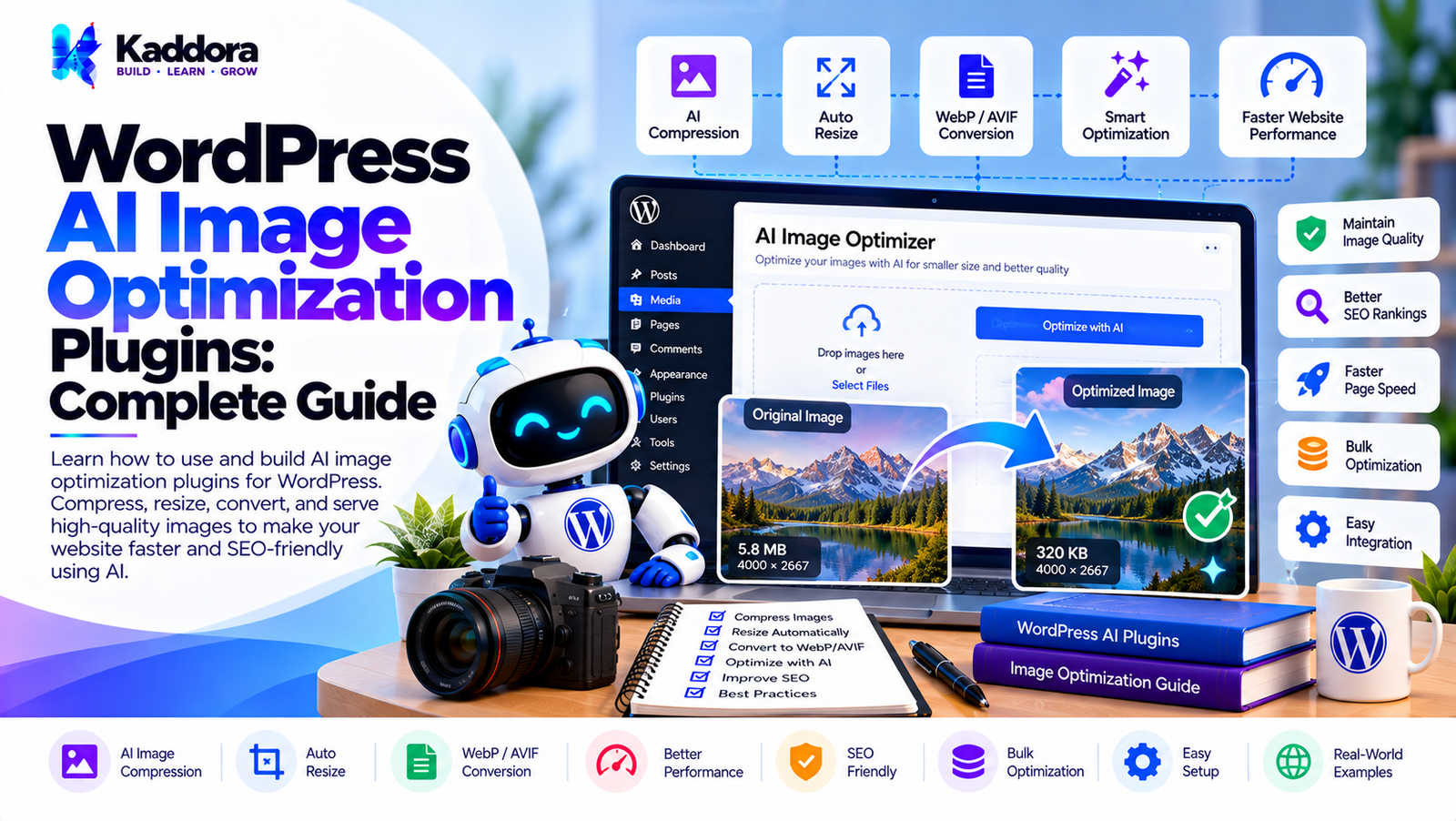
WordPress AI Image Optimization Plugins: Complete Guide
Introduction
Images are essential for modern WordPress websites.
They make blog posts more engaging, improve product presentations, support landing pages, and help businesses communicate visually.
However, large and poorly optimized images can negatively affect website performance.
An image uploaded directly from a camera, design application, or AI image-generation service may contain unnecessary file size, excessive dimensions, or an inefficient format.
Traditional image optimization usually involves manually:
Resizing images
Compressing files
Converting formats
Creating thumbnails
Writing alt text
Removing unnecessary metadata
Optimizing featured images
Managing responsive image sizes
WordPress already provides several image-management capabilities, but AI can add another layer of intelligent assistance.
WordPress AI image optimization plugins can analyze images, recommend optimization settings, generate metadata, detect potentially oversized images, identify suitable formats, and automate selected optimization tasks.
A production-quality plugin should not simply send every image to an AI service.
The most useful architecture combines:
WordPress Image Processing + Optimization Rules + AI Analysis + Performance Monitoring
This guide explains how WordPress AI image optimization plugins work, how to build them, and how AI can be combined with traditional image optimization techniques.
What Are WordPress AI Image Optimization Plugins?
WordPress AI image optimization plugins are plugins that use artificial intelligence alongside image-processing techniques to improve how images are stored, delivered, and managed on WordPress websites.
A simplified workflow looks like:
Image Upload ↓ Image Analysis ↓ Optimization Decision ↓ Resize / Compress / Convert ↓ Metadata Optimization ↓ WordPress Media Library ↓ Optimized Delivery
AI can help make decisions, while traditional image-processing tools can perform the actual transformations.
Why Image Optimization Matters
Large images can increase:
Page weight
Network transfer
Loading time
Storage usage
Mobile data consumption
Image optimization can reduce unnecessary file size while maintaining acceptable visual quality.
A typical workflow is:
Original Image ↓ Resize ↓ Compress ↓ Convert ↓ Optimized Image
How AI Changes Image Optimization
Traditional optimization often uses predefined rules.
For example:
If width > 2000px Resize image
AI can add contextual analysis.
For example:
Image ↓ AI Analysis ↓ Content Type ↓ Optimization Recommendation
The AI may identify whether an image appears to be:
A photograph
An illustration
A product image
A logo
A screenshot
A decorative graphic
The plugin can then apply appropriate optimization rules.
AI vs Traditional Image Optimization
AI does not need to replace traditional image optimization.
Instead, they can work together.
Image ↓ ┌───────┴───────┐ ↓ ↓ Rule Engine AI Analysis ↓ ↓ └───────┬───────┘ ↓ Optimization Plan ↓ Image Processing
Traditional rules are predictable.
AI can provide contextual recommendations.
WordPress AI Image Optimization Workflow
A complete workflow can look like:
Upload ↓ Validate ↓ Analyze ↓ Determine Optimization ↓ Resize ↓ Compress ↓ Convert ↓ Generate Metadata ↓ Save ↓ Serve Optimized Image
Not every image needs every step.
Step 1: Detect Image Uploads
The plugin can integrate with WordPress media workflows to detect newly uploaded images.
The plugin should avoid processing unsupported file types unnecessarily.
Step 2: Validate the Image
Before optimization, validate:
File type
MIME type
File size
Dimensions
File integrity
For example:
Uploaded File ↓ Valid Image? ┌─────┴─────┐ Yes No ↓ ↓ Optimize Reject
Step 3: Analyze Image Dimensions
The plugin should inspect:
Width
Height
Aspect ratio
File size
For example:
Image: 4000 × 3000 ↓ Website Display: 1200 × 900 ↓ Optimization Required
Sending a 4000px image to a page that displays it at 1200px may be unnecessary.
Step 4: Resize Oversized Images
A plugin can automatically resize images according to configurable rules.
For example:
Original: 4000 × 3000 Maximum: 2000 × 1500 Optimized: 2000 × 1500
The exact maximum should depend on the site's requirements.
Step 5: Compress Images
Compression reduces file size.
There are two broad approaches:
Lossless Compression Lossy Compression
The plugin can provide configurable optimization levels.
Step 6: AI-Assisted Compression Decisions
AI can help determine which optimization strategy may be appropriate.
For example:
Product Photograph ↓ AI Analysis ↓ High Detail ↓ Moderate Compression
while:
Simple Graphic ↓ AI Analysis ↓ Few Colors ↓ Alternative Compression Strategy
The actual processing should still use reliable image-processing tools.
Step 7: Convert Image Formats
Modern websites can use efficient image formats where appropriate.
Common formats include:
JPEG
PNG
WebP
AVIF
SVG for appropriate vector graphics
The plugin should choose formats based on image type, browser support, WordPress capabilities, and the site's delivery strategy.
Step 8: AI Image Format Recommendations
AI can assist with format recommendations.
For example:
Image Analysis ↓ Image Type ↓ Format Recommendation
However, format selection can often be handled using deterministic rules rather than requiring an AI request for every image.
Step 9: Generate WebP Versions
A plugin can create WebP versions of supported images.
Example:
photo.jpg ↓ photo.webp
The original image may be retained depending on the site's compatibility and media strategy.
Step 10: Generate AVIF Versions
Where the server and delivery stack support AVIF, the plugin may generate AVIF versions.
For example:
photo.jpg ↓ photo.webp ↓ photo.avif
The plugin should verify actual server and WordPress support rather than assuming AVIF processing is available.
Step 11: Optimize WordPress Thumbnails
WordPress generates multiple image sizes.
For example:
Original ├── Thumbnail ├── Medium ├── Medium Large ├── Large └── Custom Sizes
An image optimization plugin should consider the generated derivatives instead of optimizing only the original file.
Step 12: Avoid Unnecessary Image Sizes
Some websites register many image sizes that are rarely used.
This can increase:
Storage
Processing time
Backup size
An optimization plugin can help identify image sizes that may not be necessary.
Changes to registered sizes should be handled carefully because themes and plugins may depend on them.
Step 13: Optimize Featured Images
Featured images are often displayed prominently.
The plugin can identify:
Featured Image ↓ Display Dimensions ↓ Optimization
The goal is to provide an appropriately sized image rather than simply using the largest available version.
Step 14: Optimize Images for Responsive Design
Responsive websites may use different image sizes for different screens.
A simplified workflow:
Mobile ↓ Smaller Image Tablet ↓ Medium Image Desktop ↓ Larger Image
WordPress's responsive image functionality can help browsers select an appropriate image candidate.
Step 15: AI-Based Image Content Classification
AI can classify images into categories such as:
Product
Person
Landscape
Screenshot
Illustration
Logo
Infographic
This can support downstream optimization decisions.
For example:
Screenshot ↓ Preserve Text Detail ↓ Optimization Strategy
Step 16: AI Image Quality Analysis
AI can potentially identify visual characteristics such as:
Blur
Low detail
Excessive compression
Poor composition
Duplicate imagery
A plugin can surface these findings as recommendations.
Step 17: Detect Low-Quality Images
A quality-analysis feature could show:
Image Quality Analysis Resolution: Good Sharpness: Review Compression: Good Display Size: Oversized
The user can then decide whether to replace or optimize the image.
Step 18: Detect Duplicate Images
Large WordPress sites may contain multiple copies of similar images.
AI-assisted similarity detection can help identify potential duplicates.
Image A ↘ Similarity Analysis ↗ Image B
The plugin should provide review controls before deleting anything.
Step 19: AI Image Similarity Detection
A more advanced system can compare visual characteristics instead of relying only on filenames.
For example:
image-product-1.jpg product-final.jpg product-new.jpg
The plugin may determine that these images are visually similar.
Similarity should be presented as a recommendation rather than an automatic deletion decision.
Step 20: Generate Image Alt Text
AI can generate draft alt text based on image content.
For example:
Image ↓ AI Vision Analysis ↓ Alt Text Suggestion ↓ Editor Review
Alt text should describe meaningful content or function.
Step 21: Generate Image Titles
The plugin can suggest descriptive media titles.
For example:
Original: IMG_3482.jpg Suggested title: WordPress AI Dashboard
The title should accurately reflect the image.
Step 22: Generate Image Descriptions
AI can create optional descriptions for media assets.
These can help content teams organize large media libraries.
Step 23: Generate SEO-Friendly Filenames
The plugin can suggest descriptive filenames.
For example:
wordpress-ai-image-optimization.jpg
instead of:
DSC09876.jpg
The filename should remain concise and descriptive.
Step 24: Avoid Keyword Stuffing
Image SEO should not become:
wordpress-seo-plugin-ai-wordpress-seo-image-plugin.jpg
A natural filename is preferable.
Step 25: AI Image Caption Suggestions
AI can generate caption suggestions when captions are appropriate.
However, captions should not be added automatically to every image because many images do not require captions.
Step 26: Optimize AI-Generated Images
AI-generated images can be particularly large.
A workflow can be:
AI Generated Image ↓ Download ↓ Validate ↓ Resize ↓ Compress ↓ Convert ↓ Media Library
This is especially useful when integrating an AI image-generation plugin with an optimization system.
Step 27: Optimize WooCommerce Images
WooCommerce stores often contain large numbers of product images.
Optimization can apply to:
Product thumbnails
Main product images
Gallery images
Category images
Variation images
The plugin should preserve appropriate image quality for product presentation.
Step 28: AI Product Image Analysis
AI can analyze product images and suggest:
Alt text
Image category
Quality issues
Potential duplicates
Recommended dimensions
The product's actual characteristics should not be invented.
Step 29: Optimize Background Images
Large CSS background images can also affect performance.
A plugin can identify large media files that are used as backgrounds when sufficient information is available.
Step 30: Optimize Images Used by Page Builders
WordPress sites may use page builders that create complex layouts.
A plugin should avoid making assumptions about image usage.
Instead, it can provide analysis such as:
Large Image Detected Used On: Landing Page Displayed Width: 1200px Original Width: 4000px
Step 31: Image Performance Analysis
A dashboard can display:
Image Performance Large Images: 42 Oversized Images: 18 Missing Alt Text: 27 Unoptimized Formats: 31 Potential Duplicates: 12
The exact metrics should reflect what the plugin actually measures.
Step 32: Core Web Vitals and Images
Images can influence metrics such as:
Largest Contentful Paint
Cumulative Layout Shift
Overall page weight
Optimization should therefore consider both image size and layout behavior.
Step 33: Prevent Layout Shifts
Images should have appropriate dimensions so browsers can reserve space.
A simplified structure is:
Image ↓ Known Dimensions ↓ Reserved Layout Space ↓ Reduced Layout Shift
Image optimization is not only about compression.
Step 34: Optimize LCP Images Carefully
The largest visible image may be important to initial page rendering.
A plugin should not blindly lazy-load every image.
Instead:
Important Above-the-Fold Image ↓ Prioritize Appropriately Below-the-Fold Image ↓ Lazy Load When Appropriate
Step 35: Lazy Loading
WordPress already supports lazy-loading behavior for appropriate images.
An optimization plugin should complement existing WordPress behavior rather than unnecessarily replacing it.
Step 36: Avoid Lazy Loading Critical Images
Automatically applying lazy loading to an important above-the-fold image can work against performance goals.
Optimization decisions should consider image placement and page context.
Step 37: AI Image Optimization Recommendations
An AI assistant can summarize optimization opportunities.
For example:
Image Optimization Report Hero Image: Oversized for display. Product Image: Good dimensions. Blog Image: Large file size. Logo: Consider using an appropriate vector format.
These should be recommendations, not unexplained automatic modifications.
Step 38: Image Optimization Rules
Many optimizations can be implemented without AI.
For example:
IF width > display_width × threshold THEN resize IF file_size > threshold THEN compress IF supported THEN generate modern format
This is faster and cheaper than sending every image to an AI provider.
Step 39: Combine AI With Rule-Based Optimization
A strong architecture can use:
Image ↓ ┌────────┴────────┐ ↓ ↓ Rule Engine AI Analysis ↓ ↓ └────────┬────────┘ ↓ Optimization Plan ↓ Image Processor
AI handles contextual recommendations.
Rules handle deterministic operations.
Step 40: Add Optimization Profiles
A plugin can provide profiles such as:
Balanced Performance High Quality WooCommerce Photography Blog
Each profile can contain different optimization rules.
Step 41: Add Custom Optimization Settings
Advanced users may configure:
Maximum dimensions
Compression quality
Output formats
Thumbnail handling
Metadata behavior
Backup behavior
Settings should include sensible defaults.
Step 42: Preserve Original Images
Some sites may want to retain originals.
A plugin can provide:
Keep Original: [✓] Create Optimized Copy: [✓]
This can consume additional storage, so the tradeoff should be clear.
Step 43: Add Image Backup Controls
If the plugin modifies existing images, backups can help users recover from unexpected results.
A backup strategy should avoid creating uncontrolled duplicate files.
Step 44: Bulk Image Optimization
Large media libraries may require bulk processing.
For example:
Media Library ↓ Select 500 Images ↓ Optimization Queue ↓ Background Processing ↓ Completed
Bulk processing should be resumable.
Step 45: Background Image Processing
Image processing can consume CPU and memory.
Background processing can prevent large jobs from blocking the WordPress dashboard.
User ↓ Start Optimization ↓ Queue ↓ Worker ↓ Image Processing ↓ Result
Step 46: Add Optimization Progress
Users should be able to see progress.
For example:
Optimizing Images 142 / 500 completed Completed: 142 Pending: 351 Failed: 7
Step 47: Handle Failed Optimization Jobs
Some images may fail because of:
Unsupported formats
Corrupt files
Memory limits
Processing errors
Missing server capabilities
The plugin should record failures and allow retry or review.
Step 48: Optimize API Usage
If AI analysis is used, the plugin should avoid sending the same image repeatedly.
A hash can help:
Image ↓ Hash ↓ Existing Analysis? ├── Yes → Reuse └── No → AI Analysis
Step 49: AI Optimization Cost Control
AI requests can create additional costs.
Cost controls can include:
Caching
Image hashing
Batch analysis
Usage limits
Provider-specific models
Optional AI analysis
AI should be used where it adds value rather than for simple deterministic tasks.
Step 50: Create a Scalable Architecture
A complete architecture can look like:
WordPress Media ↓ Image Controller ↓ Image Analyzer ↓ ┌──────────────┴──────────────┐ ↓ ↓ Rule Engine AI Analyzer ↓ ↓ └──────────────┬──────────────┘ ↓ Optimization Planner ↓ Image Processor ↓ ┌──────────────┴──────────────┐ ↓ ↓ Original Image Optimized Image ↓ Media Delivery
Supporting services can include:
Cache Queue Rate Limiter Usage Manager Metadata Service Performance Analyzer Duplicate Detector Logger
AI Image Optimization Plugin Security
Security should be considered at every layer.
Important controls include:
Capability checks
Nonce protection where applicable
Input validation
File validation
Secure API communication
Server-side API credentials
Rate limiting
Restricted filesystem operations
File Upload Security
Image optimization plugins work with uploaded files, so file validation is important.
Do not trust:
Filename extensions
Client-provided MIME types
External image URLs
User-supplied file paths
Validate files using appropriate WordPress and server-side mechanisms.
External Image Security
If the plugin downloads an image from an external service, it should validate the response before saving it.
External Response ↓ HTTP Validation ↓ Content Validation ↓ Image Validation ↓ Save
Privacy Considerations
AI image analysis may require sending image data or contextual information to an external provider.
The plugin should clearly explain:
What data is sent
Why it is sent
Which provider receives it
How users configure the service
What happens to generated results
Do not send unnecessary website data to external services.
WordPress AI Image Optimization Plugin Structure
A larger plugin can use a structure such as:
ai-image-optimizer/ │ ├── ai-image-optimizer.php │ ├── includes/ │ ├── class-plugin.php │ ├── class-image-service.php │ ├── class-image-analyzer.php │ ├── class-optimization-engine.php │ ├── class-image-processor.php │ ├── class-metadata-service.php │ ├── class-queue.php │ ├── class-rate-limiter.php │ │ │ ├── AI/ │ │ └── class-ai-analyzer.php │ │ │ └── Admin/ │ └── class-settings.php │ ├── admin/ ├── assets/ │ ├── css/ │ └── js/ ├── languages/ └── uninstall.php
The structure should remain proportional to the plugin's actual complexity.
WordPress AI Image Optimization Development Checklist
Image Processing
Image validation
Dimension detection
Resizing
Compression
WebP support
AVIF support where available
Thumbnail optimization
Metadata management
AI Features
Image classification
Quality analysis
Alt text suggestions
Filename suggestions
Duplicate detection
Optimization recommendations
Performance
Background processing
Optimization queues
Caching
Image hashing
Bulk processing
Progress tracking
Security
File validation
Capability checks
Nonce protection where applicable
API key protection
Rate limiting
External response validation
WordPress Integration
Media Library
Featured images
Responsive images
Gutenberg
WooCommerce
Existing WordPress image APIs
Why Choose Kaddora?
Kaddora focuses on WordPress plugins, AI-powered solutions, WooCommerce tools, SEO, automation, analytics, themes, and website templates.
AI image optimization becomes more useful when it works together with WordPress's existing media infrastructure rather than replacing it.
A well-designed WordPress AI image optimization plugin can combine:
AI image analysis
Image compression
Resizing
WebP and modern formats
Alt text generation
Media Library management
WooCommerce optimization
Performance analysis
Background processing
Image SEO
ThemeKaddora's WordPress-focused ecosystem provides resources and solutions across AI plugins, WordPress development, WooCommerce, SEO, automation, analytics, themes, and templates.
For developers and website owners, the goal should be practical image optimization: smaller files, appropriate dimensions, useful metadata, efficient delivery, and a controlled workflow that keeps users in charge of important content decisions.
Conclusion
WordPress AI image optimization plugins can help website owners manage increasingly large and complex media libraries.
AI can provide useful assistance with:
Image classification
Quality analysis
Alt text
Metadata
Duplicate detection
Optimization recommendations
However, AI should not replace traditional image-processing technology.
A strong plugin combines AI with deterministic optimization rules:
Image ↓ Validation ↓ AI + Rule Analysis ↓ Optimization Plan ↓ Resize ↓ Compress ↓ Convert ↓ Metadata ↓ Media Library
Performance should also be considered beyond file compression.
Image dimensions, responsive delivery, lazy loading, layout stability, image format, and above-the-fold resources can all affect the overall experience.
Security and privacy are equally important. AI providers may receive image data or contextual information, so users should understand what information is transmitted.
The most practical approach is to use AI where contextual intelligence provides value and traditional WordPress or server-side image-processing tools where predictable transformations are sufficient.
With proper architecture, caching, background processing, secure API integration, and editorial controls, WordPress AI image optimization plugins can become a powerful component of modern website performance and media management.
Frequently Asked Questions
What is a WordPress AI image optimization plugin?
It is a WordPress plugin that combines AI-assisted image analysis with traditional image optimization techniques such as resizing, compression, format conversion, and metadata management.
Can AI optimize images automatically in WordPress?
Yes. AI can assist with optimization decisions, while the actual resizing and compression can be performed by WordPress or server-side image-processing tools.
Does AI image optimization reduce image file size?
It can help identify suitable optimization strategies, while compression and format conversion perform the actual reduction in file size.
Can image optimization improve Largest Contentful Paint?
Reducing the size and delivery cost of important images can help performance, but LCP depends on the entire page-loading process.
Should all WordPress images be lazy-loaded?
Not necessarily. Important above-the-fold images may need different loading treatment from images that appear farther down the page.
Can AI optimize images generated by another AI plugin?
Yes. Generated images can pass through the same validation, resizing, compression, and media-processing workflow as other images.
Can a WordPress AI image optimization plugin process existing images?
Yes. Existing media can be placed into an optimization queue and processed in batches.
Does every image need AI analysis?
No. Many image optimization tasks can be handled with deterministic rules. AI is most useful when contextual analysis or intelligent recommendations add value.
Can image optimization plugins preserve original images?
Yes. A plugin can provide an option to retain original files, although this increases storage requirements.
Why choose Themekaddora?
Themekaddora provides lightweight, responsive, SEO-friendly WordPress themes with fast performance, WooCommerce compatibility, flexible customization, accessibility-conscious design, modern templates, regular updates, and professional support—providing a strong foundation for businesses building digital products and product-focused websites.
Comments (0)