
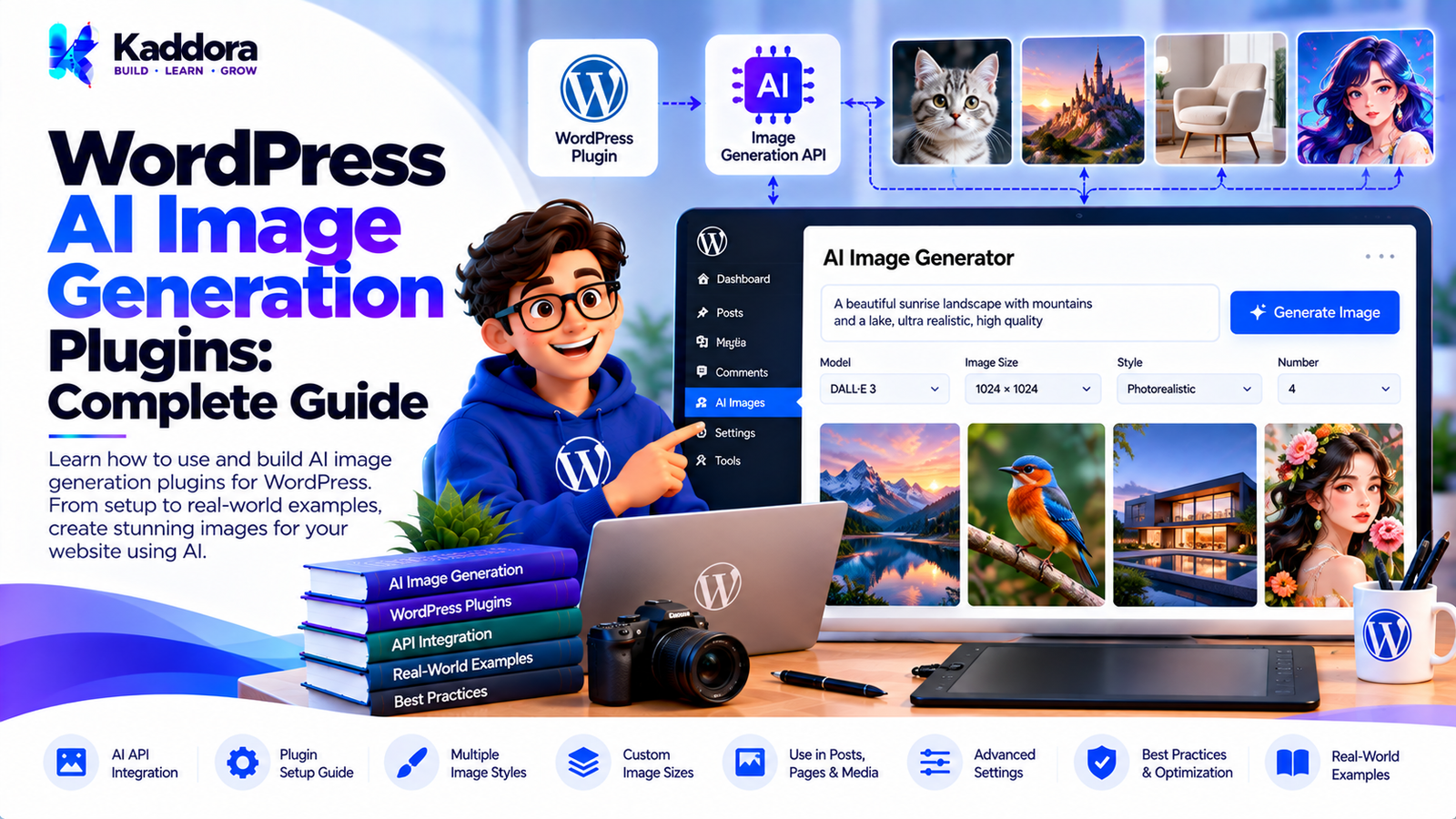
WordPress AI Image Generation Plugins: Complete Guide
Introduction
Images play an important role in modern WordPress websites.
Blog posts, landing pages, WooCommerce products, documentation, marketing pages, social media content, and online publications all require visual assets.
Traditionally, creating website images can involve:
Graphic design software
Stock image libraries
Designers
Image editing tools
Manual media uploads
Image resizing
Format conversion
Artificial intelligence has introduced another approach: generating images from text descriptions.
WordPress AI image generation plugins connect WordPress with AI image-generation services and allow users to create visual content directly from the WordPress dashboard or publishing workflow.
A user might enter a prompt such as:
Modern SaaS dashboard illustration with a clean professional business style
The plugin sends the request to an AI image service, receives the generated image, and can then save the result to the WordPress Media Library.
However, building a reliable AI image-generation plugin involves more than connecting one API endpoint.
A production-ready plugin needs to consider:
AI API integration
Prompt handling
Image formats
Media Library integration
API credentials
Permissions
Rate limiting
Usage limits
API costs
Image validation
Storage
Performance
Error handling
Privacy
Content moderation
This guide explains how WordPress AI image generation plugins work and how developers can design them effectively.
What Are WordPress AI Image Generation Plugins?
WordPress AI image generation plugins are plugins that connect WordPress with artificial intelligence image-generation services.
They allow users to create images from text instructions or other supported inputs.
A simplified workflow looks like this:
WordPress Dashboard ↓ AI Image Generator ↓ Prompt ↓ AI Image API ↓ Generated Image ↓ Validation ↓ WordPress Media Library ↓ Content
Depending on the implementation, a plugin may support different image-generation workflows and AI providers.
Why Use AI Image Generation in WordPress?
AI image generation can reduce the number of steps between creating content and obtaining a visual asset.
Instead of:
Create Content ↓ Search Image ↓ Download Image ↓ Edit Image ↓ Upload to WordPress
an AI workflow can look like:
Create Content ↓ Describe Image ↓ Generate ↓ Review ↓ Save to Media Library
This can be particularly useful for publishers, marketers, developers, agencies, and WooCommerce store owners.
What Can a WordPress AI Image Plugin Generate?
Depending on the AI provider and plugin design, users may generate:
Blog illustrations
Website graphics
Marketing visuals
Product concepts
Background images
Social media graphics
Hero images
Thumbnail concepts
Illustrations
Decorative visuals
The exact capabilities depend on the selected AI service.
WordPress AI Image Generation Workflow
A complete workflow can look like:
User Prompt ↓ Prompt Validation ↓ AI Request ↓ Image Generation ↓ Response Validation ↓ Image Download ↓ Media Processing ↓ WordPress Media Library ↓ Editor Review
Each stage should be handled independently where practical.
Step 1: Define the Image Generation Features
Before developing the plugin, define exactly what users need.
Possible features include:
Generate Image Regenerate Image Save to Media Library Generate Variations Choose Image Size Choose Image Format Add Alt Text Rename File Insert Into Post
A focused feature set is usually easier to maintain than a large collection of loosely connected AI functions.
Step 2: Choose an AI Image Provider
The plugin needs an image-generation provider.
The architecture should avoid tightly coupling the entire plugin to one provider.
A useful structure is:
AI Image Service ↓ Provider Interface ↓ Provider Client
This makes it easier to support additional providers later.
Step 3: Protect API Credentials
Private AI credentials should remain server-side.
Avoid exposing API credentials in frontend JavaScript.
Use:
Browser ↓ WordPress Server ↓ AI Provider
rather than:
Browser ↓ Private API Key ↓ AI Provider
The frontend should communicate with WordPress, while the server handles authenticated communication with the AI service.
Step 4: Build an AI Image Service
A dedicated image-generation service can coordinate requests.
For example:
class Kaddora_AI_Image_Service { public function generate( $prompt ) { // Generate an image. } }
The service can manage:
Prompt preparation
API requests
Response processing
Error handling
Image retrieval
Step 5: Create a Provider Abstraction
A scalable plugin can separate its internal image-generation logic from the external provider.
For example:
Image Generation Service ↓ Provider Interface ↓ AI Provider Client
This allows the plugin to change providers without rewriting the entire user interface.
Step 6: Build the Image Generation Interface
A simple interface could contain:
AI Image Generator Prompt: [____________________________] Style: [Professional ▼] Size: [1024 × 1024 ▼] [ Generate Image ]
After generation:
Generated Image [ Image Preview ] [ Regenerate ] [ Save to Media Library ]
The interface should remain simple enough for non-technical users.
Step 7: Validate the Prompt
The plugin should validate basic request requirements before sending them to the AI service.
For example:
Prompt is not empty
Prompt length is acceptable
User has permission
Request is within usage limits
A simple flow is:
Prompt ↓ Validate ↓ Allowed? ┌────┴────┐ Yes No ↓ ↓ Generate Error
Step 8: Handle Image Sizes
AI image services may support multiple image dimensions.
A plugin can expose predefined options such as:
Square Landscape Portrait
The actual dimensions should depend on the provider's supported formats.
Step 9: Generate Images for Blog Posts
A WordPress AI image plugin can integrate with the post editor.
For example:
Blog Post ↓ Generate Featured Image ↓ AI Prompt ↓ Generated Image ↓ Set as Featured Image
The editor can review the image before applying it.
Step 10: Generate Featured Images
A useful workflow can automatically use the article topic as part of the image prompt.
For example:
Article Title ↓ Prompt Builder ↓ AI Image ↓ Preview ↓ Featured Image
The generated image should still be reviewed for relevance and visual quality.
Step 11: Generate Images From Existing Content
The plugin can use the article title, headings, or summary as contextual information.
For example:
Article ↓ Topic Extraction ↓ Prompt Builder ↓ AI Image Generation
Only relevant content should be sent as context.
Step 12: Build Prompt Templates
Prompt templates make generation more consistent.
For example:
Create a professional blog illustration about {topic}. Style: {style} Composition: {composition} Aspect Ratio: {aspect_ratio}
Dynamic variables can be replaced by WordPress content.
Step 13: Add Image Styles
A plugin can provide style presets such as:
Illustration
Photorealistic
Minimal
Editorial
3D
Isometric
Abstract
The actual styles should be implemented according to the capabilities of the selected AI provider.
Step 14: Add Custom Prompt Instructions
Advanced users may want full prompt control.
The interface can provide:
Prompt [________________________________] Additional Instructions [________________________________]
This allows users to customize the result without changing the plugin's source code.
Step 15: Generate Product Images
WooCommerce websites can use AI image generation for product-related visual workflows.
For example:
Product Information ↓ Prompt Builder ↓ AI Image ↓ Preview ↓ Media Library
Generated images should not be presented as actual product photographs unless they accurately represent the real product.
AI Product Concept Images
AI can be useful for creating:
Concept visuals
Marketing graphics
Lifestyle concepts
Promotional backgrounds
Product presentation ideas
The plugin should clearly distinguish generated concepts from actual product imagery when that distinction matters.
Step 16: Save Images to the WordPress Media Library
After successful generation, the plugin can download the image and create a WordPress attachment.
A typical workflow is:
AI Image URL/File ↓ Download ↓ Validate ↓ Upload ↓ Create Attachment ↓ Media Library
The plugin should use appropriate WordPress filesystem and media APIs.
Step 17: Create Attachment Metadata
When saving an image, the plugin can create:
Filename
MIME type
Title
Caption
Description
Alt text
Metadata should accurately describe the generated image.
Step 18: Generate Alt Text
AI can generate draft alt text for generated images.
For example:
Generated Image ↓ Image Analysis ↓ Alt Text Suggestion ↓ Editor Review
The alt text should describe the meaningful visual content rather than simply repeating the AI prompt.
Step 19: Generate SEO-Friendly Filenames
A plugin can create descriptive filenames.
For example:
wordpress-ai-image-generation.webp
rather than:
image123456.webp
However, filenames should remain concise and descriptive rather than becoming keyword-stuffed.
Step 20: Optimize Generated Images
AI-generated images can be large.
A plugin can optionally process images after generation.
Possible operations include:
Resize
Compress
Convert format
Generate thumbnails
Remove unnecessary metadata
The exact operations depend on server capabilities and the WordPress media workflow.
Step 21: Support Modern Image Formats
Where appropriate, generated images can be converted into modern formats such as WebP.
The workflow can be:
AI Image ↓ Image Processing ↓ WebP ↓ WordPress Media Library
The plugin should verify that the server supports the required image-processing functionality.
Step 22: Validate Generated Files
Before saving an external image, validate:
File type
MIME type
File size
Image dimensions
Download result
Do not assume that an external response is automatically a valid image.
Step 23: Handle Failed Downloads
An AI provider may return a response that cannot be downloaded successfully.
The plugin should handle:
HTTP errors
Timeout
Empty responses
Invalid files
Expired URLs
A useful workflow is:
Generation Successful ↓ Download ↓ Valid? ┌─────┴─────┐ Yes No ↓ ↓ Save Error
Step 24: Add Regeneration
Users will not always like the first result.
Provide a regeneration workflow:
Generate ↓ Preview ↓ Not Suitable? ↓ Regenerate
Usage limits should still apply to repeated requests.
Step 25: Add Image Variations
If supported by the AI provider, users may be able to create variations.
For example:
Original Concept ↓ Variation A Variation B Variation C
This can help users compare multiple visual directions.
Step 26: Add Content-Aware Image Generation
A more advanced plugin can use post information.
For example:
Post Title ↓ Post Summary ↓ Content Context ↓ Prompt Builder ↓ Image
The plugin should send only necessary information.
Step 27: Add Featured Image Automation
For publishing workflows, the plugin can provide an option such as:
Generate Featured Image [✓] Set Automatically After Review [✓]
Automatic actions should be explicit and reversible.
Step 28: Generate Images in Bulk
Bulk image generation can be useful for large content libraries.
For example:
100 Posts ↓ Select Posts ↓ Generate Queue ↓ Background Processing ↓ Images
Bulk generation needs strict usage controls because image generation can be resource-intensive.
Step 29: Use Background Processing
Large image-generation operations should not depend on a single browser request.
A better architecture is:
User Starts Job ↓ Queue ↓ Background Worker ↓ AI Provider ↓ Media Library
This reduces browser timeout problems.
Step 30: Add a Generation Queue
A queue can maintain jobs such as:
Job #1 — Pending Job #2 — Processing Job #3 — Completed Job #4 — Failed
This provides better visibility into bulk generation.
Step 31: Add Usage Limits
AI image generation can consume paid API resources.
The plugin can provide limits such as:
Images Per User Images Per Day Images Per Hour Maximum Bulk Jobs
The exact limits should depend on the product and provider.
Step 32: Add Rate Limiting
Public generation endpoints should be protected.
For example:
Generate Request ↓ Rate Limiter ↓ Allowed? ┌─────┴─────┐ Yes No ↓ ↓ Generate Reject
Rate limiting helps prevent abuse and unexpected API usage.
Step 33: Optimize AI Image API Costs
Costs can increase through:
Repeated regeneration
Bulk generation
High-resolution images
Multiple variations
Unnecessary requests
Cost controls can include:
Usage limits
Request validation
Duplicate prevention
Generation queues
Appropriate image sizes
Provider-specific optimization
Step 34: Prevent Duplicate Requests
A user may accidentally click Generate multiple times.
The frontend can disable the button while a request is processing.
The server should also apply appropriate safeguards.
Generate ↓ Processing ↓ Button Disabled
Step 35: Add Image Generation History
A history system can track generated images.
For example:
Generation History Image A — Completed Image B — Completed Image C — Failed Image D — Completed
History can make it easier for users to revisit previous generations.
Step 36: Add Prompt History
Prompt history can be useful for repeated workflows.
For example:
Prompt History "Modern SaaS dashboard..." "WordPress plugin illustration..." "Professional ecommerce..."
Users can reuse previous prompts where appropriate.
Step 37: Add Image Preview
The generated image should be previewed before being added to content.
A simple workflow:
Generate ↓ Preview ↓ Use Image? ┌────┴────┐ Yes No ↓ ↓ Save Regenerate
Step 38: Add Editor Integration
The plugin can allow users to insert generated images into the editor.
Possible actions:
[Set Featured Image] [Insert Into Content] [Save to Media Library]
Step 39: Support the Block Editor
For Gutenberg-based workflows, the plugin can provide an AI image block or an editor-side AI tool.
For example:
AI Image Block Prompt: [________________] [Generate] [Insert Image]
The implementation should follow WordPress editor APIs.
Step 40: Support Classic Editor Where Needed
If broad compatibility is important, the plugin can provide appropriate controls for Classic Editor users.
The interface should not interfere with the editor's existing behavior.
Step 41: Add WordPress Capability Checks
Only authorized users should be able to generate or manage AI images.
Use appropriate WordPress capabilities for:
Generation
Media creation
Plugin settings
Provider configuration
Step 42: Secure AJAX and REST Requests
AI image generation endpoints should use appropriate:
Authentication
Capability checks
Nonces where applicable
Input validation
Rate limiting
Step 43: Protect Against Prompt Injection
If prompts include user-provided content, the plugin should treat that content as data rather than trusted application instructions.
For example:
Trusted Plugin Instructions + User Content ↓ Controlled Prompt
AI output should never determine WordPress permissions or sensitive application actions.
Step 44: Content Safety and Moderation
AI image services may have content-safety restrictions.
The plugin should handle provider responses appropriately and avoid presenting blocked requests as technical failures when the provider has rejected the request for policy reasons.
The exact moderation behavior depends on the provider.
Step 45: Respect Copyright and Licensing Requirements
AI-generated images can involve legal and licensing considerations that vary by provider, jurisdiction, and use case.
Plugin documentation should clearly explain:
Provider terms
User responsibilities
Commercial-use considerations
Ownership or licensing limitations where applicable
Do not make unsupported claims about ownership.
Step 46: Add Error Handling
Potential errors include:
Invalid API credentials
Rate limits
Provider errors
Network failures
Invalid prompts
Unsupported image sizes
Download failures
Server image-processing errors
The plugin should display useful error messages without exposing sensitive technical information.
Step 47: Add Logging
Useful diagnostic logs can include:
Generation Started Generation Completed Generation Failed Download Failed Media Creation Failed
Logs should avoid storing sensitive information unnecessarily.
Step 48: Add AI Provider Settings
An admin settings screen can include:
AI Provider API Configuration Default Image Size Default Style Usage Limits Logging
Settings should be clearly separated from content-generation controls.
Step 49: Create an AI Image Provider Interface
A provider abstraction might look conceptually like:
interface Kaddora_AI_Image_Provider_Interface { public function generate( $request ); }
The image service can then work with different provider implementations.
Step 50: Build a Scalable Architecture
A production-ready architecture can look like:
WordPress Editor ↓ AI Image Interface ↓ Request Controller ↓ Image Generation Service ↓ Provider Interface ↓ AI Provider ↓ Response Validation ↓ Image Downloader ↓ Image Processor ↓ Media Library
Supporting services can include:
Rate Limiter Usage Manager Queue Cache Logger Prompt Manager Content Context Service
AI Image Generation and Performance
AI image generation is usually more resource-intensive than ordinary WordPress operations.
A plugin should avoid:
Blocking the entire dashboard
Large synchronous bulk operations
Uncontrolled retries
Repeated image downloads
Unnecessary image processing
Background processing is often more suitable for large operations.
AI Image Generation and WordPress Storage
Generated images consume hosting storage.
A website generating hundreds or thousands of images can significantly increase:
Disk usage
Backup size
Media Library size
Image-processing requirements
Administrators should have appropriate controls for managing generated media.
AI Image Cleanup
A plugin may optionally provide tools to identify generated images that are no longer used.
For example:
Generated Images ↓ Usage Check ↓ Unused? ┌────┴────┐ Yes No ↓ ↓ Review Keep
Deletion should require appropriate safeguards and should not remove images unexpectedly.
AI Image Generation for WooCommerce
WooCommerce stores can use AI-generated visuals for supporting marketing content.
Potential uses include:
Promotional banners
Lifestyle concepts
Category graphics
Campaign visuals
Background images
Actual product representation should be handled carefully.
AI Image Generation for Blog Websites
Publishers can use AI-generated images for:
Featured images
Article illustrations
Section graphics
Social media visuals
A content-aware workflow can automatically create image prompts from article topics.
AI Image Generation for Landing Pages
Marketing teams can generate draft visual concepts for:
Hero sections
Feature sections
Campaign pages
Product promotions
Design teams can then review and refine the generated visuals.
Common WordPress AI Image Plugin Mistakes
1. Exposing API Keys
Never place private provider credentials in frontend JavaScript.
2. No Usage Limits
Unrestricted generation can create unexpected API costs.
3. No Rate Limiting
Public generation endpoints can be abused.
4. Automatically Saving Every Generation
Users may generate many unwanted images.
5. No Image Validation
External responses should be validated before being saved.
6. No Background Processing
Large generation jobs can cause timeouts.
7. No Error Handling
External AI providers can fail.
8. No Media Cleanup
Large image collections can consume substantial storage.
9. No Human Review
Generated images should be reviewed before important content is published.
10. Treating Generated Images as Automatically Accurate
AI-generated images can contain visual inaccuracies or unexpected details.
Recommended WordPress AI Image Generation Architecture
A scalable architecture can look like:
WordPress ↓ AI Image Interface ↓ Request Controller ↓ Image Generation Service ↓ Prompt Management ↓ Provider Interface ↓ AI Provider ↓ Response Validation ↓ Image Downloader ↓ Image Processor ↓ Media Library ↓ Editor
Supporting services:
Rate Limiter Usage Manager Generation Queue Prompt History Generation History Image Validator Logger
WordPress AI Image Plugin Development Checklist
Architecture
Plugin bootstrap
Image generation service
Provider abstraction
Prompt service
Image downloader
Image validator
Media integration
Background processing
Features
Text-to-image generation
Image preview
Regeneration
Prompt templates
Image styles
Image sizes
Media Library integration
Featured image support
Editor integration
Generation history
Security
Server-side API credentials
Capability checks
Nonce protection where applicable
Input validation
Output validation
Rate limiting
Secure API communication
Performance
Background jobs
Generation queues
Image optimization
Duplicate prevention
Appropriate image sizes
Storage management
Content Management
Alt text
Image titles
Descriptions
Media attachment creation
Featured image workflow
Image cleanup controls
Why Choose Kaddora?
Kaddora focuses on WordPress plugins, AI-powered tools, WooCommerce solutions, SEO, automation, analytics, themes, and website templates.
AI image generation becomes more useful when it is integrated into the WordPress content workflow instead of functioning as a separate image-generation application.
A well-designed WordPress AI image generation plugin can connect:
AI image generation
WordPress Media Library
Content creation
WooCommerce
Featured images
SEO metadata
Image optimization
Background processing
Usage management
ThemeKaddora's WordPress-focused ecosystem provides resources and solutions across AI plugins, WordPress development, WooCommerce, SEO, automation, analytics, themes, and templates.
For WordPress developers and website owners, AI image generation can become a practical part of a larger content-production workflow while keeping WordPress at the center of media management.
Conclusion
WordPress AI image generation plugins can simplify the process of creating visual content by connecting WordPress directly with AI image-generation services.
A simple plugin can provide a prompt field and an image-generation button. A production-ready plugin requires a much broader architecture.
Important components include:
AI provider integration
Secure API credentials
Prompt management
Image validation
Media Library integration
Image optimization
Usage limits
Rate limiting
Background processing
Error handling
Storage management
Editorial review
The strongest implementation treats AI image generation as part of a controlled WordPress workflow:
Prompt ↓ AI Generation ↓ Validation ↓ Preview ↓ Optimization ↓ Media Library ↓ Editor Review ↓ Publish
AI-generated images can support blogs, WooCommerce stores, landing pages, documentation, marketing campaigns, and other WordPress websites.
However, generated visuals should still be reviewed for relevance, quality, accuracy, branding, and appropriate usage rights.
With a well-designed architecture, secure provider integration, efficient media handling, and proper usage controls, WordPress AI image generation plugins can become a valuable part of modern website content creation.
Frequently Asked Questions
What is a WordPress AI image generation plugin?
A WordPress AI image generation plugin connects WordPress with an AI image-generation service so users can create images from text prompts or other supported inputs.
Can I generate images directly inside WordPress?
Yes. A plugin can provide an AI image-generation interface inside the WordPress dashboard or editor.
Can AI-generated images be saved to the WordPress Media Library?
Yes. After retrieving and validating the generated image, a plugin can create a WordPress media attachment.
Can AI generate featured images for WordPress posts?
Yes. A plugin can generate an image based on a post topic and allow the user to set it as the featured image after review.
Can AI generate different image styles?
Many AI image-generation services support different visual styles. The available styles depend on the provider and model.
Can AI image generation plugins create image variations?
Some providers support image variations. The plugin can expose this capability when supported by the provider.
Should AI-generated images automatically be published?
A preview-and-review workflow is generally useful. Editors can verify the image before publishing it on an important page or post.
How do I protect the AI image API key?
Keep the API key on the server and make AI requests through WordPress server-side code. Do not expose private credentials in frontend JavaScript.
How can I reduce AI image generation costs?
Use appropriate image sizes, limit regeneration, apply usage limits, prevent duplicate requests, use queues for bulk jobs, and avoid unnecessary generation.
Can AI image generation plugins support multiple AI providers?
Yes. A provider abstraction can allow the plugin to support multiple AI services without tightly coupling the entire application to one provider.
How should AI provider errors be handled?
The plugin should detect provider errors, show a useful message, avoid uncontrolled retries, and log appropriate diagnostic information without exposing sensitive credentials.
Why choose Themekaddora?
Themekaddora provides lightweight, responsive, SEO-friendly WordPress themes with fast performance, WooCommerce compatibility, flexible customization, accessibility-conscious design, modern templates, regular updates, and professional support—providing a strong foundation for businesses building digital products and product-focused websites.
Comments (0)