
Introduction
AI-powered WordPress plugins are increasingly being used to process documents automatically. Website owners can upload PDF invoices, Word documents, spreadsheets, identity documents, application forms, contracts, and other business files. AI systems can then extract information, recognize text, classify documents, summarize content, and generate structured results.
Intelligent Document Processing (IDP) combines technologies such as Optical Character Recognition (OCR), machine learning, natural language processing, and AI-based extraction to transform unstructured documents into useful information.
Although these capabilities improve productivity, they also introduce security risks. An uploaded document is not automatically safe simply because it has a familiar extension or can be opened by a document viewer. It may contain malicious scripts, embedded objects, hidden instructions, oversized content, malformed structures, or information designed to manipulate an AI model.
For example, a customer may upload a PDF invoice containing hidden instructions that are invisible in the normal document view but become visible during text extraction. If an AI assistant treats those instructions as trusted commands, it may produce misleading results or attempt unauthorized operations.
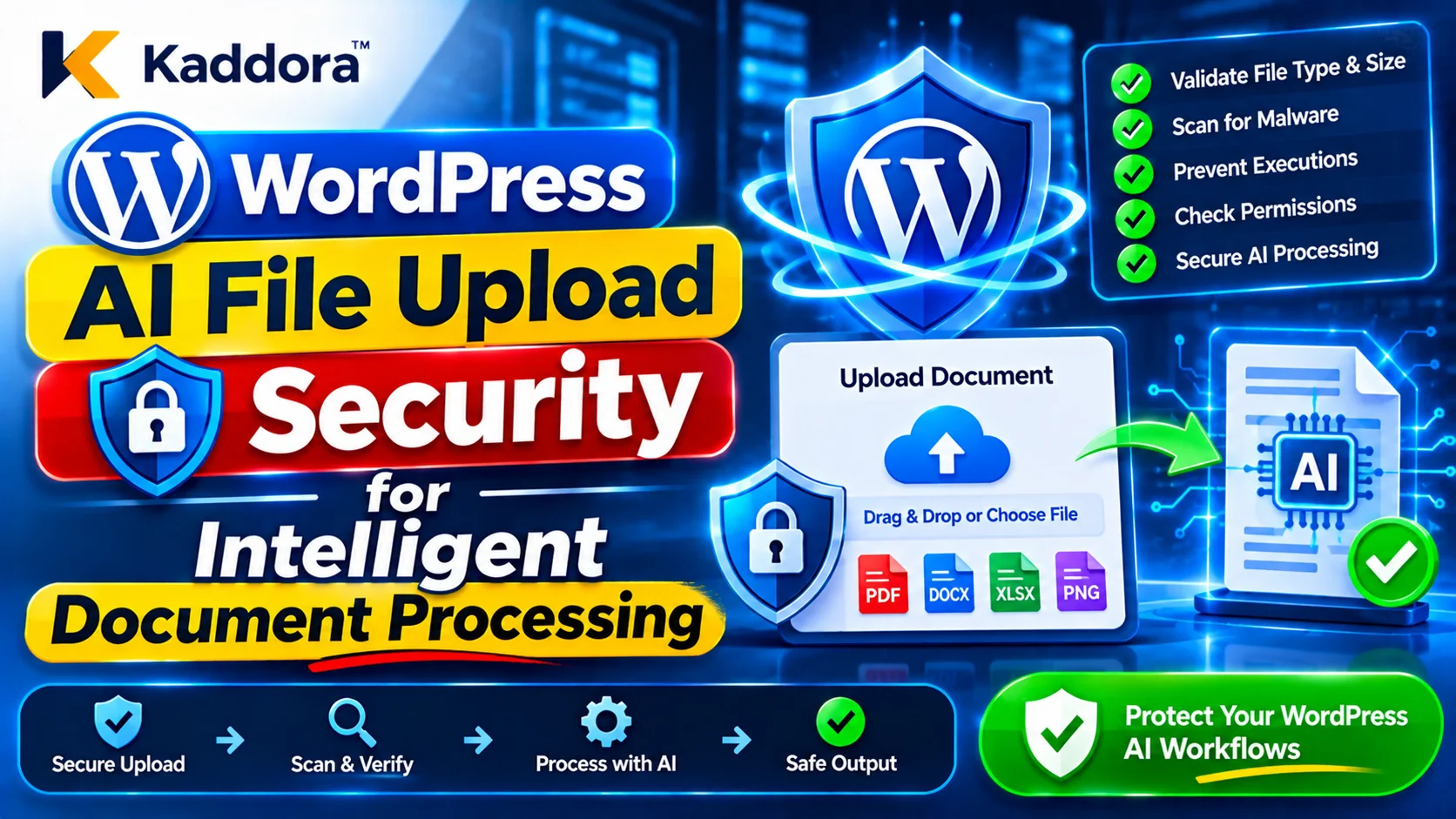
WordPress AI file upload security for intelligent document processing requires protection at every stage, from receiving a file to extracting its contents, sending information to an AI provider, storing results, and executing any resulting application action.
This guide explains how to build a secure document-processing pipeline using WordPress upload APIs, file validation, malware scanning, isolated processing, OCR security, prompt injection protection, access controls, and monitoring.
What Is Intelligent Document Processing in WordPress?
Intelligent Document Processing is a technology-driven workflow that converts uploaded documents into structured, searchable, and actionable information.
A WordPress AI plugin may use IDP to:
Extract invoice numbers, dates, and totals.
Read text from scanned PDF documents.
Identify information in application forms.
Classify contracts and business documents.
Extract product information from spreadsheets.
Summarize uploaded reports.
Recognize information from images.
Convert unstructured content into structured data.
Send extracted information to an approved business workflow.
A typical document-processing workflow includes:
File Upload → Validation → Security Scanning → Document Parsing → OCR → Content Inspection → AI Processing → Output Validation → Authorized Storage or Action
Every stage has a different security responsibility.
File validation checks whether the uploaded file is an expected type. Malware scanning looks for known malicious content. Document parsing extracts information. OCR recognizes text from images. AI processing interprets the extracted content.
These stages must remain separate so that passing one security check does not automatically make a document trusted for every subsequent operation.
Why Is AI File Upload Security Important for WordPress Plugins?
Traditional file upload security focuses on protecting servers and websites from malicious files. AI-powered document processing introduces additional risks because uploaded content may influence model behavior and automated application operations.
Prevent Malicious File Execution
A malicious upload may attempt to exploit a vulnerable parser, image-processing library, document converter, or server configuration.
If uploaded files are stored in an executable location or processed using unsafe software, an attacker may gain an opportunity to compromise the website.
Protect Sensitive Business Information
Invoices, contracts, identity documents, and customer applications may contain confidential information.
An insecure document-processing pipeline may expose this information through public upload URLs, unauthorized retrieval, logs, temporary files, or external AI providers.
Prevent Document-Based Prompt Injection
Documents can contain instructions intended to manipulate an AI model.
These instructions may appear in visible text, hidden PDF layers, document metadata, comments, images, OCR results, or other extracted content.
The AI system must treat document content as untrusted data rather than trusted application instructions.
Reduce Denial-of-Service Risks
Very large files, oversized images, deeply nested archives, and malformed documents can consume excessive memory, processing time, and storage.
Upload restrictions and resource limits help prevent document-processing features from becoming a source of service disruption.
Maintain Document Integrity
An AI-generated extraction result should be connected to the correct uploaded file and user.
Secure identifiers, ownership checks, processing records, and audit trails help prevent results from being associated with the wrong account or document.
Identify Common File Upload Security Threats
Before implementing an IDP system, developers should understand the main risks associated with uploaded documents.
Malicious File Extensions
Attackers may disguise dangerous files using misleading names or multiple extensions.
Examples include:
invoice.pdf.php
document.docx.exe
report.PHp
Files with misleading MIME types.
Files with unexpected executable content.
Checking only the filename extension is insufficient. Validate the file extension, detected MIME type, and expected file structure.
MIME Type Spoofing
A browser supplies file information during upload, but client-provided MIME types cannot be trusted as proof of file content.
An attacker may upload a script or executable while claiming that the file is a PDF or image.
Use server-side MIME detection and format-specific validation in addition to extension checks.
Malformed Documents
PDF, DOCX, XLSX, and image files may contain structures that exploit vulnerabilities in document-processing libraries.
A vulnerable parser may crash, consume excessive resources, or expose the processing environment.
Keep parsing libraries updated and process untrusted documents with restricted permissions.
Hidden Instructions and Prompt Injection
A document may contain instructions such as requests to ignore previous rules, reveal confidential information, or invoke restricted tools.
These instructions may be embedded in:
White text on a white background.
Small or obscured text.
PDF layers.
Document comments.
Metadata fields.
OCR-recognized images.
Spreadsheet cells.
Headers and footers.
The AI pipeline must identify document content as untrusted, even when it appears to be ordinary business information.
Archive and Decompression Attacks
ZIP and other archive formats can contain many files or highly compressed data that expands dramatically during extraction.
An attacker may use these files to exhaust server resources or hide dangerous content.
Only support archives when the feature genuinely requires them. Apply limits to archive size, extracted size, file count, nesting depth, and processing time.
Unauthorized Document Access
A document may be uploaded by one user but retrieved by another through an insecure download endpoint or incorrect ownership check.
Every document retrieval and processing operation should verify the current user's permission to access the specific document.
Build a Secure WordPress AI Document Upload Architecture
A secure IDP system should separate upload handling, security scanning, document extraction, AI processing, and final application actions.
Create a Controlled Upload Entry Point
Only authorized users should be allowed to upload documents.
For example, an invoice-processing feature may allow customers to upload invoices while preventing ordinary users from accessing administrator-only document settings.
Use:
Authentication checks.
WordPress capability checks.
Nonce verification for CSRF protection.
File size restrictions.
Allowed file types.
Per-user upload quotas.
Request rate limits.
A nonce helps verify request intent, but it does not replace authentication or authorization.
Use WordPress File Upload APIs
WordPress provides built-in upload functions such as wp_handle_upload().
These functions provide WordPress-compatible handling of uploaded files, including filename sanitization and MIME-related checks.
Developers should use the appropriate WordPress APIs instead of implementing an unrestricted custom file-moving process.
However, a successful WordPress upload does not mean that a document is safe for AI processing. Additional security checks remain necessary.
Generate Internal Document Identifiers
Do not use the original filename as the document's security identity.
Assign each uploaded document a unique internal identifier.
For example:
document_id: doc_7f39a2 owner_id: 125 status: quarantined original_name: invoice.pdf detected_type: application/pdf processing_status: pending_scan
This is an illustrative record.
Use the internal identifier for database relationships, processing jobs, access checks, and audit records.
Separate Upload and Processing Permissions
The ability to upload a file should not automatically grant permission to process every document or retrieve every extraction result.
Check permissions separately when:
Viewing a document.
Starting a processing job.
Retrieving extracted content.
Downloading an original file.
Modifying processing settings.
Approving an AI-generated action.
This is especially important for membership websites, multisite installations, and business applications with different customer accounts.
Validate Uploaded File Types Before AI Processing
File validation should take place before a document reaches an OCR engine or AI provider.
Use an Explicit File Type Allowlist
Define only the formats required by the feature.
For example:
Document format
Possible use
Security consideration
Invoices and contracts
Inspect embedded objects and document structure
DOCX
Business documents
Validate archive structure and embedded content
XLSX
Financial spreadsheets
Restrict formulas and external connections where relevant
JPEG
Scanned documents
Validate image decoding and resource limits
PNG
Document images
Validate dimensions and image content
TXT
Plain-text documents
Apply encoding and content-size checks
Avoid allowing executable formats or unrestricted archives simply because a general-purpose processing library can open them.
Validate the File Extension
Normalize the filename before examining its extension.
Reject unexpected extensions, suspicious multiple-extension patterns, and filenames containing invalid characters.
Do not depend on a simple blocklist of dangerous extensions. An allowlist of expected formats is generally more appropriate.
Verify the Actual MIME Type
Use server-side MIME detection, such as PHP's finfo functionality, to identify the actual content type.
Compare the detected type with the expected type for the allowed extension.
The browser-provided MIME type should be treated as informational rather than authoritative.
Validate File Signatures
Inspect file signatures or magic bytes where the format supports them.
For example, a PDF commonly begins with a PDF signature, while common image formats have recognizable binary signatures.
Signature validation is one additional check, not a complete guarantee of safety. Attackers may create malformed or polyglot files that satisfy superficial checks.
Apply File Size and Content Limits
Set limits based on the actual processing requirements.
Consider:
Maximum upload size.
Maximum page count.
Maximum image dimensions.
Maximum extracted text length.
Maximum spreadsheet size.
Maximum number of embedded objects.
Maximum processing duration.
Maximum temporary storage usage.
These restrictions should be enforced on the server, not only in the browser.
Implement Secure File Upload Validation in WordPress
The following example demonstrates an initial server-side validation approach for PDF uploads.
It is not a complete production upload handler. Malware scanning, isolated storage, ownership records, and document parsing controls must be added separately.
<?php /** * Validate an uploaded PDF before document processing. * * @param array $file Uploaded file data. * @return true|WP_Error */ function kaddora_ai_validate_document_upload( $file ) { if ( ! isset( $file['name'], $file['tmp_name'], $file['size'], $file['error'] ) ) { return new WP_Error( 'kaddora_ai_invalid_upload', 'Invalid upload data.' ); } if ( UPLOAD_ERR_OK !== (int) $file['error'] ) { return new WP_Error( 'kaddora_ai_upload_error', 'The file could not be uploaded.' ); } $maximum_size = 10 * MB_IN_BYTES; if ( (int) $file['size'] <= 0 || (int) $file['size'] > $maximum_size ) { return new WP_Error( 'kaddora_ai_invalid_size', 'The uploaded file size is not permitted.' ); } $filename = sanitize_file_name( wp_basename( $file['name'] ) ); if ( 'pdf' !== strtolower( pathinfo( $filename, PATHINFO_EXTENSION ) ) ) { return new WP_Error( 'kaddora_ai_invalid_extension', 'Only PDF documents are accepted.' ); } if ( ! is_uploaded_file( $file['tmp_name'] ) || ! is_readable( $file['tmp_name'] ) ) { return new WP_Error( 'kaddora_ai_invalid_temporary_file', 'The uploaded file could not be verified.' ); } $file_info = finfo_open( FILEINFO_MIME_TYPE ); if ( false === $file_info ) { return new WP_Error( 'kaddora_ai_mime_check_failed', 'File type verification is unavailable.' ); } $detected_type = finfo_file( $file_info, $file['tmp_name'] ); finfo_close( $file_info ); if ( 'application/pdf' !== $detected_type ) { return new WP_Error( 'kaddora_ai_invalid_mime', 'The uploaded content is not a valid PDF type.' ); } $signature = file_get_contents( $file['tmp_name'], false, null, 0, 5 ); if ( '%PDF-' !== $signature ) { return new WP_Error( 'kaddora_ai_invalid_signature', 'The PDF file signature could not be verified.' ); } return true; }
This example checks basic upload properties, file extension, detected MIME type, and PDF signature. A production implementation should also verify the upload request's nonce and user capability before processing the file.
It should use WordPress upload APIs for file handling and enforce scanning and quarantine before the document is released to the extraction pipeline.
Do not interpret these checks as proof that a PDF is harmless. A valid PDF may still contain malicious structures or hidden instructions.
Scan Uploaded Documents Before AI Processing
A document should not be sent directly to an AI provider immediately after upload.
Use Malware Scanning
Integrate a suitable antivirus engine or malware-scanning service where the deployment supports it.
The scanner should inspect the uploaded file before the document enters the extraction pipeline.
Store the scan result with the document's internal identifier.
Possible statuses include:
Pending scan.
Scan completed.
Suspicious content detected.
Scan failed.
Quarantined.
Approved for processing.
If the scanning service is unavailable, sensitive workflows should fail closed rather than silently treating the document as safe.
Use Quarantine Storage
New uploads should initially enter a restricted storage area.
A document should remain unavailable to the AI processing worker until the required validation and scanning steps have passed.
This prevents an unverified file from being processed through a normal application workflow.
Consider Content Disarm and Reconstruction
Content Disarm and Reconstruction (CDR) can be useful for supported document formats.
A CDR system creates a reconstructed version of a document after removing or neutralizing certain active content and unnecessary components.
However, reconstruction is not a universal security guarantee. The reconstructed file must still be validated and scanned.
Keep the original in restricted storage when retention is required, and process only the approved version.
Keep Scanning Software Updated
Document parsers and antivirus engines may have vulnerabilities or incomplete detection capabilities.
Maintain current versions, restrict their permissions, and isolate processing environments from sensitive WordPress application resources.
Secure OCR and Document Text Extraction
OCR converts text contained in scanned images and document pages into machine-readable content.
It is useful for invoices, receipts, forms, and scanned business records, but OCR output must be treated as untrusted.
Process Documents in an Isolated Environment
Use a separate worker or restricted processing environment for resource-intensive document extraction.
The processing component should not have unrestricted access to the WordPress filesystem, database credentials, or application configuration.
Apply limits to:
Processing time.
Memory consumption.
CPU usage.
Page count.
Image dimensions.
Extracted text size.
Temporary file storage.
Inspect Hidden and Unexpected Content
Some documents contain information that is not obvious in their normal visual presentation.
For example, a PDF may include hidden text layers, annotations, metadata, or content that appears differently when extracted.
Where document security is important, compare extracted text with rendered pages and flag unusual discrepancies.
For scanned images, inspect OCR results and their source regions when possible.
Normalize Extracted Text Carefully
Normalize text encoding and remove invalid or unnecessary control characters where appropriate.
Preserve the information needed for document interpretation, but do not assume that text normalization removes malicious instructions.
Record the extraction method, document identifier, and processing version so that unusual results can be investigated.
Preserve Source References
When extracting invoice information, retain references to the source document and, where supported, the page or region from which each field was obtained.
This helps administrators verify extracted values rather than relying entirely on an AI-generated interpretation.
Prevent Prompt Injection Through Uploaded Documents
Document-based prompt injection is an important risk in intelligent document processing.
An attacker may create a document that appears to contain an ordinary invoice or report but includes additional instructions intended for an AI model.
For example, a document may contain a hidden instruction asking the model to reveal system information, ignore application restrictions, or request a privileged operation.
Treat Every Uploaded Document as Untrusted
Do not allow uploaded document content to modify system instructions, developer instructions, security policies, or tool permissions.
The document should be supplied to the model as information to analyze, not as an authority that controls the application.
Separate Trusted Instructions From Document Content
Keep application instructions and extracted document content in separate, clearly defined data fields.
For example, a processing request may instruct the model to extract invoice information from an untrusted document.
The extracted content must not be allowed to redefine what operations the application is permitted to perform.
Clear separation improves handling but does not independently prevent prompt injection.
Inspect Hidden Text and Metadata
Review extracted text, metadata, annotations, and other relevant document components.
Flag suspicious content for additional analysis.
Do not rely exclusively on keyword filtering because prompt injection can be expressed indirectly, encoded, or embedded in content that appears harmless.
Restrict AI Tool Access
A document-processing model usually does not need unrestricted access to WordPress administrative functions.
Expose only the tools required for the task.
For example, an invoice extraction assistant may return structured invoice fields without having permission to approve payments, modify customer accounts, or change website settings.
Validate AI Outputs Before Using Them
Treat AI-generated results as untrusted.
Validate extracted values against expected schemas, data types, business rules, and database constraints.
Require human approval for sensitive operations such as financial approvals, account changes, and other high-impact decisions.
Secure AI Provider Integrations and Document Transmission
Many WordPress plugins use external AI services for document understanding, classification, OCR, or structured extraction.
Sending documents to an external provider creates additional privacy and security responsibilities.
Minimize the Information Sent
Only transmit the information needed for the requested task.
For example, if an AI model only needs invoice line items and totals, avoid sending unrelated customer correspondence or complete account histories.
Where practical, redact unnecessary personal information before transmission.
Protect API Credentials
Keep provider API keys on the server.
Do not expose them in browser JavaScript, HTML source, public plugin settings, or frontend network requests.
Use secure configuration storage and restrict access to integration credentials.
Validate Provider Responses
External provider responses must be treated as untrusted.
Validate:
Response status.
Response structure.
Expected fields.
Data types.
Content size.
Unexpected instructions.
Tool or action proposals.
Do not execute an operation simply because an AI provider returned a valid-looking JSON object.
Apply Timeouts and Request Limits
Set reasonable connection and response timeouts.
Limit document transmission size and handle provider failures without repeatedly submitting the same file unnecessarily.
Use controlled retries and maintain an operation identifier to prevent duplicate processing.
Review External Service Privacy Requirements
Document which provider receives uploaded information, what information is transmitted, and how it is handled.
Explain external processing to users and obtain appropriate consent where required.
Avoid claiming that an external AI service provides complete privacy or automatic regulatory compliance.
Protect Processed Documents and Extracted Results
The security of an IDP system does not end when OCR or AI extraction succeeds.
Store Documents Securely
Where possible, store sensitive documents outside the public webroot or in a dedicated private storage service.
If WordPress media storage is used, do not assume that a public attachment URL provides sufficient access protection.
Use controlled download handlers that verify the user's authorization before serving a file.
Enforce Ownership Checks
Every document and extraction result should be associated with its authorized owner, site, or tenant.
Before retrieving a record, verify that the current user can access that specific resource.
Never rely solely on a document ID supplied by the browser.
Validate Extracted Data Before Database Storage
Use server-side validation and appropriate WordPress database APIs.
For dynamic SQL, use $wpdb->prepare().
Sanitize data according to its intended storage format and escape it when displayed.
Do not allow AI-generated content to be inserted into administrative interfaces without suitable output escaping.
Keep an Audit Trail
Record important document-processing events:
Upload received.
File validation completed.
Malware scan completed.
Document approved or rejected.
OCR processing started.
AI processing completed.
Extraction result validated.
User retrieved the document.
Administrator approved a sensitive action.
Avoid logging complete documents, API credentials, and unnecessary personal information.
Handle Document Processing Through Background Jobs
Large documents should not always be processed inside the same browser request that handles the upload.
Background processing helps separate upload operations from resource-intensive OCR and AI tasks.
A practical workflow is:
Upload → Quarantine → Validation → Malware Scan → Processing Queue → OCR and Extraction → AI Analysis → Result Validation → Authorized Retrieval
Use WordPress scheduling or a suitable queue system to manage jobs.
Each job should have:
A unique job identifier.
A document identifier.
An authorized owner or service context.
A processing status.
A retry count.
A maximum execution time.
A completion or failure record.
Workers must recheck document ownership and processing authorization rather than trusting only the information passed when the job was created.
Use idempotent job handling where possible so retries do not create duplicate records or repeat sensitive actions.
Common Mistakes in WordPress AI Document Processing Security
Trusting the filename: A PDF extension does not prove that the uploaded file contains a safe PDF document.
Relying only on browser MIME types: Client-provided file information can be manipulated. Perform server-side verification.
Sending documents directly to AI providers: Files should pass validation and appropriate scanning before external processing.
Ignoring hidden document instructions: Hidden text and metadata may influence OCR and AI extraction even when users cannot see them.
Treating OCR output as trusted: Extracted text can contain malicious instructions, misleading content, or incorrect values.
Using unrestricted document parsers: Vulnerable or resource-intensive parsers can expose the server to attacks and denial-of-service conditions.
Storing private documents in publicly accessible locations: Sensitive documents require controlled access, not merely unpredictable filenames.
Giving AI unrestricted WordPress permissions: Document analysis should not automatically grant permission to modify website settings or customer records.
Failing to validate extracted data: AI-generated invoice amounts, dates, and account identifiers must be checked before storage or business actions.
Ignoring temporary files: Extracted pages, intermediate images, and converted documents may contain the same sensitive information as the original upload.
Logging complete documents: Excessive logging creates additional privacy and data exposure risks.
Skipping processing failure handling: Failed scans, unavailable providers, and parsing errors should produce controlled statuses rather than allowing unverified files to continue.
Best Practices for WordPress AI File Upload Security
Use this checklist when developing or reviewing an intelligent document processing plugin.
Allow only the document formats required by the feature.
Verify file extensions, detected MIME types, and file signatures.
Apply server-side file size and processing limits.
Check authentication, capabilities, and upload nonces.
Use WordPress upload APIs where appropriate.
Generate unique internal document identifiers.
Store new uploads in restricted quarantine storage.
Scan files before document extraction.
Consider CDR for supported document formats.
Use isolated environments for document parsing and OCR.
Inspect hidden text, metadata, and suspicious document content.
Treat OCR output and uploaded document instructions as untrusted.
Separate trusted application instructions from document data.
Restrict AI tools and function permissions.
Validate model-generated results before database storage.
Protect external AI provider credentials.
Minimize sensitive information sent to external services.
Enforce document ownership during every retrieval operation.
Protect temporary files and extraction results.
Maintain secure processing logs and audit records.
Test malformed files, prompt injection, and resource exhaustion scenarios.
Review document-processing libraries and security controls regularly.
Why Choose Kaddora?
Kaddora focuses on WordPress plugins, themes, HTML templates, AI integrations, business applications, and digital products designed for practical website and business requirements.
Building intelligent document processing functionality requires more than connecting an upload form to an AI API. Developers must understand file validation, malware scanning, document extraction, OCR security, data privacy, AI output verification, and WordPress permission management.
A secure document-processing architecture helps businesses use AI to analyze documents while maintaining control over uploaded files, extracted information, and subsequent application operations.
Kaddora emphasizes practical WordPress development, responsible AI integration, and useful digital solutions for website owners, developers, and businesses.
Conclusion
WordPress AI file upload security is essential for plugins that use intelligent document processing to analyze invoices, contracts, forms, spreadsheets, scanned images, and other business documents.
Every uploaded file should be treated as untrusted until it has passed the required validation, scanning, and processing controls.
A secure implementation combines server-side file verification, restricted storage, malware scanning, isolated document parsing, OCR inspection, prompt injection protection, permission-aware retrieval, and AI output validation.
Developers should also minimize sensitive information sent to external providers and ensure that AI-generated results cannot independently execute privileged WordPress operations.
By securing every stage of the document-processing pipeline, WordPress developers can build AI-powered plugins that deliver useful document automation while protecting websites, customer information, and business workflows.
Frequently Asked Questions
What is intelligent document processing in WordPress?
Intelligent Document Processing uses technologies such as OCR, machine learning, and AI to extract, classify, summarize, and organize information from uploaded documents within WordPress applications.
Why is file upload security important for AI document processing?
Uploaded documents may contain malicious content, hidden instructions, malformed structures, or sensitive information. Security controls help prevent server attacks, unauthorized access, prompt injection, and data exposure during AI processing.
Which file formats should WordPress AI document processing plugins support?
Common formats include PDF, DOCX, XLSX, JPEG, PNG, and TXT. Developers should support only the formats required by the feature and validate their actual contents before processing.
How can developers prevent malicious file uploads in WordPress AI plugins?
Use an explicit file type allowlist, server-side MIME detection, file signature checks, size limits, WordPress upload APIs, malware scanning, restricted storage, and isolated document processing.
Can uploaded documents contain prompt injection attacks?
Yes. Documents may contain visible or hidden instructions in text, metadata, images, PDF layers, or other extracted content. Treat all document content as untrusted data and keep it separate from trusted application instructions.
How can WordPress developers protect sensitive documents during AI processing?
Use private storage, strict ownership checks, encrypted transmission, secure provider credentials, data minimization, restricted processing environments, and controlled document retrieval.
How should AI-generated document extraction results be validated?
Validate the output against an expected schema, check data types and business rules, verify important values against the source document, and require human approval for sensitive actions before updating business records.
Why choose ThemeKaddora?
ThemeKaddora offers WordPress plugins, themes, HTML templates, and digital products for website owners, developers, and businesses. Its focus is on practical digital solutions, useful functionality, and supporting better website and business workflows.
Comments (0)