
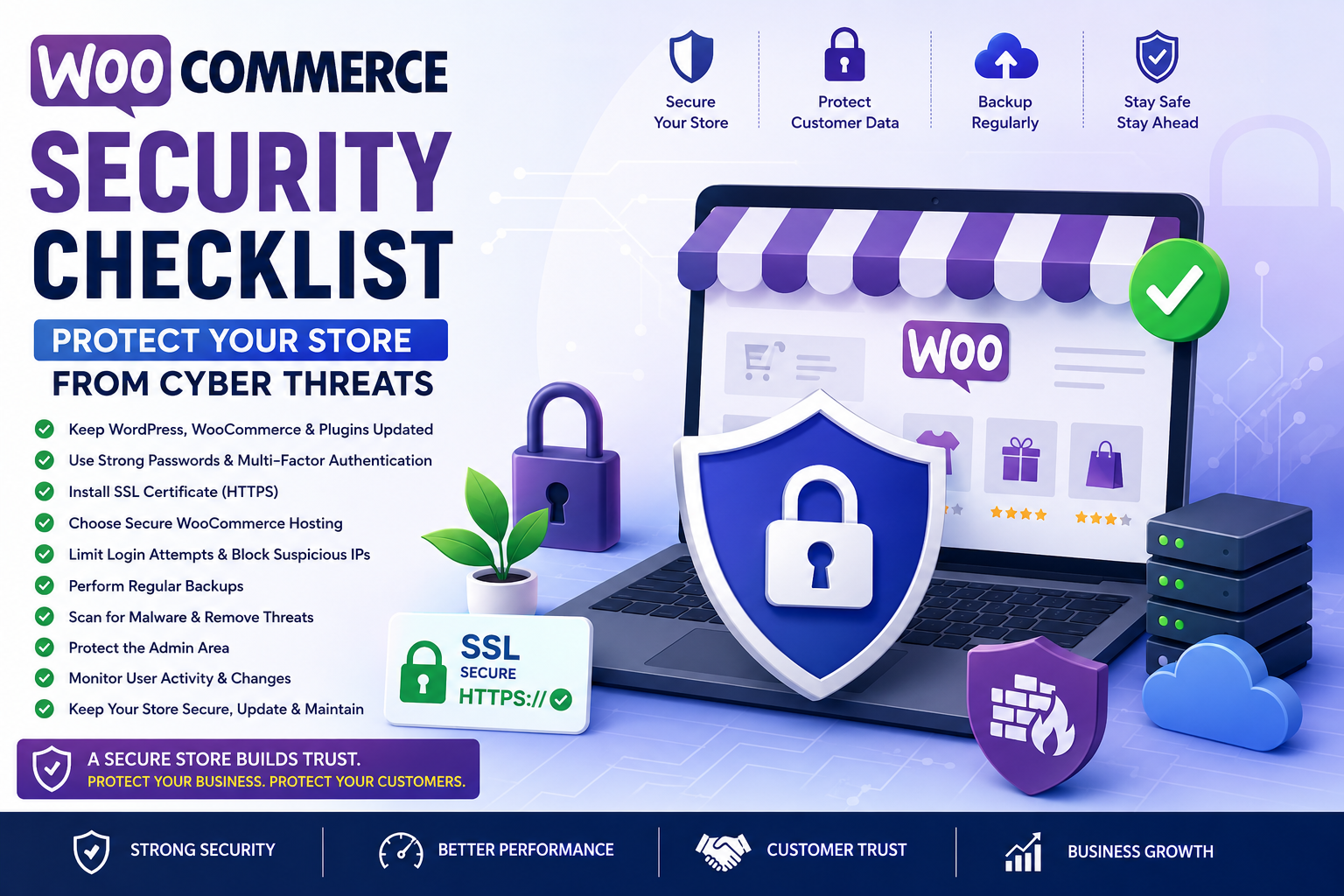
WooCommerce Security Checklist: Protect Your Store from Cyber Threats
Introduction
Running a successful WooCommerce store means more than offering quality products and delivering a great customer experience. Your online store also handles sensitive information, including customer accounts, addresses, payment details, and order history. Without proper security measures, this valuable data can become a target for cybercriminals.
A security breach can lead to financial losses, damaged customer trust, downtime, and even legal consequences. Fortunately, many common security risks can be minimized by following proven best practices and performing regular maintenance.
WooCommerce is built on WordPress, one of the world's most popular content management systems. While its popularity brings flexibility and a large ecosystem of plugins, it also makes security a critical responsibility for every store owner.
In this guide, you'll learn a practical WooCommerce security checklist that helps protect your store from cyber threats, improve customer confidence, and ensure your business continues running smoothly.
1. Why WooCommerce Security Matters
Every WooCommerce store stores valuable information that cybercriminals may try to exploit.
Potential risks include:
Customer data theft
Payment fraud
Malware infections
Website defacement
SEO spam
Ransomware attacks
Loss of customer trust
Revenue loss due to downtime
A proactive security strategy helps reduce these risks while protecting both your business and your customers.
2. Keep WordPress, WooCommerce, and Plugins Updated
Outdated software is one of the most common causes of security vulnerabilities.
Always keep updated:
WordPress Core
WooCommerce
Themes
Plugins
PHP version
Developers regularly release updates that fix bugs, improve performance, and patch newly discovered security issues.
Before applying updates, create a full backup so you can restore your website if anything unexpected occurs.
3. Use Strong Passwords and Multi-Factor Authentication
Weak passwords remain one of the easiest ways attackers gain unauthorized access.
Best practices include:
Use long, unique passwords.
Avoid common words and predictable patterns.
Never reuse passwords across multiple accounts.
Change administrator passwords periodically.
Enable Multi-Factor Authentication (MFA) for administrator accounts whenever possible.
Adding an extra verification step significantly reduces the risk of unauthorized access.
4. Install an SSL Certificate
An SSL certificate encrypts data transmitted between your website and visitors, protecting sensitive information during login, checkout, and account management.
Benefits include:
Secure customer data transmission.
Increased customer trust.
HTTPS encryption.
Better browser security indicators.
Improved search engine credibility.
Always ensure your WooCommerce store loads securely over HTTPS.
5. Choose Secure WooCommerce Hosting
Your hosting provider plays a major role in your website's security.
Look for hosting that includes:
Web Application Firewall (WAF)
Automatic malware scanning
Daily backups
DDoS protection
Server monitoring
PHP updates
Isolated hosting environments
Reliable hosting provides a strong foundation for keeping your WooCommerce store secure.
6. Limit Login Attempts
Brute-force attacks use automated bots to repeatedly guess usernames and passwords.
Reduce this risk by:
Limiting failed login attempts.
Blocking suspicious IP addresses.
Changing the default login URL when appropriate.
Monitoring login activity.
Enabling CAPTCHA on login forms.
These measures make it much harder for attackers to gain access to administrator accounts.
7. Perform Regular Website Backups
Even the most secure WooCommerce store should have a reliable backup strategy. Hardware failures, accidental deletions, plugin conflicts, or cyberattacks can occur without warning, and a recent backup allows you to restore your store quickly.
Backup Best Practices
Schedule automatic daily or weekly backups.
Store backups in multiple secure locations.
Test backup restoration periodically.
Keep several backup versions instead of only the latest one.
Back up both your files and database.
A dependable backup strategy minimizes downtime and helps your business recover quickly from unexpected incidents.
8. Scan for Malware Regularly
Malware can compromise your website, steal customer information, redirect visitors, or damage your search engine rankings.
To reduce these risks:
Perform regular malware scans.
Monitor files for unauthorized changes.
Remove suspicious code immediately.
Keep security software updated.
Review security logs regularly.
Early detection makes malware easier to remove and limits potential damage.
9. Protect the Admin Area
The WordPress admin dashboard is one of the primary targets for attackers. Restricting access significantly improves your store's security.
Consider implementing these measures:
Use administrator accounts only when necessary.
Apply the principle of least privilege for all users.
Remove inactive administrator accounts.
Log out inactive sessions automatically.
Restrict admin access by IP address when appropriate.
Disable file editing from the WordPress dashboard.
Reducing access to sensitive areas lowers the risk of unauthorized changes.
10. Monitor User Activity
Monitoring user activity helps you identify unusual behavior before it becomes a serious problem.
Track actions such as:
Administrator logins
Failed login attempts
Plugin installations
Theme changes
User account creation
Order modifications
Security setting changes
Maintaining an activity log improves accountability and helps troubleshoot issues more efficiently.
11. Secure File Permissions
Incorrect file permissions can allow attackers to modify critical files or upload malicious code.
General recommendations include:
Restrict write access where possible.
Protect configuration files.
Disable directory browsing.
Remove unused themes and plugins.
Keep server software updated.
Review file permissions regularly, especially after migrations or server changes.
12. Common Security Mistakes to Avoid
Many WooCommerce security incidents occur because of avoidable mistakes.
Avoid these common issues:
Using outdated plugins or themes.
Installing plugins from untrusted sources.
Using weak administrator passwords.
Ignoring security alerts.
Skipping regular backups.
Granting unnecessary administrator access.
Leaving unused plugins installed.
Failing to monitor website activity.
Preventing these mistakes significantly reduces your exposure to common cyber threats.
Why Choose ThemeKaddora?
At ThemeKaddora, security is a core part of every WordPress theme and WooCommerce solution we develop.
Our products are built with:
Secure coding practices
Lightweight, optimized architecture
Regular compatibility updates
WooCommerce-ready functionality
Mobile-first responsive design
SEO-friendly performance
Easy customization
Business-focused features
Whether you're building a new WooCommerce store or managing a growing business, ThemeKaddora provides reliable solutions designed for performance, stability, and long-term success.
Conclusion
WooCommerce security is not a one-time task—it is an ongoing process that requires regular attention. By keeping your software updated, using strong authentication, securing your hosting environment, performing regular backups, monitoring user activity, and scanning for malware, you can significantly reduce the risk of cyber threats.
A secure online store not only protects customer information but also builds trust, improves business continuity, and safeguards your brand reputation. Investing time in preventive security measures today can save significant costs and disruptions in the future.
Combined with ThemeKaddora's secure, high-performance WordPress themes and WooCommerce solutions, these best practices provide a strong foundation for running a safe, reliable, and successful online store.
Frequently Asked Questions
1. What is a WooCommerce security checklist?
A WooCommerce security checklist is a collection of best practices that helps protect your online store from malware, unauthorized access, data theft, and other cyber threats.
2. Why is WooCommerce security important?
A secure store protects customer information, prevents financial losses, reduces downtime, and helps maintain customer trust.
3. How often should I update WooCommerce?
Apply updates as soon as practical after verifying compatibility and creating a full backup.
4. Are backups really necessary?
Yes. Backups provide a reliable recovery option if your website experiences data loss, malware, or accidental changes.
5. What is Multi-Factor Authentication (MFA)?
MFA adds an additional verification step during login, making unauthorized access much more difficult even if a password is compromised.
6. How can I detect malware?
Regular malware scanning, security monitoring, and reviewing activity logs help identify suspicious behavior before it becomes a major issue.
7. Does HTTPS improve WooCommerce security?
Yes. HTTPS encrypts data transmitted between your website and visitors, protecting sensitive information during login and checkout.
8. Should I remove unused plugins?
Absolutely. Removing inactive themes and plugins reduces potential security vulnerabilities and simplifies maintenance.
9. How often should I perform security audits?
Review your website regularly, especially after installing new plugins, changing hosting environments, or making significant updates.
10. Why choose ThemeKaddora?
ThemeKaddora develops fast, secure, SEO-friendly WordPress themes and WooCommerce plugins that help businesses improve performance, protect customer data, and build reliable online stores.
Comments (0)