
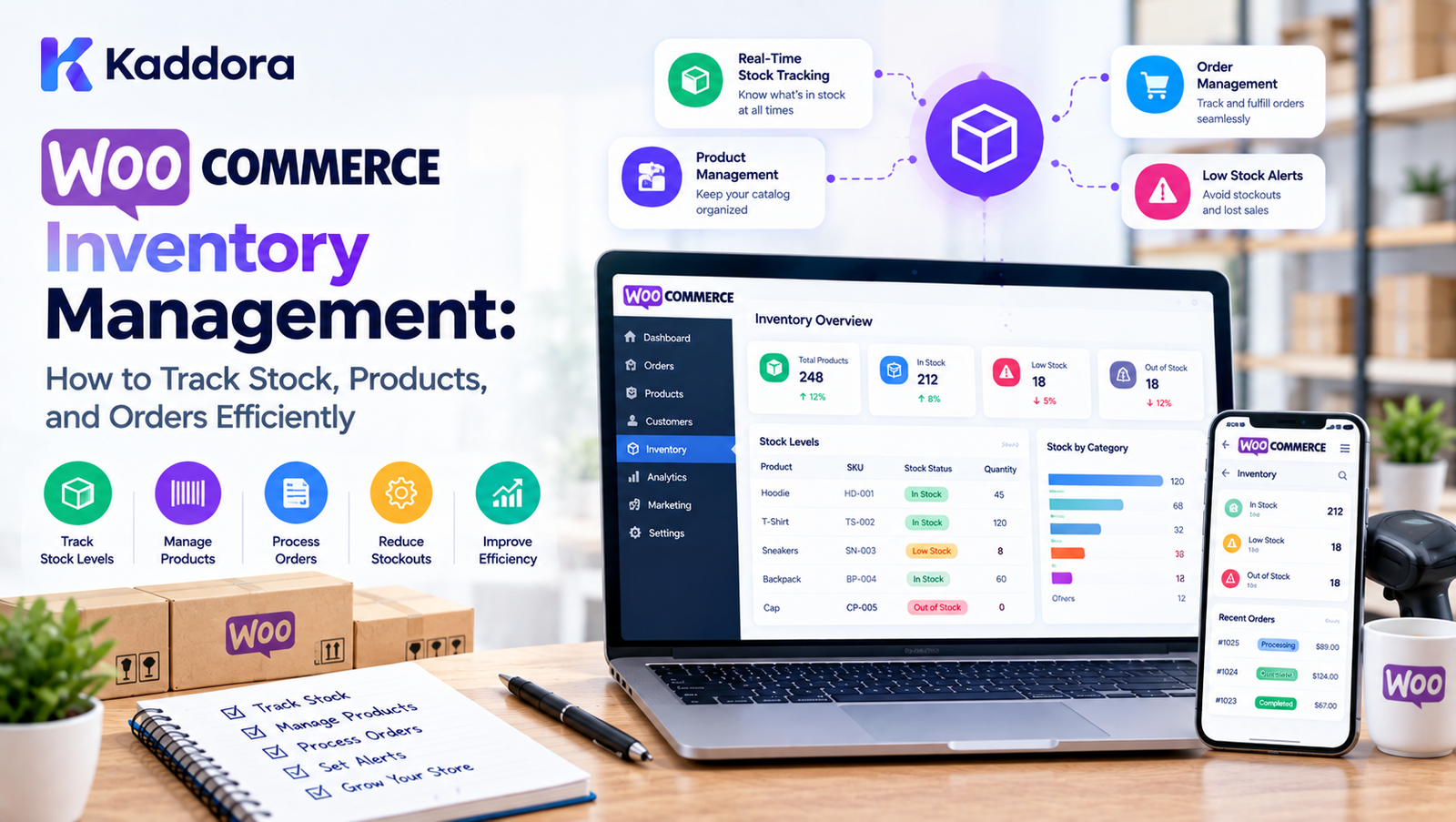
WooCommerce Inventory Management: How to Track Stock, Products, and Orders Efficiently
Introduction
Inventory is one of the most important parts of running a WooCommerce store.
A customer can browse products, add an item to the cart, and proceed to checkout, but the order can still create problems if the inventory information is inaccurate.
A customer places an order, but the actual warehouse has only 3 units.
Now the business may need to:
Contact the customer
Delay fulfillment
Offer an alternative
Refund the order
Update inventory manually
Investigate where the stock mismatch occurred
As an online store grows, managing inventory manually becomes increasingly difficult.
WooCommerce provides built-in inventory functionality, but stores with larger catalogs, multiple warehouses, physical locations, suppliers, marketplaces, or ERP integrations may need a more structured inventory management strategy.
A reliable inventory system should answer questions such as:
How many products are available?
Which products are running low?
Which products are out of stock?
Which products sell fastest?
Which products are not moving?
How much inventory is tied up in stock?
Which orders changed inventory?
Where is inventory located?
When should products be reordered?
This guide explains how WooCommerce inventory management works and how to build a more efficient stock management workflow.
What Is WooCommerce Inventory Management?
WooCommerce inventory management is the process of tracking, controlling, updating, and analyzing product stock throughout an online store.
It includes activities such as:
Adding inventory
Updating stock quantities
Tracking product sales
Managing stock status
Setting low-stock thresholds
Handling backorders
Managing product variations
Synchronizing inventory
Monitoring purchase orders
Preventing overselling
Managing returns
Reviewing inventory reports
A simplified workflow looks like this:
Product Added ↓ Stock Quantity ↓ Customer Order ↓ Inventory Reduction ↓ Stock Monitoring ↓ Low-Stock Alert ↓ Reorder ↓ Inventory Restocked
The objective is to keep inventory information accurate while minimizing unnecessary manual work.
Why WooCommerce Inventory Management Matters
Poor inventory management can create operational problems.
For example:
Incorrect Stock ↓ Overselling ↓ Order Delays ↓ Customer Complaints ↓ Refunds ↓ Revenue Loss
Good inventory management helps businesses maintain better control over:
Product availability
Order fulfillment
Purchasing
Warehousing
Customer experience
Cash flow
Product planning
How WooCommerce Inventory Works
WooCommerce provides inventory settings at the product level.
Depending on the product configuration, you can manage:
Stock quantity
Stock status
Low-stock threshold
Backorders
Stock management
Sold individually settings
For a simple product, the workflow can look like:
Product ↓ Stock Management Enabled ↓ Quantity = 50 ↓ Order = 2 ↓ Available Quantity = 48
This automated reduction is useful because it reduces the need to manually update inventory after every order.
Enable Stock Management
WooCommerce provides global inventory settings that determine how stock is managed.
Before configuring individual products, review the store's inventory settings.
Important considerations include:
Whether stock management is enabled
How long stock is held
Whether notifications are enabled
Low-stock thresholds
Out-of-stock thresholds
Backorder behavior
The correct configuration depends on the store's fulfillment process.
Configure Product-Level Inventory
After global settings are configured, inventory can be managed for individual products.
Typical product inventory information includes:
SKU Stock Management Stock Quantity Stock Status Backorders Low Stock Threshold Sold Individually
Maintaining accurate product information is essential for reliable inventory reporting.
Use SKUs for Inventory Management
A SKU, or Stock Keeping Unit, is a unique identifier used to identify a product or variation.
For example:
TSHIRT-BLK-M TSHIRT-BLK-L TSHIRT-WHT-M TSHIRT-WHT-L
Each variation can have its own SKU.
A consistent SKU structure helps connect WooCommerce with:
ERP systems
Inventory software
Accounting systems
Warehouses
Marketplaces
Suppliers
Create a Consistent SKU Structure
Avoid random SKU naming.
A structured system can include:
CATEGORY-COLOR-SIZE
or:
BRAND-PRODUCT-VARIANT
The exact format should match the business's operational requirements.
Manage Variable Product Inventory
Variable products require additional attention.
For example:
T-Shirt
Variations:
Small / Black
Medium / Black
Large / Black
Small / White
Medium / White
Large / White
Each variation may have different inventory.
A store should avoid treating the parent product as if all variations share the same stock unless the business intentionally uses shared inventory logic.
Why Variation Inventory Matters
Consider:
Black / Medium = 2 Black / Large = 15 White / Medium = 0 White / Large = 8
The product itself is not simply "in stock."
Each variation has a different availability state.
Accurate variation-level inventory helps customers purchase the exact item they need.
Set Low-Stock Thresholds
A low-stock threshold defines when a product should be considered low in inventory.
For example:
Current Stock = 7 Low Stock Threshold = 10
The product should now be considered low stock.
This gives the business an opportunity to reorder before inventory reaches zero.
Use Out-of-Stock Thresholds
Stores should also define what happens when inventory reaches a certain level.
For example:
Stock = 0 ↓ Out of Stock
Some businesses may use safety stock instead.
For example:
Physical Stock = 5 Safety Stock = 5
The store may stop selling the product before the physical inventory is completely exhausted.
This can help businesses account for operational uncertainty.
Enable Low-Stock Notifications
Low-stock notifications can help store managers identify products that require attention.
A useful workflow is:
Stock Falls Below Threshold ↓ Notification ↓ Inventory Review ↓ Purchase Order ↓ Restocking
Notifications are especially useful when a store has hundreds or thousands of products.
Manage Out-of-Stock Products
When a product reaches zero inventory, the store needs a clear strategy.
Possible approaches include:
Hide the product
Display "Out of Stock"
Allow backorders
Accept preorders
Show an expected restock date
The appropriate approach depends on the product and business model.
WooCommerce Backorders
Backorders allow customers to purchase products even when current stock is unavailable, depending on the store's configuration.
Backorders can be useful for:
Made-to-order products
Products with reliable supplier replenishment
Preorder-style workflows
Products with predictable restocking
However, customers should receive clear information about availability and expected fulfillment.
Avoid Unclear Backorder Policies
A customer should not purchase a product assuming immediate delivery if the product is actually unavailable.
Use clear messaging such as:
Available for backorder Expected shipping: 5–7 business days
The exact wording and timeframe should reflect the business's actual fulfillment process.
Manage Inventory Through Orders
Orders are a central part of WooCommerce inventory management.
A simplified process is:
Order Created ↓ Inventory Reserved/Adjusted ↓ Payment Processing ↓ Order Fulfillment ↓ Order Completed
Businesses should understand how their payment, order status, cancellation, refund, and return workflows affect inventory.
Understand Order Status and Inventory
Different order workflows can have different operational implications.
For example:
Pending Processing Completed Cancelled Refunded Failed
Inventory behavior should be tested carefully, especially when custom plugins or payment gateways modify order status automatically.
Handle Cancelled Orders Correctly
When an order is cancelled, inventory may need to be restored depending on how the order was processed.
A store should have a defined process for:
Cancellation
Payment failure
Refund
Return
Exchange
Otherwise, inventory can gradually become inaccurate.
Manage Returned Products
Returns create another inventory event.
For example:
Customer Order ↓ Product Sold ↓ Customer Returns Product ↓ Warehouse Inspection ↓ Sellable? ↙ ↘ Yes No ↓ ↓ Restock Damaged/Separate Stock
Not every returned product should automatically be placed back into sellable inventory.
Create a Return Inspection Process
Returned products may be:
New
Opened
Damaged
Defective
Used
Missing accessories
Businesses should define rules for determining whether returned inventory can be resold.
Manage Inventory Across Multiple Locations
A growing business may have:
Main warehouse
Retail store
Regional warehouse
Supplier warehouse
Fulfillment center
Standard single-location inventory may not be sufficient for these scenarios.
A multi-location architecture can look like:
WooCommerce Store ↓ Inventory System ↙ ↓ ↘ Warehouse A Warehouse B Retail Store
The correct implementation depends on how inventory is physically managed.
WooCommerce Inventory Synchronization
If products are sold through multiple channels, inventory synchronization becomes important.
For example:
WooCommerce ↕ ERP ↕ Marketplace ↕ Physical Store
If one system sells a product, other systems should receive the appropriate inventory update.
Why Inventory Synchronization Matters
Suppose inventory is:
Total Stock = 10
WooCommerce sells 2 units.
If the ERP still shows:
Stock = 10
the business now has inconsistent inventory.
Repeated mismatches can lead to:
Overselling
Incorrect purchasing
Fulfillment problems
Accounting inconsistencies
Use an ERP for Complex Inventory
Larger businesses may need an ERP or dedicated inventory platform.
An ERP can connect:
Products
Inventory
Orders
Purchasing
Suppliers
Customers
Accounting
Warehouses
The architecture can look like:
WooCommerce ↓ ERP ↓ ↓ ↓ Stock Orders Purchasing
WooCommerce can remain the customer-facing storefront while the ERP manages broader operational processes.
WooCommerce Inventory and Purchasing
Inventory management should connect with purchasing.
A basic process is:
Inventory Falls ↓ Reorder Point Reached ↓ Purchase Order ↓ Supplier ↓ Goods Received ↓ Inventory Updated
This helps prevent emergency purchases and stockouts.
What Is a Reorder Point?
A reorder point is the inventory level at which a business should initiate replenishment.
A simplified calculation can be:
Reorder Point = Average Daily Usage × Lead Time + Safety Stock
For example:
Average Daily Sales = 10 Supplier Lead Time = 5 Days Safety Stock = 20 Reorder Point = 10 × 5 + 20 = 70 Units
The exact formula should reflect the business's actual sales patterns and supply-chain conditions.
Use Safety Stock
Safety stock protects against uncertainty.
Unexpected events can include:
Supplier delays
Demand spikes
Shipping problems
Seasonal increases
Damaged inventory
Forecasting errors
Maintaining appropriate safety stock can reduce stockout risk.
Inventory Forecasting
Historical sales data can help businesses estimate future inventory requirements.
A basic forecasting workflow is:
Historical Sales ↓ Demand Analysis ↓ Forecast ↓ Reorder Planning ↓ Purchase
More advanced systems can incorporate:
Seasonality
Promotions
Trends
Lead times
Product lifecycle
Supplier reliability
Identify Fast-Moving Products
Fast-moving products deserve close monitoring.
For example:
Product A → 500 sales/month Product B → 200 sales/month Product C → 10 sales/month
Product A may require more frequent replenishment than Product C.
Identify Slow-Moving Inventory
Slow-moving inventory can tie up working capital.
Examples include products that:
Receive few orders
Have declining demand
Are outdated
Are seasonal
Are difficult to sell
Businesses can analyze slow-moving products and consider appropriate strategies.
Inventory Turnover
Inventory turnover measures how frequently inventory is sold and replaced over a period.
A simplified concept is:
Inventory Turnover = Cost of Goods Sold ÷ Average Inventory
Higher turnover does not automatically mean better performance because the ideal level varies by business and product category.
The metric is most useful when evaluated in context.
Inventory Value
Businesses may also track the monetary value of inventory.
For example:
100 Units × ₹500 Cost = ₹50,000 Inventory Value
Inventory valuation should use a consistent accounting methodology appropriate for the business.
Track Stock by Product Category
Category-level inventory analysis can reveal patterns.
For example:
Electronics Fashion Home Decor Accessories
A store may discover that some categories require significantly more inventory investment than others.
Track Inventory by Brand
If a store sells multiple brands, brand-level analysis can help identify:
High-demand brands
Slow-moving brands
Reorder requirements
Inventory concentration
This can support purchasing decisions.
Use Inventory Reports
Useful inventory reports can include:
Current stock
Low stock
Out of stock
Inventory value
Sales by product
Sales by category
Stock movement
Returns
Dead stock
Reorder requirements
A dashboard can make this information easier to monitor.
Build a WooCommerce Inventory Dashboard
A useful inventory dashboard might display:
Total Products Low Stock Out of Stock Inventory Value Fast-Moving Products Slow-Moving Products Pending Purchases Recent Stock Changes
This gives store managers a quick operational overview.
Automate Inventory Alerts
Automation can reduce manual monitoring.
For example:
Stock < Threshold ↓ Automatic Alert ↓ Manager Reviews ↓ Purchase Order
Alerts can be delivered through:
Dashboard notifications
Internal messaging
Business automation systems
Automate Stock Synchronization
If multiple systems are connected, stock updates can be automated.
For example:
WooCommerce Order ↓ Inventory Event ↓ ERP ↓ Updated Stock
The system should include appropriate validation and error handling.
Handle Synchronization Failures
No integration is perfect.
A synchronization system should account for:
API failures
Network errors
Authentication problems
Duplicate requests
Timeout errors
Partial updates
A useful architecture includes logging and retry mechanisms.
Use Idempotent Inventory Updates
When integrating systems, repeated requests should not accidentally reduce inventory multiple times.
For example:
Order #5001 ↓ Inventory Update ↓ Request Retries ↓ Same Event Detected ↓ Do Not Apply Twice
This is particularly important for API-driven inventory synchronization.
Use Webhooks for Real-Time Events
Webhooks can notify connected systems when important events occur.
Examples include:
Order created
Order updated
Product updated
Inventory changed
For complex workflows, events can be placed into a queue before processing.
Batch Inventory Updates
If hundreds or thousands of products need updates, batch processing can be more efficient than making individual requests repeatedly.
For example:
1000 Product Updates ↓ Batch Processing ↓ Inventory System
Always respect API limits and system capacity.
Manage Inventory Imports
Bulk product imports can update:
SKUs
Prices
Stock
Product data
Variations
Before importing large datasets, create a backup and test the import process with a small sample.
Avoid Duplicate SKUs
Duplicate SKUs can create serious inventory problems.
For example:
Product A → SKU-100 Product B → SKU-100
An external ERP or marketplace may not know which product the SKU represents.
Maintain unique identifiers throughout the inventory system.
Create an Inventory Audit Trail
For important inventory operations, businesses can maintain a record of:
Previous quantity
New quantity
Product
User/system
Timestamp
Reason
Related order
A simplified audit record might look like:
SKU: ABC-100 Old Stock: 25 New Stock: 20 Change: -5 Reason: Order Order: #1520
Audit information makes troubleshooting easier.
Prevent Manual Inventory Errors
Manual changes can be necessary, but excessive manual editing increases the possibility of mistakes.
Use controlled workflows for:
Stock adjustments
Returns
Damaged inventory
Warehouse transfers
Purchases
Inventory Adjustments
Sometimes physical stock does not match system stock.
For example:
System Stock = 50 Physical Stock = 47
A stock adjustment may be necessary.
The adjustment should ideally include a reason such as:
Damaged goods
Counting error
Theft
Warehouse error
Data correction
Conduct Regular Inventory Audits
Physical inventory counts can identify discrepancies.
A basic audit workflow:
System Count ↓ Physical Count ↓ Compare ↓ Investigate Differences ↓ Adjust ↓ Document
The frequency depends on the business and inventory risk.
Inventory Management for Small WooCommerce Stores
Small stores can often start with:
WooCommerce stock management
SKUs
Low-stock notifications
Basic inventory reports
Manual purchase planning
As the store grows, additional automation can be introduced.
Inventory Management for Growing Stores
Growing stores may need:
Advanced reporting
Inventory automation
ERP integration
Multi-location inventory
Purchase management
Stock forecasting
Automated synchronization
The system should evolve with operational complexity.
Inventory Management for Large WooCommerce Stores
Large catalogs may require a more structured architecture:
WooCommerce ↓ API / Integration Layer ↓ ERP / Inventory Platform ↓ Warehouses ↓ Suppliers
This approach can centralize inventory information while WooCommerce handles storefront activity.
Common WooCommerce Inventory Management Mistakes
Not Using SKUs
Without consistent identifiers, integrations become difficult.
Manually Updating Everything
Manual updates become risky as order volume grows.
Ignoring Variations
Each variation may have different inventory.
No Low-Stock Threshold
Products can suddenly become unavailable.
No Safety Stock
Unexpected demand or supplier delays can cause stockouts.
No Inventory Audit
System and physical stock can gradually diverge.
Poor Return Handling
Returned products may incorrectly become available for sale.
No Integration Error Handling
Failed synchronization can silently create mismatched inventory.
Duplicate SKUs
Duplicate identifiers can cause incorrect updates.
No Reorder Planning
Waiting until stock reaches zero can create fulfillment problems.
Best Practices for WooCommerce Inventory Management
Follow these practices:
1. Use Unique SKUs
Give every product and variation an appropriate identifier.
2. Enable Inventory Tracking
Use WooCommerce's stock management functionality where appropriate.
3. Set Low-Stock Thresholds
Create an early warning system.
4. Define Backorder Rules
Customers should understand product availability.
5. Monitor Product Variations
Track inventory at the correct level.
6. Audit Inventory
Compare physical and system stock regularly.
7. Automate Repetitive Tasks
Reduce unnecessary manual operations.
8. Monitor Synchronization
Track integration failures.
9. Use Inventory Reports
Make decisions based on current data.
10. Plan for Growth
Design the system so it can support increasing catalog size and order volume.
WooCommerce Inventory Management Workflow
A scalable workflow can look like this:
Product Created ↓ SKU Assigned ↓ Opening Stock Added ↓ Customer Places Order ↓ Stock Updated ↓ Inventory Monitoring ↓ Low-Stock Alert ↓ Purchase Order ↓ Supplier Ships ↓ Inventory Received ↓ Stock Updated
Returns and adjustments can feed back into the same inventory lifecycle.
How AI Can Improve WooCommerce Inventory Management
AI can assist with inventory analysis when sufficient historical and operational data is available.
Potential applications include:
Demand forecasting
Product classification
Reorder suggestions
Sales trend detection
Slow-moving inventory identification
Anomaly detection
Product recommendations
For example:
Historical Sales ↓ AI Analysis ↓ Demand Pattern ↓ Suggested Reorder ↓ Manager Review
AI recommendations should be treated as decision-support rather than automatic truth, particularly when data is incomplete.
AI Inventory Forecasting
An AI system can analyze historical sales and potentially identify:
Seasonal demand
Sales trends
Sudden changes
Product relationships
For example:
Previous Sales + Seasonality + Promotions + Lead Time = Forecast
The quality of the forecast depends heavily on data quality.
AI-Powered Low-Stock Predictions
Traditional alerts might say:
Stock is below 10 units.
An advanced system could additionally analyze sales velocity and estimate whether the current stock may be insufficient for expected demand.
This can provide more context to inventory managers.
AI for Slow-Moving Inventory
AI can help identify products with unusual sales patterns.
For example:
Product Sales ↓ Inventory Age ↑ ↓ Potential Slow-Moving Product ↓ Manager Review
The business can then decide whether to adjust pricing, promotions, purchasing, or product assortment.
Integrating WooCommerce Inventory With ERP
For businesses using ERP systems, integration can centralize operational information.
A possible architecture is:
WooCommerce ↓ Orders ↓ Integration Layer ↓ ERP ↙ ↓ ↘ Stock Purchasing Accounting
The exact architecture depends on the ERP and business requirements.
WooCommerce Inventory Automation Checklist
Use this checklist when building an automated inventory system:
Unique SKUs
Product-level stock management
Variation-level inventory
Low-stock thresholds
Out-of-stock rules
Backorder policy
Stock alerts
Inventory audit trail
Return workflow
Purchase workflow
Stock synchronization
Integration error logging
Retry mechanism
Inventory reports
Physical inventory audits
Backup and recovery process
Performance monitoring
Why Choose Kaddora?
Kaddora focuses on WordPress and WooCommerce solutions designed for practical business requirements.
For a growing WooCommerce store, inventory management may eventually need to connect with:
Orders
Sales analytics
Returns
ERP systems
Customer data
Product intelligence
AI-powered workflows
Business reporting
Kaddora's WooCommerce solutions are designed around these broader operational requirements.
Instead of treating inventory as an isolated feature, businesses can build a connected WooCommerce ecosystem where inventory, orders, analytics, automation, and other workflows work together.
Conclusion
WooCommerce inventory management is more than simply entering a stock quantity into a product.
A reliable inventory system should connect:
Products ↓ SKUs ↓ Orders ↓ Stock ↓ Returns ↓ Purchasing ↓ Warehouses ↓ Analytics ↓ Forecasting
For small stores, WooCommerce's built-in inventory features may provide a solid starting point.
As the business grows, more advanced requirements can appear, including multi-location inventory, ERP integration, automated synchronization, purchasing workflows, inventory forecasting, and detailed reporting.
The most important principle is accuracy.
Your customers should see reliable availability information, your warehouse should know what needs to be fulfilled, and your business should know when inventory needs attention.
Start with structured SKUs, accurate stock quantities, sensible low-stock thresholds, clear return processes, and regular inventory audits.
Then introduce automation and integrations as your operational requirements grow.
A well-designed WooCommerce inventory system can reduce manual work, improve stock visibility, support better purchasing decisions, and create a more reliable foundation for eCommerce growth.
Frequently Asked Questions
What is WooCommerce inventory management?
WooCommerce inventory management is the process of tracking product quantities, stock status, orders, returns, replenishment, and other inventory-related activities in a WooCommerce store.
Does WooCommerce have built-in inventory management?
Yes. WooCommerce includes inventory management features for tracking stock quantities, stock status, low-stock thresholds, backorders, and related product settings.
How do I enable inventory management in WooCommerce?
WooCommerce provides inventory settings that can be configured from the store's product and inventory management areas. Individual products can then have stock management enabled where required.
How do I manage stock for WooCommerce variable products?
Inventory can be managed at the variation level when different variations have different stock quantities.
How is a reorder point calculated?
A simplified formula is:
Reorder Point = Average Daily Usage × Supplier Lead Time + Safety Stock
Businesses should adapt the calculation to their actual demand and supply conditions.
Should I allow WooCommerce backorders?
The decision depends on whether your business can reliably replenish the product and communicate realistic fulfillment expectations to customers.
How does WooCommerce reduce inventory after an order?
WooCommerce's inventory functionality can automatically adjust stock quantities as orders move through the configured order and inventory workflow.
Can AI help with WooCommerce inventory management?
AI can assist with demand forecasting, sales trend analysis, anomaly detection, reorder suggestions, and identification of slow-moving products when sufficient quality data is available.
Can AI automatically reorder WooCommerce products?
AI can potentially generate reorder recommendations, but automatic purchasing should use appropriate business rules, supplier information, budgets, and human oversight where necessary.
Why choose Themekaddora?
Themekaddora provides lightweight, responsive, SEO-friendly WordPress themes with fast performance, WooCommerce compatibility, flexible customization, accessibility-conscious design, modern templates, regular updates, and professional support—providing a strong foundation for businesses building digital products and product-focused websites.
Comments (0)