
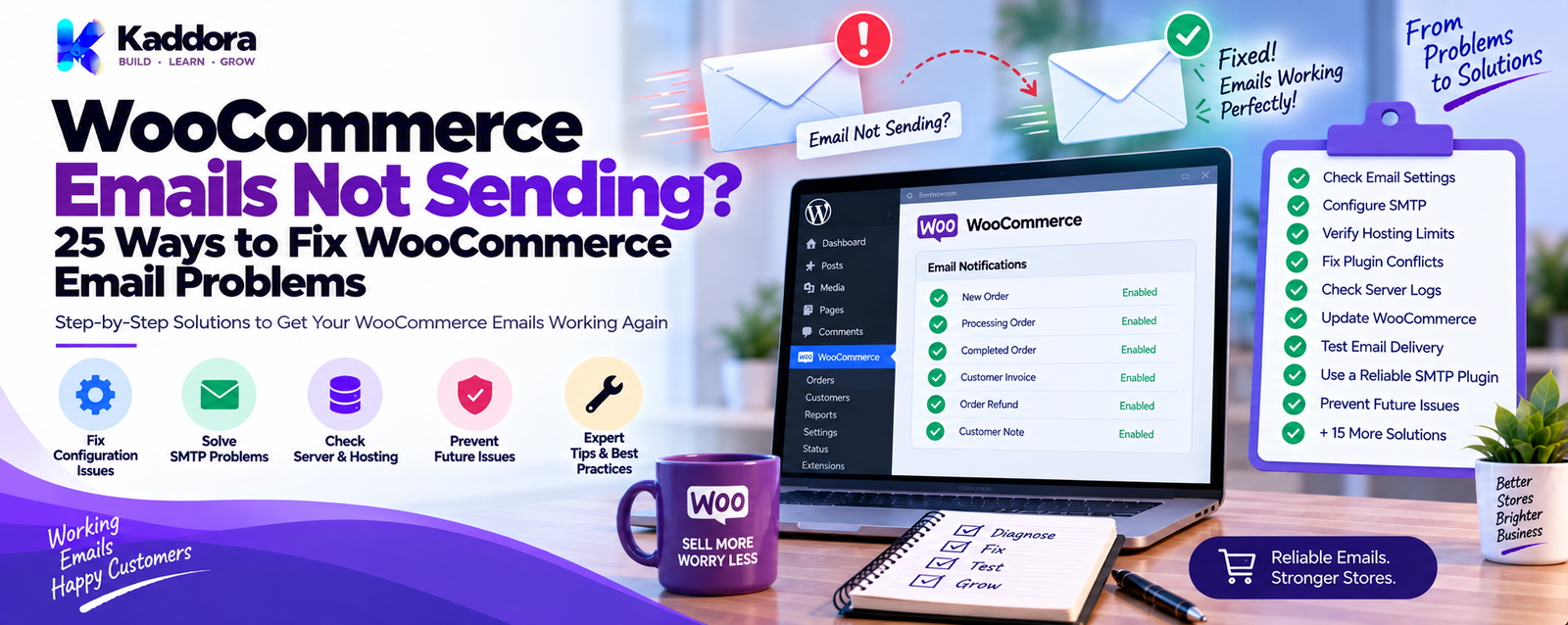
WooCommerce Emails Not Sending? 25 Ways to Fix WooCommerce Email Problems
Introduction
WooCommerce emails are an important part of an online store.
Customers may depend on email notifications for:
Order confirmations
Order status updates
Payment information
Account notifications
Password resets
Refund information
Shipping updates
Store owners may also rely on emails for:
New orders
Failed orders
Cancelled orders
Low-stock notifications
Customer activity
Store administration
When WooCommerce emails stop working, the problem can affect both customers and store operations.
The confusing part is that "WooCommerce emails not sending" can describe several different problems.
For example:
Order Created ↓ WooCommerce Determines Email Should Fire ↓ Email Enabled? ↓ Trigger Condition Met? ↓ WooCommerce Generates Email ↓ WordPress Mail System ↓ SMTP / Email Provider ↓ Receiving Mail Server ↓ Inbox / Spam
A failure can happen at almost any stage.
The email may:
Never be triggered
Be disabled
Be skipped because a condition is missing
Fail during WordPress mail processing
Leave the server but never reach the inbox
Arrive in spam
Be delayed by the delivery provider
Be affected by a plugin or theme conflict
WooCommerce's current documentation recommends first determining whether the message was generated and handed to the site's mail system, or whether the problem is actually delivery. Current WooCommerce transactional email logs can help identify statuses such as sent, failed, disabled, and skipped.
In this guide, you'll learn how to troubleshoot WooCommerce emails not sending, check the correct settings, test your WordPress mail system, configure SMTP, inspect logs, investigate scheduled actions, identify plugin conflicts, fix sender configuration, troubleshoot templates, and improve email deliverability.
What Does "WooCommerce Emails Not Sending" Actually Mean?
Before changing anything, identify the exact symptom.
There are several possibilities.
Case 1: WooCommerce Never Creates the Email
The email trigger condition was not satisfied.
Case 2: WooCommerce Creates the Email but It Fails
WordPress or the configured mail system returns an error.
Case 3: WooCommerce Reports Success but the Recipient Doesn't Receive It
The message may have left your site but encountered a delivery or filtering problem.
Case 4: Only One Email Type Is Broken
For example:
New order works
Processing order works
Completed order doesn't
This usually points toward a specific configuration, trigger, template, or extension issue.
Case 5: All WordPress Emails Are Broken
If password resets, contact-form emails, and WooCommerce emails all fail, the problem may be the site's general mail configuration rather than WooCommerce alone.
How WooCommerce Email Sending Works
A simplified WooCommerce email flow is:
Customer Action ↓ Order / Account Event ↓ WooCommerce Email Trigger ↓ Email Eligibility Check ↓ Email Template Generated ↓ wp_mail() ↓ WordPress Mail System ↓ SMTP / Delivery Service ↓ Recipient Mail Server ↓ Inbox / Spam
WooCommerce documentation notes that WooCommerce normally sends mail through WordPress's wp_mail() function. This means an email problem can occur outside WooCommerce itself, especially in the site's hosting or mail-delivery configuration.
That is why replacing templates alone often does not solve delivery problems.
1. Check Whether the WooCommerce Email Is Enabled
This should be your first check.
Go to:
WordPress Admin ↓ WooCommerce ↓ Settings ↓ Emails
WooCommerce provides individual settings for its built-in email notifications.
Select the email that isn't working.
Check whether:
Enable this email notification
is enabled.
For example:
New order [✓] Enable this email notification
If the notification is disabled, WooCommerce won't send it.
2. Check the Email Trigger Condition
An enabled email does not necessarily mean it should be sent for every order.
The order must meet the conditions associated with that email.
For example:
Order Status ↓ Pending Payment ↓ Condition Not Met ↓ No Email
versus:
Order Status ↓ Processing ↓ Trigger Condition Met ↓ Email Generated
This distinction is important when troubleshooting order-related notifications.
3. Check the Order Status
One of the easiest causes to overlook is the order status.
For example, an order may remain in:
Pending payment
If the relevant notification is triggered only after a later state, that email will not be generated.
WooCommerce specifically documents that certain order emails depend on the order reaching an appropriate status.
Check:
WooCommerce ↓ Orders ↓ Open Test Order ↓ Check Order Status
Don't assume that creating an order always triggers every WooCommerce email.
4. Verify the Recipient Address
An email can also be skipped if there is no valid recipient.
Check:
Customer email
Store email
Notification recipient
Billing email
Administrative recipient
For customer emails, verify that the order contains a valid customer address.
For store notifications, verify the configured recipient address.
A missing recipient can result in the email being skipped.
5. Check WooCommerce Email Sender Settings
Open:
WooCommerce → Settings → Emails
Review the sender name and sender email address.
WooCommerce's current email settings documentation recommends using a sender address on your site's own domain.
For example:
From Name: ThemeKaddora Store From Address: orders@example.com
Avoid using a public mailbox address such as:
yourstore@gmail.com
as the sender identity for your website's transactional mail when your domain is something else.
Sender-domain alignment can affect deliverability.
6. Test the Email From WooCommerce
Before investigating advanced problems, test the email itself.
A useful workflow is:
WooCommerce Email Settings ↓ Send / Trigger Test ↓ Check Recipient Inbox ↓ Check Spam ↓ Check Logs
Don't rely on only one test.
Use multiple recipient addresses when possible.
For example:
Gmail
Outlook
Your business mailbox
This can help identify whether the issue is specific to one receiving provider.
7. Check WooCommerce Transactional Email Logs
Current WooCommerce versions provide transactional email logging.
Go to:
WooCommerce → Status → Logs
Look for:
transactional-emails
WooCommerce documents several useful outcomes:
Sent — WooCommerce successfully handed the email to the site's mail system.
Failed — WooCommerce attempted sending, but the mail process returned an error.
Disabled — The email notification is disabled.
Skipped — WooCommerce decided not to send because a required condition was missing.
This gives you a much better starting point than simply saying:
The email isn't working.
8. Understand "Sent" vs "Delivered"
This distinction is extremely important.
Suppose WooCommerce reports:
Sent
That doesn't necessarily mean:
Inbox
A more accurate flow is:
WooCommerce ↓ WordPress Mail System ↓ Accepted for Sending ↓ Mail Provider ↓ Recipient Server ↓ Inbox / Spam / Rejected
A "sent" result can indicate that the message was handed off successfully, while delivery to the final inbox is a separate problem. WooCommerce explicitly distinguishes sending from recipient delivery in its troubleshooting guidance.
9. Check the Spam or Junk Folder
If the email was generated but isn't visible in the inbox, check:
Spam
Junk
Promotions
Updates
Quarantine
Mail security filters
Do this on both test and customer addresses.
An email that reaches the receiving provider can still be filtered afterward.
10. Configure SMTP
One of the most common improvements for WordPress email delivery is using SMTP or a dedicated email delivery service.
The basic flow becomes:
WooCommerce ↓ WordPress ↓ SMTP / Email API ↓ Mail Provider ↓ Recipient
WooCommerce's troubleshooting guidance recommends dedicated SMTP delivery as a more reliable approach than relying solely on the site's hosting mail function, particularly when delivery is an issue.
SMTP does not guarantee inbox placement, but it gives the site a more controlled delivery path.
11. Test WordPress Email Separately From WooCommerce
This is an important diagnostic step.
Ask:
Are other WordPress emails working?
Test:
Password reset
User registration
Contact form
Admin notification
If every WordPress email fails:
WordPress Mail Problem ↓ Not Just WooCommerce
If WordPress emails work but only WooCommerce fails:
WooCommerce / Extension / Trigger Problem
This helps narrow the problem significantly.
12. Check Your SMTP Provider Logs
If an SMTP or email API provider is already configured, inspect its logs.
Look for:
Accepted
Rejected
Bounced
Deferred
Blocked
Authentication failures
Rate-limit errors
A useful diagnostic chain is:
WooCommerce Log ↓ SMTP Provider Log ↓ Recipient Mail Server
If WooCommerce says the message was handed to the mail system but your provider never sees it, investigate the WordPress mail configuration.
13. Check SPF
SPF is an email authentication mechanism published through DNS.
It helps receiving systems evaluate whether a server or service is authorized to send mail for your domain.
Your DNS should contain the SPF configuration required by your sending provider.
Don't blindly copy SPF records from another domain.
Follow your provider's current instructions.
14. Check DKIM
DKIM adds a cryptographic signature to outgoing email.
A properly configured provider generally gives you DNS records or instructions to publish a DKIM key.
The workflow is:
Your Domain ↓ DNS ↓ DKIM Configuration ↓ Email Provider ↓ Signed Email
DKIM configuration is provider-specific, so use the documentation supplied by the actual delivery service.
15. Review DMARC
DMARC builds on domain authentication signals such as SPF and DKIM and tells receiving systems how to handle messages that fail the configured alignment and authentication requirements.
A basic domain setup can look like:
SPF + DKIM + DMARC = Email Authentication Strategy
Don't enable an aggressive DMARC policy without understanding your legitimate sending sources first.
Otherwise, valid messages can be affected.
16. Check for Plugin Conflicts
Another common cause is a plugin or theme conflict.
A plugin may:
Modify email headers
Replace wp_mail()
Change recipients
Alter order statuses
Disable notifications
Replace WooCommerce email classes
Override templates
WooCommerce recommends conflict testing when emails are enabled but not behaving as expected.
A safe test is:
Backup ↓ Staging Site ↓ WooCommerce Only ↓ Default Theme ↓ Test Email
Then re-enable extensions one at a time.
17. Check Your Theme
Themes can also interfere with WooCommerce behavior.
A theme may override:
WooCommerce templates
Hooks
Email formatting
Order processing behavior
Custom notification logic
If the problem disappears when using a default theme on a staging environment, inspect the theme's WooCommerce customizations.
18. Check WooCommerce Email Template Overrides
WooCommerce email templates can be customized.
A theme or child theme may contain overridden templates such as:
your-theme/ └── woocommerce/ └── emails/
Check whether the email template has been modified.
A template override problem can cause:
Broken email layout
Missing information
PHP errors
Unexpected output
But remember:
A template problem and a delivery problem are not the same thing.
If no message leaves the system, changing HTML templates won't solve the underlying delivery issue.
19. Check for PHP Errors
Email generation can fail when a plugin or theme causes a PHP error.
Check:
wp-content/debug.log
when appropriate for your site's debugging configuration.
Look for errors that occur at the same time as the email attempt.
Possible causes include:
Fatal errors
Undefined methods
Invalid callbacks
Type errors
Compatibility problems
Custom WooCommerce code
Don't enable verbose debugging on a live site without considering security and privacy implications.
20. Check WooCommerce Logs for Fatal Errors
WooCommerce's own logs can help identify problems around the time of the email attempt.
Look for:
WooCommerce → Status → Logs
Review entries corresponding to:
Email generation
Order processing
Extensions
Errors
Fatal conditions
Current WooCommerce documentation specifically recommends checking logs when paid orders are not resulting in expected emails.
21. Check Scheduled Actions
Some WooCommerce extensions use scheduled or queued actions.
This can matter for:
Automated emails
Follow-up campaigns
Delayed workflows
Background processing
Integrations
Check:
WooCommerce → Status → Scheduled Actions
For an email workflow that depends on delayed processing, look for:
Pending
Failed
Complete
Cancelled
If a task is stuck, the email may not be sent even though the original trigger happened.
WooCommerce documentation for scheduled workflows recommends checking the queue when delayed actions don't execute.
22. Check WP-Cron
Many WordPress websites rely on WP-Cron for scheduled processing.
If scheduled tasks aren't running, some automated emails may also fail or be delayed.
Possible causes include:
WP-Cron disabled
Low site traffic
Server configuration issues
HTTP authentication
Cron errors
Hosting restrictions
A useful diagnostic flow is:
Scheduled Email ↓ Scheduled Action ↓ WP-Cron / Scheduler ↓ Execution ↓ Email Processing
If the email is supposed to be immediate, cron may not be the problem.
23. Check Hosting Restrictions
Some hosting environments restrict outbound email or impose limitations on mail delivery.
Potential issues include:
SMTP restrictions
Port restrictions
Rate limits
Disabled mail functions
Outbound firewall rules
Shared-server mail policies
This is why email problems can continue even when WooCommerce settings look correct.
Check your hosting documentation and server logs when necessary.
24. Check the "From" Domain
A mismatch between the visible sender and the actual sending infrastructure can create deliverability problems.
For example:
Website: example.com From: store@gmail.com
versus:
Website: example.com From: orders@example.com
Using an address associated with the website's domain is generally a more appropriate configuration for transactional website mail. WooCommerce's current email settings documentation recommends a sender address on the site's domain.
25. Check Reply-To Settings
WooCommerce can use a separate Reply-To address.
For example:
From: orders@example.com Reply-To: support@example.com
This can be useful when customer replies should reach a support mailbox.
Remember:
Reply-To controls where replies go.
It doesn't replace the From address.
26. Check Order Email Customizations
Custom code may change email behavior.
Search your custom plugin or theme for:
woocommerce_email_enabled woocommerce_email_recipient_ woocommerce_email_subject_ woocommerce_email_heading_ woocommerce_mail
Also check for code involving:
wp_mail()
or modifications to WooCommerce email classes.
A custom filter that returns false can disable an email unexpectedly.
27. Check for Disabled Emails Programmatically
An extension can disable an email through settings or filters.
The WooCommerce log can help reveal whether an email was disabled rather than genuinely broken.
This changes the troubleshooting direction:
Disabled ↓ Check Settings / Filters Failed ↓ Check Mail System Skipped ↓ Check Trigger / Recipient / Conditions
28. Check Whether the Email Was Skipped
A skipped email is different from a failed email.
For example:
Trigger Event ↓ Required Condition Missing ↓ Skipped
Possible reasons can include:
No recipient
Ineligible order state
Feature-specific condition not met
Customer already performed an action
Extension-specific rules
Current WooCommerce transactional email logging distinguishes skipped emails from failed and disabled emails.
29. Test a New Order
When troubleshooting, create a controlled test order.
Record:
Order ID Customer Email Order Status Payment Method Time Expected Email
Then inspect:
WooCommerce Log ↓ Transactional Email ↓ Order Note ↓ SMTP Provider
This gives you a traceable test case.
30. Test Different Payment Methods
Payment gateways can influence order status transitions.
For example:
Payment ↓ Order Status ↓ Email Trigger
A successful gateway may move an order into one state.
A failed or abandoned payment may leave it in another.
If emails work for one gateway but not another, investigate the status transition and gateway integration.
WooCommerce Emails Not Sending: Fast Diagnostic Flow
Use this sequence:
1. Is the email enabled? ↓ 2. Is the trigger condition met? ↓ 3. Is there a valid recipient? ↓ 4. Does WooCommerce log the attempt? ↓ 5. Is it Sent, Failed, Disabled, or Skipped? ↓ 6. Does WordPress send other emails? ↓ 7. Is SMTP configured? ↓ 8. Does the SMTP provider receive the message? ↓ 9. Are SPF/DKIM/DMARC configured? ↓ 10. Is there a plugin/theme conflict? ↓ 11. Are scheduled actions or cron involved? ↓ 12. Test again on staging
This approach is much more efficient than randomly changing settings.
WooCommerce Email Problem by Symptom
Orders Arrive but No Admin Email
Check:
New order notification
Recipient address
Email enabled state
WooCommerce logs
SMTP
Customers Receive Nothing
Check:
Customer email
Order status
Customer email notification settings
SMTP
Spam
Provider logs
Admin Gets Emails but Customers Don't
Investigate:
Customer-specific templates
Customer recipient address
Customer email notification configuration
Delivery filtering
Customer-domain delivery issues
Only One Email Is Broken
Check:
That email's settings
Trigger condition
Template
Extension
Email-specific filters
No WordPress Emails Work
Investigate:
SMTP
Hosting
DNS
Mail provider
PHP mail configuration
Server restrictions
Emails Work Sometimes
Investigate:
Rate limits
Queue failures
Cron
Provider throttling
Server resource problems
Intermittent external API errors
Plugin conflicts
WooCommerce Email Troubleshooting With Staging
Don't troubleshoot major production issues by repeatedly disabling plugins on a live store.
Use:
Production ↓ Backup ↓ Staging ↓ Controlled Testing
On staging:
Disable non-essential plugins
Switch to a default theme
Test WooCommerce emails
Check logs
Restore plugins one by one
This gives you a safer environment for finding conflicts.
How to Fix WooCommerce Email Problems Safely
A practical recovery workflow is:
Step 1
Back up the site.
Step 2
Identify the exact missing email.
Step 3
Check order status and recipient.
Step 4
Check WooCommerce email settings.
Step 5
Inspect transactional email logs.
Step 6
Test WordPress email independently.
Step 7
Configure or verify SMTP.
Step 8
Check DNS authentication.
Step 9
Check plugin and theme conflicts.
Step 10
Check scheduled actions if the email is delayed.
Step 11
Test the email on staging.
Step 12
Repeat the test in production.
Why SMTP Is Often Better Than Basic WordPress Mail
The WordPress wp_mail() function acts as the interface WordPress uses to send mail, but the underlying delivery path depends on the hosting or configured mail system.
SMTP or a dedicated email API can provide:
Authentication
Better delivery control
Provider logs
Failure reporting
Rate limiting
Delivery monitoring
It is particularly useful when a store depends on reliable customer notifications.
WooCommerce itself highlights dedicated SMTP providers as a way to improve reliability when a site's default mail-sending path is problematic.
WooCommerce Email Security Best Practices
Email systems should be protected like other business infrastructure.
Use:
Secure SMTP credentials
HTTPS
Restricted admin access
Strong authentication
Nonces for relevant admin actions
Capability checks
Validated recipient addresses
Sanitized configuration
Escaped output
Prepared database queries
Never expose SMTP passwords or API keys in front-end JavaScript.
Don't store secrets in publicly accessible files.
WooCommerce Email Deliverability Best Practices
To maintain better deliverability:
Use a sender address on your own domain.
Configure SPF.
Configure DKIM.
Review DMARC.
Use a reputable delivery provider.
Keep mailing lists clean.
Monitor bounces.
Monitor spam complaints.
Avoid misleading sender information.
Test across multiple email providers.
Deliverability is an ongoing process rather than a one-time plugin setting.
Common WooCommerce Email Mistakes
Email Notification Disabled
The email simply cannot be generated while disabled.
Wrong Order Status
The required trigger never occurs.
Invalid Recipient
WooCommerce cannot deliver what has no valid destination.
No SMTP
The site's hosting mail path may be unreliable.
Incorrect "From" Address
Sender configuration may hurt deliverability.
Missing DNS Authentication
SPF, DKIM, and DMARC may be incomplete.
Theme Override Problem
Modified templates can break rendering or execution.
Plugin Conflict
Another extension may modify email behavior.
Cron Failure
Delayed workflows may never execute.
Scheduled Action Failure
A queued process can remain stuck.
Overlooking Logs
Without logs, you're troubleshooting by guesswork.
Testing Only One Email Provider
A message can behave differently across receiving systems.
WooCommerce Email Troubleshooting Checklist
WooCommerce Settings
Correct email notification enabled
Recipient address verified
Sender name verified
Sender email verified
Reply-To reviewed
Order
Test order created
Payment completed where required
Order status checked
Customer email verified
Logs
WooCommerce logs checked
transactional-emails reviewed
PHP debug log reviewed where appropriate
SMTP provider logs reviewed
Delivery
SMTP configured
SMTP test completed
SPF checked
DKIM checked
DMARC reviewed
Spam folder checked
Compatibility
Plugins reviewed
Theme reviewed
WooCommerce templates checked
Custom email filters checked
Custom wp_mail() code checked
Scheduling
Scheduled Actions reviewed
Failed actions checked
WP-Cron checked where relevant
Testing
Staging test completed
Multiple email providers tested
Admin email tested
Customer email tested
WooCommerce Email Troubleshooting Matrix
Symptom
First Check
Next Step
No new-order email
Email enabled
Check transactional email log
No customer email
Order status
Verify customer recipient
"Disabled" in log
WooCommerce settings
Check custom filters
"Skipped" in log
Trigger condition
Check recipient and eligibility
"Failed" in log
Mail system
Check SMTP/provider logs
"Sent" but no inbox
Delivery
Check provider and spam
All WordPress emails fail
SMTP/hosting
Test wp_mail() path
Only one email fails
Email-specific settings
Check template/extension
Delayed email
Scheduled action
Check queue/WP-Cron
Emails fail after plugin update
Compatibility
Run conflict test
Gmail receives but another provider doesn't
Deliverability
Review authentication/reputation
WooCommerce Email Debugging Workflow
A useful debugging diagram is:
WooCommerce Event ↓ Email Should Trigger? / \ No Yes ↓ ↓ Check Condition Email Enabled? / \ No Yes ↓ ↓ Enable It Valid Recipient? / \ No Yes ↓ ↓ Fix Data Email Logged? / \ No Yes ↓ ↓ Check Errors Status? / | \ / | \ Failed Sent Skipped ↓ ↓ ↓ SMTP Delivery Trigger
This process helps identify the failure point without making unrelated changes.
When Should You Contact Your Hosting Provider?
Contact hosting support when:
SMTP connections fail
Outbound mail is blocked
Port restrictions exist
Mail functions are disabled
Server logs show mail transport failures
DNS changes are not propagating as expected
Hosting infrastructure rejects outgoing messages
Provide:
Test time
Error message
Domain
Sending method
SMTP provider
Relevant WooCommerce logs
Avoid sending passwords or API secrets in support tickets.
When Should You Contact Your Email Provider?
Contact your delivery provider when:
Messages are being rejected
Authentication fails
Sending limits are reached
Accounts are suspended
Messages bounce
Provider logs show errors
Domain authentication cannot be verified
Provider logs often give information that WordPress alone cannot provide.
When Should You Disable Plugins for Testing?
Use conflict testing when:
Email settings look correct
Logs show unexpected behavior
Only WooCommerce is affected
Emails stopped after an update
Custom themes or extensions are involved
Don't disable plugins randomly on a busy production store.
Use staging wherever possible.
How to Prevent WooCommerce Email Problems
Prevention is easier than repeated emergency troubleshooting.
Maintain:
Reliable email delivery
Proper domain authentication
Updated WordPress
Updated WooCommerce
Tested extensions
Valid sender configuration
Regular backups
Monitoring
Log retention
Staging tests before major updates
A good email system should be treated as part of your store's infrastructure.
WooCommerce Emails Not Sending After a Plugin Update
If the problem started immediately after an update:
Update ↓ Email Failure ↓ Review Changelog ↓ Check Logs ↓ Test Conflict ↓ Compare Previous Configuration
Also check whether:
An email template changed
A hook changed
A custom filter is incompatible
A dependency changed
Scheduled processing changed
Do not immediately downgrade a production plugin without a backup and a controlled recovery plan.
WooCommerce Emails Not Sending After Changing the Theme
If email problems begin after a theme change:
New Theme ↓ WooCommerce Test ↓ Email Failure
Check:
woocommerce/emails/ overrides
Custom WooCommerce hooks
Email CSS
PHP errors
Theme functions
Child-theme customizations
Switching temporarily to a default theme in staging can help isolate the problem.
WooCommerce Emails Not Sending After Hosting Migration
Hosting migrations can change:
PHP configuration
Mail transport
DNS
SMTP credentials
Firewall rules
Server reputation
Cron behavior
Use this checklist:
New Hosting ↓ Check DNS ↓ Check SMTP ↓ Check PHP ↓ Check Cron ↓ Check WooCommerce Logs ↓ Send Test Order
Don't assume that moving website files and the database also preserves the mail-delivery environment.
WooCommerce Emails Not Sending From Localhost
Local development environments often do not provide production-quality mail delivery by default.
A local setup may require:
SMTP configuration
Mail testing tools
Local mail capture
A dedicated test provider
Never use a production customer list for local testing.
Use dedicated test addresses and controlled data.
Why Choose ThemeKaddora?
At ThemeKaddora, we create WordPress plugins, WooCommerce solutions, email marketing tools, AI products, analytics systems, automation tools, themes, HTML templates, UI kits, SaaS solutions, and business-focused digital products.
For WooCommerce stores, reliable email infrastructure is especially important because customer and administrative workflows can depend on transactional notifications.
ThemeKaddora's broader WordPress ecosystem can support workflows involving:
WooCommerce
Email marketing
SMTP
Automation
Analytics
AI
Customer communication
Business productivity
When evaluating WooCommerce email functionality, look beyond the email template itself.
A reliable system needs:
Correct Triggers
Valid Recipients
Email Configuration
Reliable Mail Delivery
Authentication
Logging
Monitoring
Conflict-Free Integrations
ThemeKaddora focuses on practical WordPress and WooCommerce solutions that can fit into these broader website workflows.
Final Thoughts
When WooCommerce emails are not sending, don't immediately assume WooCommerce is broken.
The failure may occur at several different stages:
Order Event ↓ WooCommerce Trigger ↓ Email Eligibility ↓ Email Generation ↓ WordPress Mail ↓ SMTP / Provider ↓ Recipient Server ↓ Inbox
The most effective troubleshooting strategy is to identify exactly where the process stops.
Start with:
Email Settings
↓
Order Status
↓
Recipient
↓
WooCommerce Logs
↓
SMTP
↓
Provider Logs
↓
DNS Authentication
↓
Plugin / Theme Conflicts
↓
Scheduled Actions
↓
Testing
Current WooCommerce transactional email logs can help distinguish between sent, failed, disabled, and skipped attempts, which makes troubleshooting much more precise than simply checking whether a message appeared in an inbox.
Remember that:
Sent ≠ Delivered
A message can successfully leave the WordPress mail system and still be filtered, deferred, bounced, or placed in spam.
For reliable stores, use appropriate email delivery infrastructure, configure sender authentication, monitor logs, test WooCommerce notifications after major changes, and keep staging available for conflict diagnosis.
The goal is not simply to make one WooCommerce email appear.
The goal is to build a reliable email system that continues working as your store grows.
Frequently Asked Questions
Why are my WooCommerce emails not sending?
Possible causes include disabled email notifications, incorrect order status, missing recipients, WordPress mail failures, SMTP problems, plugin conflicts, template errors, scheduled-action failures, or email deliverability issues.
Where are WooCommerce email settings?
WooCommerce email notifications are configured under:
WooCommerce → Settings → Emails
How do I know whether WooCommerce generated an email?
Check the WooCommerce transactional email logs under:
WooCommerce → Status → Logs
The current WooCommerce logging system can indicate whether an email was sent, failed, disabled, or skipped.
What does "Sent" mean in a WooCommerce email log?
It generally means WooCommerce successfully handed the email to the site's mail system. It does not guarantee that the final recipient saw the message in the inbox.
What does "Failed" mean in WooCommerce email logs?
It means WooCommerce attempted to send the email but the site's mail-sending process returned an error.
Can a theme break WooCommerce emails?
Yes. Themes can override WooCommerce templates or add custom hooks and functions that affect email behavior.
How do I check WooCommerce email template overrides?
Look for WooCommerce email templates inside your theme or child theme, commonly under:
woocommerce/emails/
Can plugins disable WooCommerce emails?
Yes. Plugins and custom code can modify email settings, filters, recipients, or notification behavior.
How do I find a plugin conflict?
Use a staging environment, test WooCommerce with a default theme and minimal extensions, and restore plugins one at a time until the problem reappears.
Should I disable plugins on a live store?
Avoid random production testing when possible. Use staging to reduce the risk of disrupting customers and orders.
Can custom code disable WooCommerce emails?
Yes. Custom filters and functions can change whether notifications are enabled, alter recipients, or modify email behavior.
Why choose ThemeKaddora?
ThemeKaddora develops WordPress plugins, WooCommerce solutions, AI tools, analytics products, marketing systems, automation tools, themes, templates, UI kits, SaaS solutions, and business-focused digital products designed for modern website workflows.
Comments (0)