
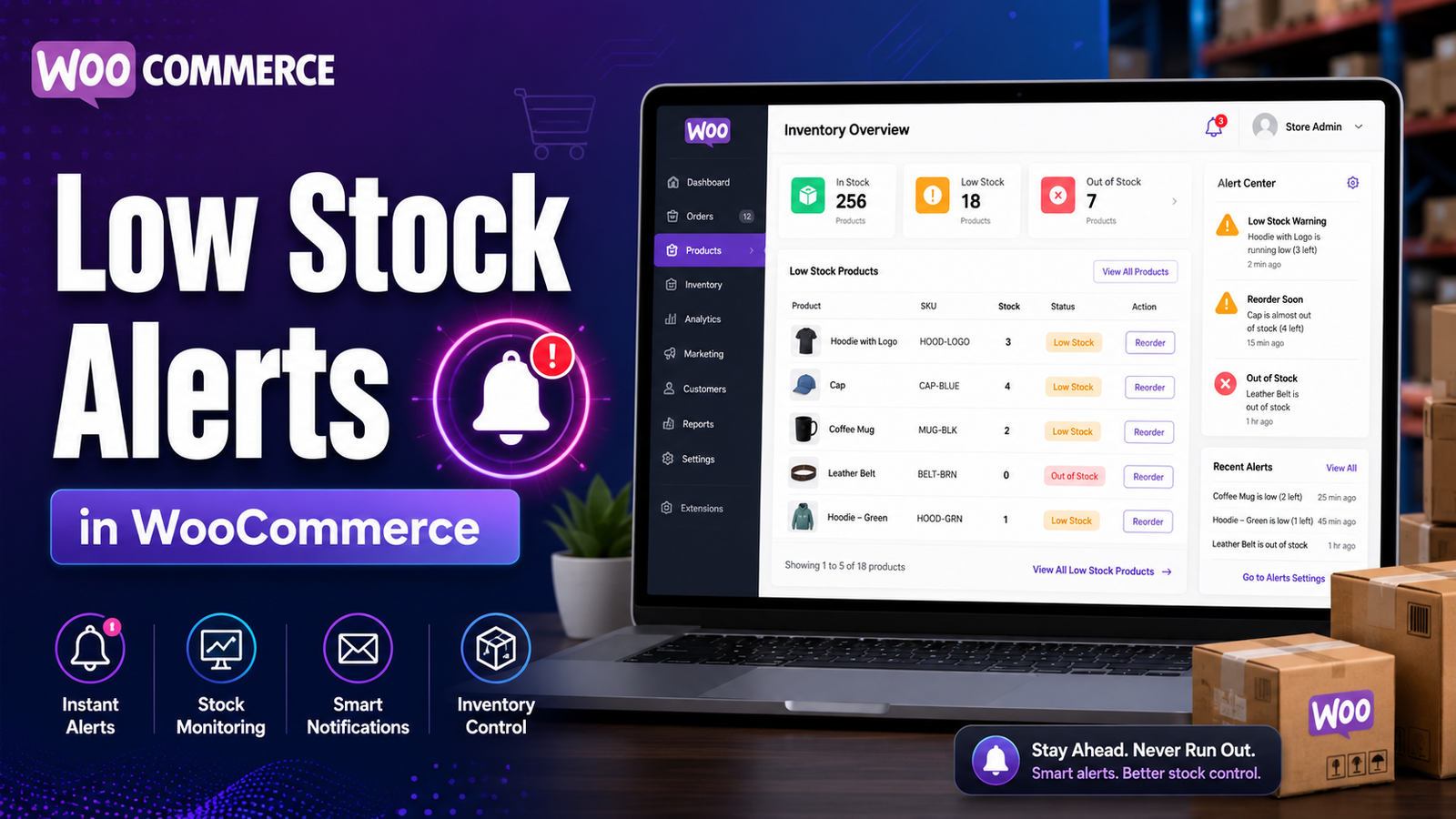
Low Stock Alerts in WooCommerce: Complete Guide to Never Run Out of Inventory (2026)
Meta Title: Low Stock Alerts in WooCommerce
Meta Description: Learn how to set up low stock alerts in WooCommerce, prevent stockouts, automate inventory notifications, and improve inventory management for your online store.
Focus Keyword: Low Stock Alerts in WooCommerce
URL Slug: low-stock-alerts-woocommerce
Low Stock Alerts in WooCommerce
Running out of inventory unexpectedly can hurt your sales, customer trust, and overall business performance. A customer who finds a product out of stock may leave your website and purchase from a competitor instead.
One of the simplest ways to reduce this risk is by using low stock alerts. These notifications inform you when product quantities fall below a predefined level, giving you enough time to reorder inventory before products become unavailable.
WooCommerce includes built-in low stock notifications, and additional inventory management tools can provide more advanced monitoring, reporting, and automation.
In this guide, you'll learn how low stock alerts work, why they're important, how to configure them, and best practices for keeping your inventory under control.
Quick Answer
What are low stock alerts in WooCommerce?
Low stock alerts are automatic notifications sent when a product's inventory falls below a specified threshold. They help store owners replenish inventory before products go out of stock, reducing lost sales and improving inventory planning.
Why Low Stock Alerts Matter
Without timely notifications, inventory shortages can go unnoticed until customers begin placing orders for unavailable products.
Benefits of low stock alerts include:
Preventing stockouts
Reducing lost sales
Improving customer satisfaction
Supporting better purchasing decisions
Simplifying inventory management
Improving inventory accuracy
Reducing emergency restocking
How Low Stock Alerts Work
The process is straightforward:
Set a minimum stock threshold for products.
WooCommerce monitors inventory automatically.
When stock reaches the threshold, the system generates a notification.
You can reorder inventory before products become unavailable.
This proactive approach helps maintain consistent product availability.
How to Configure Low Stock Alerts in WooCommerce
WooCommerce provides built-in settings for inventory notifications.
Step 1: Enable Stock Management
Go to:
WooCommerce → Settings → Products → Inventory
Enable Manage Stock if it is not already active.
Step 2: Set Low Stock Threshold
Choose the inventory level that should trigger a notification.
For example:
10 units
20 units
50 units
The ideal threshold depends on your sales volume and supplier lead times.
Step 3: Configure Notification Email
Enter the email address that should receive inventory alerts.
Many businesses use a shared operations or purchasing email so multiple team members can respond.
Step 4: Monitor Notifications
Review alerts regularly and replenish inventory before products become unavailable.
Best Practices for Low Stock Alerts
Set Product-Specific Thresholds
Fast-selling products may require higher alert levels than slower-moving items.
Consider Supplier Lead Times
If suppliers take two weeks to deliver stock, your alert threshold should allow enough time for replenishment.
Review Alerts Daily
Make inventory monitoring part of your daily or weekly operations.
Analyze Inventory Trends
Use historical sales data to adjust thresholds over time.
Combine Alerts with Inventory Reports
Notifications are most effective when supported by detailed inventory reporting.
Common Mistakes to Avoid
❌ Using the same threshold for every product
❌ Ignoring low stock notifications
❌ Waiting until products are out of stock before reordering
❌ Failing to review supplier delivery times
❌ Not auditing physical inventory regularly
Avoiding these mistakes can improve stock availability and reduce operational disruptions.
When Built-in Alerts May Not Be Enough
As your WooCommerce store grows, you may need more advanced capabilities, including:
Centralized inventory dashboards
Bulk inventory monitoring
Advanced inventory reports
Multiple notification rules
Inventory forecasting
Purchase planning
Multi-location inventory visibility
Dedicated inventory management solutions can simplify these tasks.
How Kaddora WooCommerce Inventory Management Helps
Growing WooCommerce stores often need more than simple email notifications.
Kaddora WooCommerce Inventory Management Plugin helps businesses monitor inventory through a centralized dashboard while providing enhanced stock visibility and inventory insights.
Key Features
Real-time inventory monitoring
Configurable low-stock alerts
Inventory dashboard
SKU management
Bulk inventory updates
Inventory reports
Product performance insights
WooCommerce integration
These features help businesses identify inventory issues earlier and make more informed purchasing decisions.
Low Stock Alert Checklist
✅ Enable stock management
✅ Configure inventory thresholds
✅ Assign notification recipients
✅ Review alerts daily
✅ Audit inventory regularly
✅ Monitor fast-selling products
✅ Analyze inventory reports
✅ Adjust thresholds as your business grows
Frequently Asked Questions
Does WooCommerce include low stock alerts?
Yes. WooCommerce includes built-in low stock notifications that alert administrators when product quantities fall below a configured threshold.
What is the ideal low stock threshold?
There is no universal value. The appropriate threshold depends on your sales volume, supplier lead times, and how quickly inventory can be replenished.
Can different products have different thresholds?
Yes. Thresholds can be configured based on the specific inventory needs of individual products.
Why are low stock alerts important?
They help businesses reorder inventory before products become unavailable, reducing lost sales and improving customer satisfaction.
Which WooCommerce plugin offers advanced inventory alerts?
Businesses looking for centralized inventory dashboards, configurable alerts, inventory reports, and enhanced stock monitoring can evaluate Kaddora WooCommerce Inventory Management Plugin.
Final Thoughts
Low stock alerts are one of the simplest yet most effective inventory management tools available to WooCommerce store owners.
By receiving timely notifications before products run out, you can improve purchasing decisions, reduce stockouts, and maintain a better customer experience.
As your business grows, combining automated alerts with centralized inventory reporting can make inventory management far more efficient. Kaddora WooCommerce Inventory Management Plugin brings these capabilities together, helping you stay ahead of inventory issues and keep your store running smoothly.
Comments (0)