
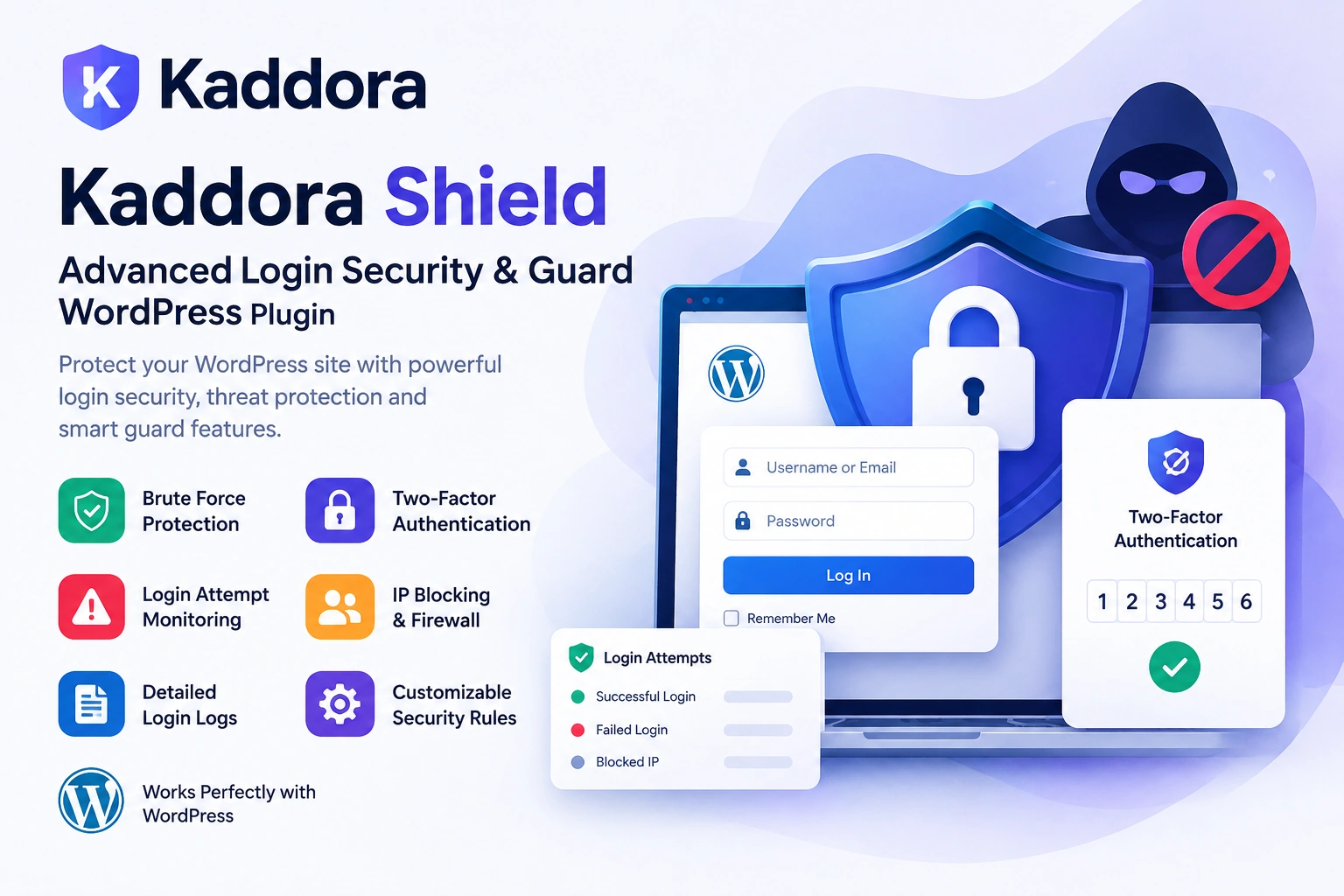
Introduction
The WordPress login page is one of the most important security boundaries of a website.
Every administrator, editor, store manager, and authorized user passes through authentication before accessing protected WordPress functionality.
At the same time, login endpoints can become targets for:
Brute-Force Attempts Credential Attacks Password Guessing Automated Bots Suspicious Login Attempts Unauthorized Access Attempts
A basic WordPress installation provides core authentication functionality, but websites with valuable content, customer information, WooCommerce data, or administrative access may need additional protection.
This is where Kaddora Shield: Advanced Login Security & Guard WordPress Plugin can help.
Kaddora Shield is designed to provide a stronger login-security layer around WordPress authentication workflows.
A practical security model looks like:
Login Request ↓ Security Check ↓ Attempt Monitoring ↓ Threat Detection ↓ Protection Rules ↓ Allow / Block ↓ Secure WordPress Access
The goal is not only to block attackers.
The goal is to make login activity more visible, controlled, and manageable.
What Is WordPress Login Security?
WordPress login security is the process of protecting authentication endpoints and user accounts from unauthorized access.
It can involve:
Login attempt monitoring
Brute-force protection
IP restrictions
Two-factor authentication
Strong authentication policies
Login activity logs
Suspicious activity detection
Rate limiting
Security alerts
Access controls
For example:
Username + Password ↓ Authentication ↓ Additional Security Check ↓ Access Granted
Instead of allowing unlimited login attempts, a security layer can monitor repeated failures and react according to configured rules.
Why WordPress Login Protection Matters
A compromised WordPress administrator account can have serious consequences.
Depending on the user's privileges, unauthorized access may allow an attacker to:
Change Content Install Plugins Modify Settings Create Users Access Customer Data Modify WooCommerce Inject Malicious Code
This makes account security extremely important.
A stronger login-security strategy can add controls around:
Authentication + Monitoring + Blocking + Verification + Auditing
No security plugin can eliminate every attack, but multiple layers can reduce unnecessary exposure.
What Is Kaddora Shield?
Kaddora Shield is an advanced login-security and protection solution for WordPress websites.
It is designed around a security workflow such as:
Login Request ↓ Analyze Attempt ↓ Apply Security Rules ↓ Check Risk ↓ Allow or Block ↓ Record Activity
Depending on the plugin configuration, security workflows may include features such as:
Brute-force protection
Login attempt monitoring
IP blocking
Two-factor authentication
Login activity logs
Custom security rules
Suspicious-login controls
The exact functionality depends on the installed plugin version and enabled configuration.
WordPress Brute-Force Protection
Brute-force attacks attempt to guess account credentials through repeated login requests.
For example:
admin / password123 admin / password1 admin / wordpress admin / qwerty ...
An attacker may automate thousands of attempts.
A security plugin can monitor repeated failed attempts and apply restrictions according to configured policies.
A conceptual workflow is:
Failed Login ↓ Count Attempt ↓ Threshold Reached? ┌─────┴─────┐ No Yes ↓ ↓ Continue Block / Restrict
This can reduce the effectiveness of repeated automated login attempts.
Login Attempt Monitoring
Visibility is an important part of website security.
A login-monitoring system can help administrators understand:
How many login attempts occurred? Which accounts were targeted? Were attempts successful? Which IP addresses generated failures? Are repeated patterns visible?
For example:
Login Activity Successful: 18 Failed: 47 Blocked: 12 Suspicious: 7
This information can help administrators investigate unusual authentication activity.
Failed Login Attempts
A failed login does not automatically mean an attack.
Users can simply forget their password.
However, repeated failures from the same source can become a useful security signal.
For example:
5 Failed Attempts ↓ 10 Failed Attempts ↓ 25 Failed Attempts ↓ Security Rule Triggered
A configurable threshold can help distinguish ordinary mistakes from repeated automated activity.
IP Blocking
IP blocking can be used to restrict access from addresses associated with suspicious activity.
For example:
Suspicious IP ↓ Security Review ↓ Block IP ↓ Future Login Requests Restricted
Administrators may also use blocklists for known unwanted traffic patterns where appropriate.
IP blocking should be implemented carefully because shared networks, proxies, VPNs, and changing addresses can make IP-based identification imperfect.
IP Allowlisting
Some websites may benefit from allowing only trusted addresses for specific administrative environments.
For example:
Allowed Office Network ↓ Administrator Access
However, allowlisting can create operational problems for distributed teams or users with changing IP addresses.
It should therefore be used only when it fits the site's access model.
Two-Factor Authentication for WordPress
Passwords alone are not always enough to protect important accounts.
Two-factor authentication adds another verification step.
A typical workflow is:
Username + Password ↓ Second Verification Factor ↓ Access Granted
The second factor may use an authenticator method or another supported verification mechanism.
This can provide additional protection when a password has been exposed.
Why 2FA Matters
Imagine an attacker obtains a user's password through:
Credential Reuse Phishing Data Breach Weak Password
Without additional protection:
Password ↓ Login ↓ Account Access
With two-factor authentication:
Password ↓ Second Factor ↓ Additional Verification ↓ Account Access
The second step creates another security barrier.
Protect Administrator Accounts
Administrator accounts should receive the strongest practical protection.
For example:
Administrator + Strong Password + 2FA + Login Monitoring + Brute-Force Protection
This is especially important for:
Ecommerce websites
Business websites
Agencies
Membership websites
High-traffic publishers
Websites containing sensitive data
Security for WooCommerce Stores
WooCommerce websites often contain valuable information.
An administrative account may provide access to:
Products Orders Customers Coupons Reports Settings Payment Configuration
Protecting administrator and store-manager accounts therefore becomes especially important.
Kaddora Shield can be part of a broader WooCommerce security strategy focused on protecting authentication and monitoring suspicious login behavior.
Login Security for Agencies
Agencies often maintain multiple WordPress websites.
A single security problem can create unnecessary operational risk for a client.
A consistent login-security strategy can help agencies establish:
Standard Security Rules ↓ Login Protection ↓ Monitoring ↓ Regular Review
This can make security management more systematic across client installations.
Security for Membership Websites
Membership websites have multiple user accounts.
Examples include:
Customers Members Authors Editors Managers Administrators
The larger the user base, the more important account-security controls can become.
Login monitoring can help administrators identify:
Repeated Failed Logins Suspicious IPs Unusual Login Patterns
while stronger authentication can protect privileged users.
Login Security for Business Websites
Business websites often provide access to:
Website Content Leads Forms Analytics Customer Information Marketing Systems
Protecting the WordPress dashboard helps reduce the risk of unauthorized administrative access.
A practical business-site security strategy combines:
Authentication + User Permissions + Login Protection + Monitoring + Backups + Updates
Custom Security Rules
Different websites have different risk profiles.
A personal blog might need simple protection.
A WooCommerce store may need more restrictive controls.
A business application may require additional authentication policies.
Customizable security rules can help administrators define behavior around:
Failed Attempts IP Restrictions Login Frequency Protected Users Suspicious Activity
The actual rule options depend on the plugin configuration.
Login Security Rules Example
Consider:
Maximum Failed Attempts: 5
A workflow could be:
Attempt 1 → Allow Attempt 2 → Allow Attempt 3 → Allow Attempt 4 → Allow Attempt 5 → Warning / Restriction Attempt 6 → Block
The exact thresholds should be selected according to the site's requirements.
Detailed Login Logs
Security becomes easier to investigate when activity is recorded.
A login log can contain information such as:
Date Time Username IP Address Status Login Result
For example:
10:30 admin Success 10:34 unknown Failed 10:35 unknown Failed 10:36 unknown Blocked
This creates a useful security history.
Sensitive information should be handled carefully and retained according to the site's privacy and operational requirements.
Successful Login Monitoring
Security monitoring should not focus only on failed attempts.
Successful authentication can also be useful to review.
For example:
Administrator Login ↓ New Country / Location ↓ Unexpected Time ↓ Security Review
A log can help administrators investigate whether the login was expected.
Location information should be interpreted carefully because IP geolocation can be inaccurate and users may connect through proxies or VPNs.
Suspicious Login Activity
Potential warning signs can include:
Many Failed Attempts Multiple Usernames From One IP Repeated Attempts in Short Period Unexpected Administrative Login Unusual Access Pattern
These signals should support investigation rather than being treated as proof of malicious activity.
Security controls should therefore use configurable thresholds rather than relying on assumptions.
Login Rate Limiting
Rate limiting restricts how frequently authentication attempts can occur.
For example:
10 Requests ↓ Short Period ↓ Rate Limit ↓ Temporary Restriction
This can help reduce automated password-guessing attempts.
Rate limits should be configured carefully to avoid locking out legitimate users.
Temporary Blocking
Permanent IP blocking is not always necessary.
A security rule may instead use:
Temporary Block ↓ Wait ↓ Automatically Restore Access
This can reduce accidental lockouts caused by users repeatedly entering incorrect credentials.
The appropriate strategy depends on the site's security requirements.
Security Alerts
Security alerts can help administrators respond to important events.
Potential events include:
Repeated Failed Logins IP Block Suspicious Login Administrator Login Security Rule Triggered
Alerts should be useful rather than excessive.
Too many notifications can create alert fatigue and cause important events to be ignored.
Secure Login Page Strategy
Login security begins before authentication succeeds.
A secure strategy can include:
Login Form ↓ Input Validation ↓ Authentication ↓ Security Policy ↓ Additional Verification ↓ Access
Never rely on the visual appearance of a login page as evidence that the site is secure.
The underlying authentication and authorization layers matter more.
Protect Password Reset Workflows
Login security should also consider password recovery.
A compromised password-reset workflow can undermine strong login protection.
Administrators should therefore ensure that:
Password Reset ↓ Secure Identity Verification ↓ Reset Process ↓ New Credentials
follows WordPress's supported authentication mechanisms and security practices.
Security plugins should complement, not replace, secure WordPress account management.
User Role and Capability Security
Login security is not the same as authorization.
After authentication, WordPress determines what a user can do using roles and capabilities.
For example:
Login ↓ Authenticated ↓ Role / Capabilities ↓ Allowed Actions
A security plugin should not replace WordPress capability checks.
Protecting a login only matters if application permissions are also configured correctly.
Protect Privileged Users
Not every account deserves the same level of security attention.
Consider:
Subscriber ↓ Limited Access Editor ↓ Content Access Administrator ↓ Full Administrative Access
Privileged accounts create greater risk if compromised.
Use stronger controls for administrators and other high-impact accounts where possible.
WordPress Login Security and Strong Passwords
A strong password remains an important security control.
Good account security can combine:
Unique Password + 2FA + Login Monitoring + Brute-Force Protection
Security software should not create a false sense that weak passwords are acceptable.
Security and Outdated Plugins
Login security is only one part of WordPress protection.
Outdated plugins or themes can introduce vulnerabilities unrelated to the login system.
A broader WordPress security strategy should include:
Core Updates + Plugin Updates + Theme Updates + Backups + Secure Authentication + Monitoring
Kaddora Shield can focus on the login-security part of that broader strategy.
Security and Backups
No security system guarantees that a website will never be compromised.
Backups provide an important recovery mechanism.
A practical security strategy can be:
Prevent ↓ Detect ↓ Respond ↓ Recover
This means combining login protection with reliable backups and an incident-response process.
Security for High-Traffic Websites
Popular websites can attract larger numbers of automated requests.
Examples include:
News Websites Ecommerce Stores Blogs Membership Sites Business Websites
Login protection becomes particularly useful when automated traffic increases.
Rate limits, monitoring, and appropriate blocking policies can help reduce unnecessary authentication traffic.
Security for WordPress Admin Areas
The /wp-admin/ area provides access to important functionality.
Protecting administrative accounts helps protect:
Content Settings Plugins Themes Users WooCommerce
However, hiding or changing the login URL alone should not be considered a complete security strategy.
Layered protection is generally more useful.
Why Security Logs Matter
Without logs, an administrator may only discover a problem after damage occurs.
With logs:
Suspicious Activity ↓ Investigation ↓ Identify Source ↓ Block / Remediate
Logs can also help identify recurring attack patterns and evaluate whether security policies are working as expected.
Privacy Considerations for Login Logs
Security logs can contain potentially sensitive information.
For example:
Username IP Address Timestamp Login Result
Administrators should consider:
Data retention
Access control
Storage security
Privacy requirements
Log cleanup
Do not retain security data indefinitely without a legitimate reason.
Kaddora Shield Security Workflow
A practical Kaddora Shield workflow can look like:
User Login Request ↓ Login Monitoring ↓ Security Rule Evaluation ↓ Brute-Force / Rate Check ↓ IP Evaluation ↓ 2FA Where Configured ↓ Allow / Block ↓ Record Login Event
This combines prevention, authentication, monitoring, and auditing.
How to Install Kaddora Shield
A typical installation workflow is:
Step 1: Upload the Plugin
Go to:
WordPress Dashboard → Plugins → Add New → Upload Plugin
Upload the Kaddora Shield ZIP package.
Step 2: Install
Click:
Install Now
Step 3: Activate
Click:
Activate Plugin
Step 4: Open Security Settings
Open the Kaddora Shield security area.
Step 5: Configure Login Protection
Review the available settings for login attempts, protection rules, blocking, and authentication.
Step 6: Configure Additional Authentication
Enable supported two-factor authentication options where appropriate.
Step 7: Review Login Logs
Check that login events are being recorded as expected.
Step 8: Test Safely
Perform controlled tests using an authorized test account before applying aggressive security policies to production users.
Recommended Kaddora Shield Setup
A practical security configuration can focus on:
Brute-Force Protection ✓ Login Attempt Monitoring ✓ Login Logs ✓ IP Protection ✓ Two-Factor Authentication ✓ For privileged accounts where supported Security Rules ✓ Alerts ✓ Where useful
Avoid overly aggressive settings that could lock out legitimate administrators.
Example Security Scenario
Suppose an attacker repeatedly targets:
admin administrator editor test
with automated password attempts.
The security workflow can be:
Repeated Login Failures ↓ Attempt Threshold ↓ Security Rule Triggered ↓ Source Restricted ↓ Activity Logged ↓ Administrator Can Investigate
This provides both protection and visibility.
Who Can Use Kaddora Shield?
WordPress Business Websites
Protect administrator access.
WooCommerce Stores
Protect high-value ecommerce accounts.
Membership Websites
Secure multiple user accounts.
Agencies
Apply consistent login-security practices across client sites.
Bloggers
Reduce automated login abuse.
Publishers
Protect editorial accounts.
SaaS-Style WordPress Websites
Add an additional authentication-security layer.
Common WordPress Login Security Mistakes
1. Using Weak Passwords
Strong authentication starts with strong credentials.
2. No Brute-Force Protection
Unlimited login attempts can increase exposure to automated attacks.
3. No Two-Factor Authentication
Privileged users benefit from additional verification.
4. Ignoring Login Logs
Without visibility, suspicious activity can be difficult to investigate.
5. Overly Aggressive IP Blocking
Shared networks and changing IPs can cause legitimate users to be blocked.
6. Protecting Only the Login Page
WordPress security also requires updates, backups, capabilities, and secure integrations.
7. Ignoring Privileged Accounts
Administrators deserve stronger security controls than low-privilege users.
8. No Backup Strategy
Security prevention should be supported by recovery capabilities.
9. Logging Excessive Sensitive Information
Collect only the information required for security monitoring.
10. No Testing
Security rules should be tested before being applied broadly.
WordPress Login Security Best Practices
Use Strong Credentials
Encourage unique passwords for every important account.
Enable 2FA
Protect administrators and other privileged accounts with additional authentication where supported.
Limit Repeated Login Attempts
Brute-force protection can reduce automated credential attacks.
Monitor Login Activity
Review failed and successful authentication events.
Use Appropriate IP Controls
Block suspicious sources carefully and avoid unnecessary lockouts.
Protect Administrative Accounts
Apply stronger controls to privileged users.
Keep WordPress Updated
Authentication security cannot compensate for unpatched software.
Maintain Backups
Use reliable backups as part of the recovery strategy.
Review Logs
Security monitoring is more useful when administrators actually review important events.
Keep Security Layered
Combine authentication protection with permissions, updates, backups, secure hosting, and monitoring.
Kaddora Shield Security Checklist
Before launching a protected WordPress website, verify:
Authentication
Strong administrator passwords are used.
Two-factor authentication is configured where appropriate.
Password recovery is tested.
Privileged accounts receive stronger protection.
Login Protection
Brute-force protection is enabled.
Failed attempts are monitored.
Rate limits are configured appropriately.
Suspicious IP activity can be reviewed.
Blocking rules are tested.
Monitoring
Login logs are working.
Successful logins can be reviewed.
Failed attempts can be identified.
Important security events generate useful alerts where configured.
Administration
Security settings are protected by WordPress capabilities.
Administrative actions use appropriate nonce protection.
Security rules are not editable by unauthorized users.
Lockout recovery procedures are documented.
Broader Security
WordPress Core is updated.
Plugins are updated.
Themes are updated.
Reliable backups exist.
Security logs are appropriately protected.
Privacy and retention requirements are considered.
Why Choose Kaddora?
Kaddora focuses on practical WordPress, WooCommerce, AI, automation, performance, and security solutions designed around real-world website requirements.
Login security is one of the most important parts of protecting a WordPress website because compromised credentials can provide access to powerful administrative functionality.
Kaddora Shield: Advanced Login Security & Guard is designed around a layered approach that can connect:
Login Protection + Brute-Force Defense + Attempt Monitoring + IP Controls + Two-Factor Authentication + Security Rules + Login Logs
The objective is not simply to block every unfamiliar login attempt.
The objective is to create a controlled authentication environment where suspicious behavior can be detected, restricted, reviewed, and responded to without unnecessarily disrupting legitimate users.
Kaddora's broader WordPress ecosystem focuses on practical tools for developers, agencies, businesses, ecommerce owners, and website administrators.
A strong security strategy should remain understandable, configurable, and testable.
Kaddora Shield can form one part of that broader strategy.
Conclusion
Kaddora Shield: Advanced Login Security & Guard WordPress Plugin provides a practical approach to strengthening WordPress login protection.
A secure login strategy should not rely on one feature.
Instead, it can combine:
Strong Credentials + Brute-Force Protection + Login Monitoring + IP Controls + Two-Factor Authentication + Security Rules + Audit Logs
The most important principle is layered security.
If one control fails, another may still reduce the impact.
For WooCommerce stores, business websites, membership platforms, agencies, and content-heavy WordPress installations, protecting privileged accounts can be especially important.
Kaddora Shield is designed to make login activity more visible and manageable while giving administrators additional controls around suspicious authentication behavior.
The goal is not to promise perfect protection.
The goal is to make unauthorized access harder to achieve, easier to detect, and easier to investigate.
A strong WordPress security strategy should also include updates, backups, secure hosting, proper user capabilities, safe plugin development, and ongoing monitoring.
When authentication protection becomes part of a broader security architecture, WordPress websites can operate with greater confidence and stronger control over administrative access.
Protect the login. Monitor the activity. Control suspicious access. Secure the WordPress dashboard.
Frequently Asked Questions
What is Kaddora Shield?
Kaddora Shield is an advanced WordPress login-security solution designed to help protect authentication workflows through features such as login monitoring, brute-force protection, IP controls, two-factor authentication, security rules, and login activity logs where supported.
What is a WordPress login security plugin?
A WordPress login security plugin adds additional controls around authentication, such as limiting repeated attempts, monitoring login activity, blocking suspicious sources, and adding additional verification.
Why is WordPress login security important?
A compromised privileged account can provide access to website content, settings, users, plugins, WooCommerce data, and other administrative functionality.
Can Kaddora Shield protect against brute-force attacks?
The plugin is designed to support brute-force protection by monitoring repeated login attempts and applying configured restrictions where supported.
What are brute-force attacks?
Brute-force attacks are automated or repeated attempts to guess account credentials through many login requests.
Why should administrators use 2FA?
Two-factor authentication adds another verification step after the password, which can provide additional protection if a password becomes compromised.
Can Kaddora Shield protect WooCommerce websites?
Yes. Login protection can be particularly useful for WooCommerce stores because privileged accounts may access products, orders, customers, reports, and important store settings.
Can agencies use Kaddora Shield?
Yes. Agencies can incorporate login-security workflows into WordPress maintenance and security processes for client websites.
Can Kaddora Shield protect administrator accounts?
The plugin is designed to add security controls around WordPress authentication and can be configured to provide stronger protection for privileged accounts where supported.
Does Kaddora Shield replace WordPress user roles and capabilities?
No. WordPress roles and capabilities remain an important part of authorization. Login security protects authentication, while capabilities determine what authenticated users are allowed to do.
Can login security prevent every WordPress attack?
No. Login protection addresses authentication-related risks but does not replace WordPress updates, secure plugins, backups, hosting security, vulnerability management, or other security controls.
What are login security logs?
Login security logs record authentication-related events such as successful logins, failed attempts, blocked activity, timestamps, and other relevant information where supported.
Why are login logs useful?
Logs can help administrators identify repeated attacks, investigate suspicious activity, understand login patterns, and review security events.
Should login attempts be blocked permanently?
Not necessarily. Temporary restrictions can sometimes provide a better balance between security and usability. The appropriate behavior depends on the website's requirements.
Can Kaddora Shield create custom security rules?
Custom or configurable security rules can provide administrators with more control where the plugin's available settings support them.
Should security logs be retained forever?
No. Security logs should generally be retained according to legitimate operational, security, legal, and privacy requirements rather than indefinitely.
Can Kaddora Shield improve WordPress security?
It can provide an additional login-security layer through authentication-focused controls where supported. Overall WordPress security still requires multiple protective measures.
Does hiding the WordPress login URL provide complete protection?
No. Changing or hiding a login URL is not a substitute for strong authentication, brute-force protection, permissions, updates, and monitoring.
Is Kaddora Shield suitable for high-traffic websites?
It can be useful for high-traffic WordPress websites, but the overall security architecture should also consider hosting capacity, rate limiting, caching, monitoring, backups, and server-level controls.
Why choose ThemeKaddora?
ThemeKaddora provides practical WordPress themes, plugins, templates, WooCommerce solutions, AI tools, automation products, security solutions, and performance-focused website products for developers, agencies, businesses, and ecommerce owners.
Comments (0)