
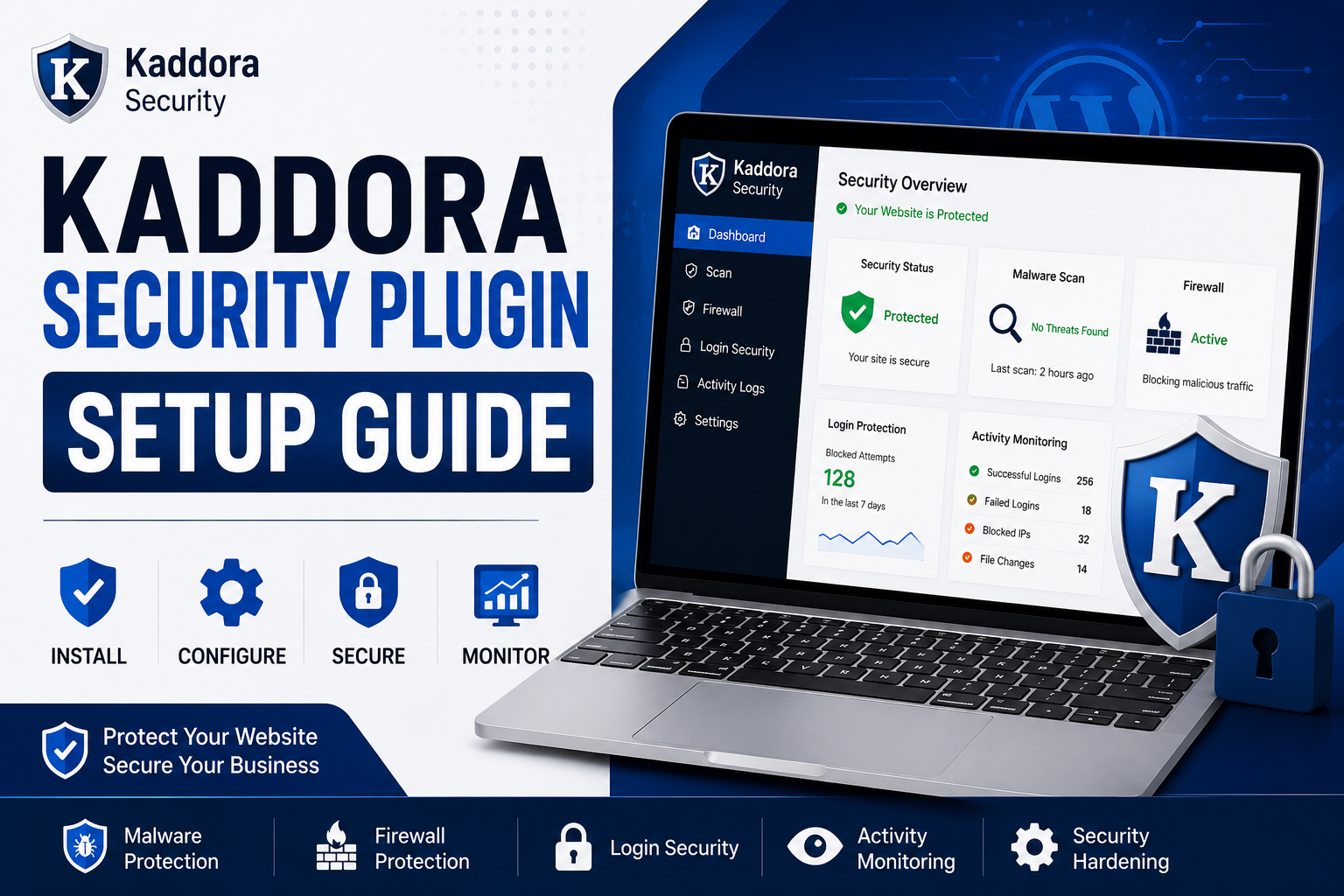
Kaddora Security Plugin Setup Guide: Complete Installation & Configuration Tutorial
Introduction
Website security is one of the most important aspects of managing a successful WordPress website. Every day, thousands of websites face threats such as malware infections, brute-force attacks, unauthorized login attempts, spam bots, and data breaches. Without proper security measures, these threats can compromise sensitive information, damage your reputation, and negatively impact your website's performance.
The Kaddora Security Plugin is designed to provide comprehensive protection for WordPress websites through malware scanning, firewall protection, login security, activity monitoring, and advanced security hardening features. However, simply installing a security plugin is not enough. Proper configuration is essential to maximize protection and ensure your website remains secure.
Key Takeaways
Install and activate the Kaddora Security Plugin correctly.
Configure essential security settings.
Enable firewall protection and malware scanning.
Strengthen WordPress login security.
Set up security alerts and monitoring.
Optimize the plugin for maximum protection.
Table of Contents
Why Use Kaddora Security Plugin?
Installing the Plugin
Activating Kaddora Security Plugin
Initial Setup Wizard
Configuring General Security Settings
Enabling Firewall Protection
Setting Up Malware Scanning
Configuring Login Security
Activity Monitoring and Alerts
Security Hardening Features
WooCommerce Security Configuration
Recommended Security Settings
Common Setup Mistakes to Avoid
Frequently Asked Questions
Conclusion
Why Use Kaddora Security Plugin?
The Kaddora Security Plugin helps protect WordPress websites against a wide range of cyber threats.
Key benefits include:
Malware detection and removal
Firewall protection
Login security
Brute-force attack prevention
Activity monitoring
Security hardening
WooCommerce protection
Security alerts and notifications
These features work together to provide a strong security foundation for your website.
Installing the Plugin
Installing the plugin takes only a few minutes.
Step 1: Download the Plugin
Download the latest version of the Kaddora Security Plugin from your ThemeKaddora account or marketplace download section.
Step 2: Log In to WordPress
Access your WordPress Admin Dashboard.
Step 3: Upload the Plugin
Navigate to:
Plugins → Add New → Upload Plugin
Select the ZIP file and click:
Install Now
Activating Kaddora Security Plugin
After installation:
Click Activate Plugin
Locate Kaddora Security in the WordPress Admin Menu
Open the plugin dashboard
Once activated, the plugin will begin basic security monitoring.
Initial Setup Wizard
The setup wizard helps configure essential security settings.
Recommended configuration:
Website Protection Mode
Enable:
✔ Recommended Protection
This provides balanced security without affecting website performance.
Security Notifications
Enable email notifications for:
Malware detections
Failed login attempts
Critical security alerts
File modifications
Automatic Security Updates
Enable automatic security rule updates whenever available.
Configuring General Security Settings
Navigate to:
Kaddora Security → Settings
Recommended settings:
Security Dashboard
Enable:
Security Overview
Threat Monitoring
Activity Logs
File Integrity Monitoring
Turn ON file monitoring to detect unauthorized changes.
Security Reports
Schedule weekly security reports for administrators.
Enabling Firewall Protection
A firewall blocks malicious traffic before it reaches your website.
Go to:
Kaddora Security → Firewall
Enable:
Web Application Firewall
Protects against:
SQL injections
Cross-site scripting attacks
Bot attacks
Malicious requests
IP Blocking
Automatically block suspicious IP addresses.
Geo-Blocking (Optional)
Restrict traffic from unwanted regions if necessary.
Setting Up Malware Scanning
Malware scanning is one of the most important security features.
Navigate to:
Kaddora Security → Malware Scanner
Configure Scan Frequency
Recommended:
Personal Websites: Weekly
Business Websites: Every 3 Days
WooCommerce Stores: Daily
Scan Targets
Enable scanning for:
WordPress Core Files
Themes
Plugins
Uploads Folder
Database Entries
Automatic Alerts
Receive instant notifications when threats are detected.
Configuring Login Security
Login pages are among the most targeted areas of WordPress websites.
Navigate to:
Kaddora Security → Login Security
Limit Login Attempts
Recommended:
Maximum Attempts: 5
Lockout Duration: 30 Minutes
Enable CAPTCHA
Protect login pages from bots and automated attacks.
Two-Factor Authentication
Enable 2FA for:
Administrators
Editors
Shop Managers
This significantly improves account security.
Activity Monitoring and Alerts
Activity logs help identify suspicious behavior quickly.
Monitor:
User logins
Plugin installations
Theme modifications
File changes
User role updates
Configure alerts for critical security events.
Security Hardening Features
WordPress security can be strengthened further through hardening.
Recommended options:
Disable File Editing
Prevents attackers from modifying files through the dashboard.
Protect Sensitive Files
Secure files such as:
wp-config.php
.htaccess
Disable XML-RPC
Disable if not required.
Hide WordPress Version
Reduces information available to attackers.
WooCommerce Security Configuration
WooCommerce stores require additional protection.
Enable:
Checkout Protection
Secure payment and checkout pages.
Customer Account Security
Protect customer login and registration forms.
Order Monitoring
Monitor unusual purchasing activity.
Payment Security
Ensure SSL encryption is active across the store.
Recommended Security Settings
For most websites, use:
Firewall: Enabled
Malware Scanner: Enabled
Login Protection: Enabled
File Monitoring: Enabled
Security Alerts: Enabled
Two-Factor Authentication: Enabled
Weekly Security Reports: Enabled
This setup provides strong protection without excessive server usage.
Common Setup Mistakes to Avoid
Avoid these common errors:
Ignoring Security Alerts
Always review alerts immediately.
Skipping Malware Scans
Regular scans are essential.
Using Weak Passwords
Strong passwords reduce account compromise risks.
Disabling Firewall Features
Firewall protection should remain active.
Not Updating the Plugin
Keep the plugin updated for the latest security protections.
Frequently Asked Questions
Is Kaddora Security Plugin beginner-friendly?
Yes. The setup wizard makes configuration easy for beginners.
Does the plugin slow down websites?
The plugin is optimized to provide security without significant performance impact.
How often should malware scans run?
Daily scans are recommended for WooCommerce stores, while weekly scans are suitable for smaller websites.
Is two-factor authentication necessary?
Yes. Two-factor authentication significantly improves account security.
Conclusion
Properly configuring the Kaddora Security Plugin is essential for protecting your WordPress website from modern cyber threats. By enabling firewall protection, malware scanning, login security, activity monitoring, and security hardening features, you can significantly reduce the risk of attacks and maintain a secure online presence.
Following this setup guide ensures that your website is protected from common vulnerabilities while providing a safer experience for visitors, customers, and administrators. A few minutes spent configuring security today can prevent major security incidents in the future.
Comments (0)