
Introduction
Email is an essential part of almost every WordPress website.
A website may send password-reset links, registration confirmations, contact form notifications, order confirmations, shipping updates, booking reminders, membership notifications, and other important messages. When these emails fail to send or are delivered unreliably, the consequences can affect both administrators and customers.
For a WooCommerce store, a missing order confirmation can leave a customer unsure whether a purchase was successful. For a membership website, a failed password-reset email can prevent a user from accessing their account. For a business website, lost contact form notifications can mean missed customer inquiries.
WordPress applications commonly send emails through the wp_mail() function. Whether those messages are delivered successfully depends on the configured mail transport, authentication, sender identity, receiving mail server, and other factors.
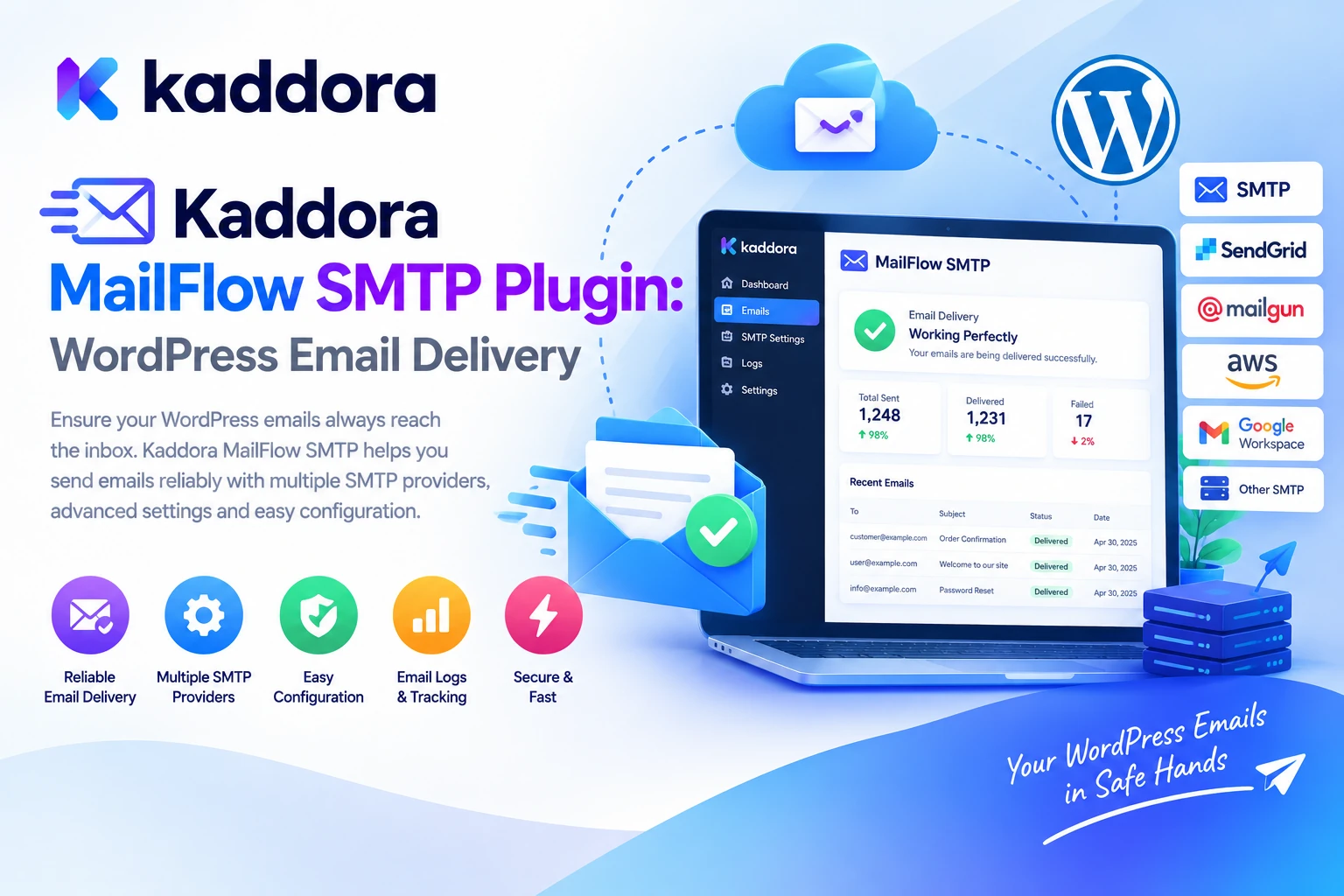
Kaddora MailFlow SMTP Plugin is designed to improve WordPress email delivery while giving administrators better visibility into outgoing messages, delivery errors, and email activity.
It supports integrations with popular email providers and offers features such as email logging, failed-email tracking, retry and resend workflows, reporting, administrative alerts, and WooCommerce email monitoring.
In this guide, we'll explain how Kaddora MailFlow SMTP works, why SMTP configuration matters, how to connect an email provider, and how to troubleshoot WordPress email delivery more systematically.
What Is Kaddora MailFlow SMTP?
Kaddora MailFlow SMTP is a WordPress email delivery and monitoring plugin designed to help website owners configure an authenticated email transport and manage outgoing messages from a centralized dashboard.
The official Kaddora MailFlow SMTP product listing identifies integrations with Gmail, Outlook, Amazon SES, SendGrid, Mailgun, Brevo, Postmark, SMTP2GO, Zoho Mail, and custom SMTP servers.
Its advertised capabilities include:
SMTP and email provider configuration
Multiple email provider integrations
Email logs and activity tracking
Failed-email monitoring
One-click resend functionality
Email reporting and analytics
Slack and Discord alerts
WooCommerce email reports
Backup mailer functionality
Secure authentication options
Report exports
Multisite support
Developer-oriented integrations
The goal is to provide a more organized way to configure email delivery, review outgoing messages, and investigate problems when emails do not behave as expected.
Why Does WordPress Need SMTP Configuration?
WordPress can generate outgoing messages through its built-in mail functions, but successful message generation does not guarantee that an email reaches the recipient's inbox.
For example, a WordPress form may submit successfully and call wp_mail(), yet the message can still fail because of server configuration, authentication problems, transport errors, or rejection by the receiving mail service.
SMTP—Simple Mail Transfer Protocol—is a standard method for transferring email between mail systems. An SMTP integration allows WordPress to send messages through a configured email server rather than relying solely on the default server mail setup.
Authenticated email delivery can help businesses establish a more reliable and observable sending process.
However, SMTP configuration alone does not guarantee inbox placement. Sender reputation, domain authentication, message content, recipient policies, and other factors also influence whether a message is accepted, filtered, or delivered.
Key Features of Kaddora MailFlow SMTP Plugin
1. Multiple Email Provider Integrations
Different websites have different email requirements.
A small business may prefer Gmail or Outlook, while a high-volume WooCommerce store may use a dedicated transactional email service.
Kaddora MailFlow SMTP advertises support for providers and services including:
Gmail and Google Workspace
Outlook and Microsoft email services
Amazon SES
SendGrid
Mailgun
Brevo
Postmark
SMTP2GO
Zoho Mail
Custom SMTP servers
This flexibility allows website owners to select a compatible mail service based on their existing infrastructure, sending volume, authentication requirements, and budget.
For example, a business website may use an authenticated mailbox for routine notifications, while a store sending large volumes of transactional messages may prefer a provider designed for application email delivery.
Always verify the provider's current authentication requirements, account limits, sending policies, and supported configuration before connecting it.
2. SMTP Configuration and Email Authentication
Correct email configuration is important for both successful transmission and sender trust.
An SMTP connection generally requires details such as:
SMTP host or provider endpoint
Port number
Connection security
Authentication method
Username or account identifier
Password, app password, or API credentials, where applicable
Sender email address
Kaddora MailFlow SMTP is designed to organize these settings through its provider configuration workflow.
Some providers use traditional SMTP credentials, while others rely on APIs or OAuth-based authentication. Follow the specific provider's instructions instead of assuming every service uses the same setup.
Domain authentication also matters. Depending on your email service, you may need to configure SPF, DKIM, and DMARC records for your sending domain.
These records help receiving mail systems verify authorized sending sources and assess message authenticity. Configure them carefully to avoid interfering with existing legitimate email services.
3. Complete Email Logs
One of the main challenges with WordPress email is determining what happened to an outgoing message.
Without useful logs, an administrator may know that a customer did not receive an email but have little information about whether WordPress attempted to send it or encountered a transport error.
Kaddora MailFlow SMTP includes email logging functionality designed to help administrators inspect outgoing email activity.
Depending on the available logging configuration, useful information may include message status, provider, source, timestamp, and diagnostic details.
A typical monitoring workflow looks like this:
WordPress Generates Email ↓ MailFlow Processes Message ↓ Email Event Is Recorded ↓ Administrator Reviews Log ↓ Investigate Any Problems
Email logs are particularly useful for websites that send important transactional messages through multiple plugins.
Configure logging with privacy in mind. Email records may contain personal information, recipient addresses, or parts of message content, so restrict access and apply an appropriate retention policy.
4. Failed Email Tracking
When a message fails, administrators need more information than a simple notification that something went wrong.
Kaddora MailFlow SMTP advertises failed-email tracking to help website owners identify unsuccessful email operations and investigate delivery problems.
Failures may result from:
Invalid SMTP credentials
Incorrect host or port configuration
Authentication errors
Provider rate limits
Connection timeouts
Network problems
Unsupported sender addresses
Provider-side restrictions
A useful troubleshooting process is to identify the affected message, review the available error information, verify the configuration, and perform a test after correcting the issue.
Remember that a message being accepted by a sending server does not always mean that it reached the recipient's inbox. SMTP response codes and provider delivery events describe different stages of the email lifecycle.
5. One-Click Email Resend
A failed transactional email may need to be sent again after a configuration or connectivity issue has been resolved.
Kaddora MailFlow SMTP lists one-click resend functionality for supported email workflows.
For example, if a customer notification failed because of a temporary provider error, an administrator may be able to review the message and initiate another send attempt through the available interface.
Resending should be performed carefully.
For messages related to orders, payments, registrations, or bookings, confirm that repeating the notification will not create unintended duplicate actions. Resending an email should not repeat a payment, create another order, or execute the underlying business operation again.
Before using a resend workflow, check the original message status and the application's current record.
6. Email Reports and Analytics
Website owners may need to understand more than individual failures. They may want to know how often their website sends email, how many messages fail, which integrations are being used, and whether error rates are changing.
Kaddora MailFlow SMTP advertises reporting and analytics functionality designed to provide visibility into email activity.
Reports can help administrators review metrics such as:
Outgoing email volume
Failed email activity
Provider-related errors
Email source or category
WooCommerce email activity
Changes in email reliability over time
These insights can support maintenance and troubleshooting.
For example, a sudden increase in failed messages following a website update may justify checking the SMTP configuration, the sending provider, and any plugin that generates transactional email.
Use the metrics available in your installed version, and distinguish between attempted sends, provider acceptance, bounces, and confirmed delivery events. These statuses represent different stages and should not be treated as interchangeable.
7. Slack and Discord Alerts
Email delivery problems can remain unnoticed if administrators only check logs occasionally.
Kaddora MailFlow SMTP lists Slack and Discord alerts as features intended to provide notifications about relevant email events.
Depending on the configured alert options, these integrations can help teams become aware of failures or other email-related issues without repeatedly opening the WordPress dashboard.
For example:
Email Failure Detected ↓ MailFlow Records Event ↓ Configured Alert Is Triggered ↓ Administrator Reviews Issue ↓ Correct Configuration or Retry
Configure notifications to focus on useful events. Excessive alerts can create unnecessary noise and make important failures easier to overlook.
Protect webhook URLs and other integration credentials as secrets, and avoid including sensitive email content in external notifications.
8. WooCommerce Email Monitoring
WooCommerce depends on email for many customer-facing workflows, including order confirmations, processing notifications, completed-order messages, account-related emails, and other store communications.
Kaddora MailFlow SMTP advertises WooCommerce email reports and integration support designed to help store owners monitor transactional email activity.
A WooCommerce email workflow may look like this:
Customer Places Order ↓ WooCommerce Generates Email ↓ MailFlow Sends Through Configured Transport ↓ Email Activity Is Logged ↓ Administrator Reviews Failures
This visibility can be useful when investigating missing order notifications or monitoring the reliability of store emails.
Always test critical WooCommerce workflows after configuring the plugin. Confirm that order status changes, account notifications, and transactional emails behave correctly.
Keep email delivery separate from order processing: a failed email should not automatically mean that the underlying order failed.
9. Backup Mailer System
Email delivery services can occasionally become unavailable because of connection problems, provider outages, or temporary restrictions.
Kaddora MailFlow SMTP advertises backup mailer functionality designed to support an alternative sending path where configured and supported.
A backup mailer may help a website recover from some primary-provider failures, but it requires careful setup.
The alternate provider should have valid credentials, appropriate sending permissions, domain authentication, and compatible message handling.
Avoid assuming that a backup mailer will automatically solve every outage or guarantee delivery. Test the fallback mechanism, confirm which errors trigger it, and verify that switching providers will not create duplicate messages or inconsistent sender identities.
10. Secure Authentication and Credential Handling
SMTP credentials and email API keys can provide access to important sending capabilities.
If exposed, these credentials may be misused to send unauthorized email or access connected services.
Kaddora MailFlow SMTP advertises secure authentication and provider integrations. Regardless of the selected provider, administrators should follow appropriate credential security practices.
These include:
Use provider-approved authentication methods.
Keep secret credentials server-side.
Avoid placing private keys in frontend JavaScript.
Restrict access to email configuration screens.
Rotate credentials when they may have been exposed.
Never include passwords or API keys in logs.
Use appropriate sender addresses and domain authentication.
Choose an authentication method supported by both the provider and the installed plugin version. OAuth-based integrations, app passwords, and API credentials have different setup and revocation requirements.
11. Exportable Reports
Teams sometimes need email reports outside WordPress for documentation, auditing, troubleshooting, or internal review.
Kaddora MailFlow SMTP advertises report export functionality.
Exported information can help teams compare email activity, document recurring problems, or share relevant operational data with authorized administrators.
Protect exported files because email logs may contain personal or business-sensitive information. Store them securely, share them only with authorized people, and remove them when no longer needed.
12. Developer and Multisite Support
Websites with custom workflows may generate email from multiple sources, including WooCommerce, contact form plugins, booking systems, membership extensions, and custom application code.
Kaddora MailFlow SMTP lists multisite support and developer-friendly capabilities as part of its feature set.
These capabilities can be useful for agencies or businesses that manage several WordPress environments or require integration with existing workflows.
Before deploying the plugin across multiple sites, verify how provider settings, email records, permissions, and monitoring behave in your specific multisite setup.
Use the current documentation to confirm available developer interfaces and compatibility details.
How to Install and Configure Kaddora MailFlow SMTP
Step 1: Prepare Your WordPress Website
Confirm that your WordPress installation and hosting environment meet the requirements documented for your plugin version.
Before changing existing email settings, note your current sender details and mail configuration so you can restore the original setup if necessary.
Step 2: Install the Plugin
From your WordPress dashboard:
Navigate to Plugins → Add New → Upload Plugin.
Select the downloaded Kaddora MailFlow SMTP ZIP file.
Click Install Now.
Activate the plugin.
Open the MailFlow SMTP settings.
Follow the installation documentation supplied with your downloaded version.
Step 3: Select an Email Provider
Choose a supported provider that fits your website's email requirements.
Consider your email volume, authentication options, provider policies, existing infrastructure, and budget.
Step 4: Configure Authentication
Enter the provider's required configuration details or complete its supported authentication process.
Follow the provider's instructions for hostnames, ports, encryption, credentials, API access, or OAuth setup as applicable.
Do not guess configuration values or reuse credentials from an unrelated account.
Step 5: Configure the Sender Identity
Set an appropriate sender name and sender email address for your website.
Use an address and domain that your email service is authorized to send from. Configure SPF, DKIM, and DMARC according to the provider's requirements and your domain's existing email setup.
Step 6: Send a Test Email
Use the plugin's test-email feature to verify that the configured sending pipeline can submit a message successfully.
Check the test result and review any reported errors.
Then inspect the recipient mailbox, including spam or junk folders. Where available, use provider logs to confirm what happened after the sending server accepted the message.
Step 7: Review Email Logs and Alerts
Confirm that email events are recorded as expected and that alerts are configured appropriately.
If your website relies on WooCommerce or contact forms, test those workflows separately rather than relying only on a single test email.
Step 8: Monitor and Maintain the Configuration
Review failed-message reports, provider restrictions, authentication records, and sending limits regularly.
If your domain, provider, hosting environment, or sender identity changes, recheck the configuration and test important transactional messages again.
Common WordPress Email Problems and How to Troubleshoot Them
1. WordPress Emails Are Not Sending
The cause may be an incorrect transport configuration, missing authentication, a network problem, or a provider restriction.
Recommended approach: Run a test email, review the reported error, verify the provider settings, and confirm that the configured account is authorized to send messages.
2. Emails Appear in Spam or Junk Folders
Successful submission does not guarantee inbox placement. Domain authentication, sender reputation, recipient policies, and message characteristics may influence filtering.
Recommended approach: Verify SPF, DKIM, and DMARC configuration, use a consistent authorized sender, and review provider delivery information.
3. WooCommerce Order Emails Are Missing
The email may not have been generated, the mail transport may have failed, or the provider may have accepted the message without delivering it to the inbox.
Recommended approach: Inspect the order status, WooCommerce email configuration, available email logs, and provider records to identify the stage where the issue occurred.
4. SMTP Authentication Fails
The credentials may be incorrect, expired, revoked, or incompatible with the provider's current authentication policy.
Recommended approach: Recheck the provider's current instructions, verify access permissions, and regenerate credentials where necessary.
5. Email Sending Stops After an Update
A plugin, theme, hosting change, or provider configuration may affect the email workflow.
Recommended approach: Review recent changes, inspect the available logs, test the sending pipeline, and isolate the source of the problem before changing multiple settings at once.
6. Repeated Email Failures Generate Too Many Alerts
Notifications can become noisy when a recurring configuration problem produces multiple failures.
Recommended approach: Review alert options, group similar events where supported, and fix the underlying issue rather than merely suppressing notifications.
Best Practices for Reliable WordPress Email Delivery
Authenticate your sending domain. Configure SPF, DKIM, and DMARC according to your email provider's requirements.
Use an appropriate sending service. Select a provider that supports your expected sending volume and type of email.
Separate transactional and marketing email where appropriate. Their operational requirements and sending patterns may differ.
Monitor failures. Review email logs and provider reports rather than assuming that an attempted send reached the recipient.
Test critical workflows. Verify password resets, form notifications, order confirmations, and other important messages after configuration changes.
Secure credentials. Keep passwords, API keys, and OAuth credentials out of frontend code and public logs.
Avoid unnecessary logging of message content. Restrict access to email records and define a sensible retention policy.
Use verified sender identities. Ensure the configured sender address is authorized by the email provider and aligns with your domain setup.
Manage sending reputation responsibly. Send appropriate messages to intended recipients and follow provider policies.
Prepare for provider issues. If a backup mailer is available, configure and test it rather than assuming it will work automatically.
Who Can Benefit From Kaddora MailFlow SMTP?
Kaddora MailFlow SMTP may be useful for:
WooCommerce stores sending transactional emails
Business websites using contact forms
Membership websites sending account notifications
Learning management systems sending student updates
Booking websites sending confirmations and reminders
Agencies managing WordPress email configuration
SaaS-style WordPress applications
Developers troubleshooting outgoing email
Multisite installations requiring organized email management
The right configuration depends on your website's email volume, provider, authentication requirements, and the types of messages your WordPress installation generates.
Why Choose Kaddora?
Kaddora focuses on practical WordPress products designed to help businesses manage important website workflows more efficiently.
Kaddora MailFlow SMTP combines email provider integrations, SMTP configuration, email logs, failed-message tracking, resend workflows, reports, alerts, and WooCommerce email monitoring in one WordPress-oriented solution.
For site owners, this can make email activity easier to inspect and email problems easier to investigate. For agencies and developers, the listed provider integrations, multisite support, and developer-oriented capabilities may help support more organized email workflows.
The objective is not simply to send more emails. It is to configure an appropriate delivery path, improve visibility into what happens to outgoing messages, and provide administrators with the information needed to troubleshoot failures.
Conclusion
Reliable email delivery is essential for WordPress websites that depend on customer notifications, account messages, order confirmations, form submissions, and other transactional communications.
Kaddora MailFlow SMTP Plugin is designed to support these requirements through authenticated email provider connections, email logs, failed-message tracking, resend functionality, reporting, alerts, WooCommerce email monitoring, and backup mailer capabilities.
Whether you run a WooCommerce store, business website, membership platform, or agency-managed WordPress installation, a more organized email workflow can help make troubleshooting and monitoring easier.
Start by configuring a supported provider, verifying authentication, sending test messages, and reviewing email logs. Then monitor important transactional workflows and investigate errors when they appear.
Remember that SMTP configuration improves control over email transmission but cannot guarantee inbox placement. A reliable approach combines correct configuration, domain authentication, responsible sending practices, provider monitoring, and ongoing maintenance.
Frequently Asked Questions
What is Kaddora MailFlow SMTP Plugin?
Kaddora MailFlow SMTP is a WordPress email delivery and monitoring plugin designed to connect WordPress with supported email providers and help administrators track outgoing email activity, review failures, and generate reports.
Which email providers does Kaddora MailFlow SMTP support?
The product listing identifies Gmail, Outlook, Amazon SES, SendGrid, Mailgun, Brevo, Postmark, SMTP2GO, Zoho Mail, and custom SMTP servers. Confirm the exact integration and authentication options available in your installed version.
Can Kaddora MailFlow SMTP help with WooCommerce emails?
Yes. WooCommerce email monitoring and reporting are listed features intended to help store owners review transactional email activity and investigate problems.
Does the plugin provide email logs?
Yes. Email logging is one of its advertised capabilities, allowing administrators to review outgoing email activity and investigate relevant events.
Can failed emails be resent?
The product listing includes one-click resend functionality. Before resending a transactional message, confirm the original event and underlying order or account state to avoid confusion or unintended duplicates.
Does Kaddora MailFlow SMTP guarantee that emails reach the inbox?
No. The plugin can help configure and monitor outgoing email, but final delivery and inbox placement depend on factors such as provider acceptance, recipient policies, domain authentication, and sender reputation.
Can I receive email failure alerts through Slack or Discord?
Slack and Discord alerts are listed features. Check the current plugin documentation to see which events can trigger notifications and how the integrations are configured.
Is Kaddora MailFlow SMTP suitable for business websites and membership sites?
Yes. The product is designed for WordPress websites that rely on email for contact forms, user accounts, membership notifications, and other transactional workflows.
Does the plugin include a backup mailer?
Backup mailer functionality is listed in the product feature set. Verify the supported configuration and test the fallback process before depending on it for critical communication.
Why choose ThemeKaddora?
ThemeKaddora provides a marketplace for WordPress plugins, themes, and website templates. Website owners, developers, agencies, and store operators can explore its catalog to find products suited to their technical requirements and project needs.
Comments (0)