
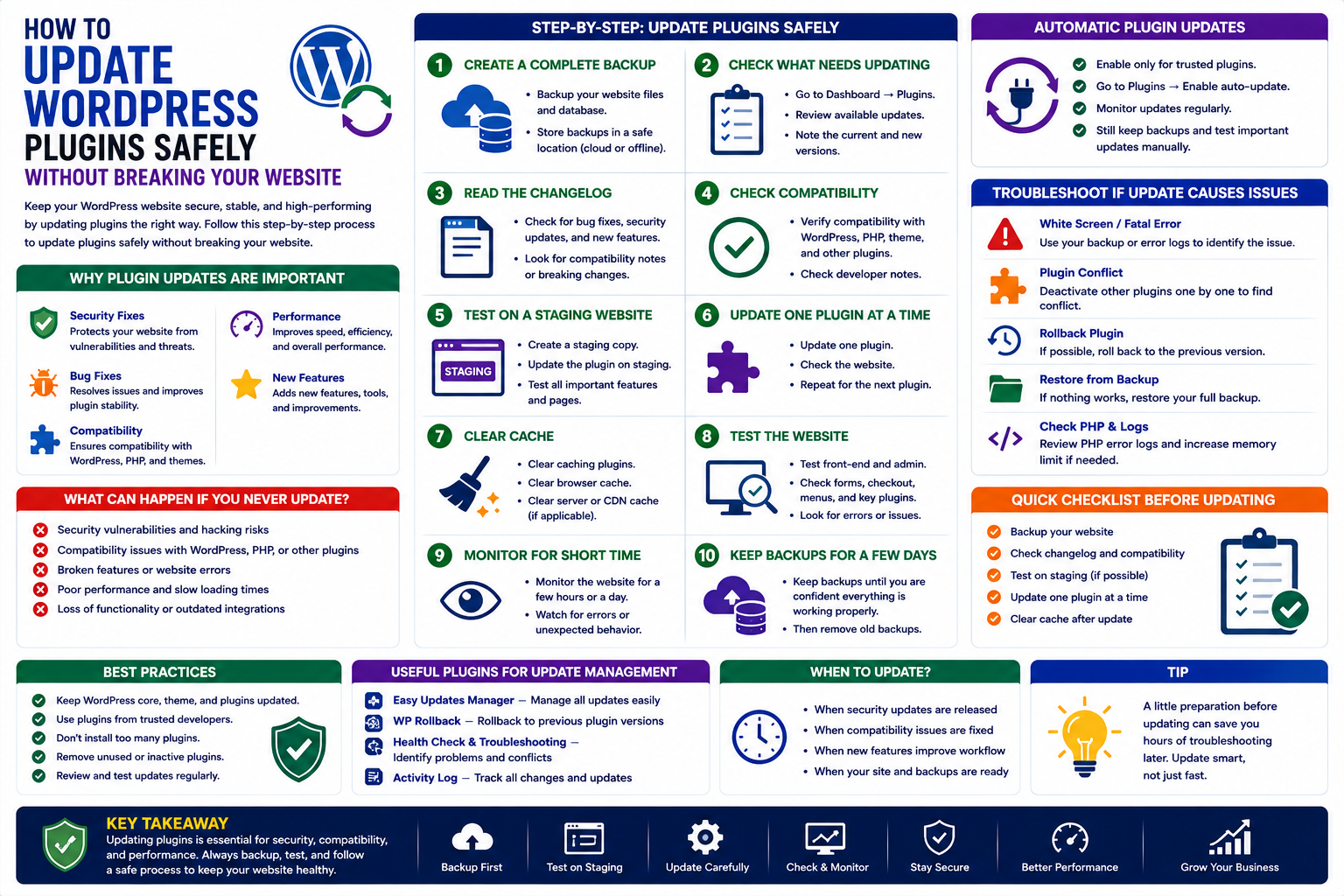
How to Update WordPress Plugins Safely Without Breaking Your Website
Introduction
WordPress plugins provide the functionality that makes modern WordPress websites flexible and powerful. From SEO and security to WooCommerce, analytics, AI, marketing, and business automation, plugins can add almost any feature a website needs.
But installing a plugin is not the end of the process.
Plugins need regular maintenance and updates to remain compatible, secure, and reliable.
Many website owners hesitate to update plugins because they are worried about breaking their websites. That concern is understandable. A plugin update can occasionally create compatibility problems with another plugin, the active theme, WordPress core, PHP, or a custom website configuration.
The solution is not to avoid updates.
The solution is to update plugins using a safe and structured process.
In this guide, you'll learn how to update WordPress plugins safely, why plugin updates matter, what to do before updating, how to use automatic updates, how to troubleshoot failed updates, and how to create a long-term plugin maintenance strategy.
Why WordPress Plugin Updates Are Important
Plugin updates can provide several important improvements.
Security Fixes
Developers may release updates to address security vulnerabilities.
Keeping plugins updated reduces the risk associated with known issues.
Bug Fixes
Updates can resolve problems affecting:
Forms
Admin features
WooCommerce
Front-end functionality
Database operations
Integrations
Compatibility Improvements
WordPress, PHP, themes, and other plugins continue to evolve.
Plugin updates help maintain compatibility with newer environments.
Performance Improvements
Developers may optimize:
Database queries
JavaScript
CSS
Background processes
API requests
These improvements can contribute to a better website experience.
New Features
Updates can introduce new functionality, settings, integrations, and usability improvements.
What Can Happen If You Never Update Plugins?
Ignoring plugin updates can create several problems.
Your website may eventually experience:
Security vulnerabilities
Compatibility issues
Broken features
Performance problems
Outdated dependencies
PHP errors
Conflicts with WordPress core
An old plugin may continue working today but become problematic after another component of your website is updated.
Plugin maintenance should therefore be part of regular website management.
Step 1: Create a Complete Backup
Before updating important plugins, create a backup.
A useful backup should include:
WordPress files
Database
Uploaded media
Configuration information
Your backup provides a recovery option if an update causes unexpected problems.
For business and eCommerce websites, reliable backups are particularly important.
Step 2: Check What Needs Updating
Open:
WordPress Dashboard → Plugins
Review the available plugin updates.
Do not blindly update everything at once on an important production website.
First identify:
Which plugin needs updating
Current version
New version
Important changes
Compatibility requirements
Step 3: Read the Changelog
A plugin changelog can provide useful information about an update.
Look for:
Security fixes
Bug fixes
New features
Compatibility changes
Deprecated functionality
Breaking changes
A major update may require more testing than a small maintenance release.
Step 4: Check Compatibility
Before updating, verify compatibility with:
WordPress
PHP
Your active theme
WooCommerce
Other important plugins
Custom integrations
This is particularly important when updating plugins that interact with critical website functionality.
Step 5: Test on a Staging Website
For professional websites, staging is one of the safest ways to test updates.
A staging website is a separate copy of your production website where you can test changes without affecting visitors.
On staging:
Create a current copy of the website.
Update the plugin.
Test important features.
Check for errors.
Verify performance.
Confirm compatibility.
If everything works correctly, update the production website.
Step 6: Update the Plugin
For a standard WordPress plugin update:
Log in to WordPress.
Go to Plugins.
Find the plugin with an available update.
Click Update Now.
Wait for the update to finish.
Check the website.
Avoid closing the browser or interrupting the process while the update is running.
Step 7: Test Your Website After Updating
Never assume that a successful update message means everything is working correctly.
Check important areas such as:
Homepage
Navigation
Login
Contact forms
Search
Important pages
User registration
WooCommerce products
Cart
Checkout
Payment systems
The exact tests depend on your website.
Updating WooCommerce Plugins Safely
WooCommerce websites require additional care because plugins can directly affect revenue-generating functions.
After updating WooCommerce-related plugins, test:
Product Pages
Confirm that products display correctly.
Cart
Add products and verify cart functionality.
Checkout
Test the checkout process.
Payment Gateway
Verify that payment methods are functioning correctly.
Orders
Check that orders are created and stored properly.
Emails
Confirm that order and customer emails are working.
A plugin update that breaks checkout can directly affect sales.
Automatic WordPress Plugin Updates
WordPress supports automatic updates for many plugins.
Automatic updates can reduce maintenance work and help websites receive updates more quickly.
However, automatic updates should be considered carefully for critical websites.
Before enabling them, make sure you have:
Reliable backups
Monitoring
Recovery procedures
Testing processes where appropriate
Automatic updates can be useful, but they should not replace website monitoring.
When Should You Avoid Updating Immediately?
Sometimes it is reasonable to investigate an update before installing it.
Be more cautious when:
It is a major version change
The plugin affects checkout
The plugin controls critical business functionality
You use extensive custom code
The plugin is heavily integrated with other systems
The changelog mentions breaking changes
For critical websites, testing first is usually better than updating blindly.
What to Do If a Plugin Update Breaks Your Website
Don't panic.
Follow a structured process.
1. Identify the Problem
Determine what stopped working.
2. Check the Plugin
If the issue started immediately after the update, the updated plugin is a strong candidate.
3. Deactivate the Plugin
If you can access the dashboard, temporarily deactivate the affected plugin and test again.
4. Restore a Backup if Necessary
If the update causes a serious production issue, restore the latest working backup.
5. Check the Changelog
Look for known issues and fixes.
6. Contact the Developer
Provide:
Plugin version
Previous version
WordPress version
PHP version
Error message
Steps to reproduce the issue
Avoid sharing passwords or sensitive credentials.
Common WordPress Plugin Update Errors
Update Failed
Possible causes include:
Hosting restrictions
File permissions
Temporary connection problems
Insufficient storage
Server configuration
Briefly Unavailable for Scheduled Maintenance
WordPress may temporarily display a maintenance message during updates.
Usually, the message disappears after the update process finishes.
PHP Fatal Error
A plugin may become incompatible with another component.
Check the error log to identify the affected plugin or function.
White Screen
A serious PHP error can sometimes cause the website to appear blank.
Access the site through available recovery or administrative methods and investigate the error logs.
Best Practices for WordPress Plugin Maintenance
Keep a Plugin Inventory
Know which plugins your website uses and why.
Remove Unused Plugins
If a plugin is no longer required, deactivate and remove it.
Avoid Abandoned Plugins
Choose actively maintained solutions.
Maintain Backups
Keep reliable backups before major changes.
Use Staging
Test significant updates before deploying them.
Monitor Your Website
Regularly check critical functionality after updates.
Keep Everything Compatible
Maintain WordPress, PHP, themes, and plugins as a compatible ecosystem.
How Often Should WordPress Plugins Be Updated?
There is no universal schedule that applies to every plugin.
Instead, monitor available updates and prioritize them based on importance.
Security updates should receive particular attention.
For major feature releases, take additional time to review compatibility and test the update.
A professional maintenance routine might include:
Regular update checks
Backup verification
Staging tests
Production updates
Post-update testing
Performance monitoring
Plugin Updates and Website Performance
Updates can sometimes improve performance, but not every update will make a website faster.
After important updates, monitor:
Page speed
Server response time
Database activity
JavaScript errors
Core Web Vitals
User-facing functionality
If performance suddenly becomes worse, investigate the latest changes.
Plugin Updates and Security
Plugin updates are an important part of WordPress security.
However, updating plugins is not the only security measure you need.
A complete security strategy should also include:
Strong administrator passwords
Multi-factor authentication
Secure hosting
Regular backups
Access control
Malware monitoring
Security monitoring
Updated WordPress core and themes
Plugin maintenance should be one part of a larger security strategy.
Why Quality WordPress Plugins Matter
The quality of a plugin affects how easy it is to maintain over time.
Professional plugins should provide:
Clear versioning
Useful changelogs
Regular maintenance
Compatibility improvements
Security fixes
Documentation
Reliable support
At ThemeKaddora, plugin development focuses on creating practical solutions for modern WordPress websites.
ThemeKaddora offers digital products covering areas such as:
WooCommerce
AI
Analytics
Marketing
Automation
Productivity
Business growth
The goal is to help website owners extend WordPress functionality while maintaining a professional and manageable website environment.
WordPress Plugin Update Checklist
Before updating:
Create a backup.
Check the changelog.
Review compatibility.
Identify critical website functions.
Test on staging when possible.
During the update:
Avoid interrupting the process.
Monitor for errors.
Update carefully.
After the update:
Test important pages.
Test forms.
Test login.
Test checkout if applicable.
Check browser console errors.
Review website performance.
Monitor the website.
Conclusion
Updating WordPress plugins is essential for maintaining a secure, compatible, and reliable website.
The safest approach is not simply clicking every available update immediately. Instead, understand what is changing, create a backup, check compatibility, test important updates on staging, and verify your website afterward.
For small websites, routine plugin maintenance may be straightforward. For business websites and WooCommerce stores, a structured update process can help prevent unexpected downtime and protect important business functions.
When combined with reliable backups, quality plugins, staging environments, security monitoring, and regular maintenance, plugin updates become a manageable part of running a successful WordPress website.
Frequently Asked Questions
How do I update WordPress plugins?
Go to WordPress Dashboard → Plugins, find the plugin with an available update, and click Update Now.
Should I back up WordPress before updating plugins?
Yes. A backup provides a recovery option if an update causes unexpected problems.
Can updating a plugin break my website?
Yes. Compatibility problems can occasionally occur between plugins, themes, WordPress, PHP, or custom code.
Is it safe to enable automatic plugin updates?
Automatic updates can be useful, but important websites should have reliable backups, monitoring, and recovery procedures.
How do I fix a broken website after a plugin update?
Identify the affected plugin, deactivate it if possible, review error logs and the plugin changelog, and restore a working backup if necessary.
Should I update all WordPress plugins at once?
For critical websites, updating everything simultaneously can make troubleshooting harder. Consider testing important updates individually or in controlled groups.
How often should WordPress plugins be updated?
Check for updates regularly and prioritize security and compatibility updates. Major updates should be tested before deployment when possible.
Can plugin updates improve website speed?
Some updates include performance improvements, but results vary. Monitor your website before and after significant updates.
Why choose ThemeKaddora?
ThemeKaddora focuses on clean development practices, WordPress compatibility, security-conscious development, performance optimization, maintainability, and practical functionality for modern businesses.
Comments (0)