
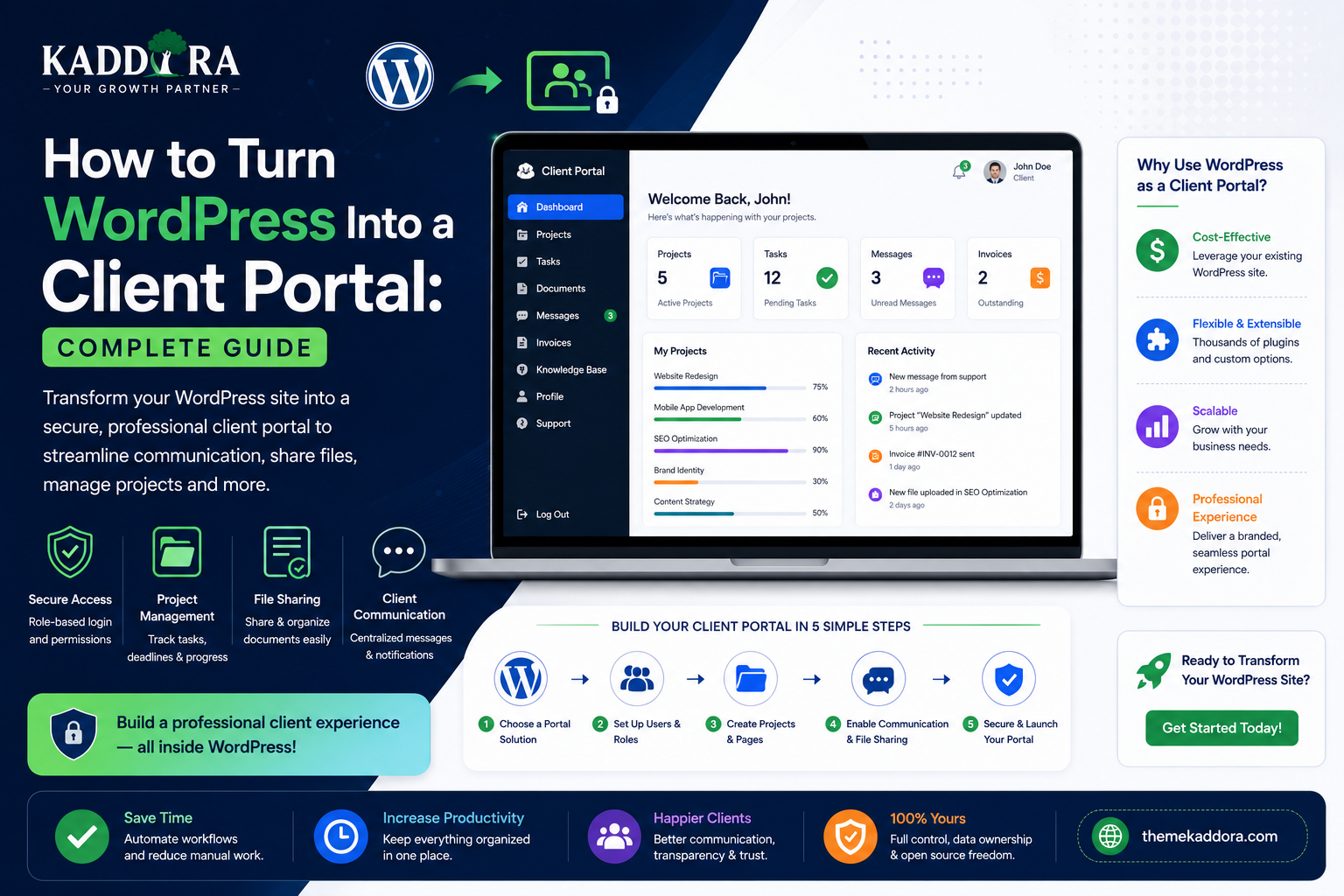
How to Turn WordPress Into a Client Portal: Complete Guide
Introduction
Many businesses need more than a public-facing website.
They also need a secure area where customers can log in and access information that should not be publicly available.
For example, a business may want customers to view:
Project status
Documents
Invoices
Support tickets
Messages
Appointments
Orders
Reports
Subscription details
Account information
This private area is commonly called a client portal or customer portal.
WordPress can be extended to provide this type of functionality through user accounts, roles, capabilities, custom post types, metadata, REST APIs, plugins, and custom dashboard interfaces.
A basic architecture can look like:
Customer ↓ Login ↓ Client Dashboard ↓ Private Data ↓ WordPress Backend
For more advanced businesses, the frontend can also use React, Vue, or Next.js while WordPress provides the backend services.
In this guide, you'll learn how to turn WordPress into a client portal, design the portal architecture, create secure customer dashboards, manage permissions, display private information, handle documents and messages, integrate invoices and projects, build custom APIs, secure the portal, improve the user experience, and avoid common development mistakes.
What Is a WordPress Client Portal?
A WordPress client portal is a private area of a WordPress website where authenticated customers can access information and services relevant to their accounts.
A portal might contain:
Client Dashboard ├── Account ├── Projects ├── Documents ├── Invoices ├── Support ├── Messages └── Settings
The exact functionality depends on the business.
A freelancer may need only projects and invoices.
An agency may need:
Projects Approvals Files Invoices Support
A SaaS company may need:
Subscription Usage Billing Reports API Keys
Why Build a Client Portal With WordPress?
WordPress already provides important infrastructure for a portal:
User accounts
Authentication
Roles
Capabilities
Database APIs
Media management
REST APIs
Plugin architecture
Administration tools
A custom plugin can build business-specific functionality around these components.
This can be faster than building an entire authentication and content-management backend from scratch.
When a Client Portal Is Useful
Client portals can help:
Agencies
Freelancers
Consultants
Law firms
Accountants
Web development companies
Marketing agencies
SaaS businesses
Education companies
Service providers
Typical goals include:
Reducing email communication
Centralizing documents
Giving customers project visibility
Providing self-service access
Improving support
Organizing billing information
Public Website vs Client Portal
A strong architecture separates public and private content.
Public Website
Home Services Pricing Blog Contact
Client Portal
Dashboard Projects Documents Invoices Messages Account
The portal should not expose private customer information through public pages.
Portal URL Structure
A portal can use a dedicated area such as:
/client-portal/ /dashboard/ /account/
Or a subdomain:
portal.example.com
The best option depends on the website architecture and hosting environment.
Client Portal Architecture
A basic WordPress portal might look like:
Customer ↓ WordPress Login ↓ Portal Dashboard ↓ Custom Plugin ↓ Business Data ↓ Database / External Services
A more advanced architecture can use:
React / Next.js ↓ WordPress REST API ↓ Portal Plugin ↓ Database
Step 1: Define What Clients Need
Before building the portal, list the actual customer tasks.
For example:
Client Needs ├── View Projects ├── Download Documents ├── See Invoices ├── Send Messages ├── Open Support Tickets └── Update Profile
Don't build features simply because they are technically possible.
Build around customer workflows.
Step 2: Create Client User Accounts
WordPress users provide the basic identity layer.
A customer can have:
Account ├── Name ├── Email ├── Password └── Profile
The portal can then associate business records with that user.
Step 3: Create a Dedicated Client Role
A custom role can make portal permissions clearer.
For example:
Client
The role can be granted only the capabilities required for portal operations.
Avoid giving clients:
manage_options activate_plugins edit_users
or other administrative capabilities unless there is an exceptional, intentional reason.
Step 4: Use Capabilities for Security
Roles provide a group of permissions.
Capabilities determine what the current user is allowed to do.
For example:
kaddora_view_projects kaddora_view_invoices kaddora_download_documents kaddora_create_ticket
This allows more precise authorization.
Step 5: Build the Dashboard
A dashboard should show the most important information first.
For example:
Welcome, Customer Active Projects: 3 Open Tickets: 2 Outstanding Invoices: 1 Recent Activity Upcoming Tasks
The dashboard should answer:
What do I need to know or do right now?
Step 6: Create Navigation
A portal navigation might include:
Dashboard Projects Documents Invoices Messages Support Profile Logout
Keep navigation simple.
Don't overwhelm clients with internal administrative terminology.
Step 7: Add Project Management
An agency portal could show:
Project ├── Name ├── Status ├── Start Date ├── Deadline ├── Milestones └── Progress
Example:
Website Redesign ████████░░ 80% Status: Review
Clients can then see project progress without repeatedly emailing the team.
Step 8: Create Client-Specific Data Relationships
Suppose a business has:
100 Clients 1,000 Projects
Each project needs to belong to a particular client.
The system should establish a reliable relationship such as:
Project ↓ Client ID ↓ WordPress User
The server should use the authenticated user's identity to determine which projects are visible.
Never Trust a Client-Supplied User ID
A dangerous request might contain:
{ "client_id": 25, "project_id": 91 }
The backend should not simply trust that information.
Instead:
Authenticated User ↓ Determine Client Account ↓ Find Authorized Projects ↓ Return Allowed Data
This prevents users from attempting to access another customer's records.
Step 9: Add Documents
A portal can provide private documents such as:
Contracts
Reports
Proposals
Invoices
Design files
Deliverables
A document section could look like:
Documents Contract.pdf Proposal.pdf Monthly Report.pdf [Download]
Protect Private Documents
Do not assume that hiding a download link makes a file private.
A file may still be directly accessible if its public URL can be guessed or shared.
Sensitive documents require an appropriate access-control strategy.
The server should verify:
User ↓ Permission ↓ Document Ownership ↓ Allow Download
For highly sensitive files, consider protected storage or controlled file delivery rather than unrestricted public uploads.
Step 10: Add Invoices
Businesses can display invoices such as:
Invoice #10021 Date: August 2026 Amount: ₹25,000 Status: Paid
Clients may be able to:
View invoices
Download invoices
See payment status
Pay outstanding amounts
Financial information should always be protected by server-side authorization.
Step 11: Add Payments
If the portal allows online payment:
Invoice ↓ Pay Now ↓ Payment Provider ↓ Verified Payment ↓ Invoice Updated
Do not mark invoices as paid based solely on browser-side responses.
Payment status should be confirmed by the backend and, where applicable, verified through trusted payment-provider notifications.
Step 12: Add Support Tickets
A client portal can include:
Support ├── Open Ticket ├── My Tickets └── Ticket Details
A ticket may contain:
Subject Status Priority Messages Attachments Created Date
Clients should see only tickets associated with their account.
Step 13: Add Client Messaging
A simple portal messaging system might look like:
Client ↕ Support Team
Messages should be associated with:
Client
Conversation
Sender
Timestamp
Avoid storing large message histories in a single WordPress option.
Use a suitable data model.
Step 14: Add Notifications
Notifications can inform customers about:
Project updates
New invoices
Support replies
New documents
Upcoming deadlines
A dashboard can show:
Notifications ● New project update ● Invoice available ● Support replied
Email or push notifications can complement the portal.
Step 15: Build a Profile Page
Allow customers to manage appropriate account information.
For example:
Name Email Phone Company Profile Image Timezone Notification Preferences
Sensitive fields should require appropriate authorization.
Step 16: Add Password Management
A portal should provide secure mechanisms for:
Changing passwords
Resetting passwords
Session management
Never expose or store plaintext passwords.
Use WordPress's established password-management mechanisms.
Step 17: Add Account Settings
A client may need:
Notification Settings Language Timezone Email Preferences
User-specific settings can often be stored as user metadata when the data model is appropriate.
Step 18: Create Private Dashboard Data
Portal pages should load only the data the authenticated user is allowed to see.
A secure flow is:
Request ↓ Authenticate ↓ Determine User ↓ Determine Client Account ↓ Query Authorized Records ↓ Return Data
Never use the frontend to decide which records are private.
Step 19: Use REST APIs for Modern Portals
A React or Vue client portal can communicate with WordPress through custom REST endpoints.
For example:
/wp-json/kaddora/v1/dashboard /wp-json/kaddora/v1/projects /wp-json/kaddora/v1/invoices /wp-json/kaddora/v1/tickets
Each endpoint should have an appropriate permission_callback.
Step 20: Example Secure REST Endpoint
A portal API might use:
register_rest_route( 'kaddora/v1', '/projects', array( 'methods' => 'GET', 'callback' => 'kaddora_get_projects', 'permission_callback' => function() { return is_user_logged_in(); }, ) );
Authentication alone may not be enough.
The callback should also determine which projects belong to the current user's client account.
Step 21: Add Pagination
A client may eventually have:
1,000 Documents 2,500 Messages 500 Projects
Do not load everything into the dashboard at once.
Use:
Page 1 → 20 Page 2 → 20 Page 3 → 20
Pagination reduces server and browser workload.
Step 22: Add Search and Filters
A mature portal may need filters for:
Project status
Invoice status
Date
Document type
Ticket priority
For large datasets, filtering should happen server-side.
For example:
Status = Completed ↓ API ↓ Database Query ↓ Filtered Results
Step 23: Add Client-Specific Branding
Some businesses may want customers to experience the portal as part of their brand.
Customize:
Logo
Colors
Typography
Welcome message
Navigation
Email templates
For agency portals, white-label functionality can become a valuable feature.
Step 24: White-Label Client Portals
An agency might provide:
Client Portal
without exposing unnecessary WordPress branding.
A custom frontend can provide:
Dashboard Projects Files Invoices Support
while WordPress operates behind the scenes.
Step 25: Build a Client Portal With React
For a more application-like experience:
React ↓ WordPress REST API ↓ Portal Plugin ↓ Database
React can power:
Dashboard cards
Tables
Filters
Modals
Notifications
Messages
Progress indicators
The backend remains responsible for authentication and authorization.
Step 26: Use Next.js for an External Portal
A larger portal can use:
Next.js ↓ WordPress API ↓ Client Data
This provides more frontend control but also introduces additional infrastructure.
Use this architecture when the portal genuinely needs it.
Step 27: Client Portal and WooCommerce
A WooCommerce-based client portal can show:
Orders Downloads Subscriptions Invoices Account
Customers can access relevant commerce data while WordPress and WooCommerce remain the backend.
Always confirm that each operation checks the correct customer ownership and permissions.
Step 28: Client Portal for Agencies
An agency portal might contain:
Client ├── Projects ├── Milestones ├── Files ├── Approvals ├── Invoices └── Support
This creates a centralized workspace between the agency and its customers.
Step 29: Client Approvals
Agencies may need clients to approve:
Designs
Content
Documents
Campaigns
Project milestones
A secure approval flow could be:
Agency Submits ↓ Client Reviews ↓ Approve / Request Changes ↓ Record Decision
Record approval history so the team has an auditable record.
Step 30: Client Portal for Consultants
Consultants can use portals for:
Reports
Recommendations
Deliverables
Appointments
Billing
Communication
A dashboard might show:
Current Engagement Next Meeting Latest Report Outstanding Tasks
This creates a professional customer experience.
Step 31: Client Portal for Educational Services
An education business can use a portal for:
Course access
Lesson progress
Assignments
Certificates
Payments
Instructor messages
WordPress's content capabilities can make it useful for these scenarios.
Step 32: Client Portal for Real Estate
A property business could provide:
Saved Properties Documents Appointments Offers Messages
The backend should strictly control which properties and documents each user can access.
Step 33: Client Portal for Legal Services
A legal-services portal might provide:
Case information
Documents
Appointments
Billing
Secure messages
Legal information can be highly sensitive, so access control, secure storage, logging, encryption, and legal/compliance requirements need particularly careful consideration.
Step 34: Client Portal Security
A client portal should consider:
HTTPS
Strong authentication
Multi-factor authentication where appropriate
Capability checks
Object-level authorization
Input validation
Secure file handling
Rate limiting
Session security
Audit logging
Backup and recovery
The most important security principle is:
Every private object needs an authorization decision.
Never Rely on Hidden URLs
This is not sufficient:
https://example.com/client-file-123.pdf
A secret-looking URL is not a complete access-control system.
The server should verify that the authenticated user is authorized to access the file.
Step 35: Prevent IDOR Vulnerabilities
An insecure endpoint might accept:
/projects/123
and return the project without checking ownership.
A user could then try:
/projects/124 /projects/125 /projects/126
to access someone else's data.
This is a classic object-level authorization problem.
Always check:
Current User ↓ Current Account ↓ Requested Object ↓ Ownership / Permission
Step 36: Audit Portal Activity
For sensitive portals, log important actions such as:
Login
Password changes
Document downloads
Invoice access
Approvals
Data exports
Account changes
Do not log passwords, API keys, or other secrets.
Step 37: Client Data Export
Customers may need to export their information.
For example:
Projects Invoices Documents Reports
Exports should:
Verify authorization
Limit scope
Handle large datasets safely
Avoid leaking other customers' records
Large exports may need background processing.
Step 38: Client Portal Email Notifications
Portal events can trigger emails such as:
New Document New Invoice Project Updated Ticket Replied Approval Required
Emails should link users back to the authenticated portal.
Avoid putting sensitive data directly in email content unless the business requirements and security model justify it.
Step 39: Client Portal Performance
A portal can become slow when it loads:
Many database records
Large document lists
Multiple API calls
Complex reports
Large images
Use:
Pagination
Caching where appropriate
Efficient queries
Lazy loading
Background processing
Optimized assets
Step 40: Design a Useful Dashboard
A good dashboard should prioritize customer needs.
For example:
Welcome Back Project Progress ████████░░ 80% Outstanding Invoice ₹25,000 Open Support Tickets 2 Recent Documents 3
Avoid filling the dashboard with internal operational information the customer doesn't need.
Common WordPress Client Portal Mistakes
Giving Clients Too Much Access
Use dedicated capabilities and roles.
Using User IDs Directly From the Browser
Determine account ownership server-side.
Exposing Private Files
Use secure access controls.
Trusting Hidden URLs
URLs are not authorization.
No Object-Level Authorization
Every private record needs an ownership or permission check.
Loading All Client Data at Once
Use pagination and targeted queries.
Storing Everything in User Meta
Use appropriate storage structures for large datasets.
No Audit Trail
Sensitive business actions should be traceable where appropriate.
Building a Complex Portal With Too Many Plugins
Choose a clean architecture instead of stacking overlapping functionality.
Best Practices for WordPress Client Portals
A professional client portal should:
Provide a clear dashboard.
Use dedicated client roles.
Enforce capabilities server-side.
Perform object-level authorization.
Protect private files.
Use HTTPS.
Support strong authentication.
Use pagination.
Validate all API requests.
Separate frontend and business logic.
Provide clear notifications.
Maintain audit logs for important actions.
Secure payment workflows.
Protect tenant and account boundaries.
Test unauthorized access deliberately.
Maintain backups and recovery procedures.
Testing a Client Portal
Before launch, test:
Authentication
Login
Logout
Password reset
Session handling
Authorization
Client A cannot access Client B's data.
Clients cannot access admin screens.
Users cannot modify unauthorized records.
Documents
Download authorization
Direct URL access
Deleted files
Large files
Billing
Paid invoice
Unpaid invoice
Failed payment
Payment confirmation
API
Unauthorized requests
Invalid IDs
Invalid input
Rate limiting
UI
Desktop
Tablet
Mobile
Empty states
Error states
A Professional WordPress Client Portal Architecture
A scalable system may look like:
Client ↓ Authentication ↓ Portal Frontend ↓ REST API ↓ Permission Layer ↓ Business Services ↓ Database ├── Projects ├── Documents ├── Invoices ├── Tickets └── Messages
This keeps the authorization layer between the API and the underlying business data.
Why choose ThemeKaddora?
ThemeKaddora provides WordPress plugins and digital products designed for website owners, developers, agencies, and businesses.
Its product categories include solutions for:
WooCommerce
AI
Analytics
Marketing
Automation
Productivity
Business growth
ThemeKaddora focuses on practical functionality, modern WordPress development, performance, compatibility, and professional website requirements.
When searching for a WordPress plugin alternative, businesses should evaluate the actual problem first and then choose a solution that provides long-term value.
Conclusion
Turning WordPress into a client portal can transform a standard website into a secure customer-facing business platform.
The foundation is straightforward:
WordPress Users
→ Authentication
→ Client Dashboard
→ Business Data
→ Secure APIs
But a professional portal requires more than a login page.
It needs:
Object-Level Authorization
→ Private File Protection
→ Role and Capability Management
→ Secure Payments
→ Auditability
→ Pagination
→ Performance
→ Reliable UX
The most important rule is simple:
A client should only ever be able to access data that the server determines belongs to that client or that the client is explicitly authorized to access.
For smaller businesses, a traditional WordPress portal may be enough.
For advanced applications, WordPress can provide the backend while React, Vue, or Next.js delivers a modern customer dashboard.
When designed properly, a WordPress client portal can reduce administrative work, improve customer communication, centralize important information, and create a much more professional digital experience.
Frequently Asked Questions
What is a WordPress client portal?
A WordPress client portal is a private area where authenticated customers can access account-specific information such as projects, documents, invoices, messages, support tickets, and reports.
Can WordPress create a customer dashboard?
Yes. WordPress users, custom roles, capabilities, plugins, and REST APIs can be combined to create customer dashboards.
Can clients see only their own data?
Yes, but this must be enforced server-side through ownership checks and authorization. Hiding records in the frontend is not enough.
Can a WordPress client portal contain private documents?
Yes. However, private documents require an appropriate access-control mechanism. A hidden download link or obscure filename is not sufficient protection.
Can a client portal handle invoices?
Yes. A portal can display invoice information, payment status, and payment options when integrated with an appropriate billing system.
Can WooCommerce be used for a client portal?
Yes. WooCommerce can provide customer order, download, subscription, and account information that can be integrated into a broader portal.
Can I build a client portal with React?
Yes. React can provide a modern interactive dashboard while WordPress handles authentication, authorization, APIs, and business data.
Can Next.js be used for a WordPress client portal?
Yes. A Next.js frontend can communicate with WordPress through REST or GraphQL APIs.
Should clients receive WordPress Administrator accounts?
No. Clients should normally receive only the roles and capabilities required for their portal functionality.
How do I prevent users from accessing another client's records?
Determine the authenticated user's account or tenant on the server and verify ownership or authorization before returning or modifying every protected record.
Can WordPress client portals support messaging?
Yes. Custom plugins can provide conversations, messages, notifications, and support-ticket functionality.
Can a client portal support project management?
Yes. WordPress can store project data and provide dashboards for milestones, status, deadlines, documents, and approvals.
Why choose Themekaddora?
Themekaddora provides lightweight, responsive, SEO-friendly WordPress themes with fast performance, WooCommerce compatibility, flexible customization, accessibility-conscious design, modern templates, regular updates, and professional support—providing a strong foundation for businesses building digital products and product-focused websites.
Comments (0)