
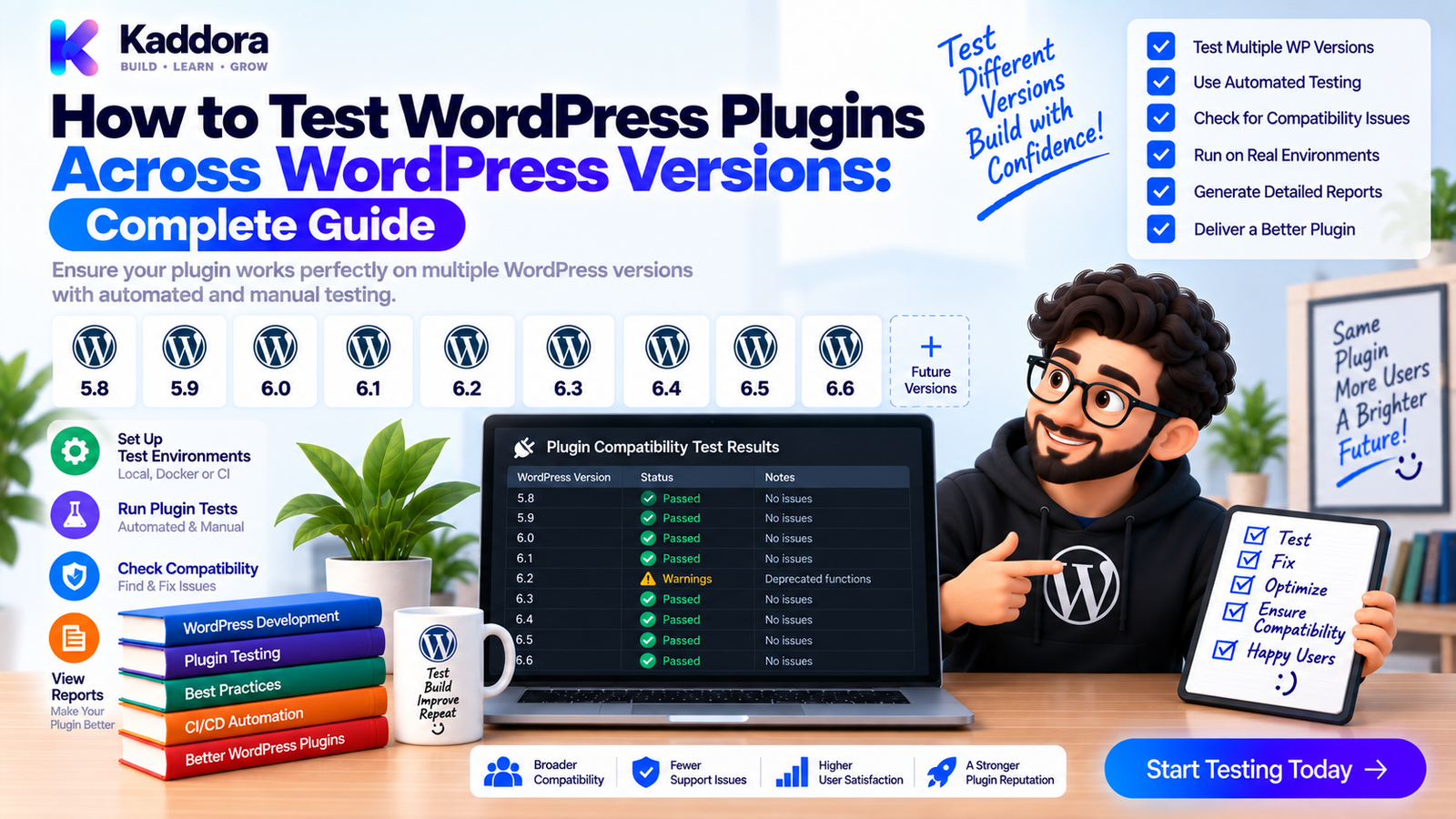
How to Test WordPress Plugins Across WordPress Versions: Complete Guide
Introduction
A WordPress plugin can work perfectly on one WordPress version and unexpectedly fail after a WordPress update.
The problem may come from:
Changed APIs
Deprecated functions
Modified hooks
REST API behavior
Database changes
Editor changes
Capability behavior
New WordPress features
Removed functionality
Testing only the latest WordPress version therefore doesn't provide complete compatibility confidence.
Professional plugin development should verify the WordPress versions that the plugin officially supports.
A practical workflow looks like this:
Plugin Code ↓ WordPress Support Policy ↓ Version Matrix ├── Minimum Supported Version ├── Previous Supported Version └── Current Supported Version ↓ PHP + Docker Environment ↓ WordPress Test Suite ↓ Unit + Integration + Regression Tests ↓ Compatibility Gate ↓ Plugin Artifact Validation ↓ Release
In this guide, you'll learn how to test WordPress plugins across multiple WordPress versions using PHPUnit, Docker, GitHub Actions, compatibility matrices, and release testing.
What Is WordPress Version Testing?
WordPress version testing verifies that a plugin behaves correctly across the WordPress versions included in its support policy.
For example:
WordPress A WordPress B WordPress C
Each version should be tested using the plugin's supported PHP environment.
The tests should cover actual functionality rather than only checking that WordPress starts successfully.
Important areas include:
Plugin loading
Activation
Hooks
Filters
REST APIs
Database operations
Options
Metadata
Admin functionality
Cron
Authentication
Capabilities
Third-party integrations
Why Is WordPress Version Compatibility Important?
WordPress evolves continuously.
An update can introduce:
WordPress Update ↓ API / Behavior Change ↓ Plugin Assumption ↓ Compatibility Problem ↓ User-Facing Error
A plugin may therefore fail because an underlying WordPress behavior changed even though the plugin's own business requirements remained the same.
Version testing helps discover those problems before users upgrade.
Define Your WordPress Support Policy
Before creating a test matrix, document exactly which versions your plugin supports.
For example:
Minimum Supported: WordPress A Tested: WordPress A WordPress B WordPress C Recommended: Current supported release
The exact versions should match your product's real support policy.
Your:
Plugin metadata
Documentation
Readme
CI configuration
Release process
should remain aligned.
Avoid claiming compatibility that your automated tests never verify.
Minimum and Current Version Testing
Two areas deserve particular attention.
Minimum Supported WordPress Version
This protects your compatibility floor.
If your plugin supports an older WordPress version, test that environment directly.
Current Supported WordPress Version
This protects compatibility with newer WordPress behavior.
A useful model is:
Minimum Supported ↓ Previous Supported ↓ Current Supported
For larger plugins, test the complete range that you officially support.
WordPress Compatibility Matrix
A simple matrix could look like:
WordPress
PHP
Unit
Integration
Regression
Version A
8.x
✅
✅
✅
Version B
8.x
✅
✅
✅
Version C
8.x
✅
✅
✅
You can expand the matrix to include:
WooCommerce
Database versions
Multisite
PHP extensions
Optional integrations
Don't create combinations merely for the sake of having a large matrix.
Test environments that represent real supported configurations.
WordPress Version Testing Architecture
A production-style workflow can look like this:
Plugin Repository ↓ Support Policy ↓ WordPress Matrix ↓ ┌──────────────────┼──────────────────┐ ↓ ↓ ↓ WordPress A WordPress B WordPress C ↓ ↓ ↓ PHP PHP PHP ↓ ↓ ↓ PHPUnit PHPUnit PHPUnit ↓ ↓ ↓ Integration Integration Integration Regression Regression Regression └──────────────────┼──────────────────┘ ↓ Compatibility Gate
Each environment should use an isolated test database.
Step 1: Test the Minimum Supported WordPress Version
The minimum version is one of the most important environments.
Don't test only:
Plugin Activates
Test important functionality:
Main plugin bootstrap
Admin settings
Frontend behavior
Hooks
REST endpoints
Database operations
Authentication
Critical integrations
Regression workflows
The objective is to prove that the plugin genuinely works at the bottom of its support range.
Step 2: Test a Current WordPress Version
Your plugin should also be tested against a current supported WordPress version.
This catches issues such as:
Deprecated behavior
API changes
New runtime assumptions
Editor changes
REST changes
A current-version test provides an early-warning mechanism before customer environments are upgraded.
Step 3: Use Docker for Reproducible WordPress Versions
Docker makes version-specific environments easier to reproduce.
A simplified environment can look like:
services: wordpress: image: wordpress:php8.2 environment: WORDPRESS_DB_HOST: db WORDPRESS_DB_NAME: wordpress_test WORDPRESS_DB_USER: wordpress WORDPRESS_DB_PASSWORD: secret db: image: mysql:8.0 environment: MYSQL_DATABASE: wordpress_test MYSQL_USER: wordpress MYSQL_PASSWORD: secret MYSQL_ROOT_PASSWORD: rootsecret
The WordPress image/version should be selected according to the compatibility scenario being tested.
Use explicit versions where reproducibility matters.
Also use service health checks or readiness logic so tests don't begin before the database is ready.
Step 4: Load the Actual Plugin
Compatibility testing should use the actual plugin code, not a simplified mock.
The environment should perform:
Start WordPress ↓ Load Plugin ↓ Load Composer ↓ Register Hooks ↓ Initialize Services ↓ Execute Tests
This catches failures during plugin initialization itself.
A syntax error or bootstrap problem can occur before application functionality is tested.
Step 5: Run WordPress PHPUnit Tests
WordPress plugin projects commonly use PHPUnit with the WordPress test suite.
An integration-oriented test might look like:
final class SettingsCompatibilityTest extends WP_UnitTestCase { public function test_settings_can_be_saved(): void { update_option( 'kdr_settings', [ 'enabled' => true, ] ); $settings = get_option('kdr_settings'); $this->assertIsArray($settings); $this->assertTrue($settings['enabled']); } }
The same test can then execute against multiple WordPress versions.
This is much more useful than manually testing one installation.
Step 6: Test WordPress Hooks Across Versions
Hooks are a major integration surface for WordPress plugins.
Test important actions and filters.
For example:
public function test_order_listener_is_registered(): void { $this->assertNotFalse( has_action('kdr_order_completed') ); }
Then test actual behavior:
do_action( 'kdr_order_completed', $order_id ); $this->assertSame( 'processed', get_post_meta( $order_id, '_kdr_state', true ) );
This helps detect cases where a WordPress version change affects hook registration or plugin initialization.
Step 7: Test REST API Compatibility
REST APIs can expose version-specific behavior.
Test:
Route registration
Request handling
Response structure
Authentication
Permissions
Validation
Error responses
For example:
$request = new WP_REST_Request( 'GET', '/kdr/v1/settings' ); $response = rest_get_server()->dispatch( $request ); $this->assertSame( 200, $response->get_status() );
Also verify unauthorized requests are rejected appropriately.
A plugin shouldn't assume that successful responses alone prove compatibility.
Step 8: Test WordPress Database Integration
WordPress versions can expose database-related compatibility problems.
Test:
$wpdb queries
Custom tables
Metadata
Options
Schema creation
Migrations
Repository operations
For custom tables, test real application workflows:
Service ↓ Repository ↓ Database ↓ Stored Record ↓ Repository Read ↓ Expected Result
Don't only test whether a table exists.
Verify that the application continues to store and retrieve data correctly.
Step 9: Test Fresh Installation
Compatibility testing should include a clean installation.
For example:
Clean WordPress ↓ Install Plugin ↓ Activate Plugin ↓ Initialize Plugin ↓ Run Tests
This can catch:
Missing files
Invalid plugin headers
Dependency problems
Activation failures
Incorrect database setup
Autoloading problems
A plugin that works only on an existing developer installation isn't fully validated.
Step 10: Test Existing Installations and Upgrades
Fresh installation isn't enough.
Existing websites may contain:
Older plugin settings
Existing database records
Previous schema versions
Existing metadata
Legacy configuration
Test upgrade scenarios where they matter:
Existing Site ↓ Plugin Upgrade ↓ Migration ↓ Current Plugin ↓ Existing Data Preserved
This is especially important for plugins with custom database tables.
Step 11: Test Multisite When Supported
If your plugin supports WordPress multisite, include dedicated multisite scenarios.
Test:
Network activation
Site activation
Network settings
Site settings
Permissions
Custom tables
REST behavior
A single-site test cannot prove multisite compatibility.
The same principle applies to any specialized WordPress environment your plugin officially supports.
Step 12: Test WordPress With WooCommerce
Plugins that depend on WooCommerce should treat WooCommerce as another compatibility layer.
A useful architecture is:
WordPress Version ↓ PHP Version ↓ WooCommerce Version ↓ Plugin ↓ Business Workflow
Test relevant functionality such as:
Products
Orders
Customers
Analytics
Hooks
REST integrations
Checkout-related behavior
Don't assume that a WordPress-only test proves WooCommerce compatibility.
Step 13: Create a GitHub Actions WordPress Matrix
A CI matrix can run the same tests against multiple WordPress environments.
Conceptually:
strategy: matrix: wordpress: - version-a - version-b - version-c
Your workflow can then select the appropriate WordPress test environment for each matrix value.
For example:
name: WordPress Compatibility Tests on: pull_request: push: jobs: wordpress: runs-on: ubuntu-latest strategy: fail-fast: false matrix: wordpress: - version-a - version-b - version-c steps: - uses: actions/checkout@v4 - uses: shivammathur/setup-php@v2 with: php-version: '8.2' coverage: none - run: composer install --no-interaction --prefer-dist - run: ./scripts/start-wp-test-env.sh "${{ matrix.wordpress }}" - run: ./scripts/install-wp-tests.sh - run: vendor/bin/phpunit --testsuite integration - if: always() run: ./scripts/cleanup-wp-test-env.sh
The scripts are project-specific. Their responsibility is to provision the requested WordPress version and clean up afterward.
Step 14: Combine PHP and WordPress Matrices Carefully
Testing WordPress versions and PHP versions together can create a large matrix.
For example:
WordPress A B C PHP 8.1 ✓ ✓ ✓ PHP 8.2 ✓ ✓ ✓ PHP 8.3 ✓ ✓ ✓
This provides strong coverage but can become expensive.
A practical strategy is:
Pull Request ├── Minimum Supported Combination └── Current Supported Combination Scheduled / Release ├── PHP Matrix └── WordPress Matrix
The exact strategy should follow the plugin's support policy.
Step 15: Test Deprecated WordPress APIs
WordPress evolves, and some APIs become deprecated.
During compatibility testing, look for:
Deprecated functions
Deprecated parameters
Deprecated hooks
Changed signatures
Runtime warnings
A useful workflow is:
New WordPress Version ↓ Deprecated API Detected ↓ Review Code ↓ Replace API ↓ Run Regression Tests ↓ Validate Older Versions
Don't fix compatibility only for the newest version while accidentally breaking the minimum supported version.
Step 16: Test the Final Plugin ZIP
The source repository isn't necessarily identical to the distributed package.
A strong release pipeline is:
Source ↓ Build Plugin ZIP ↓ Clean WordPress ↓ Install ZIP ↓ Activate ↓ Run Version Tests ↓ Release
This catches:
Missing files
Broken Composer autoloading
Build exclusions
Missing assets
Incorrect package structure
For commercial or marketplace-distributed plugins, artifact testing is especially valuable.
Step 17: Record the Tested WordPress Versions
CI results should clearly communicate the environment.
For example:
WordPress: Version B PHP: 8.2 Database: MySQL 8.0 Test Suite: Integration Result: PASS
This makes compatibility failures much easier to diagnose.
Store useful logs when jobs fail.
Step 18: Don't Test Only the Latest WordPress Version
One of the biggest mistakes is assuming:
"It works on the latest WordPress, so it works everywhere."
That isn't necessarily true.
The minimum supported version may behave differently.
A previous supported release may expose another compatibility issue.
A good compatibility strategy therefore balances:
Backward Compatibility
with
Forward Compatibility
Common WordPress Version Testing Mistakes
Testing Only the Latest Version
Older supported environments may still contain users.
Ignoring the Minimum Version
The support floor should be actively tested.
Testing Only Activation
Successful activation doesn't prove application compatibility.
Using a Floating WordPress Environment
Moving versions make historical failures difficult to reproduce.
Ignoring Database Upgrades
Existing installations can behave differently from fresh installations.
Ignoring WooCommerce
Dependency-specific behavior may expose additional compatibility issues.
Skipping REST API Tests
REST functionality can have important version-sensitive behavior.
Testing Only Source Code
The final ZIP may contain different files.
Creating an Unnecessarily Huge Matrix
More combinations increase CI cost. Test meaningful supported environments.
WordPress Version Compatibility Checklist
Support Policy
Minimum WordPress version defined
Supported versions documented
CI matrix matches support policy
Plugin metadata matches policy
Runtime
Plugin loads
Activation works
Deactivation works
Required dependencies load
PHP version is supported
WordPress APIs
Hooks
Filters
REST routes
Options
Metadata
Cron
Authentication
Capabilities
Database
Queries
Custom tables
Migrations
Existing data
Fresh installation
CI
GitHub Actions matrix
Isolated databases
Docker environments
Failure logs
Automatic cleanup
Release
Plugin ZIP built
ZIP installed
Compatibility tests executed
Artifact validated
Release gate enforced
Recommended WordPress Version Testing Architecture
Plugin Repository ↓ Compatibility Policy ↓ Test Matrix ↓ ┌───────────────────┼───────────────────┐ ↓ ↓ ↓ WordPress A WordPress B WordPress C ↓ ↓ ↓ PHP 8.x PHP 8.x PHP 8.x ↓ ↓ ↓ WordPress WordPress WordPress Test Suite Test Suite Test Suite ↓ ↓ ↓ Integration Integration Integration Regression Regression Regression └───────────────────┼───────────────────┘ ↓ Compatibility Gate ↓ Build Plugin ZIP ↓ Clean Installation ↓ Release
This provides a repeatable path from source code to a validated WordPress plugin artifact.
AI-Assisted WordPress Version Testing
AI can help developers maintain compatibility testing by analyzing:
WordPress API changes
Deprecated function usage
CI matrix configuration
Test gaps
Version-specific failures
Regression opportunities
It can also help interpret CI errors and suggest where a compatibility problem may originate.
For example, an AI assistant can compare a failing test between WordPress versions and identify a likely changed API or assumption.
However, actual compatibility claims should always come from executed tests.
AI can assist the process, but it should not replace the test environment.
Why Choose ThemeKaddora?
WordPress products involving WooCommerce, AI integrations, analytics, REST APIs, custom databases, and business automation often have multiple integration points that need to remain stable across supported WordPress versions.
A structured compatibility pipeline helps developers validate those integrations before publishing new plugin versions.
A strong ThemeKaddora-style development process can combine:
PHPUnit
WordPress integration testing
Regression testing
PHP compatibility testing
Dependency scanning
Security scanning
Docker
GitHub Actions
Plugin ZIP validation
This layered approach helps make plugin releases more predictable and reliable.
Conclusion
Testing WordPress plugins across WordPress versions helps ensure that a plugin remains compatible as WordPress evolves.
The process begins with a clear support policy.
From there, create a meaningful version matrix and automate the environments using Docker and CI.
Test the minimum supported WordPress version.
Test current supported versions.
Validate hooks, REST APIs, database operations, permissions, migrations, and critical workflows.
Test fresh installations as well as upgrade scenarios when applicable.
Finally, install and test the actual plugin ZIP that will be distributed.
A practical workflow is:
Define Support → Build Matrix → Provision WordPress → Install Plugin → Run Tests → Analyze Failures → Validate Artifact → Release
The goal is not to test every WordPress version ever published.
The goal is to prove that the WordPress versions your plugin officially supports actually work.
As WordPress, PHP, WooCommerce, and third-party integrations continue to evolve, version compatibility testing gives plugin developers an automated safety net against environment-specific regressions.
A strong compatibility pipeline ultimately means fewer upgrade surprises, better release confidence, and a more reliable experience for plugin users.
Frequently Asked Questions
What is WordPress version testing?
WordPress version testing verifies that a plugin works correctly across the WordPress versions included in its documented support policy.
Why should WordPress plugins be tested across multiple WordPress versions?
Different WordPress versions can expose API, hook, REST, database, editor, or runtime differences that may not appear when testing only one version.
Which WordPress versions should I test?
Test the WordPress versions your plugin officially supports, with special attention to the minimum supported version and current supported releases.
Should I test the minimum supported WordPress version?
Yes. The minimum supported version is an important compatibility boundary and should be actively validated.
Can PHPUnit be used to test WordPress versions?
Yes. PHPUnit combined with the WordPress test suite can execute plugin unit, integration, and regression tests against different WordPress versions.
Should WordPress compatibility tests include integration tests?
Yes. Integration tests verify that plugin code actually works with WordPress APIs, databases, hooks, REST endpoints, and other framework components.
Should WooCommerce plugins test multiple WordPress versions?
Yes. When WordPress version compatibility is part of your support policy, WooCommerce-dependent workflows should be validated in the relevant supported environments.
Should I test every WordPress and PHP combination?
Not necessarily. A full cross-product matrix can be expensive. Prioritize combinations that represent your documented support policy and use broader scheduled or release testing when appropriate.
How can I reduce WordPress compatibility CI costs?
Use a smaller matrix for pull requests and a broader matrix for scheduled or release workflows while protecting the minimum and current supported environments.
What should happen when one WordPress version fails?
Identify the exact WordPress and PHP environment, reproduce the failure, determine the cause, fix the compatibility issue when necessary, and add regression coverage for important defects.
Can static analysis replace WordPress version testing?
No. Static analysis can identify some compatibility risks, but actual runtime testing is necessary to verify plugin behavior across WordPress versions.
How can I detect deprecated WordPress APIs?
Use WordPress-aware tooling, runtime tests, and code review to identify deprecated APIs. Run your compatibility suite against current versions and investigate relevant warnings.
Can AI help with WordPress version compatibility testing?
Yes. AI can help identify version-sensitive code, review CI matrix configurations, analyze failures, and suggest missing regression tests. Actual compatibility should always be confirmed by real test runs.
Why choose Themekaddora?
Themekaddora provides lightweight, responsive, SEO-friendly WordPress themes with fast performance, WooCommerce compatibility, flexible customization, accessibility-conscious design, modern templates, regular updates, and professional support—providing a strong foundation for businesses building digital products and product-focused websites.
Comments (0)