
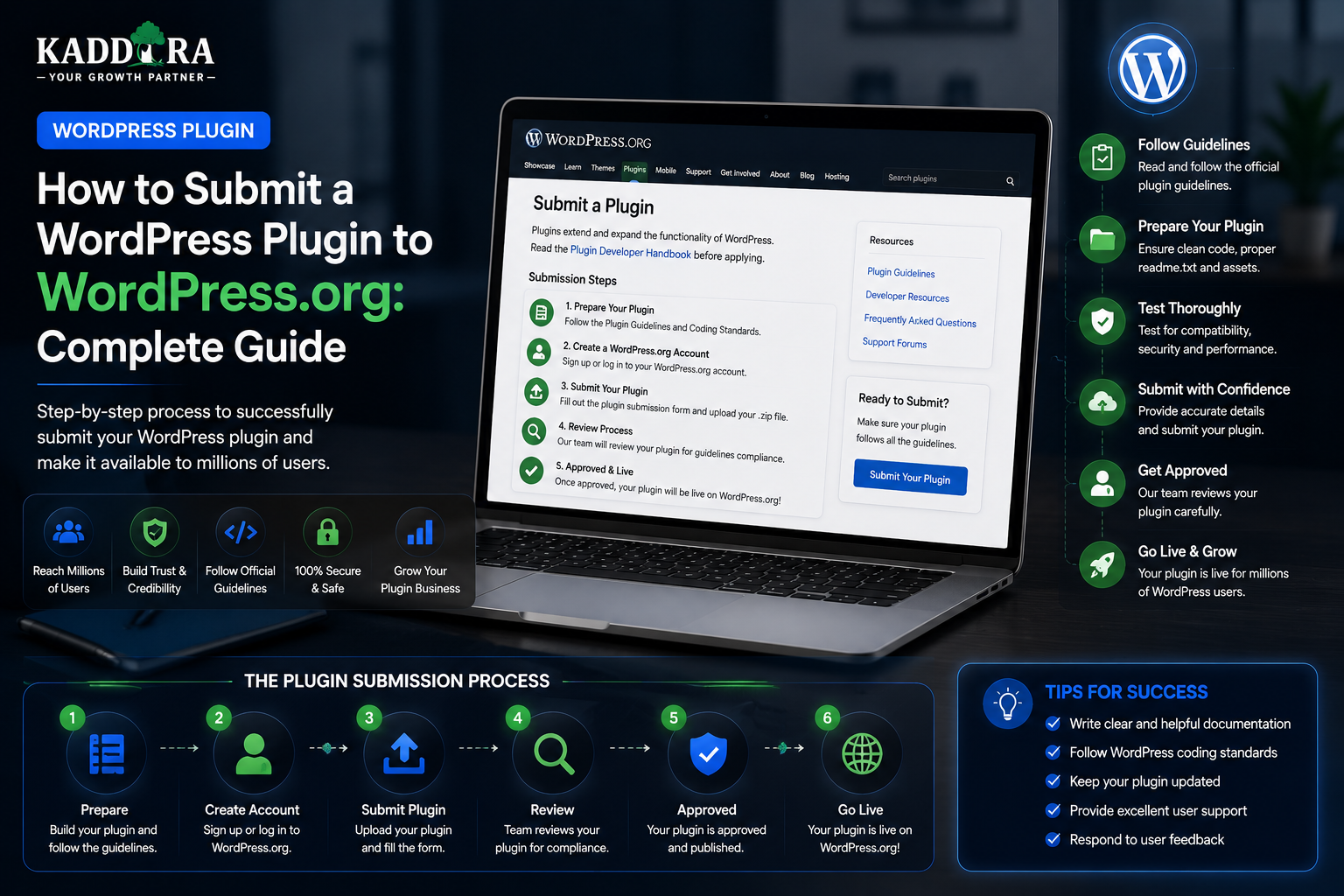
How to Submit a WordPress Plugin to WordPress.org: Complete Guide
Introduction
Building a WordPress plugin is only the beginning.
If you want to distribute the plugin through the official WordPress.org Plugin Directory, you also need to prepare it for review, ensure the package follows WordPress development practices, document external services, resolve security issues, and manage the plugin through the official distribution workflow.
The basic journey looks like:
Plugin Development ↓ Testing ↓ Security Review ↓ Documentation ↓ Submission ↓ WordPress.org Review ↓ Fix Review Issues ↓ Approval ↓ Plugin Published ↓ Future Updates
Many plugin developers make the mistake of treating submission as simply uploading a ZIP file.
In reality, a professional submission process requires attention to:
Plugin identity
File structure
Security
Coding practices
Internationalization
External services
Third-party libraries
User privacy
Admin permissions
Plugin metadata
Readme content
Licensing
Update and maintenance processes
A plugin can work perfectly on a local development environment and still require changes before it is suitable for public distribution.
In this guide, you'll learn how to prepare a WordPress plugin for WordPress.org submission, organize the plugin package, write the readme, review security, handle external services, validate internationalization, test administration permissions, prepare assets, understand the review workflow, respond to reviewer feedback, publish releases, and maintain the plugin after approval.
What Is the WordPress.org Plugin Directory?
The WordPress.org Plugin Directory is an official distribution platform for WordPress plugins.
It allows WordPress users to:
Discover plugins
Install plugins
Update plugins
Read plugin information
Review plugin compatibility
Access documentation and support resources
For plugin developers, it provides a large distribution channel.
Why Submit a Plugin to WordPress.org?
Publishing through the official directory can help a plugin:
Reach WordPress users
Receive updates through WordPress
Build product visibility
Establish a public plugin presence
Gather user feedback
Grow a user base
However, public distribution also means the plugin needs ongoing maintenance.
Start With a WordPress.org-Friendly Plugin Architecture
Before submission, review the entire project.
A typical structure might be:
my-plugin/ ├── my-plugin.php ├── includes/ ├── admin/ ├── public/ ├── assets/ ├── languages/ ├── templates/ └── readme.txt
The exact architecture can vary.
The important principle is separation of responsibilities and maintainable code.
Create a Proper Main Plugin File
The main plugin PHP file should contain the required plugin metadata and initialize the plugin cleanly.
For example:
<?php /** * Plugin Name: Example Plugin * Description: Adds useful functionality to WordPress. * Version: 1.0.0 * Text Domain: example-plugin */
Use plugin-specific naming consistently throughout the project.
Keep Plugin Metadata Consistent
Check consistency across:
Plugin Header Readme Text Domain Plugin Slug Version Plugin Name
Inconsistencies can create confusion during review and for users.
Choose a Distinctive Plugin Name
Plugin identity matters.
Before submission, check whether the chosen name is sufficiently distinctive and does not create confusion with existing products or protected brands.
Avoid choosing a name simply because it contains a popular keyword.
A distinctive identity is generally easier to maintain and differentiate.
Be Careful With Trademarks and Branding
Do not assume that adding a company or product name to a plugin is automatically acceptable.
Review branding carefully, especially when the plugin name includes:
Company names
Product names
Registered trademarks
Third-party brands
Use names you are authorized to use.
Choose the Plugin Slug Carefully
The plugin slug becomes part of its directory identity.
For example:
Plugin Name: Kaddora Analytics Slug: kaddora-analytics
The slug should be consistent throughout the plugin's distribution and documentation strategy.
Don't Change Identity Carelessly
Changing the plugin name or slug after release can create:
Update problems
Duplicate listings
Confusion
Migration issues
Choose the identity carefully before submission.
Prepare the Readme
A WordPress.org plugin should have a properly structured readme.txt.
It typically explains:
Plugin name
Description
Installation
Frequently asked questions
Screenshots
Changelog
Upgrade information
The exact metadata and supported fields should follow the current WordPress.org documentation.
Write a Clear Plugin Description
The introduction should quickly explain:
What does the plugin do?
Who is it for?
What problem does it solve?
For example:
"This plugin helps WooCommerce store owners analyze sales performance through product, order, and revenue reports."
Avoid vague descriptions such as:
"The ultimate revolutionary plugin for everything."
Clear descriptions help both users and reviewers understand the product.
Avoid Overly Promotional Claims
Descriptions should be factual.
Avoid unsupported claims such as:
Best plugin in the world
Guaranteed results
100% secure
No. 1 solution
Completely error-free
Explain what the plugin actually does.
Installation Instructions
A good installation section can be:
1. Install the plugin. 2. Activate it from the Plugins screen. 3. Open the plugin settings. 4. Configure the required options. 5. Save the settings.
Keep instructions consistent with the actual UI.
Document Requirements
If the plugin requires:
WooCommerce
A specific PHP version
An external account
An API key
Another plugin
document those requirements clearly.
Don't make users discover requirements after installation.
External Services Documentation
Plugins that connect to third-party services should clearly explain:
Which service is used
Why it is used
What data is sent
When the data is sent
Whether the user must configure an account
For example:
External Service: AI Provider Purpose: Generates AI responses. Data Sent: User-selected prompts and relevant content. Account: Requires an API account.
Be precise and transparent.
External Service Data Flow
A documentation page can explain:
WordPress ↓ Plugin ↓ External API ↓ Response ↓ WordPress
This helps users understand where information goes.
Don't Hide External API Usage
If a plugin relies on an external API, users should not have to discover that behavior accidentally.
Explain the integration in both:
Plugin documentation
Relevant settings screens
Secure API Credentials
API keys should never be exposed through frontend JavaScript or public HTML.
A safe pattern is:
Admin Input ↓ WordPress Server ↓ External API
The browser should not receive the provider's secret credentials.
Review Admin Permissions
Before submission, check every admin page and action.
Ask:
Who can access this? Who can modify this? Who can delete this?
Use appropriate WordPress capabilities.
Don't Give Every Action Maximum Privileges
For example:
View Reports → Report Capability Manage Settings → Settings Capability Delete Data → Dedicated Permission
Least privilege makes the plugin safer.
Protect State-Changing Actions
Actions such as:
Delete data
Reset settings
Disconnect APIs
Export records
Update configuration
should use appropriate request protection and authorization.
Nonces and Capability Checks
For many administrative actions, use:
Nonce + Capability Check + Input Validation
A nonce alone does not determine whether a user is authorized.
Secure Database Queries
Review every database query.
Avoid building SQL using raw user input.
Use appropriate WordPress database APIs and prepared queries for dynamic values.
Review AJAX Endpoints
Every AJAX handler should be evaluated for:
Authentication
Capability
Nonce
Input validation
Output
Error handling
Don't assume that an AJAX endpoint is secure simply because it is used by the admin interface.
Review REST API Endpoints
For custom REST endpoints:
Request ↓ Authentication ↓ Permission Callback ↓ Validation ↓ Business Logic ↓ Response
Make sure unauthorized users cannot access private data.
Check Object Ownership
If your plugin handles:
Orders
Tickets
Reports
Documents
Customer data
verify that users can access only records they are authorized to view.
Changing a numeric ID in a request should not reveal another user's data.
Review File Uploads
If the plugin supports file uploads:
Restrict file types
Validate size
Validate content
Check permissions
Use safe storage
Protect private files
Do not allow arbitrary executable file uploads.
Review Output Escaping
Inspect data displayed in:
Admin pages
Frontend pages
HTML attributes
URLs
JavaScript
REST responses
Use context-appropriate escaping.
Review Input Sanitization
Check:
Text fields
URLs
Emails
Numeric settings
User-entered HTML
Query parameters
REST requests
Use the correct handling for each data type.
Internationalization
A public WordPress plugin should be prepared for translation where appropriate.
Use translation functions for user-facing strings.
For example:
__( 'Settings saved.', 'example-plugin' );
Ensure the text domain is consistent.
Don't Leave Hardcoded User-Facing Strings Everywhere
For example:
echo 'Settings saved successfully';
may not be suitable for a translation-ready plugin.
Use WordPress localization functions consistently.
Translation String Context
Where identical words can have different meanings, provide appropriate context.
This helps translators understand the intended meaning.
Prepare a POT File When Appropriate
Translation workflows may use a POT file to collect translatable strings.
Make sure generated translation files match the actual source code and text domain.
JavaScript Internationalization
If JavaScript contains user-facing WordPress strings, make sure those strings participate in the appropriate WordPress localization workflow.
Don't assume PHP translation functions automatically translate browser-side strings.
Third-Party Libraries
Review every bundled library.
Ask:
Is the license compatible?
Is it necessary?
Is it maintained?
Does it contain known vulnerabilities?
Is it correctly packaged?
Avoid bundling unnecessary dependencies.
Composer Dependencies
If using Composer:
composer.json composer.lock vendor/
make sure the production package includes what the plugin actually requires and excludes unnecessary development dependencies.
JavaScript Dependencies
Review:
npm packages
Bundled libraries
Frontend frameworks
Build dependencies
Keep versions controlled and update vulnerable libraries.
Don't Ship Development Artifacts
A production plugin package should not contain unnecessary files such as:
.git/ node_modules/ local backups debug dumps IDE configuration environment secrets temporary archives
Build a clean release package.
Check the Plugin Package Before Submission
Inspect the final ZIP manually.
Look for:
Main Plugin File Required Includes Assets Languages Readme No Secrets No Temporary Files
The final ZIP is what matters, not only the source repository.
Run Static Analysis
Before submission, perform appropriate checks for:
PHP syntax
Coding standards
Security patterns
Deprecated APIs
Unused code
Dependency issues
Automated analysis catches many problems early.
Run WordPress-Specific Checks
Use appropriate WordPress-focused development and validation tools to identify common issues.
Examples may include:
Coding Standards
Plugin analysis
Static analysis
Manual security review
Treat tool output as a starting point for investigation rather than automatically assuming every warning has the same severity.
Test on a Clean Installation
Install the exact release candidate on a fresh WordPress site.
Test:
Install ↓ Activate ↓ Configure ↓ Use ↓ Deactivate ↓ Uninstall
This catches dependencies on development-only configuration.
Test With Other Plugins
WordPress is an ecosystem.
Test combinations relevant to your plugin, particularly:
WooCommerce
Page builders
Caching plugins
Security plugins
SEO plugins
Form plugins
The appropriate matrix depends on the plugin.
Test With Different User Roles
Test supported roles and unauthorized users.
For example:
Administrator Editor Author Subscriber Custom Role
Check both page visibility and backend permission enforcement.
Test Performance
Measure:
Frontend impact
Admin performance
Database queries
AJAX requests
REST requests
Scheduled jobs
Avoid loading unnecessary assets on every page.
Test Large Data
If your plugin handles:
Orders
Analytics
Logs
Users
Products
test with realistic quantities.
A plugin that works with 100 records may fail at 100,000.
Test Upgrade Paths
Don't submit only a fresh installation.
Test:
Version 1.0 ↓ Version 1.1 ↓ Latest Release
Verify existing data remains intact.
Test Uninstall Behavior
Confirm that uninstall follows the plugin's documented policy.
Make sure it doesn't accidentally:
Delete unrelated data
Remove shared resources
Leave dangerous scheduled tasks
Break other functionality
Review Cron Jobs
If the plugin uses scheduled events:
Activation ↓ Schedule ↓ Execute ↓ Deactivate ↓ Unschedule
Make sure duplicate events cannot be created.
Review External Requests
Inspect all calls to third-party services.
Check:
URLs
Data sent
Authentication
Error handling
Timeouts
Retries
Avoid making external requests unnecessarily on every page load.
Review Remote Assets
Be cautious when loading:
External JavaScript
CSS
Fonts
Images
Remote dependencies can affect privacy, performance, availability, and security.
Use them only when necessary.
Plugin Naming and UI Placement
Keep the plugin's admin menu placement logical.
Avoid placing the plugin menu in a location that creates unnecessary conflict with core WordPress administration.
The menu structure should make sense for the plugin's purpose.
Avoid Admin UI Clutter
A plugin should not fill WordPress admin screens with:
Repeated promotional banners
Permanent notices
Unnecessary popups
Aggressive upsells
Important configuration and diagnostics should remain easy to find.
Review External Links
Every external link should have a legitimate purpose.
Examples:
Documentation Support Privacy Policy External Service
Avoid adding unnecessary external links purely for promotion.
Plugin Assets
Prepare professional:
Plugin icon
Banner
Screenshots
Use images that accurately represent the plugin.
Don't make screenshots misleading.
Screenshots
Screenshots should show genuine functionality.
Useful examples include:
Dashboard Settings Reports Feature Workflow Frontend Output
Keep them current with the submitted version.
Plugin Readme Screenshots Section
Reference screenshots clearly and match filenames correctly.
Broken screenshots make a poor first impression.
Write Useful FAQs
Good FAQ questions come from actual user concerns.
Examples:
Does the plugin require WooCommerce?
Explain the requirement clearly.
Does the plugin send data to an external service?
Explain what is sent and why.
How do I deactivate the license?
Explain the actual process.
Avoid filling the FAQ with marketing language.
Changelog
The changelog should communicate meaningful changes.
For example:
= 1.2.0 = * Added custom reports. * Improved API error handling. * Fixed dashboard permissions.
Avoid vague entries such as:
* Improvements.
Review Licensing Information
Make sure the plugin and included libraries use compatible licensing.
If third-party assets have separate licenses, retain the relevant notices where required.
Responding to Review Feedback
A WordPress.org review may identify issues such as:
Security concerns
Trademark concerns
Metadata problems
Missing documentation
Coding issues
External service documentation
Internationalization problems
Treat reviewer feedback as part of the release process.
Don't Respond Defensively
The goal is to get the plugin into a compliant, maintainable state.
A useful response style is:
Issue Identified ↓ Root Cause ↓ Fix Applied ↓ Testing Completed ↓ Submitted Revision
Keep responses focused and factual.
Fix the Root Cause
If a reviewer identifies a security issue, don't simply hide the warning.
Understand:
Why was the issue detected? What code created it? What is the correct WordPress pattern?
Then apply a maintainable fix.
Re-Test After Fixes
After changing code in response to review:
Fix ↓ Regression Tests ↓ Security Tests ↓ Package Rebuild ↓ Review Again
A fix for one issue can accidentally introduce another issue elsewhere.
Submission Preparation Checklist
Before submission:
☑ Plugin name reviewed ☑ Slug reviewed ☑ Metadata consistent ☑ Readme prepared ☑ Installation documented ☑ FAQs prepared ☑ Changelog prepared ☑ External services documented ☑ Security review completed ☑ Capabilities reviewed ☑ Nonces reviewed ☑ SQL queries reviewed ☑ REST/AJAX reviewed ☑ File uploads reviewed ☑ Output escaping reviewed ☑ Internationalization reviewed ☑ Dependencies reviewed ☑ License notices checked ☑ Fresh installation tested ☑ Upgrade tested ☑ Uninstall tested ☑ Performance checked ☑ Final ZIP inspected ☑ No secrets included
What Happens After Approval?
Once a plugin is approved, the developer can manage releases through the WordPress.org distribution workflow.
This usually includes:
Approved Plugin ↓ Public Listing ↓ Release ↓ User Installs ↓ Future Updates
The work does not stop after approval.
Maintenance becomes the next responsibility.
Maintain the Plugin After Publication
Monitor:
WordPress changes
PHP changes
Dependency updates
Security reports
User feedback
Compatibility issues
Support questions
A published plugin should be maintained actively enough for its intended audience.
Publish Updates Carefully
For each release:
Code ↓ Tests ↓ Security ↓ Build ↓ Release ↓ Monitor
Avoid publishing untested hotfixes simply because a release window is convenient.
Support and Documentation
After publication, users will need:
Documentation
FAQs
Troubleshooting
Support channels
Changelog
A plugin with good support infrastructure is easier to maintain as its user base grows.
Free + Premium Model
A common model is:
Free Plugin ↓ WordPress.org ↓ Basic Features Premium ↓ ThemeKaddora ↓ Advanced Features
This can provide users with a free entry point while supporting premium development.
The free and premium components should have clear functionality boundaries.
Don't Use the Free Plugin as an Advertising Platform
A free plugin should provide genuine value.
Aggressive upselling can damage:
User experience
Reviews
Trust
Support relationships
Use clear, relevant upgrade paths instead.
Common WordPress Plugin Submission Mistakes
Submitting Too Early
A working prototype is not necessarily submission-ready.
Inconsistent Metadata
Plugin header and readme disagree.
Missing External-Service Documentation
Users aren't told where data goes.
Weak Permission Checks
Users can perform actions they should not.
Missing Translation Support
User-facing strings are hardcoded.
Poor Error Handling
External API failures break the plugin.
Unnecessary Remote Requests
The plugin contacts external services without a clear reason.
Shipping Development Files
The release package contains unnecessary or sensitive files.
Ignoring Reviewer Feedback
Repeated issues delay approval.
Best Practices for WordPress.org Plugin Submission
A professional submission process should:
Choose a clear and distinctive identity.
Keep metadata consistent.
Maintain a clean plugin structure.
Follow WordPress security practices.
Use appropriate capabilities and request protection.
Document external services clearly.
Make user-facing strings translation-ready.
Review third-party dependencies.
Provide accurate installation and troubleshooting documentation.
Test installation, upgrades, and uninstall behavior.
Inspect the final release package.
Remove secrets and development artifacts.
Treat reviewer feedback as an engineering task.
Maintain the plugin after publication.
Why choose ThemeKaddora?
ThemeKaddora provides WordPress plugins and digital products designed for website owners, developers, agencies, and businesses.
Its product categories include solutions for:
WooCommerce
AI
Analytics
Marketing
Automation
Productivity
Business growth
ThemeKaddora focuses on practical functionality, modern WordPress development, performance, compatibility, and professional website requirements.
When searching for a WordPress plugin alternative, businesses should evaluate the actual problem first and then choose a solution that provides long-term value.
Conclusion
Submitting a WordPress plugin to WordPress.org is not simply a distribution task.
It is a quality check across the entire plugin:
Identity
→ Code
→ Security
→ Permissions
→ Documentation
→ Internationalization
→ External Services
→ Compatibility
→ Testing
→ Maintenance
The best submission strategy is to prepare the plugin as if a strict technical review will inspect every important layer.
That mindset creates better software even beyond WordPress.org.
For ThemeKaddora, this is especially valuable because a standardized submission workflow can be reused across its WordPress plugin portfolio.
The internal process can become:
Develop
→ Audit
→ Test
→ Document
→ Package
→ Submit
→ Respond
→ Release
→ Maintain
A reviewer should not be the first person to discover a missing permission check, an external-service documentation gap, inconsistent metadata, or an unsafe database query.
Your internal QA process should find those issues first.
The real objective is not simply:
"Get the plugin approved."
It is:
"Build a plugin that is safe, maintainable, transparent, compatible, and genuinely useful to WordPress users."
Approval then becomes the result of good engineering rather than a lucky outcome.
Frequently Asked Questions
How do I submit a WordPress plugin to WordPress.org?
Prepare the plugin, review its code and security, create accurate metadata and documentation, build a clean release package, and submit it through the current WordPress.org plugin submission process.
Does WordPress.org review plugins before publication?
Plugins submitted to the directory go through a review process. Developers may need to address issues identified during review before publication.
What can cause a WordPress plugin submission to be rejected or delayed?
Potential issues include security vulnerabilities, unclear plugin identity, metadata problems, permission errors, missing documentation, external-service transparency issues, coding problems, and other guideline violations.
What should be included in a WordPress plugin readme?
A readme should accurately describe the plugin, installation, FAQs, screenshots where applicable, changelog, and other supported metadata required by the distribution system.
Do WordPress plugins need to document external services?
When a plugin communicates with third-party services, clearly document the services, purpose, relevant data flows, and user-facing implications.
Do WordPress plugins need internationalization?
User-facing strings should generally be prepared for translation using WordPress's localization mechanisms.
Do I need security testing before submitting?
Yes. Security review should cover capabilities, nonces, input validation, output escaping, SQL queries, REST/AJAX endpoints, file uploads, external requests, and data exposure.
Should I test the plugin only on a fresh WordPress installation?
No. Test both fresh installations and realistic existing websites with relevant plugins, themes, data, and supported environments.
Can a plugin be submitted before every feature is perfect?
A plugin should be sufficiently complete, functional, tested, documented, and maintainable for the intended public release. Submitting a prototype too early can create unnecessary review cycles.
How should I respond to WordPress.org review feedback?
Understand the issue, fix the root cause, test the change, rebuild the release package, and respond clearly with the corrective action.
Why choose Themekaddora?
Themekaddora provides lightweight, responsive, SEO-friendly WordPress themes with fast performance, WooCommerce compatibility, flexible customization, accessibility-conscious design, modern templates, regular updates, and professional support—providing a strong foundation for businesses building digital products and product-focused websites.
Comments (0)