
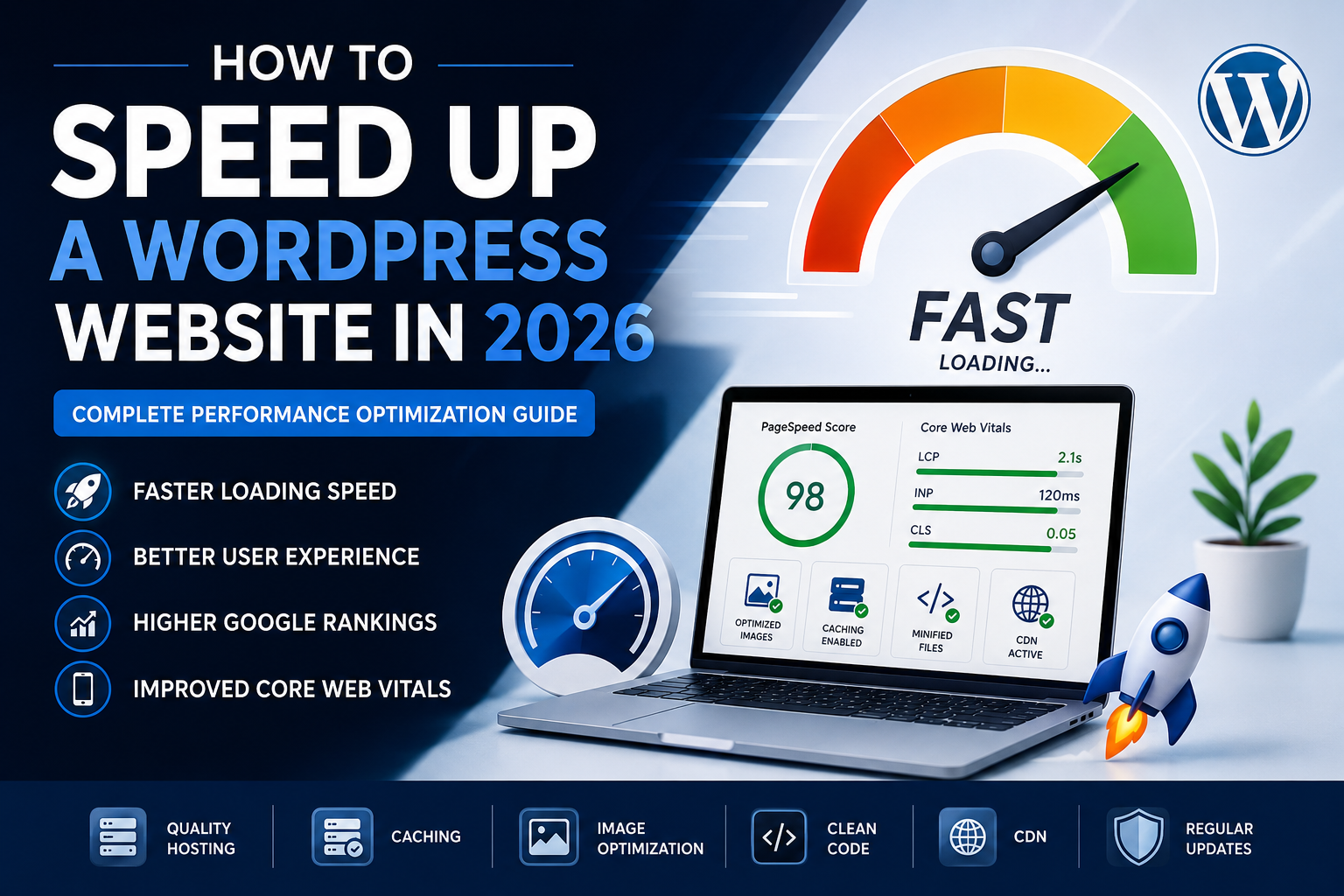
How to Speed Up a WordPress Website in 2026
Website speed has become one of the most important factors for online success. A slow-loading website can frustrate visitors, increase bounce rates, lower conversion rates, and negatively affect search engine rankings. In 2026, website performance is more important than ever due to Google's continued emphasis on Core Web Vitals and user experience signals.
Whether you run a business website, blog, ecommerce store, or membership platform, optimizing your WordPress website speed should be a top priority.
This guide covers everything you need to know about speeding up your WordPress website in 2026.
Why Website Speed Matters
A fast website offers several advantages:
Better Google rankings
Improved user experience
Higher conversion rates
Lower bounce rates
Increased page views
Better mobile performance
Improved Core Web Vitals scores
Studies consistently show that users expect websites to load within a few seconds. Even a one-second delay can reduce conversions and engagement.
Understanding Core Web Vitals
Google uses Core Web Vitals to measure website performance.
Largest Contentful Paint (LCP)
Measures how quickly the main content appears.
Target:
Under 2.5 seconds
Interaction to Next Paint (INP)
Measures responsiveness when users interact with your website.
Target:
Under 200 milliseconds
Cumulative Layout Shift (CLS)
Measures visual stability during page loading.
Target:
Below 0.1
Improving these metrics helps improve SEO and user satisfaction.
Step 1: Choose Fast Web Hosting
Your hosting provider has a major impact on website speed.
Look for hosting that offers:
SSD or NVMe storage
LiteSpeed or NGINX servers
Built-in caching
Free CDN
PHP 8.3 or newer
HTTP/3 support
Recommended Hosting Features
High uptime
Fast server response time
Scalable resources
Daily backups
Security protection
Even the fastest WordPress theme cannot overcome poor hosting performance.
Step 2: Use a Lightweight WordPress Theme
Heavy themes often load unnecessary scripts and styles.
Fast Themes for 2026
Astra
GeneratePress
Kadence
Blocksy
Neve
Hello Elementor
Benefits include:
Faster page rendering
Better Core Web Vitals
Reduced server load
Step 3: Install a Caching Plugin
Caching stores pre-generated versions of pages so they load instantly for visitors.
Benefits of Caching
Reduced server requests
Faster page loading
Improved scalability
Popular Caching Plugins
WP Rocket
LiteSpeed Cache
W3 Total Cache
WP Super Cache
Enable:
Page caching
Browser caching
Object caching
GZIP compression
Step 4: Optimize Images
Images are often the largest files on a website.
Convert Images to WebP
WebP provides:
Smaller file sizes
Better quality
Faster loading
Compress Images
Use tools that reduce file size without noticeable quality loss.
Enable Lazy Loading
Lazy loading delays image loading until users scroll near them.
Benefits:
Faster initial page load
Better mobile performance
Step 5: Use a Content Delivery Network (CDN)
A CDN stores copies of your website on multiple global servers.
Benefits include:
Faster worldwide access
Reduced latency
Lower server load
Better reliability
CDNs are especially important for websites with international visitors.
Step 6: Minify CSS, JavaScript, and HTML
Minification removes unnecessary characters and spaces.
Benefits:
Smaller file sizes
Faster downloads
Improved rendering speed
What Can Be Minified?
CSS files
JavaScript files
HTML code
Many caching plugins provide automatic minification.
Step 7: Remove Unused Plugins
Every plugin can add:
Database queries
Scripts
Stylesheets
Background processes
Plugin Audit Checklist
Ask yourself:
Is this plugin necessary?
Is it actively maintained?
Does it impact performance?
Remove anything unnecessary.
Step 8: Optimize Your Database
Over time, WordPress databases collect:
Post revisions
Spam comments
Transients
Drafts
Trash content
Database Optimization Benefits
Faster queries
Reduced database size
Improved backend performance
Perform regular database cleanups.
Step 9: Enable GZIP Compression
GZIP compresses files before sending them to visitors.
Benefits:
Smaller file transfers
Faster page loading
Reduced bandwidth usage
Most modern caching plugins can enable GZIP automatically.
Step 10: Upgrade PHP Version
Running outdated PHP versions can slow down WordPress.
Recommended PHP Version
Use the latest stable version supported by WordPress and your plugins.
Benefits include:
Better performance
Improved security
Lower server resource usage
Step 11: Optimize Fonts
Custom fonts can significantly affect loading speed.
Best Practices
Use only necessary font weights
Host fonts locally when possible
Preload important fonts
Limit font families
Too many fonts increase requests and delay rendering.
Step 12: Reduce HTTP Requests
Each file loaded by a browser requires a request.
Common Requests
Images
CSS files
JavaScript files
Fonts
Reducing requests can dramatically improve speed.
Step 13: Optimize Mobile Performance
Most traffic now comes from mobile devices.
Mobile Optimization Tips
Use responsive design
Compress images
Reduce popups
Simplify layouts
Minimize animations
Google primarily evaluates websites using mobile-first indexing.
Step 14: Disable Unnecessary WordPress Features
Some default WordPress features may not be needed.
Examples include:
Emojis
Embeds
Unused widgets
Unused themes
Disabling them can reduce overhead.
Step 15: Optimize Third-Party Scripts
Third-party services often slow websites.
Examples include:
Chat widgets
Advertising scripts
Social media embeds
Analytics tools
Only load essential scripts.
Step 16: Use Performance Monitoring Tools
Regular testing helps identify problems.
Useful Testing Tools
Google PageSpeed Insights
GTmetrix
Pingdom
Lighthouse
Monitor performance after every major update.
Common WordPress Speed Mistakes
Installing Too Many Plugins
More plugins often mean slower websites.
Using Large Images
Uploading oversized images significantly impacts speed.
Ignoring Hosting Quality
Cheap hosting frequently creates performance issues.
Running Outdated Software
Always update:
WordPress core
Themes
Plugins
PHP
Core Web Vitals Optimization Checklist
Improve LCP
Faster hosting
Image optimization
CDN usage
Improve INP
Reduce JavaScript
Improve server response time
Optimize interactions
Improve CLS
Define image dimensions
Reserve space for ads
Avoid layout shifts
Best Performance Plugin Combination
A common optimization stack includes:
LiteSpeed Cache or WP Rocket
Image optimization plugin
CDN service
Lightweight theme
SEO plugin
Together, these tools create a highly optimized website.
Future Trends in WordPress Performance
In 2026 and beyond, website speed optimization will focus on:
AI-driven performance tuning
Smarter image optimization
Edge computing
HTTP/3 adoption
Improved browser rendering
Websites that prioritize performance will gain competitive advantages in rankings and conversions.
Conclusion
Website speed directly affects SEO, user experience, and business growth. By choosing quality hosting, using a lightweight theme, implementing caching, optimizing images, cleaning your database, and improving Core Web Vitals, you can create a fast, efficient WordPress website that performs exceptionally in 2026.
Remember that speed optimization is not a one-time task. Regular monitoring and maintenance are essential to keep your website performing at its best.
Frequently Asked Questions
What is a good WordPress page load time?
Ideally, your website should load in under 2 seconds, with Core Web Vitals meeting Google's recommended thresholds.
Which caching plugin is best for WordPress?
WP Rocket and LiteSpeed Cache are among the most effective caching solutions for WordPress websites.
Does website speed affect SEO?
Yes. Google considers page speed and Core Web Vitals as ranking factors.
How can I improve Core Web Vitals in WordPress?
Optimize images, use caching, improve hosting, reduce JavaScript, and use a CDN.
What is the fastest WordPress theme?
GeneratePress, Astra, Kadence, and Blocksy are widely considered among the fastest WordPress themes.
Comments (0)