
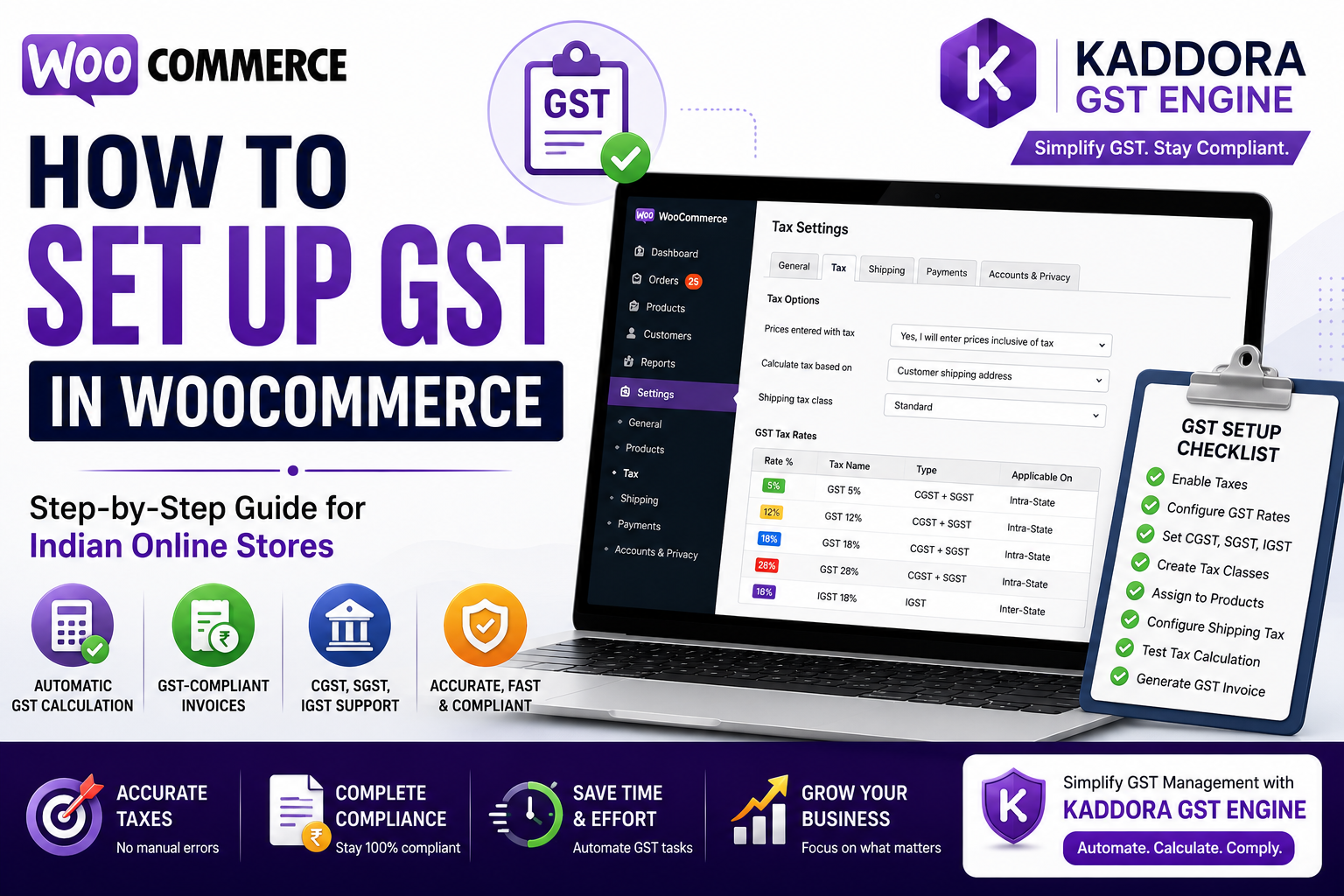
How to Set Up GST in WooCommerce (Step-by-Step Guide)
If you sell products online in India, setting up GST correctly in WooCommerce is essential for accurate tax calculation, legal compliance, and a smooth customer checkout experience.
Many store owners struggle with configuring GST rates, applying different tax slabs, generating GST-compliant invoices, and managing interstate transactions. A small mistake in tax configuration can lead to incorrect invoices, accounting issues, or compliance problems.
The good news is that WooCommerce provides built-in tax settings, and with the right automation tool, GST management becomes much easier.
In this guide, we'll walk you through the complete GST setup process for WooCommerce.
Quick Answer: How Do You Set Up GST in WooCommerce?
To set up GST in WooCommerce:
Enable tax settings
Create GST tax rates
Configure CGST, SGST, and IGST
Assign tax classes to products
Configure shipping tax
Test tax calculations
Generate GST-compliant invoices
Automate GST using a WooCommerce GST plugin
This ensures accurate tax calculation and compliance with Indian GST regulations.
Why Proper GST Setup Matters
A correct GST configuration helps you:
Calculate taxes accurately
Generate compliant invoices
Avoid manual calculations
Reduce accounting errors
Improve customer trust
Stay compliant with Indian tax regulations
Incorrect GST settings can lead to undercharging, overcharging, or filing complications.
Before You Start
Make sure you have:
✔ WooCommerce installed
✔ WordPress updated
✔ Your GSTIN (if applicable)
✔ Correct GST rates for your products
✔ Knowledge of whether your sales are intrastate or interstate
Having this information ready makes setup much smoother.
Step 1: Enable Taxes in WooCommerce
Navigate to:
WooCommerce → Settings → General
Scroll down and enable:
Enable Taxes and Tax Calculations
Save your changes.
Once enabled, WooCommerce displays a new Tax tab in the settings menu.
Step 2: Open WooCommerce Tax Settings
Go to:
WooCommerce → Settings → Tax
Here you can configure:
Tax options
Tax display
Additional tax classes
Standard rates
Reduced rates
Zero-rate taxes
These settings control how taxes are calculated throughout your store.
Step 3: Configure GST Tax Rates
Add the GST percentages that apply to your products.
Common Indian GST rates include:
0%
5%
12%
18%
28%
Each product should use the correct GST slab based on its category.
Step 4: Configure CGST, SGST, and IGST
WooCommerce should calculate:
Intrastate Orders
CGST
SGST
Interstate Orders
IGST
Correct customer location settings are essential for automatic tax selection.
Step 5: Create Tax Classes
If you sell products with different GST percentages:
Create separate tax classes such as:
Standard GST
Reduced GST
Zero GST
Assign the appropriate class to each product.
Step 6: Configure Shipping Tax
Decide whether shipping charges should include GST.
WooCommerce allows shipping taxes to:
Follow product tax class
Use a fixed rate
Apply custom tax rules
Choose the option that matches your business requirements.
Step 7: Configure Product Tax Settings
For every product:
Enable tax
Select tax class
Verify tax status
Review product settings regularly to avoid incorrect tax calculations.
Step 8: Test Your GST Configuration
Before accepting customer orders:
Test:
Intrastate purchases
Interstate purchases
Multiple tax rates
Shipping taxes
Invoice totals
Testing prevents costly mistakes after launch.
Step 9: Generate GST-Compliant Invoices
Your invoices should include:
GSTIN
Invoice number
Customer details
Product information
CGST
SGST
IGST (where applicable)
Total tax amount
Proper invoices simplify accounting and GST filing.
Step 10: Automate GST Management
As your WooCommerce store grows, manually maintaining GST becomes difficult.
Automation helps:
Calculate GST instantly
Generate invoices
Reduce human errors
Save administrative time
Improve compliance
This is especially valuable for stores processing hundreds of orders every month.
Common GST Setup Mistakes
Avoid these errors:
❌ Wrong GST percentage
❌ Incorrect tax class
❌ Missing shipping tax
❌ Incorrect customer location settings
❌ Outdated GST rates
❌ Incomplete invoices
Regular audits help maintain accuracy.
Best Practices for WooCommerce GST
Keep GST Rates Updated
Review tax rates whenever regulations change.
Test Every Configuration Change
Verify calculations before going live.
Maintain Accurate Tax Records
Store invoices and reports securely for accounting purposes.
Categorize Products Correctly
Use the correct GST class for every product.
Automate Tax Calculations
Automation improves both efficiency and compliance.
How Kaddora GST Engine Makes GST Setup Easy
While WooCommerce offers built-in tax functionality, configuring complex GST rules manually can be time-consuming.
Kaddora GST Engine simplifies GST management with intelligent automation designed specifically for Indian WooCommerce businesses.
Key Features
Automatic GST calculation
CGST, SGST & IGST support
Product-wise GST rules
GST-compliant invoice generation
Automated tax reports
Easy tax management dashboard
WooCommerce integration
Whether you're launching a new store or upgrading an existing one, Kaddora GST Engine helps reduce manual work while improving tax accuracy.
GST Setup Checklist
✔ Enable taxes
✔ Configure GST rates
✔ Create tax classes
✔ Configure shipping tax
✔ Test interstate orders
✔ Test intrastate orders
✔ Verify invoices
✔ Update GST rates regularly
✔ Maintain tax reports
✔ Automate GST management
Frequently Asked Questions
Can WooCommerce calculate GST automatically?
Yes. WooCommerce supports automatic tax calculations when configured correctly, and dedicated GST plugins can further automate the process.
Does WooCommerce support CGST, SGST, and IGST?
Yes. WooCommerce can be configured to calculate CGST, SGST, and IGST based on customer location and tax rules.
Do I need a GST plugin?
For stores with simple tax requirements, WooCommerce's built-in settings may be enough. However, businesses handling multiple GST rates, large order volumes, or detailed invoice requirements often benefit from a dedicated GST automation plugin.
Can I generate GST invoices in WooCommerce?
Yes. With the right configuration or plugin, WooCommerce can generate GST-compliant invoices containing all required tax information.
What is the easiest way to manage GST in WooCommerce?
Using an automated solution like Kaddora GST Engine simplifies GST calculations, invoice generation, and compliance management while reducing manual effort.
Final Thoughts
Setting up GST correctly in WooCommerce is more than just adding tax percentages. It involves configuring tax rules, handling different GST components, generating compliant invoices, and ensuring every order is calculated accurately.
By following the steps in this guide and automating repetitive tasks, you can reduce errors, save time, and focus on growing your business instead of managing taxes manually.
Simplify GST with Kaddora GST Engine
Comments (0)