
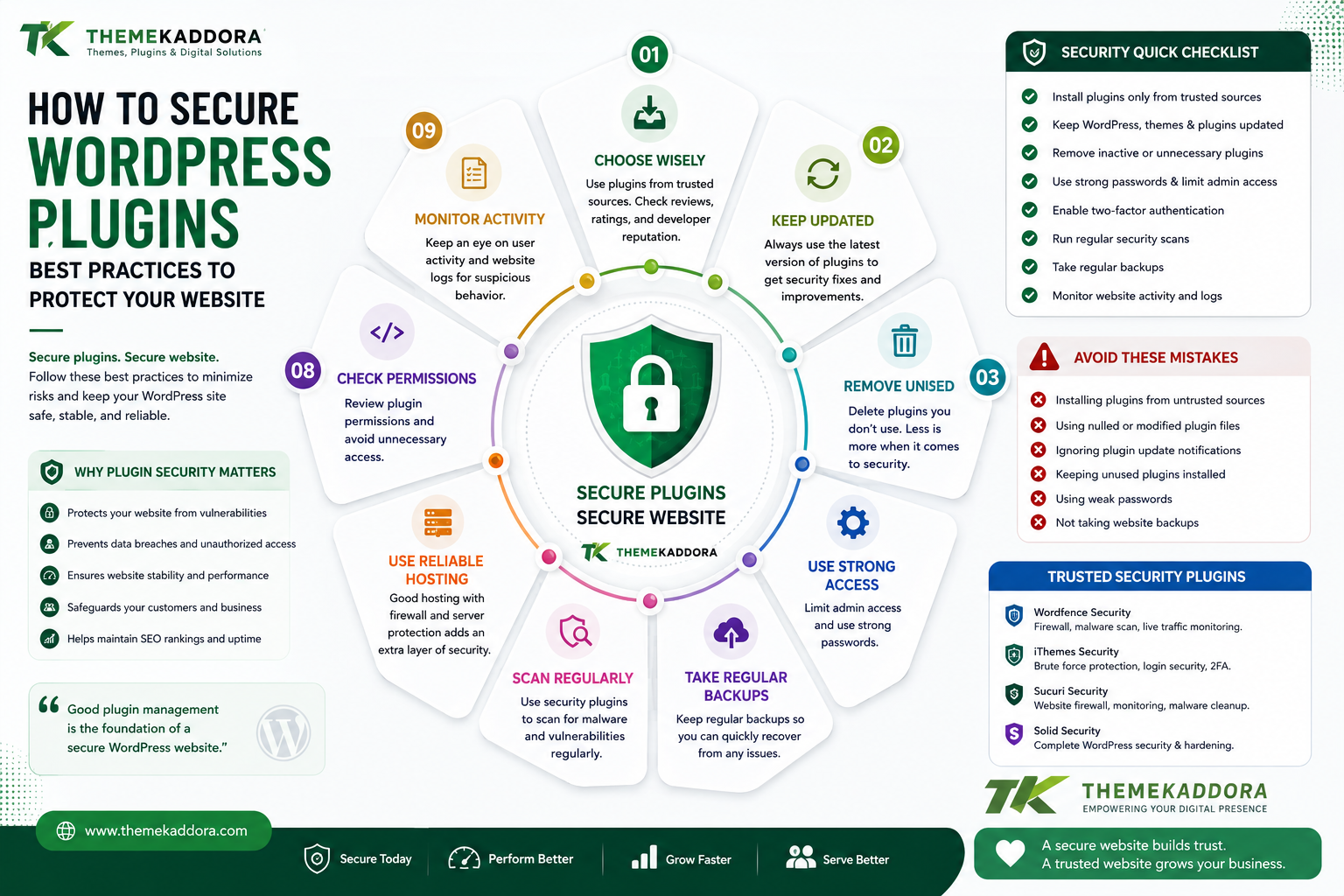
How to Secure WordPress Plugins: Best Practices to Protect Your Website
Introduction
WordPress plugins are one of the biggest reasons WordPress is so flexible.
A website can start with a simple content management system and quickly become a powerful business platform with plugins for SEO, security, analytics, WooCommerce, customer management, marketing, AI, automation, and more.
However, every additional plugin also becomes part of your website's technology environment.
If a plugin is poorly maintained, outdated, incorrectly configured, or obtained from an unreliable source, it can create security risks.
This does not mean you should avoid WordPress plugins.
Instead, you should learn how to select, install, update, monitor, and manage them securely.
In this guide, you'll learn what WordPress plugin security means, why plugin vulnerabilities happen, how to choose safer plugins, how to manage updates, and which practices can help protect your website from common security problems.
What Is WordPress Plugin Security?
WordPress plugin security refers to the practices used to reduce security risks associated with plugins installed on a WordPress website.
These practices include:
Choosing reputable plugins
Keeping plugins updated
Removing unused plugins
Restricting administrator access
Using secure hosting
Maintaining backups
Monitoring website activity
Reviewing plugin permissions
Avoiding unauthorized plugin packages
Plugin security should be treated as part of your overall WordPress security strategy.
Why WordPress Plugin Security Matters
Plugins can interact with important parts of your website.
Depending on their purpose, they may access:
Website settings
Database information
User accounts
Customer information
Orders
Uploaded files
External APIs
If a vulnerable plugin is exploited, attackers may potentially gain unauthorized access or manipulate website functionality.
For business websites, the consequences can include:
Website downtime
Data exposure
Reputation damage
Lost customers
Revenue loss
Recovery costs
Good plugin management reduces unnecessary risk.
How Plugin Vulnerabilities Happen
There is no single reason why a plugin can become vulnerable.
Common causes include:
Outdated Software
Old versions may contain vulnerabilities that have already been fixed in newer releases.
Poorly Written Code
Security problems can result from coding mistakes such as inadequate input validation, authentication problems, or unsafe data handling.
Abandoned Plugins
If a plugin is no longer maintained, compatibility and security issues may remain unresolved.
Unsafe Third-Party Packages
Modified or unauthorized plugin files can contain malicious code.
Always obtain plugins from trusted sources.
Choose Plugins Carefully
Security begins before installation.
Before adding a plugin, investigate:
Developer reputation
Maintenance history
Update frequency
Compatibility
Documentation
Support
Security history
Plugin source
Do not install a plugin simply because it has an attractive feature.
Keep WordPress Plugins Updated
One of the simplest security practices is keeping plugins updated.
Updates can include:
Security fixes
Bug fixes
Compatibility improvements
Performance improvements
New functionality
However, important websites should combine updates with backups and testing.
For business and WooCommerce websites, test major updates before applying them to production whenever possible.
Remove Unused Plugins
Deactivating an unnecessary plugin is not always the same as removing it.
If you no longer need a plugin, consider removing it after confirming that it is not required by another part of the website.
Reducing the number of unnecessary plugins can simplify:
Maintenance
Updates
Troubleshooting
Security management
A smaller, carefully managed plugin ecosystem is generally easier to maintain.
Don't Use Pirated or Modified Plugins
Unauthorized or modified plugins can introduce serious security problems.
A plugin downloaded from an unknown source may contain:
Malicious scripts
Hidden administrator accounts
Backdoors
Unauthorized tracking
Suspicious external requests
Even if the plugin appears to work normally, malicious code can remain hidden.
Use legitimate plugin sources and trusted developers.
Use Strong Administrator Accounts
Plugin security also depends on WordPress account security.
Use:
Strong passwords
Unique administrator credentials
Multi-factor authentication where available
Limited administrator accounts
Avoid giving administrator privileges to users who do not need them.
Follow the Principle of Least Privilege
Not every user needs full WordPress administrator access.
Assign the lowest level of access necessary for each role.
For example:
Content writers may need content management permissions.
Store managers may need WooCommerce-related permissions.
Developers may need technical access.
Administrators should be limited to trusted users.
Reducing unnecessary privileges can reduce the impact of compromised accounts.
Use Secure Hosting
Plugin security cannot be separated from hosting security.
Choose hosting that provides:
Current PHP versions
HTTPS support
Security monitoring
Backups
Server-level protection
Reliable account isolation
A secure hosting environment provides another layer of protection around your WordPress website.
Enable HTTPS
HTTPS encrypts communication between visitors and your website.
It helps protect information transmitted through:
Login forms
Contact forms
Customer accounts
Checkout pages
Administrative sessions
HTTPS is an essential component of modern website security.
Maintain Regular Backups
Even strong security practices cannot guarantee that a website will never experience a security incident.
Backups provide a recovery option.
Maintain backups of:
Database
WordPress files
Uploads
Important configuration data
For important websites, keep backups in a separate location and periodically verify that restoration works.
A backup that has never been tested should not be considered a complete recovery strategy.
Monitor Plugin Changes
Website administrators should know when important changes occur.
Monitor for:
Unexpected plugin installations
Plugin deactivation
Unknown administrator accounts
Suspicious file changes
Unexpected configuration changes
Security monitoring can help identify unusual activity earlier.
Review Plugin Permissions and Integrations
Some plugins communicate with external services.
Examples include:
Payment gateways
Email providers
AI services
Analytics platforms
CRM systems
Marketing tools
Before connecting a plugin to an external service, understand:
What data is being sent
Why it is being sent
Which permissions are required
Where the data is processed
Only enable integrations that are necessary for your business.
Secure API Keys and Credentials
Many plugins require API keys or credentials.
Never expose sensitive credentials in:
Public posts
Screenshots
Source repositories
Client-side JavaScript
Public configuration files
Use appropriate server-side configuration methods whenever possible.
If a credential is accidentally exposed, rotate it immediately.
Protect the WordPress Admin Area
The WordPress dashboard is a high-value target.
Improve administrative security with:
Strong passwords
Multi-factor authentication
Limited administrator accounts
Login monitoring
Secure HTTPS
Regular account reviews
Remove old administrator accounts that are no longer required.
Keep Themes and WordPress Core Updated
Plugin security is only one part of WordPress security.
Also maintain:
WordPress core
Active theme
Required plugins
PHP
Hosting software
An outdated theme or WordPress installation can create risks even when your plugins are current.
Use a Staging Environment
A staging website allows you to test:
Plugin updates
Theme updates
WordPress updates
New integrations
Configuration changes
before applying them to production.
This is particularly useful for websites with:
WooCommerce
Membership systems
Customer portals
Complex integrations
Custom code
Testing can identify compatibility problems before customers encounter them.
How to Check Whether a Plugin Is Safe
Before installing a plugin, ask:
Is it actively maintained?
Check recent development activity.
Does it have a reputable developer?
Research the developer or company.
Is documentation available?
Professional plugins should provide clear information.
Does it support your WordPress environment?
Check compatibility requirements.
Is the source trustworthy?
Avoid unauthorized downloads.
Does the plugin require excessive permissions?
Understand what access the plugin needs.
Warning Signs of a Risky Plugin
Be cautious when a plugin:
Has not been updated for a long time
Comes from an unknown source
Has unclear documentation
Requires unnecessary permissions
Contains suspicious external requests
Has unresolved security concerns
Is distributed as a modified package
A plugin that looks free may become expensive if it creates a security incident.
WordPress Plugin Security for WooCommerce
WooCommerce websites require additional attention because they can process sensitive business information.
A WooCommerce store may contain:
Customer accounts
Order information
Product data
Payment integrations
Shipping information
Business reports
Review every plugin that interacts with your store.
After updates, test:
Product pages
Cart
Checkout
Payment gateways
Customer accounts
Order creation
Transaction emails
Security and functionality should both be monitored.
WordPress Plugin Security for Business Websites
Business websites should establish a formal plugin management process.
A simple process can include:
Monthly Plugin Review
Review installed plugins and remove unnecessary software.
Regular Updates
Monitor security and compatibility updates.
Backup Verification
Confirm that backups are being created correctly.
Account Review
Remove unnecessary administrator accounts.
Security Monitoring
Watch for suspicious changes.
Staging Tests
Test major updates before production.
This approach creates a repeatable security routine.
Common WordPress Plugin Security Mistakes
Installing Too Many Plugins
More plugins mean more components to maintain.
Ignoring Updates
Old versions can remain exposed to known vulnerabilities.
Using Pirated Plugins
Unauthorized packages can contain malicious modifications.
Giving Everyone Administrator Access
Excessive privileges increase security risk.
Ignoring Backups
Without a reliable backup, recovery can become difficult.
Forgetting Plugin Integrations
External APIs and services should also be reviewed for security and privacy requirements.
WordPress Plugin Security Checklist
Use this checklist to improve your plugin security:
Install plugins from trusted sources.
Keep WordPress updated.
Keep plugins updated.
Keep themes updated.
Remove unused plugins.
Use strong administrator passwords.
Enable multi-factor authentication where possible.
Limit administrator access.
Use HTTPS.
Maintain regular backups.
Monitor website activity.
Review external integrations.
Protect API credentials.
Test important updates.
Use secure hosting.
Monitor suspicious changes.
Why Secure Plugin Development Matters
Plugin security does not begin with the website administrator.
It also begins with developers.
Professional plugin development should consider:
Input validation
Data sanitization
Output escaping
Authentication
Authorization
Nonces
Secure database operations
Safe API communication
Proper error handling
Regular maintenance
Good development practices create a stronger foundation for secure WordPress websites.
Why Choose ThemeKaddora?
ThemeKaddora develops digital products for WordPress users, developers, agencies, and businesses.
Its ecosystem includes solutions for:
WordPress
WooCommerce
AI
Analytics
Marketing
Automation
Productivity
Business growth
ThemeKaddora focuses on modern development practices, clean implementation, compatibility, performance, usability, and security-conscious product development.
For website owners, choosing professionally maintained digital products is an important part of building a reliable WordPress environment.
Conclusion
WordPress plugin security is not a single task.
It is an ongoing process involving plugin selection, updates, backups, account protection, monitoring, secure hosting, and responsible website management.
Start by installing plugins only from trusted sources. Keep your software updated, remove unnecessary plugins, use strong administrator security, maintain reliable backups, and test important changes before deploying them.
For businesses, security should be treated as part of everyday website management rather than something to consider only after a problem occurs.
A carefully managed plugin ecosystem can help you take advantage of WordPress's flexibility while reducing unnecessary security risks.
Frequently Asked Questions
What is WordPress plugin security?
WordPress plugin security involves selecting, installing, configuring, updating, and monitoring plugins in ways that reduce security risks.
Are WordPress plugins safe?
Many WordPress plugins can be used safely when obtained from trusted sources and properly maintained. However, plugin quality varies, so users should evaluate plugins before installation.
How often should WordPress plugins be updated?
Check for updates regularly and prioritize security updates. Major updates should be tested before deployment when possible.
Should I delete unused WordPress plugins?
If a plugin is no longer required, removing it can reduce maintenance and security complexity after confirming it is not needed elsewhere.
Are free WordPress plugins secure?
A plugin being free does not automatically make it unsafe. Evaluate its developer, maintenance history, source, documentation, compatibility, and security record.
Are pirated WordPress plugins dangerous?
Yes. Unauthorized or modified plugin packages can contain malicious code, backdoors, or other unwanted modifications.
Does HTTPS protect WordPress plugins?
HTTPS protects data transmitted between browsers and servers, but it does not eliminate vulnerabilities inside plugins. HTTPS should be combined with broader security practices.
Can a plugin make my WordPress website vulnerable?
A vulnerable or poorly maintained plugin can introduce security risks. This is why plugin selection, updates, and monitoring are important.
Why choose ThemeKaddora?
ThemeKaddora focuses on practical functionality, modern WordPress development, compatibility, performance, maintainability, and security-conscious development for modern websites and businesses.
Comments (0)