
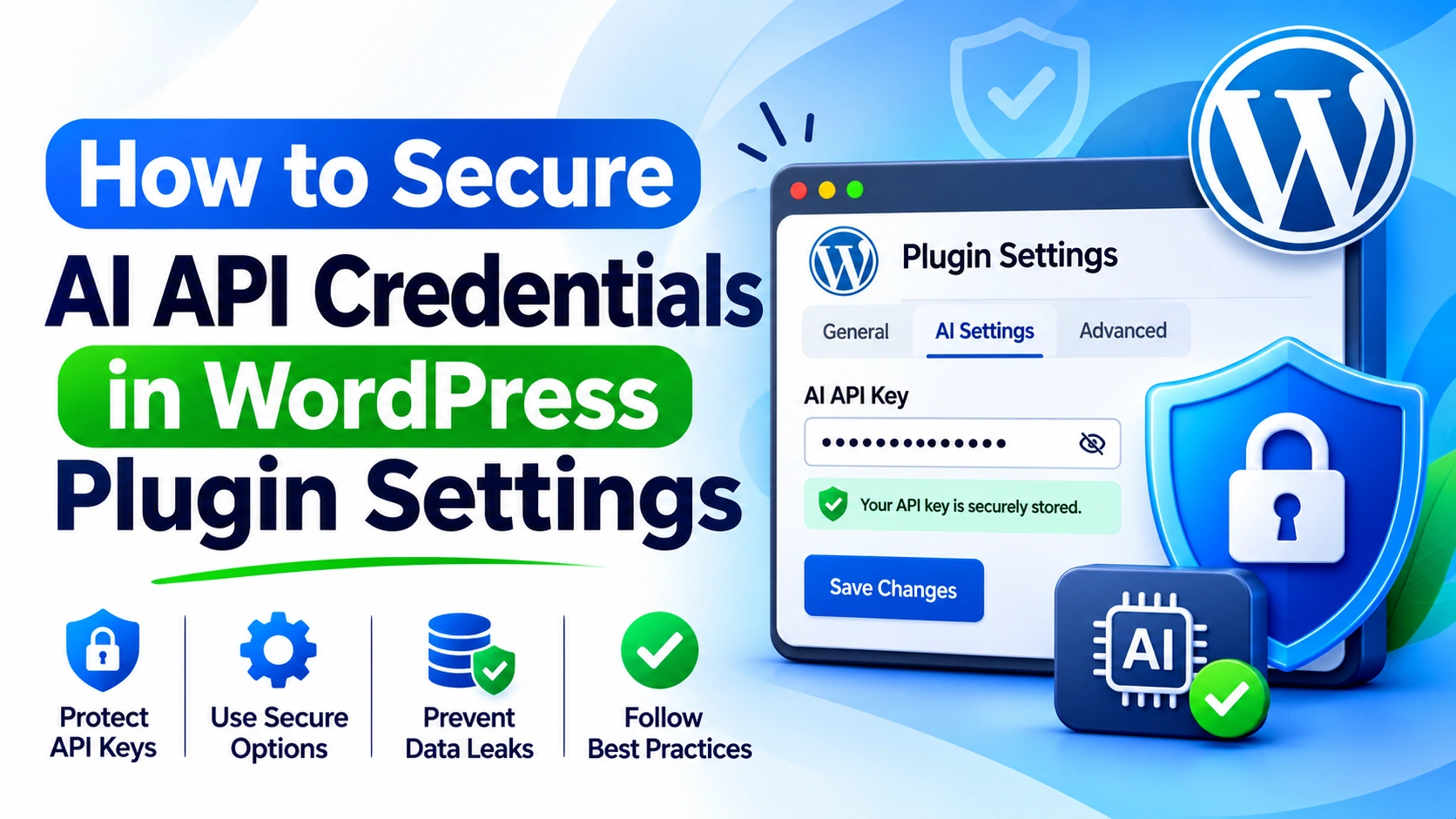
Introduction
AI-powered WordPress plugins often require API credentials to connect with external providers. These credentials allow plugins to generate content, analyze documents, answer questions, process customer requests, and automate website workflows.
Many plugins provide an administrative settings page where website owners can enter and manage their AI provider API keys. Although this approach makes configuration convenient, it also creates security responsibilities.
An incorrectly designed settings page may expose credentials to unauthorized administrators, return stored keys through REST API responses, overwrite existing credentials accidentally, or send secrets to frontend JavaScript. Credentials may also appear in debugging logs, database exports, or plugin configuration files.
A password-type input field alone does not solve these problems. It only hides the characters visually while someone enters a value. It does not encrypt the stored credential or prevent unauthorized access.
A secure WordPress plugin must protect credentials throughout the complete settings workflow, including submission, validation, storage, retrieval, display, provider communication, replacement, and deletion.
This article explains how to secure AI API credentials in WordPress plugin settings using native WordPress functionality, capability checks, the Settings API, protected storage strategies, masked input fields, server-side communication, and practical PHP examples.
Why AI API Credentials Need Special Protection
An AI provider API key is an authentication secret. Anyone who obtains a usable key may be able to make requests within the permissions and limits associated with that credential.
Depending on the provider and account configuration, unauthorized use may cause unexpected usage charges, consume available quotas, access permitted resources, or interfere with legitimate integrations.
Credential exposure can happen through several parts of a WordPress plugin:
An administrative settings page displays the complete stored key.
An unauthorized user accesses the settings update operation.
A REST API endpoint returns sensitive option values.
JavaScript receives the key through localized script data.
Error messages contain authorization headers.
Debugging logs record complete API requests.
Database backups contain credentials stored in options.
Plugin source files include hardcoded provider keys.
A settings form accidentally replaces a saved key with an empty value.
Developers should treat provider credentials as sensitive configuration rather than ordinary text fields.
The objective is to ensure that only authorized administrators can configure credentials, only trusted server-side components can use them, and no ordinary frontend user can retrieve them.
Use the WordPress Settings API With Proper Access Control
WordPress provides the Settings API for registering settings, displaying administrative fields, processing submitted values, and generating the required security fields.
Using native WordPress functionality makes settings management easier to maintain and integrate with the administrative interface.
A settings page should be accessible only to users with the appropriate capability.
For example, a plugin can create an AI settings page with a dedicated capability:
add_action( 'admin_menu', 'kaddora_ai_register_settings_page' ); function kaddora_ai_register_settings_page() { add_options_page( 'Kaddora AI Settings', 'Kaddora AI', 'manage_options', 'kaddora-ai-settings', 'kaddora_ai_render_settings_page' ); }
Here, manage_options restricts the page to users who have the standard WordPress capability to manage site options.
A larger plugin may use a custom capability such as manage_kaddora_ai_settings, provided that it is registered and assigned to the intended roles.
However, protecting the page menu is not sufficient. The settings submission process must also enforce the correct capability.
When using the Settings API, WordPress processes submissions through its settings infrastructure. The option-page capability can be controlled explicitly where a custom capability is required.
Register Credentials Without Exposing Them Through the Settings API
A plugin should register provider credentials as private configuration values.
Consider the following example:
add_action( 'admin_init', 'kaddora_ai_register_provider_settings' ); function kaddora_ai_register_provider_settings() { register_setting( 'kaddora_ai_settings_group', 'kaddora_ai_provider_api_key', array( 'type' => 'string', 'sanitize_callback' => 'kaddora_ai_sanitize_api_key', 'show_in_rest' => false, ) ); }
The important setting is:
'show_in_rest' => false
This prevents the registered option from being exposed through the WordPress REST API merely because it has been registered.
For sensitive credentials, avoid exposing the option through public API responses or plugin frontend configuration.
The settings group should also use the intended capability. For a custom capability, the plugin can register an appropriate capability filter:
add_filter( 'option_page_capability_kaddora_ai_settings_group', 'kaddora_ai_settings_required_capability' ); function kaddora_ai_settings_required_capability() { return 'manage_kaddora_ai_settings'; }
The custom capability must be assigned to the appropriate administrator role or other authorized roles during plugin activation or a controlled permission-upgrade routine.
Do not assume that creating a custom capability automatically grants it to users.
Validate API Keys Without Unnecessarily Modifying Them
API keys are provider-generated strings. Developers should avoid applying generic text sanitization that might unintentionally modify a valid credential.
For example, sanitize_text_field() is useful for many ordinary text inputs, but it is not necessarily appropriate for preserving an opaque provider secret exactly as issued.
A better approach is to validate the input format according to the provider's credential requirements.
A generic example can check that a value is a string, remove accidental surrounding whitespace, reject control characters, and impose a reasonable length limit.
function kaddora_ai_sanitize_api_key( $value ) { $existing_key = get_option( 'kaddora_ai_provider_api_key', '' ); if ( ! is_string( $value ) ) { add_settings_error( 'kaddora_ai_provider_api_key', 'kaddora_ai_invalid_key', 'The API key format is invalid.' ); return $existing_key; } $value = trim( $value ); // Preserve an existing key when the replacement field is blank. if ( '' === $value ) { return $existing_key; } if ( strlen( $value ) > 4096 || preg_match( '/[\x00-\x1F\x7F]/', $value ) ) { add_settings_error( 'kaddora_ai_provider_api_key', 'kaddora_ai_invalid_key', 'The API key contains invalid characters or exceeds the allowed length.' ); return $existing_key; } return $value; }
The length limit is illustrative. A production plugin should apply the actual format and length requirements of the supported provider.
This example also preserves an existing key when the administrator submits an empty replacement field. That prevents an ordinary settings save from accidentally deleting a previously configured credential.
For greater control, developers can implement a dedicated credential update handler that distinguishes between keeping, replacing, and explicitly deleting a key.
Create a Masked Credential Input Field
An administrative settings page should not display the complete stored API key.
Even when a user has permission to manage settings, showing the full credential creates unnecessary exposure. Someone observing the administrator's screen or accessing a screenshot could capture the secret.
A better design uses an empty password-type field that accepts a replacement key.
For example:
function kaddora_ai_render_api_key_field() { $saved_key = get_option( 'kaddora_ai_provider_api_key', '' ); $is_configured = ( is_string( $saved_key ) && '' !== $saved_key ); ?> <input type="password" name="kaddora_ai_provider_api_key" id="kaddora_ai_provider_api_key" value="" class="regular-text" autocomplete="new-password" placeholder="Enter a new API key" /> <p class="description"> <?php echo esc_html( $is_configured ? 'An API key is configured. Enter a new key only when replacing it.' : 'No API key has been configured yet.' ); ?> </p> <?php }
This design provides useful configuration information without displaying the existing credential.
The plugin should also communicate how to replace or remove a key. A blank field should mean that the existing key remains unchanged, while a separate, deliberately protected action can handle deletion.
Remember that type="password" only masks the value in the browser interface. It does not encrypt the credential in the database or provide authorization by itself.
Add Settings Fields and Secure Submission Handling
After registering the setting, developers can add the corresponding settings section and field.
add_action( 'admin_init', 'kaddora_ai_register_settings_fields' ); function kaddora_ai_register_settings_fields() { add_settings_section( 'kaddora_ai_provider_section', 'AI Provider Configuration', 'kaddora_ai_render_provider_section', 'kaddora-ai-settings' ); add_settings_field( 'kaddora_ai_provider_api_key', 'AI Provider API Key', 'kaddora_ai_render_api_key_field', 'kaddora-ai-settings', 'kaddora_ai_provider_section' ); } function kaddora_ai_render_provider_section() { echo esc_html( 'Configure the credentials used by the AI provider integration.' ); }
The settings page can then render the form:
function kaddora_ai_render_settings_page() { if ( ! current_user_can( 'manage_kaddora_ai_settings' ) ) { wp_die( esc_html( 'You are not allowed to manage these settings.' ) ); } ?> <div class="wrap"> <h1><?php echo esc_html( 'Kaddora AI Settings' ); ?></h1> <form method="post" action="options.php"> <?php settings_fields( 'kaddora_ai_settings_group' ); do_settings_sections( 'kaddora-ai-settings' ); submit_button( 'Save AI Settings' ); ?> </form> </div> <?php }
The settings_fields() function generates the required settings form fields, including the WordPress nonce and option-page information.
The Settings API processes the submitted data through the registered setting and its sanitization callback. The custom option-page capability filter ensures that the intended capability is checked during the settings submission process.
Developers should avoid duplicating or bypassing this protection with an insecure custom form handler.
Understand Where WordPress Stores Saved Credentials
By default, credentials registered as ordinary WordPress options are stored in the options table.
For example:
get_option( 'kaddora_ai_provider_api_key', '' );
This provides convenient access for the plugin, but it does not mean that the key is encrypted or hidden from database-level access.
Website database administrators, users with sufficient database privileges, and anyone who obtains an unprotected database backup may be able to retrieve stored credentials.
Therefore, developers should choose a storage strategy based on the application's security requirements.
Common options include:
Storage method
Security consideration
WordPress option
Convenient, but ordinary database storage is not a secrets vault
Protected configuration constant
Keeps the secret outside the plugin's normal settings interface
Environment variable
Allows deployment-managed configuration
Managed secret service
Provides centralized secret storage and access controls
Encrypted database value
Requires the encryption key to be protected separately
For business-critical integrations, a protected environment variable or managed secrets service may be more appropriate than storing credentials directly in the WordPress database.
If a plugin supports database storage for convenience, it should clearly explain that choice and its limitations.
Consider Encryption for Database-Stored Credentials
Some plugins need to let website owners enter API keys through the dashboard and store them for later use.
In these cases, encryption at rest may provide an additional layer of protection.
However, encryption is only useful when the encryption key is managed separately from the encrypted credential.
For example, storing both the encrypted API key and its decryption key in the same database can provide limited protection if the database is compromised.
A better approach is to use a separately protected key supplied through server configuration or an appropriate secrets service.
The encryption design should account for:
Encryption algorithm and secure implementation.
Encryption-key storage.
Key rotation.
Credential replacement.
Recovery when a key becomes unavailable.
Decryption access restrictions.
Migration from older stored credentials.
Avoid implementing custom cryptographic algorithms. Use established cryptographic libraries and documented key-management practices.
Also remember that encryption at rest does not protect a credential after the application decrypts it for an API request. The decrypted secret must still be kept out of logs, frontend responses, and unauthorized application components.
Retrieve Credentials Only in Trusted Server-Side Code
A plugin should centralize credential access rather than allowing every feature to read sensitive options independently.
A simple helper function could look like this:
function kaddora_ai_get_provider_api_key() { $api_key = get_option( 'kaddora_ai_provider_api_key', '' ); if ( ! is_string( $api_key ) || '' === trim( $api_key ) ) { return new WP_Error( 'kaddora_ai_api_key_missing', 'The AI provider API key is not configured.' ); } return $api_key; }
Provider communication can then use the helper:
function kaddora_ai_send_provider_request( $payload ) { $api_key = kaddora_ai_get_provider_api_key(); if ( is_wp_error( $api_key ) ) { return $api_key; } $response = wp_safe_remote_post( 'https://api.example.com/v1/endpoint', array( 'timeout' => 30, 'redirection' => 0, 'sslverify' => true, 'headers' => array( 'Authorization' => 'Bearer ' . $api_key, 'Content-Type' => 'application/json', ), 'body' => wp_json_encode( $payload ), ) ); if ( is_wp_error( $response ) ) { return new WP_Error( 'kaddora_ai_request_failed', 'The AI provider request could not be completed.' ); } $status_code = wp_remote_retrieve_response_code( $response ); if ( 200 !== $status_code ) { return new WP_Error( 'kaddora_ai_provider_error', 'The AI provider returned an unsuccessful response.' ); } return wp_remote_retrieve_body( $response ); }
The provider URL, endpoint, and Bearer authentication in this example are illustrative. Actual providers may use different authentication schemes and request formats.
For a fixed integration, keep the destination controlled by the plugin rather than accepting an arbitrary URL from a user or AI-generated response.
Use HTTPS, keep SSL certificate verification enabled, and avoid forwarding credentials through unexpected redirects.
Prevent Credential Exposure Through REST API and AJAX Responses
A secure settings page can still be undermined by an endpoint that returns the complete stored API key.
For example, an incorrectly implemented REST API response might include:
// Unsafe: Never return the full stored secret to the browser. return array( 'api_key' => get_option( 'kaddora_ai_provider_api_key' ), );
Instead, return only a configuration status:
function kaddora_ai_get_credential_status() { $api_key = get_option( 'kaddora_ai_provider_api_key', '' ); return array( 'configured' => ( is_string( $api_key ) && '' !== $api_key ), ); }
The frontend can display whether a credential is configured without receiving the actual value.
For protected administrative endpoints, developers must still enforce the appropriate authentication and capability checks. For cookie-authenticated requests, use the relevant WordPress REST nonce or AJAX nonce protection as appropriate.
A nonce is not authorization. It does not replace the required capability check.
Never send API keys through localized frontend script variables, HTML data attributes, browser storage, or client-side API calls when the credential is intended for server-side use.
Handle Credential Replacement and Deletion Carefully
A credential-management interface should make it clear whether the administrator is keeping, replacing, or removing the current key.
These operations should not be confused.
A practical interface can use three states:
Administrator action
Expected behavior
Leave replacement field blank
Keep the existing credential
Enter a valid new key
Replace the existing credential
Choose an explicit remove action
Delete the stored credential after authorization
A deletion handler should verify the user's capability and request nonce.
For example:
function kaddora_ai_remove_provider_api_key() { if ( ! current_user_can( 'manage_kaddora_ai_settings' ) ) { return new WP_Error( 'kaddora_ai_remove_denied', 'You cannot remove provider credentials.' ); } check_admin_referer( 'kaddora_ai_remove_provider_key' ); delete_option( 'kaddora_ai_provider_api_key' ); return true; }
This illustrates the server-side removal logic. A complete administrative implementation should connect it to an intentional user action and provide a clear confirmation process.
Do not remove credentials automatically when a settings form is submitted with an empty replacement field.
Also consider whether credential removal should disable related AI features and display an appropriate configuration notice.
Protect API Credentials in Logs and Error Messages
Debugging AI integrations can be difficult, especially when an external provider returns an authentication error or an unexpected response.
However, developers should never record complete request headers or authorization values.
For example:
// Unsafe: This may expose the provider API key. error_log( print_r( $request_headers, true ) );
Instead, record a controlled event:
$event = array( 'event_id' => wp_generate_uuid4(), 'provider' => 'provider_one', 'feature' => 'content_generation', 'status' => 'failed', 'error_code' => 'provider_authentication_failed', 'created_at' => current_time( 'mysql', true ), );
The example creates a logging structure; the plugin must implement its own protected logging mechanism.
Useful diagnostic information includes the provider name, feature, request identifier, HTTP status, processing stage, and error category.
Avoid logging:
Full API keys.
Authorization headers.
OAuth refresh tokens.
Complete sensitive request payloads.
Private customer documents.
Secrets embedded in provider error messages.
Frontend error messages should also remain generic. Detailed diagnostics can be made available through a protected administrative interface without displaying credentials.
Support API Key Rotation and Credential Revocation
API credentials should be replaceable without changing plugin source code.
Credential rotation allows a website owner to replace an existing key with a new one. Revocation disables a key that is compromised, expired, or no longer needed.
A practical rotation workflow includes:
Generate a replacement key through the provider's account.
Enter the new key through a protected configuration process.
Validate the configuration where the provider offers a safe verification method.
Confirm that the AI integration is working.
Revoke the old key.
Review logs and configuration for accidental exposure.
Update other authorized environments if necessary.
If a key has been exposed, revoke it immediately rather than relying on ordinary rotation schedules.
Plugins should never display the old credential merely to help administrators confirm which key was configured.
Also avoid silently falling back to a hardcoded key or an insecure backup credential when the current provider key is unavailable.
Test the Credential Settings Workflow
A secure implementation should be tested across the entire settings lifecycle.
Important test scenarios include:
An unauthorized user attempts to open the AI settings page.
A user without the required capability submits a settings request.
A settings form is submitted with a missing or invalid nonce.
An invalid credential format is submitted.
The administrator saves other settings while leaving the key field blank.
A valid replacement key is submitted.
An administrator explicitly removes the stored credential.
A REST API endpoint attempts to retrieve the secret.
Frontend JavaScript is inspected for credential exposure.
An authentication failure occurs during provider communication.
Logs are reviewed for accidental secret disclosure.
A provider key is rotated and the integration is tested again.
Automated tests should verify that unauthorized requests cannot view, replace, or delete credentials.
Also verify that an ordinary settings update does not accidentally erase a previously configured key.
Common Mistakes to Avoid
Displaying the full saved API key: Use an empty replacement field and show only whether a credential is configured.
Assuming password inputs encrypt credentials: Password fields hide characters visually but do not encrypt database values.
Using settings pages without capability checks: Restrict both the administrative interface and the settings submission process.
Ignoring nonce protection: Use the WordPress Settings API or appropriate nonce verification for custom administrative requests.
Exposing keys through REST API responses: Return configuration status rather than the full credential.
Sending API keys to frontend JavaScript: Keep provider credentials in server-side code.
Applying unsuitable text sanitization: Validate credential formats without unintentionally modifying provider-generated secrets.
Deleting credentials when fields are blank: Separate keeping, replacing, and explicitly deleting a key.
Logging authorization headers: Store diagnostic details without recording secret values.
Assuming database storage is a secure vault: Consider protected configuration or managed secrets for stronger protection.
Skipping credential rotation: Provide a clear process for replacing and revoking exposed or outdated keys.
Best Practices Checklist
Before releasing a WordPress plugin that stores AI provider credentials, verify that:
Settings pages use appropriate capability checks.
Settings submissions use WordPress nonce protection.
Custom Settings API option pages enforce the intended capability.
Credentials are registered with show_in_rest disabled.
API keys are validated without unnecessary modification.
Saved credentials are never displayed in full.
Blank replacement fields preserve existing keys.
Credential deletion requires a deliberate authorized action.
Storage choices and their security limitations are documented.
Encryption keys are kept separate from encrypted credentials.
Provider requests run through trusted server-side code.
Provider destinations use controlled HTTPS endpoints.
API keys never enter frontend JavaScript or browser storage.
REST and AJAX responses do not expose secrets.
Logs and error messages exclude credentials.
Credential replacement and revocation are supported.
Automated tests cover unauthorized settings access and credential exposure.
Why Choose Kaddora?
Kaddora focuses on WordPress solutions, AI integration, website functionality, and business workflow automation. Secure AI integrations require careful attention to plugin settings, credential handling, access permissions, and communication with external providers.
ThemeKaddora provides WordPress plugins, themes, and templates for developers, agencies, and website owners working on different digital projects. A practical approach to WordPress development and AI security helps developers build integrations that are easier to manage while keeping sensitive configuration under controlled access.
Conclusion
Securing AI API credentials in WordPress plugin settings is an important part of responsible plugin development.
An administrative settings page should not simply provide a field for entering an API key. It must protect the credential during submission, validation, storage, retrieval, display, replacement, and deletion.
Use the WordPress Settings API, enforce appropriate capabilities, apply nonce protection, and keep stored credentials out of REST responses and frontend JavaScript. Use protected configuration or an appropriate secret-management service when stronger storage protection is required.
Remember that password-type fields only mask input, ordinary WordPress database options are not automatically encrypted, and nonces do not replace authorization.
By combining secure settings architecture with server-side credential retrieval, controlled provider communication, careful logging, and credential rotation, developers can build WordPress AI plugins that manage API credentials more safely and reliably.
Frequently Asked Questions
Why should AI API credentials be protected in WordPress plugin settings?
API credentials authenticate requests to external AI services. If exposed, they may be used by unauthorized parties to consume provider resources, access permitted services, or generate unexpected usage costs.
Is a password input field enough to secure an AI API key?
No. A password input masks the characters visually, but it does not encrypt the stored credential or prevent unauthorized access. Additional storage, authorization, and server-side protections are necessary.
Can WordPress options safely store AI API keys?
WordPress options can store credentials, but ordinary option values are not automatically encrypted. Database access and backups may expose them. More sensitive deployments should consider protected configuration or managed secret storage.
How can developers prevent API keys from appearing in REST API responses?
Register sensitive settings with show_in_rest disabled, avoid including credentials in custom REST responses, and return only a configuration status to the frontend.
Should an AI API key be sent to frontend JavaScript?
No. Provider credentials intended for server-side use should remain on the server. The frontend should communicate with a protected WordPress endpoint that performs the authenticated provider request.
How can administrators replace an existing AI API key securely?
Use a protected settings interface that accepts a new key without displaying the old one. Preserve the existing credential when the replacement field is blank, validate the new value, and require appropriate authorization.
How can developers protect AI API credentials from accidental logging?
Avoid recording complete request headers, authentication tokens, and sensitive payloads. Log provider identifiers, request IDs, status codes, and error categories instead.
Why choose ThemeKaddora?
ThemeKaddora offers WordPress plugins, themes, and templates that help developers, agencies, and website owners find useful digital resources for building, customizing, and extending their online projects.
Comments (0)