
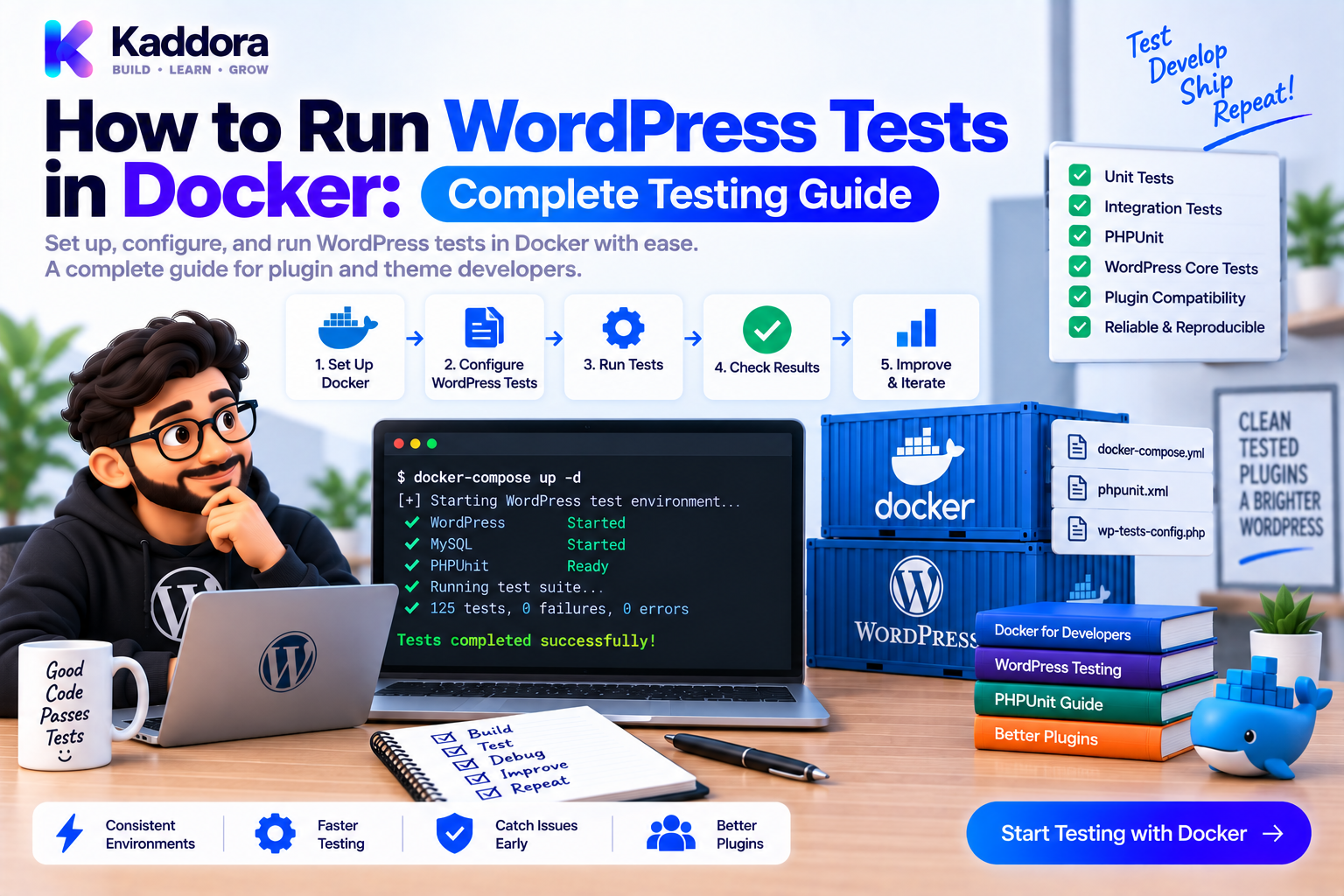
How to Run WordPress Tests in Docker: Complete Testing Guide
Introduction
Testing a WordPress plugin on a developer's computer can hide important problems.
A local environment may already contain:
Required PHP extensions
A configured database
Installed WordPress files
Cached dependencies
Custom PHP settings
Development tools
Other plugins
The plugin may work perfectly there but fail on another server.
Docker provides a practical solution by allowing developers to create isolated, repeatable environments for testing.
A WordPress test environment can include:
Docker ├── WordPress ├── MySQL ├── Plugin └── Test Tools
Instead of asking:
Does the plugin work on my machine?
you can ask:
Does the plugin work in a clean, reproducible environment?
This is especially useful for WordPress plugins that contain custom database tables, REST APIs, hooks, WooCommerce functionality, Composer dependencies, frontend assets, and modular application code.
In this guide, you'll learn how to build a Docker-based WordPress testing environment, run PHPUnit tests, perform WordPress integration tests, test plugin ZIP packages, use Docker Compose, troubleshoot common problems, and integrate the entire workflow into CI.
Why Use Docker for WordPress Testing?
Docker isolates the test environment from the developer's operating system.
A simplified architecture looks like:
Developer ↓ Docker Compose ↓ ┌───────────────┐ │ WordPress │ │ Container │ └───────┬───────┘ ↓ ┌───────────────┐ │ MySQL │ │ Container │ └───────────────┘
This makes the environment easier to recreate.
Benefits include:
Consistent environments
Easier setup
Isolation
Reproducibility
CI compatibility
Easier database resets
Better integration testing
Docker is not itself a testing framework.
It provides the environment in which your tests run.
Docker Tests vs Unit Tests
These concepts solve different problems.
Unit Tests
Unit tests test isolated application components.
OrderService ↓ Mock Repository ↓ Expected Result
Docker-Based Integration Tests
Integration tests verify interactions between the plugin and real dependencies.
WordPress ↓ Plugin ↓ MySQL ↓ Expected Behavior
A strong WordPress test strategy uses both.
What Can You Test With Docker?
Docker is especially useful for:
Plugin activation
WordPress hooks
REST APIs
Database operations
Custom tables
Options
Metadata
Cron
WooCommerce integration
Plugin ZIP installation
Migration scripts
Runtime Composer dependencies
For example:
Clean WordPress ↓ Install Plugin ↓ Activate ↓ Run Feature ↓ Verify Database / Response
Docker Compose for WordPress Testing
Docker Compose can define multiple services together.
A simple test environment might be:
services: db: image: mysql:8.0 environment: MYSQL_DATABASE: wordpress MYSQL_USER: wordpress MYSQL_PASSWORD: wordpress MYSQL_ROOT_PASSWORD: root wordpress: image: wordpress:latest depends_on: - db environment: WORDPRESS_DB_HOST: db:3306 WORDPRESS_DB_NAME: wordpress WORDPRESS_DB_USER: wordpress WORDPRESS_DB_PASSWORD: wordpress
The exact versions should match the plugin's compatibility strategy.
Avoid blindly using latest for long-lived CI reproducibility without a deliberate version policy.
WordPress and MySQL Architecture
The two services communicate over the Docker network:
WordPress Container | | mysql:3306 ↓ MySQL Container
The hostname:
db
refers to the Compose service.
Inside WordPress configuration, you therefore use:
WORDPRESS_DB_HOST=db:3306
rather than localhost.
Step 1: Create a Test Directory
A plugin can keep Docker test infrastructure in:
id="nq5kpi" docker/ ├── compose.yml └── tests/
A larger project might use:
id="e6bsw2" plugin/ ├── docker/ ├── scripts/ ├── src/ ├── tests/ └── composer.json
Keep test infrastructure version-controlled.
Step 2: Mount the Plugin Into WordPress
For development and integration testing, mount the plugin into the WordPress container.
For example:
volumes: - ./plugin:/var/www/html/wp-content/plugins/my-plugin
This allows the test environment to use the current source tree.
For artifact testing, a different strategy is useful: install the generated ZIP into a clean environment rather than mounting source code.
Source Testing vs ZIP Testing
These should remain separate.
Source Integration Test
Source Repository ↓ Docker WordPress ↓ Integration Tests
Artifact Test
Plugin ZIP ↓ Clean Docker WordPress ↓ Install ZIP ↓ Smoke Tests
The second verifies what users actually install.
Step 3: Run PHPUnit
Install PHPUnit through Composer:
composer require --dev phpunit/phpunit
Then:
vendor/bin/phpunit
For isolated application tests, PHPUnit can execute without WordPress.
For WordPress integration tests, the test environment needs the WordPress runtime and database.
Unit Testing Inside Docker
You can run unit tests in a dedicated PHP container:
PHP Container ↓ Composer ↓ PHPUnit ↓ Unit Tests
This gives your unit-test environment a controlled PHP version.
Example:
services: tests: image: php:8.2-cli working_dir: /app volumes: - .:/app command: vendor/bin/phpunit
The exact image and PHP extensions should match the plugin's requirements.
Step 4: Build a WordPress Integration Environment
A practical setup may contain:
db wordpress tests
Architecture:
Docker Compose | ┌─────────────┴─────────────┐ ↓ ↓ WordPress MySQL ↓ Plugin ↓ Integration Tests
The database should be disposable.
This is one of Docker's biggest advantages.
Step 5: Use a Test Database
Integration tests should not use production data.
Use a dedicated database:
MYSQL_DATABASE=wordpress_test
Before testing:
Create Database ↓ Install WordPress ↓ Install Plugin ↓ Run Tests ↓ Destroy Environment
After the test, the environment can be removed and recreated.
Step 6: Test Plugin Activation
Plugin activation is an important smoke test.
Check for:
PHP fatal errors
Missing dependencies
Invalid database schema
Incorrect paths
Composer autoloading failures
A useful sequence is:
Install WordPress ↓ Install Plugin ↓ Activate Plugin ↓ Check Logs ↓ Run Smoke Test
A plugin that cannot activate should never reach release.
Step 7: Test WordPress Hooks
Suppose your plugin registers:
add_action( 'kdr_order_completed', [ $listener, 'handle' ], 10, 1 );
An integration test can trigger the event:
do_action( 'kdr_order_completed', 123 );
Then verify that the expected application behavior occurred.
Architecture:
WordPress Hook ↓ Listener ↓ Service ↓ Repository ↓ Expected State
This validates real WordPress integration.
Step 8: Test Filters
Filters need special attention because they must return a value.
For example:
$value = apply_filters( 'kdr_discount_amount', 100.0 );
Your test can verify:
Original Value ↓ Filter ↓ Expected Modified Value
Integration tests are useful when multiple plugins or modules participate in the hook chain.
Step 9: Test REST APIs
Docker provides a real WordPress runtime in which REST routes can be tested.
Test:
Route registration
Authentication
Authorization
Input validation
Response format
HTTP status codes
For example:
HTTP Request ↓ WordPress REST ↓ Plugin Controller ↓ Service ↓ Response
This is stronger than testing a controller class in isolation.
Step 10: Test Database Operations
WordPress plugins often create:
Custom tables
Options
Post metadata
User metadata
Custom post types
Logs
Docker makes database testing repeatable.
A test can follow:
Fresh DB ↓ Plugin Install ↓ Migration ↓ Insert Data ↓ Read Data ↓ Verify Result
This is particularly important for plugins with custom persistence layers.
Step 11: Test Database Migrations
For plugins with schema changes, test both fresh installs and upgrades.
Fresh Install
Empty Database ↓ Plugin Install ↓ Create Schema
Upgrade
Old Schema ↓ Plugin Upgrade ↓ Migration ↓ New Schema
A mature CI pipeline should verify both where schema evolution matters.
Step 12: Test WooCommerce Plugins
WooCommerce plugins have additional integration requirements.
A Docker environment can include:
WordPress ↓ WooCommerce ↓ Plugin ↓ Database
Test scenarios such as:
Product creation
Order creation
Order status changes
Customer workflows
Cart behavior
Checkout integration
Payment gateway integration
Analytics events
Use test-safe payment methods or mocks for external payment providers.
Step 13: Test Plugin ZIP Files in Docker
For release validation:
Build ZIP ↓ Docker WordPress ↓ Install ZIP ↓ Activate ↓ Smoke Tests
This differs from mounting source code.
It verifies the actual artifact.
For release-quality testing, this is one of the most valuable Docker workflows.
Step 14: Test Composer Runtime Dependencies
A plugin that works from the repository may fail when runtime dependencies are missing.
The Docker artifact test can verify:
Plugin ZIP ↓ vendor/autoload.php ↓ Load Plugin ↓ Execute Feature
This catches packaging mistakes that source-level unit tests may miss.
Step 15: Test Frontend Assets
If a plugin includes JavaScript or CSS, verify:
Files exist
WordPress enqueues them
URLs are correct
Required dependencies are available
Architecture:
Plugin ZIP ↓ Compiled JS/CSS ↓ WordPress Enqueue ↓ Browser / Admin
For complex interfaces, browser-based testing can be added separately.
Step 16: Use Environment Variables
Don't hard-code test configuration throughout Docker files.
For example:
WORDPRESS_DB_NAME=wordpress_test WORDPRESS_DB_USER=wordpress WORDPRESS_DB_PASSWORD=wordpress
Then load those values into Compose where appropriate.
For secrets required by CI, use the CI platform's secret management rather than committing real credentials.
Step 17: Wait for the Database
One common Docker testing problem is that WordPress starts before MySQL is ready.
A simple:
depends_on: - db
controls startup order but does not guarantee the database is ready to accept connections.
Use health checks:
healthcheck: test: [ "CMD", "mysqladmin", "ping", "-h", "localhost" ] interval: 5s timeout: 5s retries: 10
Then configure dependent services to wait for a healthy database according to the Compose version and syntax your project uses.
Step 18: Keep Docker Images Controlled
Avoid unnecessary use of floating versions in long-lived CI systems.
Prefer explicit versions aligned with your support policy:
PHP 8.2 MySQL 8.0 Specific WordPress Version Specific WooCommerce Version
This makes compatibility failures easier to reproduce.
You can still maintain a separate job that tests newer versions periodically.
Step 19: Reset the Environment Between Test Runs
A clean database reduces test contamination.
For example:
docker compose down -v docker compose up -d
This removes volumes created by the Compose project and recreates the environment.
Use destructive reset commands only for disposable test environments.
Never point such commands at production infrastructure.
Step 20: Run Tests Non-Interactively
CI environments should not require manual input.
For example:
docker compose up -d vendor/bin/phpunit docker compose down -v
A wrapper script can make this safer:
#!/usr/bin/env bash set -euo pipefail cleanup() { docker compose down -v } trap cleanup EXIT docker compose up -d vendor/bin/phpunit
The trap ensures cleanup runs even when the test command fails.
Step 21: Run Docker Tests in GitHub Actions
A GitHub Actions job can start Docker services:
name: WordPress Integration Tests on: pull_request: push: jobs: integration: runs-on: ubuntu-latest steps: - uses: actions/checkout@v4 - name: Start WordPress test environment run: docker compose -f docker/compose.yml up -d - name: Run integration tests run: ./scripts/test-integration.sh - name: Collect logs if: failure() run: docker compose -f docker/compose.yml logs - name: Stop environment if: always() run: docker compose -f docker/compose.yml down -v
GitHub-hosted Linux runners already provide Docker tooling, but the exact runner environment should still be treated as part of the CI contract.
Step 22: Separate Unit and Integration Jobs
A useful CI architecture is:
Pull Request ↓ ┌───────────┴───────────┐ ↓ ↓ Unit Tests Integration Tests ↓ ↓ PHPUnit Docker + WordPress └───────────┬───────────┘ ↓ Quality Gate
Unit tests usually run faster.
Integration tests provide deeper environment validation.
Running them separately makes failures easier to diagnose.
Step 23: Collect Docker Logs on Failure
When a test fails, logs can reveal:
Database startup problems
PHP fatal errors
WordPress activation failures
Missing extensions
File permission issues
Network problems
For example:
docker compose logs
Or:
docker compose logs wordpress docker compose logs db
In CI, automatically collect logs when the integration job fails.
Step 24: Test Different PHP Versions
Docker makes PHP version testing easier.
For example:
PHP 8.1 PHP 8.2 PHP 8.3
The same integration suite can run against each supported version.
┌── PHP 8.1 Plugin ──────┼── PHP 8.2 └── PHP 8.3 ↓ Docker Tests
Use the versions your plugin officially supports.
Step 25: Test Different WordPress Versions
The same approach applies to WordPress versions.
Plugin ↓ Docker ├── WordPress A ├── WordPress B └── WordPress C
This can detect compatibility issues caused by API changes or deprecated behavior.
Keep the matrix focused on meaningful compatibility targets.
Step 26: Use Docker for Release Candidate Testing
Before publishing a major release:
Release Candidate ↓ Build ZIP ↓ Docker Clean Install ↓ Activation ↓ Integration Tests ↓ Approval ↓ Release
This creates a strong barrier between development code and production publication.
Step 27: Test Uninstall Behavior
If your plugin deletes data during uninstall, test this separately.
For example:
Install ↓ Create Data ↓ Uninstall ↓ Verify Expected Cleanup
Be especially cautious when user or business data is involved.
A destructive uninstall test should be isolated from reusable test data.
Step 28: Test Plugin Activation on a Clean Site
One useful smoke-test scenario is:
Clean WordPress ↓ Install ZIP ↓ Activate Plugin ↓ Open Homepage ↓ Open Admin ↓ Run Critical Feature
This closely resembles the experience of a new customer.
Docker Testing Architecture for Large Plugins
A mature WordPress plugin can have:
Docker Test Environment ↓ ┌───────────────┴───────────────┐ ↓ ↓ WordPress MySQL ↓ Plugin ↓ ┌────────┼─────────┐ ↓ ↓ ↓ Hooks REST Database ↓ ↓ ↓ Services Services Repositories
The test suite can then validate both WordPress integration and application behavior.
Common Docker Testing Mistakes
Using Production Data
Never run destructive tests against real production data.
Using localhost for MySQL
Inside Compose, use the database service name.
Assuming depends_on Means Database Ready
Startup order does not guarantee readiness.
Floating Versions Everywhere
Uncontrolled version changes make failures difficult to reproduce.
No Cleanup
Old volumes can contaminate later test runs.
Testing Only Mounted Source
This misses packaging failures.
No Failure Logs
Docker logs are essential for troubleshooting integration failures.
Huge Compatibility Matrices
Test supported environments rather than every possible combination.
Docker Test Workflow for WordPress Plugins
A practical local workflow is:
Start Docker ↓ Wait for WordPress + DB ↓ Install Plugin ↓ Run PHPUnit / Integration Tests ↓ Inspect Logs on Failure ↓ Destroy Environment
For release artifacts:
Build ZIP ↓ Clean Docker WordPress ↓ Install ZIP ↓ Activate ↓ Smoke Tests ↓ Destroy
AI-Assisted Docker Testing
AI tools can help developers build Docker-based test systems.
Useful tasks include:
Generate Docker Compose files
Create test wrapper scripts
Write health checks
Generate GitHub Actions jobs
Diagnose container logs
Create PHPUnit integration scaffolding
Generate compatibility matrices
Identify missing environment variables
Draft artifact installation tests
A practical workflow is:
Requirement ↓ AI-Generated Test Setup ↓ Developer Review ↓ Docker Run ↓ Test Results ↓ Refinement
AI should not blindly modify Docker configuration, especially around database volumes, credentials, network access, and CI permissions.
Recommended WordPress Docker Testing Pipeline
A professional pipeline can look like:
Code Change ↓ PHPCS ↓ PHPStan ↓ PHPUnit ↓ Docker WordPress Integration ↓ Security Checks ↓ Build Plugin ZIP ↓ Clean Docker Installation ↓ Artifact Smoke Tests ↓ Compatibility Matrix ↓ Release
This combines fast source-level checks with realistic runtime testing.
WordPress Docker Testing Checklist
Environment
Docker installed
Docker Compose configuration versioned
PHP version defined
WordPress version defined
Database version defined
Integration
Plugin installs
Plugin activates
Hooks work
Filters work
REST endpoints work
Database operations work
Database
Fresh database test
Migration test
Upgrade test where required
Cleanup after tests
Artifact
Build ZIP
Install ZIP
Activate ZIP
Verify Composer dependencies
Verify compiled assets
CI
GitHub Actions workflow
Failure logs collected
Supported PHP versions tested
Supported WordPress versions tested
Docker environment cleaned up
Why Choose ThemeKaddora?
For larger ThemeKaddora WordPress products, Docker-based testing can provide a reliable way to validate plugins containing:
WooCommerce
AI
Analytics
Marketing
Automation
REST APIs
Custom database tables
Composer dependencies
Modular services
External integrations
A mature test pipeline can look like:
ThemeKaddora Source ↓ Quality Checks ↓ Docker WordPress ↓ MySQL ↓ Plugin Integration Tests ↓ Build ZIP ↓ Clean Docker Installation ↓ Artifact Tests ↓ Compatibility ↓ Release
This is particularly useful when a product has multiple modules and integrations whose behavior depends on the WordPress runtime.
For marketplace products, testing the ZIP inside a clean Docker environment also provides confidence that the package customers receive can actually be installed and executed.
The goal is simple:
Use Docker to make WordPress testing repeatable, isolated, and close to real installation conditions.
Conclusion
Docker provides a practical foundation for repeatable WordPress testing.
It allows developers to create isolated environments containing:
WordPress
MySQL
Plugin code
Testing tools
Runtime dependencies
The most effective approach is layered.
Use PHPUnit for application-level unit testing.
Use Docker-based integration tests for real WordPress behavior.
Use clean Docker environments for plugin ZIP testing.
Use compatibility matrices for supported PHP and WordPress versions.
Use GitHub Actions to automate the process.
The core workflow is:
Build ↓ Start Environment ↓ Install ↓ Test ↓ Collect Logs ↓ Destroy
For release artifacts:
Build ZIP ↓ Clean WordPress ↓ Install ZIP ↓ Activate ↓ Smoke Test ↓ Release
The biggest advantage of Docker is not simply convenience.
It is repeatability.
When developers, CI runners, and release systems can create the same type of environment, integration failures become easier to reproduce and investigate.
For small plugins, a basic Docker Compose setup may be enough.
For larger plugins, WooCommerce extensions, SaaS products, AI integrations, and modular WordPress applications, Docker can become an important part of a production-quality testing strategy.
The strongest WordPress testing process does not ask whether the plugin works only on one developer's computer.
It asks whether the plugin works in a clean, reproducible environment that represents the environments users are expected to run.
Frequently Asked Questions
What is Docker testing for WordPress plugins?
Docker testing uses isolated containers to create repeatable WordPress, PHP, and database environments where plugin functionality can be tested consistently.
Why should I use Docker for WordPress testing?
Docker provides isolated and reproducible environments, making integration tests easier to run locally and in CI.
Can I run PHPUnit tests in Docker?
Yes. PHPUnit can run inside a PHP container or within a WordPress testing environment depending on the type of test being performed.
What is the difference between unit tests and Docker integration tests?
Unit tests typically test isolated application components. Docker integration tests verify how the plugin interacts with WordPress, the database, and other runtime components.
What should WORDPRESS_DB_HOST be in Docker Compose?
It should normally reference the database service name and port, such as:
db:3306
rather than localhost.
Does depends_on guarantee that MySQL is ready?
No. It can control service startup order, but database readiness should be handled with health checks or an appropriate readiness mechanism.
Should I use latest WordPress images in CI?
Not for a tightly controlled compatibility pipeline. Explicit versioning is generally more reproducible. A separate scheduled workflow can test newer versions when useful.
Can Docker test WordPress plugin activation?
Yes. A clean WordPress container can install and activate the plugin while the pipeline checks for fatal errors and expected activation behavior.
Can Docker test WooCommerce plugins?
Yes. Docker environments can include WooCommerce and test products, orders, customers, status changes, analytics, and other plugin workflows.
Can Docker test a WordPress plugin ZIP?
Yes. This is one of the most useful artifact-testing workflows. Build the ZIP, install it into a clean WordPress container, activate it, and run smoke tests.
Should Docker testing replace PHPUnit?
No. Docker provides the environment; PHPUnit remains the framework used to execute many PHP tests.
Can Docker testing improve release quality?
Yes. It can validate plugin activation, runtime dependencies, database behavior, WordPress integrations, and the actual release ZIP in a clean environment.
Should I test plugin uninstall behavior in Docker?
Yes, especially when uninstall operations remove tables, options, or other persistent data. Use disposable test environments for destructive tests.
Can AI help create Docker testing environments?
Yes. AI can draft Compose files, health checks, test scripts, CI workflows, and troubleshooting steps. Developers should review the configuration before using it in production CI.
Why choose Themekaddora?
Themekaddora provides lightweight, responsive, SEO-friendly WordPress themes with fast performance, WooCommerce compatibility, flexible customization, accessibility-conscious design, modern templates, regular updates, and professional support—providing a strong foundation for businesses building digital products and product-focused websites.
Comments (0)