
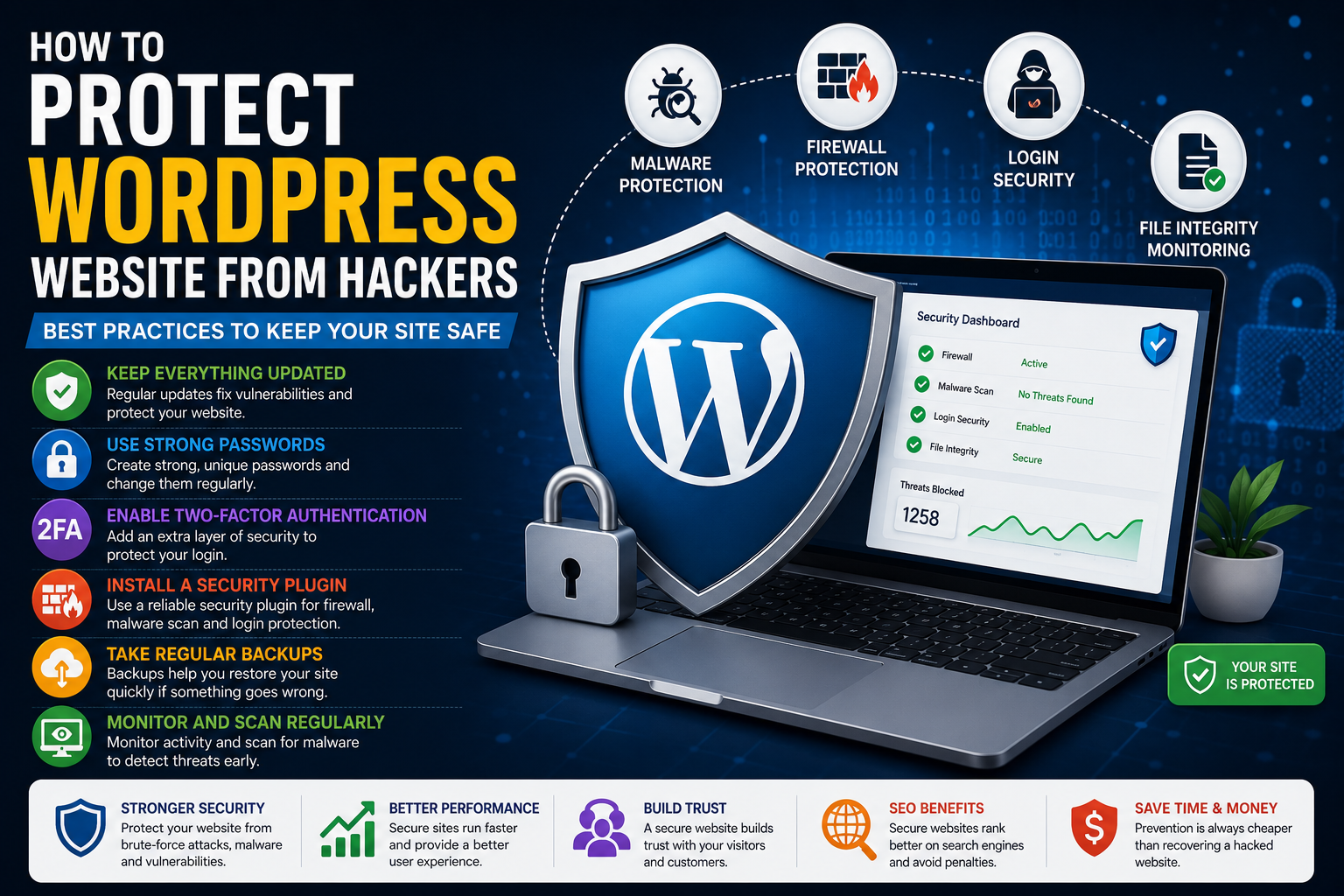
How to Protect a WordPress Website from Hackers
A hacked website can cause more than just temporary downtime. It can damage your search engine rankings, expose sensitive customer data, reduce visitor trust, and even affect your business revenue. Fortunately, protecting a WordPress website from hackers doesn't require advanced cybersecurity knowledge. By following proven security practices and using reliable tools, you can significantly reduce the risk of unauthorized access.
This guide explains the most effective ways to protect your WordPress website from hackers and keep your online presence secure.
Why Do Hackers Target WordPress Websites?
WordPress powers millions of websites around the world, making it one of the most attractive targets for cybercriminals. Most attacks are automated, meaning bots constantly search for websites with weak passwords, outdated plugins, vulnerable themes, or poor security settings.
Hackers may attempt to:
Steal customer information
Redirect visitors to malicious websites
Install malware
Send spam emails
Inject harmful code
Take control of administrator accounts
Damage your website's reputation
Understanding these risks is the first step toward better security.
1. Keep WordPress Updated
One of the simplest ways to stay protected is by keeping everything updated.
Always update:
WordPress Core
Plugins
Themes
Developers release updates to fix bugs and patch security vulnerabilities. Running outdated software gives attackers an easy entry point.
2. Use Strong Login Credentials
Weak usernames and passwords remain one of the leading causes of compromised websites.
Instead of common usernames like:
admin
administrator
user
Create unique usernames and strong passwords that include:
Uppercase letters
Lowercase letters
Numbers
Special characters
Never reuse passwords across multiple websites.
3. Enable Two-Factor Authentication
Two-factor authentication (2FA) adds another layer of security by requiring a second verification method after entering your password.
Even if an attacker discovers your password, they still cannot log in without the second authentication factor.
4. Install a Reliable Security Plugin
A trusted security plugin provides continuous protection by monitoring your website and blocking common threats.
Useful features include:
Firewall protection
Malware scanning
Login protection
File integrity monitoring
Activity logs
Real-time alerts
Security hardening
A security plugin works alongside WordPress to reduce your exposure to attacks.
Recommended Reading: Best WordPress Security Plugins
5. Limit Login Attempts
Automated bots often try thousands of password combinations within minutes.
Limiting failed login attempts helps prevent brute-force attacks by temporarily blocking suspicious users.
Many security plugins include this feature by default.
6. Secure Your Hosting Provider
Website security starts at the server level.
Choose a hosting provider that offers:
Web application firewall
Malware scanning
Automatic backups
DDoS protection
Server monitoring
Regular security updates
Reliable hosting provides a strong security foundation.
7. Scan Your Website for Malware
Malware often remains hidden until noticeable problems appear.
Regular malware scans help detect:
Infected files
Backdoors
Hidden scripts
Modified core files
Suspicious plugins
Early detection makes cleanup much easier.
8. Backup Your Website Frequently
Even with strong security, unexpected problems can occur.
Maintain regular backups of:
Files
Database
Media uploads
Website settings
Store backups securely outside your hosting account for added protection.
9. Remove Unused Plugins and Themes
Unused software increases the number of potential vulnerabilities.
Delete inactive:
Plugins
Themes
Demo content
Keeping your installation clean reduces unnecessary security risks.
10. Use HTTPS
An SSL certificate encrypts communication between your website and visitors.
HTTPS protects:
Login credentials
Payment information
Customer data
Contact forms
It also improves visitor confidence and contributes to better website security.
11. Monitor Website Activity
Monitoring helps identify unusual behavior before it becomes a major issue.
Watch for:
Failed logins
New administrator accounts
File modifications
Plugin installations
Suspicious IP addresses
Activity logs provide valuable insight into what's happening on your website.
12. Disable File Editing
WordPress allows administrators to edit theme and plugin files directly from the dashboard.
Disabling file editing reduces the risk of malicious code being added if an account is compromised.
13. Protect Your Database
Your WordPress database stores essential information including users, posts, settings, and orders.
Protect it by:
Using strong database credentials
Restricting access
Creating regular backups
Following secure hosting practices
Database security is just as important as website security.
14. Keep Administrator Accounts Limited
Only trusted individuals should have administrator access.
Review user accounts regularly and remove:
Inactive users
Unnecessary administrator accounts
Test accounts
Assign users only the permissions they actually need.
15. Stay Informed About Security Updates
Cybersecurity evolves continuously.
Follow updates from trusted WordPress developers and plugin authors so you can quickly apply important security patches.
Being proactive is far more effective than reacting after an attack.
Warning Signs Your Website May Be Hacked
Watch for these common indicators:
Slow website performance
Unexpected redirects
Unknown administrator accounts
Strange pop-ups
Browser security warnings
Spam emails sent from your domain
Missing content
Unusual server activity
Investigate any suspicious behavior immediately.
Common Mistakes That Make Websites Vulnerable
Avoid these common errors:
Ignoring updates
Weak passwords
No backups
Downloading nulled plugins
Using unsupported themes
Sharing administrator accounts
Ignoring security alerts
Installing multiple conflicting security plugins
Good security habits greatly reduce your risk.
WordPress Security Checklist
Before publishing or maintaining your website, confirm that you have:
✔ Updated WordPress
✔ Updated Plugins
✔ Updated Themes
✔ Strong Passwords
✔ Two-Factor Authentication
✔ Security Plugin Installed
✔ SSL Certificate
✔ Regular Backups
✔ Malware Scanning
✔ Firewall Enabled
✔ Login Protection
✔ Secure Hosting
✔ Activity Monitoring
✔ Limited Administrator Accounts
✔ File Integrity Monitoring
Final Thoughts
Hackers continuously look for vulnerable websites, but most attacks can be prevented with proper preparation.
Keeping your website updated, using strong authentication, performing regular backups, installing a trusted security plugin, and monitoring suspicious activity create multiple layers of protection that make your website far more difficult to compromise.
Website security is an ongoing process, not a one-time task. Investing a little time in prevention today can save countless hours of recovery later.
Protect your website, your visitors, and your business by making security part of your regular maintenance routine.
Frequently Asked Questions
Can WordPress websites be hacked?
Yes. Like any software, WordPress websites can be targeted if they use outdated software, weak passwords, or poor security practices.
What is the best way to stop hackers?
Use a layered approach that includes updates, strong passwords, firewalls, malware scanning, backups, and secure hosting.
Do hackers target small websites?
Yes. Automated bots scan websites of every size looking for vulnerabilities.
How often should I back up my website?
Business and eCommerce websites should back up daily, while smaller websites should back up regularly based on how often content changes.
Does installing a security plugin completely stop hackers?
No single tool can guarantee complete protection. Security plugins work best when combined with good security practices and regular maintenance.
Comments (0)